

Page 1
PRODUCT MANUAL
APC215PC All InOne PC
a highly integrated touch-screen personal computer
Notes, cautions, and warnings
NOTE: A NOTE indicates important information that helps you make better
use of your computer.
CAUTION: A CAUTION indicates either potential damage to hardware or loss
of data and tells you how to avoid the problem.
WARNING: A WARNING indicates a potential for property damage, personal
injury, or death.
Page 2
Before working inside your
computer
CAUTION: To avoid damaging the components and cards, handle
them by their edges and avoid touching pins and contacts.
NOTE: The images in this document may differ from your computer
depending on the configuration you ordered.
Before you begin
1 Save and close all open files and exit all open applications.
2 Shut down your computer.
– Windows 10: Click or tap Start → Power → Shut down.
– Windows 8.1: On the Start screen, click or tap the power icon →
Shut down.
– Windows 7: Click or tap Start → Shut down.
NOTE: If you are using a different operating system, see the
documentation of your operating system for shut-down
instructions.
3 Disconnect your computer and all attached devices from their electrical
outlets.
4 Disconnect all cables such as telephone cables, network cables and so
on, from your computer.
5 Disconnect all attached devices and peripherals, such as keyboard,
mouse, monitor, and so on, from your computer.
6 Remove any media card and optical disc from your computer, if
applicable.
7 After the computer is unplugged, press and hold the power button for 5
seconds to ground the system board.
CAUTION: Place the computer on a flat, soft and clean surface to
avoid scratching the display.
8 Place the computer face down.
Page 3
Safety instructions
Use the following safety guidelines to protect your computer from potential
damage and ensure your personal safety.
WARNING: Before working inside your computer, read the safety
information that shipped with your computer.
WARNING: Disconnect all power sources before opening the
computer cover or panels. After you finish working inside the
computer, replace all covers, panels, and screws before connecting to
the power source.
CAUTION: To avoid damaging the computer, ensure that the work
surface is flat and clean.
CAUTION: To avoid damaging the components and cards, handle
them by their edges and avoid touching pins and contacts.
CAUTION: You should only perform troubleshooting and repairs as
authorized or directed by our technical assistance team. Damage
due to servicing that is not authorized by our is not covered by your
warranty.
CAUTION: Before touching anything inside your computer, ground
yourself by touching an unpainted metal surface, such as the metal at
the back of the computer. While you work, periodically touch an
unpainted metal surface to dissipate static electricity, which could
harm internal components.
CAUTION: When you disconnect a cable, pull on its connector or on
its pull tab, not on the cable itself. Some cables have connectors with
locking tabs or thumb-screws that you must disengage before
disconnecting the cable. When disconnecting cables, keep them
evenly aligned to avoid bending any connector pins. When connecting
cables, ensure that the ports and connectors are correctly oriented
and aligned.
CAUTION: Press and eject any installed card from the media-card
reader.
Page 4
Technical overview
WARNING: Before working inside your computer, read the safety
information that shipped with your computer and follow the steps in
Before working inside your computer
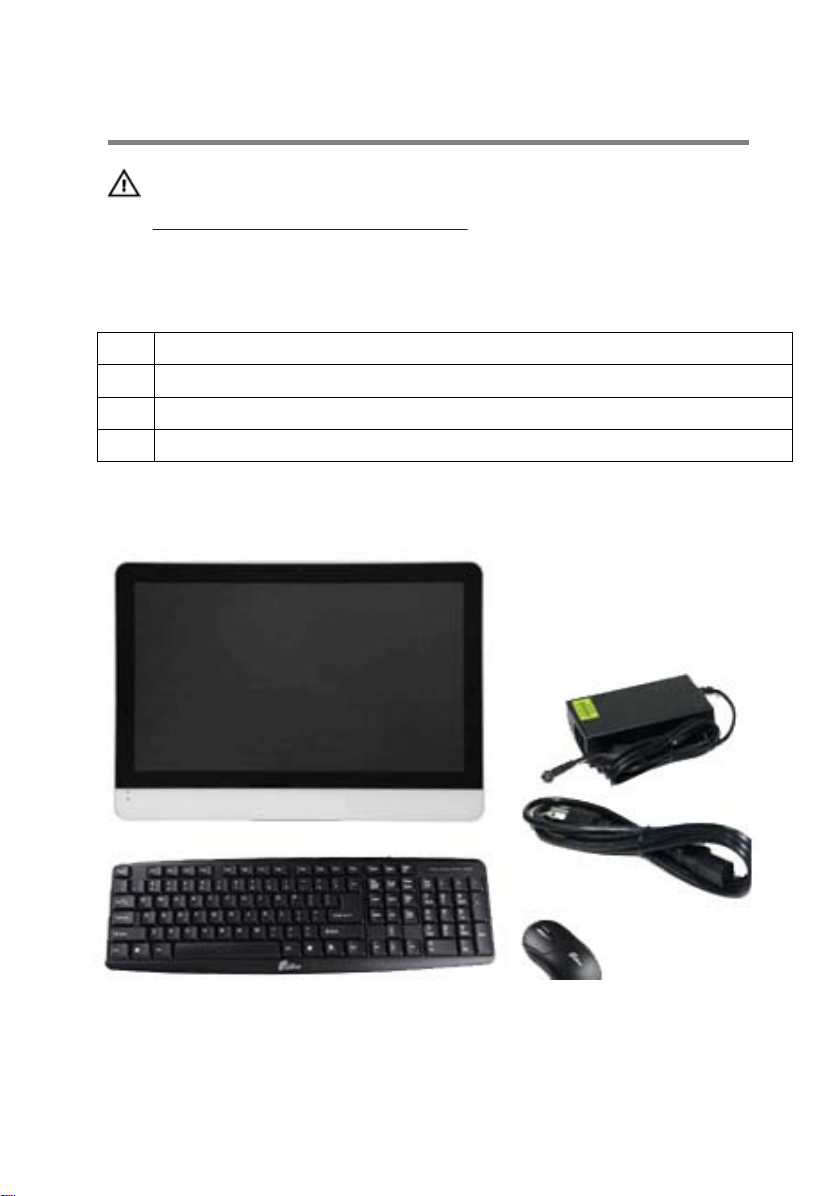
Packing List
One APC215PC
□
□
One Power Adapter (Input AC100-240V 50/60 Hz; Output DC12V 3A)
One Power Cord (by country)
□
K eyboard/Mouse
□
APC215PC and Accessories
Page 5
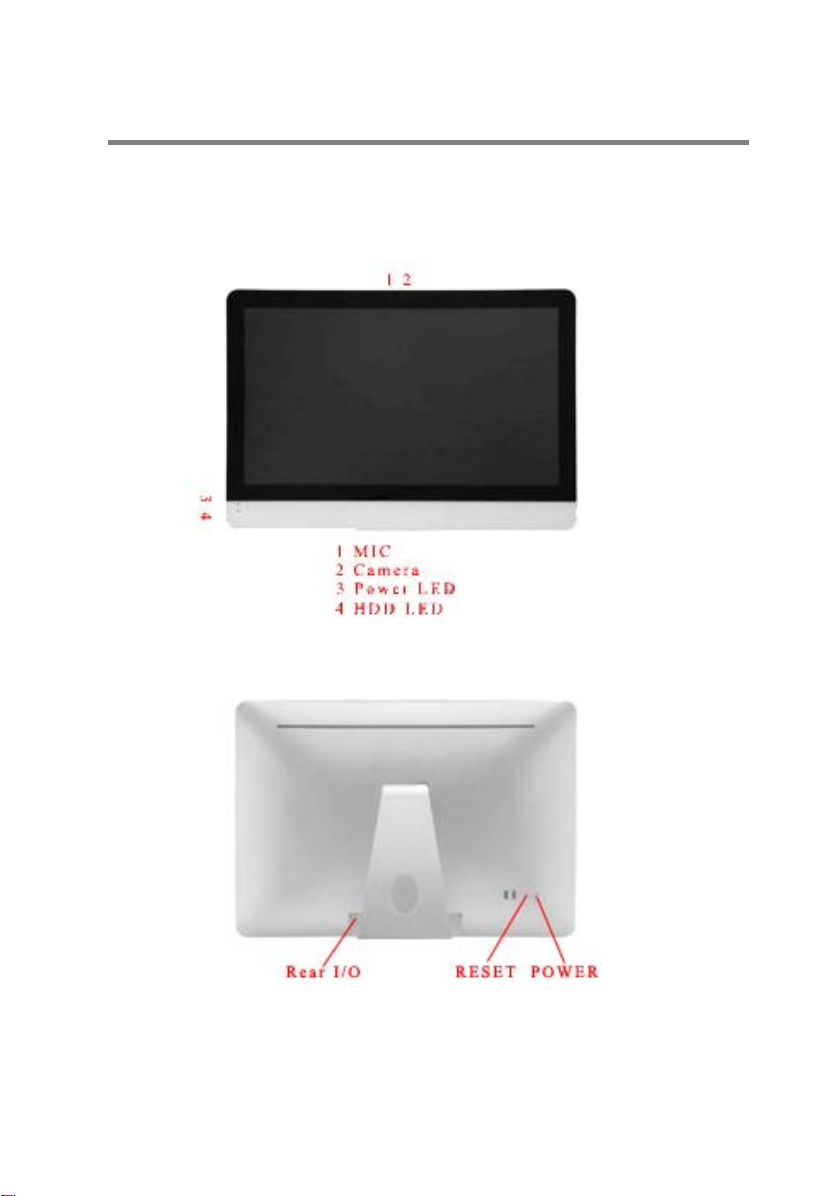
Technical overview
IO Specification
Front View of APC215PC
Rear View of APC215PC
Page 6
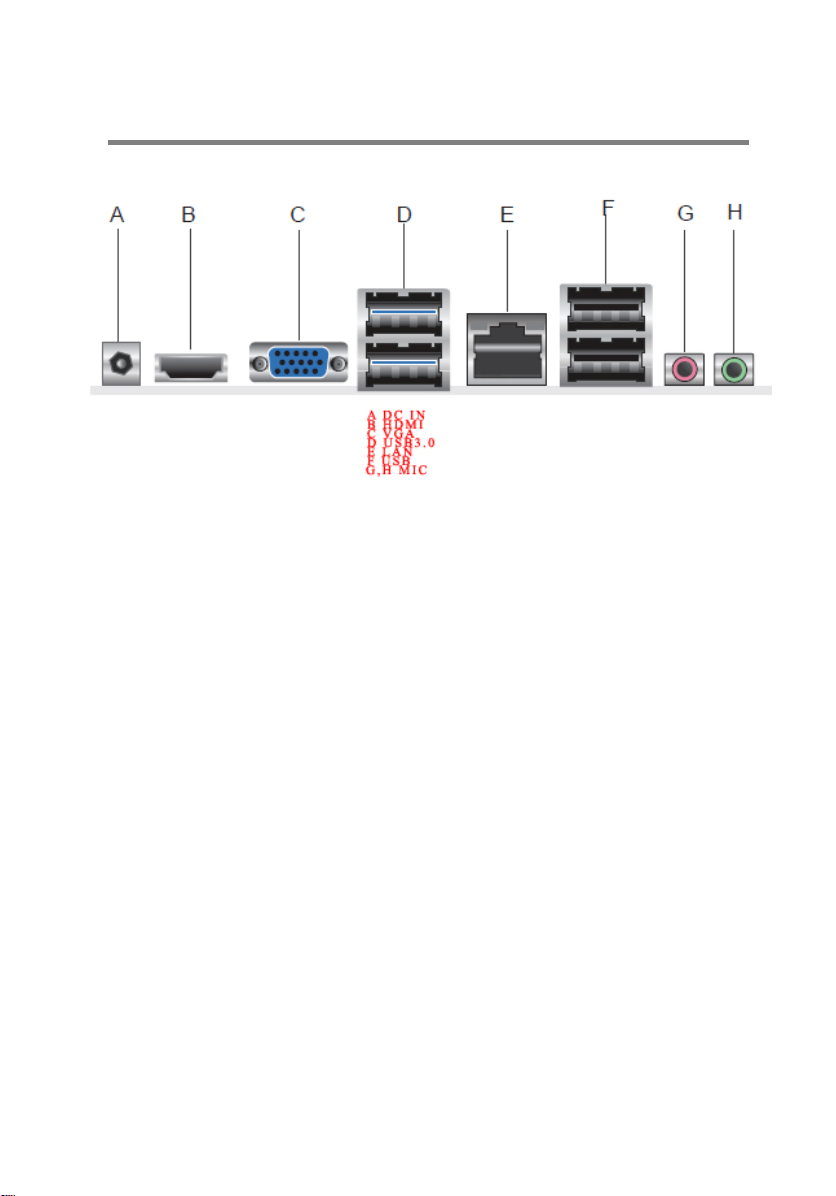
Technical overview
View from Rear I/O
Page 7
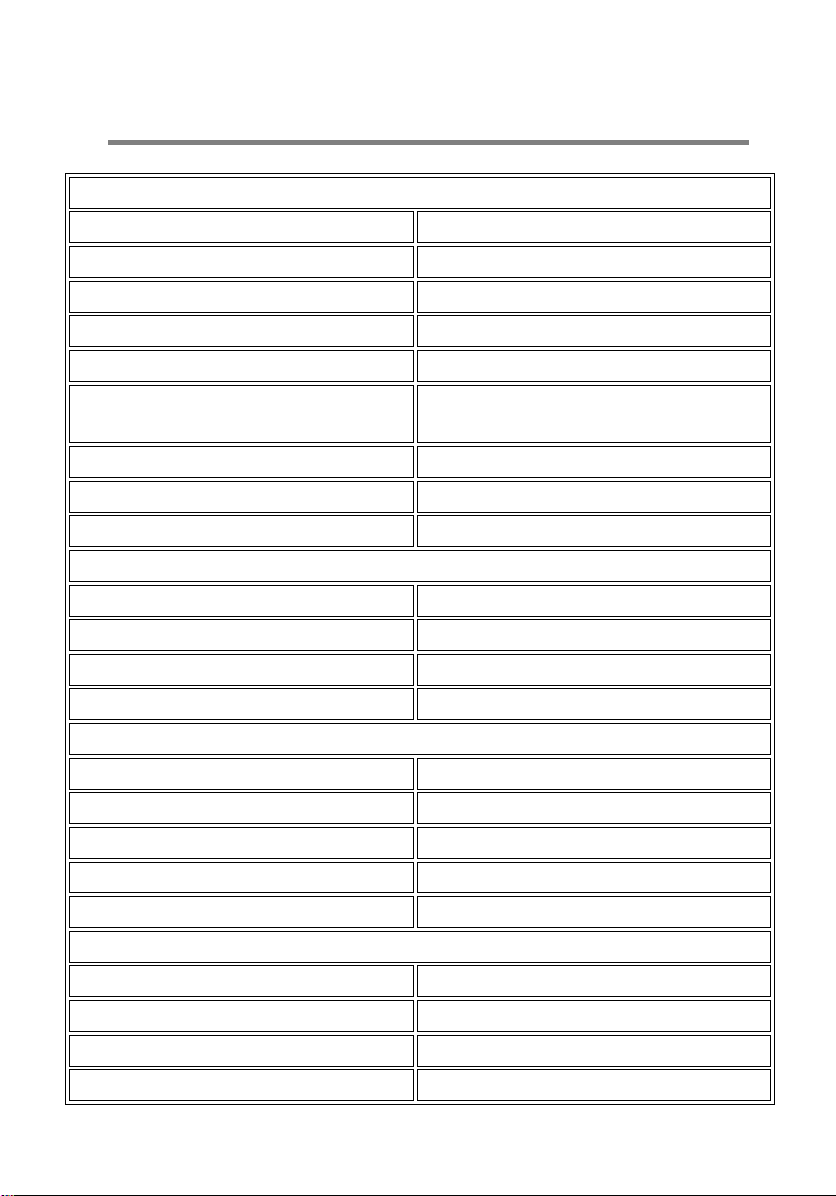
Specifications
Base Features
Processor Type
Processor Speed
Processor Cores
RAM
Hard Drive Capacity
Hard Drive Speed (Revolutions Per
Minute)
Optical Drive
Graphics Card
Pre-loaded Operating System
Graphics
Dedicated Video Memory
Shared Video Memory
Video Memory
TV Tuner
Intel(R) Celeron(R) j1900
1.99GHz
4
2GB DDR3 SDRAM PC3-12800
32GB SSD
NA
No
Intel(R) HD Graphics
Windows 7
No
768 MB
NA
No
Display
Built-in Monitor
HDCP Compliant
Screen Size/Type
Native Screen Resolution
Touch screen Display
Yes
NA
21.5 Inch LED Backlit
1920 x 1080
No
Audio
Sound Card
Audio Output
Speakers
Speaker Wattage
NA
DTS Sound+
Integrated speakers
3W
Page 8
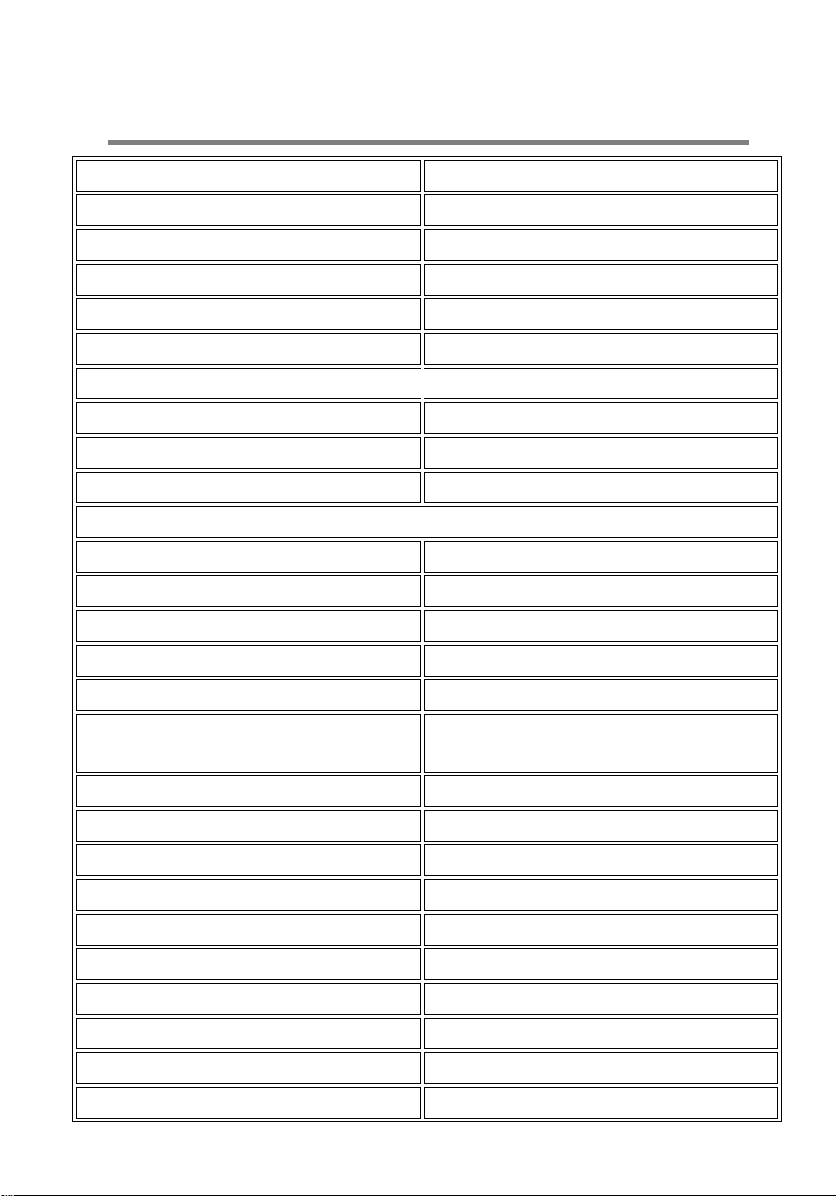
Specifications
Integrated Microphone
Microphone Input
Line-In Input
Line Out
Digital Input
Digital Output
1 x Front
No
No
1 x Bottom
No
1 x Bottom
Networking
Ethernet Port
Integrated WiFi
Integrated Bluetooth
10/100/1000
802.11b/g/n
No
Inputs & Outputs
Webcam
keyboard
Mouse
Remote
Modem
USB Ports
FireWire (IEEE 1394)
Card Reader
E-SATA
VGA Output
DVI Output
HDMI Output
Component Output
S-Video Output
Composite Output
Other Input or Output Ports
Yes
Wireless
Optical
No
No
6 (2 x USB 3.0 Bottom; 2 x USB 2.0
Bottom; 2 x USB 2.0 Back)
No
No
No
Yes
No
Yes
No
No
No
No
Page 9
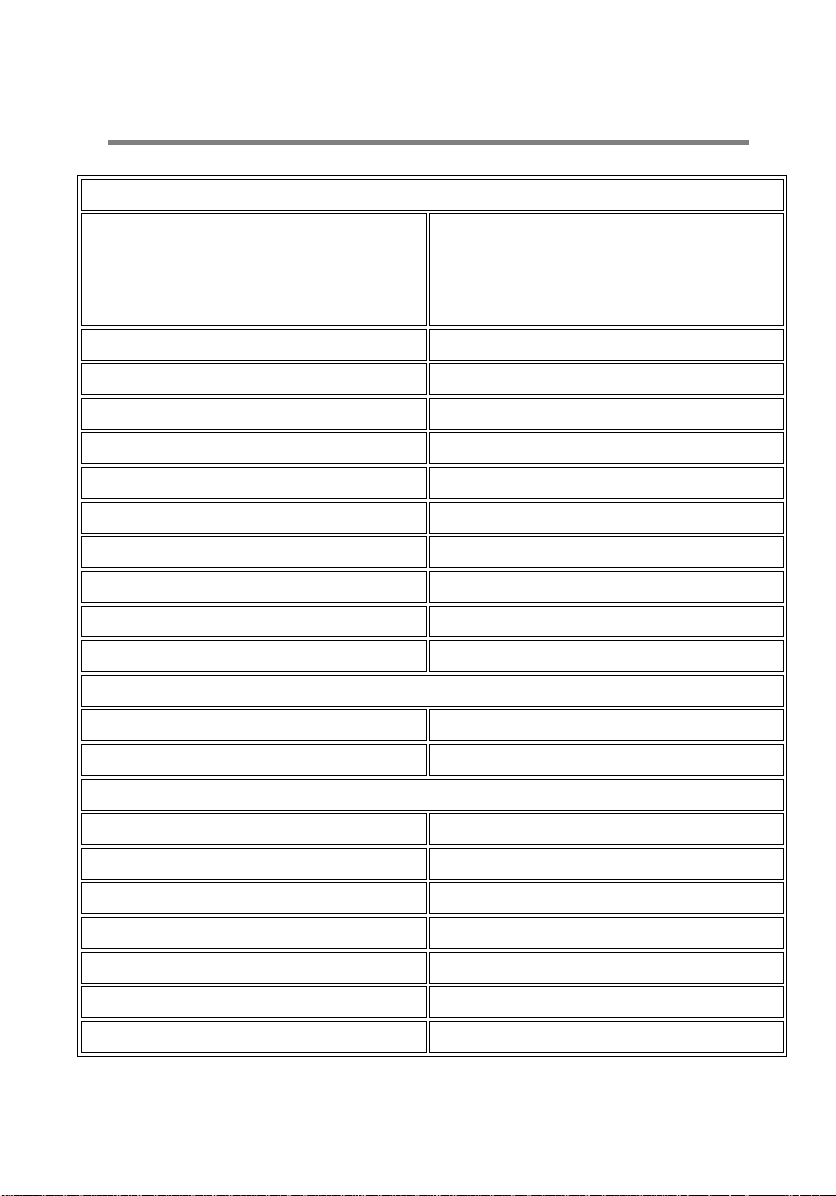
Specifications
Computing Features
Processor Cache
- L1 Instruction Cache: 8 x 32 kB
- L1 data cache: 8 x 24 kB
- L2 cache: 2 x 1024 kB
- L3 cache: Not applicable
System Bus
Available Hard Drive Bays
Available Optical Bays
Available PCIe Slots
Available PCI Slots
Available AGP Slots
Available Memory Slots
Removable Storage
Power Supply
Energy Star qualified
Software
Operating System Language
Loaded Software
Product Features
Colour
Width
Height
Depth
Weight
Warranty Labour
Warranty Parts
NA
NA
NA
No
No
No
2 SoDIMM (DDR3) (1 Available)
No
90 W
Yes
English
No
Silver/White/Black
540mm
370mm
35mm
5 kg
1 Year(s)
1 Year(s)
Page 10

Statement
FCC Statement
This device complies with Part 15 of the FCC rules. Operation is subject to the
following two conditions: 1) this device may not cause harmful interference,
and 2) this device must accept any interference received, including interference that may cause undesired operation.
Note: This equipment has been tested and found to comply with the limits
for a Class B digital device, pursuant to part 15 of the FCC Rules. These
limits are designed to provide reasonable protection against harmful interference in a residential installation. This equipment generates uses and
can radiate radio frequency energy and, if not installed and used in
accordance with the instructions, may cause harmful interference to
radio communications. However, there is no guarantee that interference
will not occur in particular installation. If this equipment does cause harmful
accordance with the instructions, may cause harmful interference to
interference to radio or television reception, which can be determined by turning
the equipment off and on, the user is encouraged to try to correct the interference
by one or more of the following measures:
--Reorient or relocate the receiving antenna.
--Increase the separation between the equipment and receiver.
--Connect the equipment into an outlet on a circuit different from that to
which the receiver is connected.
--Consult the dealer or an experienced radio/TV technician for help.
Changes or modifications not expressly approved by the party responsible for
compliance could void the user’s authority to operate the equipment.
This equipment complies with FCC radiation exposure limits set forth for an
uncontrolled environment. User should avoid un-intended operation of usage
when it is collocated with other transmitters or antenna.
CE Statement
This product is in compliance with the essential requirements and other relevant
provisions of Directive 1999/5/EC. The declaration of conformity may be
consulted at HONGKONG AIOPC TECHNOLOGY CO., LIMITED, 5th Floor Building 2
Huiye Technology Park, Tangtou Road, Shiyan Street, Bao'an District, Shenzhen,
Guang Dong, China
 Loading...