

Page 1
QUICK GUIDE
Connecting your PTT Voice Responder
to Zello (iOS) (EN)
Page 2
Pairing your PTT Voice Responder with
your iPhone via Bluetooth
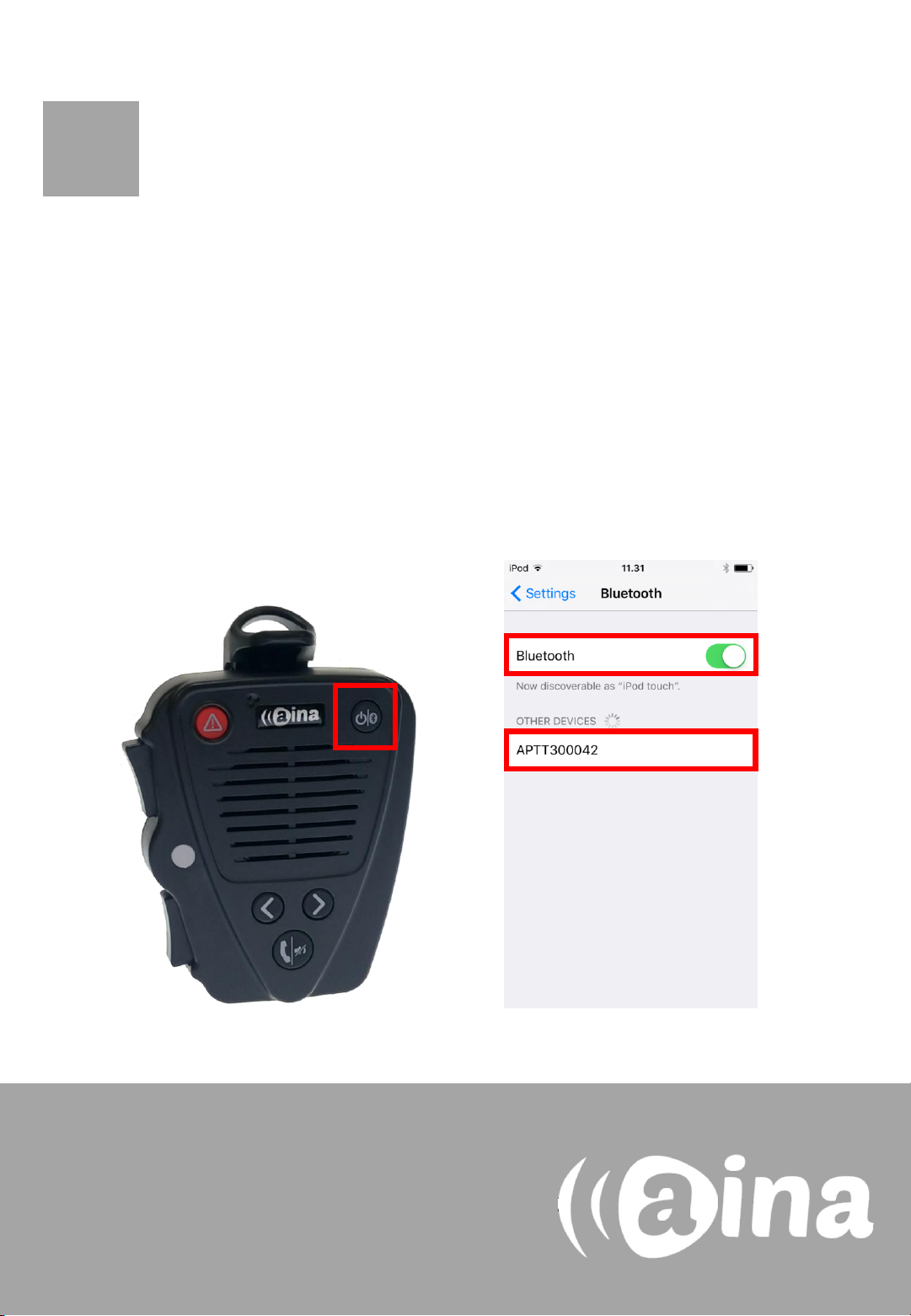
1. Turn on your PTT Voice Responder by holding down the Power
button for more than 3 seconds. After it is on, a blinking green light
will indicate that the device is ready for pairing.
2. Turn on your iPhone’s Bluetooth by going to: Settings —> Bluetooth
—> Turn on.
3. Pair your PTT Voice Responder to your iPhone by selecting it from
the Devices list. To know which device to select from the list, check
the unique MAC-address on the back of your Voice Responder.
Once it has successfully paired, a blue light will begin blinking on
your device.
NOTE: The Voice Responder can only be paired
with one device at a time. If you want to pair it
to another device you need to perform an
Unpairing/ Software reset by pressing and
holding both soft buttons and both PTT buttons
simultaneously, until the LED blinks once in
yellow.
1.
2.
3.
A
Page 3
Installing the Zello application into your
iPhone
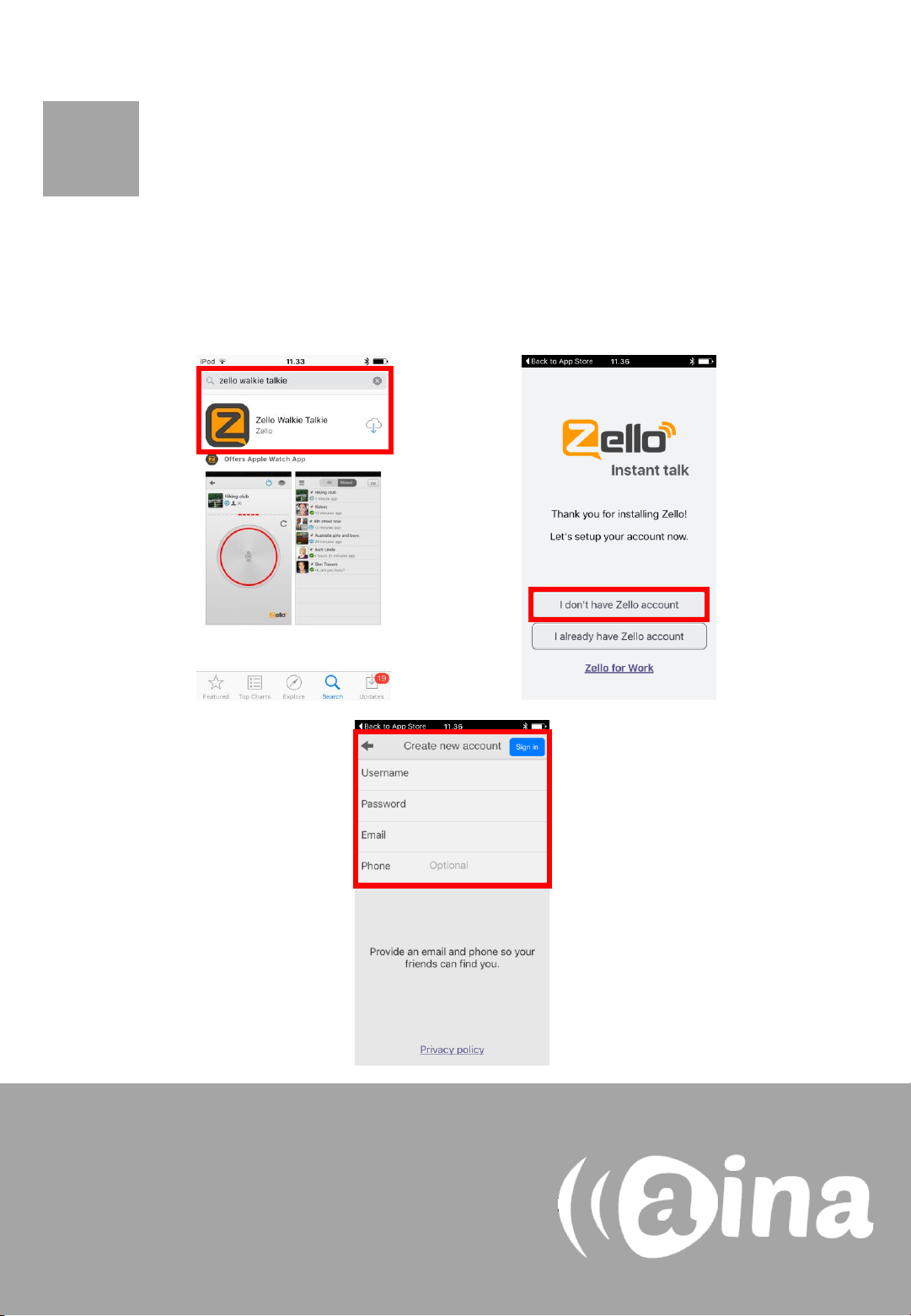
4. From your iPhone, go to the iTunes App Store, search for the
application called Zello Walkie Talkie and install it.
5. Open the application and create a new account with Zello (5a/ 5b).
4.
5a.
5b.
If you already have downloaded the Zello
application and have an existing Zello account,
simply log in with your username and password.
B
Page 4
Enabling your PTT Voice Responder
within Zello
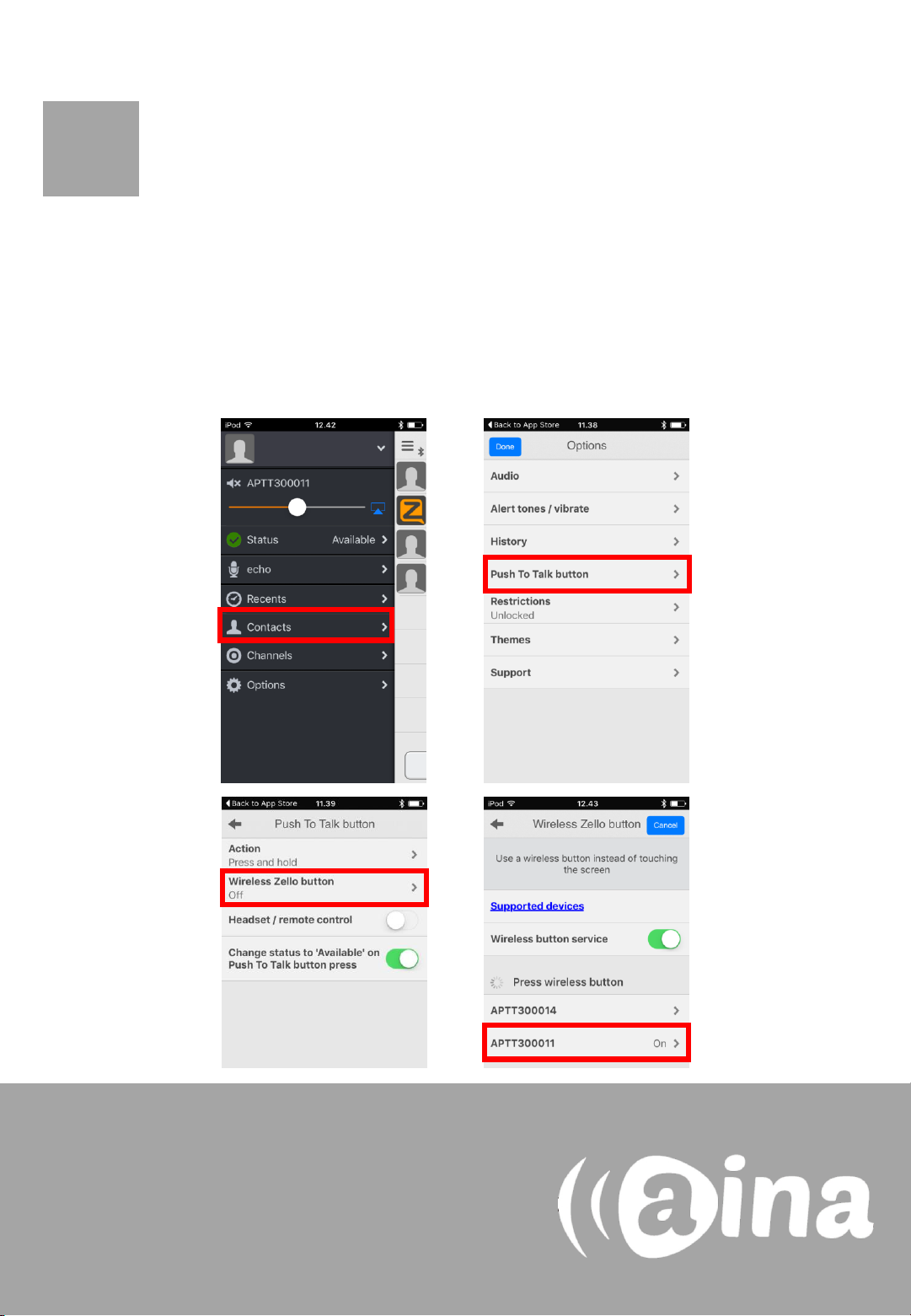
6. In the Zello application, select the three horizontal lines displayed
on the top left corner, and from the list select Options.
7. Select ’Push to talk button’.
8. Select ’Wireless Zello button’.
9. Turn this function on and select your device from the list.
6.
7.
If you cannot find your PTT Voice Responder
from the list, make sure that your Voice
Responder is still connected to your iPhone via
Bluetooth (the LED should be blinking in blue). If
it is not, perform part A again.
C
8.
9.
Page 5
Using your AINA PTT Voice Responder with
Zello
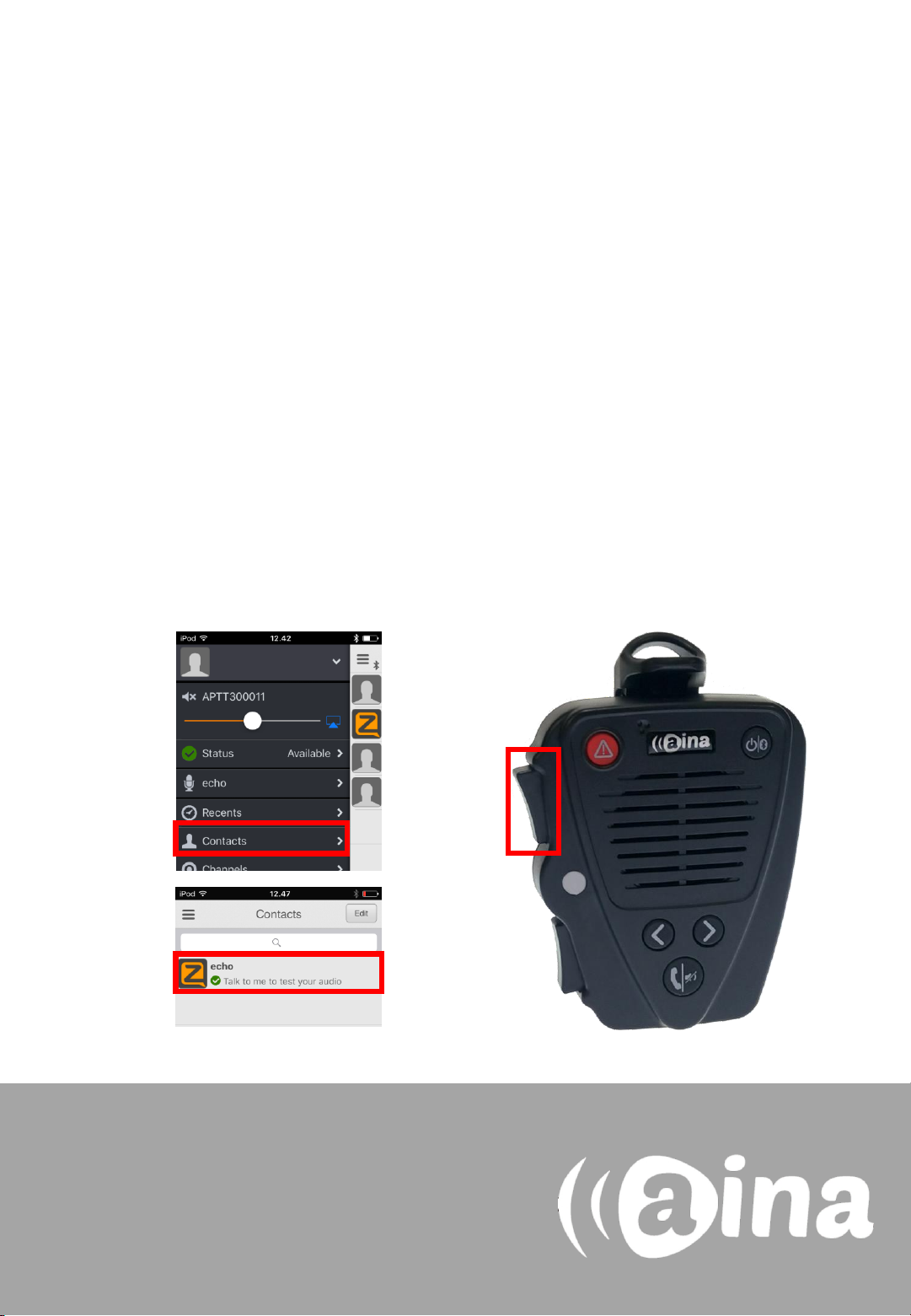
To get to know how your Voice Responder works and sounds with Zello,
you can use the ’echo’ contact that is automatically included in your Zello
contacts list.
1. In the Zello application, select the three horizontal lines displayed
on the top left corner, and from the list select Contacts.
2. In the Contacts menu, select ’echo’.
3. Press and hold the primary PPT button on your Voice Responder.
After the audio indication, speak into your Voice Responder. When
you are done, release the button.
4. Your message will be played back to you from your device’s
speaker.
3.
For more information on how to use the Zello
application please visit their website:
www.zello.com
1.
2.
Page 6
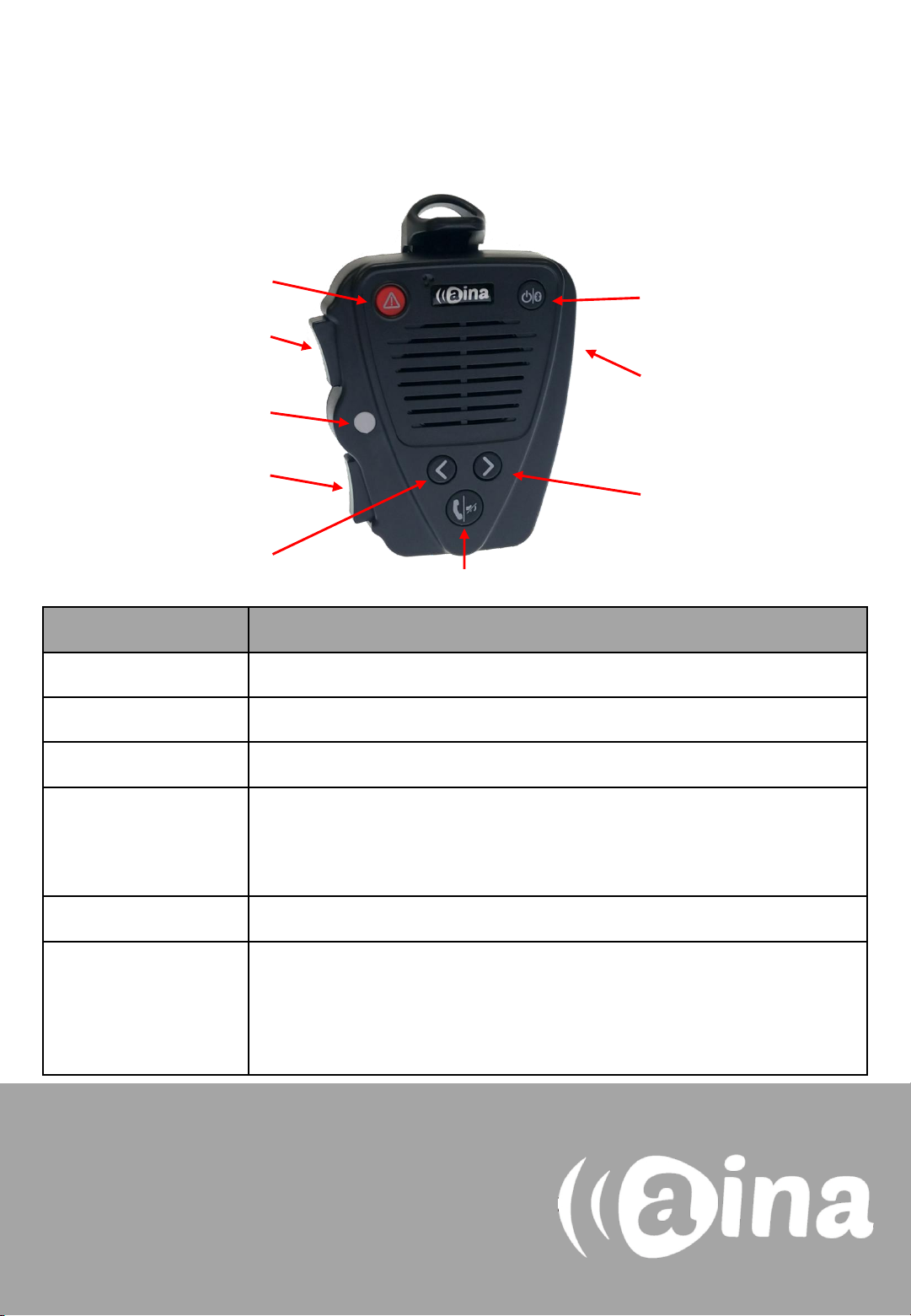
AINA PTT Voice Responder’s main button
functions when connected to Zello
Power
ON/ OFF
Primary
PTT
Volume
buttons
Soft button
(left)
Soft button
(right)
Answer/ end call
Secondary
PTT
LED
Button Function
Power ON/ OFF Press for more than 3 seconds to turn the device on/off.
Emergency Press to send a call alert to a Zello contact.
Primary PTT Press and hold to speak. Release when you are done.
Secondary PTT Press to communicate with a pre-assigned contact/ channel. Assign the
secondary PTT button by selecting a user or channel on Zello, hold down
the primary PTT button and then hold down the secondary PTT button
for a few seconds. Finally, release both buttons.
Volume buttons Press and hold to increase/ decrease the speaker’s volume.
Soft buttons • Press either soft button to change contact/ channel.
• Press and hold the left soft button to (de)activate the LED.
• Press and hold both soft buttons to (de)activate Covert Mode in
which LED indications are suppressed and audio annunciations are
only delivered through a headset.
Visit www.aina-wireless.com to find additional
accessories, an extended user manual of the
AINA PTT Voice Responder and more user
guides. If you have any further questions, you
can also email us at:
Emergency
 Loading...