

Page 1

Version 2.1
Installation and User Guide
May 29, 2013
Page 2
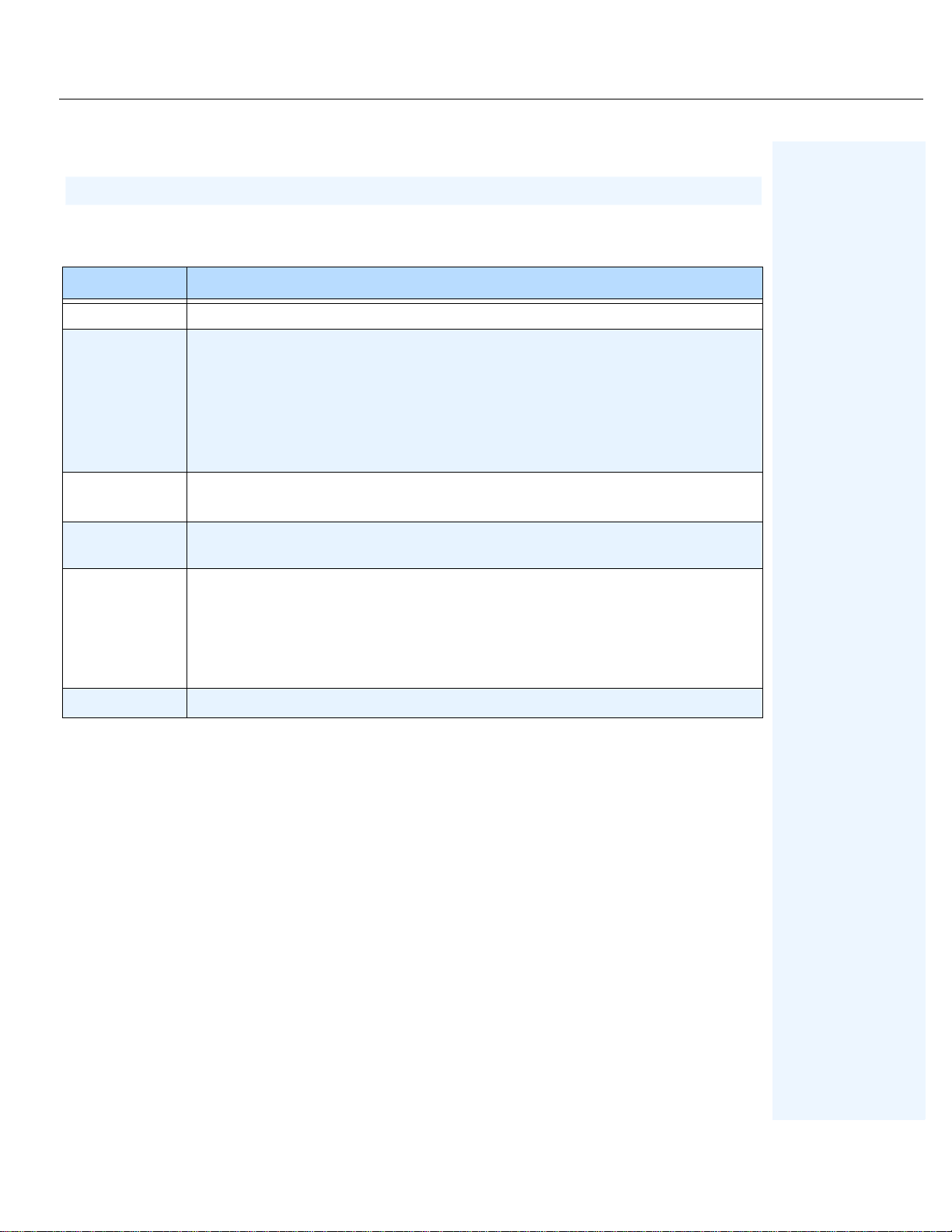
Date Description
Document History
Document History
Table 1. Changes to this guide
May 29, 2013
May 8, 2013
March 26, 2012
December 23,
2011
May 5, 2011
April 1, 2001
• Added title page, pref ace, and table of contents to this manual.
• “Important: Aimetis People Counter 2.1 is compatible only with Axis cameras
based on the ARTPEC-4 CPU (chip) and that support ACAP (AXIS Camera
Application Platform ). Ai met is Peopl e Cou nte r 2 . 0 i s co mpati bl e only with Axis
cameras based on the ARTPEC-3 CPU (chip) and that support ACAP (AXIS
Camera Application Platform).” on page 2
• Fixed typo on page 16.
• How to reset counters - sample code: “Command for resetting counters” on page
36
• Aimetis People Counter 2.1 works on Axis devices based on ARTPEC
• Clarified content in “How to Use the Advanced Options” on page 17
• Clarified and added content in Table 6, "How to resolve issues," on page 21:
“CPU is too busy message” on page 22 and in Example “CPU is too busy
message. The Aimetis People Counter is sl ow when gene rati ng repor ts.” on page
23
First instance of this guide.
Document History
ii
Page 3
Conventions Preface
Preface
Conventions
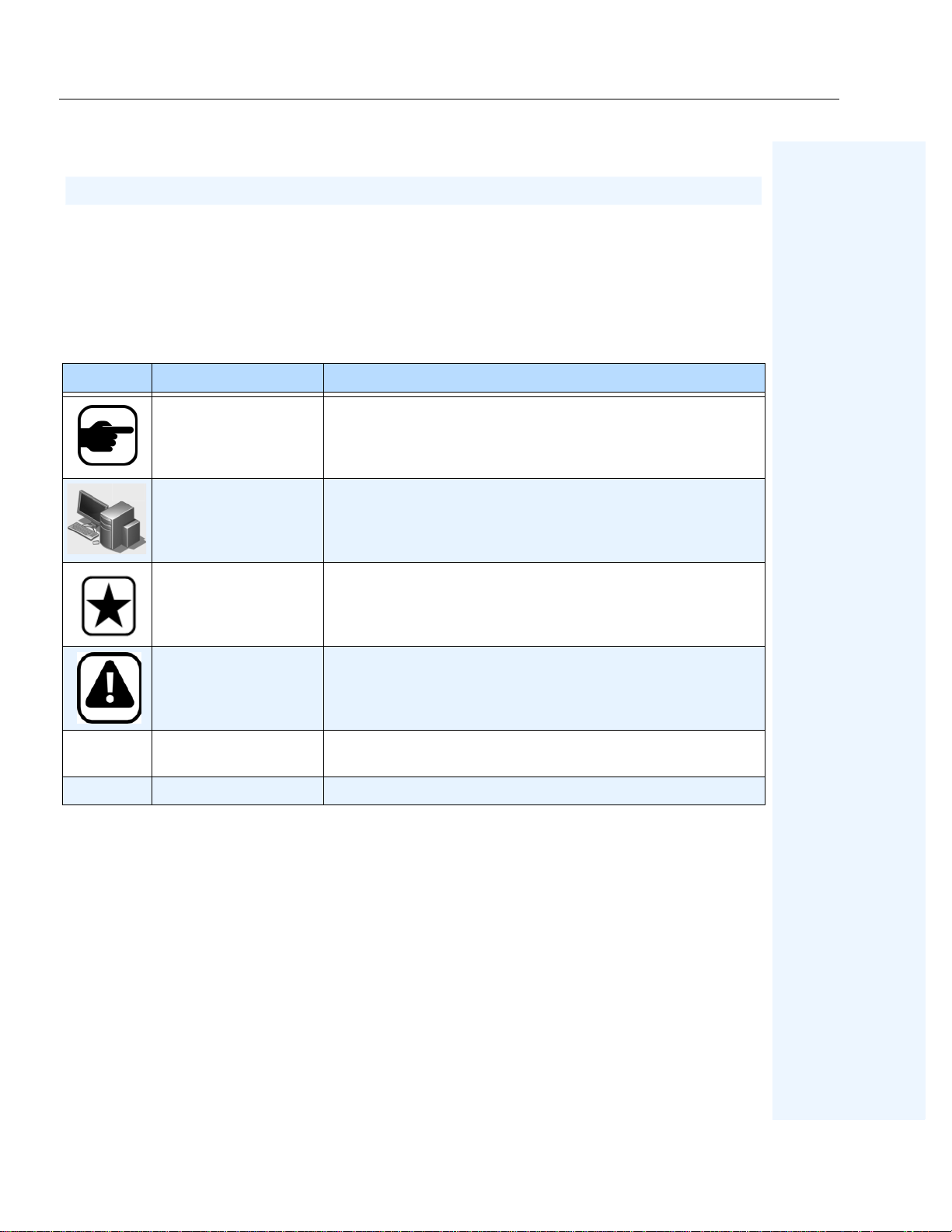
Table 1. Symbols and formatting used in this manual
Icon Caption/Format Description
Additional information.
Note
Example scenario.
Example
Important
Caution
Bold, Arial Font
Italic, Arial Emphasis, new term, or an external reference.
Vital additional instructions or links.
You could lose recording footage or you must pay close attention to
setting changes.
Graphic User Interface term (button, menu, window, option) or
keyboard item.
Preface
iii
Page 4
Document Suite Preface
Document Suite
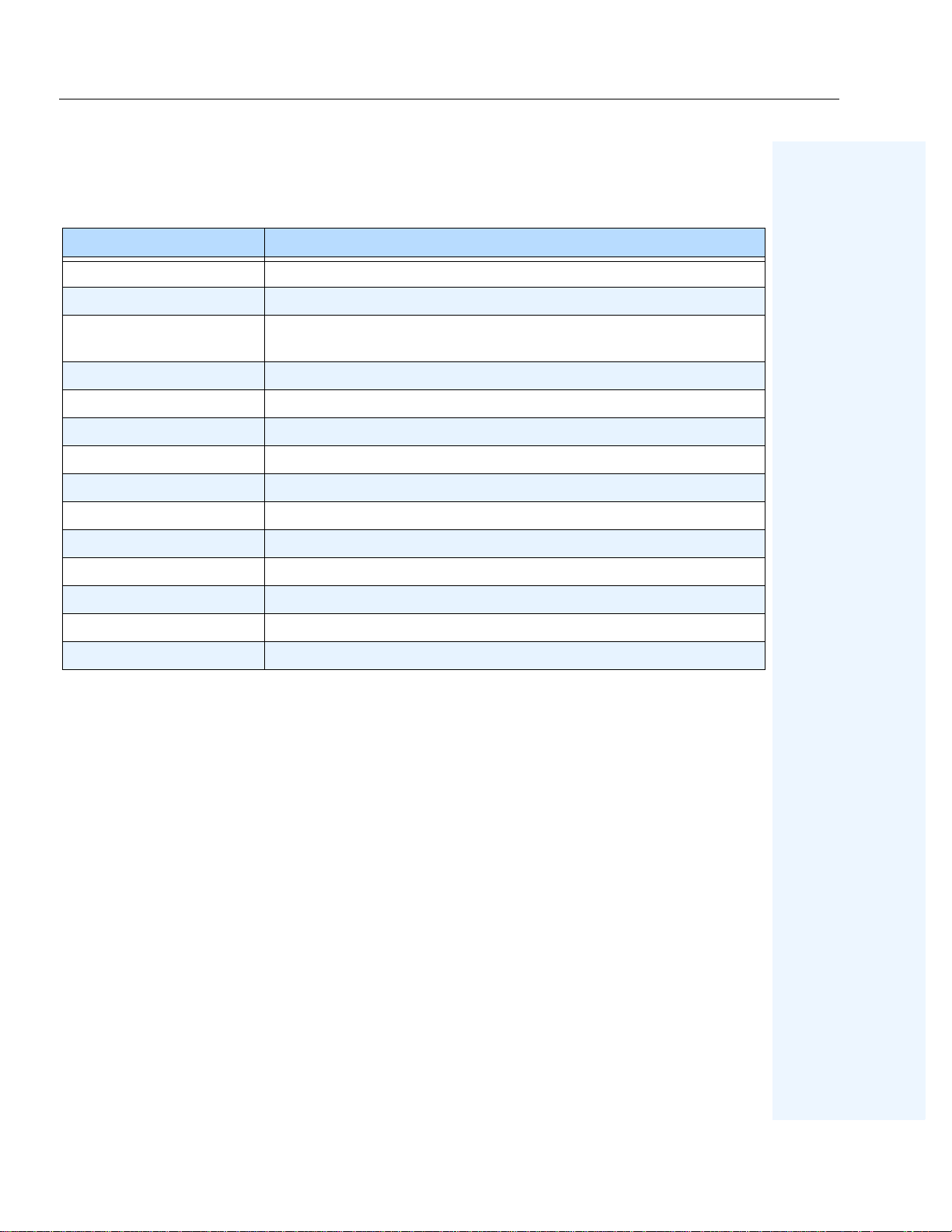
Table 2. Aimetis documents and videos
Document Name Links
Symphony Release Notes https://www.aimetis.com/Xnet/downloads/documentation.aspx
Symphony Installation Guide https://www.aimetis.com/Xnet/downloads/documentation.aspx
Symphony Administration
Guide
https://www.aimetis.com/Xnet/downloads/documentation.aspx
Symphony Analytics Guide https://www.aimetis.com/Xnet/downloads/documentation.aspx
Symphony Client User Guide https://www.aimetis.com/Xnet/downloads/documentation.aspx
Knowledge Base Articles http://www.aimetis.com/Support/knowledgebase.aspx
Case Studies http://www.aimetis.com/Solutions/customers-case-studies.aspx
White Papers http://www.aimetis.com/Solutions/whitepapers.aspx
Application Video Samples https://www.aimetis.com/Xnet/Marketing/collateral-library.aspx
Recorded Webinars http://www.aimetis.com/Events/webinars.aspx
Product Tour https://www.aimetis.com/Xnet/Marketing/collateral-library.aspx
Supported Video Devices List http://www.aimetis.com/Support/supported-video-devices.aspx
Licensing http://www.aimetis.com/Symphony/default--licensing.aspx
FAQ https://www.aimetis.com/Xnet/Support/faqs.aspx
Preface
iv
Page 5
Aimetis Xnet Portal Preface
Aimetis Xnet Portal
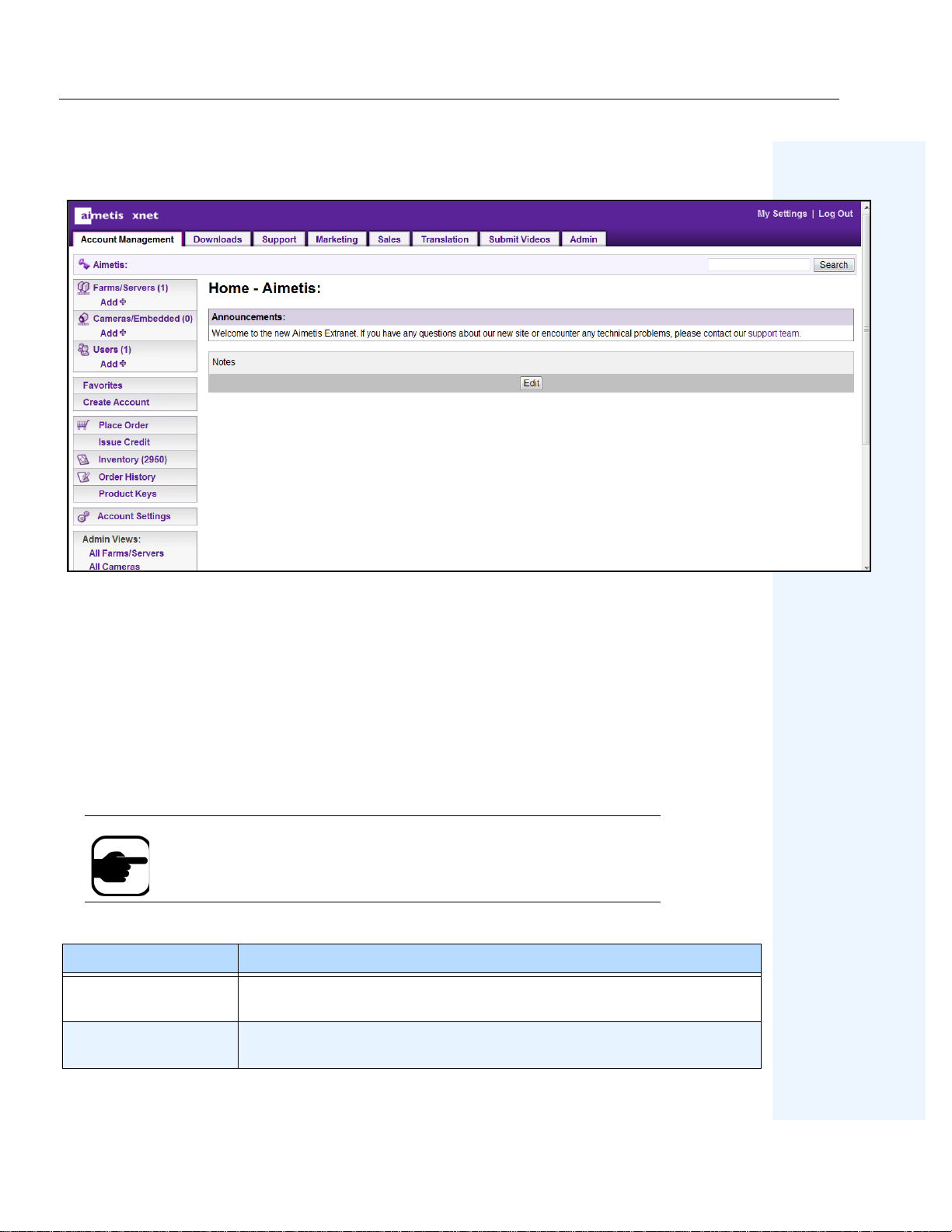
Figure 1. Aimetis Xnet home page
Xnet is the Aimetis Online Portal: www.aimetis.com/Xnet
You can :
•Order Licenses
• Manage Sub-Partner Accounts
• Access Technical Support & Downloads
• Access Sales & Marketing Tools
• Access Aimetis Software Translation
Note:
Access to tools depends on account type, for example, Distributor,
Certified Partner, Authorized Partner, End-User. For instructions, see Tab le 3 on
page v.
Table 3. Instructions for using the Xnet
Xnet Instructions Links
Xnet Training Manual -
https://www.aimetis.com/Xnet/Marketing/collateral-library.aspx
Resellers
Recorded Webinar - Xnet
Training - Distributors
https://www.aimetis.com/Xnet/Marketing/collateral-library.aspx
Preface
v
Page 6
Aimetis Xnet Portal Preface
Table 3. Instructions for using the Xnet
Xnet Instructions Links
Recorded Webinar - Xnet
Training - Channel
https://www.aimetis.com/Xnet/Marketing/collateral-library.aspx
Partners
Xnet Training Manual Distributors
Aimetis Symphony
Architectural and
Engineering Specification
Hardware Benchmarks
guidelines for 10, 20, 40
and 200 camera systems.
https://www.aimetis.com/Xnet/Marketing/collateral-library.aspx
https://www.aimetis.com/Xnet/Marketing/collateral-library.aspx
https://www.aimetis.com/Xnet/Marketing/collateral-library.aspx
Preface
vi
Page 7
Contact Us Preface
Contact Us
Table 4. Contact links, addresses, phone numbers
Contact Type Description
About Aimetis http://www.aimetis.com/Company/default.aspx
Contact link http://www.aimetis.com/Company/contact.aspx
Support link http://www.aimetis.com/Support/default.aspx
Aimetis Headquarters
500 Weber Street North
Americas
EMEA
Waterloo, Ontario, Canada
N2L 4E9
Phone: +1866-544-2804 or +1 519-746-8888
Fax: +1 519-746-6444
Aimetis GmbH
Am Prime Parc 7
65479 Raunheim
Germany
Telefon: +49 (0) 6142 207 98 60
Fax: +49 (0) 6142 207 98 89
www.aimetis.de
Asia - Pacific
Aimetis China
Rm. 1328 Yunsun Tower
2025 Zhongshan West Road
Xuhui, Shanghai
China 200235
Phone: 86-21-6182-6916
Fax: 86-21-6182-6777
Preface
vii
Page 8

Table of Contents
Overview ................................................................................................................... 1
Installation ................................................................................................................ 2
Licensing . ........................ ......................... ........................ ...................... .................... 3
Moving from Trial Licence to Full License .................................................................. 4
Camera Setup ...........................................................................................................8
How to Access Aimetis People Counter Application on Your Camera ............10
How to Use the Aimetis People Counter Interface .............................................11
How to Set Up Person Size and Object Line Crossing .......................................14
How to Generate Reports ......................................................................................15
How to Use the Adva nced Options ......................................................................17
Troubleshooting .....................................................................................................21
Moving the Camera .................................................................................................. 24
Collecting Data Remotely from the Aimetis People Counter .............................27
Structure of the HTTP Request ...................................................... .. ........................27
Script ......................................................................... ........................... .................... 28
Command for extracting data ................................... .. .. ........................................... .31
Command for extracting daily data .................... ...................... ................................ 32
Command for extracting 2 days hourly data .................................................... .. .. .. .. 33
Command for extracting 2 months daily data .................... .. .. .. ......................... .. .. .... 34
Command for extracting monthly data ....................................... .. .. .. ........................35
Command for resetting counters ............................................................. .... ............. 36
Legal ........................................................................................................................37
viii
Page 9

Overview Aimetis People Counter 2.1
Aimetis People Counter 2.1
Overview
•
“Installation” on page 2
•
“Licensing” on page 3
•
“Camera Setup” on page 8
•
“How to Access Aimetis People Counter Application on Your Camera” on page 10
•
“How to Use the Aimetis People Counter Interface” on page 11
•
“How to Set Up Person Size and Object Line Crossing” on page 14
•
“How to Generate Reports” on page 15
•
“How to Use the Advanced Options” on page 17
•
“Troubleshooting” on page 21
•
“Collecting Data Remotely from the Aimetis People Counter” on page 27
•
“Legal” on page 37
Aimetis People Counter 2.1
1
Page 10
Installation Aimetis People Counter 2.1
Installation
Important: Aimetis People Counter 2.1 is compatible only with Axis
cameras based on the
(AXIS Camera Application Platform).
Aimetis People Counter
based on the
ARTPEC-3 CPU (chip) and that support ACAP (AXIS
Camera Application Platform).
Procedure
To install the Aimetis People Counter on your camera:
ARTPEC-4 CPU (chip) and that support ACAP
2.0 is compatible only with Axis cameras
1. Browse to
https://www.aimetis.com/xnet
2. Log in to your Aimetis Xnet account. If you do not have an account, create one before
continuing.
3. Within the Aimetis X net, click on the
4. Click
Aimetis People Counter
on the left. You will see a list of dow nloads for th e Aimetis
Downloads
tab.
People Counter.
5. Download the file ending in
eap
. This is the installation package.
6. Connect to your camera using your Web browser.
Note:
If the computer you are using to access the internet does not have
access to your AXIS camera, switch to a computer that does before
continuing. Transfer the installation package to this computer.
Setup
7. Click
8. Click
9. Click
10. Under
11. Click
Aimetis People Counter
, and then
Browse
Upload Package
Installed Applications
Start
and select the file you saved from AIMETIS.
. In the left pane, unde r
Applications
.
. The application appears in the list.
, select
page opens. Click
Aimetis People Counter.
Applications
, click
Aimetis
Main Page
. The
Application Settings:
.
Aimetis People Counter 2.1
2
Page 11
Licensing Aimetis People Counter 2.1
Licensing
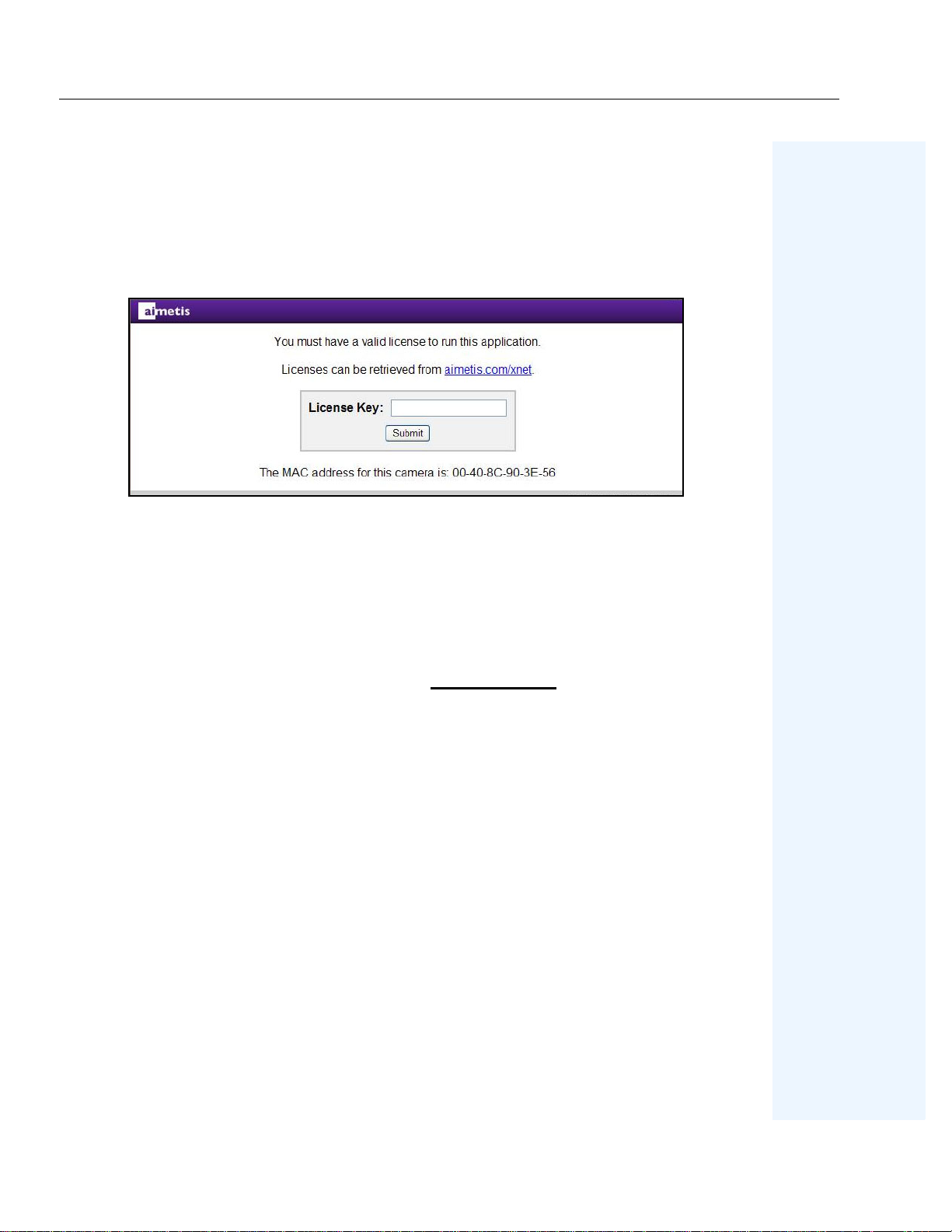
Do not use the
License
link under Aimetis at the left. The Aimetis People Counter does not use the
licensing functionality provided by AXIS.
1. In the
Application Settings: Aimetis People Counter
browser window opens displa ying the Aimetis People Counter.
• If the computer you are using does not have Internet access:
a. Write down the MAC address at the bottom of the page.
b. Return to the
c. In the
d. Click
Cameras/Embedded
Continue
Aimetis Xnet
e. Enter the MAC address you wrote down and enter a name for this camera.
f. Go to
step 4
.
on the right.
and select the
section, click
page, click
Account Management
Add
.
Main Page
. A new
tab.
2. Click the
opens to the
Licenses can be retrieved from aimetis.com/xnet
Register Camera
page of the Aimetis Xnet.
link. A new browser window
3. (Optional) Your camera’ s name sh ould be filled in automatically . You may change th e name
to make it easier for you to recognize this camera in the future.
4. (Optional) If you have a license available, you may select it by entering a quantity of one.
Otherwise you will be issued a trial license.
5. Click
Register Camera
. A message verifying that your camera has been registered is
displayed.
6. Click
View C a mera
. You will see a page listing information about the camera you have
registered.
7. Write down or copy the value under
8. Return to the window displaying the
9. Click
Submit
. Y ou will see a page verifying that you r license key is valid and your software
License Key
Aimetis People Counter
. This is your license key.
and enter the license key.
is licensed.
Aimetis People Counter 2.1
3
Page 12
Moving from Trial Licence to Full License Aimetis People Counter 2.1
Moving from Trial L i cence to Full License
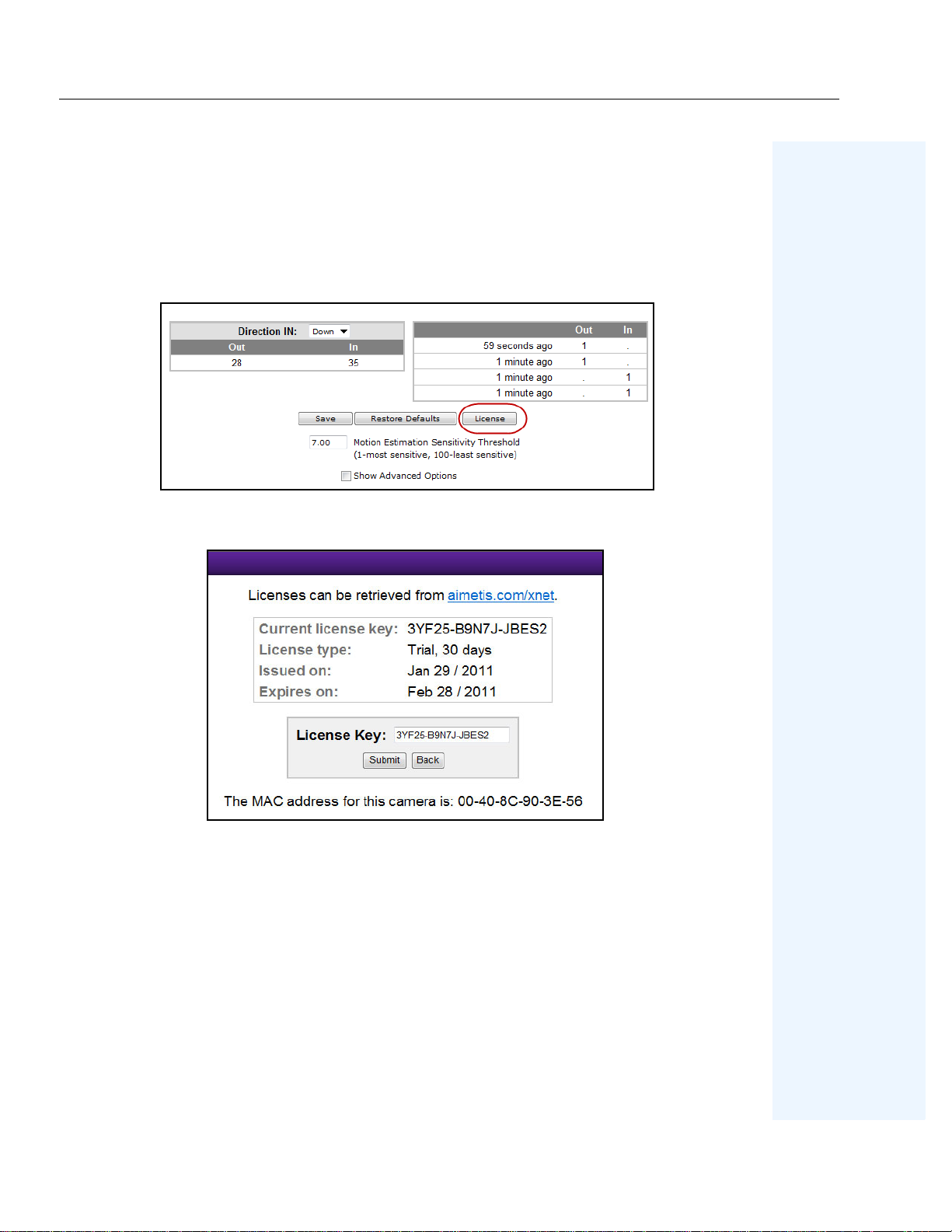
1. In a web browser, enter the IP address of your camera. The camera interface opens.
2. Open the
Application on Your Camera” on page 10
3. Click the
4. The
Aimetis People Counter
Setup
tab. Below the video image, click the
License
dialog box opens. Click the
interface. See
.
aimetis.com/xnet
“How to Access Aimetis People Counter
License
button.
link.
5. The Xnet portal opens to t he camera license page . (You may have to log in to the Xnet fi rst.)
Aimetis People Counter 2.1
4
Page 13
Moving from Trial Licence to Full License Aimetis People Counter 2.1
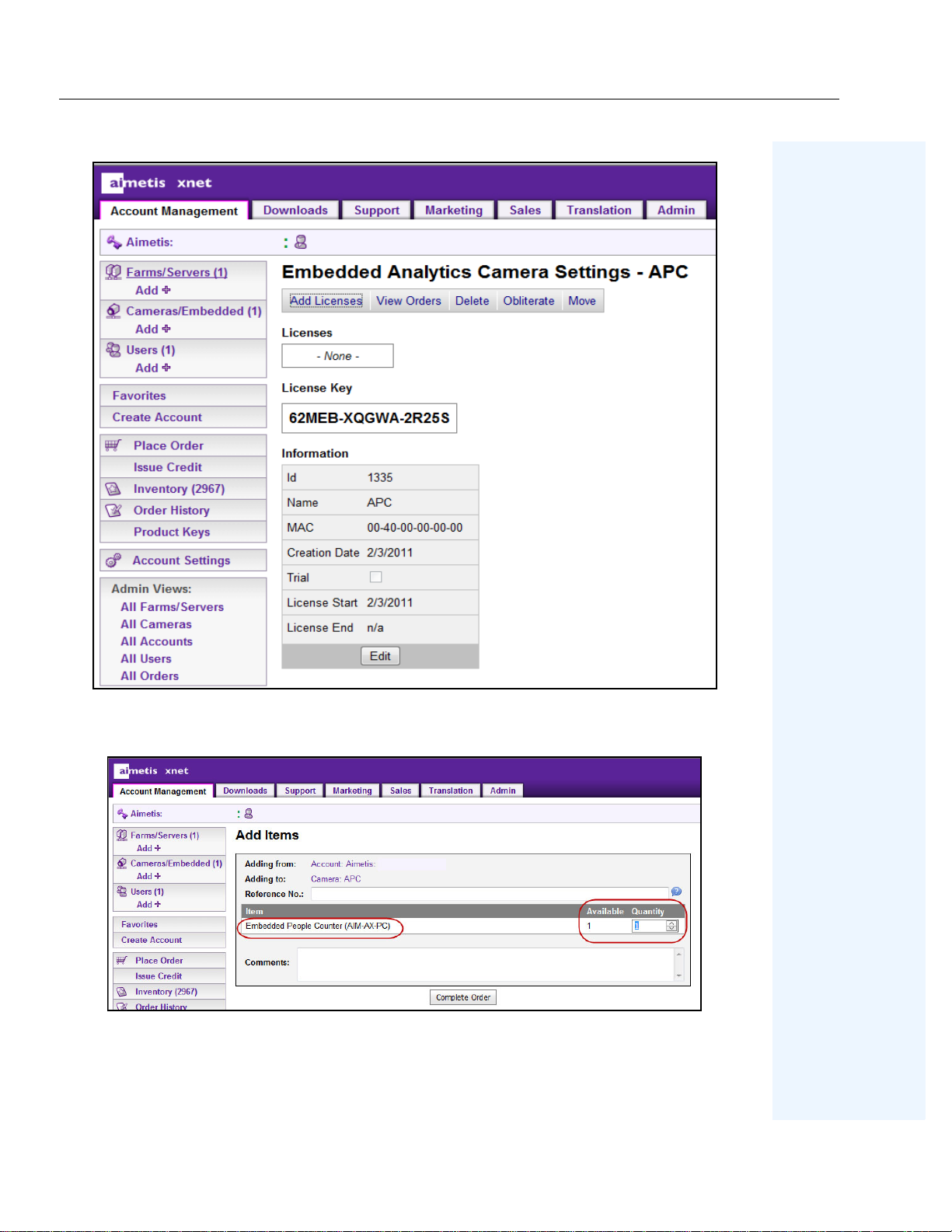
6. Click
Add Licenses.
7. Select the quantit y of licenses for the
.
Order
Aimetis People Counter 2.1
The
Add Items
screen opens.
Embedded People Counter,
and click
Complete
5
Page 14
Moving from Trial Licence to Full License Aimetis People Counter 2.1
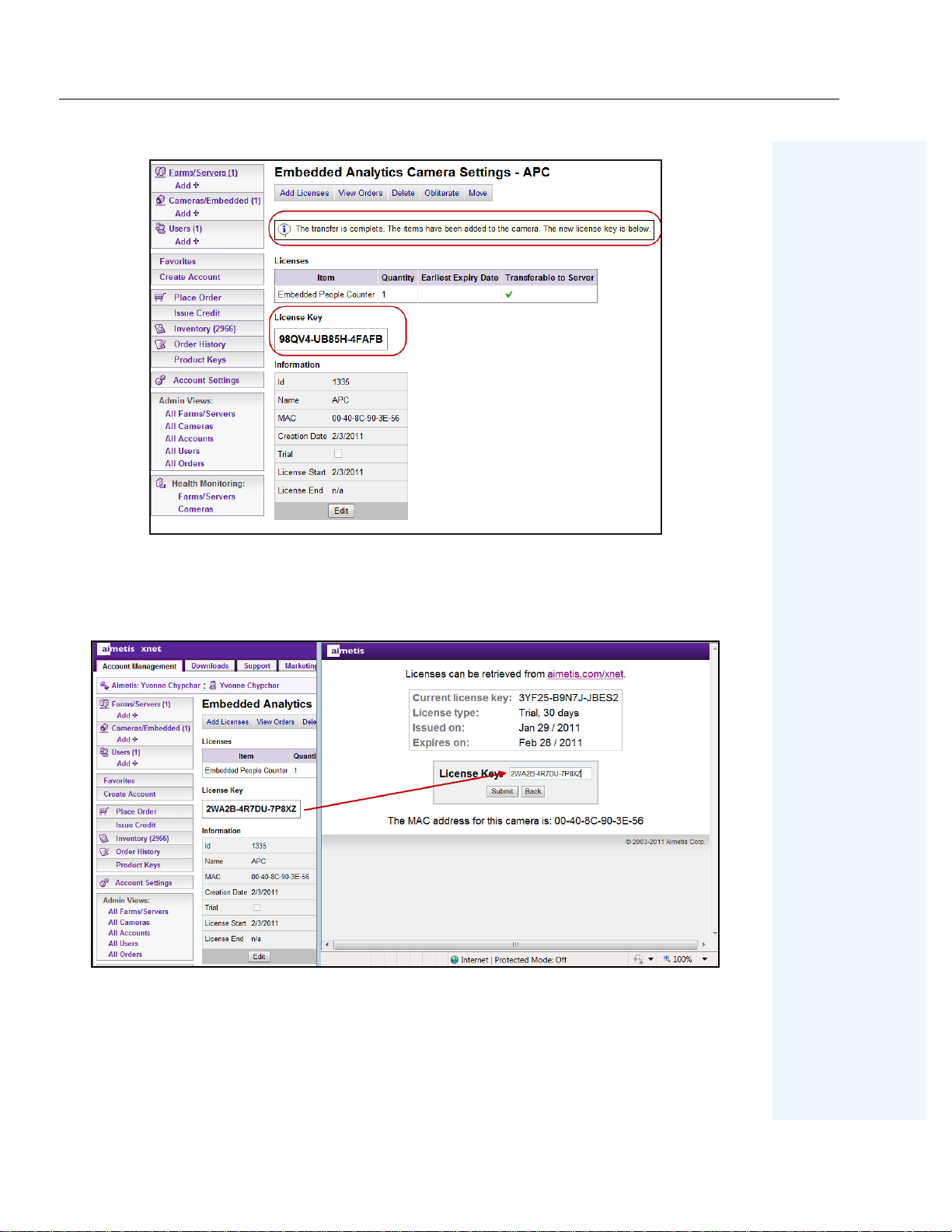
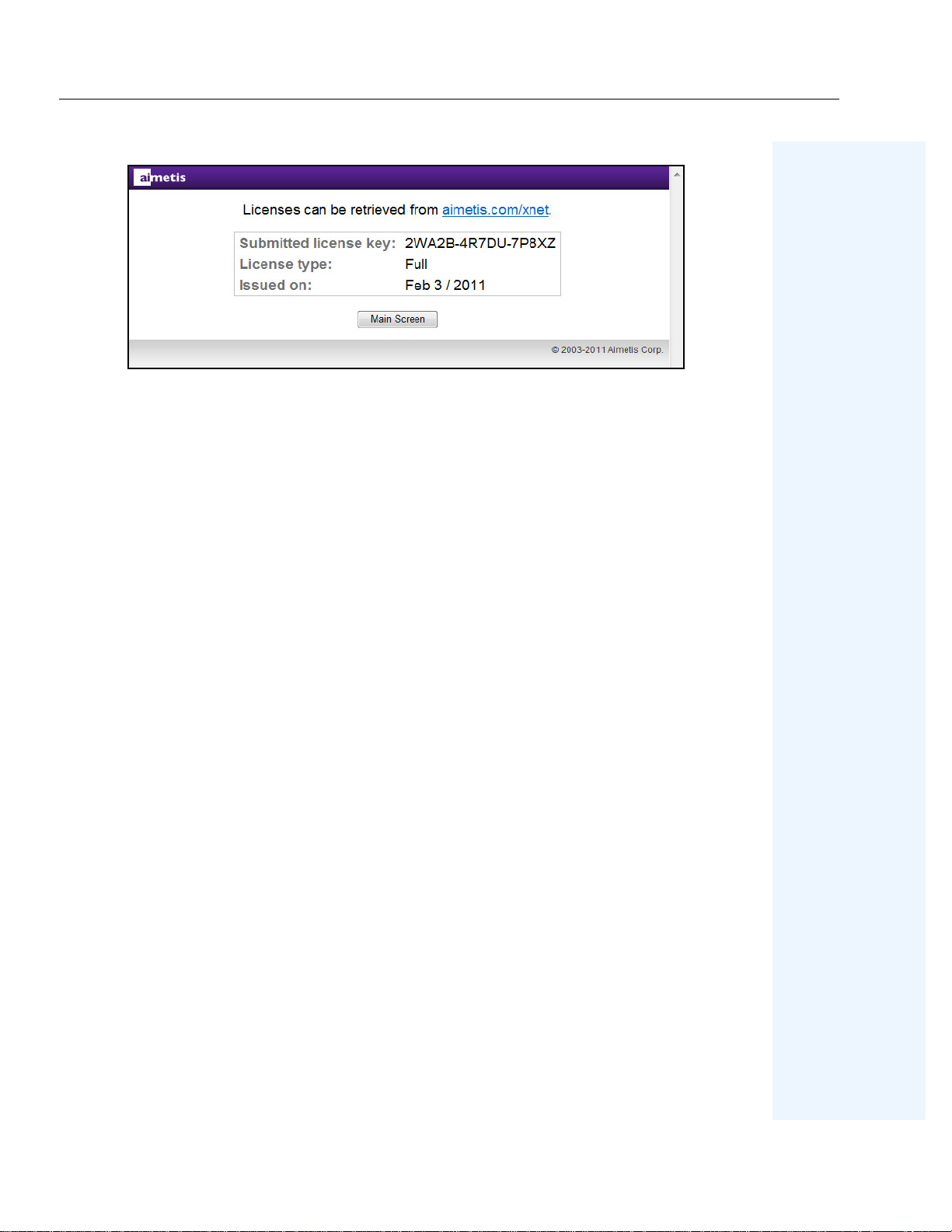
8. A message is displ ayed indicating that the license tra nsfer is complete. Copy the license ke y
number and paste it into the
People Counter
9. Click
Submit
screen.
. The new license type (
License Key
Full
field of the
License
) is displayed. Click
dialog box in the
Main Screen
to close the
Aimetis
license information.
Aimetis People Counter 2.1
6
Page 15
Moving from Trial Licence to Full License Aimetis People Counter 2.1
Aimetis People Counter 2.1
7
Page 16
Camera Setup Aimetis People Counter 2.1
Camera Setup
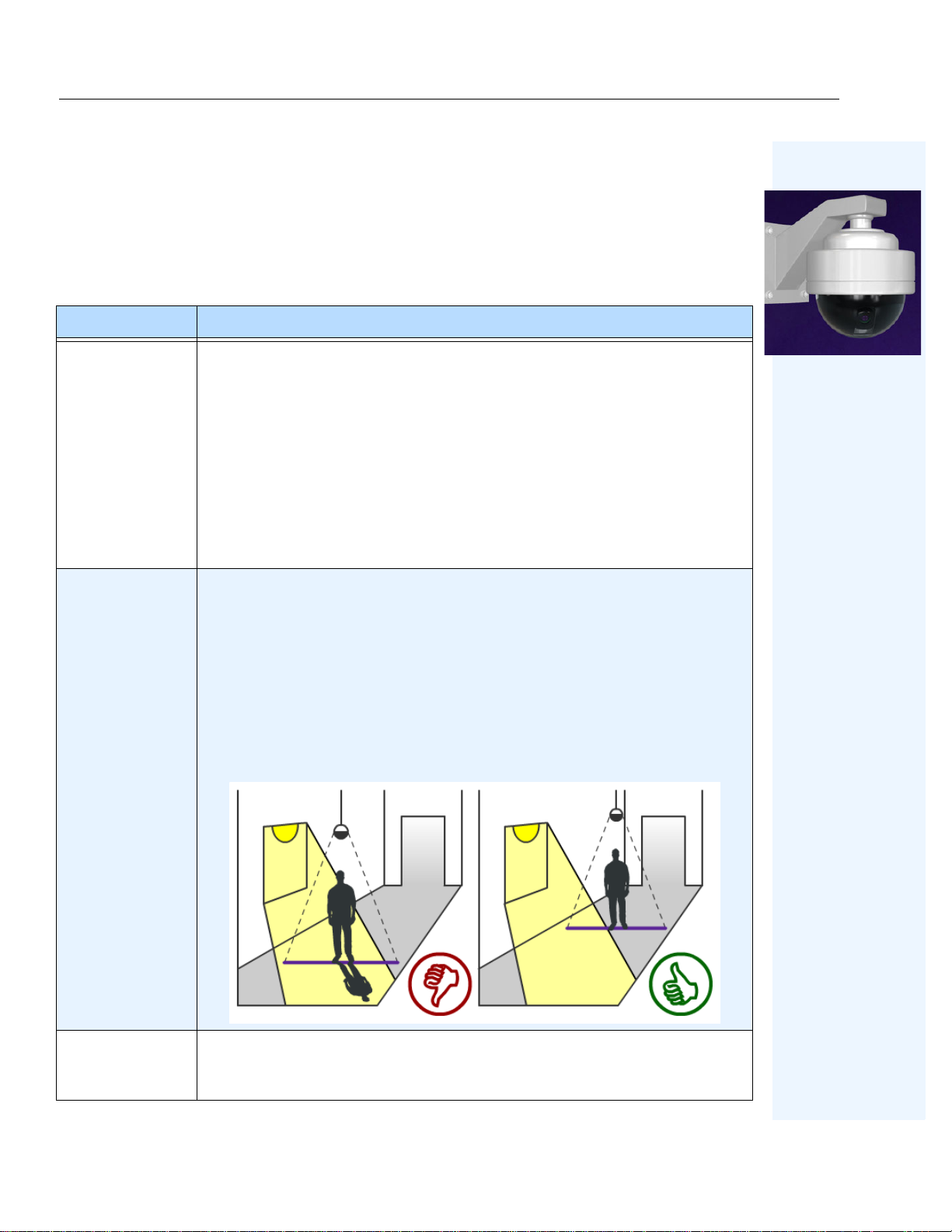
Consider al l of the factors described in
Table 1
when setting up your camera for use with the Aimetis
People Counter.
Table 1. Camera Setup
Subject Recommended Setup
Camera Height
1. Install th e camera
metres)
. A different height is possible depending on the zoom capabilities
of your camera. The most common problem is that the camera is installed
too low. People will appear very large and to be moving very fast.
2. The
Person Size
no less than 1/5 of the size of the screen.
3. Although a video appears continuous to our eyes, it really is capturing
images in frames. To count a person, the camera must capture at least 3
frames - the person before the line, crossing the line, and after the line. In
normal operation, the Aimetis People Counter processes around 10 frames
per second.
•
Poor lighting
generating more noise in the video, which may result in false counts.
•
Shiny objects
surrounding area and generate false counts.
•
Sunlight from outside
shadows to cross a c ountin g lin e. Depen ding o n t he ang le of an i ndoor light or
the sun, the shadows of people walking by a counting line can tr igger false
counts.
90 degrees
box should be no more than 1/3 the siz e of t he s cre en and
causes the camera to inc rease the sens itiv ity of t he sens ors, thus
, like a shiny floor may reflect light/shadows from a
overhead at a
minimum height of 9 feet (3
, occasionally obscured by moving clouds will cause
Lighting
Storage
Aimetis People Counter 2.1
Historical data i s stored on the c amera at a re solution of 1 minute. De pending on
the camera mod el an d t ra ffic, storage space allows for u p t o 10 year s or more of
data.
8
Page 17
Camera Setup Aimetis People Counter 2.1
Ta ble 1. Camera Setup (Continued)
Subject Recommended Setup
The data is saved once pe r hour. In case of a power failur e, you ma y lose up to 1
Saving Data
hour of historical data. Your camera does not have an internal disk for massive
storage, so saving data once per hour extends the life of memory when
compared with a system saving once every 15 minutes.
FPS
Settings and
Historical Data
Web Access
Use only with IE7 and later.
Ideally, the video analytic should be running 10 to 11 FPS to provide accurat e
data.
Re-installation of the video analytic does NOT delete all settings and historical
data.
Aimetis People Counter 2.1
9
Page 18
How to Access Aimetis People Counter Application on Your Camera Aimetis People Counter 2.1
How to Access Aimetis People Counter Application on Y our
Camera
Procedure
To access the Aimetis People Counter application on your camera:
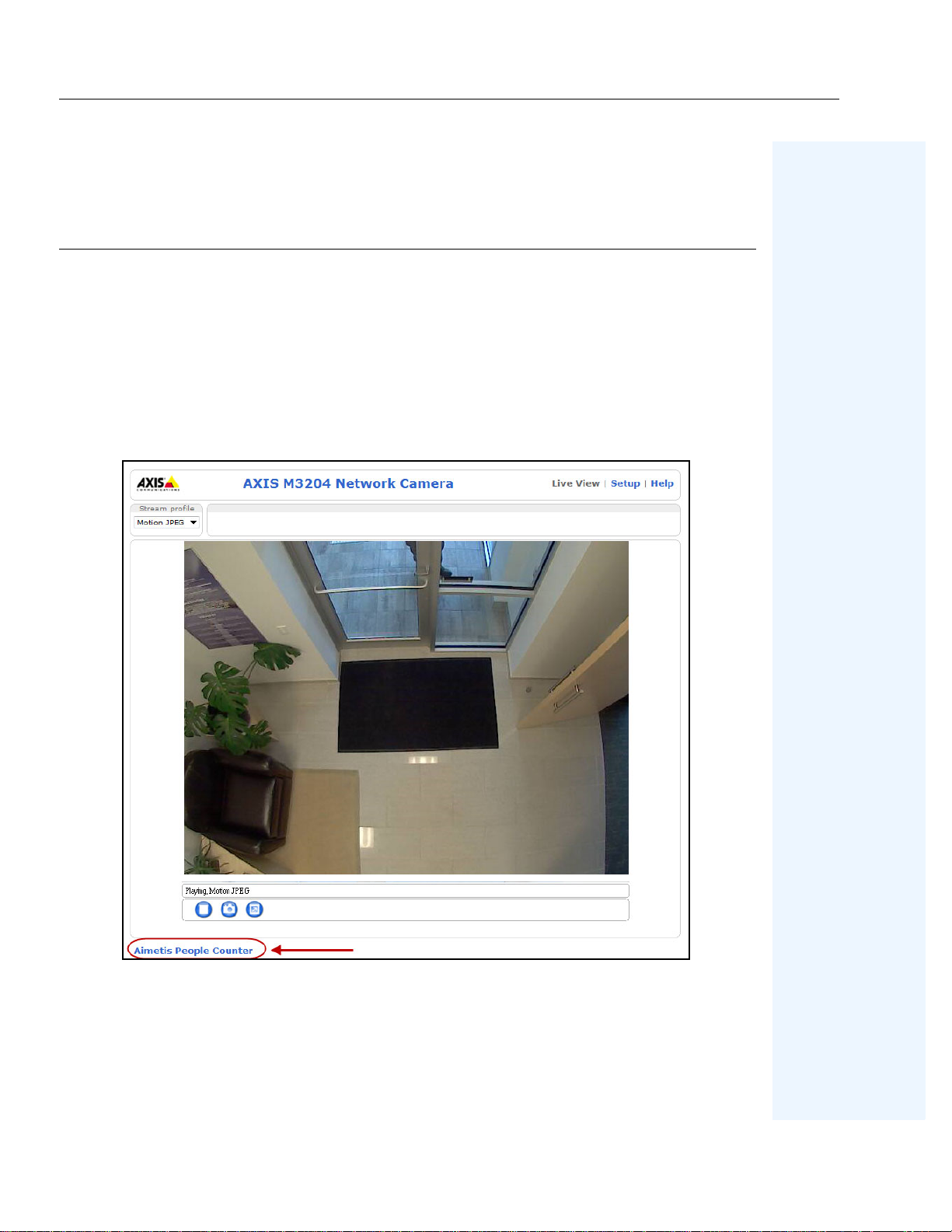
1. In a web browser, enter the IP address of your camera. The camera interface opens.
2. Click the
People Counter
• Alternatively, in the camera interface, click
Aimetis People Counter
interface opens.
Packages
Counter
and select the
interface opens.
link at the bott om of the cam era interf ace. The
Setup
Aimetis People Counter
, and then
option. The
Applications
Aimetis People
Aimetis
. Click
3. When accessing th e Aimetis Peop le Counter for the first t ime af ter inst allation, you wil l be
asked for a valid license. Follow the on-screen instructions. See
Aimetis People Counter 2.1
Figure 1. Aimetis People Counter link
“Licensing” on page 3
.
10
Page 19
How to Use the Aimetis People Counter Interface Aimetis People Counter 2.1
How to Use the Aimetis People Counter Interface
The
Aimetis People Counter
interface has 6 tabs:
Aimetis People Counter 2.1
Figure 2. Aimetis People Counter interface
11
Page 20
How to Use the Aimetis People Counter Interface Aimetis People Counter 2.1
Table 2.
Tab/button Description and usage
Displays counter dat a in graphical form for the last hour, last day , and last week.
Dashboard
Staffing
If you hover your mouse on the graph, specific
are displayed.
No data
Zero counts
(grey box) indicates that the application was not run for that period.
indicates that the application was running but no people crossed
the countin g line
Displays counter data for the last week. For example, in a store setting,
determine when more staffing might be required.
No data
Zero counts
(grey box) indicates that the application was not run for that period.
indicates that the application was running but no people crossed
the countin g line.
In
and
Out
and
Time
statistics
Reports
Live View
Setup
Help
Generate a report (
months, for a specific period (
see
“How to Generate Reports” on page 15
Table
or
Chart
form) based on minutes, hours, days, or
From
and To dates using a calendar). For details,
.
Displays live camera feed with ongoing count updates.
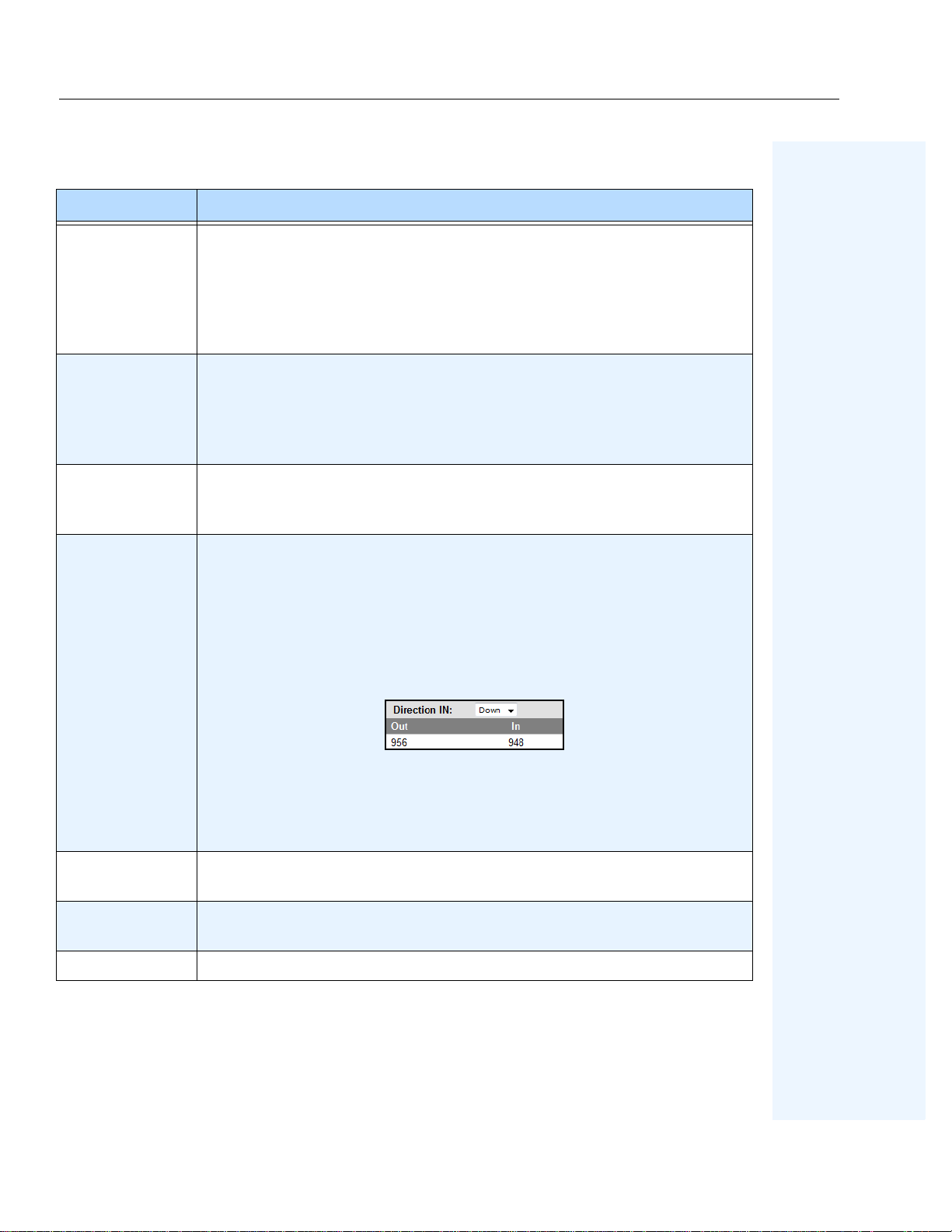
• In some cases, you can use the ongoing
In
and
Out
counts to determine the
counting accuracy. For example, if the camera is setup overhead the only
entrance used by customers, then the difference between the two amounts (
and
Out
), divided by the h igher count, tell s you t he p recisio n of co unt s. Using
In
the example below (Out 956 - In 948)= 8 missed counts out of 956.
(8/956=.0083) is less than 1% missed counts.
• Clicking
Reset Count
is like resetting the trip odometer in a car. The total
tracked mileage is NOT reset to 0, just the in stance of th e trip. Click ing
Count
Setup
Where your setup up the
sets the displayed values of the current counts in the
Live View
tabs. Historical data is not changed when the counts are reset.
Person Size
, position the counting line, and tune the
Reset
and
application for higher accuracy.
Provides basic information about the application environment where Internet is
not available.
Save
button Save your setup settings.
Aimetis People Counter 2.1
12
Page 21
How to Use the Aimetis People Counter Interface Aimetis People Counter 2.1
Ta ble 2. (Continued)
Tab/button Description and usage
Restore Defaults
button
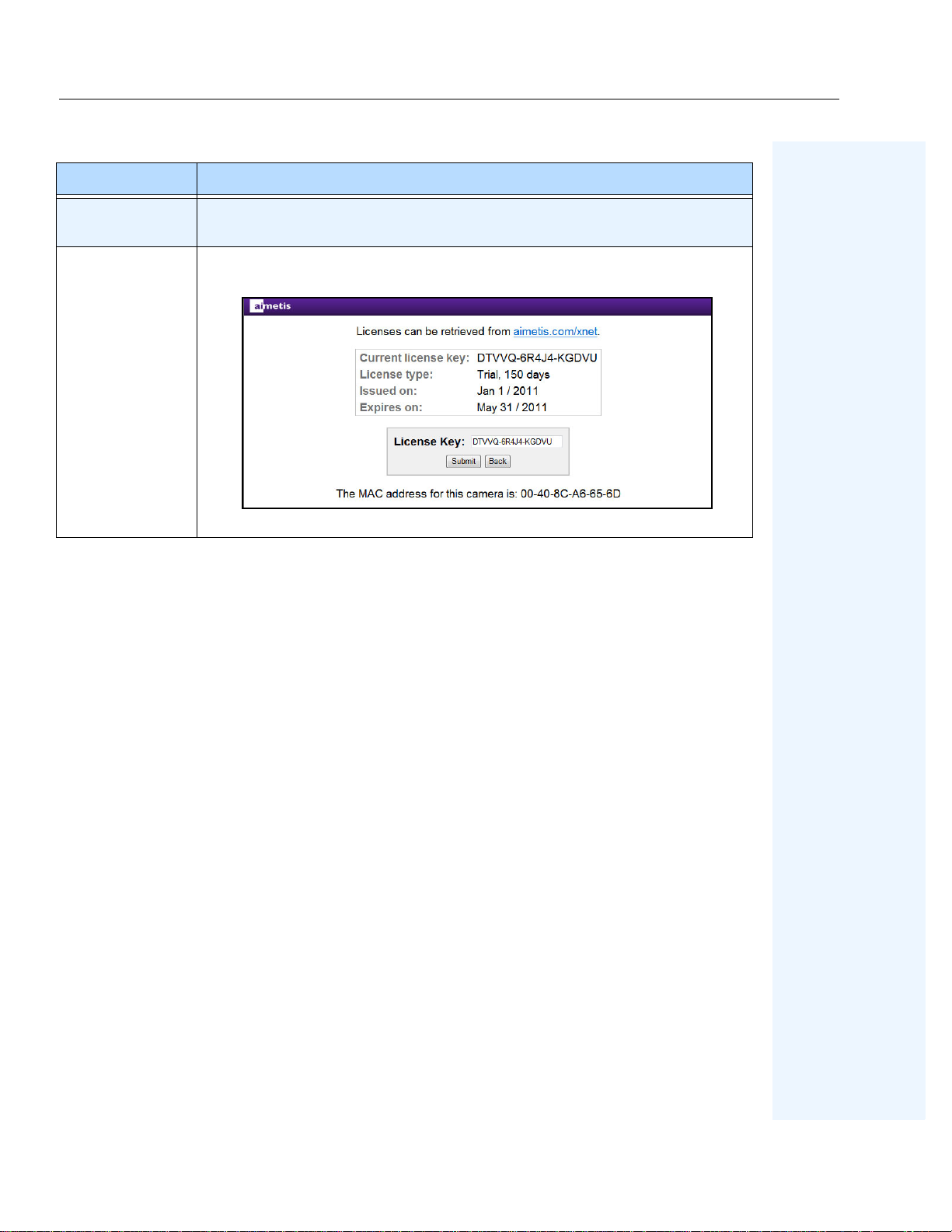
License
button
Restore the configuration to recommended default settings.
View license information.
Aimetis People Counter 2.1
13
Page 22
How to Set Up Person Size and Object Line Crossing Aimetis People Counter 2.1
How to Set Up Person Size and Object Line Crossing
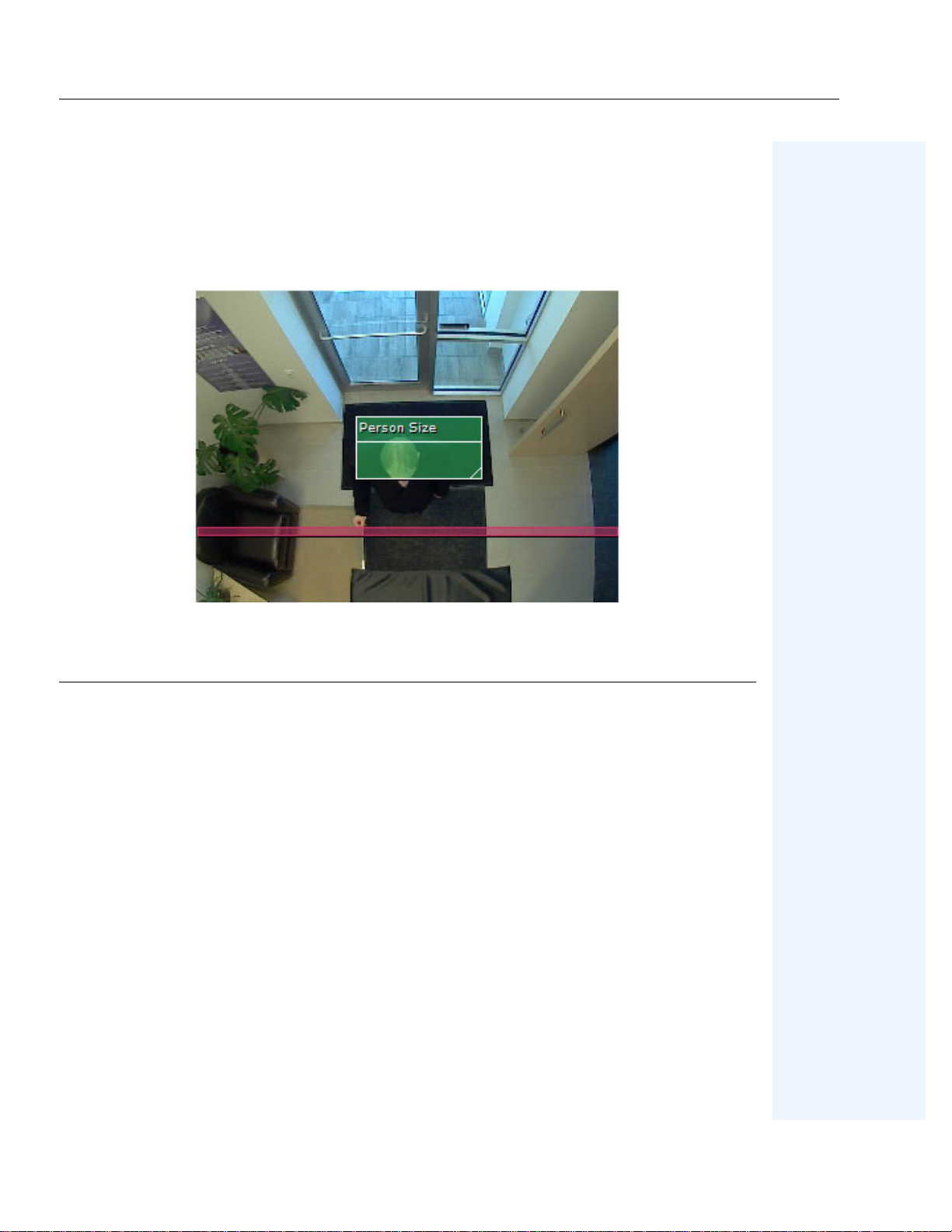
The
Person Size
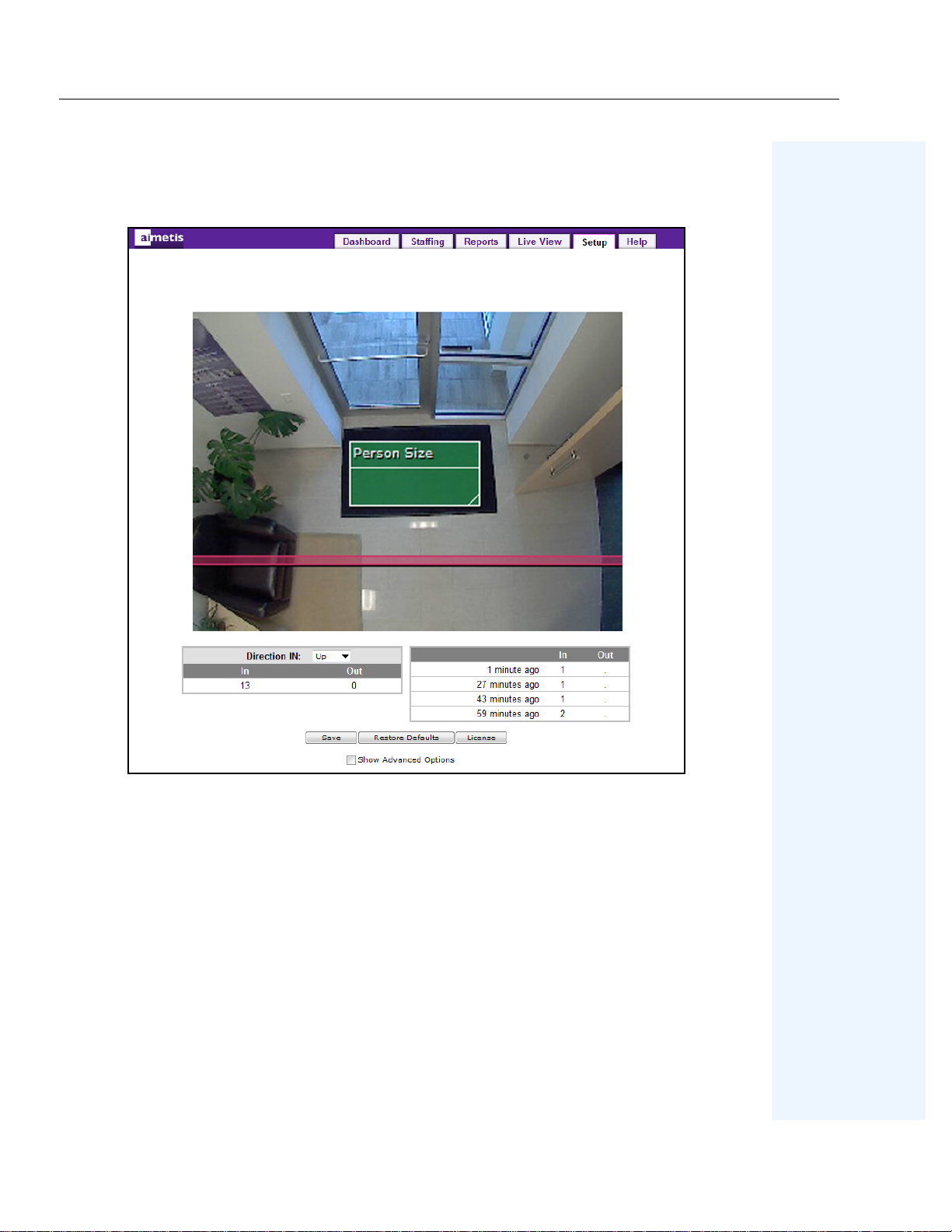
scene. You adjust the box in the
aspect of setting up a cor r ect count. The box should be no less than 1/5 of the screen and no more th an
1/3 of the screen. The height of the box has no impact.
box is a graphical representation of the potential size of a person within the camera
Setup
tab.The width of the
Person Size
box is the most important
Procedure
To setup of the video analytic:
1. Click the
2. Drag the horizontal red counting line such that it delineates the required area that people
will be crossing.
3. Select the direction of people moving from the
4. Expand the
more than 1/3 of the screen.
5. Click
Save
Setup
tab. The image displayed is from a live view.
Person Size
box such that the box is NOT less than 1/5 of the scr een and NO
• Optionally, move t he gre en
for a moment) and resize the box such that the box size matches the average
person size.
• You do not have to drag the box over the counting line. The
position is not important. Only its size is important.
Save
. If you do not click
, the
Person Size
box is placed in the middle of the red counting line.
Figure 3. Person size box
Direction IN
Person Size
Save
, your changes will not take effect. When you click
box over a per son (p erhaps standing still
drop-down list.
Person Size
box
Aimetis People Counter 2.1
14
Page 23
How to Generate Reports Aimetis People Counter 2.1
How to Generate Reports
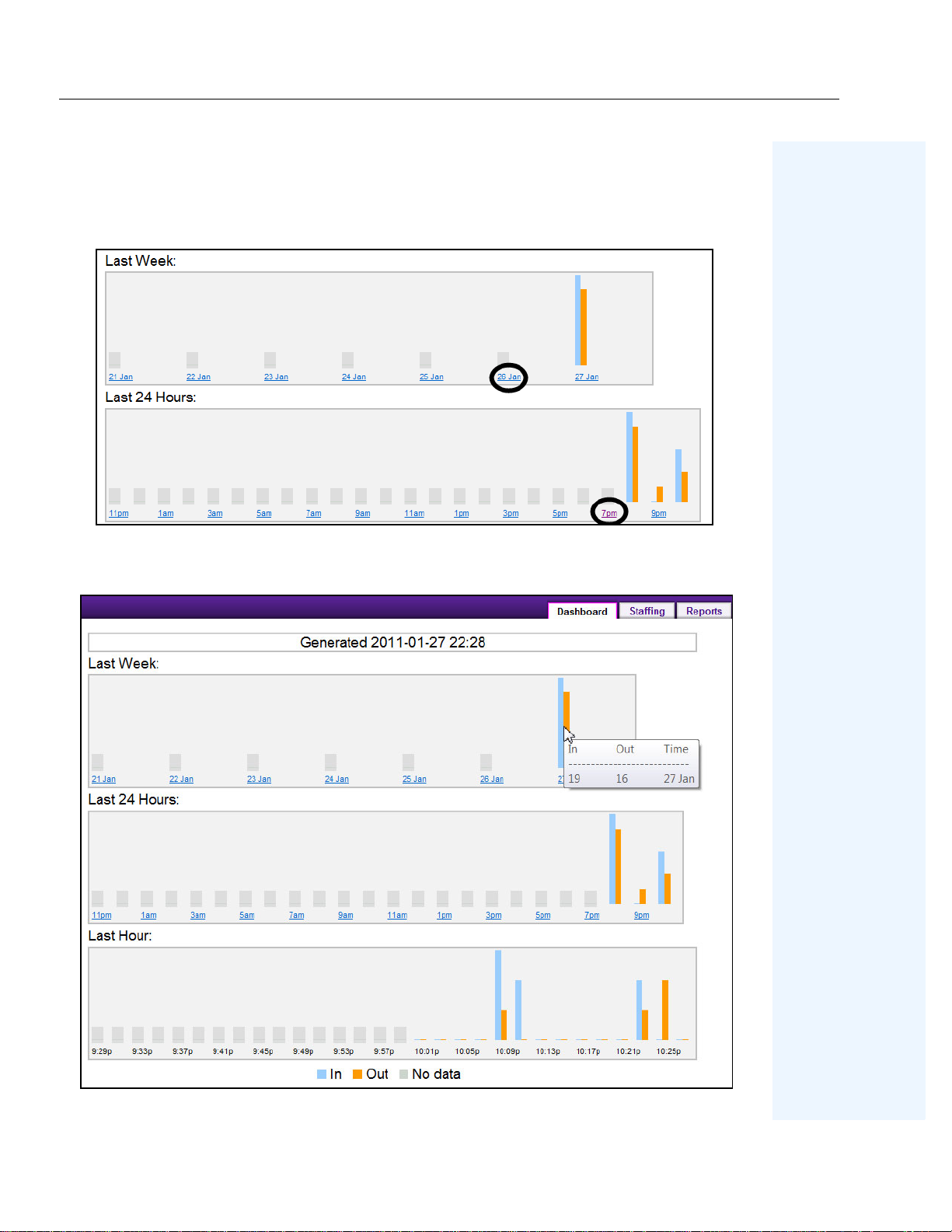
You can generate a report (
and
To
specific dates using a calendar.
Figure 4. Deta iled reports available by clicking on links for Last 24 Hours and Last Week reports
Table
or
Chart
form) based on minutes, hours, days, or months, and
From
Aimetis People Counter 2.1
Figure 5. Hover mouse over bar chart for statistics
15
Page 24

How to Generate Reports Aimetis People Counter 2.1
Procedure
To generate a report:
1. Click the
Reports
2. Select a format in which to display the collected data -
3. Click the
From
4. Select whether to generate a report based on intervals of
•For
5. Click
Update
•In
interval, displa yed as
be available for that interval (minute/hour/day/month).
• If the interval is too large, an error message is displayed: “This report has too
many records (number of records).”
Procedure
To export the data:
1. After generating your report in
• If you click
in Excel format. The MS Excel program opens automatically displaying the data
in a worksheet. You can then save the data using that program.
• If you click
the file with MS Excel or another application for viewing text.
tab.
Chart
(histogram) or
and To dates to select a date range from the calendars.
Minutes, Hours, Days, Months
Minutes
or
Hours
, select the
From
and To hours.
. The Chart or Table (format you selected) is displayed.
Table
format, it might appear that you have incomplete data for the current
n/a
for “not availa ble .” Cli ck on the
Table
format, click
Open
and your computer has M S Exc el ins ta ll ed, t he dat a i s e xpor te d
Save
, the data is saved as text, c omma-sepa rate d (.csv) . You can open
Export Data
n/a
link. Some data will
. A file manager opens.
Table
.
.
Power Failure and Correct Counts
Because the Aimetis People Counter saves counters on a hourly basis, there may be up to an hour
loss of counter data when a power failure occurs; the lost data will appear in the reports as “n/a” or
grey rectangle on charts.
Aimetis People Counter 2.1
16
Page 25
How to Use the Advanced Options Aimetis People Counter 2.1
How to Use the Advanced Options
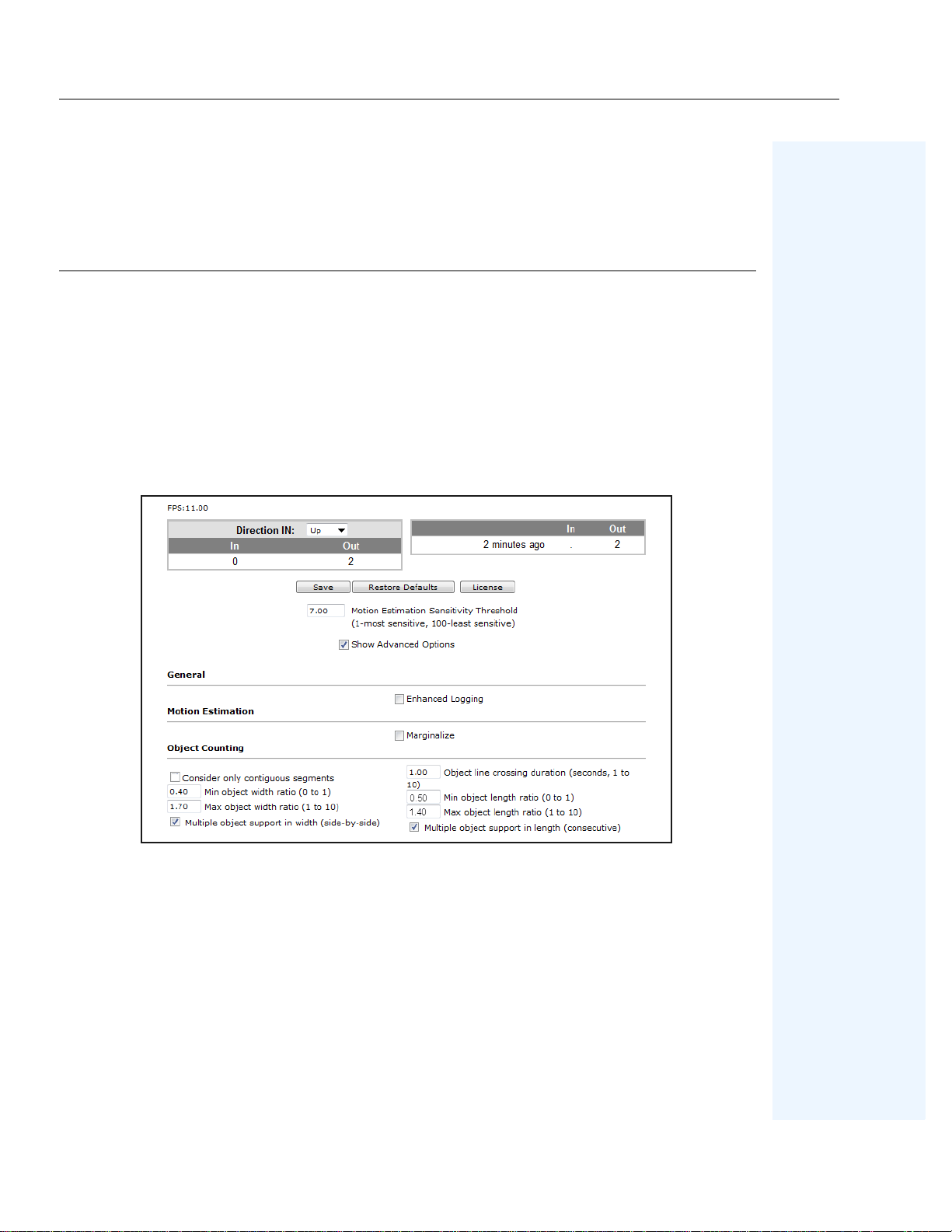
Most of the time, t he defaul t setting s on you r counter are suf ficie nt, but i n special cases yo u might need
to adjust some options.
Procedure
To display the advanced options:
1. Click the
2. Select the
Setup
Show Advanced Options
3. For usage, see:
“Table 3. Advanced Options - General and Motion Estimation” on page 18
•
•
“Table 4. Advanced Options- Object Width” on page 19
•
“Table 5. Advanced Options - Object line crossing duration” on page 20
tab.
check box.
Aimetis People Counter 2.1
Figure 6. Advanced options visible
17
Page 26
How to Use the Advanced Options Aimetis People Counter 2.1
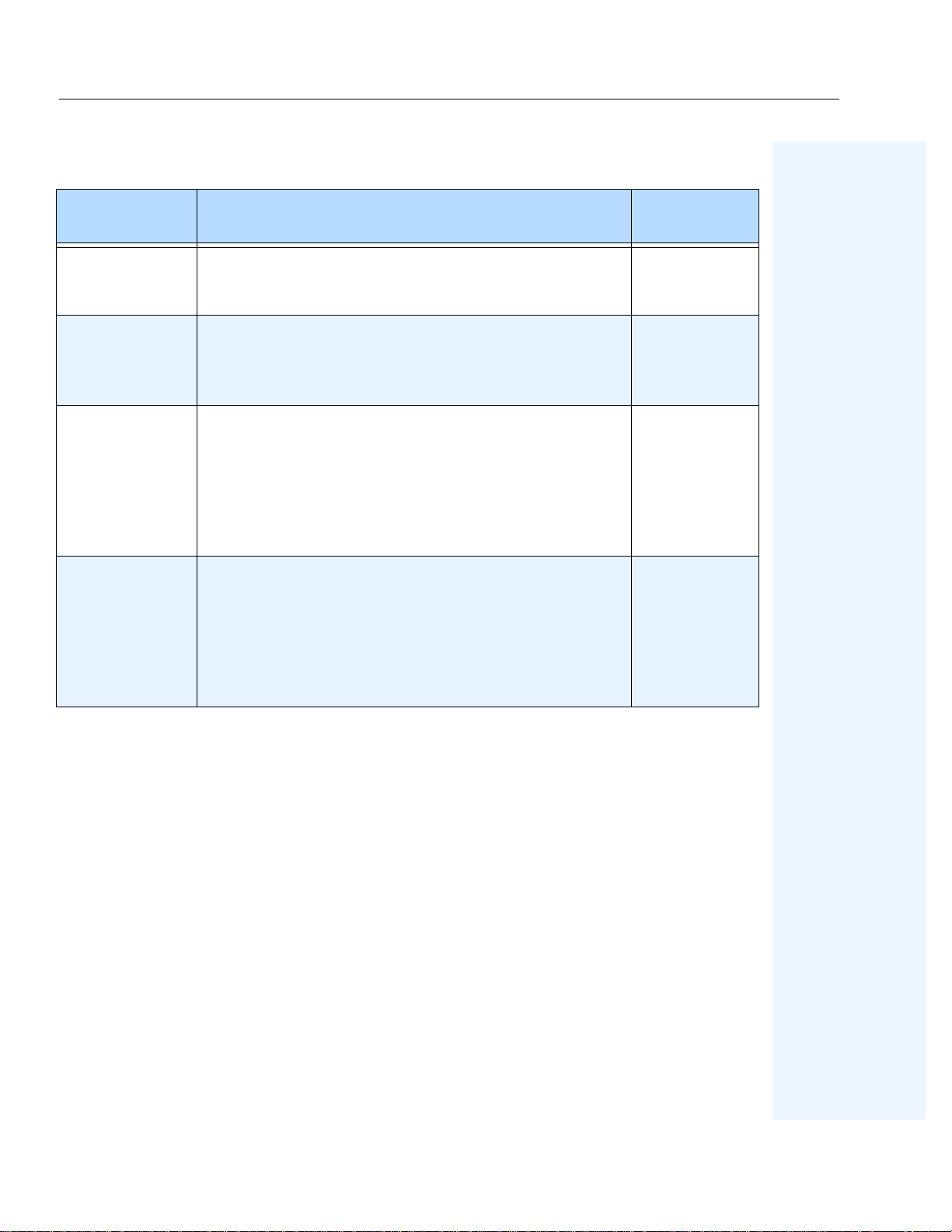
Ta ble 3. Advanced Options - General and Motion Estimation
Default
Option Description
Setting
Motion Estimation
Sensitivity
Threshold
Enhanced Logging
Marginalize
Consider only
contiguous
segments
Tracks only consistent motion. Increasing this setting will
reduce false alarms caused by tree branches and other objects
in the background that move randomly because of wind.
Allows the camera to register all its activities in the form of
logs (for debugging and troubleshooting purposes). It can,
however, impact performance. It is recommended that you
leave enhanced logging off (unselected).
When this option is selected, the video engine becomes less
sensitive to varying colors. As a result, the speed of
computational process increases but counting accuracy is
lowered.
This option was speciall y created for the Aimetis d evelopment
team. It is recommended that you leave this option off
(unselected).
It is highly recommended that you keep this option off
(unselected). The video engine is far more robust with this
option turned off .
If the environment in whic h you are attempting to count
specific objects is extremely noisy with a variety of moving
objects, you could turn this option on (selected); however, be
aware that it may result in multiple counts for one object.
4.00
Off
Off
Off
Aimetis People Counter 2.1
18
Page 27
How to Use the Advanced Options Aimetis People Counter 2.1
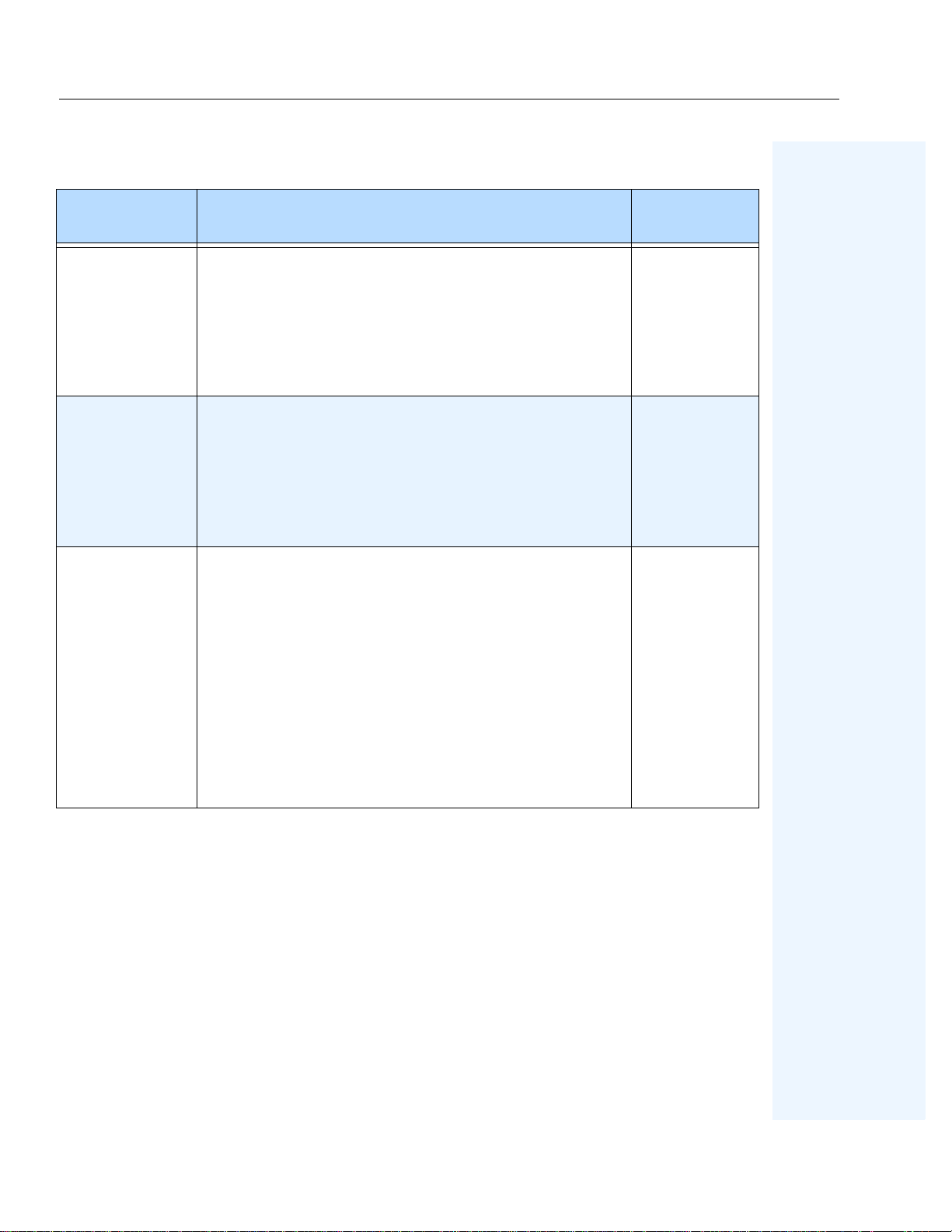
Table 4. Advanced Options- Object Width
Default
Option Description
Used in cases wher e more tha n one pe rson c an be c rossi ng the
line side-by-side. This feature prevents the video engine from
Multiple object
support in width
(side-by-side)
Min object width
ratio
counting a group as one person.
If the option is o f f (uns elected) , t hen a gro up of peo ple wil l be
counted as one person.
Also, if the option is off (unselected), the value in the
Object Width Ratio
Establishes the minimum acce ptable width, wit h respect to the
person size box
consideration in order to recognize a moving object. The
default value 0.40 means that the smallest person will
populate at least 40% of the box width. If a person i s less than
this range (smaller than 40% of the box width) the video
engine will ignore that person.
Max
option becomes irrelevant.
, the video engine should take into
Setting
On
0.40
Max object width
ratio
Multiple object support in width
Note:
must also be enabled.
The default value 1.70 means that the biggest possible person
should not exceed the person size box by 1.7 times, that is, a
ratio of 1 person to 1.7 times the size of the
If a person wit h a widt h of 3 times the
person size box.
person size box
walks
through the counting line, the video engine will recognize the
person as two people.
• Increase this number if one person is being counted as two
side-by side-people.
• Decrease this number if two side-by-side people are being
counted as one person.
1.70
Aimetis People Counter 2.1
19
Page 28
How to Use the Advanced Options Aimetis People Counter 2.1
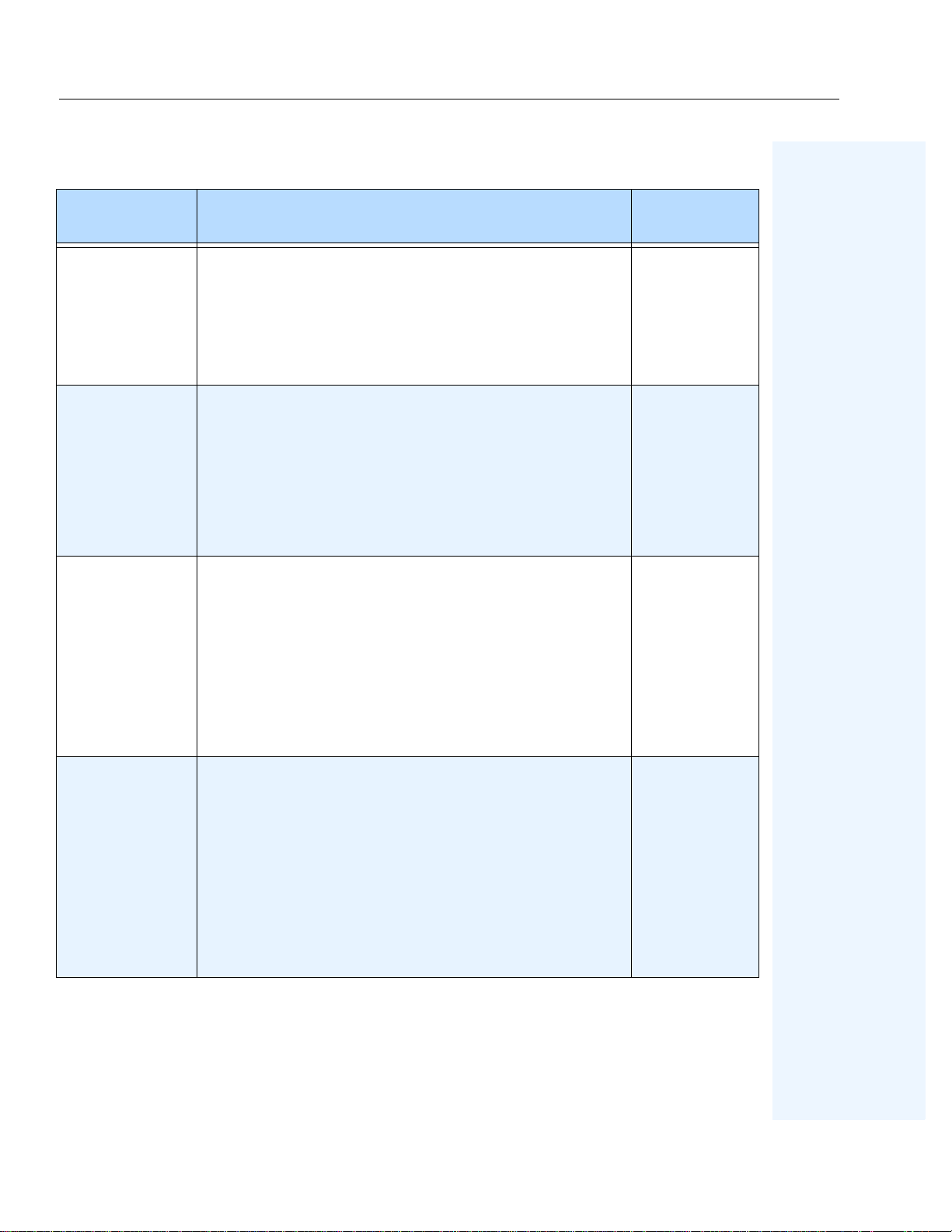
Table 5. Advanced Options - Object line crossing duration
Default
Option Description
Defines the object length in the time dimension: the time it
Object line
crossing duration
(seconds, 1 to 10)
Multiple object
support in length
(consecutive)
takes for an object to cross the line.
• Increase this number if one person is counted as two
back-to-back people.
• Decrease this number if two back-to-back people are
counted as one person.
Used in cases wher e more tha n one pe rson c an be c rossi ng the
line, that is, people following each other in tandem, with little
gap in between individuals. This feature prevents the video
engine from counting a group as one person.
If the option is o f f (uns elected) , t hen a gro up of peo ple wil l be
counted as one person.
Also, if the option is off (unselected), the value in the
Object Length Ratio
Max
option becomes irrelevant.
Setting
1.00
On
Min object length
ratio
Max object length
ratio
The ratio of time (with respect to
duration
) that is required to detect an object. For example,
Object line crossing
assuming 10 FPS analysis rate, enough motion must be
detected in at least 2 consecutive frames in order to count a
person (as well as in at least 4 pixels width).
• Increase this number if one person walking at regular speed
is counted as two people.
• Decrease this number if pe ople are wal king very quick ly and
no one is counted.
The ratio of time (with respect to
duration
) that is required to consider that a new object is
Object line crossing
coming behind without any gap.
Example: If people are walking with strollers/shopping carts,
try a ratio of 2.5 so that the stroller/cart is not counted as
another person.
• Increase this number if one person is counted as two
back-to-back people.
• Decrease this number if two back-to-back people are
counted as one person.
0.50
1.40
Aimetis People Counter 2.1
20
Page 29
Troubleshooting Aimetis People Counter 2.1
Troubleshooting
Table 6. How to resolve issues
Problem Reason Fix
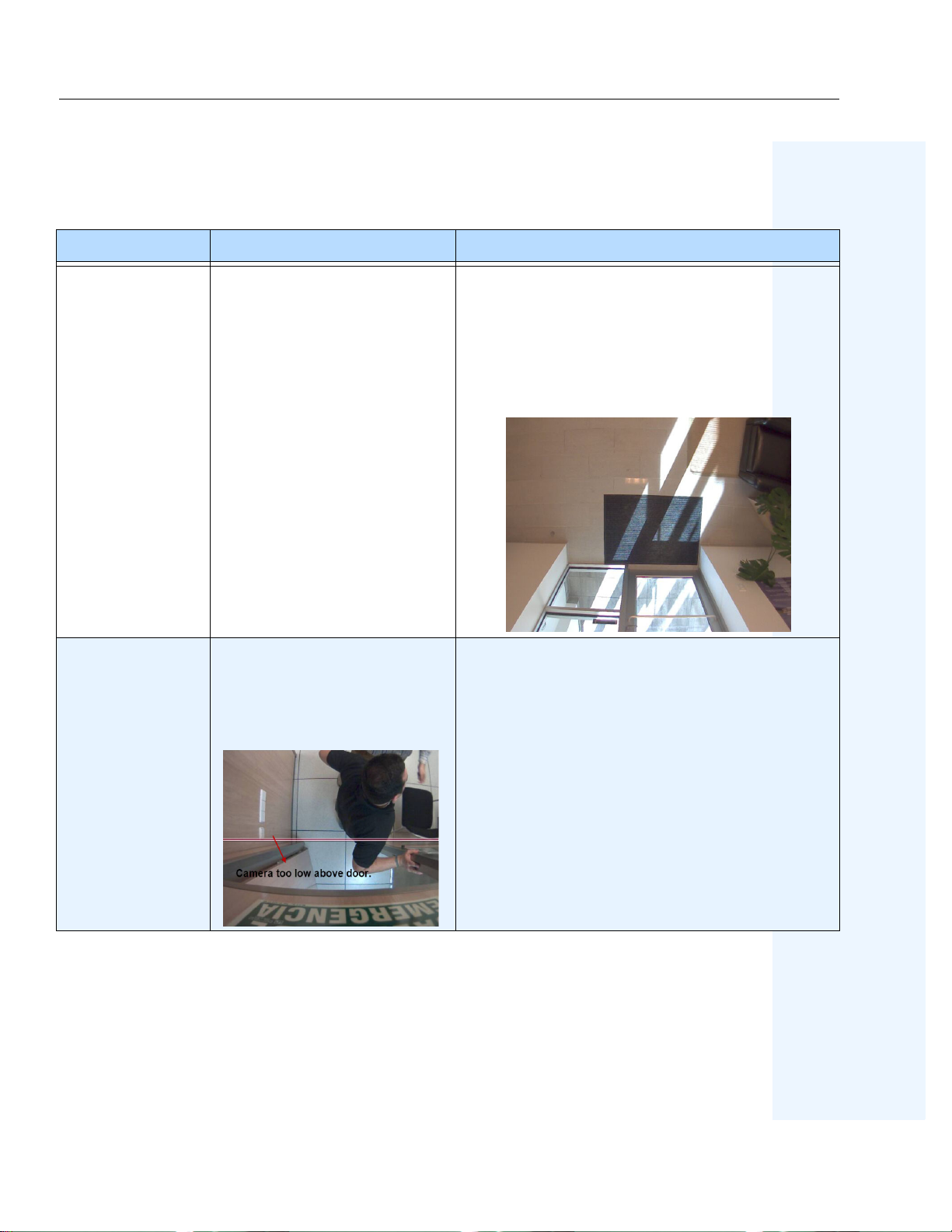
Shadows can generate false counts, for example,
sunlight from outside, occasionally obscured by
moving clouds will cause shadows to cross a counting
line. Depending on the angle of an indoor light or the
sun, the shadows of people walking by (but not
crossing) a counting line can trigger false counts.
False counts Shadows
Incorrect camera placement. In
this example, the opening and
closing of the door may ca use
false counts.
How to tell if you have set the camera height
correctly
The
:
Person Size
box should be no more than 1/3 the
size of the screen and no less than 1/5 of the size of the
screen.
Aimetis People Counter 2.1
21
Page 30
Troubleshooting Aimetis People Counter 2.1
Table 6. How to resolve issues (Continued)
Problem Reason Fix
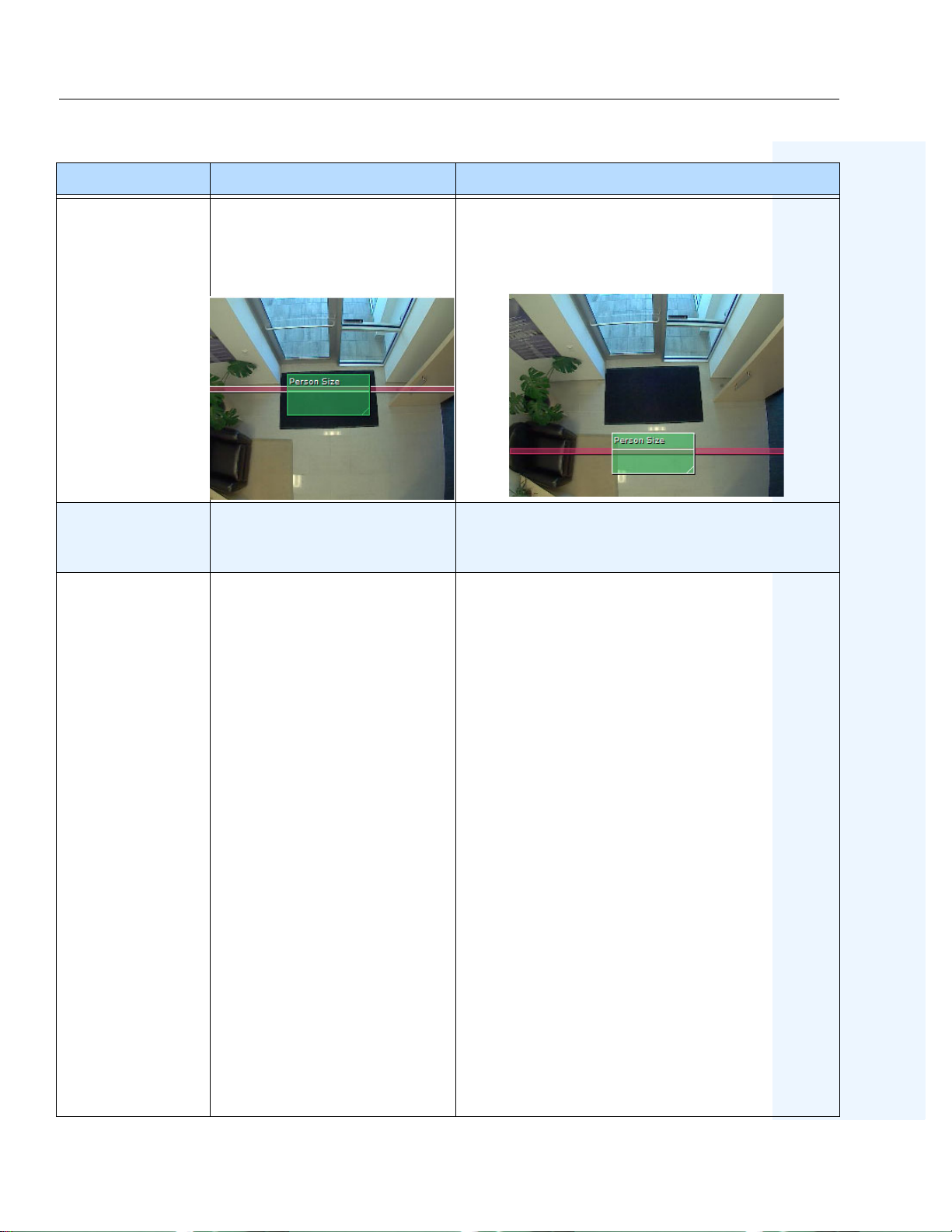
Multiple counts for
the same person
Incorrect counting line p lacemen t.
For example, this counting line is
too close to the door.
Person size is set too small
In general, it is better to put the counting line further
away from the door, so that people do not stop on the
counting line.
Increase the
Person Size
box. The
Person Size
box
should be no more than 1/3 the size of the screen and
no less than 1/5 of the size of the screen.
• Ensure that Motion Detection is turned off.
• Limit the
Maximum frame rate
to 11 FPS per
viewer:
1. In the
Axis Network Camera
Setup
. The
Basic Setup
screen, click
screen opens.
CPU is too busy
message
Not enough processing resources.
Indicated by lower FPS rate.
2. In the left pane, click
Video Stream Settings
the
Image
tab active.
3. In the
4. Click
Video Stream
Limited to
Save
option. Enter 11 in the text box.
.
Video & Audio
screen opens with
section, select the
. The
• Ensure that the Aimetis People Counter is the only
application running on the camera at the time. To
verify how many applications are running:
1. In the
2. In the left pane, click
Axis Network Camera
Setup
. The
Basic Setup
Applications
Application Packages
screen, click
screen opens.
. The
screen opens.
3. Review all the applicat ions listed under the
Application
they are listed as
Status
4. Select the package and click
column and check whether
Running
under the
column.
Stop
.
Aimetis People Counter 2.1
22
Page 31
Troubleshooting Aimetis People Counter 2.1
Table 6. How to resolve issues (Continued)
Problem Reason Fix
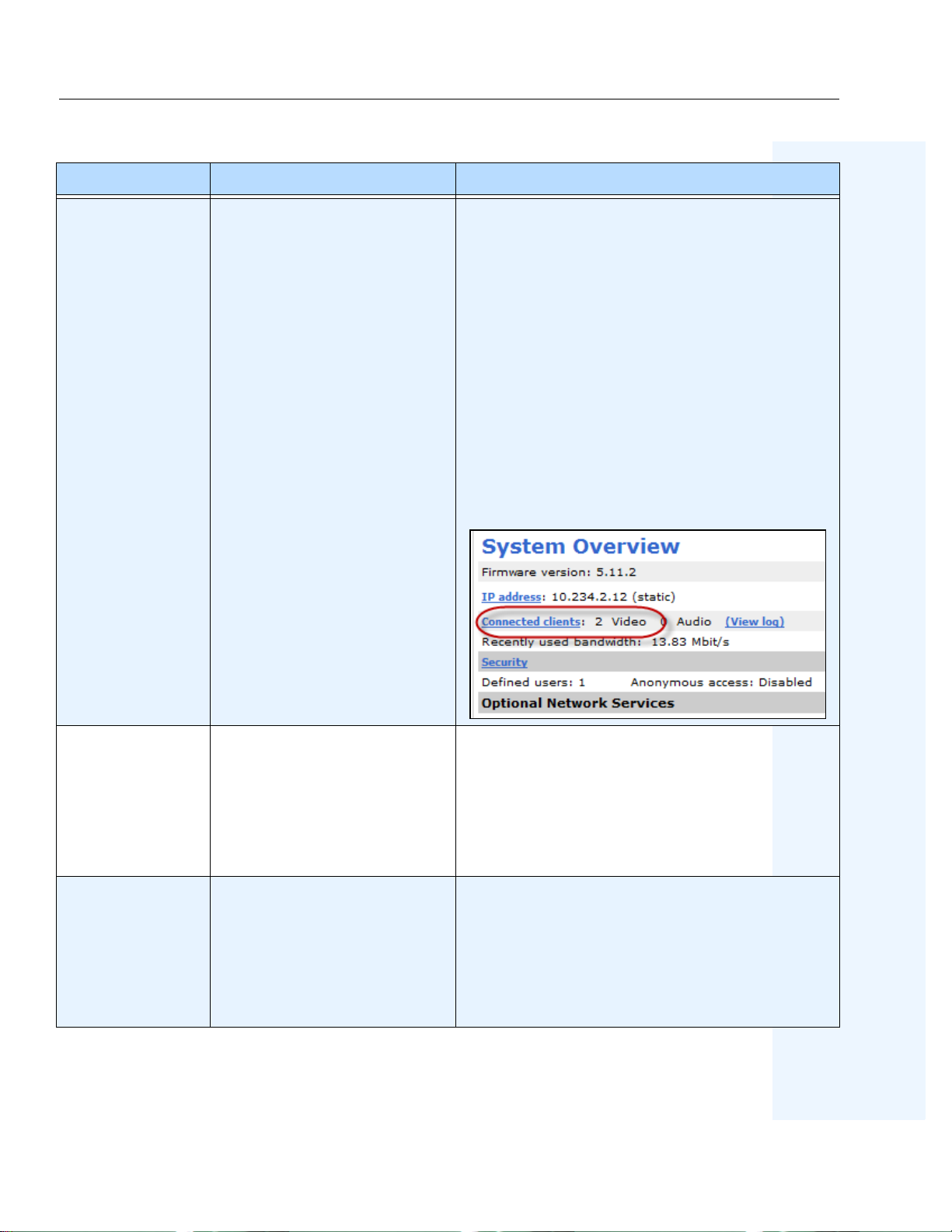
• Ensure that the number of client video stream
connections is
To determine the number of video stream
connections:
1. In the
1
.
Axis Network Camera
Setup
. The
Basic Setup
screen, click
screen opens.
CPU is too busy
message. The
Aimetis People
Counter is slow
when generating
reports.
(continued)
Not enough processing resources.
Indicated by lower FPS rate.
The Aimetis People Counter
disables counting due to low CPU
speed. Generating a report takes
substantial process ing power. This
is true whether you are generating
a report through the Repo rts tab or
programmatically.
2. In the left pane, click
3. Click
Support
Overview.
and then
The
System Options
System
System Overview
screen
opens.
4. In the
Connected clients
beside
Video
row, the value
indicates the number of
streams.
If requesting a report programmatically, limit your
request to 1 per minute.
.
Missed counts
Aimetis People Counter 2.1
Camera not high enough.
Consequently people appear l arger
and to be moving very fast.
How to tell if you have set the camera height
correctly
The
:
Person Size
box should be no more than 1/3 the
size of the screen and no less than 1/5 of the size of the
screen.
If you cannot adjust the height of the camera, adjust
the zoom on the camera lens.
23
Page 32
Moving the Camera Aimetis People Counter 2.1
Table 6. How to resolve issues (Continued)
Problem Reason Fix
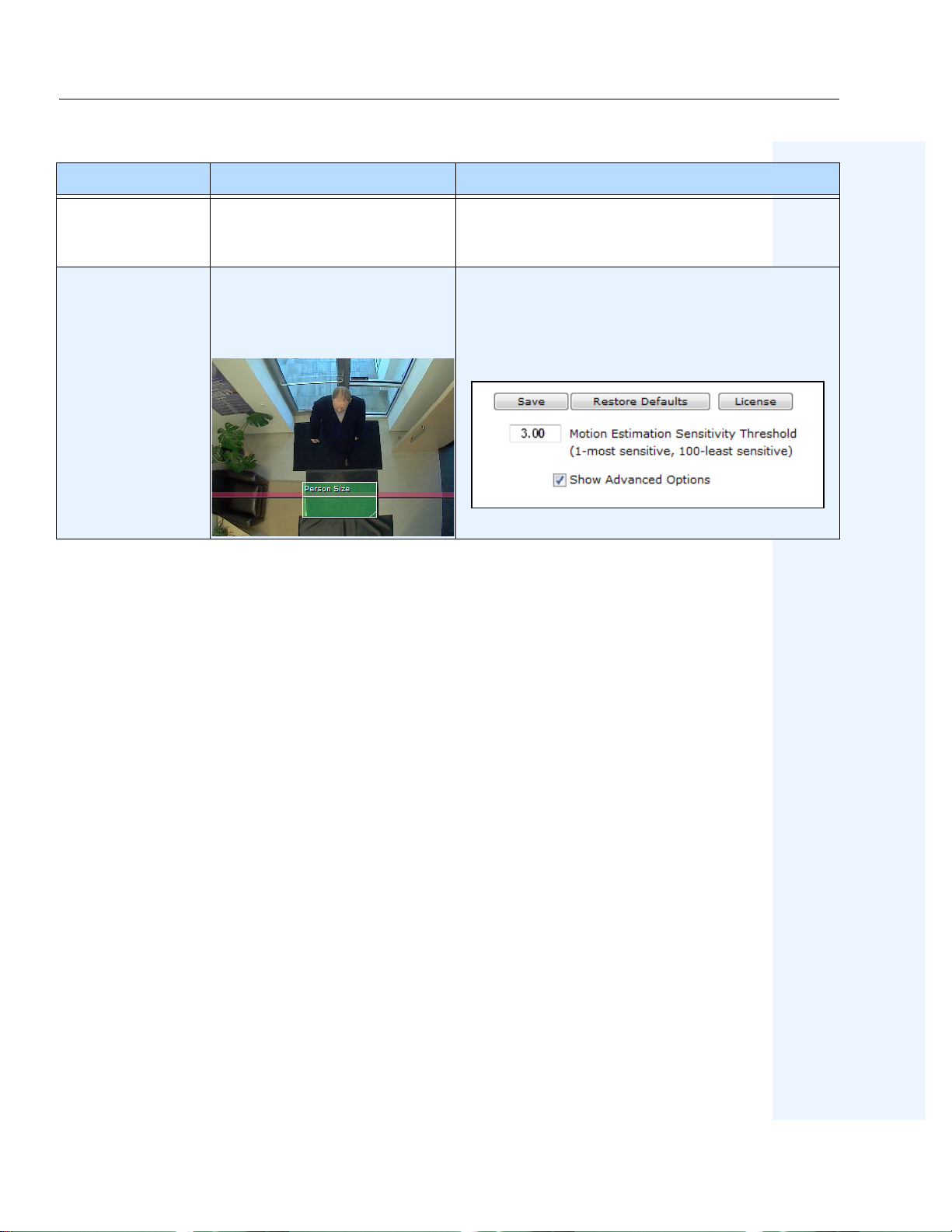
Reduce the
Person size is set too big
should be no more than 1/3 the size of the screen and
no less than 1/5 of the size of the screen.
Black mat on floor with person in
dark clothing crossing counting
line
Reduce the
Threshold
section.
Moving the Camera
If you power off and move the camera to another location, the
automatically restart when the camera is powered on again.
However, r esize the
(light, floor reflection s). See
Person Size Box
“How to Set Up Person Size and Object Line Crossing” on page 14
to adjust for pe ople size at a potentially new he ight and sensitiv ity
Person Size
Motion Est im a tion Sensitivity
box. The
option to 3 or 4 in the
Aimetis People Counter
Person Size
Advanced Options
will
.
box
Aimetis People Counter 2.1
24
Page 33
Moving the Camera Aimetis People Counter 2.1
Example 1:
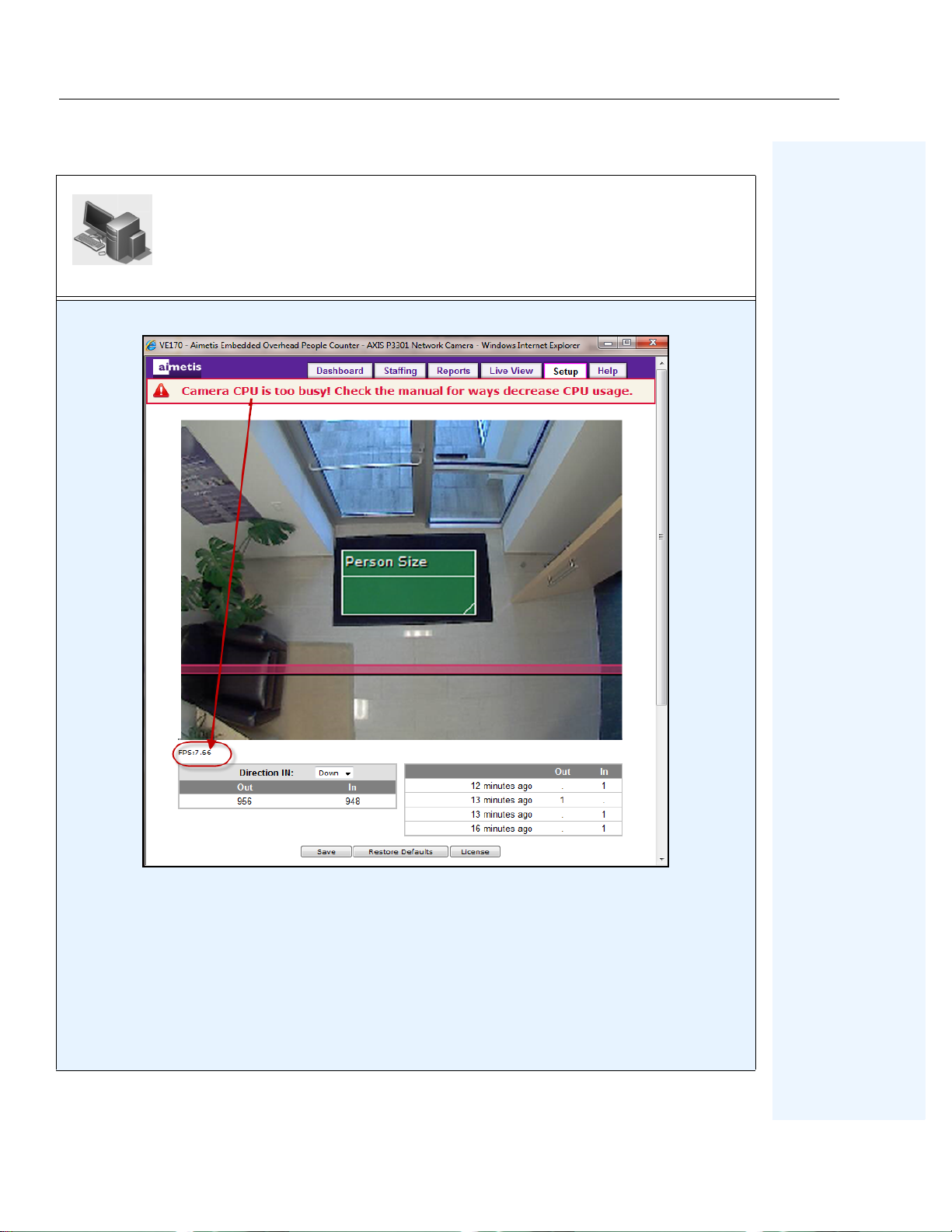
Camera CPU is too busy error message displayed.
: In this example, the
Issue
Note: FPS
Solution
rate displayed only if the
: See
“Table 6. How to resolve issues” on page 21
FPS
of 7.66 is too low. It should be running at 11 FPS or higher.
Show Advanced Options
message.
• “Ensure that Motion Detection is turned off.” on page 22
•
“Limit the Maximum frame rate to 11 FPS per viewer:” on page 22
•
“Ensure that the Aimetis People Counter is the only application running on the camera at the time. To
verify how many applications are running:” on page 22
•
“If requesting a report programmatically, limit your request to 1 per minute.” on page 23
Aimetis People Counter 2.1
check box has been selected.
for all solutions related to
CPU is too busy
25
Page 34
Moving the Camera Aimetis People Counter 2.1
Example 2:
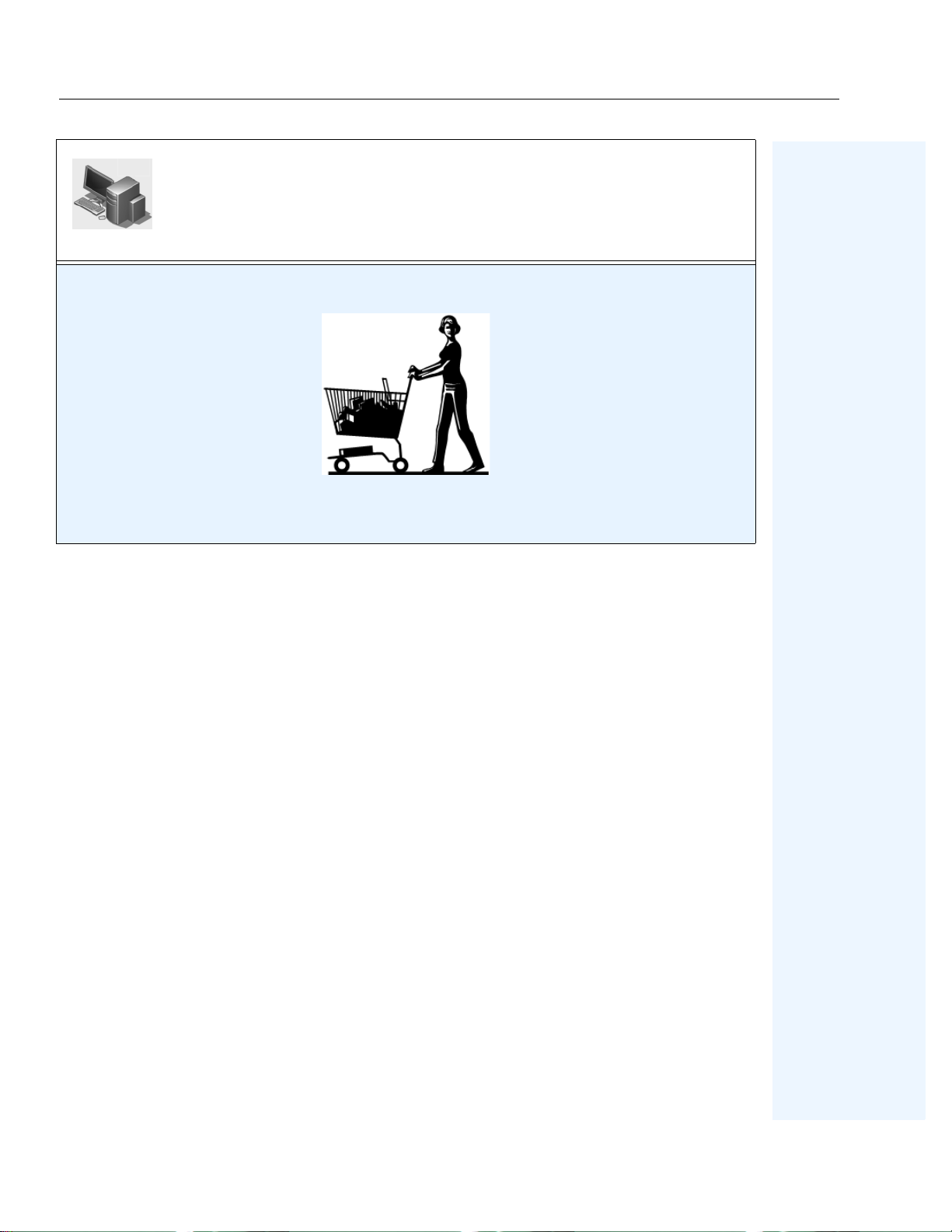
People with shopping carts not counted correctly.
Solution
In the
:
Advanced
options
Object Counting
section, change the Max object length ratio to 2.50.
This will account for the person plus the shopping cart.
Aimetis People Counter 2.1
26
Page 35
Collecting Data Remotely from the Aimetis People Counter Aimetis People Counter 2.1
Collecting Data Remotely from the Aimetis People Counter
The following (
“Script” on page 2 8
) is a sample script for extracting counter data from the Aimetis People
Counter application running on an Axis camera.
The script uses the
A brief description of
Wget
utility program for performing HTTP requests to the Axis camera.
Wget
can be found here:
http://en.wikipedia.org/wiki/Wget
Structure of the HTTP Request
http://<CamIP>/local/VE170/rep.csv?<Query>
Where:
CamIP
•
•
Query
The query follows the standard rules for any HTTP query. The following fields can be used:
• StartYear
• EndYear
• StartMonth
• EndMonth
•StartDay
• EndDay
• Sta rtHour
• EndHour
• DetailLevel
is the IP of the A xis camera
defines the detail level and period for the counter data to be extracted
All field values for date-time boundaries are inclusive, that is, data extracted for
StartDay=2&EndDay=4
Month
Hour
field value is 1 to 12, that is,
field value is 0 to 23 corresponding to 12 am to 11 pm.
Possible values for
•
S
, the data is detailed for every minute
•
H
, hour
•
D
, day
•
M
, month
•
Y
, year
includes the days 2, 3 and 4.
January=1, February=2,
DetailLevel
…
December=12
.
Aimetis People Counter 2.1
27
Page 36
Script Aimetis People Counter 2.1
Script
Copy and paste the following text into a
@rem Pull counter data from the Aimetis Embedded People Counter
@if "%1" == "" goto LbUsage
@set VE170_IP=%1
@if "%2" == "" goto LbUsage
@set VE170_User=%2
@if "%3" == "" goto LbUsage
@set VE170_Pass=%3
@if "%4" == "" goto LbUsage
@set VE170_Year=%4
@if "%5" == "" goto LbUsage
@set VE170_MonthStart=%5
.bat
or
.cmd
file (Windows).
@if "%6" == "" goto LbUsage
@set VE170_MonthEnd=%6
@if "%7" == "" goto LbUsage
@set VE170_DayStart=%7
@if "%8" == "" goto LbUsage
@set VE170_DayEnd=%8
@if "%9" == "" goto LbUsage
@set VE170_HourStart=%9
@shift
@if "%9" == "" goto LbUsage
@set VE170_HourEnd=%9
@shift
@if "%9" == "" goto LbUsage
@set VE170_DetailLevel=%9
@shift
Aimetis People Counter 2.1
28
Page 37
Script Aimetis People Counter 2.1
@if %9 == "" goto LbUsage
@set VE170_OutCSV=%9
@rem Initialize some more vars
@set VE170_OutLog=PullData.log
@rem Put together the HTTP request URL
@set
VE170_URL="http://%VE170_IP%/loca l/VE170/rep.csv?StartYear=%VE170_Year
%&EndYear=%VE170_Year%&StartMonth=%VE170_MonthStart%&EndMonth=%
VE170_MonthEnd%&StartDay=%VE170_DayStart%&EndDay=%VE170_DayEnd
%&StartHour=%VE170_HourStart%&EndHour=%VE170_HourEnd%&DetailLevel
=%VE170_DetailLevel%"
@echo.
@echo Download data from the Aimetis Embedded People Counter
@echo Camera IP: %VE170_IP%
@echo Start date-t ime:
%VE170_Year%-%VE170_MonthStart%-%VE170_DayStart%
%VE170_HourStart%:00
@echo End date-time:
%VE170_Year%-%VE170_MonthEnd%-%VE170_DayEnd%
%VE170_HourEnd%:00
@echo Detail level: %VE170_DetailLevel%
@echo file: %VE170_OutCSV%
@echo.
@rem Send request to the camera
@wget --http-user=%VE170_User% --http-passwd=%VE170_Pass%
--output-document=%VE170_OutCSV% --append-output=%VE170_OutLog%
%VE170_URL%
@rem Check result
@if errorlevel 1 goto LbFailed
@echo.
@echo Download Successful; Counter data downloaded to %VE170_OutCSV%
@echo.
@goto LbEnd
:LbFailed
@echo.
@echo Download FAILED; please check %VE170_OutLog%
Aimetis People Counter 2.1
29
Page 38
Script Aimetis People Counter 2.1
@echo.
@goto LbEnd
:LbUsage
@echo.
@echo Usage:
@echo.
@echo PullData CamIP User Pass word Year MonthS tart MonthEn d DaySt art DayEnd
HourStart HourEnd DetailLevel OutputCSV
@rem % 1 %2 %3 %4 %5 %6 %7 %8 %9 %10 %11
%12
@echo.
@goto LbEnd
:LbEnd
Aimetis People Counter 2.1
30
Page 39

Command for extracting data Aimetis People Counter 2.1
Command for extracting data
Example 3:
Sample command for extracting data for the period Nov.11 / 2010 11am – Nov.11 / 2010 2pm, with
the resolution of 1 minute:
PullData 192.168.1.10 user pass 2010 11 11 11 11 11 14 S "2010-11-11 11am-2pm.csv"
Output file content:
Time,In,Out
11:00a,0,0
11:01a,0,1
11:02a,0,0
11:03a,0,0
…
…
1:33p,0,0
1:34p,3,2
1:35p,0,0
1:36p,n/a,n/a
1:37p,n/a,n/a
1:38p,n/a,n/a
…
…
1:58p,n/a,n/a
1:59p,n/a,n/a
Note
: The
n/a
values indicate that the Aimetis People Counter was not running for the time slots
defined on the le ft. Thi s is an impor tant f eatur e of t he peo ple cou nte r appl icat ion; i t kee ps tra ck of t he
periods of time when it was running or not.
Aimetis People Counter 2.1
31
Page 40
Command for extracting daily data Aimetis People Counter 2.1
Command for extracting daily data
Example 4:
Command for extracting daily data:
PullData 192.168.1.10 user pass 2010 11 11 10 11 10 12 D "2010-11-10 2days.csv"
Output file content:
Time,In,Out
10 Nov,115,117
11 Nov,41,34
Note
: The output file holds data for Nov .10 and Nov .1 1 full days, bec ause requested det ail level is ‘D’,
the start/end hour parameters are ignored.
Aimetis People Counter 2.1
32
Page 41
Command for extracting 2 days hourly data Aimetis People Counter 2.1
Command for extracting 2 days hourly data
Example 5:
Command for extracting 2 days hourly data:
PullData 192.168.1.10 user pass 2010 11 11 10 11 10 12 H "2010-11-10 2days hourly.csv"
Output file content:
Time,In,Out
10am,9,10
11am,10,12
12pm,9,8
1pm,12,10
2pm,12,14
3pm,12,9
4pm,15,14
5pm,19,22
6pm,1,1
7pm,1,2
8pm,1,3
9pm,0,0
10pm,0,0
11pm,0,0
12am,0,0
1am,0,0
2am,0,0
3am,0,0
4am,0,0
5am,0,0
6am,0,0
7am,0,0
8am,7,3
9am,7,5
10am,11,9
11am,6,6
Note
: The output file holds data between Nov.10, 10am – Nov.11, 11am because the requested detail
level is ‘H’.
Aimetis People Counter 2.1
33
Page 42

Command for extracting 2 months daily data Aimetis People Counter 2.1
Command for extracting 2 months daily data
Example 6:
Command for extracting 2 months daily data:
PullData 192.168.1.10 user pass 2010 10 11 11 11 10 12 D "2010-11-11 2months daily.csv"
Output file content:
Time,In,Out
11 Oct,n/a,n/a
12 Oct,n/a,n/a
13 Oct,n/a,n/a
14 Oct,n/a,n/a
15 Oct,n/a,n/a
16 Oct,n/a,n/a
17 Oct,n/a,n/a
18 Oct,n/a,n/a
19 Oct,n/a,n/a
20 Oct,n/a,n/a
21 Oct,n/a,n/a
22 Oct,n/a,n/a
23 Oct,n/a,n/a
24 Oct,n/a,n/a
25 Oct,2048,1187
26 Oct,3137,322 3
27 Oct,378,2707
28 Oct,111,116
29 Oct,130,126
30 Oct,0,0
31 Oct,0,0
01 Nov,177,184
02 Nov,134,130
03 Nov,158,164
04 Nov,86,85
05 Nov,87,87
06 Nov,18,18
07 Nov,0,0
07 Nov,115,1 13
08 Nov,157,152
09 Nov,115,1 17
10 Nov,42,36
11 Nov,n/a,n/a
Note
: Data shows that the application did not run for the period Oct.11-Oct.24. Nov.11 data is
incomplete; therefore, it is
Aimetis People Counter 2.1
n/a
as well.
34
Page 43
Command for extracting monthly data Aimetis People Counter 2.1
Command for extracting monthly data
Example 7:
Command for extracting monthly data:
PullData 192.168.1.10 user pass 2010 10 11 11 11 10 12 M "2010-11-11 2months.csv"
Output file content:
Time,In,Out
October,5804,7359
November,1088,1084
Note
: The output file hol ds data for Octobe r and November full months, because re quested detail le vel
is ‘M’, the start/end day & hour parameters are ignored.
Aimetis People Counter 2.1
35
Page 44
Command for resetting counters Aimetis People Counter 2.1
Command for resetting counters
Example 8:
Command for resetting counters:
http://<CamIp>/local/VE170/reset_counters.cgi
where
<CamIp>
If using a browser, user might be prompted to enter user name and password.
If using Wget, enter the following command:
with the camera IP.
wget --http-user=<user> --http-passwd=<pass> http://<CamIp>/local/VE170/reset_counters.cgi
where
<CamIp>
Important
with the camera IP
: This command does not change the counter data stored internally by the APC, only the
display feature.
Aimetis People Counter 2.1
36
Page 45
Legal Aimetis People Counter 2.1
Legal
Copyright © 2013 Aimetis Inc. All rights reserved.
This guide is for informational purposes only. AIMETIS MAKES NO WARRANTIES, EXPRESS,
IMPLIED OR STATUTORY, AS TO THE INFORMATION IN THIS DOCUMENT.
Complying with all applic able copyright laws is the responsibility of the user. Without limiting the
rights under copyright, no part of this document may be reproduced, stored in or introduced into a
retrieval system, or transmitted in any form or by any means (electronic, mechanical, photocopying,
recording, or otherwise), or for any purpose, without the express written permission of Aimetis Corp.
Aimetis may have patents, patent applications, trademarks, copyrights, or other intellectual property
rights covering subject matter in this document. Except as expressly provided in any written license
agreement from Aimetis, the furni shing of this document does not gi ve you any license to these paten ts,
trademarks, copyrights, or other intellectual property.
Aimetis and Aimetis Symphony are ei ther r egister ed trade mark s or trademar ks of Aimet is Corp. in the
United States and/or other countries.
Important: We are using the Slider in accordance with Section 4
Redistribution
http://webfx.eae.net/license/asl2
(
of the Apache License, Version 2
).
Aimetis People Counter 2.1
37
 Loading...