

Page 1

Bluetooth USB Adapter
Electronic ManualElectronic Manual
Page 2

FCC Statement
This device complies with part 15 of the FCC rules. Operation is
subject to the following two conditions. (1) This device may not
cause harmful interference and (2) This device must accept any
interference received, including interference that cause undesired
operation.
You are cautioned that changes or modifications not expressly
approved by the party responsible for compliance could void your
authority to operate the equipment.
Page 3

Bluetooth USB Adapter User Guide
Table of Content
Quick Installing Guide
Step 1. Installing Software
Step 2. Insert Bluetooth USB Adapter into a USB port
Step 3. Setup Tray Application
How to Use Bluetooth Service
1. Search for Other Bluetooth Device
2. Service Discovery
3. Bluetooth Service (Profile) Explanation
4. Pairing
5. Troubleshooting
6. Important Notices for WindowsXP OS
This Bluetooth USBAdapter User Guide is for quick guide of installing procedure and
trouble shooting. If you want to understand complete functions of Bluetooth, please refer to
Widcomm’s
“BTW Users Guide.pdf”,
Bluetooth is a registered trademark of Bluetooth SIG. All other products and product
names mentioned herein are trademarks of their respective companies.
BTW (Bluetooth for Windows) Guide on CD in the package (The file name is
English version only).
Page 4
Quick Installing Guide
Step 1. Installing Software
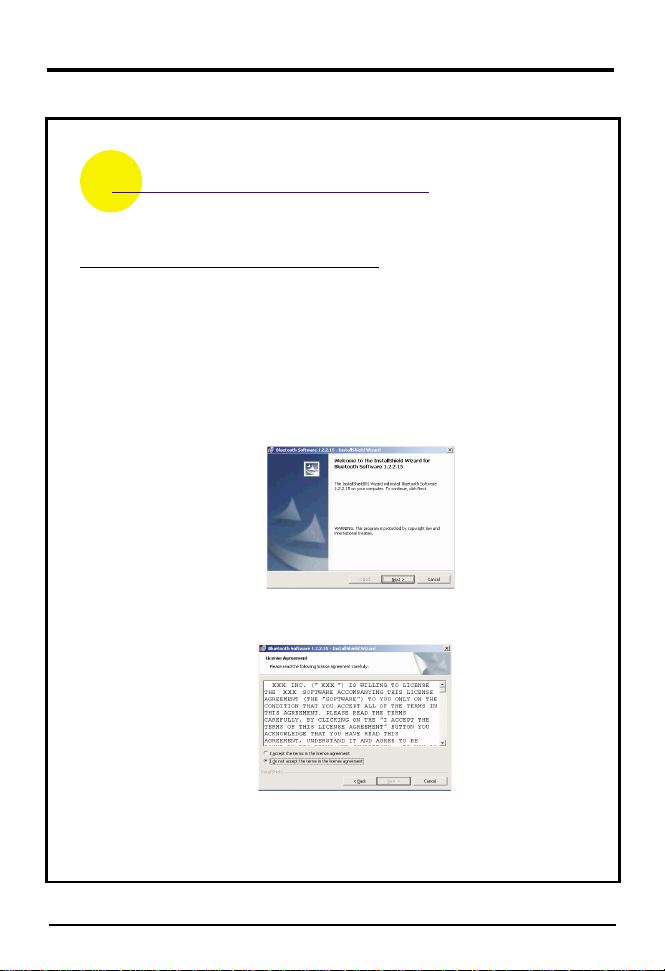
1. Insert the CD into CD/DVD drive on your PC. The CD
should start automatically and present you with an
installation menu.
item mportant Notices for WindowsXP OS simultaneously)“I ”
2. Choose "Bluetooth Manager".
3. Click " Next ". (see figure 1)
(*If your OS are WindowsXP, please refer to
Figure 1
Figure 2
4. If you agree with the license terms, select " I accept the
terms in the license agreement " and click " Next " . (see
figure 2)
Page 5
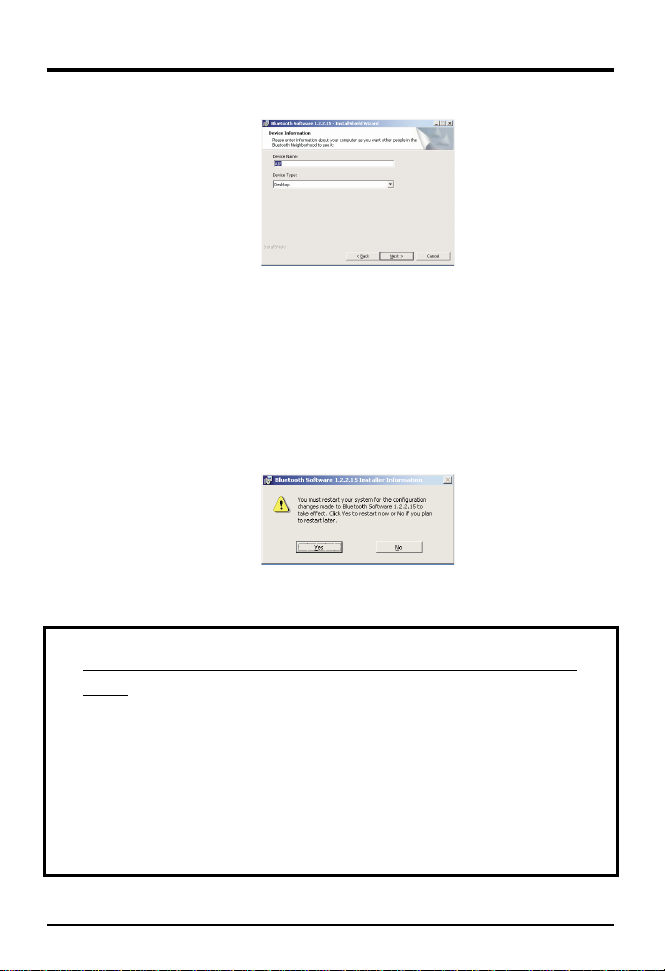
Figure 3
5. Ensure the device name and type are correct then click "
Next " . (see figure 3)
6. click " Next "
7. click " Install "
8. click " Finish "
Figure 4
9. Click"Yes" to restart Windows. (see figure 4)
Step 2. Insert Bluetooth USB Adapter into USB
Port
1. Insert Bluetooth USB Adapter into a free USB port after restartng
Windows.
2.Windows should inform you that new hardware has been found and
install the drivers automatically.
If you Insert Bluetooth USB Adapter correctly, you will see LED lighting,
and it will flash when date has been transmitted.
Page 6
Step 3. Setup Tray Application
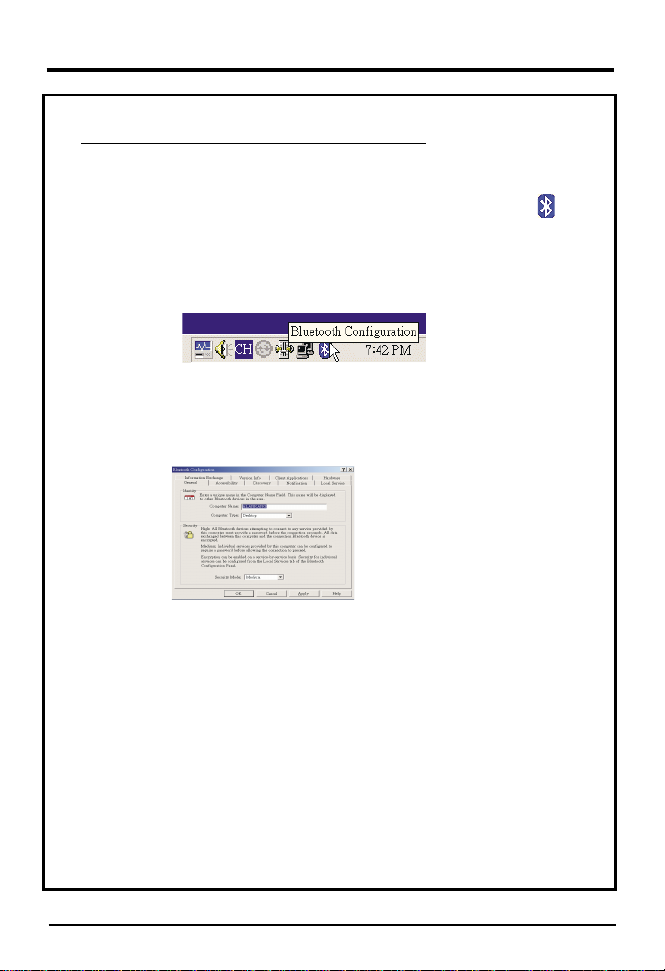
After you have installed the software and have inserted the Blue tooth
USB Adapter into a free USB Port, please check a new icon like on
the Windows system tray located in the bottom right hand corner of your
Windows desktop. If you move the mouse onto the icon, you should see
a popup message Bluetooth Configuration". (see figure 5)“
Figure 5
This is the Bluetooth System Tray icon. Righ t " "click on it, select Setup
then you will see the following screen.(see figure 6)
Figure 6
The "Computer Name" you see here should be the same as your
computer name or the name you choose during the installation
process. The computer type is either "Desktop" or "Laptop".
The security mode may be set to "High" or "Medium". Medium is the
default setting. This means that anyone can connect to your system and
use your services without having to type in a password. You can protect
your individual services with a passkey and/or encryption by choosing
High security mode.
Page 7
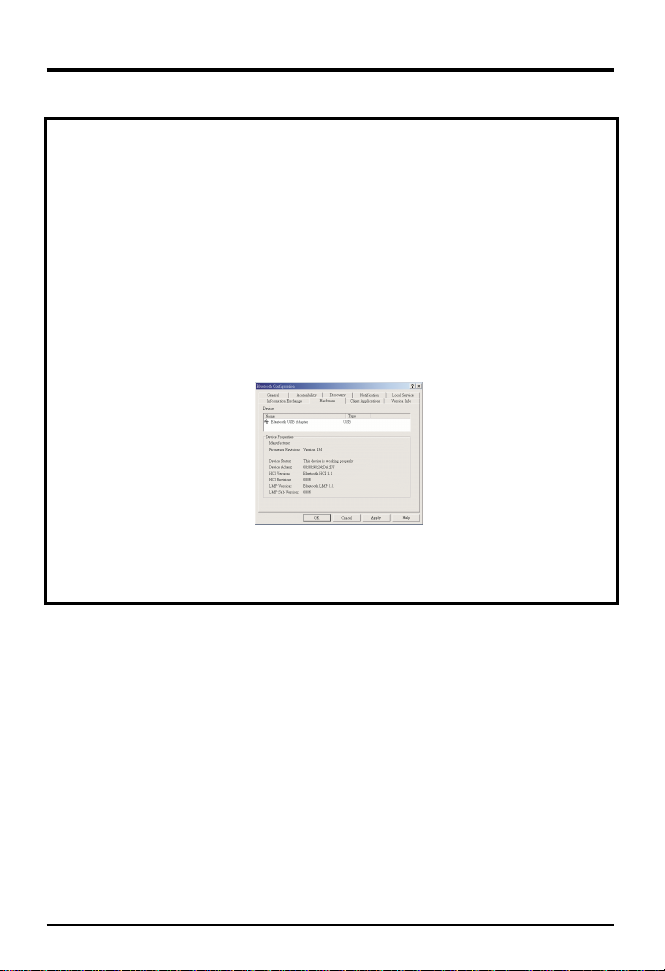
To insure that your hardware is working properly, click on the Hardware
tab. If the Device Status shows "NA" then your USB Adaptor has not
been detected by the software. If the device is not plugged into USB
port in your computer, please insert it again.
If Device Status in Device Properties is "The Device is working normally",
press the "OK" button. Congratulation! You have completed the
installation process. (see Figure 7)
Figure 7
Page 8
How to Use Bluetooth Service
1. Search for Other Bluetooth Device
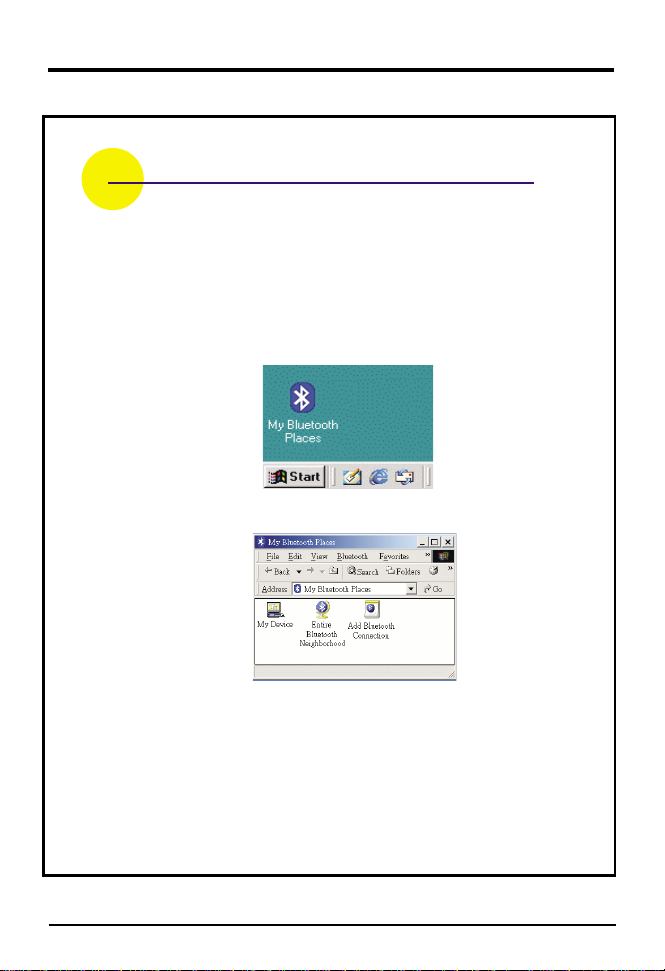
After installation of the Bluetooth software you will have a new icon
on your Windows desktop (see Figure 8).
Double-click on this icon to bring up "My Bluetooth Places" (see
Figure 9).
Figure 8
Figure 9
To discover nearby Bluetooth devices, click the "Entire Bluetooth
Neighborhood" icon. It will try to discover other Bluetooth devices
within radio range. If any devices are discovered they will be
displayed in the Entire Bluetooth Neighborhood. The search may
take a few minutes if there are many discoverable Bluetooth devices
within range.
Page 9
2. Service Discovery
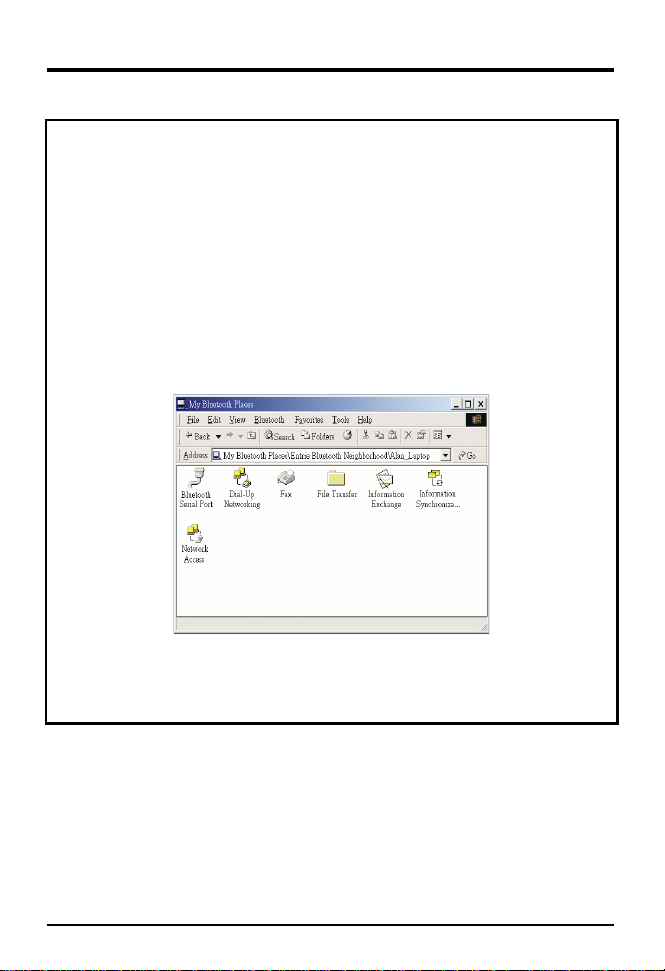
Each Bluetooth device has services (profiles) you can access. To
find out which services (profiles) a device supports, double click
on that device. You will see all of the services listed, detailed
explanations are on the next page.
We suggest you to read on-line help (press F1). You can find
more of detail setting about the profiles in it.
Figure 10
(see Figure 10).
Page 10
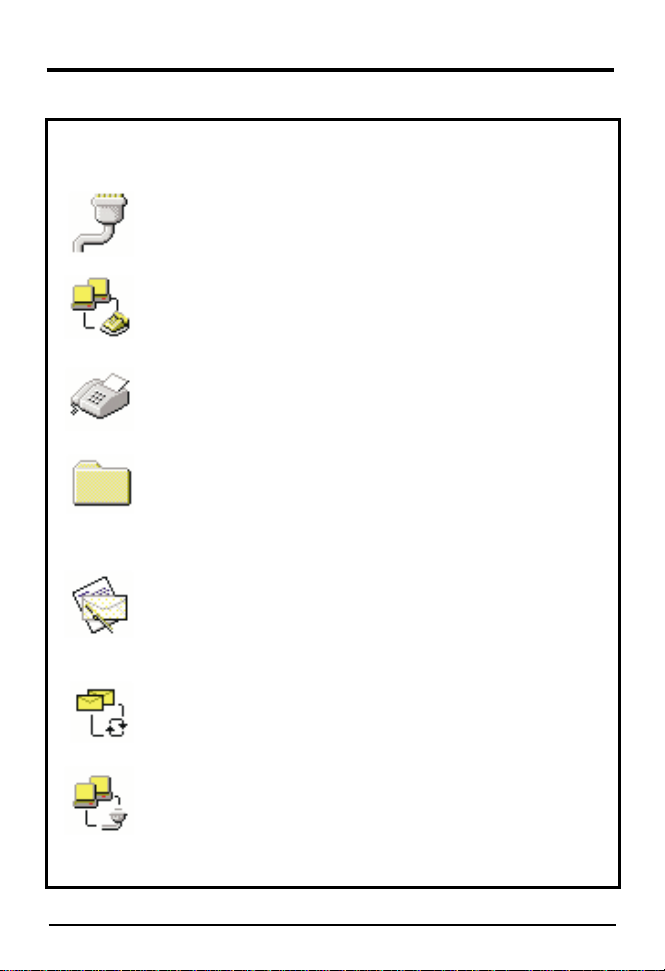
3. Bluetooth Services (Profiles) Explanation
Bluetooth Serial Port
wireless connection between two devices. The connection can emulate
legacy RS232 serial cable link.
Dial-Up Networking
in another Bluetooth device to dial out and connect to internet.
allows a Bluetooth client to wirelessly send a fax via another
Fax
Bluetooth device which can dial to telephone network (ex: Bluetooth
Mobile Phone).
File Transfer
allows your computer to perform file system operations on another
Bluetooth-enabled device. You can browse, drag/drop, open, print,
cut/copy, paste, delete, rename, etc.
establishes a Bluetooth wireless connection that
Information Exchange
connection between two devices so that they can transfer PIM (Personal
Information Manager) data such as business cards, calendar items,
email messages, and notes from one device to the other.
Information Synchronization
wireless connection between two devices and uses the connection to
synchronize PIM data between the two devices.
allows you to establishes a Bluetooth
allows a Bluetooth client to use a modem
establishes a Bluetooth wireless
establishes a Bluetooth
Network Access
connection between two devices. If another Bluetooth-enable device has
connected to internet, you can share its internet connection by using this
service.
establishes a Bluetooth wireless
Page 11
4. Pairing
Pairing allows you to avoid entering access information each time a
connection is attempted. Paired devices share a unique Link Key, which
they exchange when connecting.
The mate of a pair will always appear in My Bluetooth Places, even if
the mate is not turned on or is out of connection range.
Paired devices remain paired even when:
*One of the devices is powered off.
* A service connection is interrupted or the service stopped.
*One or both devices are rebooted.
When authentication is enabled, devices are paired the first time they
attempt to connect after a successful passkey exchange.
To pair devices before attempting a connection:
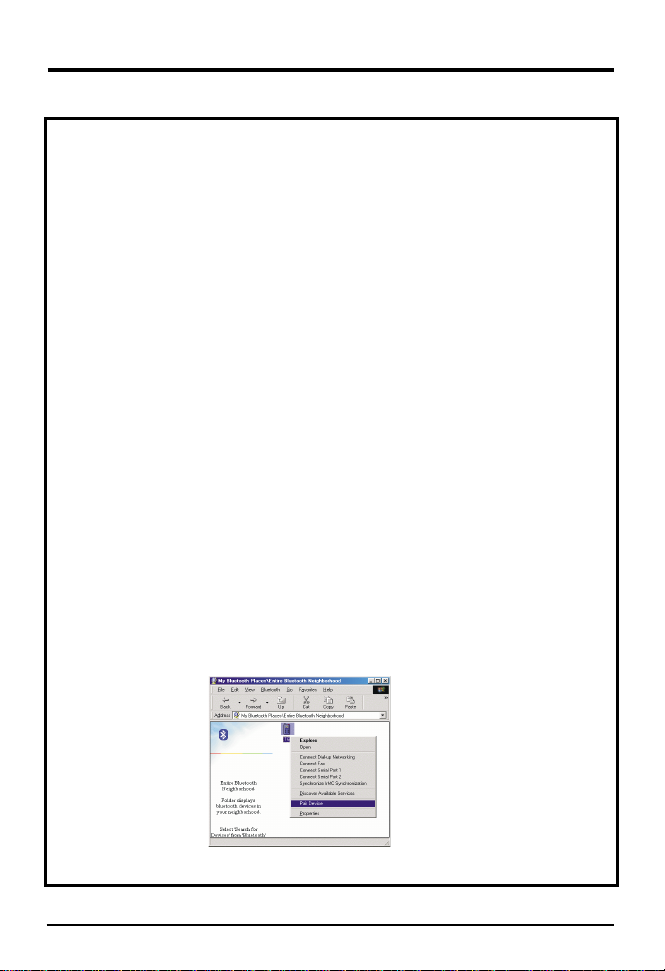
1. Right-click the device you want to pair , and select "Pair
Device" item. (See Figure 11)
Figure 11
Page 12
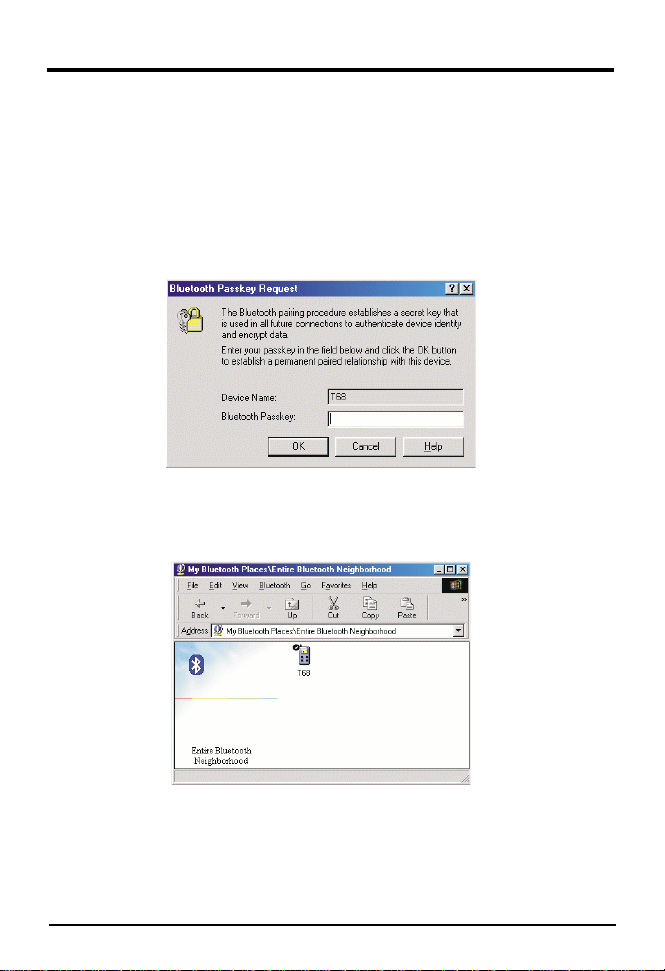
2. The system will require you to enter the Bluetooth Passkey for the
device you want to pair. The Passkey of the two devices have to be
the same. If the Passkey is correct, you will see the following icon,
then the pairing process is successful.(See Figure 12 & 13 )
Figure 12
Figure 13
P.S. Paired device permits all services to connect without authorization.
Page 13
5. Troubleshooting
1. Cannot connect to a paired device:
Paired devices are always displayed in My Bluetooth Places, even if the remote device is
out of range or not powered up. Verify that the remote member of the pair is within radio
range and powered up and then attempt the connection again.
2. Cannot discover services on an un-paired remote:
The remote device may not be powered up or may be out of range.
Be sure to restart your computer after installing the software.
Verify that the remote device is powered up.
Verify that the remote device is in the Connectable mode (Bluetooth Configuration Panel >
Accessibility tab).
Perform a Search for Devices to verify that the device is within range.
3. Dial-up networking service does not start:
The Dial-up Networking service will not start unless a properly configured modem is attached to
the server.
Verify that the modem is usable as a local device from the server.
In the Bluetooth Configuration Panel, Local Services tab, double-click the
Networking service.
”
Click the down arrow in the Modem field and select the modem that will be used to dial out
Click the "OK" button
4. How do I determine the Bluetooth device address (BDA) of my
hardware device?
In the Bluetooth configuration panel, on the Hardware tab (see Figure 7) , in the devices section,
select the device for which you want to determine the address of. In the device properties
section of the dialog box, the fourth entry, device address, is the BDA of the selected Bluetooth
device.
“Dialup
Page 14
5. How do I determine the version number of the Bluetooth
specification that the host controller interface (HCI) complies
with?
In the Bluetooth Configuration Panel, on the Hardware tab (see Figure 7), in the Device
Properties section, the fifth entry provides Bluetooth Specification compliance information for
the Host Controller Interface.
The sixth entry contains the Specification Revision information for the Host Controller
Interface, if appropriate.
6. How do I determine the version number of the Link Manager
Protocol (LMP)?
In the Bluetooth Configuration Panel, on the Hardware tab (see Figure 7), in the Device
Properties section, the seventh entry provides Link Manager Protocol version number
information. The eighth entry contains the Link Manager Protocol (LMP) sub-version number
information, if appropriate. BTW Configuration & User Guide Troubleshooting.
7. How do I find information about the Bluetooth hardware
attached to my computer?
In the Bluetooth Configuration Panel, select the Hardware tab (see Figure 7).
8. How do I test a network access connection?
If the client is hardwired to the LAN, unplug the hardwired connection to ensure that
the test checks the wireless connection rather than the hardwired connection. If the
server has access to the Internet, open a browser on the client and connect to the
World Wide Web.
9. Why do I get an unknown port message when I attempt to use
a Bluetooth serial port?
The "unknown Port" error message usually means an attempt was made to connect a
port that was in use. Additional Bluetooth Serial Ports can be added if they are required.
Page 15
6. Important Notices for WindowsXP OS
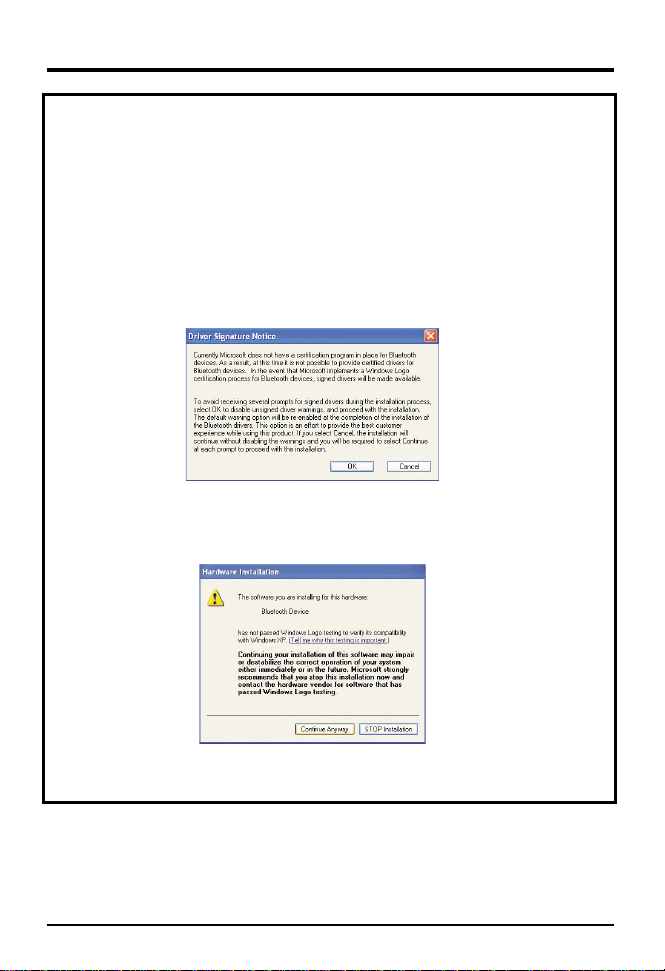
1. In Installing Process, If your operating system are WindowsXP, you will see two
screens like below (see figure 14, figure 15). Because Microsoft does not include
Bluetooth function in MS-Windows Series operating system, there have some warning
messages. Microsoft announces it will support Bluetooth devices in the new patch of
WindowsXP. Now we suggest you to follow the next two steps. Please choose
Button as the message like figure 14 was shown, and choose utton
as the message like figure 15 was shown.
“Continue Anyway” B
“OK”
Figure 14
Figure 15
Page 16
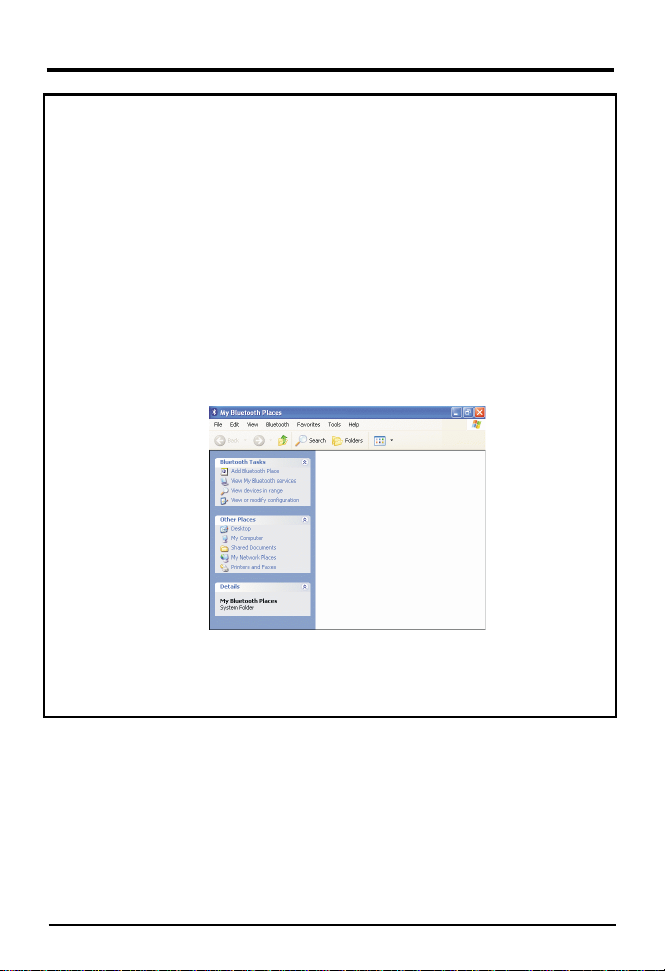
2. If your operating system are WindowsXP, when you double click “My Bluetooth Place”
icon on your desktop, you will see the following screen. Although layout of the options
are different from Windows 98/ME/2000, all the functions are the same. You can find
“Bluetooth Tasks” in top left hand corner of the active window. The first option “Add
Bluetooth Place” let you to make shortcut of services from other Bluetooth devices in
right hand column (see figure 16, it is empty now). You can choose “View My Bluetooth
services” option to see the Bluetooth services provided by the USB Adapter in the
computer, or you can choose “View devices in range” option to discover nearby
Bluetooth devices. You also can choose “View or modify configuration” option to setup
Bluetooth configuration. If you choose the option, it will appear the screen similar to
figure 6.
Figure 16
 Loading...