

Page 1
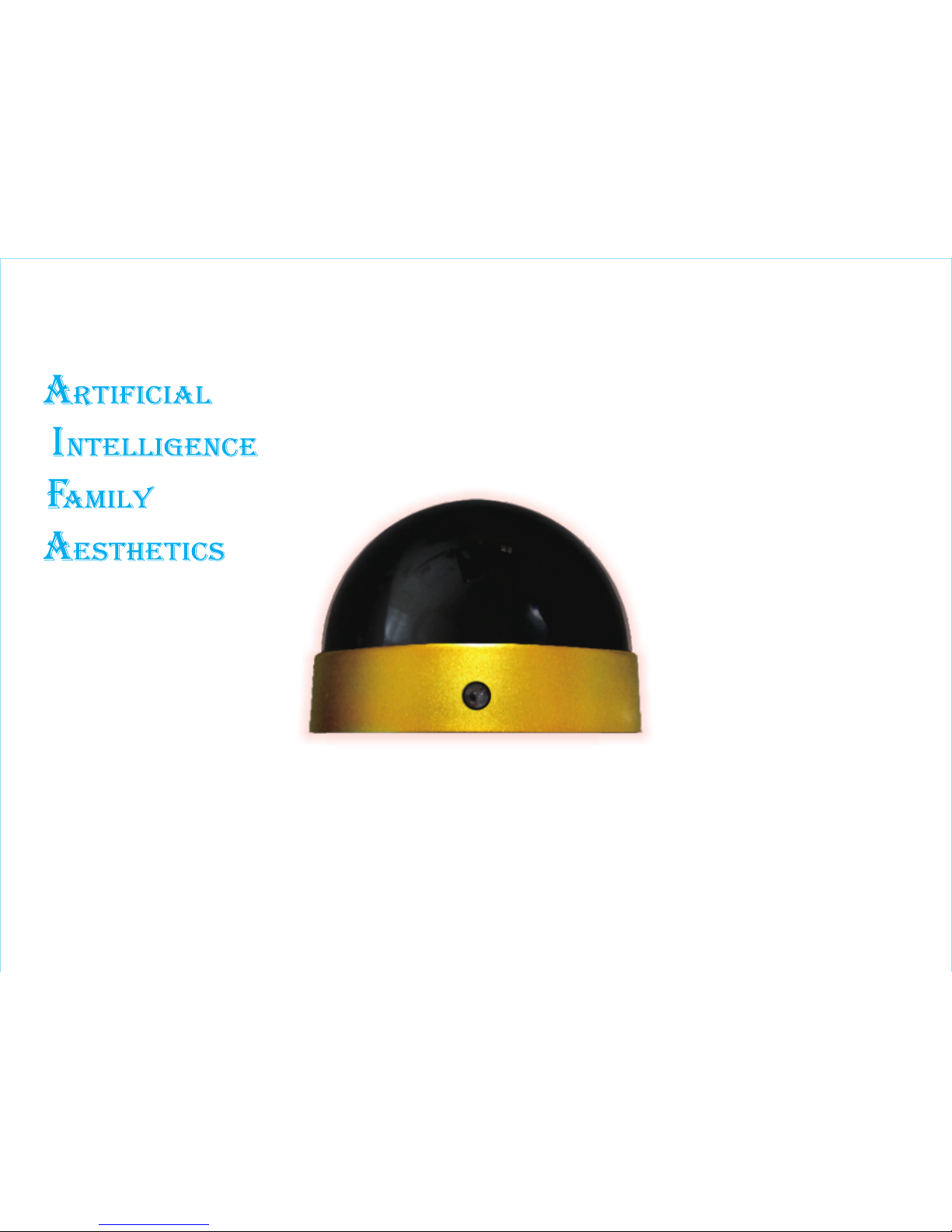
BTRC
Smart Home Control Box
Instruction Manual
AIFAAIFAAIFA
Page 2

PRODUCT INFORMATION ...................................................................... 2
PRODUCT SPECIFICATION .................................................................... 2
INSTALLATION ...................................................................................... 3
INTERFACE ........................................................................................... 5
TV INTERFACE – MY FAVORITE ........................................................... 6
CODE SETTING ...................................................................................... 7
CODE AUTO SEARCH ........................................................................... 9
LEARNING FUNCTION ......................................................................... 11
EXIT FROM LEARNING FUNCTION ...................................................... 12
DELETE LEARNED BUTTON ................................................................. 12
LEARNING MODE – LEARNING FUNCTION ......................................... 13
LEARNING MODE –DELETE LEARNED BUTTON ................................. 16
Contents
Page 3
2
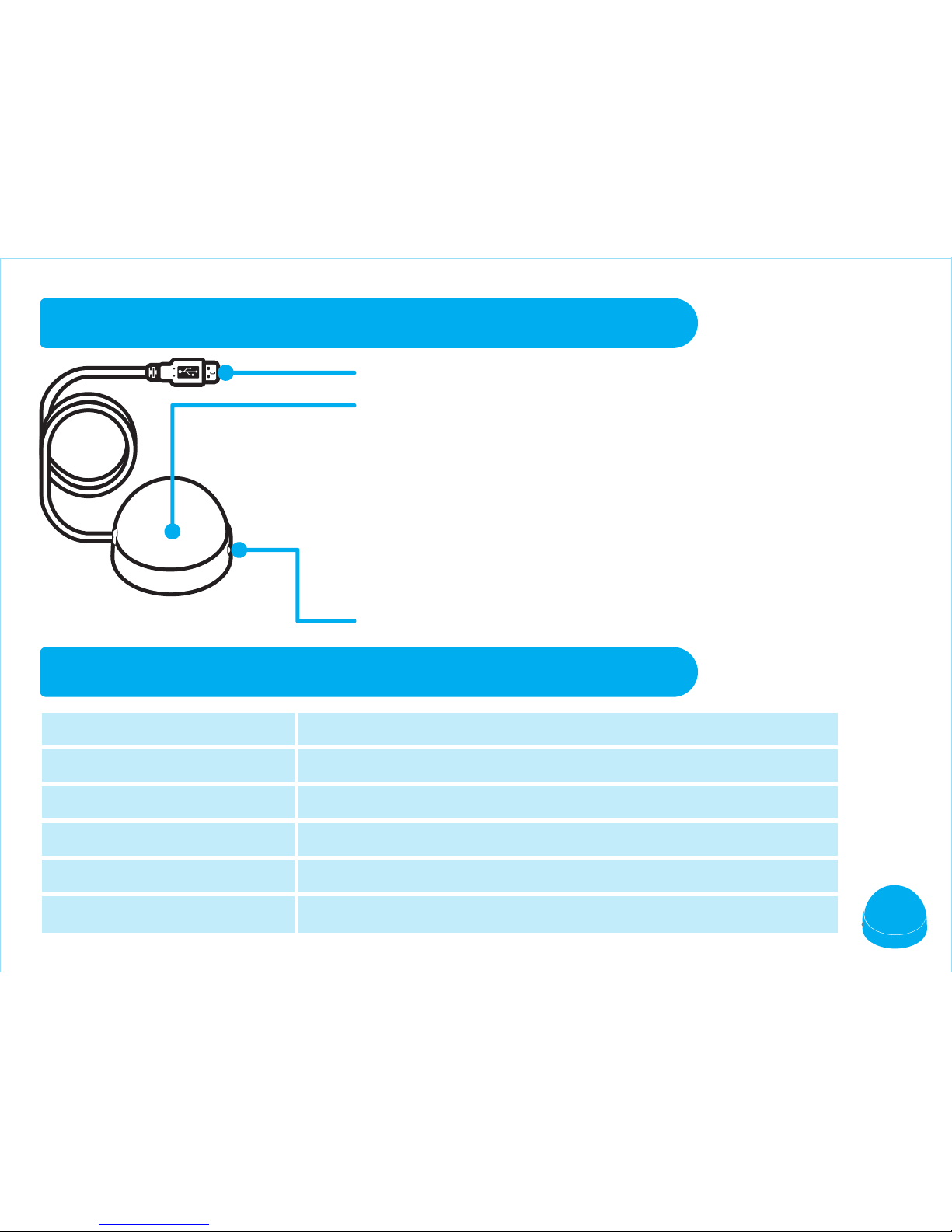
Size
Power Cord
Effective Range
Bluetooth Version
Bluetooth & System Specification
Other
USB( Length 1.5 M) Power Adaptor 5V/700mA suggested
Infrared : 8 meters / Bluetooth : 10 meters.
Bluetooth 3.0+EDR /4.0 , 2402~2480MHZ
SPP ; Android 4.0 , iOS 7.0
Power bank is not supported.
66 x 66 x 44 mm (About 60 g)
PRODUCT INFORMATION
PRODUCT SPECIFICATION
USB POWER CORD
LED INDICATOR LIGHT : The status of BTRC
1. Red light off : Power off
2. One flash of red light : The control signal of Air Conditioner.
3. Two flashes of red light : The control signal of home devices (except air
conditioner).
4. Two flashes of red light in every 2 seconds : Auto Code Search (except air
conditioner).
5. Non-stop flashes of red light : Under learning mode.
6. Red light keeps lighting : Ready to learn / Learning succeeded or failed.
7. Blue light keeps flashing : Awaiting for pairing of Bluetooth.
8. Blue light keeps lighting : OK for Paring and connection.
INFRARED TRANSMITTER / RECEIVER
Page 4
3
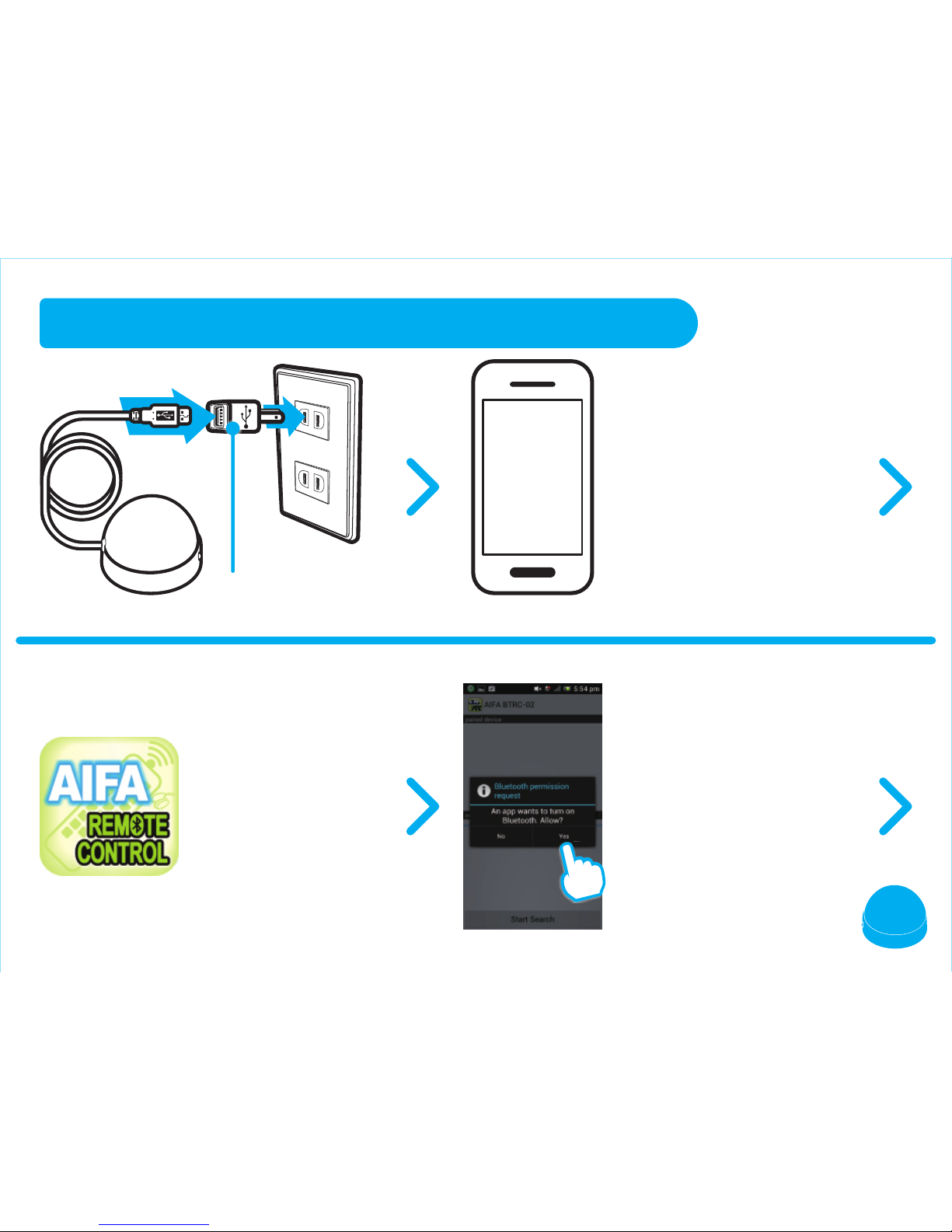
USB Connector 5V / 700mA
INSTALLATION
Download BTRC
APP and open it.
Open the APP and press
"YES" to turn on your
Bluetooth.
Download "AIFA BTRC
(EU)" APP from iTunes or
GOOGLE PLAY.
Download
APP
Page 5
4
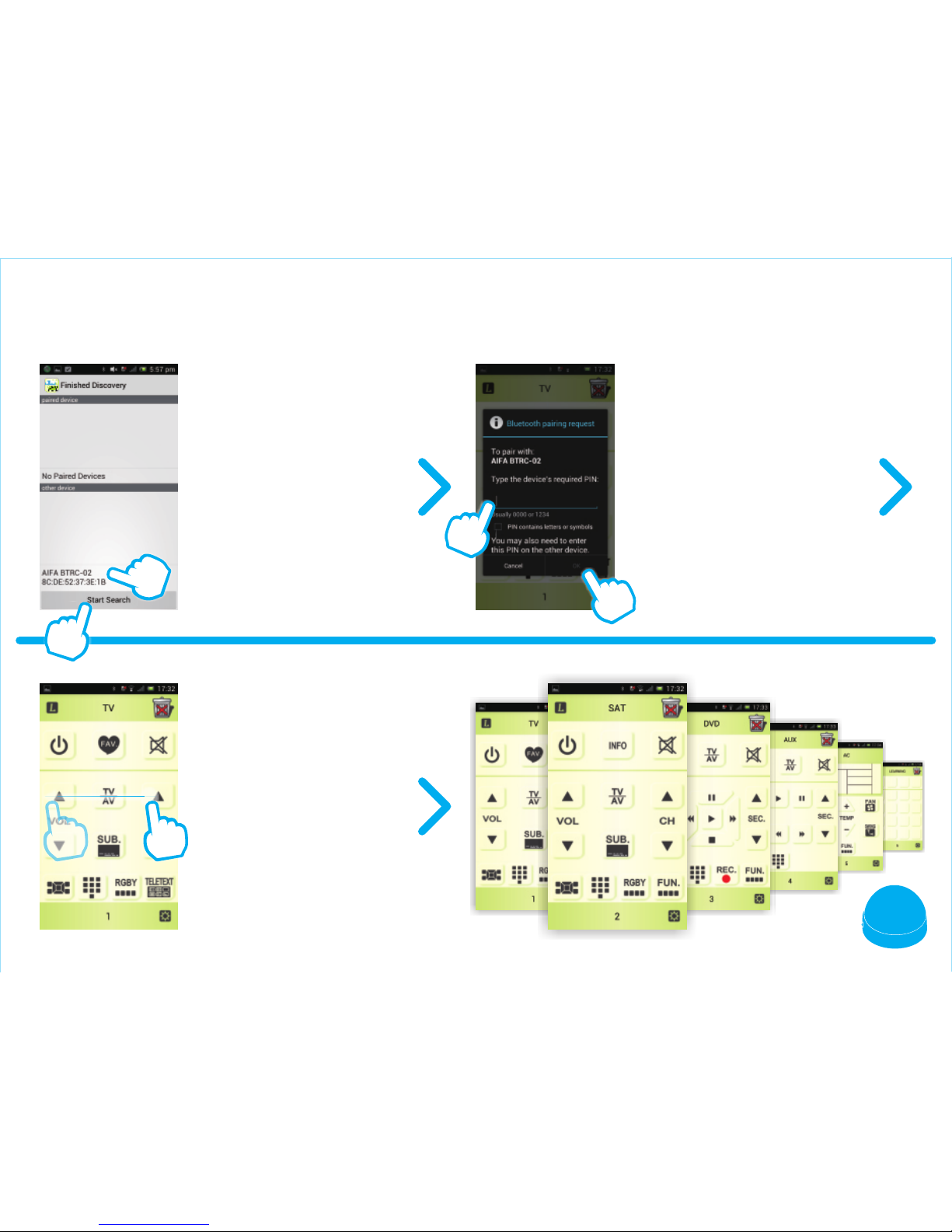
Input PIN password (0000)
Switch between interfaces :
TV > SAT > DVD >
AUX > AC >
LEARNING > TV
Press "Start Search"
and select the device
"AIFA BTRC".
2
2
1
1
Page 6
5
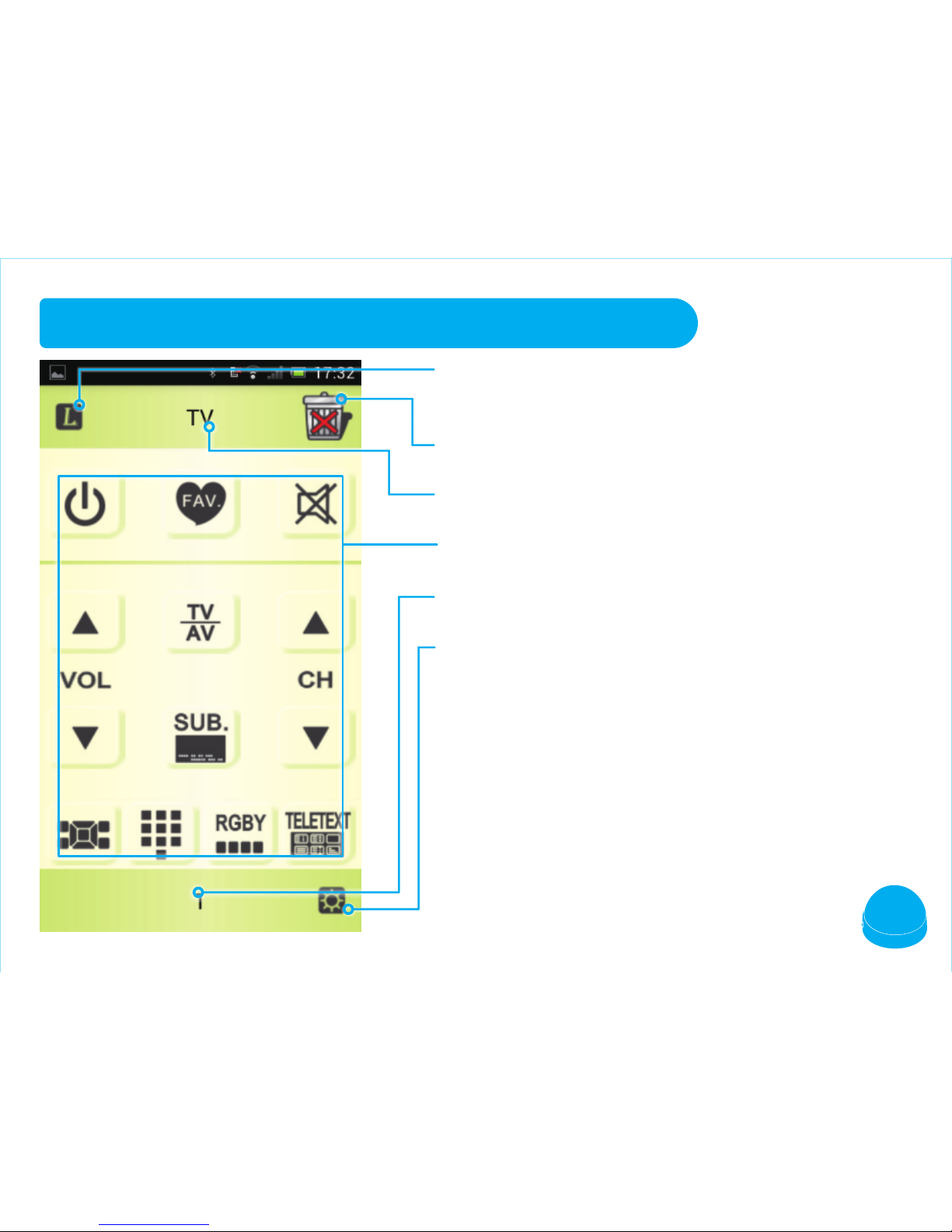
INTERFACE
L : Enter LEARNING mode.
Button Edit : Delete any learned buttons.
Device Name : Slide to switch between different
interfaces
Main interface.
Page Number.
Setting : Brand code setting. It has different functions
on LEARNING interface.
Page 7
236
2
Channel
88
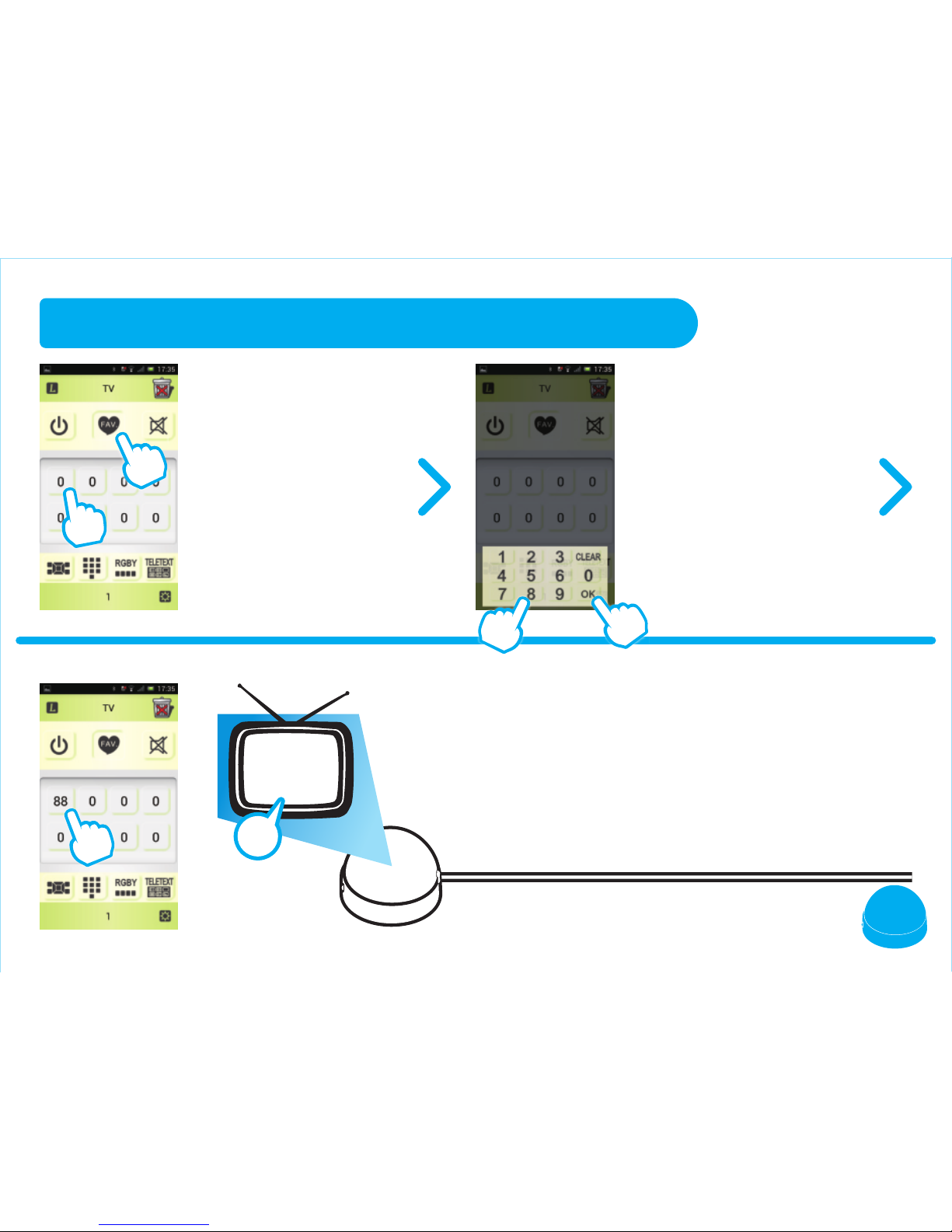
TV INTERFACE – MY FAVORITE
Press the " FAV." button
and then press any
button for 3 seconds to
enter edit interface.
Now you can switch to your favorite
channel only by one press.
Input your favorite channel
number and press "OK".
2
2
1
1
1
Page 8
7
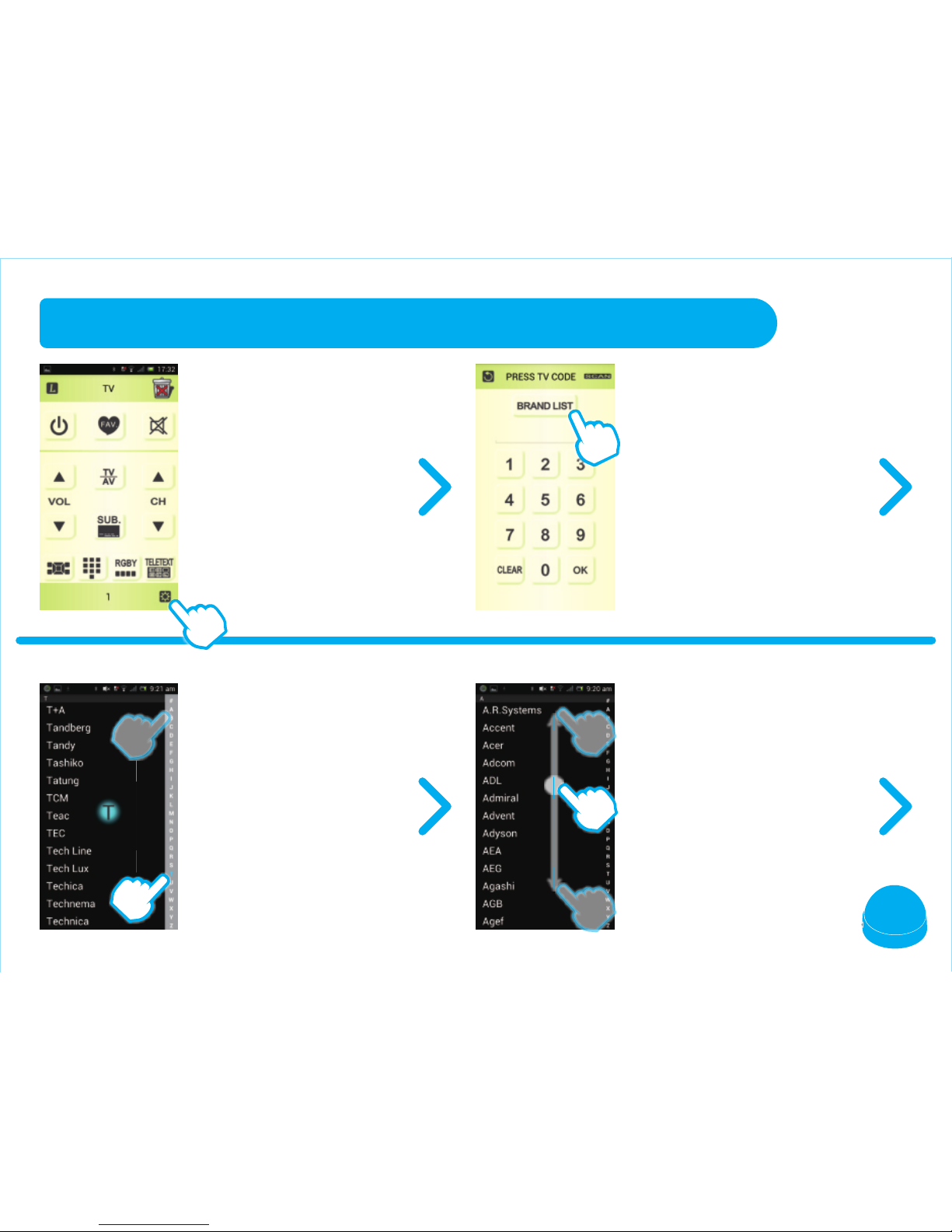
CODE SETTING (FOR EXAMPLE : TV)
4. keep pressing the
column of alphabet on
right hand side to
trigger quick-search.
1. Turn off your TV.
2. Press the "SETTING"
button to setup your
brand.
3. Press the "BRAND LIST"
button.
5. Find your brand and
press it.
Page 9
8
2
OPEN
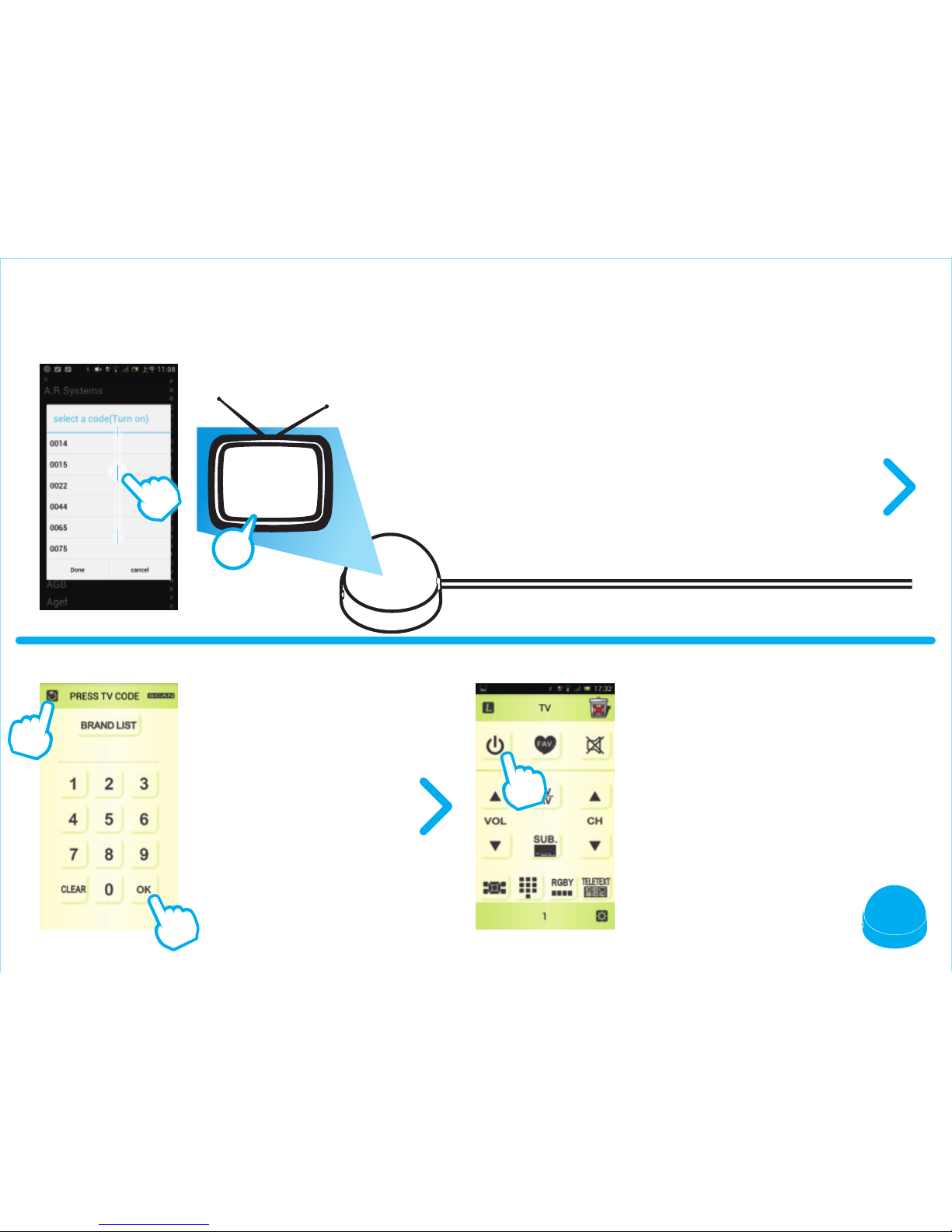
7. Press the "OK" button
to confirm your code
and back to TV
interface.
6. Choose your code (if you know) or just try to
press each code to test if the code is right.
If the code is right, your TV will be turned on.
Press "Confirm" to get back to code setting
page.
8. Press the "POWER" button
to turn on your TV.
If it doesn't work, please
repeat step 1 - 7 and try the
other codes that works.
1
2
1
Page 10
2
9
2
OPEN
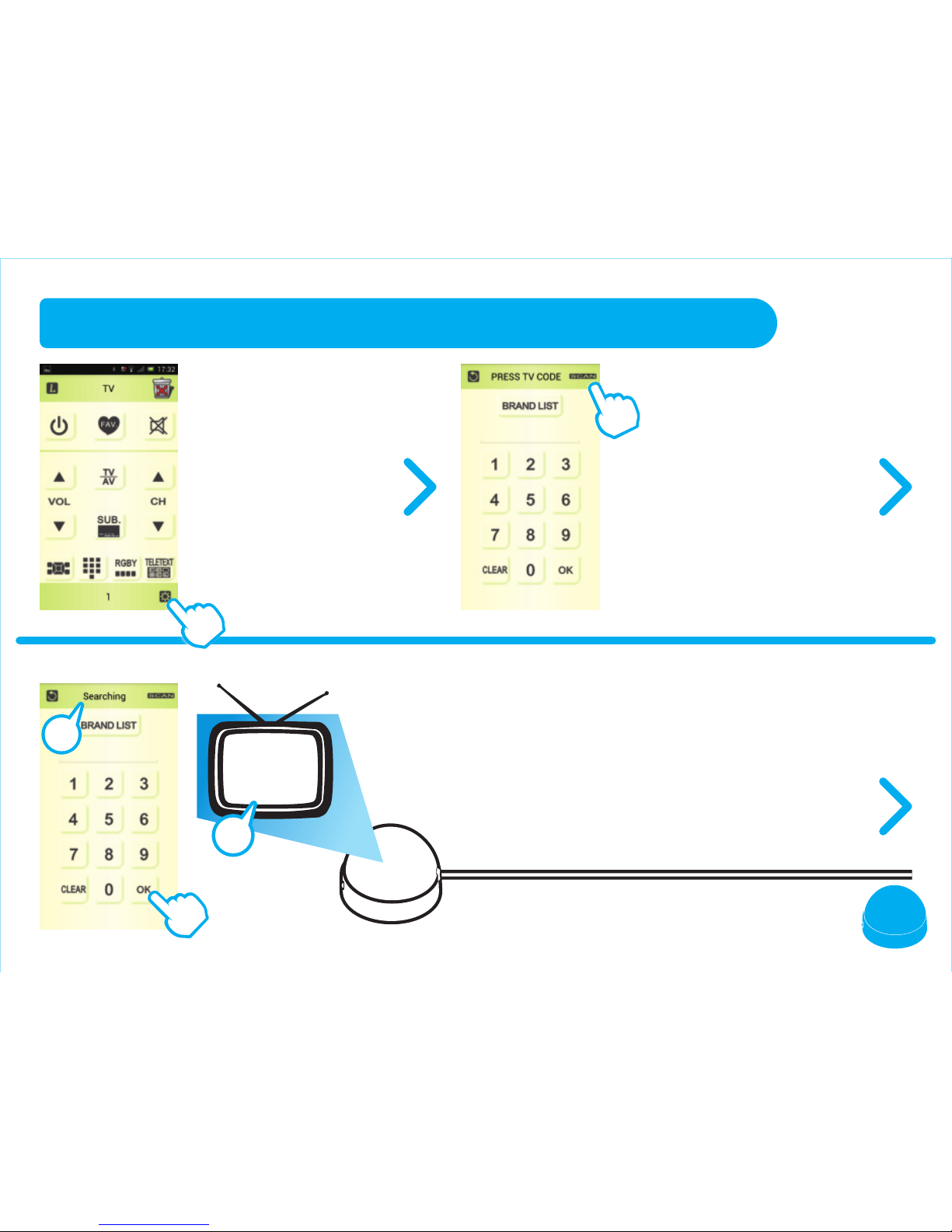
CODE AUTO SEARCH (FOR EXAMPLE : TV)
1. Turn off your TV.
2. Press the "SETTING"
Button to setup
your brand.
4. Your TV will be turned on if the right code
have been found. Press the "OK" button
to confirm.
3. Keep pressing the "SCAN"
button on the upper right
corner to start code autosearching and release the
button until the message
"Searching" shows up.
3
1
Page 11
10
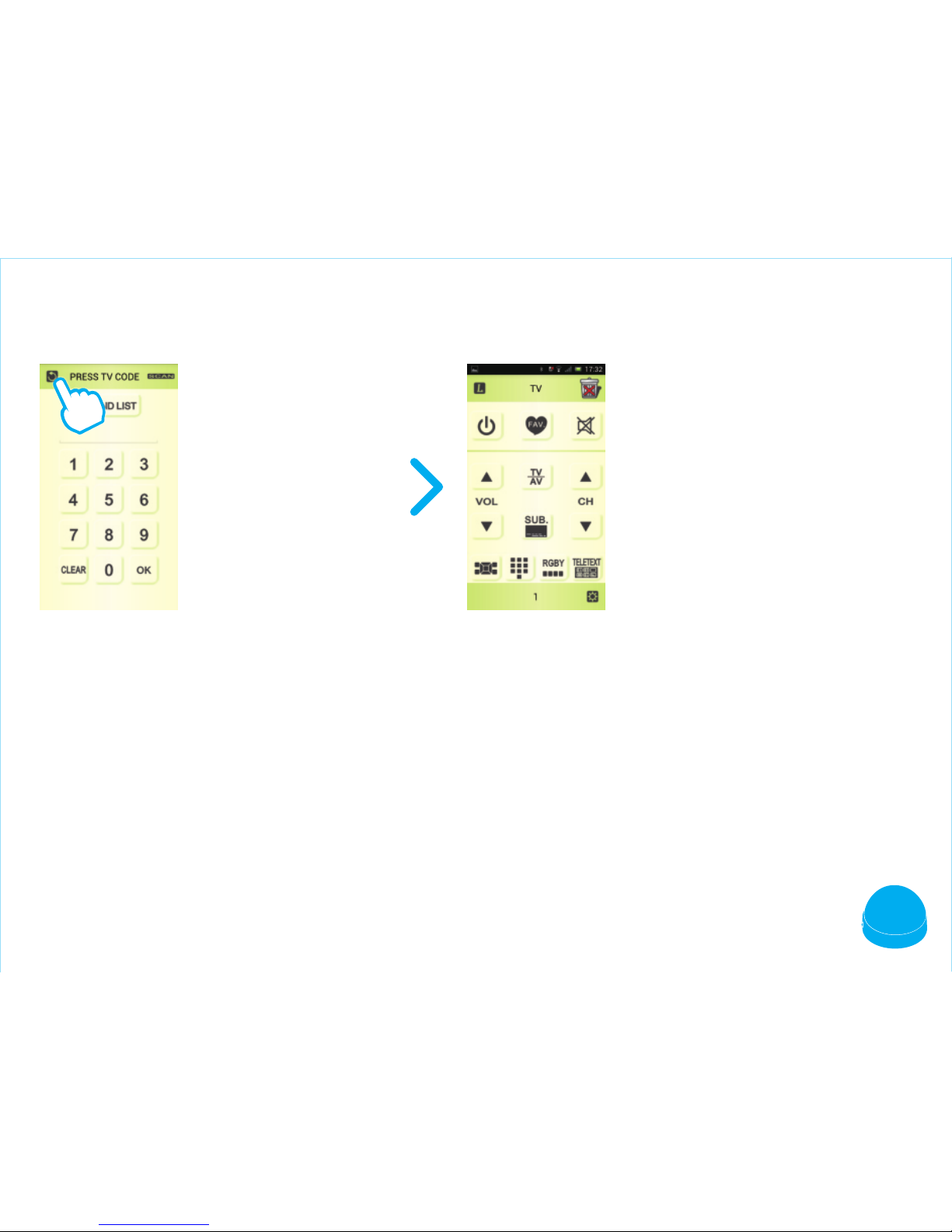
5. Press the "RETURN"
button back to TV
interface
6. Try main functions on TV
interface to see if they work or
not.
If those buttons don’t work,
which means the code is wrong,
please repeat step 1 - 5 to find
the right code.
Page 12
11
VOL +
MUTE
CH +
VOL -
DISP.
CH -
TV/AV
Within 3mm
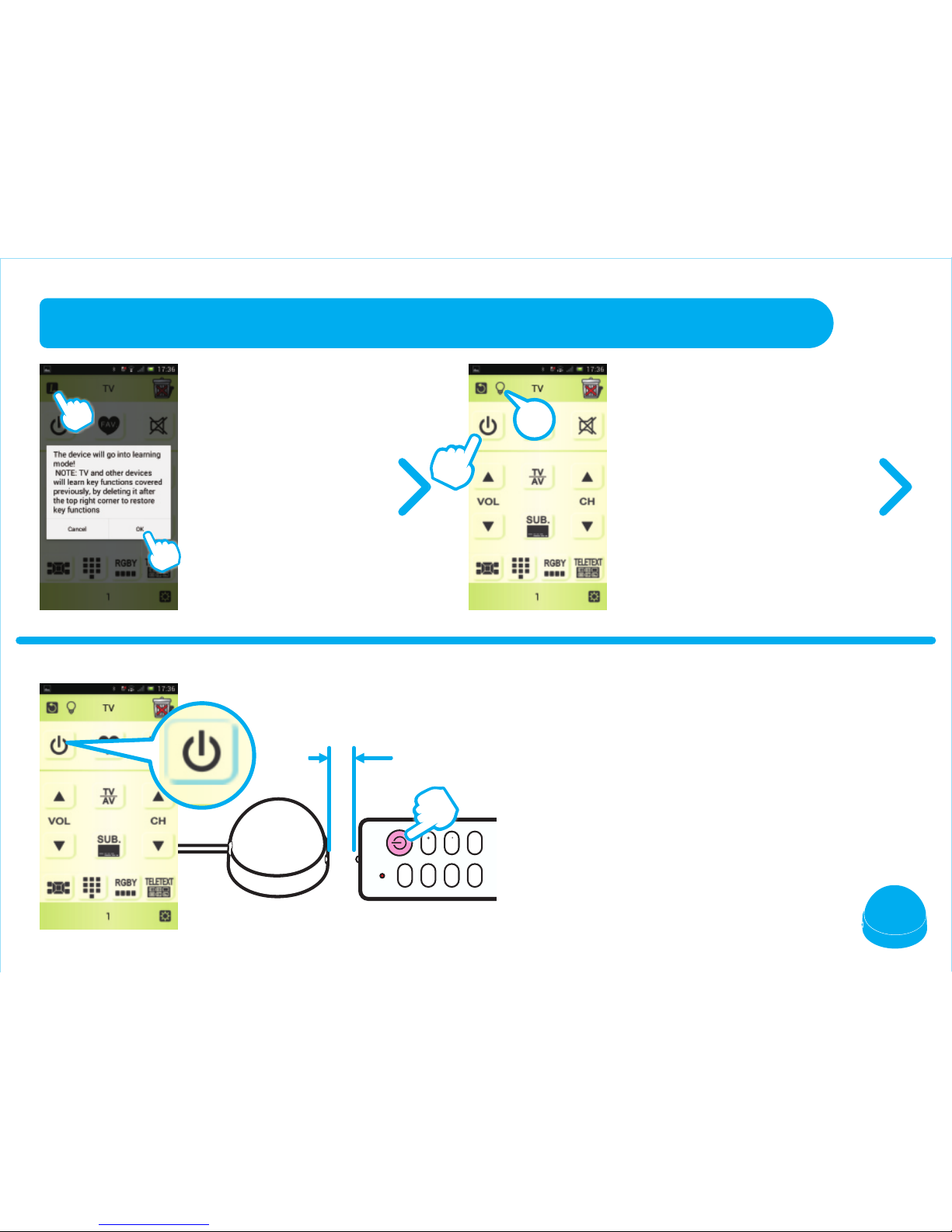
LEARNING FUNCTION
Press the "L" button
and "OK" to enter
LEARNING mode.
Make your remote control head to the
indicator of BTRC and press "POWER".
If the learning succeeds, the "Power" button
on the app will be framed in blue.
The "BULB" will appear.
Press any button to start
learning, for example, the
"POWER" button.
1
2
2
1
Page 13
12
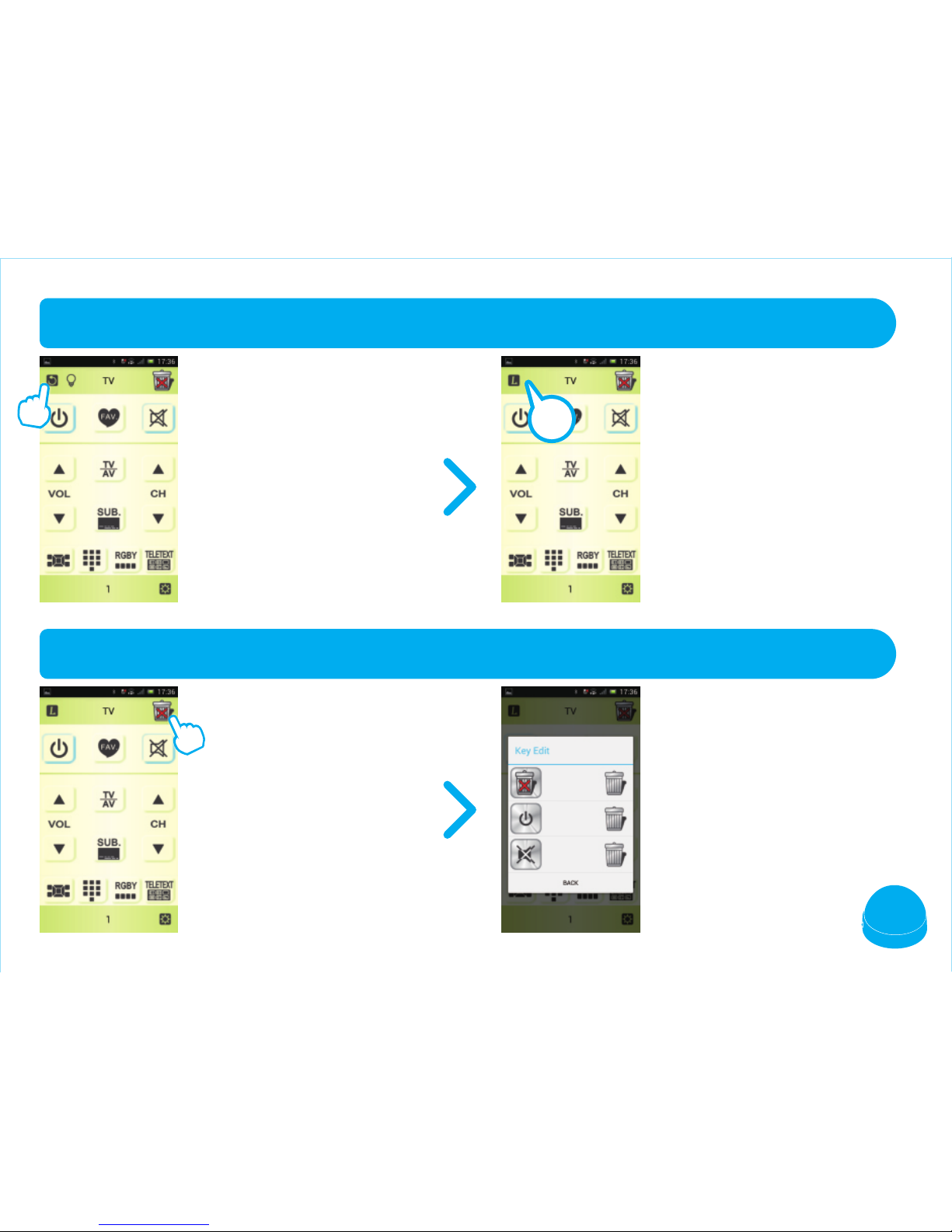
DELETE LEARNED BUTTON
EXIT FROM LEARNING FUNCTION
Press the "Trash Can"
button on the upper right
corner to list all learned
buttons.
Press "Return" or "Cancel "
to complete the learning
mode and exit.
The "BULB" will disappear.
Press the "TRASH CAN"
button to delete any learned
buttons.
!
Page 14
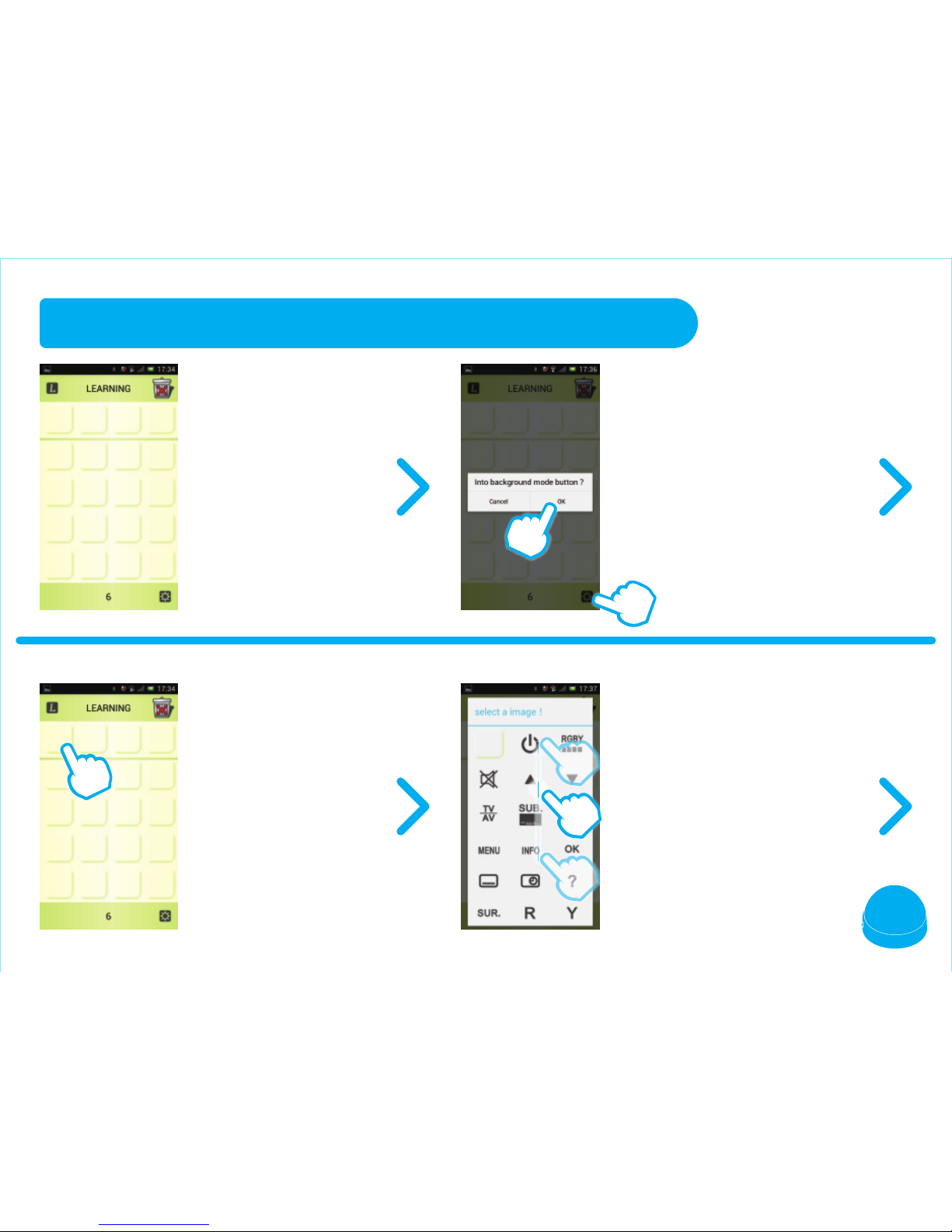
13
LEARNING MODE – LEARNING FUNCTION
1. Slide to learning
interface.
3. Press any button to
locate icon.
2. Press the "SETTING"
button on the lower right
corner and "OK" to enter
ICON SETTING MODE.
4. Select suitable icon for
your device function.
1
2
Page 15
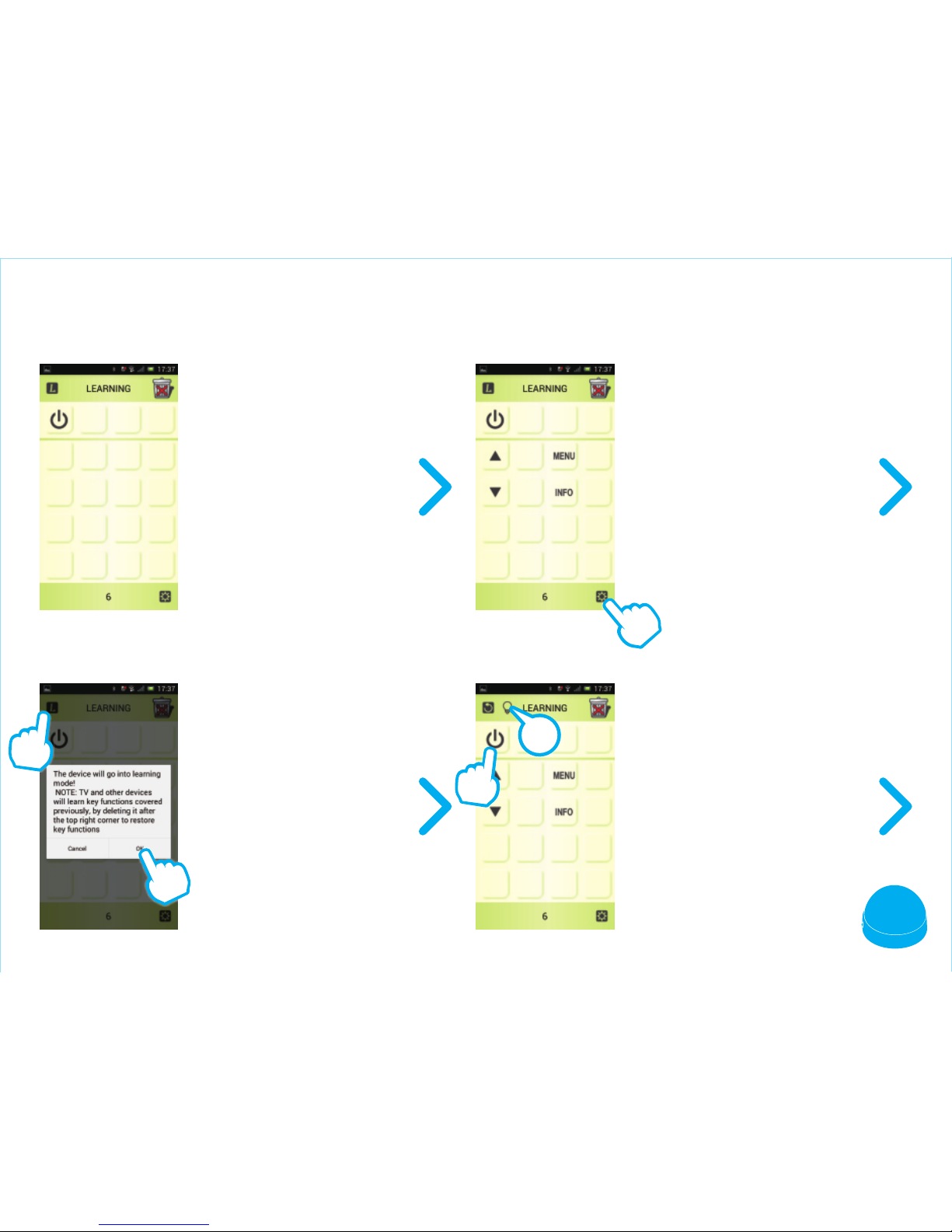
14
7. Press the "L" button
and "OK" to enter
LEARNING mode.
8. The "BULB" will appear.
Press any button to start
learning, for example, the
"POWER" button.
5. Repeat 1 - 4 to setup
your icon.
6. Press the "SETTING"
button and "OK" to exit
ICON SETTING MODE.
1
2
2
1
Page 16
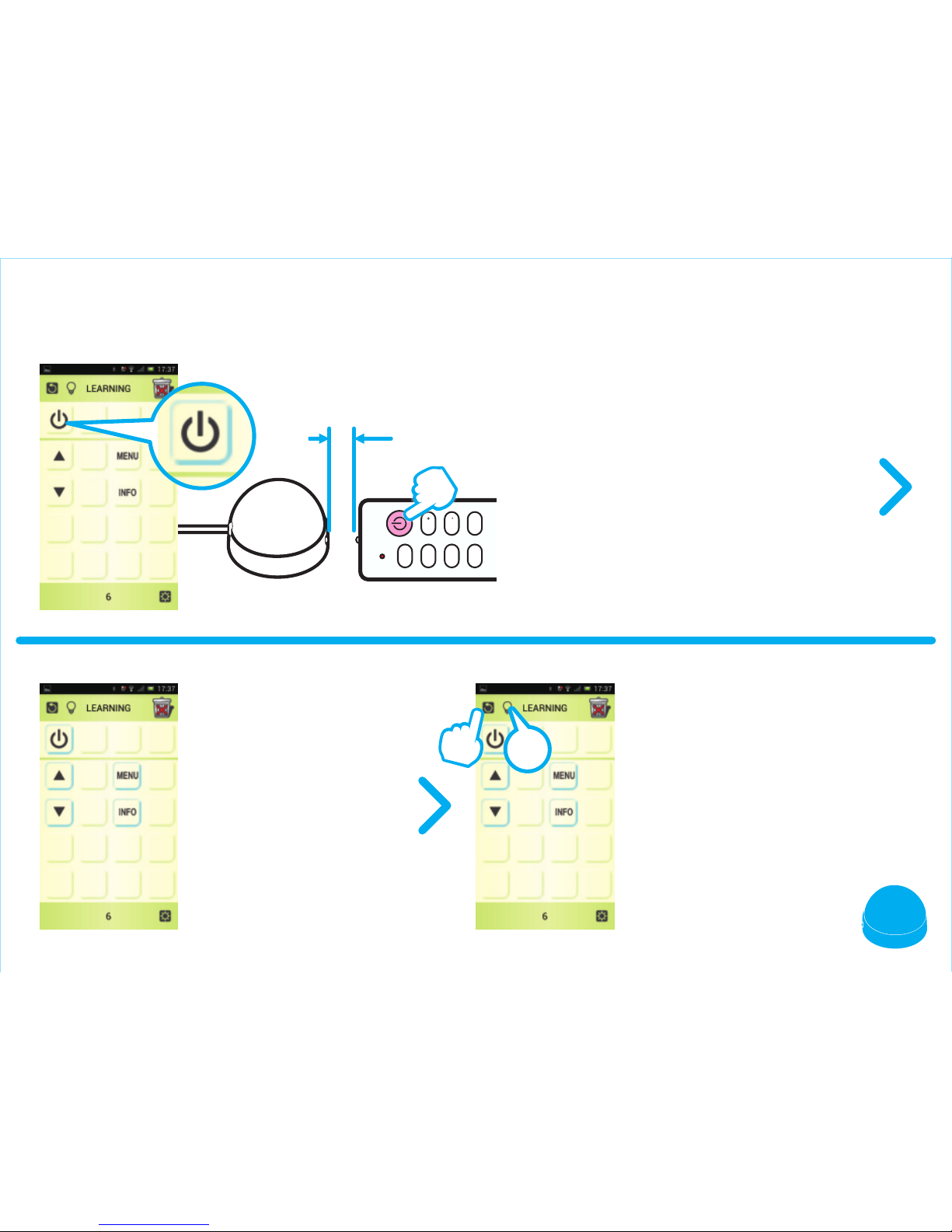
15
VOL +
MUTE
CH +
VOL -
DISP.
CH -
TV/AV
Within 3mm
11. Press "Return" or "Cancel "
to complete the learning
mode and exit. The "BULB"
will disappear.
10. Repeat step 7 - 9 to
learn more buttons.
9. Make your remote control head to the
indicator of BTRC and then press
"POWER".
If the learning succeeds, the
"POWER" button on the app will be
framed in blue.
1
2
Page 17
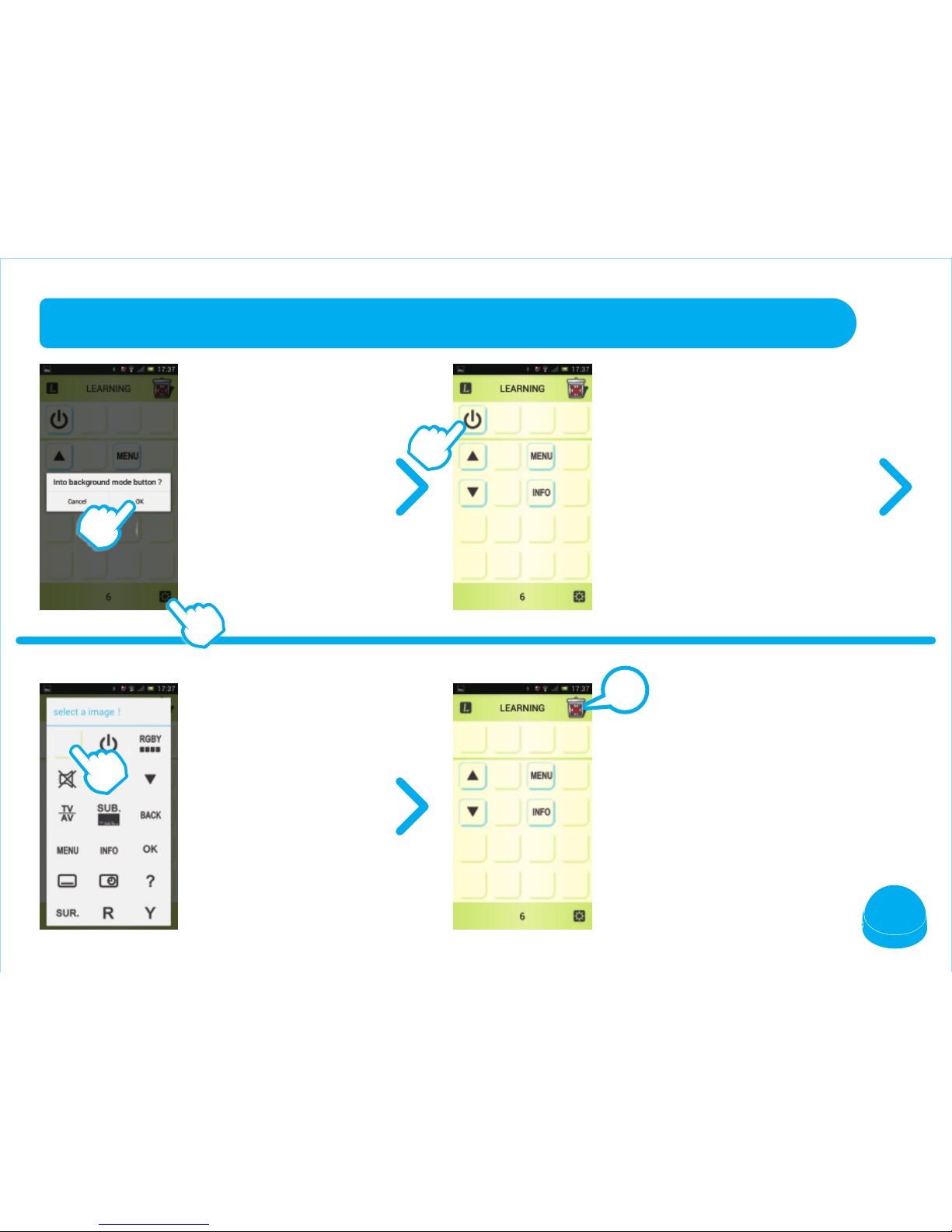
16
LEARNING MODE –DELETE LEARNED BUTTON
Press the "SETTING"
button and "OK".
Press the blank button
to delete.
Press the "SETTING"
button and "OK" to
exit ICON SETTING
MODE.
CAUTION : If you press the
"TRASH CAN" button on the upper
right corner that will delete all
learned buttons.
Press the button you want
to delete, for example, the
"POWER" button and you'll
enter ICON SETTING
MODE.
!
1
2
Page 18
AIFA TECHNOLOGY CORP.
ORIGIN
TELEPHONE
EMAIL
ADDRESS
:Taiwan
:+886–7–7777128
:[email protected]
:NO.230, Sec. 2, Bade Rd., Fongshan Dist., Kaohsiung City 83053, Taiwan
Manufacturer
Smart Home Control BoxSmart Home Control BoxSmart Home Control BoxSmart Home Control Box
BTRCBTRCBTRCBTRC
 Loading...