

5991-0502EN Accelerate Program Development using Command Expert with MATLAB - Application Note c20140825 [20]
Agilent 5991-0502EN Accelerate Program Development using Command Expert with MATLAB - Application Note c20140825 [20] Datasheet
Page 1

Keysight Technologies
Accelerate Program Development
using Keysight Command Expert
with MATL AB
Application Note
Page 2

Introduction
Keysight Command Expert for fast and easy
instrument control!
Keysight Technlologies, Inc. Command Expert is a FREE software application that
provides fast and easy instrument control in many PC application environments.
Command Expert combines instrument command sets, command sequences,
documentation, syntax checking, and command execution in one simple interface.
Command Expert helps you to:
– Find instrument commands
– Access command documentation
– Verify command syntax
– Build instrument command sequences
– Execute instrument command sequences
– Integrate sequences into the MATLAB, Visual Studio, Excel, LabVIEW,
Keysight VEE, or Keysight SystemVue PC application environment
– Generate code for command sequences in MATLAB, Visual C#, Visual Basic
.NET, and Visual C/C++
– Prole command execution time
– Debug command sequences using breakpoints and single-stepping
Instrument command sets are available for instruments that use Standard
Commands for Programmable Instrumentation (SCPI) or IVI-COM drivers.
This application note
contains two main
sections:
– Command Expert Basics
Introduces you to the
Command Expert user
interface and shows an
example sequence.
– Command Expert in the
MATLAB Environment
Describes how to how
to run Command Expert
sequences from MATL AB and
automatically generate code
for use with the MATLAB
Instrument Control Toolbox.
Page 3
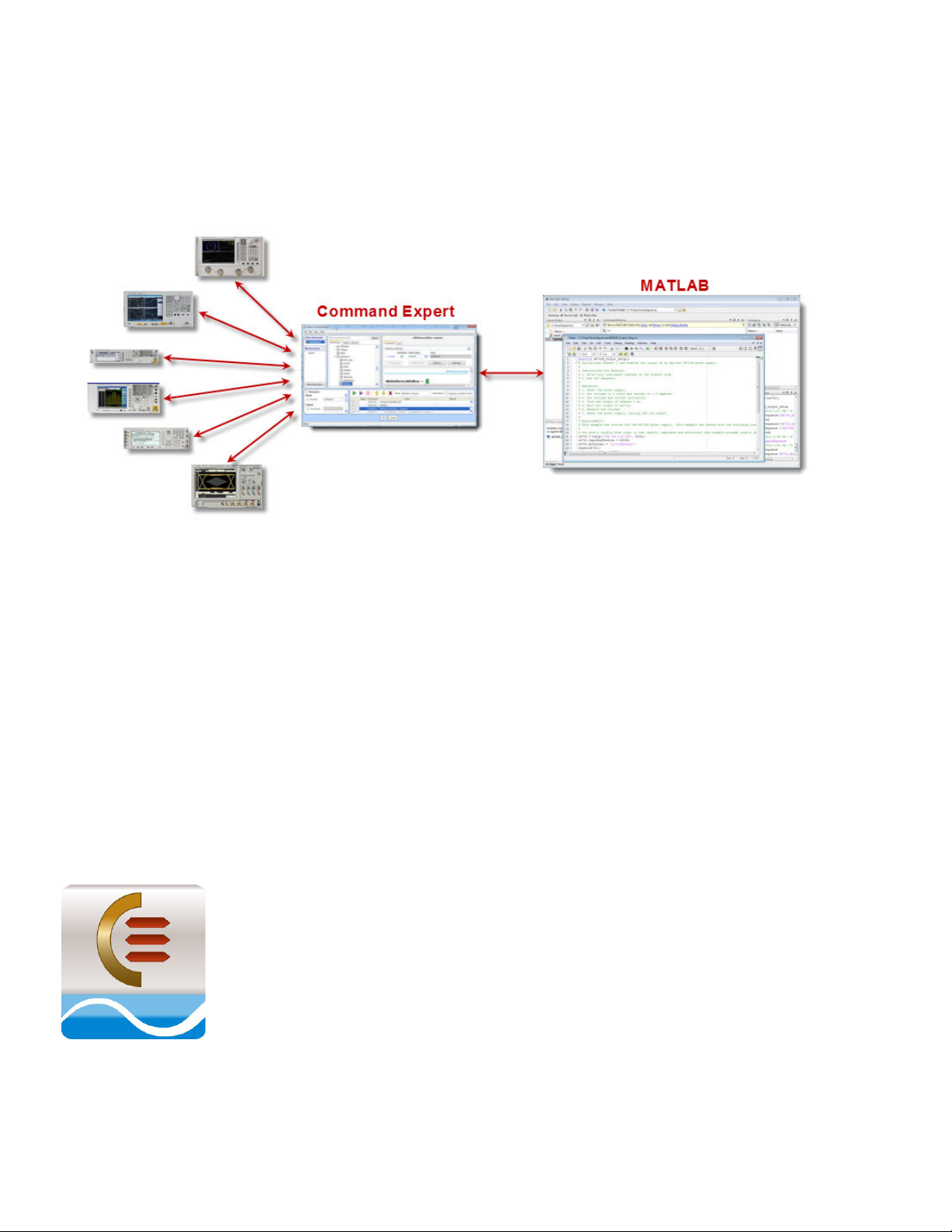
03 | Keysight | Accelerate Program Development using Keysight Command Expert with MATLAB - Application Note
Command Expert Basics
This section describes how to download, install, and start Command Expert, and uses an
example sequence to show the features of the Command Expert user interface.
Figure 1. Command Expert and MATLAB Integration
Downloading and Installing the Software
1. Download and install the Keysight IO Libraries Suite (Version 15.0 or above).
This sof tware is required by Command Expert to nd and communicate with
instruments. You can download Keysight IO Libraries Suite from
www.keysight.com/nd/iosuite.
2. Install MATLAB and MATLAB Instrument Control Toolbox. Command Expert can
be used with MATLAB R2009a (or above) with Instrument Control Toolbox.
3. Download and install Command Expert. If MATL AB is already installed, the
Command Expert MATLAB Add-On will be installed automatically. You can
download Command Expert from www.keysight.com/nd/commandexpert.
Figure 2. Command Expert Icon
Page 4
04 | Keysight | Accelerate Program Development using Keysight Command Expert with MATLAB - Application Note
Starting Command Expert
Click Start > All Programs > Keysight Command Expert > Keysight Command Expert.
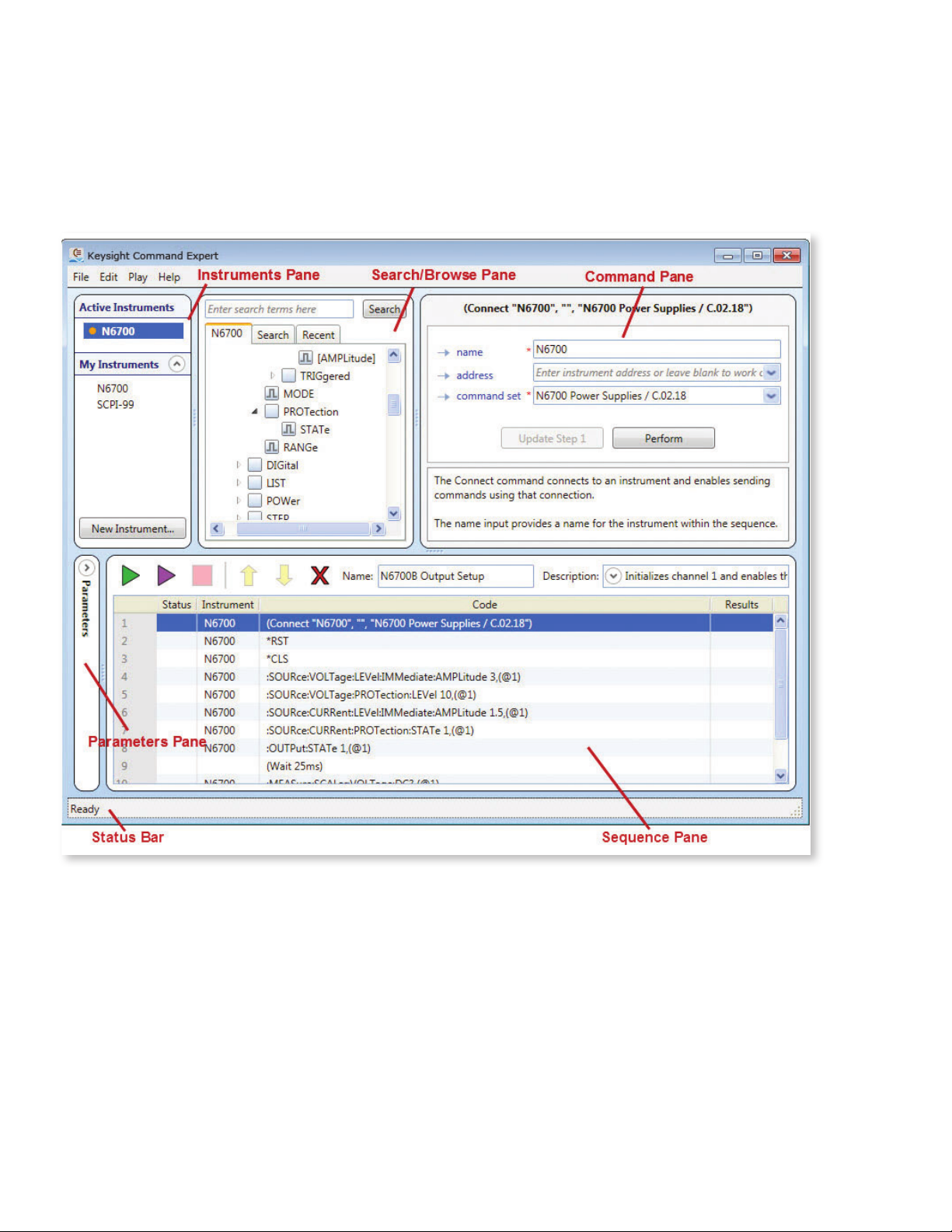
The Command Expert opening window (Welcome Window) is shown below.
Command Expert comes with a number of precongured examples for popular instruments. The installation software installs an example instrument named N6700 that provides the commands for the Keysight N6700B Power Supply. We will use this instrument
and the N6700_PowerSupply_OutputSetup example to introduce you to the Command
Expert user interface.
Figure 3. Command Expert Welcome Window
Internet access and command sets
The N6700 instrument and its SCPI command set are installed by default. For
other instrument examples, you will be prompted to install the instrument’s
command set. After installing Command Expert, you will need Internet access to
download SCPI command sets or IVI-COM instrument drivers for your instruments.
If you work in a secure environment with limited Internet access, you can still
use Command Exper t. Simply download the SCPI command sets or IVI-COM
instrument drivers using a computer with internet access. You can then transfer
the command sets or drivers to the computer with no internet access (using a USB
drive, for example).
Page 5
05 | Keysight | Accelerate Program Development using Keysight Command Expert with MATLAB - Application Note
The Command Sequence
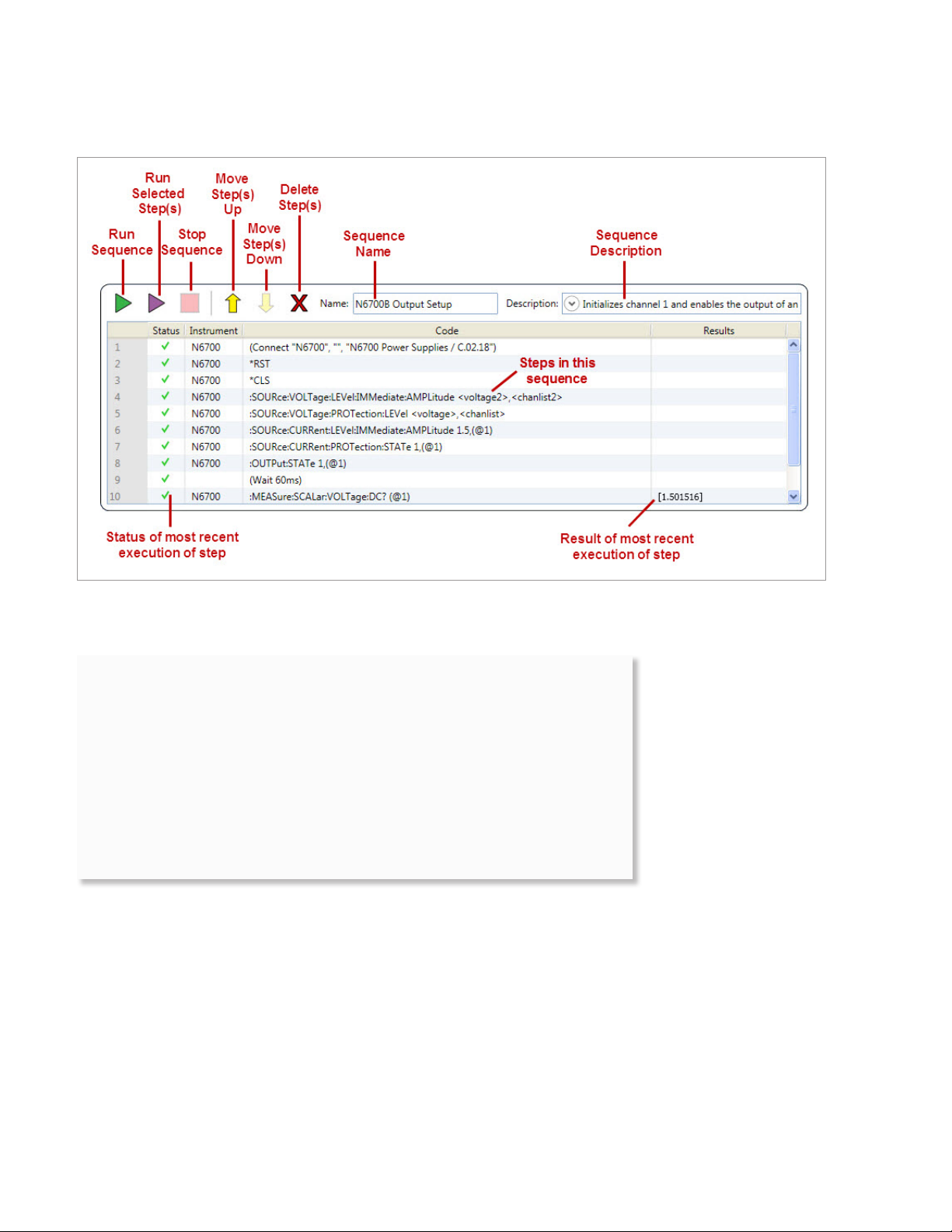
The command sequence for the N6700_PowerSupply_OutputSetup example is shown
in the Sequence Pane in the graphic below. A Command Expert sequence is a series of
steps that are executed in order to connect to an instrument, congure an instrument,
set outputs, and perform measurements.
Figure 4. Command Expert User Inter face Over view
– The Instruments Pane shows your instruments and lets you connect to them.
– The Search/Browse Pane shows you the commands for the selected instrument and lets you
search for commands.
– The Command Pane shows the selected command and its documentation, and lets you execute
the command.
– The Status Bar shows progress messages as Command Expert performs operations.
– The Parameters Pane expands to show sequence parameters and lets you view and edit their
names and values.
– The Sequence Pane shows the various steps in the Command Expert sequence and lets you
edit the sequence and replay commands. The Sequence Pane has the following features:
Page 6
06 | Keysight | Accelerate Program Development using Keysight Command Expert with MATLAB - Application Note
The Command Sequence (continued)
Figure 5. Sequence Pane Details
Working ofine
The absence of a specic instrument address in step 1 of the sequence shown above
indicates that we are working ofine. To connect to an actual instrument, select
step 1 in the Sequence Pane, and enter the instrument address in the address eld
in the Command Pane.
Working ofine is a simulation mode where you can view and perform commands
as usual, but the commands return default values. This is a good way to explore a
command set, view documentation, and prototype sequences without having to
connect to a physical instrument.
Page 7
07 | Keysight | Accelerate Program Development using Keysight Command Expert with MATLAB - Application Note
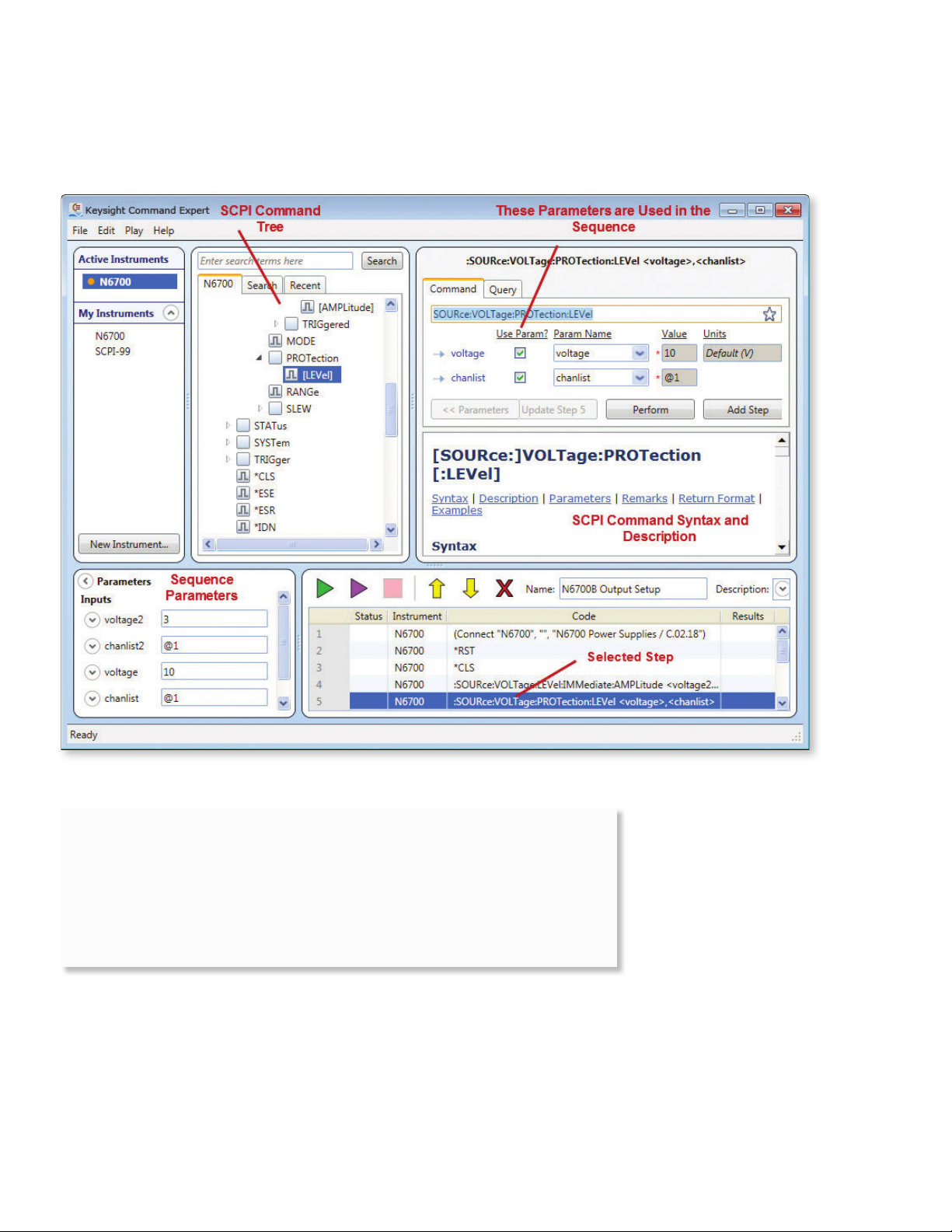
Sequence Steps
Selecting a step in the Sequence Pane reveals details about the command and its
parameters.
Figure 6. Command Details
Command Expert uses these types of steps:
– Connect steps (to connect to instruments)
– Command steps (SCPI or IVI-COM commands)
– Wait statements
– Comments
– Steps to control timeouts and error handling
Page 8
08 | Keysight | Accelerate Program Development using Keysight Command Expert with MATLAB - Application Note
Sequence Debugging
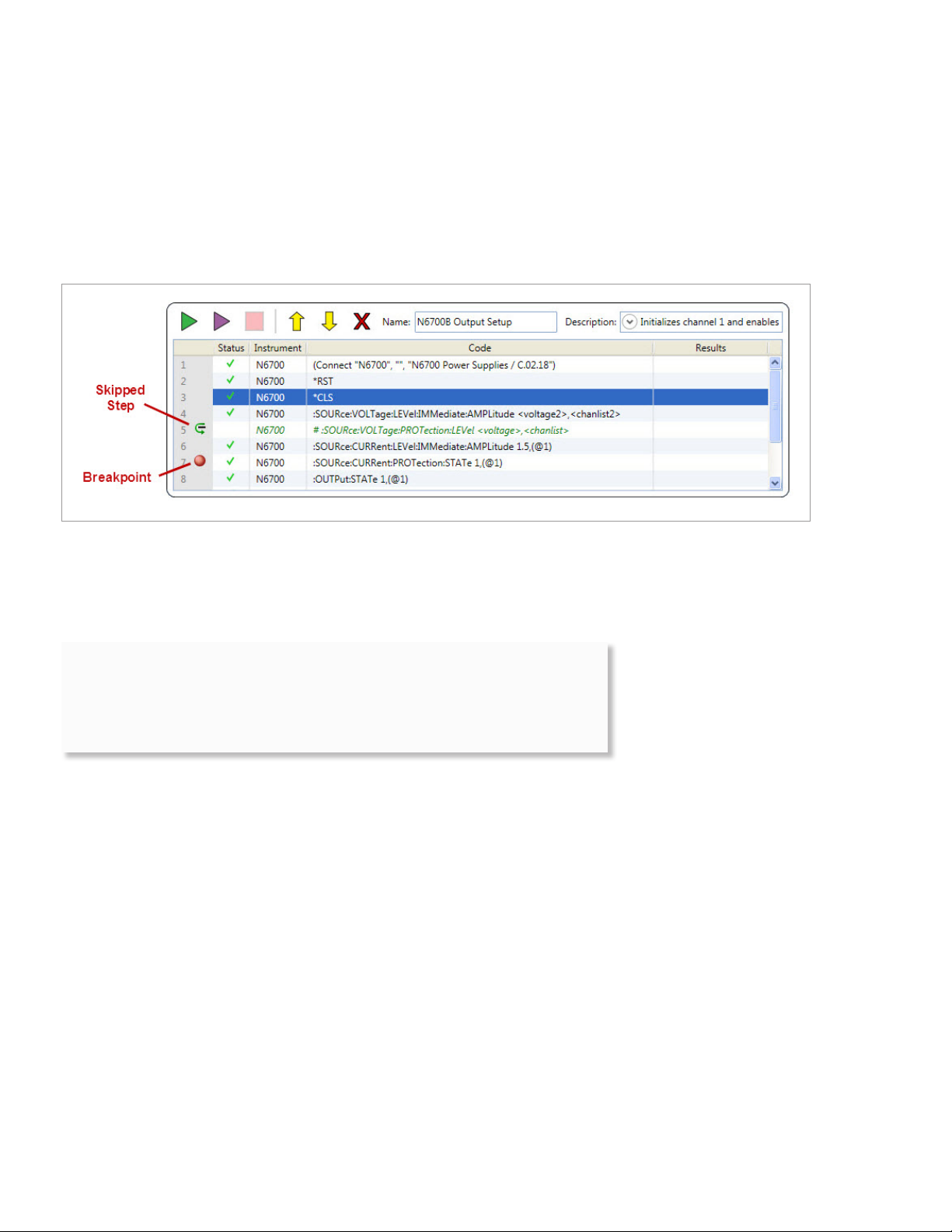
You can debug a sequence by inserting breakpoints. When you run the sequence,
execution pauses at the rst step with a breakpoint and Command Expert enters single-
step mode. In single-step mode you can single-step the sequence, monitor parameters
and results, replay the sequence, and play selected steps. When you are ready to run
the sequence without pausing at the breakpoint, remove the breakpoint and run the
sequence normally.
Figure 7. Debugging the Sequence
You can also skip steps to help with debugging.
Substituting an instrument
You can temporarily switch command sets in a sequence to see the ef fects of
switching to a different instrument. Any commands that aren’t supported by the
new instrument are highlighted in red.
Page 9
09 | Keysight | Accelerate Program Development using Keysight Command Expert with MATLAB - Application Note
Using IVI-COM
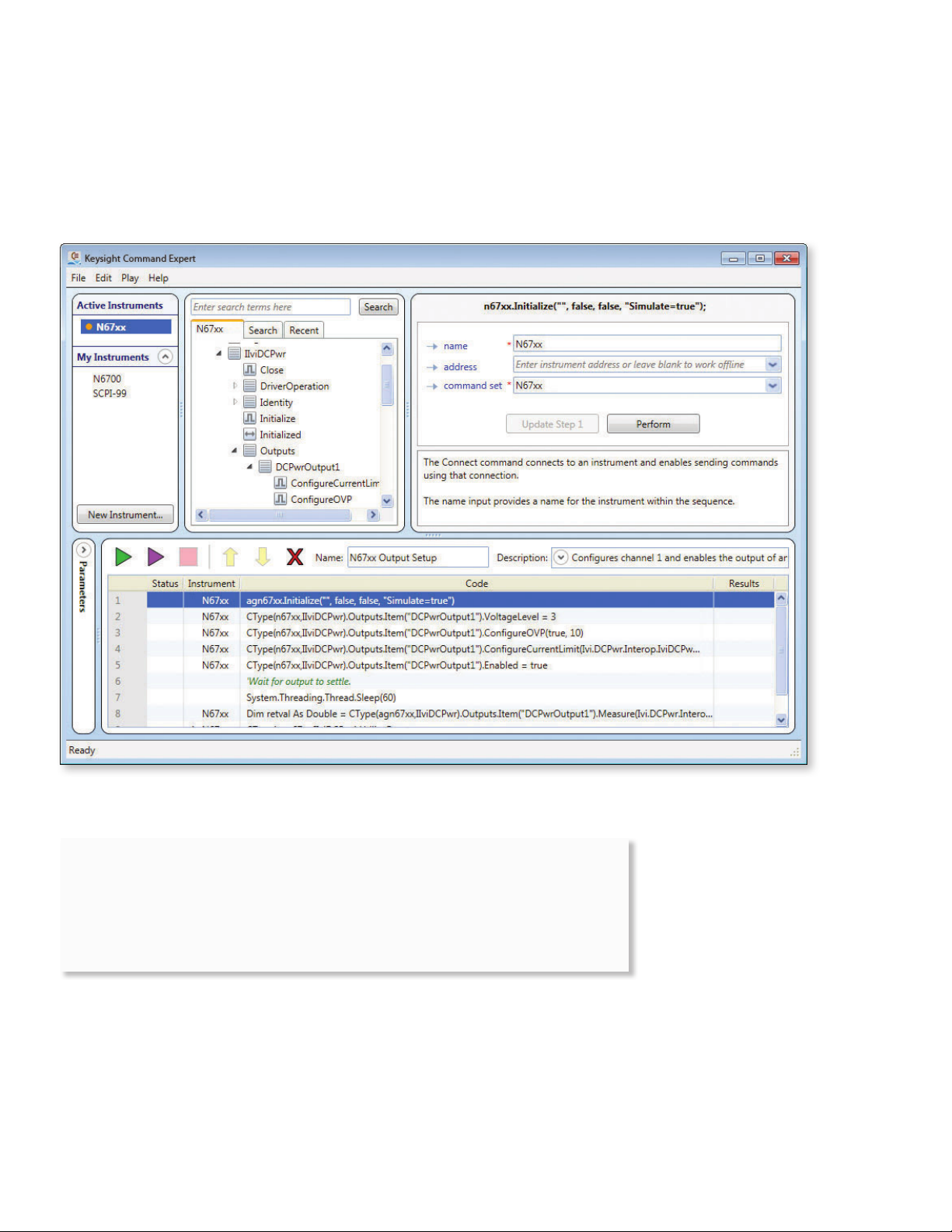
If you prefer, you can use IVI-COM commands instead of SCPI commands. Command
Expert has a number of IVI-COM examples and the operation is very similar to SCPI.
The example below (lename: AgN67xx_PowerSupply_OutputSetup.xlsx) uses IVI-COM
commands:
Figure 8. IVI- COM Commands
IVI-COM command sets and drivers
IVI-COM command sets are automatically extracted from IVI-COM drivers. You
must install an IVI-COM driver (outside of Command Expert) before you can use the
driver’s command set in Command Expert.
You can download Keysight IVI-COM drivers from www.keysight.com/nd/ivi.
Page 10
10 | Keysight | Accelerate Program Development using Keysight Command Expert with MATLAB - Application Note
Using IVI-COM (continued)
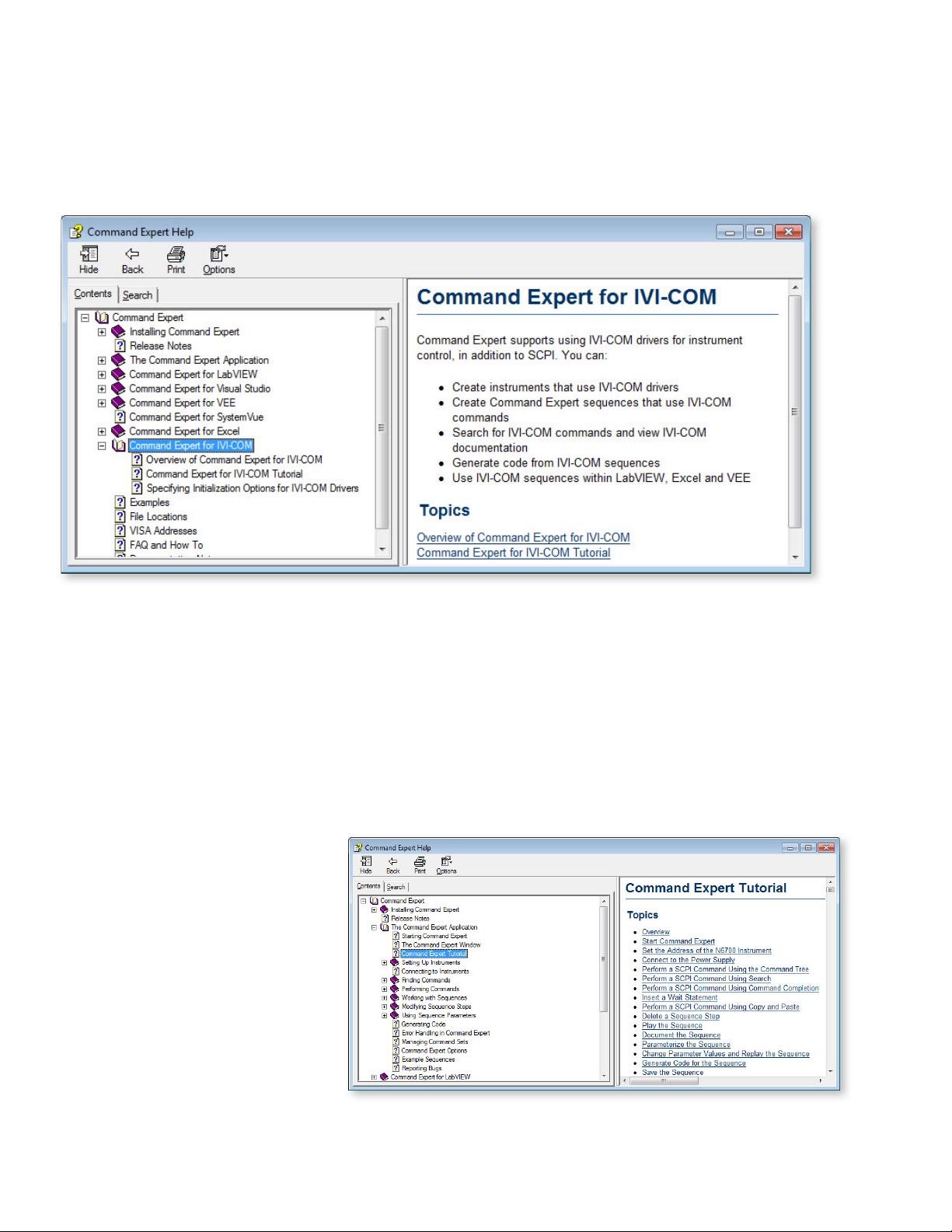
The Command Expert IVI-COM interface is very similar to the SCPI interface. All elements
within the interface operate as described earlier in this application note. For more
information, see Command Expert for IVI-COM Tutorial in the Command Expert help:
Figure 9. IVI-COM Help
Using Command Expert with Non-Keysight Instruments
You can use Command Exper t with any SCPI instrument that follows the SCPI-99 standard, using the Generic SCPI-99 Instrument command set. This command set provides
the commands that are common to SCPI-99 instruments.
You can also use direct commands to send additional SCPI commands. Using direct commands, you can send any SCPI command to any SCPI instrument.
Any instrument that has an IVI-COM driver can be used with Command Expert, regardless
of the manufacturer.
Getting Started with Command
Expert
To get started using Command Expert, you
can start with one of the many example
sequences and modify that sequence, or
you can create your own sequence. For
a step-by-step tutorial showing how to
create a sequence, see Command Expert
Tutorial in the Command Expert help:
Figure 10. Command E xper t Tutorial
Page 11

11 | Keysight | Accelerate Program Development using Keysight Command Expert with MATLAB - Application Note
Command Expert in the MATLAB Environment
You can use Command Exper t to help automate instrument control in MATLAB using
either or both of
these approaches:
– Running Command Expert sequences in MATLAB
– Generating MATLAB code from Command Expert
Running Command Expert Sequences in MATLAB
The Command Expert MATLAB Add-On provides a set of MATLAB functions that let you
run Command Expert sequences from MATLAB. The advantages of this approach are:
– You can run an entire sequence from a single MATLAB command line.
– The sequence can contain SCPI commands and/or IVI-COM.
– There is no generated code to keep in sync with the Command Expert sequence.
You just update the Command Expert sequence as needed.
– The Command Expert MATLAB Add-On handles translation between MATLAB data
types and the inputs/outputs of the SCPI and IVI-COM commands.
The limitation of this approach is that the Command Expert MATLAB Add-On only works
on Windows operating systems.
Using agRunSequence
The agRunSequence function allows you to run a Command Expert sequence from
MATLAB. For example, this command runs the Command Expert OutputSetup.iseq
sequence:
agRunSequence(‘OutputSetup’)
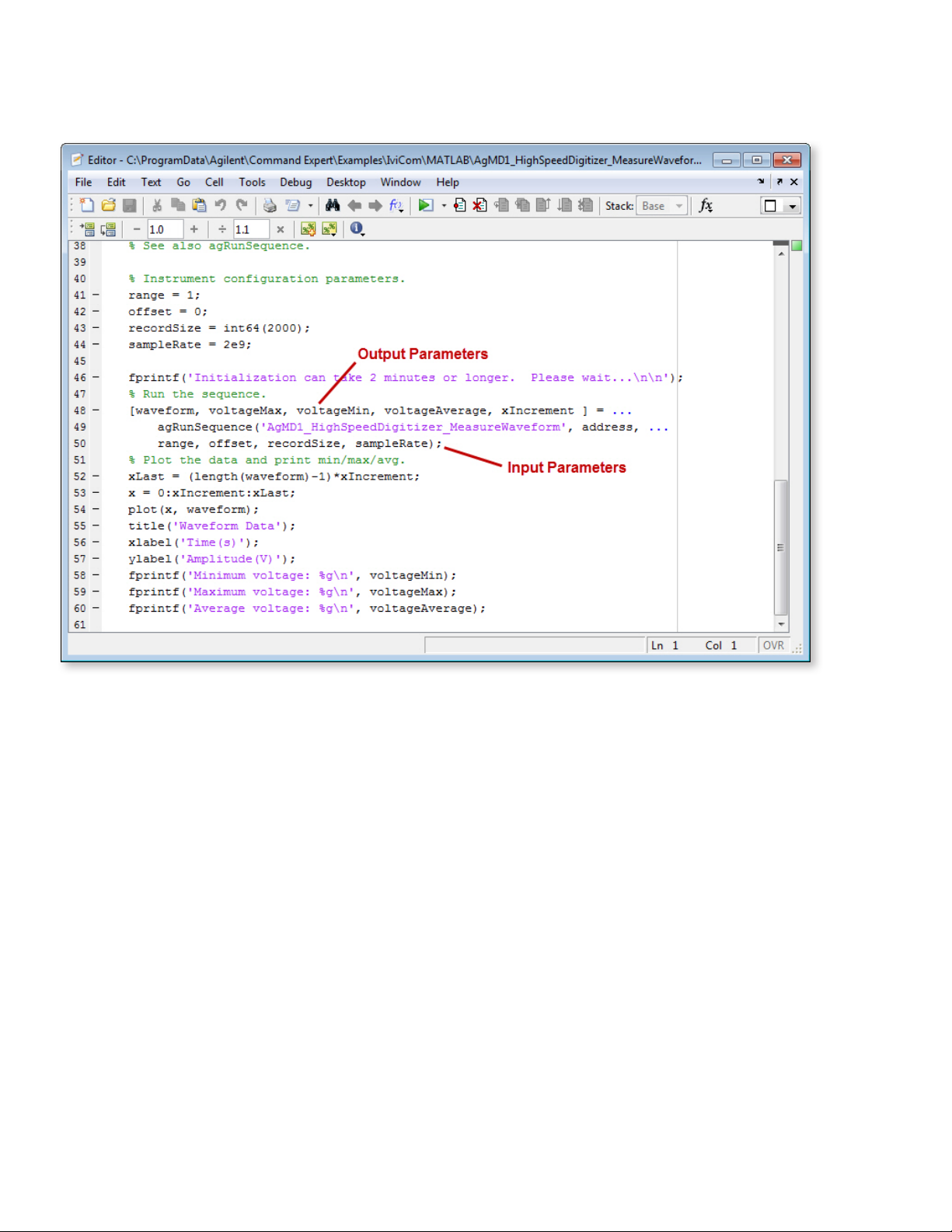
You can pass input parameters into the Command Expert sequence from MATLAB, and
return sequence outputs from Command Expert to MATLAB. In the following example,
the waveform, voltageMax, voltageMin, voltageAverage, xIncrement parameters are
output parameters from the Command Expert sequence (measurement data) and the
address, range, offset, recordSize, sampleRate are input parameters for the Command
Expert sequence.
Page 12
12 | Keysight | Accelerate Program Development using Keysight Command Expert with MATLAB - Application Note
Command Expert in the MATLAB Environment (continued)
Figure 11. Sequence Input and Output Parameters
The above example and a number of other examples showing agRunSequence are located in:
C:\Documents and Settings\All Users\Keysight\Command Expert\Examples (for Windows XP)
C:\ProgramData\Keysight\Command Expert\Examples (for Windows 7)
MATLAB examples are in these subfolders:
…\Scpi\MATLAB (SCPI examples)
…\IviCom\MATLAB (IVI-COM examples)
Other MATLAB Functions
In addition to agRunSequence, these functions are also available in the add-on:
– agResetConnections - resets all Command Expert instrument connections.
– agInstallCommandSets - installs any missing command set(s) for the sequence.
– agSequenceInfo - displays information about the sequence.
– agDefault - constructs a default argument object; the corresponding parameter’s default
value is used when running the sequence.
– agSequence – (for advanced users) constructs a Command Expert sequence object.
Page 13
13 | Keysight | Accelerate Program Development using Keysight Command Expert with MATLAB - Application Note
Getting Help on Functions
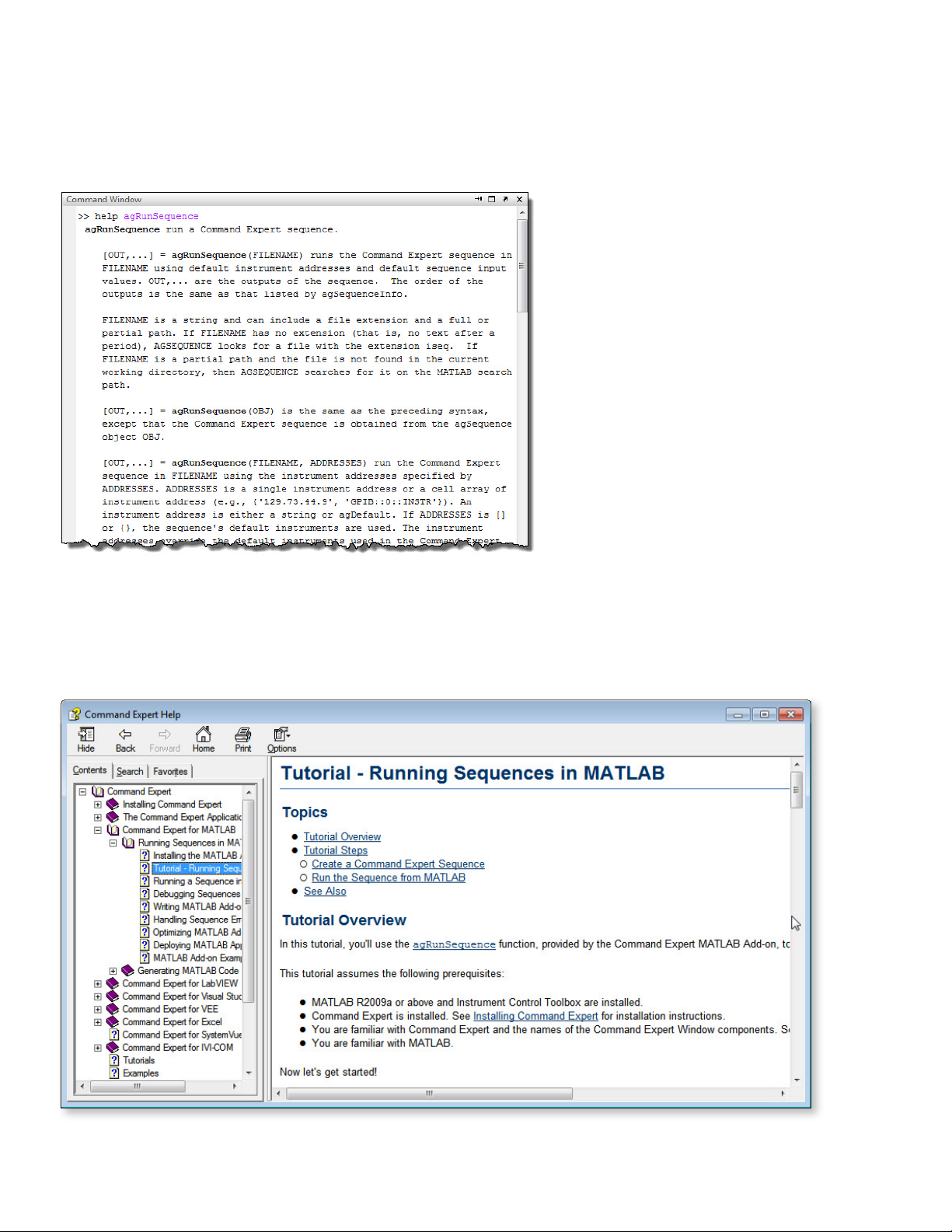
To display information about any add-on function, including descriptions, syntax, and
examples, type help <function> in the MATLAB Command Window. For example:
Figure 12. Getting Help on Functions
For More Information
For a step-by-step tutorial, see Tutorial – Running Sequences in MATLAB in the
Command Expert help:
Figure 13. Tutorial -- Running Sequences in MATLAB
Page 14

14 | Keysight | Accelerate Program Development using Keysight Command Expert with MATLAB - Application Note
Generating Code from Command Expert
You can use Command Exper t to generate code from SCPI command sequences. This
allows you to efciently develop and test instrument command sequences before
incorporating the code into the MATL AB Instrument Control Toolbox.
The advantages of the code generation approach are:
– The generated code can be used on Windows and non-Windows platforms.
– If you have already written instrument control code using the MATLAB Instrument Control
Toolbox, the generated code will be a closer t with your existing code.
The limitations of this approach are:
– The generated code can get out of sync with the Command Expert sequence. That is, code
edits made in either Command Expert application or MATLAB application are not automatically
reected in the other application.
– MATLAB code generation is available for SCPI command sequences only. You cannot generate
MATLAB code from an IVI-COM command sequence. You can, however, run a Command Expert
IVI-COM sequence from MATL AB using the agRunSequence function as described earlier in this
application note.
The steps for generating code are (these steps are described in detail in the following
example):
1. Create a SCPI command sequence in Command Exper t.
2. Export the sequence to the clipboard with MATLAB calls to Instrument Control
Toolbox enabled.
3. Paste the generated code into a MATLAB le (also called a .m le).
You can then run the function, modify it, or use it in your application.
MATLAB Code Generation Example
The following steps use the SCPI N6700_PowerSupply_OutputSetup example to show
how to generate and paste code into a MATLAB le.
1. If not already open, open the N6700_PowerSupply_OutputSetup example from
the Command Expert Welcome Window.
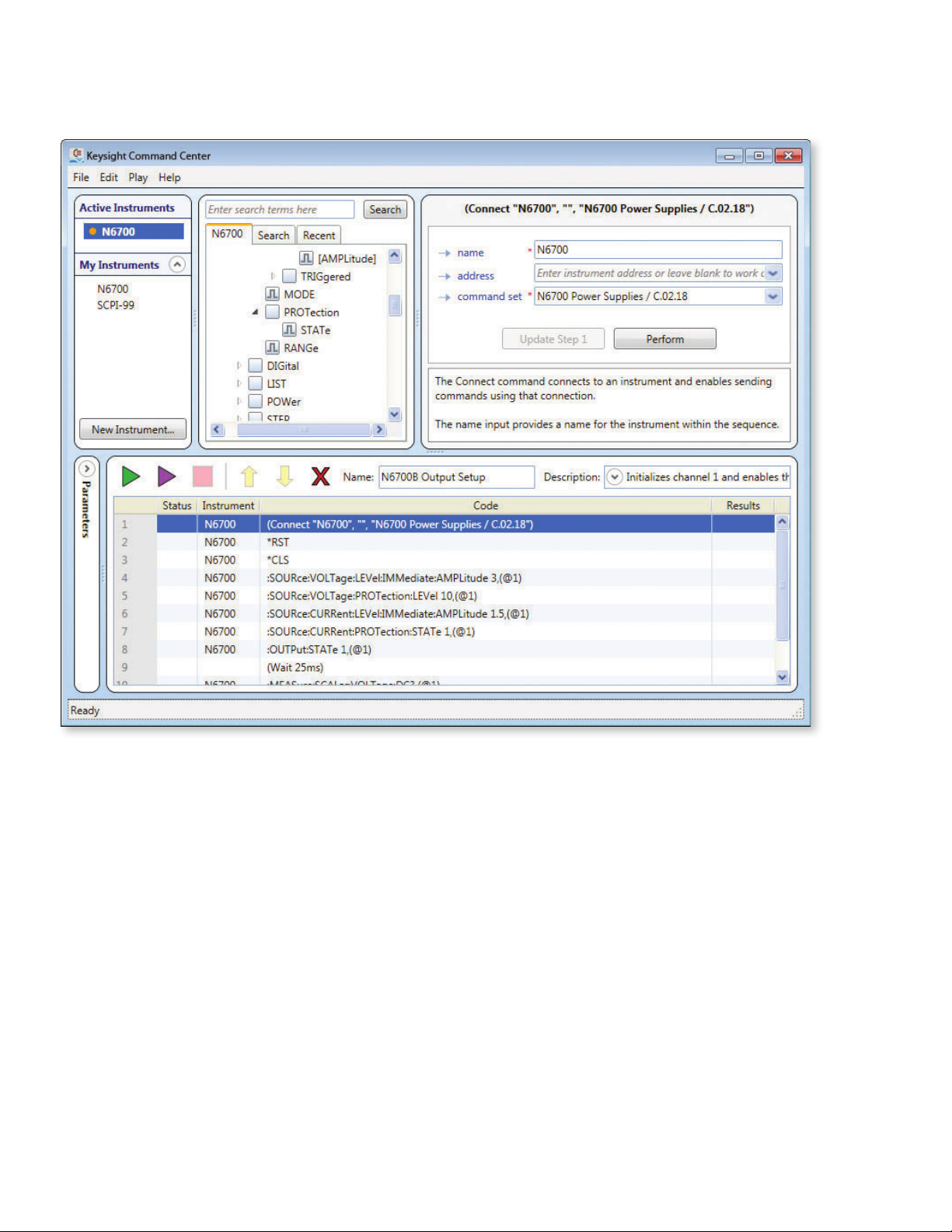
2. The example opens with the SCPI commands listed (default mode). This example
sets the output voltage and current of a Keysight N6700B Power Supply:
Page 15
15 | Keysight | Accelerate Program Development using Keysight Command Expert with MATLAB - Application Note
MATLAB Code Generation Example (continued)
Figure 14. N6700 Example
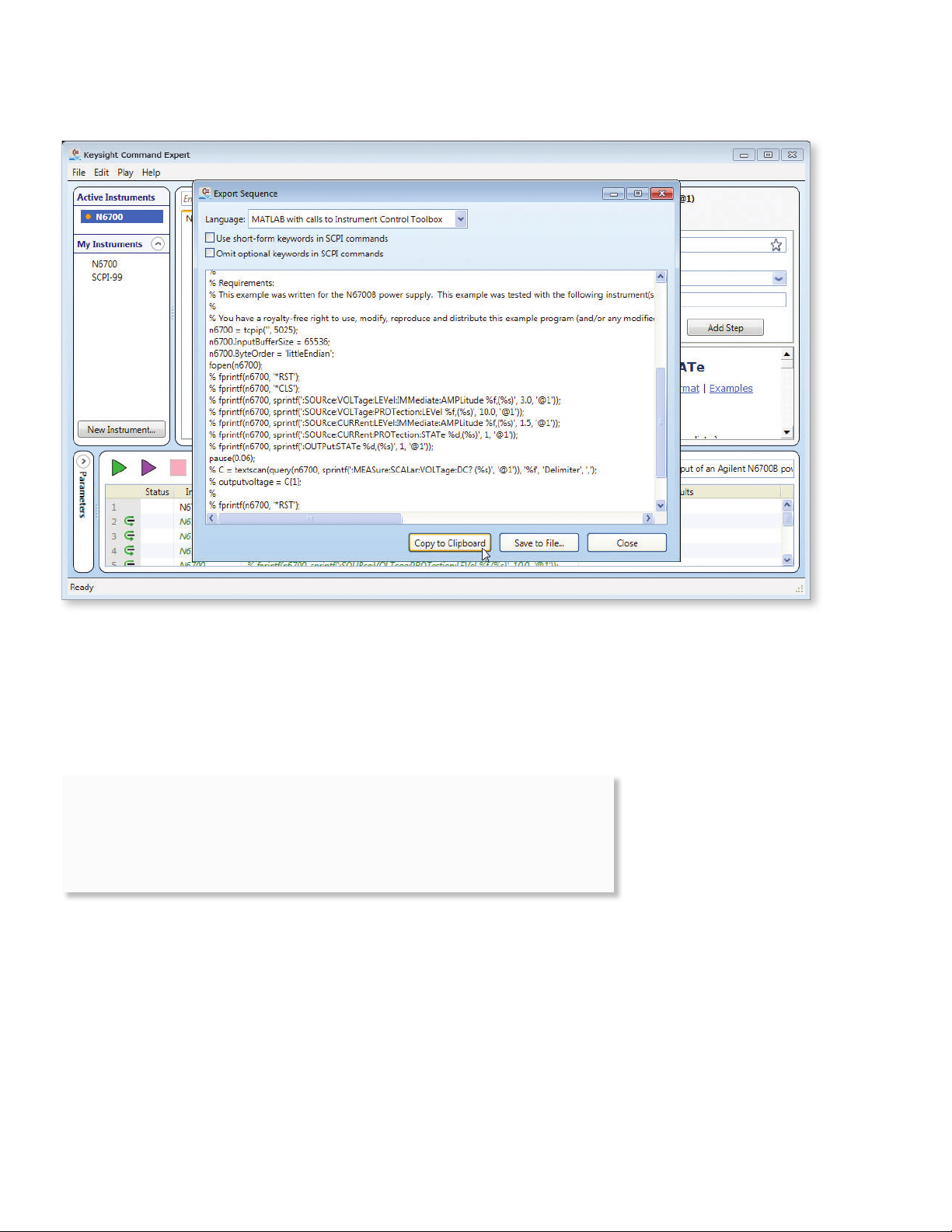
3. Click File > Export Sequence… and select MATLAB with calls to Instrument Control Toolbox:
Page 16
16 | Keysight | Accelerate Program Development using Keysight Command Expert with MATLAB - Application Note
MATLAB Code Generation Example (continued)
Figure 15. Expor ting the Sequence (MATL AB with calls to Instrument Control Toolbox)
4. Click Copy to Clipboard followed by Close. The MATLAB calls (such as fprint and
sprint) are automatically added to the sequence and the sequence is copied to the
clipboard.
When Command Expert generates code:
– The generated code for skipped statements is commented out.
– Comments in a sequence become comments in the generated code.
– Wait statements become calls to appropriate library functions.
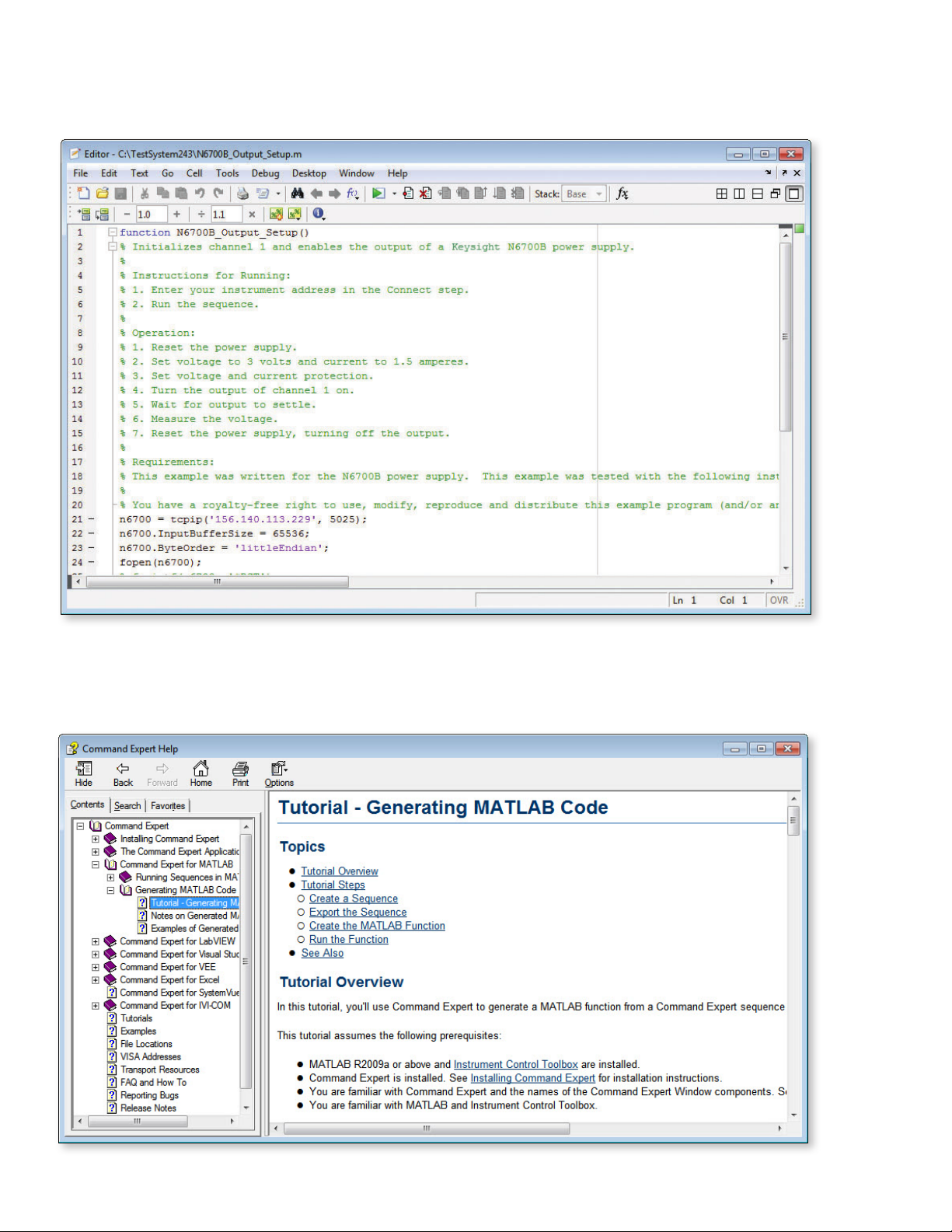
5. You can now paste this code into a MATLAB le. The following graphic shows the
generated code from the N6700_PowerSupply_OutputSetup example pasted into
a MATLAB le:
Page 17
17 | Keysight | Accelerate Program Development using Keysight Command Expert with MATLAB - Application Note
MATLAB Code Generation Example (continued)
Figure 16. Generated Code Pasted into a MATLAB File
For More Information
For a step-by-step tutorial, see Tutorial - Generating MATLAB Code in the Command Expert help:
Figure 17. Tutorial - Generating MATL AB Code
Page 18

18 | Keysight | Accelerate Program Development using Keysight Command Expert with MATLAB - Application Note
Where to Go Next
An easy way to get started using Command Expert with MATLAB is to browse through
the example folders and select an example that is similar to your test and measurement
application. Examples are located in:
C:\Documents and Settings\All Users\Keysight\Command Expert\Examples (for Windows XP)
C:\ProgramData\Keysight\Command Expert\Examples (for Windows 7)
MATLAB examples are in these subfolders:
…\S c pi\ M ATL AB (SCPI examples)
…\IviCom\MATLAB (IVI-COM examples)
Command Expert has extensive application documentation containing FAQs, tutorials,
examples, and getting started information. You can use one of these tutorials, available
in the Command Expert help, for step-by-step information on how to use Command
Expert with MATLAB:
– Tutorial – Running Sequences in MATLAB
– Tutorial – Generating MATLAB Code
You can nd more information on Command Expert, including links to other application
notes, at www.keysight.com/nd/commandexpert.
Page 19

19 | Keysight | Accelerate Program Development using Keysight Command Expert with MATLAB - Application Note
Command Expert PC Operating Requirements
Operating System Windows XP, Service Pack 2 or above, 32-bit only.
Editions: Home, Professional
Windows 7, 32-bit or 64-bit.
Editions: Starter, Home Basic, Home Premium, Professional,
Ultimate, or Enterprise
Disk At least 1GB free disk space
Keysight IO Libraries Suite Version 15.0 or above www.keysight.com/nd/iosuite
Monitor At least 1024x768 monitor resolution
Browser Internet Explorer 6 or above (7 or above recommended)
You can nd the current list of instrument SCPI command sets at:
www.keysight.com/nd/commandsetlist
Application Development Environment Requirements
MATLAB MATLAB R2009a or above and Instrument Control Toolbox
Visual Studio Visual Studio 2005, 2008, 2010 or above
LabVIEW LabVIEW 8.2.1 or above.
VEE VEE Pro 9.22 or above.
Excel Excel 2007 or Excel 2010.
Download Command Expert now and experience fast and easy instrument control:
www.keysight.com/nd/commandexpert
Page 20

20 | Keysight | Accelerate Program Development using Keysight Command Expert with MATLAB - Application Note
myKeysight
www.keysight.com/find/mykeysight
A personalized view into the information most relevant to you.
Keysight Assurance Plans
www.keysight.com/find/AssurancePlans
Up to five years of protection and no budgetary surprises to ensure your
instruments are operating to specification so you can rely on accurate
measurements.
www.keysight.com/quality
Keysight Technologies, Inc.
DEKRA Certified ISO 9001:2008
Quality Management System
Keysight Channel Partners
www.keysight.com/find/channelpartners
Get the best of both worlds: Keysight’s measurement expertise and product
breadth, combined with channel partner convenience.
Microsoft is a trademark or registered trademark of Microsoft Corporation in
the United States and/or other countries.
Visual Studio is a trademark or registered trademark of Microsoft Corporation
in the United States and/or other countries.
Visual C++, Visual C#, and Visual Basic are trademarks or registered
trademarks of Microsoft Corporation in the United States and/or other
countries.
www.keysight.com/find/commandexpert
For more information on Keysight
Technologies’ products, applications or
services, please contact your local Keysight
office. The complete list is available at:
www.keysight.com/find/contactus
Americas
Canada (877) 894 4414
Brazil 55 11 3351 7010
Mexico 001 800 254 2440
United States (800) 829 4444
Asia Pacic
Australia 1 800 629 485
China 800 810 0189
Hong Kong 800 938 693
India 1 800 112 929
Japan 0120 (421) 345
Korea 080 769 0800
Malaysia 1 800 888 848
Singapore 1 800 375 8100
Taiwan 0800 047 866
Other AP Countries (65) 6375 8100
Europe & Middle East
Austria 0800 001122
Belgium 0800 58580
Finland 0800 523252
France 0805 980333
Germany 0800 6270999
Ireland 1800 832700
Israel 1 809 343051
Italy 800 599100
Luxembourg +32 800 58580
Netherlands 0800 0233200
Russia 8800 5009286
Spain 0800 000154
Sweden 0200 882255
Switzerland 0800 805353
Opt. 1 (DE)
Opt. 2 (FR)
Opt. 3 (IT)
United Kingdom 0800 0260637
For other unlisted countries:
www.keysight.com/find/contactus
(BP-07-10-14)
This information is subject to change without notice.
© Keysight Technologies, 2012 - 2014
Published in USA, August 2, 2014
5991-0502EN
www.keysight.com
 Loading...