

Page 1
1.
ADSL
CABLE
Router or Modem
WiFi
Quick Installation Guide
2.
3
1
Before getting
started...
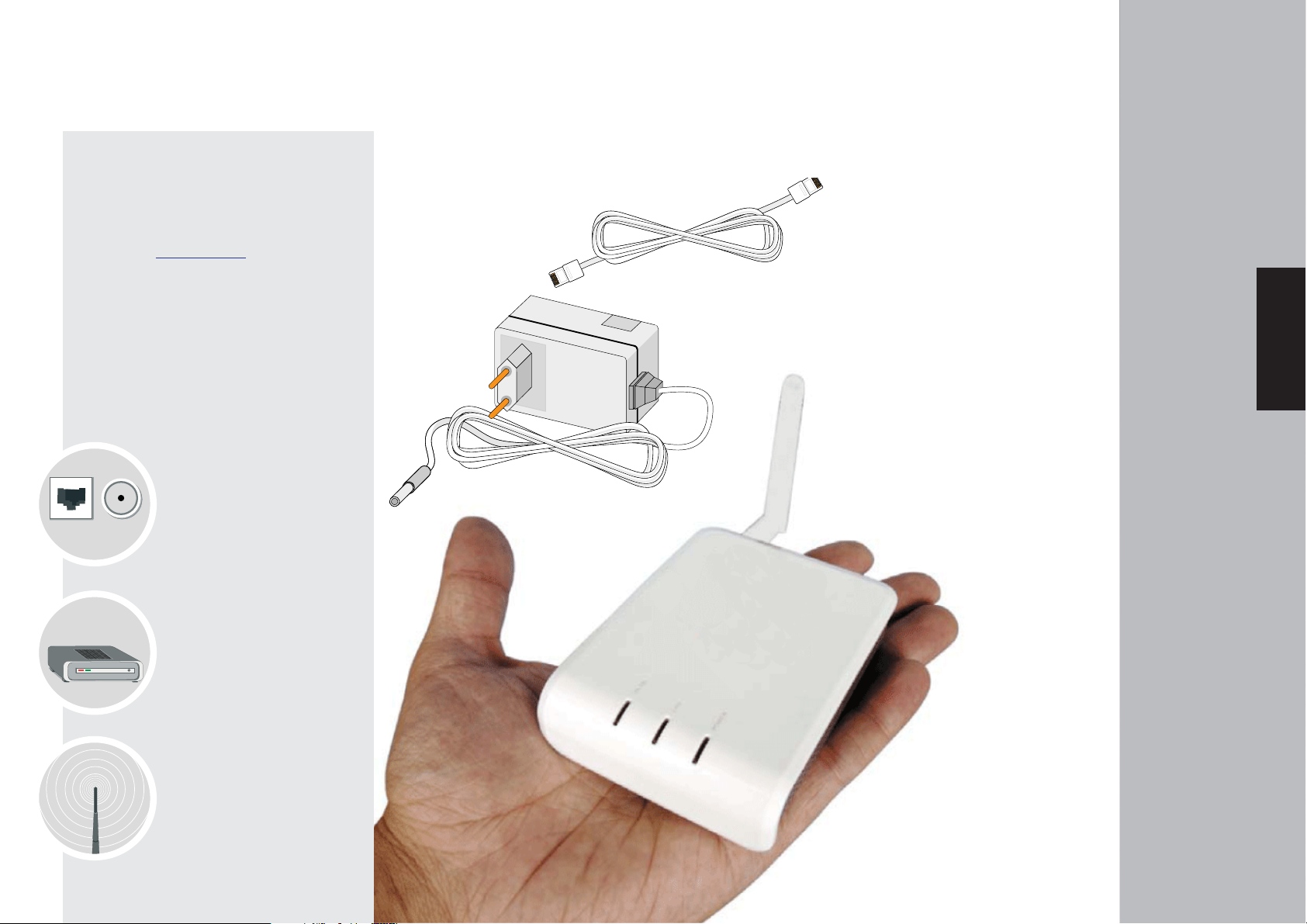
What's in the Box?
Required components
Before installing MR3201A, check that
you have the correct components to
join MR3201A.
Broadband connection
(ADSL, cable, etc)
ADSL Router or cable
modem from your
Internet Service Provider
AC Adapter
A network cable (white)
ENGLISH
Wireless device, either a
laptop or another device
with a wireless adapter
Quick Installation Guide
Page 2
4
3.
InstallMR3201A
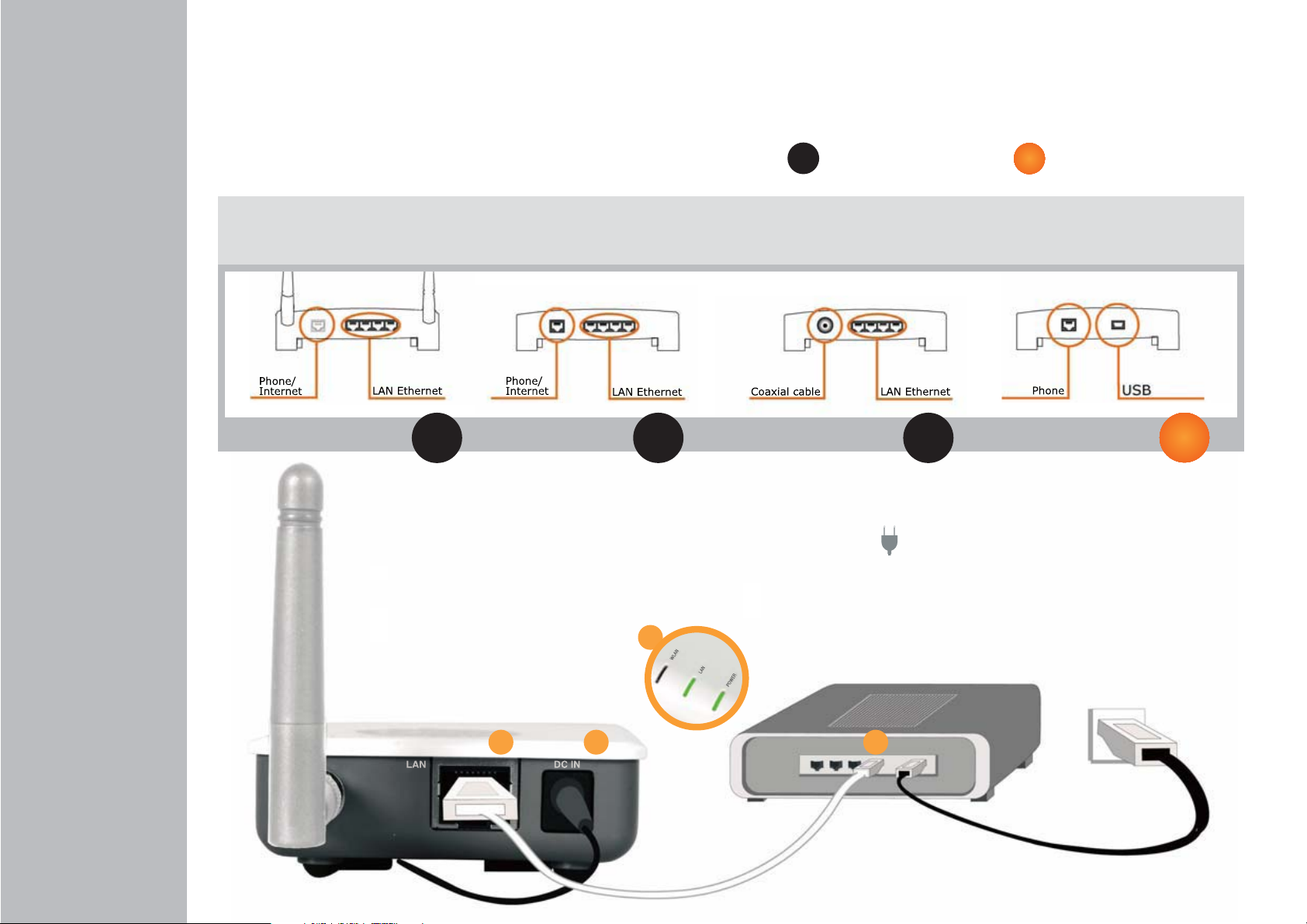
You don't need to make any changes in your current connection before
installing MR3201A, but check that:
1. Your ISP's router or cable modem is compatible (see figures) and has an
unused LAN Ethernet port.
WiFi Router - ADSL Router - ADSL Modem cable
OK OK OK
2. Your ISP's router works properly and you can access Internet
without problems.
Compatible with MR3201A
OK
ConnectMR3201Anow
1. Connect one end of the white network cable to
MR3201A's internet port.
2. Connect the other end of the network cable to one
of your ISP router's LAN Ethernet ports.
4
3. Plug in MR3201A.
4. Check that MR3201A’s Power and LAN lights are on.
Not compatible with MR3201A
x
Modem USB - ADSL
x
4
La Fonera
MR3201A
1 3 2
Your ISP's ADSL Router
or cable modem
Page 3

5
4.
Connect to MR3201A
Your device (laptop, desktop computer, etc.) must have a wireless network
card to be able to find and connect to WiFi networks.
If your device isn't WiFi-ready, check the User Manual in the CD to configure
MR3201A using a network cable.
RegisterMR3201A
1. Find the "Wireless Network Connection" icon in your computer.
In Windows XP, it is located in the task bar (see figure).
For other operating systems, check the User Manual.
2. Right click with your mouse on this icon and select "View available
wireless networks" and a window similar to this one will appear:
a
Private
Public
3. MR3201A needs to be registered through public signal. Select
the "AP" signal and click on the "Connect" button ( b ).
A few seconds later you'll see a message informing that you're
connected to the "AP" signal.
ENGLISH
4. Open your browser (Internet Explorer, Firefox...) and you'll see
Access Portal.
5. To access your User Zone, log in with the email and password you used
to register in the MR3201A Community.
We'll show you a specific form for you to register your access point in
the MR3201A Community.
b
MR3201A sends out two WiFi signals: a public one (MR3201A_AP) and a private
one (MyPlace).
If you can't see signals, click on the "Refresh network list" button ( a ).
If the problem persists, check that you've installed MR3201A properly.
If you see MR3201A private signal but do not find the public signal, check the
User Manual, since you will need to make some network configuration
adjustments in MR3201A.
If you don't register it, we'll show you a reminder alert in the User Zone
like the one in the figure.
Quick Installation Guide
5
Page 4

FCC Regulations:
zThis device complies with part 15 of the FCC Rules. Operation is subject to the following
two conditions: (1) This device may not cause harmful interference, and (2) this device must
accept any interference received, including interference that may cause undesired operation.
zThis device has been tested and found to comply with the limits for a Class B digital device,
pursuant to Part 15 of the FCC Rules. These limits are designed to provide reasonable
protection against harmful interference in a residential installation. This equipment generates,
uses and can radiated radio frequency energy and, if not installed and used in accordance with
the instructions, may cause harmful interference to radio communications. However, there is
no guarantee that interference will not occur in a particular installation If this equipment does
cause harmful interference to radio or television reception, which can be determined by
turning the equipment off and on, the user is encouraged to try to correct the interference by
one or more of the following measures:
-Reorient or relocate the receiving antenna.
-Increase the separation between the equipment and receiver.
-Connect the equipment into an outlet on a circuit different from that to which the receiver is
connected.
-Consult the dealer or an experienced radio/TV technician for help.
Changes or modifications not expressly approved by the party responsible for compliance
could void the user‘s authority to operate the equipment.
zThis device complies with FCC radiation exposure limits set forth for an uncontrolled
environment. In order to avoid the possibility of exceeding the FCC radio frequency exposure
limits, human proximity to the antenna shall not be less than 20cm (8 inches) during norm al
operation.
zThe antenna(s) used for this transmitter must not be co-located or operating in conjunction
with any other antenna or transmitter.
 Loading...