

Page 1

Wireless - N
Broadband Router
Quick Installation Guide
Model # AWN-11N-RT
Page 2
1.1 Package Contents
• One Wireless AP Router with 3 or 2 antennas (depends on the model)
• One External Power Adapter
• One CD-ROM (user’s manual)
• One RJ-45 Ethernet Cable
1.2 System Requirements
• Computers with an installed Ethernet adapter.
• Valid Internet Access account and Ethernet based DSL or Cable modem.
• 10/100Base-T Ethernet cable with RJ-45 connector.
• TCP/IP protocol must be installed on all PCs.
• System with MS Internet Explorer ver. 5.0 or later, or Netscape Navigator ver. 4.7
or later.
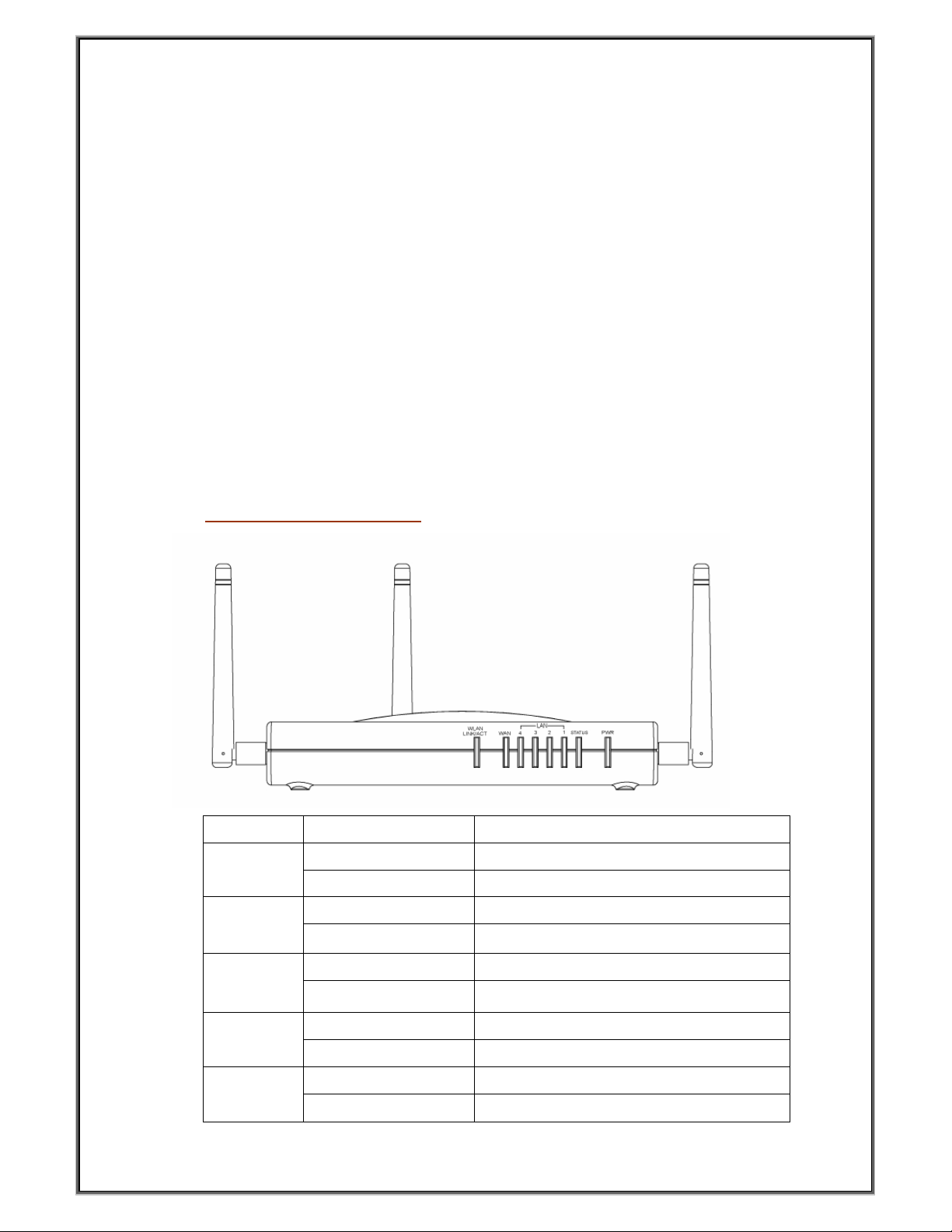
1.3 LEDs Indication & Connectors of Wireless Router
Front Panel LEDs Indication
LED Light Status Description
On Wireless Router is powered on. PWR
Off Wireless Router is powered off.
On Wireless Router is hung. Status
Blinking
(1, 2, 3, 4)
LINK/ACT
Blinking Data is being sent or received.
Blinking Data is being sent or received.
Slow Blinking WLAN is successfully connected. WLAN
Blinking Data is being sent or received.
On LAN port is successfully connected. LAN
On WAN port is successfully connected WAN
Wireless Router is up and ready.
1
Page 3
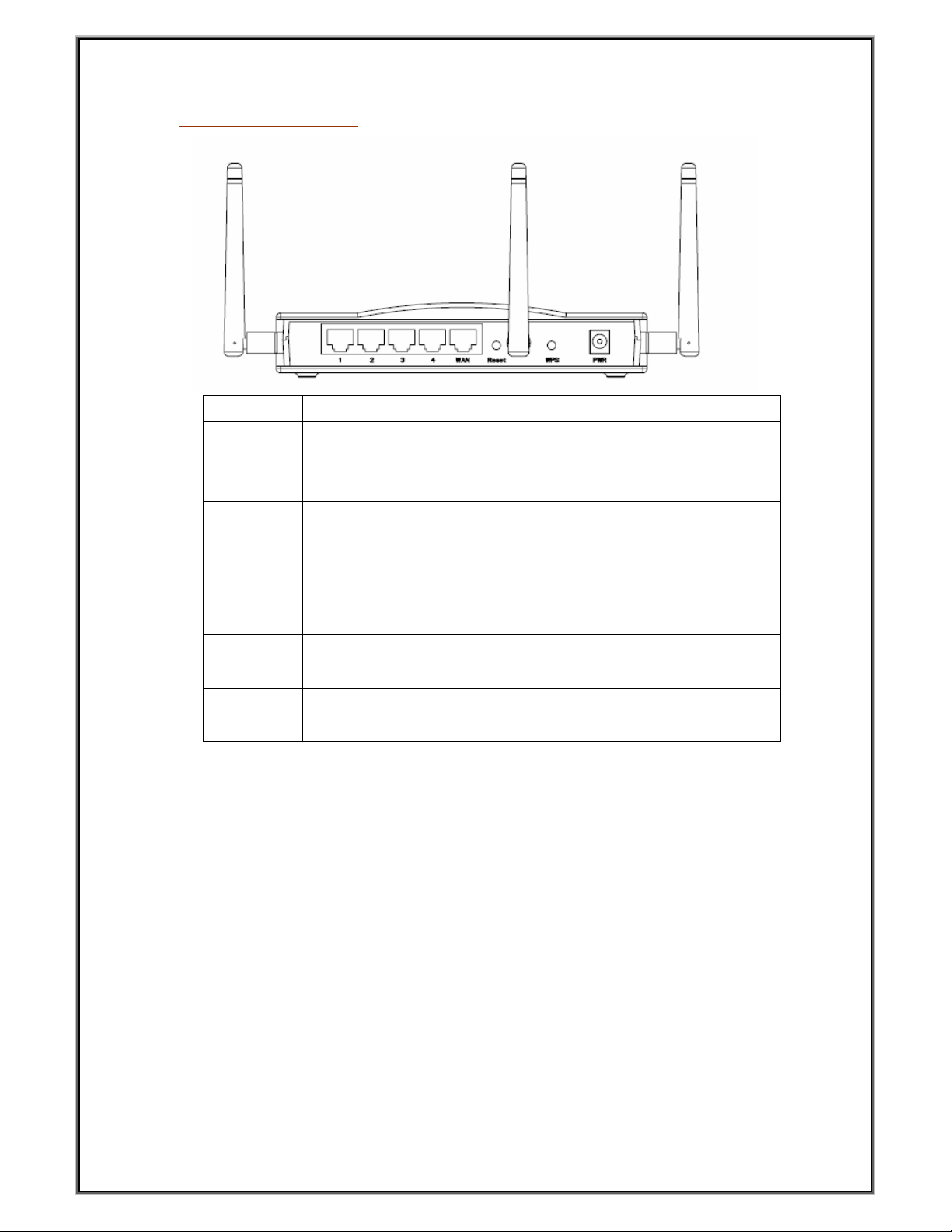
t. You would use the reset button only when
a program error has caused your 11n AP router to hang. Press the button
3 seconds while you are connecting a PC of
PBC
45 connector, connect to WAN access device, such as the
to the power adapter packaged with the AP
Back Panel Connectors
Button/Port Description
Reset Reset configurations to defaul
and hold for 10 seconds.
WPS Click WPS button about 2-
wireless adapter with WPS function (you must enable WPS’
function).
LAN
(1x, 2x, 3x, 4x)
WAN Ethernet RJ-
PWR Power connector, connect
Ethernet RJ-45 connector, connect to PC with a RJ-45 Ethernet cable.
Cable modem or ADSL modem.
router.
1.4 Installation Instruction
1) Power off 802.11n AP Router and DSL/Cable modem.
2) Connect computer to the LAN port on the Wireless Router with Ethernet cable.
3) Connect the DSL or Cable modem to the WAN port on the W ireless Router with
Ethernet cable.
4) Power on DSL or Cable modem first, then connect power adapter to the power jack on
the rear panel of Wireless Router and plug the power cable into an outlet.
5) Check LEDs.
a) Once power on Wireless Router, Power LED should be on.
b) LAN LED should be on for each active LAN connection.
c) The WAN LED should be on when the DSL or cable modem is connected.
Warning: Only use the power adapter is provided from this package, use other power
adapter may cause hardware damage
2
 Loading...