

Page 1

Repartee® LX
User Guide
Page 2

■ Reference information
To access your mailbox by phone
1. Call the voice messaging system.
From inside your organization, dial ________________________________________
From outside your organization, dial_______________________________________
2. When the system greets you, enter:
Personal ID _____________________________________________________________
Security code ___________________________________________________________
To access your mailbox by computer
1. Start Internet Explorer.
2. Type http://<server name>/
Server name ____________________________________________________________
3. At the log in screen, enter:
Extension ______________________________________________________________
Security code ___________________________________________________________
For assistance, call _______________________________________________________
© 2002-2004 Active Voice LLC
All rights reserved. Second edition 2004
PhoneBASIC, Repartee, TeLANophy, ViewCall, ViewFax, and ViewMail are trademarks of Active Voice, LLC.
Other brands and product names used in this document are trademarks of their respective owners.
Licensed under one or more of the following patents: U.S. Nos. 4,994,926; 5,291,302; 5,459,584; 4,696,028; 4,809,321; 4,850,012; 4,922,526; 4,935,958; 4,955,047; 4,972,469;
4,975,941; 5,020,095; 5,027,384; 5,029,196; 5,099,509; 5,109,405; 5,148,478; 5,166,974; 5,168,519; 5,249,219; 5,303,298; 5,309,504; 5,347,574; 5,666,401; 5,181,243; 5,724,408; and
Canadian No. 1329852.
Active Voice, LLC
Seattle, Washington
U.S.A.
www.activevoice.com
Page 3

Contents
Introduction ........................................................................ 1
About this guide............................................................. 2
Optional licensed features..............................................4
Messaging by phone ......................................................6
Working with Mailbox Manager .....................................7
Messaging from your e-mail inbox .................................9
Messaging and call management with
TeLANophy ...................................................................10
Getting started ................................................................. 12
To access your mailbox by phone................................. 13
To enroll on the system by phone ................................15
To use systemwide commands .....................................17
To start Mailbox Manager the first time....................... 19
To access your mailbox setup with
Mailbox Manager..........................................................21
Checking messages........................................................... 22
To check new messages................................................23
To review an old message.............................................26
To reply to a message................................................... 28
To check the next message ..........................................30
To delete a message.....................................................32
To archive a message.................................................... 34
To hear when a message was sent................................36
To redirect (forward) a message to another
subscriber .....................................................................38
To skip a message and save it as new ..........................40
To repeat a message.....................................................42
Changing your greetings................................................... 44
To change your standard greeting................................45
To change your alternate greeting ...............................46
To switch between your standard and
alternate greetings........................................................48
To change the greeting for when your
phone is busy ................................................................49
To turn your busy greeting on or off.............................51
To use the default greetings .........................................52
Sending messages............................................................. 53
To send a message directly to another
person’s mailbox ...........................................................54
To leave a message when you call an extension...........56
To add to a message before sending ...........................58
To listen to a message before sending.........................59
To rerecord a message before sending ........................60
To send an urgent message..........................................61
To send a private message............................................62
To request a delivery receipt for a message.................63
To send a message with future delivery........................64
To redirect (forward) a message to another
subscriber......................................................................65
To cancel a message after sending...............................66
To send a message to additional subscribers ...............67
To send a message to a group......................................68
To find out who has not yet received a
group message .............................................................69
To send a message to a guest subscriber.....................70
To send a message to a subscriber at another
location .........................................................................72
CONTENTS iiiREPARTEE LX USER GUIDE
Page 4

Changing message group settings.................................... 73
To create a message group ..........................................74
To add or delete group members ................................75
To change a group name or number............................ 76
To hear your groups and group members ...........................77
Changing mailbox setup options ...................................... 78
To change your security code.......................................79
To change your recorded name....................................80
To change the spelling of your name ...........................81
To change your playback options................................. 82
To turn call transfer on or off ........................................83
To change the call transfer number..............................84
To change call screening options .................................85
To turn call screening on or off..............................................87
To turn call holding on or off ........................................88
To change message delivery.........................................89
To let callers find your extension in the directory.........91
Sending and receiving faxes ............................................. 92
To receive a fax............................................................. 93
To receive all your faxes with one call ..........................95
To change your fax delivery number or schedule.........96
To change your fax greeting......................................... 97
To change your fax notification ....................................98
Checking e-mail by phone .................................................99
To check your e-mail messages by phone ..................100
To hear who else received an e-mail message............103
To enter your e-mail password with touchtones.........104
To turn your e-mail message totaling on or off ..........106
To fax a particular e-mail message..............................107
To fax all of your e-mail messages with a single call...109
To change your e-mail password ................................111
Menus and reference ...................................................... 113
Shortcuts available during message playback ............114
Shortcuts for other common tasks..............................115
Shortcuts for fax features............................................116
Shortcuts for e-mail integration..................................117
Menu options diagram................................................118
Index .........................................................................120
CONTENTS ivREPARTEE LX USER GUIDE
Page 5

■ Introduction
Welcome to Repartee® LX, a simple yet powerful voice
messaging system that can greet your callers and
record your messages.
This section describes basic system tools and associated documentation.
IN THIS SECTION
About this guide ..................................................... 2
Optional licensed features..................................... 4
Messaging by phone .............................................. 6
Working with Mailbox Manager ............................ 7
Messaging from your e-mail inbox........................ 9
Messaging and call management with
TeLANophy............................................................ 10
REPARTEE LX USER GUIDE
INTRODUCTION 1
Page 6

About this guide
The User Guide explains how to manage voice and e-mail
messages by phone, and how to change your mailbox
settings by phone. Instructions for using voice messaging
programs by computer, such as Mailbox Manager or any of
the TeLANophy programs, can be found in the online Help
for the program.
Some system features documented in this guide require
additional licensed options that may not be available at
your organization. Your system manager can tell you which
features are available. See “Optional licensed features,” on
page 4.
In this guide, each procedure includes an icon to indicate how
you perform the procedure:
In addition, the following icon indicates that you can also
perform the procedure by computer with Mailbox Manager:
Phone keys
Mailbox Manager
The menu options diagram beginning on page 118 shows
the Repartee LX menus available by phone. You can print
the diagram as a quick reference for Repartee LX features.
INTRODUCTION 2REPARTEE LX USER GUIDE
Page 7

ABOUT THIS GUIDE
The User Guide includes space for reference information.
See “Reference information.” Print this page, and write the
phone numbers and IDs that you need to access Repartee
LX.
INTRODUCTION 3REPARTEE LX USER GUIDE
Page 8

Optional licensed features
Some system features documented in the User Guide
require additional licenses that may not be available at
your organization. Also, some features may not be available with certain phone systems. See your system manager
for details about which features are available.
The optional features are:
Mailbox Manager Mailbox Manager is an online applica-
tion that lets you change your security code, greetings, call
transfer, message options, call holding, message delivery,
and message groups by computer. This User Guide
describes how to start Mailbox Manager and work with the
program. For detailed steps to change your mailbox setup
with Mailbox Manager, see Mailbox Manager online help.
ActiveFax® If your system includes ActiveFax, you can
manage your faxes by phone. Your faxes are included with
your voice messages, and you can deliver your faxes to a
fax machine by phone. See “Sending and receiving faxes,”
on page 92.
Unified messaging If your system includes unified messag-
ing, your voice and fax messages can be forwarded to your
e-mail inbox automatically. You can manage all of your
messages, no matter what type, with your e-mail program.
For steps to manage messages in your e-mail inbox, see
your e-mail software documentation.
INTRODUCTION 4REPARTEE LX USER GUIDE
Page 9

OPTIONAL LICENSED FEATURES
Text-to-speech If your system includes text-to-speech, you
can hear your e-mail messages by phone. See “Checking
e-mail by phone,” on page 99.
INTRODUCTION 5REPARTEE LX USER GUIDE
Page 10

Messaging by phone
You can check messages or change your mailbox setup
from any touchtone phone.
The voice messaging conversation can be customized,
depending on your preference.
Menu conversation The menu conversation leads you
quickly to your destination. You will hear a menu of
options. Press the number associated with the option to
perform a particular task.
1 for Yes, 2 for No® If you prefer, ask your system manager
to set your mailbox for the 1 for Yes, 2 for No conversation.
Just press for Yes, for No to answer the easy, yesand-no questions.
Shortcuts
To perform routine tasks quickly, you can enter a
sequence of numbers at any time. You do not have to wait
until the system finishes speaking. For a complete list of
system shortcuts and menus, see “Menus and reference,”
on page 113.
1 2
Help
When the system conversation asks you a question, press
3
to hear a menu of available options.
INTRODUCTION 6REPARTEE LX USER GUIDE
Page 11

Working with Mailbox Manager
Mailbox Manager is a Web application that lets you change
your security code, greetings, call transfer, message
options, call holding, message delivery, and message
groups by computer. Detailed procedures are available in
the online Help for the program.
You can use Mailbox Manager to change your mailbox
setup from a computer connected to the same network as
the voice messaging system. These setup options can also
be changed by phone.
Depending on your licenses, Mailbox Manager may not be
available at your organization. See your system manager
for details.
With Mailbox Manager, you can change your:
• Security code
• Recorded and spelled names
• Greetings
• Playback options
• Call transfer options
• Call screening options
• Call holding options
• Message delivery options
• Message groups
INTRODUCTION 7REPARTEE LX USER GUIDE
Page 12

WORKING WITH MAILBOX MANAGER
The first time you use the Mailbox Manager, you need to
know the server name, your personal ID and your security
code. See “To start Mailbox Manager the first time,” on
page 19.
INTRODUCTION 8REPARTEE LX USER GUIDE
Page 13

Messaging from your e-mail inbox
With unified messaging, you can access your voice, fax,
and e-mail messages in your e-mail mailbox. All of your
messages, no matter what type, are stored in your e-mail
inbox.
In your e-mail inbox, a voice message is included as a Wav
file attachment to an e-mail message. A fax message is
included as a Tif file attachment to an e-mail message.
For steps to manage messages in your e-mail inbox, see
the online Help for your e-mail program.
With ActiveFax, you can also send your e-mail messages to
any fax machine. See “Sending and receiving faxes,” on
page 92.
If your system also includes text-to-speech, you can hear
your e-mail messages by phone. The system plays any Wav
file attachments, as well. See “Checking e-mail by phone,”
on page 99.
INTRODUCTION 9REPARTEE LX USER GUIDE
Page 14

Messaging and call management with TeLANophy
If your system includes TeLANophy™, you can manage all
types of messages and phone calls visually on your computer.
The TeLANophy programs provide additional features for
working with voice and fax messages from other people
who also use the voice messaging system. For example,
you can record and reply to voice messages, and send messages to message groups. You can address messages to
other users visually, by selecting from a list on the dialog
box.
TeLANophy programs consist of:
ViewMail® All of your voice and fax messages are brought
together in one window with ViewMail. You can access and
prioritize your messages and respond to them by computer.
ViewMail for Microsoft® Messaging You can access all of
your voice messages, faxes, and e-mail messages in your
Microsoft Inbox, whether you are using Exchange, Outlook, or the Windows Messaging Inbox.
ViewMail for Lotus® Notes® You can access all of your voice
messages, faxes, and e-mail messages
Inbox.
ViewMail for GroupWise® You can access all of your voice
messages, faxes, and e-mail messages in your GroupWise
mailbox.
in your Lotus Notes
INTRODUCTION 10REPARTEE LX USER GUIDE
Page 15

MESSAGING AND CALL MANAGEMENT WITH TELANOPHY
ViewFax™ You can send, receive, and redirect faxes from
your desktop computer.
ViewCall® Plus All of your inbound and outbound calls can
be managed visually from your desktop computer. With
PhoneBASIC
®
, you can customize your call control by integrating ViewCall Plus with other programs, such as
Microsoft’s Office
®
suite.
INTRODUCTION 11REPARTEE LX USER GUIDE
Page 16

■ Getting started
This section describes how to call the system and
access your mailbox, and how to set up your mailbox
for the first time.
This section also explains how to start the Mailbox
Manager program to access your mailbox setup by
computer. For detailed instructions to use Mailbox
Manager, see the online Help for the program.
IN THIS SECTION
To access your mailbox by phone ....................... 13
To enroll on the system by phone ....................... 15
To use systemwide commands ............................ 17
To start Mailbox Manager the first time.............. 19
To access your mailbox setup with
Mailbox Manager..................................................21
REPARTEE LX USER GUIDE
GETTING STARTED 12
Page 17

To access your mailbox by phone
To access your mailbox, you need to know the phone number to call the voice messaging system, your personal ID,
and your security code. Your system manager can provide
this information.
You may need to use a different phone number, depending
on whether you are calling from inside or outside your
organization.
To make it easier to remember the information you need to
access your mailbox, this User Guide includes space for
reference information. See “Reference information.” Print
this page, and write the phone numbers for calling Repartee LX, and your ID.
For security purposes, you may be required to change your
security code. Choose a code that is easy for you to remember, but difficult for others to guess. Do not write down
your security code.
The first time you call, the system asks you to answer a few
questions to set up your mailbox and enroll you on the
system as a subscriber. See “To enroll on the system by
phone,” on page 15.
See also
To access your mailbox setup with
Mailbox Manager ........................21
GETTING STARTED 13REPARTEE LX USER GUIDE
Page 18
TO ACCESS YOUR MAILBOX BY PHONE
USING YOUR PHONE
1 Call the voice messaging system.
From inside your organization, dial ___________________________
From outside your organization, dial___________________________
2 When the system greets you, enter:
Personal ID ___________________________________________
Security code _________________________________________
Use these keys at the main menu
TASK KEY
Check new messages
4
Send a message
Check old messages
Change setup options
5
6
7
Use these keys anytime
TASK KEY TASK KEY
Main menu Previous menu
Answer Yes Answer No
1 2
#
GETTING STARTED 14REPARTEE LX USER GUIDE
Page 19

To enroll on the system by phone
The first time you call, the system asks you a few simple
questions to record your name, spell your name (if
required), record a personal greeting, and set your
security code. Once you have answered these questions,
you are enrolled on the system as a subscriber, and your
mailbox is ready to use.
To begin, you need to know the phone number to call the
voice messaging system, your personal ID, and your security code. Your system manager can provide this information.
To make it easier to remember the information you need to
access your mailbox, this User Guide includes space for
reference information. See “Reference information.” Print
this page, and write the phone numbers for calling Repartee LX, and your ID.
For security purposes, you may be required to change your
security code. Choose a code that is easy for you to remember, but difficult for others to guess. Do not write down
your security code.
After you have set up your mailbox by phone, you can use
the TeLANophy programs, if they are available. Contact
your system manager for details.
GETTING STARTED 15REPARTEE LX USER GUIDE
Page 20
TO ENROLL ON THE SYSTEM BY PHONE
USING YOUR PHONE
1 Call the voice messaging system. If asked, enter your personal ID
and security code.
2 Answer the system questions. Press for Yes, for No. If you are
not sure, press . You can always change the option later.
2
3 When the system tells you that your mailbox is set up, press to
1 2
1
confirm your settings.
Use these keys at the main menu
TASK KEY
Check new messages
Send a message
Check old messages
Change setup options
4
5
6
7
Use these keys anytime
TASK KEY TASK KEY
Main menu Previous menu
Answer Yes Answer No
✱
1
#
2
GETTING STARTED 16REPARTEE LX USER GUIDE
Page 21

To use systemwide commands
The system conversation consists of these main menu
options:
• Check new messages.
• Send messages.
• Review old messages.
• Change setup options.
Systemwide commands are available at several points
throughout the system conversation.
If applicable, you can deliver all of your new faxes immediately by pressing at the main menu.
USING YOUR PHONE
1 Call the voice messaging system.
2 If asked, enter your personal ID and security code.
3 As you navigate through the system menus, use the commands in
the following tables.
4 5
See also
Menu options diagram ............. 118
Use these keys at the main menu
TASK KEY
Check new messages
Send a message
Check old messages
Change setup options
4
5
6
7
GETTING STARTED 17REPARTEE LX USER GUIDE
Page 22
Use these keys anytime
TASK KEY TASK KEY
Main menu Previous menu
✱
TO USE SYSTEMWIDE COMMANDS
#
Answer Yes Answer No
1 2
GETTING STARTED 18REPARTEE LX USER GUIDE
Page 23

To start Mailbox Manager the first time
With Mailbox Manager, you can change your mailbox setup
from any Windows computer connected to the same network as the voice messaging system. This topic provides
steps to start Mailbox Manager for the first time.
For detailed steps to change your mailbox setup with Mailbox Manager, see the online Help for the program.
The first time you use the Mailbox Manager, you need to
know the voice messaging system server name, your personal ID and your security code. You may not use Mailbox
Manager until you have completed first time enrollment
using your phone. See “To enroll on the system by phone,”
on page 15.
The menu bar allows you to navigate through the Mailbox
Manager screens.
Click “Save” to save changes as you make them. If you
move to another screen within Mailbox Manager without
saving changes first, you are prompted to save before proceeding.
The Profile screen is where the system stores your name,
extension number, fax ID, delivery number, and other settings.
GETTING STARTED 19REPARTEE LX USER GUIDE
Page 24

TO START MAILBOX MANAGER THE FIRST TIME
USING THE MAILBOX MANAGER
NOTE You can not use Mailbox Manager until you have
completed first time enrollment using your phone. See
“To enroll on the system by phone,” on page 15.
Start Internet Explorer.
1
2 Type http://<server name>/
(If you do not know the server name, contact your system administrator.)
3 Type your voice mail user ID and security code.
TIP Add the Mailbox Manager site to your list of favorites in
Internet Explorer, so you do not have to type the Web address
each time you log on.
GETTING STARTED 20REPARTEE LX USER GUIDE
Page 25
To access your mailbox setup with Mailbox Manager
The first time you use the Mailbox Manager, you need to
know the voice messaging system server name, your personal ID and your security code. You may not use Mailbox
Manager until you have completed first time enrollment
using your phone. See “To enroll on the system by phone,”
on page 15.
USING THE MAILBOX MANAGER
1 Start Internet Explorer.
2 Type http://<server name>/
(If you do not know the server name, contact your system administrator.)
3 Type your voice mail user ID and security code.
GETTING STARTED 21REPARTEE LX USER GUIDE
Page 26

■ Checking messages
This section explains how to check your new and old
messages.
You can check your new voice, fax, or e-mail messages
from any touchtone phone. You can also review old or
archived messages you have already heard.
When you check a message, you can:
• Reply to the sender.
• Check the next message.
• Delete or archive a message.
• Hear when the message was sent.
• Forward the message to another subscriber.
• Skip the message.
• Repeat the message.
IN THIS SECTION
To check new messages ....................................... 23
To review an old message .................................... 26
To reply to a message........................................... 28
To check the next message.................................. 30
To delete a message............................................. 32
To archive a message ...........................................34
To hear when a message was sent ...................... 36
To redirect (forward) a message to another
subscriber .............................................................. 38
To skip a message and save it as new ................. 40
To repeat a message ............................................ 42
REPARTEE LX USER GUIDE
CHECKING MESSAGES 22
Page 27

To check new messages
New messages are messages that you have not yet heard.
Depending on licensed features, the system includes voice,
fax, and e-mail messages in your new message stack.
The system plays all urgent messages first, then all regular
messages. It also sorts your messages by sender. If the system does not know who left a message, it says that the
message is “from your message box.”
After you listen to any messages from a subscriber, you
can reply immediately; you do not have to dial the subscriber’s extension.
Depending on the phone system, Repartee LX notifies you
when you have new messages, either by lighting a button
on your phone, or by playing a special tone. Or, Repartee
LX can call your extension. See “To change message deliv-
ery,” on page 89.
Your system manager can set up special options for your
mailbox to:
• Play new messages automatically each time you call the system.
• Identify you automatically when you use your assigned extension.
• Tell you how long it will take to play your messages.
See also
To review an old message ...........26
To receive a fax............................ 93
To check your e-mail messages
by phone ................................... 100
CHECKING MESSAGES 23REPARTEE LX USER GUIDE
Page 28
TO CHECK NEW MESSAGES
USING YOUR PHONE
1 Call the voice messaging system. If asked, enter your personal ID
and security code.
2 Press to check new messages. Follow the system instructions.
4
1 2
Press for Yes, for No.
TIP Press to skip a message and save it as new.
✱
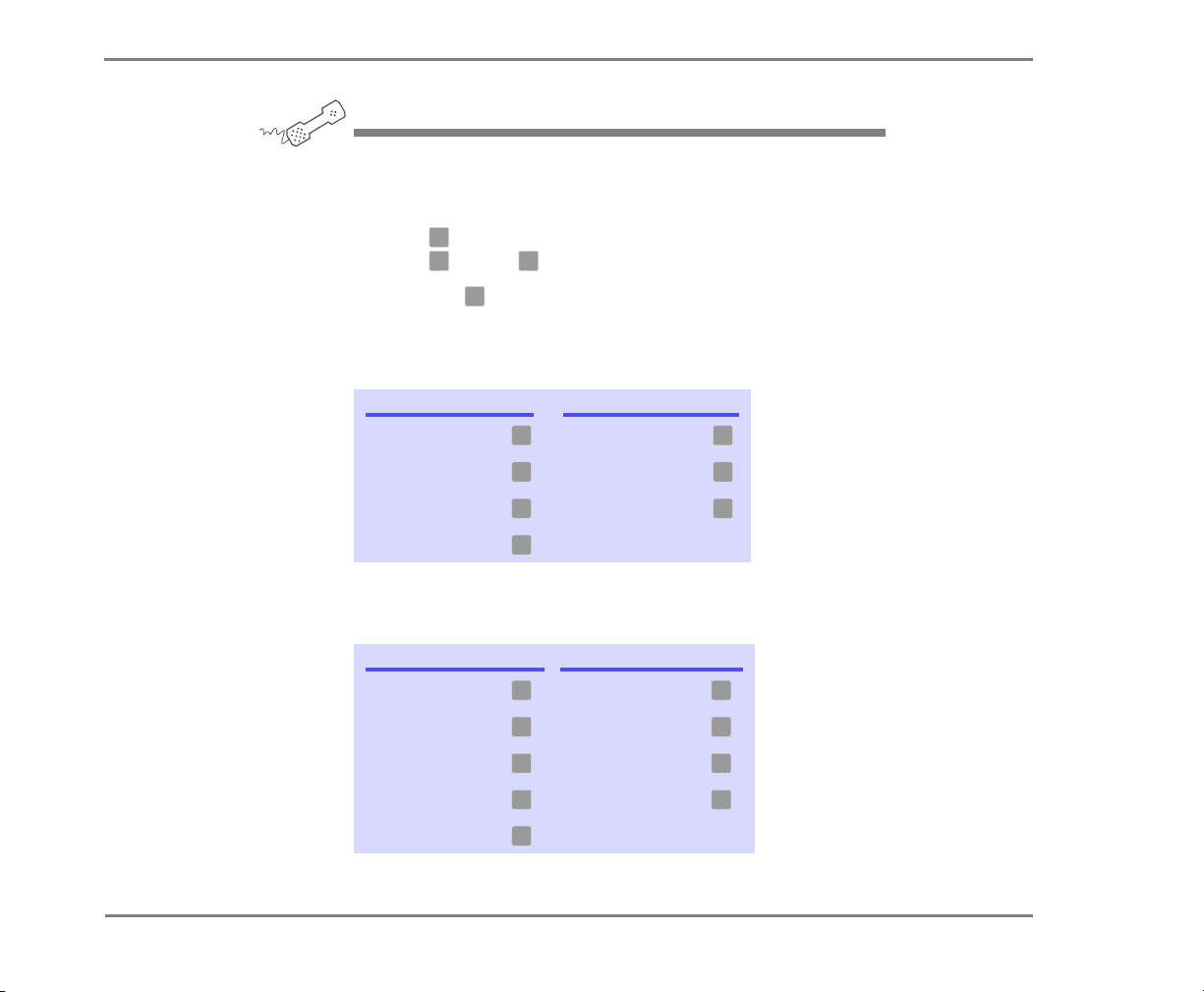
3 Use the following commands during and after message playback.
Use these keys during a message
TASK KEY TASK KEY
Hear menu options Backward
Slower Pause or continue
Softer/louder Fast-forward
Faster
3 7
4 8
5 9
6
* Available only if you are using the fax option.
Use these keys after a message
TASK KEY(S) TASK KEY
Hear e-mail recipients* Hear time stamp
Reply to sender
Check next message Save as new
Delete Repeat the message
Archive message/fax
an e-mail message*
* This feature may not be available at your site.
3 8
Redirect message/
4 9
deliver a fax*
5 0
6 #
7
CHECKING MESSAGES 24REPARTEE LX USER GUIDE
Page 29
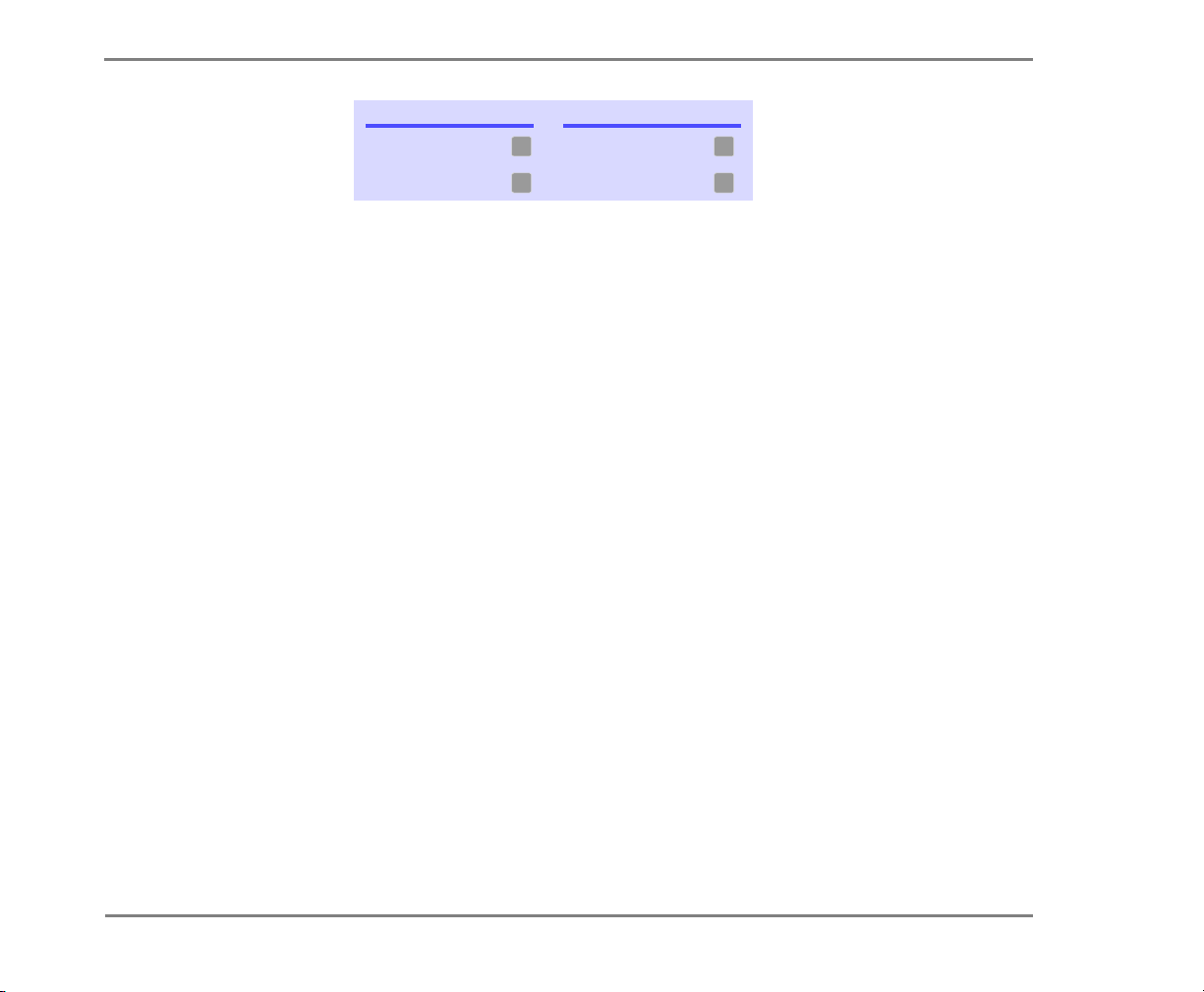
Use these keys anytime
TASK KEY TASK KEY
Main menu Previous menu
✱
TO CHECK NEW MESSAGES
#
Answer Yes Answer No
1 2
CHECKING MESSAGES 25REPARTEE LX USER GUIDE
Page 30

To review an old message
Old messages are messages you have already heard.
Depending on licensed features, the system includes voice,
fax, and e-mail messages in your old message stack.
After you have heard a new message, the system saves it
for a set amount of time (for example, until midnight). Or,
you can archive the message to save it longer. Ask your
system manager how many days your system is set to save
old and archived messages.
The system plays all urgent messages first, then all regular
messages. It also sorts your messages by sender. If the system does not know who left a message, it says that the
message is “from your message box.”
USING YOUR PHONE
1 Call the voice messaging system. If asked, enter your personal ID
and security code.
See also
To check new messages.............. 23
2 Press to check old messages. Follow the system instructions.
6
1 2
Press for Yes, for No.
TIP Press to skip a message. Press to archive a
message. You cannot save an old message as new.
✱
3 7
3 Use the following commands during and after message playback.
CHECKING MESSAGES 26REPARTEE LX USER GUIDE
Page 31
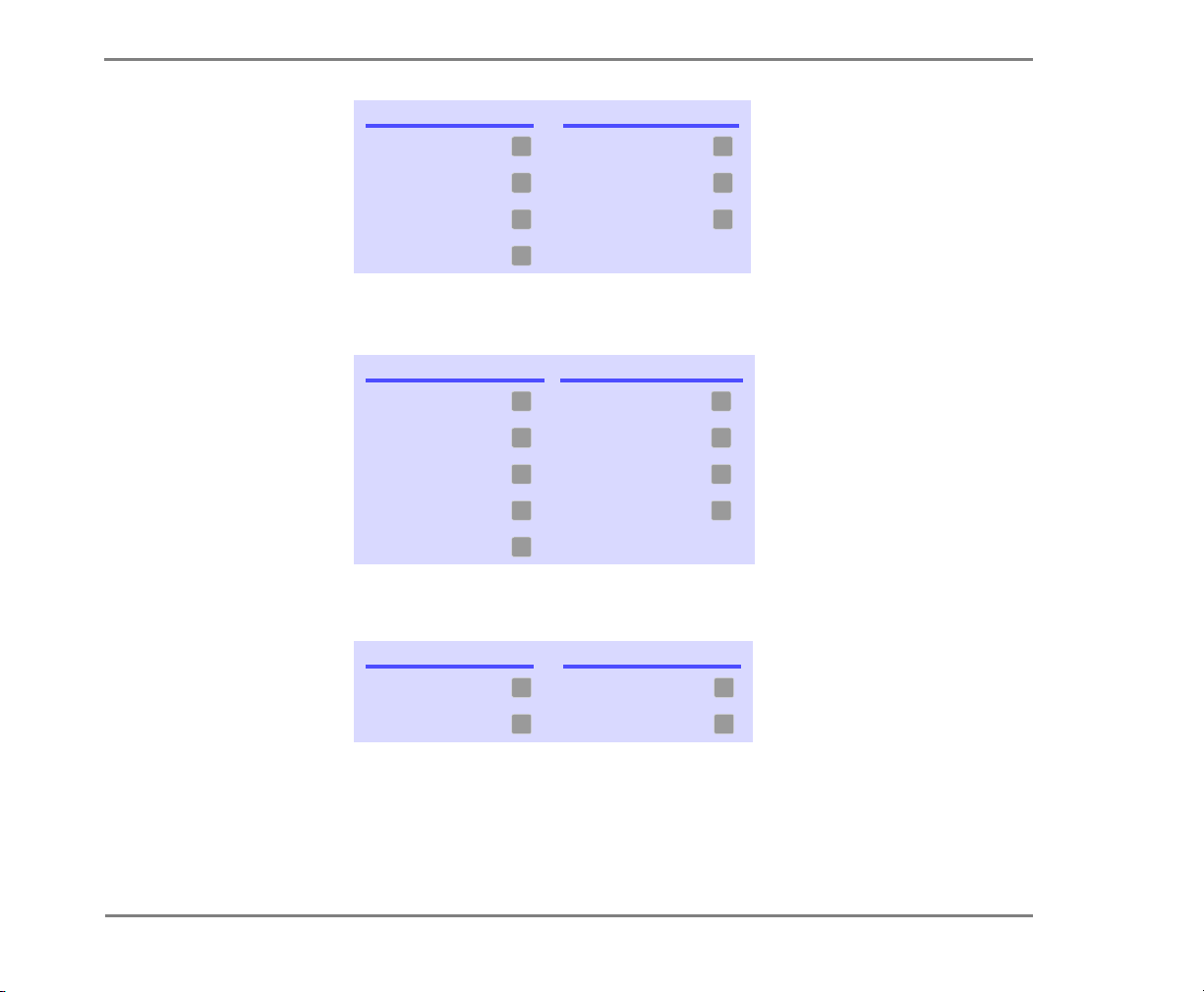
Use these keys during a message
TASK KEY TASK KEY
Hear menu options Backward
3 7
TO REVIEW AN OLD MESSAGE
Slower Pause or continue
Softer/louder Fast-forward
Faster
4 8
5 9
6
* Available only if you are using the fax option.
Use these keys after a message
TASK KEY(S) TASK KEY
Hear e-mail recipients* Hear time stamp
Reply to sender
Check next message Save as new
Delete Repeat the message
Archive message/fax
an e-mail message*
3 8
Redirect message/
4 9
deliver a fax*
5 0
6 #
7
* This feature may not be available at your site.
Use these keys anytime
TASK KEY TASK KEY
Main menu Previous menu
Answer Yes Answer No
✱
1 2
#
CHECKING MESSAGES 27REPARTEE LX USER GUIDE
Page 32
To reply to a messag e
If a message is from another subscriber, you can send a
reply. You can reply to a new or old message. You can
record a reply to an e-mail message.
USING YOUR PHONE
See also
To check new messages ..............23
To review an old message ...........26
1 While listening to a message, press . Or, after a message,
4
press .
2 Record your reply after the beep. Press to finish recording.
3 Press to send the reply. Or, follow the conversation to edit the
✱
3 4
✱
reply, set special delivery, or address the reply to others.
4 After you send your reply, follow the conversation to handle the
original message.
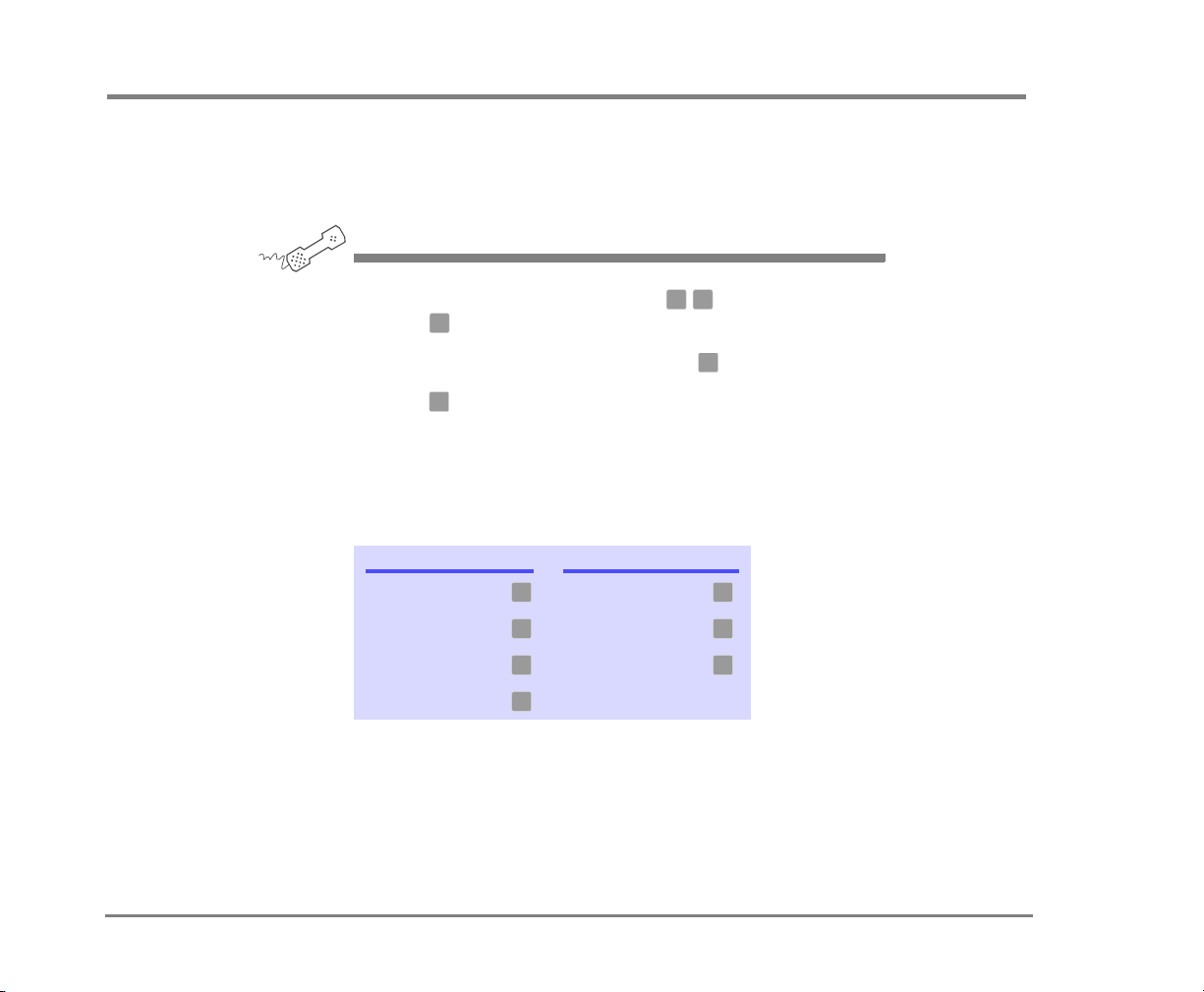
Use these keys during a message
TASK KEY TASK KEY
Hear menu options Backward
Slower Pause or continue
Softer/louder Fast-forward
Faster
3 7
4 8
5 9
6
* Available only if you are using the fax option.
CHECKING MESSAGES 28REPARTEE LX USER GUIDE
Page 33
Use these keys after a message
TASK KEY(S) TASK KEY
Hear e-mail recipients* Hear time stamp
Reply to sender
Check next message Save as new
3 8
Redirect message/
4 9
deliver a fax*
5 0
TO REPLY TO A MESSAGE
Delete Repeat the message
Archive message/fax
an e-mail message*
6 #
7
* This feature may not be available at your site.
Use these keys anytime
TASK KEY TASK KEY
Main menu Previous menu
Answer Yes Answer No
✱
1 2
#
CHECKING MESSAGES 29REPARTEE LX USER GUIDE
Page 34
To check the next message
You can check the next message in your new or old message stack. When you check the next message, your original message is marked “old.”
USING YOUR PHONE
See also
To check new messages ..............23
To review an old message ...........26
◆ While listening to a message, press . Or, after a message,
5
press .
3 5
Use these keys during a message
TASK KEY TASK KEY
Hear menu options Backward
Slower Pause or continue
Softer/louder Fast-forward
Faster
3 7
4 8
5 9
6
* Available only if you are using the fax option.
Use these keys after a message
TASK KEY(S) TASK KEY
Hear e-mail recipients* Hear time stamp
Reply to sender
Check next message Save as new
Delete Repeat the message
Archive message/fax
an e-mail message*
* This feature may not be available at your site.
3 8
Redirect message/
4 9
deliver a fax*
5 0
6 #
7
CHECKING MESSAGES 30REPARTEE LX USER GUIDE
Page 35
Use these keys anytime
TASK KEY TASK KEY
Main menu Previous menu
✱
TO CHECK THE NEXT MESSAGE
#
Answer Yes Answer No
1 2
CHECKING MESSAGES 31REPARTEE LX USER GUIDE
Page 36
To delete a message
You can delete a new or old voice or fax message. You can
delete an e-mail message. When you delete an e-mail message by phone you also delete it from your e-mail inbox.
USING YOUR PHONE
See also
To check new messages.............. 23
To review an old message .......... 26
◆ While listening to a message, press . Or, after a message,
6
press .
3 6
Use these keys during a message
TASK KEY TASK KEY
Hear menu options Backward
Slower Pause or continue
Softer/louder Fast-forward
Faster
3 7
4 8
5 9
6
* Available only if you are using the fax option.
Use these keys after a message
TASK KEY(S) TASK KEY
Hear e-mail recipients* Hear time stamp
Reply to sender
Check next message Save as new
Delete Repeat the message
Archive message/fax
an e-mail message*
* This feature may not be available at your site.
3 8
Redirect message/
4 9
deliver a fax*
5 0
6 #
7
CHECKING MESSAGES 32REPARTEE LX USER GUIDE
Page 37
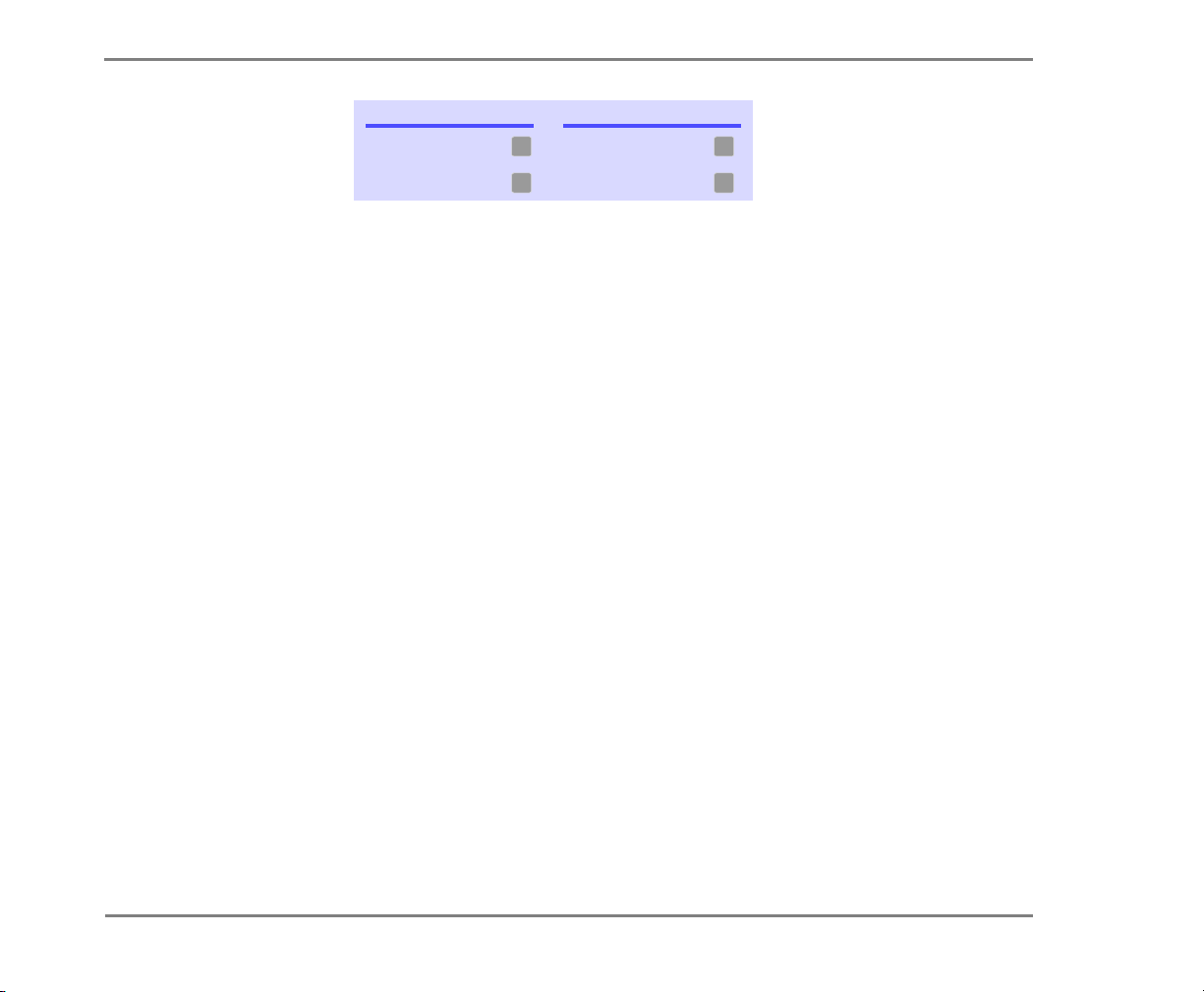
Use these keys anytime
TASK KEY TASK KEY
Main menu Previous menu
✱
TO DELETE A MESSAGE
#
Answer Yes Answer No
1 2
CHECKING MESSAGES 33REPARTEE LX USER GUIDE
Page 38
To archive a message
The system saves old messages for a set time (for example,
until midnight). To keep a message for a longer period, you
can archive it. The system manager can tell you how long
your system saves archived messages.
You can hear your archived messages when you review old
messages. The only difference between archived messages
and old messages is that archived messages are saved for a
longer period of time.
After you listen to an archived message, the system gives
you the option of archiving the message again. You must
press to archive the message again or it will be
deleted.
USING YOUR PHONE
3 7
See also
To check new messages.............. 23
To review an old message .......... 26
◆ While listening to a message, press . Or, after a message,
7
press .
3 7
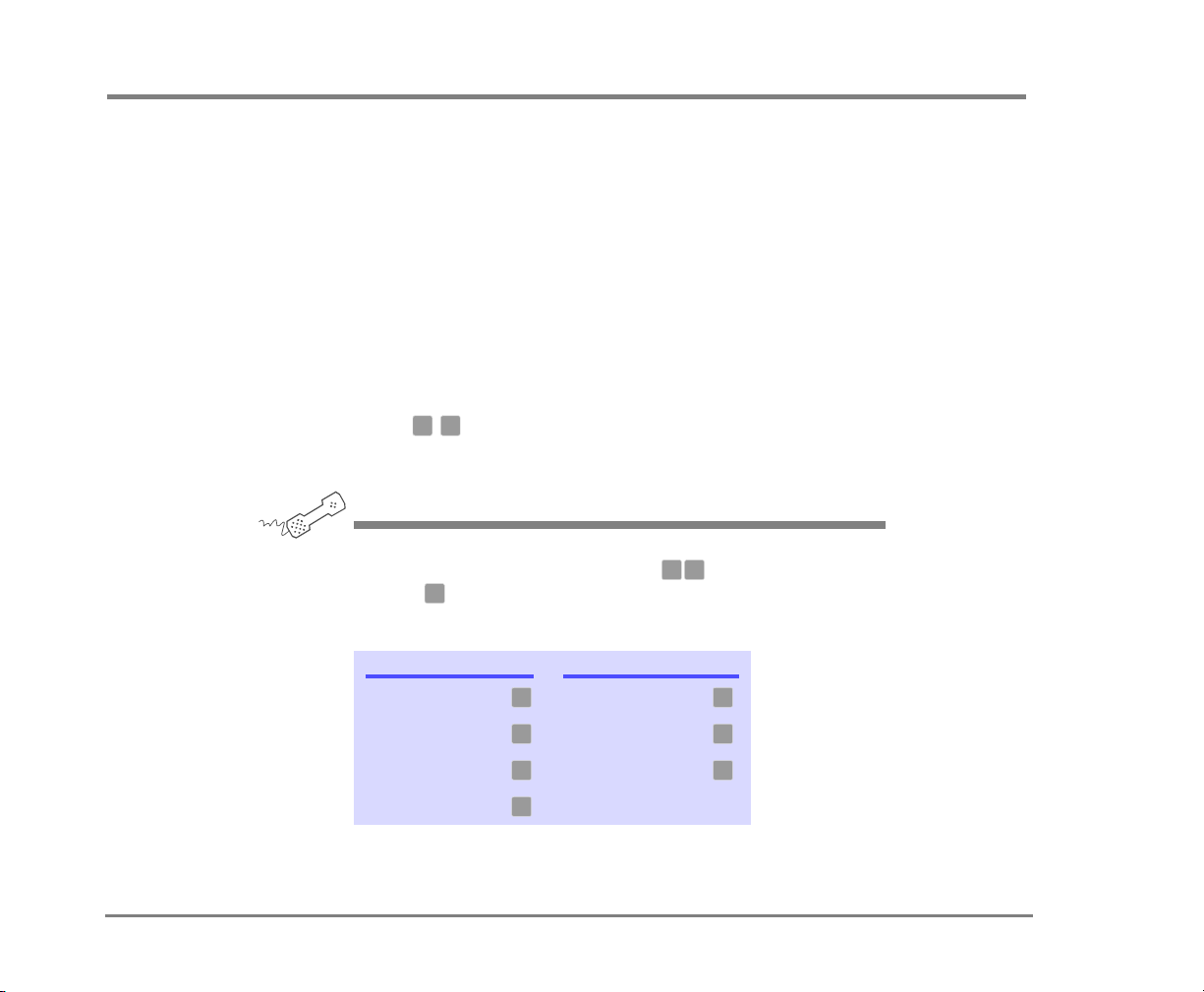
Use these keys during a message
TASK KEY TASK KEY
Hear menu options Backward
Slower Pause or continue
Softer/louder Fast-forward
Faster
3 7
4 8
5 9
6
* Available only if you are using the fax option.
CHECKING MESSAGES 34REPARTEE LX USER GUIDE
Page 39
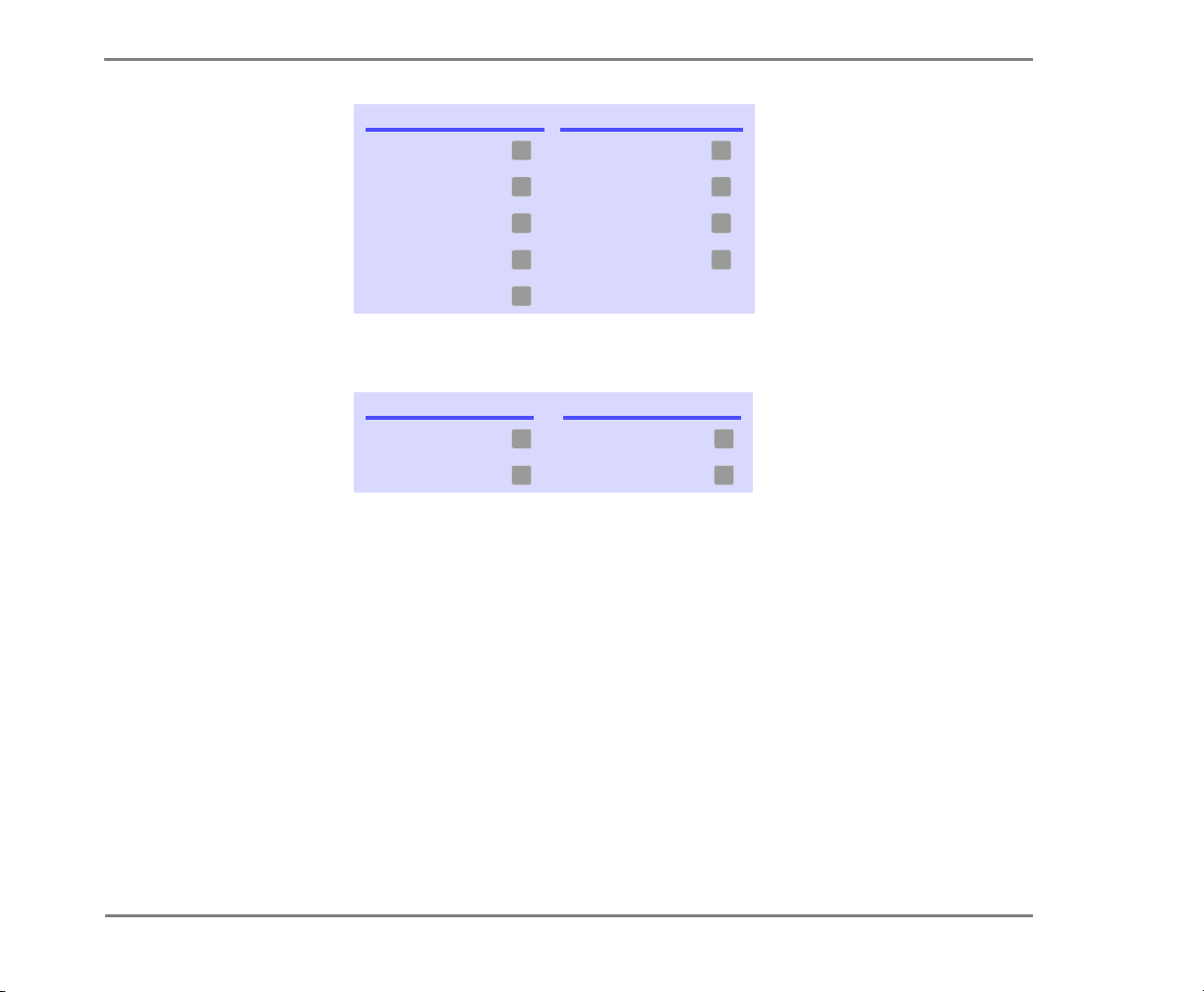
Use these keys after a message
TASK KEY(S) TASK KEY
Hear e-mail recipients* Hear time stamp
Reply to sender
Check next message Save as new
3 8
Redirect message/
4 9
deliver a fax*
5 0
TO ARCHIVE A MESSAGE
Delete Repeat the message
Archive message/fax
an e-mail message*
6 #
7
* This feature may not be available at your site.
Use these keys anytime
TASK KEY TASK KEY
Main menu Previous menu
Answer Yes Answer No
✱
1 2
#
CHECKING MESSAGES 35REPARTEE LX USER GUIDE
Page 40
To hear when a message was sent
You can hear when a message was sent.
USING YOUR PHONE
See also
To check new messages.............. 23
To review an old message .......... 26
◆ While listening to a message, press . Or, after a message,
8
press .
3 8
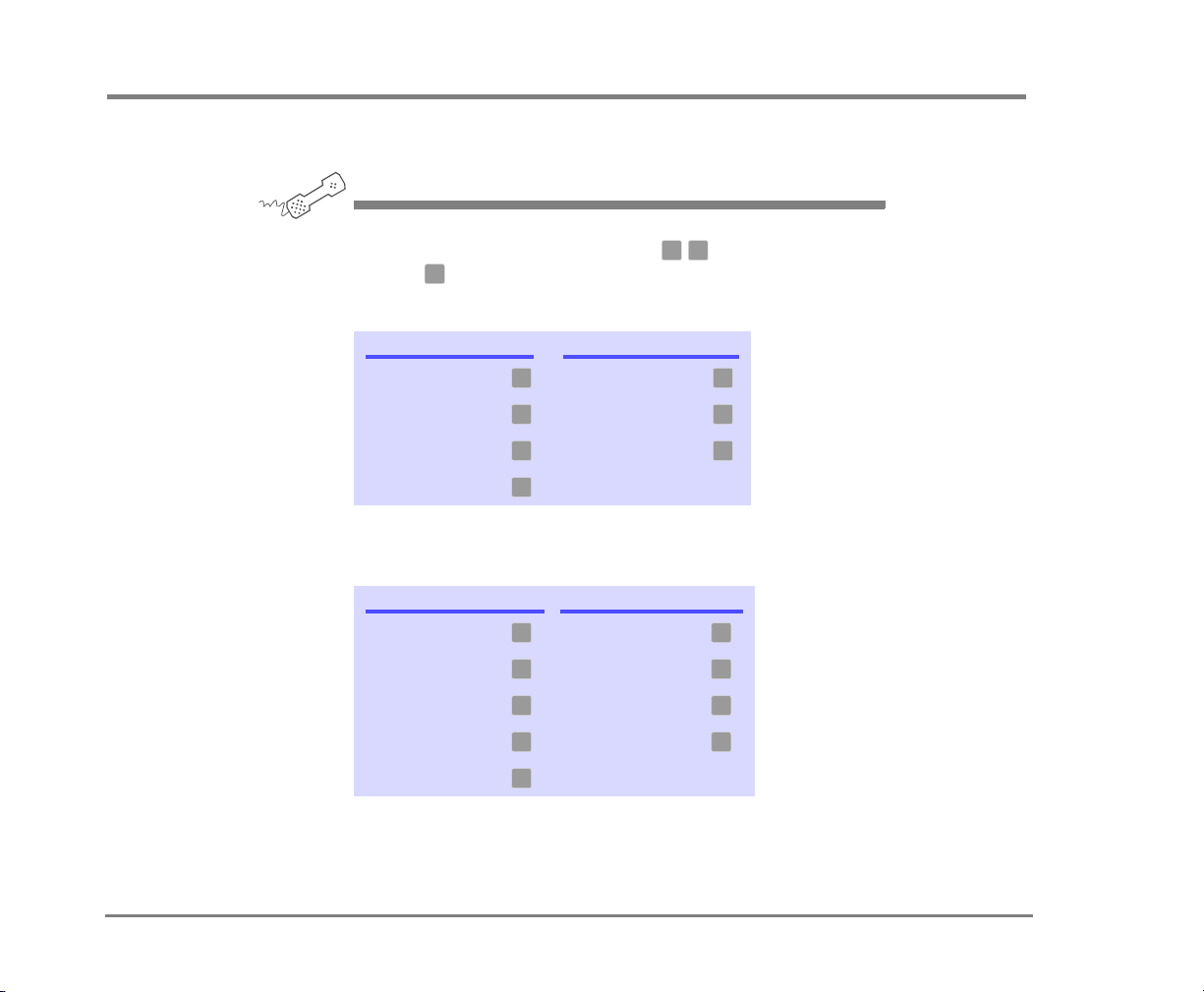
Use these keys during a message
TASK KEY TASK KEY
Hear menu options Backward
Slower Pause or continue
Softer/louder Fast-forward
Faster
3 7
4 8
5 9
6
* Available only if you are using the fax option.
Use these keys after a message
TASK KEY(S) TASK KEY
Hear e-mail recipients* Hear time stamp
Reply to sender
Check next message Save as new
Delete Repeat the message
Archive message/fax
an e-mail message*
* This feature may not be available at your site.
3 8
Redirect message/
4 9
deliver a fax*
5 0
6 #
7
CHECKING MESSAGES 36REPARTEE LX USER GUIDE
Page 41
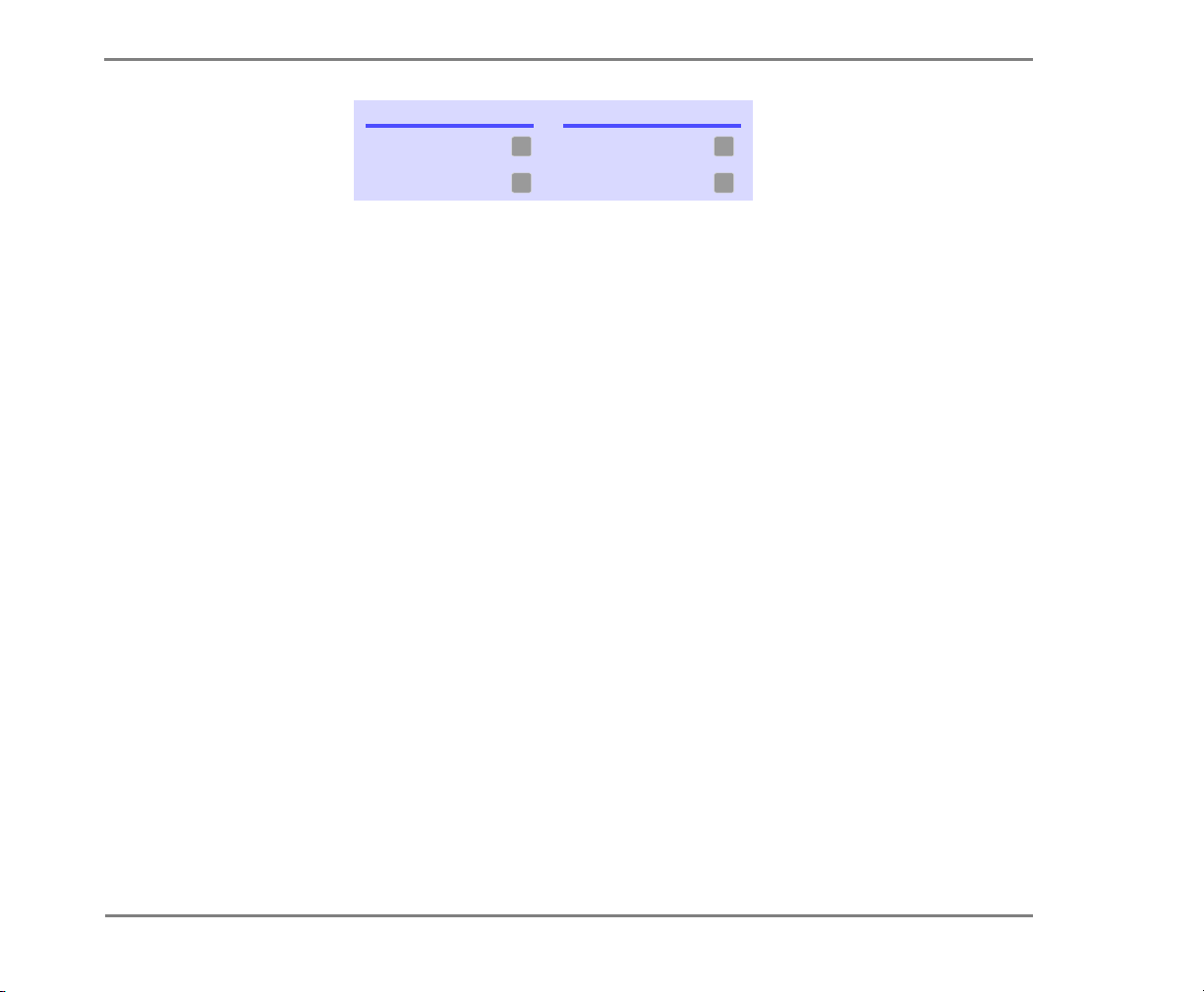
Use these keys anytime
TASK KEY TASK KEY
Main menu Previous menu
✱
TO HEAR WHEN A MESSAGE WAS SENT
#
Answer Yes Answer No
1 2
CHECKING MESSAGES 37REPARTEE LX USER GUIDE
Page 42
To redirect (forward) a message to another subscriber
When you redirect or forward a message, you send a copy
of the message to another subscriber.
The system lets you:
• Redirect a message to another subscriber.
• Record an introduction to the message.
• Edit your introduction or set special delivery options for the redi-
rected message.
NOTE The system does not let you redirect messages that are
designated as private by the original sender.
USING YOUR PHONE
See also
To check new messages.............. 23
To review an old message........... 26
1 While listening to a message, press to interrupt it. Or, after a
message, press .
2 Press to skip recording an introduction. Otherwise, press ,
2 1
record an introduction, then press to finish. Follow the
conversation to edit the introduction or set special delivery.
9
3 9
✱
3 On the phone, spell the subscriber’s name. Otherwise, enter the
extension number. Press when you hear the name of the
subscriber you want. Otherwise, press to hear the next matching
name.
1
2
4 Wait while the system redirects the message.
5 Press to skip redirecting the message to anyone else. Otherwise,
2
1
press , then follow the conversation to redirect the message to
additional subscribers.
CHECKING MESSAGES 38REPARTEE LX USER GUIDE
Page 43
TO REDIRECT (FORWARD) A MESSAGE TO ANOTHER SUBSCRIBER
6 After you redirect the message, follow the conversation to handle
the original message.
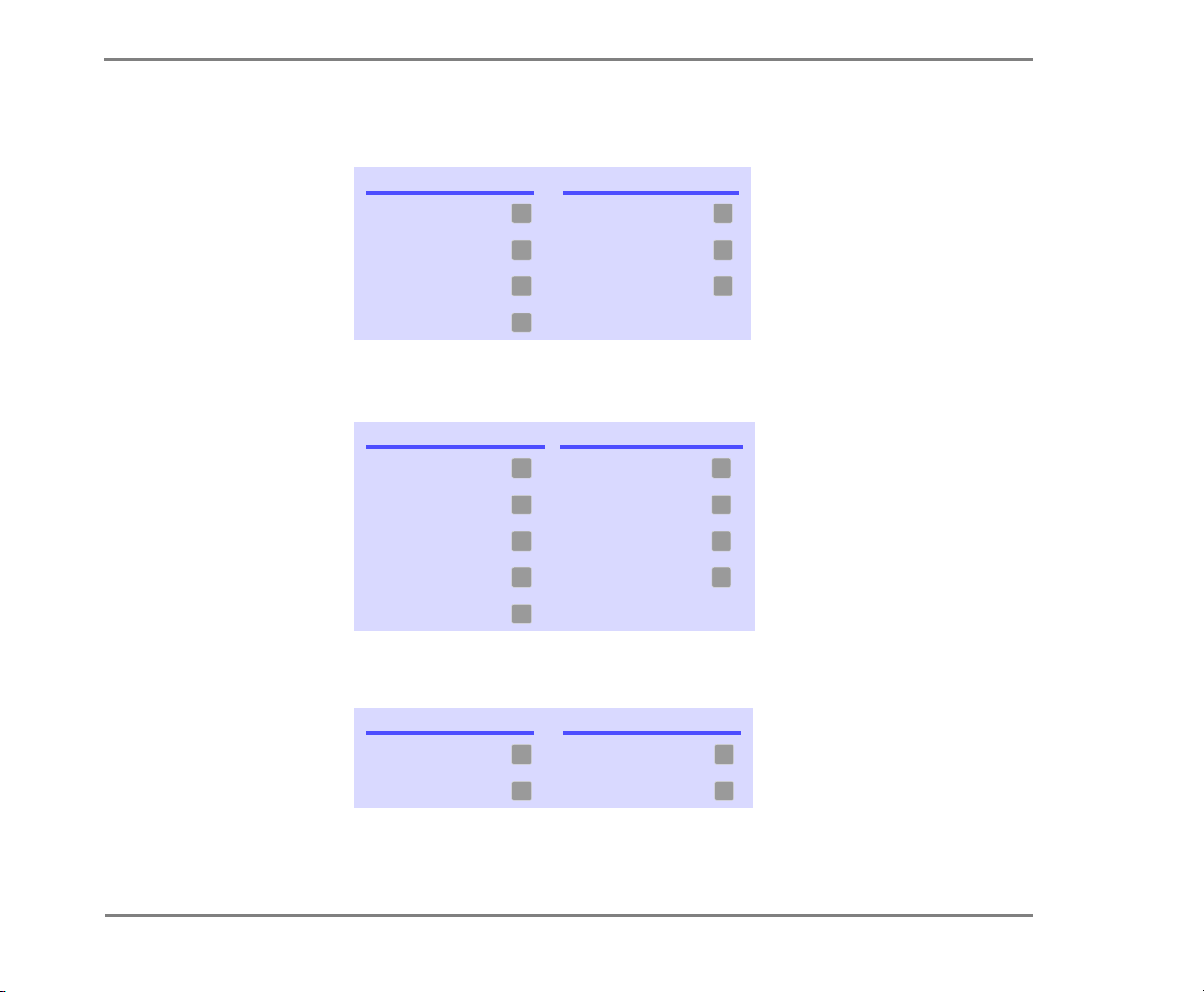
Use these keys during a message
TASK KEY TASK KEY
Hear menu options Backward
3 7
Slower Pause or continue
Softer/louder Fast-forward
Faster
4 8
5 9
6
* Available only if you are using the fax option.
Use these keys after a message
TASK KEY(S) TASK KEY
Hear e-mail recipients* Hear time stamp
Reply to sender
Check next message Save as new
Delete Repeat the message
Archive message/fax
an e-mail message*
3 8
Redirect message/
4 9
deliver a fax*
5 0
6 #
7
* This feature may not be available at your site.
Use these keys anytime
TASK KEY TASK KEY
Main menu Previous menu
Answer Yes Answer No
✱
1 2
#
CHECKING MESSAGES 39REPARTEE LX USER GUIDE
Page 44
To skip a message and save it as new
You can skip a message in your new message stack and
keep it new. You cannot skip an old or archived message
and change its status to new.
If you skip an e-mail message and save it as new, it is
marked as “unread” in your e-mail inbox.
USING YOUR PHONE
See also
To check new messages.............. 23
To check your e-mail messages by
phone........................................ 100
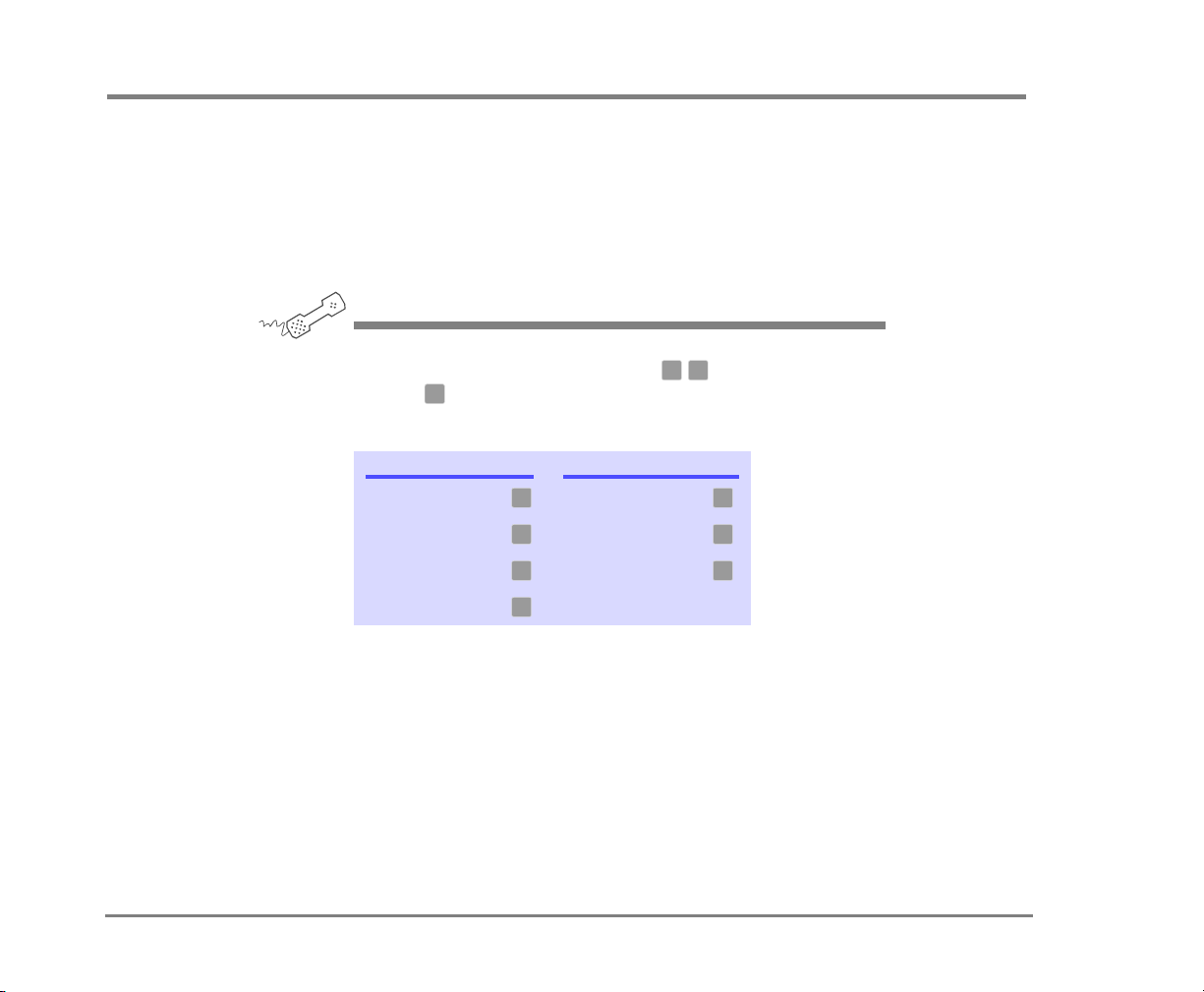
◆ While listening to a message, press . Or, after a message,
0
press .
3 0
Use these keys during a message
TASK KEY TASK KEY
Hear menu options Backward
Slower Pause or continue
Softer/louder Fast-forward
Faster
3 7
4 8
5 9
6
* Available only if you are using the fax option.
CHECKING MESSAGES 40REPARTEE LX USER GUIDE
Page 45
Use these keys after a message
TASK KEY(S) TASK KEY
Hear e-mail recipients* Hear time stamp
Reply to sender
Check next message Save as new
3 8
Redirect message/
4 9
deliver a fax*
5 0
TO SKIP A MESSAGE AND SAVE IT AS NEW
Delete Repeat the message
Archive message/fax
an e-mail message*
6 #
7
* This feature may not be available at your site.
Use these keys anytime
TASK KEY TASK KEY
Main menu Previous menu
Answer Yes Answer No
✱
1 2
#
CHECKING MESSAGES 41REPARTEE LX USER GUIDE
Page 46
To repeat a message
If necessary, you can play a message again.
USING YOUR PHONE
See also
To check new messages.............. 23
To review an old message .......... 26
◆ While listening to a message, press . Or, after a message,
#
press .
3 #
Use these keys during a message
TASK KEY TASK KEY
Hear menu options Backward
Slower Pause or continue
Softer/louder Fast-forward
Faster
3 7
4 8
5 9
6
* Available only if you are using the fax option.
Use these keys after a message
TASK KEY(S) TASK KEY
Hear e-mail recipients* Hear time stamp
Reply to sender
Check next message Save as new
Delete Repeat the message
Archive message/fax
an e-mail message*
* This feature may not be available at your site.
3 8
Redirect message/
4 9
deliver a fax*
5 0
6 #
7
CHECKING MESSAGES 42REPARTEE LX USER GUIDE
Page 47
Use these keys anytime
TASK KEY TASK KEY
Main menu Previous menu
✱
TO REPEAT A MESSAGE
#
Answer Yes Answer No
1 2
CHECKING MESSAGES 43REPARTEE LX USER GUIDE
Page 48

■ Changing your greetings
Callers hear a greeting before they leave a message.
Your mailbox can play one of three greetings: standard,
busy, or alternate. You can record your own greetings,
or use the default greetings recorded in the system
voice.
The types of greetings are:
Standard greeting Your standard greeting plays when
your phone is unanswered.
Alternate greeting You can play an alternate greeting
for special occasions, such as when you are out of the
office or on vacation.
Busy greeting You can play a busy greeting when you
are on your phone.
Default greetings The system includes a default stan-
dard, alternate and busy greeting.
This section explains how to use greetings. By phone,
you change your greetings with setup options.
Depending on the features you have installed, you may
also be able to use the Mailbox Manager program to
change your greetings by computer.
IN THIS SECTION
To change your standard greeting ......................45
To change your alternate greeting ...................... 46
To switch between your standard
and alternate greetings ........................................ 48
To change the greeting for when your
phone is busy ........................................................ 49
To turn your busy greeting on or off ................... 51
To use the default greetings ................................ 52
REPARTEE LX USER GUIDE
CHANGING YOUR GREETINGS 44
Page 49
To change your standard greeting
The standard greeting plays when your extension is unanswered. A typical standard greeting is: “Hello, this is Pat
Green. I am not at my desk right now. Please leave a message.”
If you do not record a standard greeting in your own voice,
the system plays a greeting that includes your recorded
name or your extension. For example: “Pat Green is not
available right now.”
During enrollment you are asked to record your own standard greeting, if desired. If you choose not to record your
own greeting, when your phone is unanswered the system
plays the default standard greeting. You do not have to
take any additional action.
USING YOUR PHONE
1 Call the voice messaging system. If asked, enter your personal ID
and security code.
See also
To switch between your standard
and alternate greetings ...............48
To use the default greetings........ 52
2 To rerecord your standard greeting, press .
3 After the beep, record your greeting. Press to stop recording.
7 4 6 1
✱
Use these keys anytime
TASK KEY TASK KEY
Main menu Previous menu
Answer Yes Answer No
✱
1 2
#
CHANGING YOUR GREETINGS 45REPARTEE LX USER GUIDE
Page 50

To change your alternate greeting
The alternate greeting is for special occasions, such as a
vacation. A typical alternate greeting is: “Hello, this is Pat
Green. I am out of the office today and will return tomorrow.” To use the alternate greeting, you turn it on through
setup options. When your alternate greeting is active, the
system plays it instead of your other greetings.
If you do not record an alternate greeting in your own
voice, the system plays an alternate greeting that includes
your recorded name or your extension. For example: “Pat
Green is out today.”
When you record a greeting, include any special instructions for your callers. For example, if the system has been
configured for message notification to your pager, add the
following message to your greeting: “or press to beep my
pager.” Or, include instructions to send you a fax, if applicable.
1
See also
To switch between your standard
and alternate greetings ...............48
To use the default greetings .......52
CHANGING YOUR GREETINGS 46REPARTEE LX USER GUIDE
Page 51
USING YOUR PHONE
TO CHANGE YOUR ALTERNATE GREETING
You can also use
Mailbox Manager.
1 Call the voice messaging system. If asked, enter your personal ID
and security code.
2 To rerecord your alternate greeting, press .
3 After the beep, record your greeting. Press to stop recording.
The system plays your new greeting. To rerecord it, press .
Otherwise, press .
2
4 To make the alternate greeting active, press . Otherwise,
2
press .
7 4 8 1
✱
1
1
Use these keys anytime
TASK KEY TASK KEY
Main menu Previous menu
Answer Yes Answer No
✱
1 2
#
CHANGING YOUR GREETINGS 47REPARTEE LX USER GUIDE
Page 52
To switch between your standard and alternate greetings
You can switch between your standard and alternate greetings. When you switch between greetings, the other greeting becomes active.
The system stores the recording for the inactive greeting so
that you can activate it again when desired.
USING YOUR PHONE
1 Call the voice messaging system. If asked, enter your personal ID
and security code.
See also
To change your standard
greeting .......................................45
To change your alternate
greeting .......................................46
To use the default greetings........52
2 Press to switch to your other greeting (standard or
7 4 5
alternate).
Use these keys anytime
TASK KEY TASK KEY
Main menu Previous menu
Answer Yes Answer No
✱
1 2
#
CHANGING YOUR GREETINGS 48REPARTEE LX USER GUIDE
Page 53
To change the greeting for when your phone is busy
1
Depending on your phone system, you can record a greeting for when your extension is busy. A typical busy
greeting is: “Hello, this is Pat Green. I am on the phone
now. Please leave a message.”
For callers to hear your busy greeting, you must activate it.
If you do not record a busy greeting in your own voice, the
system plays a busy greeting that includes your recorded
name or your extension. For example: “Extension
is busy.”
If you do not want to use a separate busy greeting, then
record a standard greeting for all situations when you are
unavailable. For example: “Hello, this is Pat Green. I am
not available at this time. Please leave a message.”
USING YOUR PHONE
1 Call the voice messaging system. If asked, enter your personal ID
and security code.
1 2 3
2 To rerecord your busy greeting, press . Press to stop
recording. The system plays your new greeting. To rerecord it,
1 2
press . Otherwise, press .
3 To make the busy greeting active, press . Otherwise, press .
7 4 8 1
1 2
✱
See also
To turn your busy greeting on
or off............................................51
CHANGING YOUR GREETINGS 49REPARTEE LX USER GUIDE
Page 54
TO CHANGE THE GREETING FOR WHEN YOUR PHONE IS BUSY
Use these keys anytime
TASK KEY TASK KEY
Main menu Previous menu
✱
#
Answer Yes Answer No
1 2
CHANGING YOUR GREETINGS 50REPARTEE LX USER GUIDE
Page 55
To turn your busy greeting on or off
Depending on your phone system, you can use a greeting
for when your extension is busy. A typical busy greeting is:
“Hello, this is Pat Green. I am on the phone now. Please
leave a message.”
For callers to hear your busy greeting, you must activate it.
USING YOUR PHONE
1 Call the voice messaging system. If asked, enter your personal ID
and security code.
See also
To change the greeting for when
your phone is busy...................... 49
2 Press to hear your busy greeting.
3 To skip rerecording your busy greeting, press . Otherwise,
4 Press to turn on your busy greeting. Press to turn off your
7 4 8
2
1
press , then record the busy greeting. Press to stop recording.
The system plays your new greeting. To rerecord it, press .
Otherwise, press .
1 2
2
✱
1
busy greeting.
Use these keys anytime
TASK KEY TASK KEY
Main menu Previous menu
Answer Yes Answer No
✱
1 2
#
CHANGING YOUR GREETINGS 51REPARTEE LX USER GUIDE
Page 56

To use the default greetings
If you do not record greetings in your own voice, the system
plays greetings that include your recorded name or your
extension.
For example:
• For a standard greeting: “Pat Green is not available right now.”
See also
To change your standard
greeting ...................................... 45
To change your alternate
greeting ...................................... 46
To switch between your standard
and alternate greetings............... 48
To change the greeting for when
your phone is busy ...................... 49
• For a busy greeting: “Extension is busy.”
1 2 3
• For an alternate greeting: “Pat Green is out today.”
During enrollment, you are asked to record your own standard greeting, if desired. If you choose not to record your
own greeting, when your phone is unanswered the system
plays the default standard greeting. You do not have to
take any additional action.
To use the default alternate greeting, you must turn it on.
When an alternate greeting is active, the system plays it
instead of any of your other greetings. See “To switch
between your standard and alternate greetings,” on
page 48.
For callers to hear the default busy greeting, you must
turn it on. See “To turn your busy greeting on or off,” on
page 51.
To return to using a default standard, alternate, or busy
greeting after you have recorded your own, your recording
must be deleted. Ask your system manager for assistance,
or delete the greeting by using Mailbox Manager.
CHANGING YOUR GREETINGS 52REPARTEE LX USER GUIDE
Page 57

■ Sending messages
You can use a phone to:
• Send a message to one or more subscribers or
guests.
• Mark a message for urgent, private, return receipt,
or future delivery.
• Leave a message to a group.
• Redirect a message.
• Modify or cancel a message after leaving it.
• If available, send a message to a subscriber at
another voice messaging location.
This section explains how to send messages, either by
leaving the message directly in a mailbox, or by calling
an extension.
IN THIS SECTION
To send a message directly to another person’s
mailbox .................................................................. 54
To leave a message when you call an
extension ...............................................................56
To add to a message before sending ................. 58
To listen to a message before sending ............... 59
To rerecord a message before sending..............60
To send an urgent message ................................. 61
To send a private message .................................. 62
To request a delivery receipt for a message.......63
To send a message with future delivery..............64
To redirect (forward) a message to another
subscriber .............................................................. 65
To cancel a message after sending ..................... 66
To send a message to additional subscribers ....67
To send a message to a group ............................68
To find out who has not yet received a group
message................................................................. 69
To send a message to a guest subscriber...........70
To send a message to a subscriber at another
location .................................................................. 72
REPARTEE LX USER GUIDE
SENDING MESSAGES 53
Page 58
To send a message directly to another person’s mailbox
The system lets you leave voice messages for other subscribers, groups, or guests. You can leave messages
directly in a another person’s mailbox without first calling
the extension.
You can address a message by spelling the recipient’s
name on the phone. Or, ask your system manager to set up
your mailbox to allow you to address messages by extension number.
USING YOUR PHONE
1 Call the voice messaging system. If asked, enter your personal ID
and security code.
See also
To send a message to a
group........................................... 68
To send a message to a guest
subscriber.................................... 70
To send a message to a subscriber
at another location ......................72
2 Press to leave any messages.
5
3 On the phone, spell the subscriber’s name. Otherwise, enter the
extension number.
When spelling a subscriber’s last name, use a “wild card” number
(typically or ) for any letter in the last name you do not know.
4 Press when you hear the name of the subscriber you want.
Otherwise, press to hear the next matching name.
0 1
1
2
5 Record your message at the beep. The message must be at least
three seconds long to be delivered.
6 Press to start over or to stop recording.
#
✱
SENDING MESSAGES 54REPARTEE LX USER GUIDE
Page 59
TO SEND A MESSAGE DIRECTLY TO ANOTHER PERSON’S MAILBOX
Use these keys anytime
TASK KEY TASK KEY
Main menu Previous menu
✱
#
Answer Yes Answer No
1 2
SENDING MESSAGES 55REPARTEE LX USER GUIDE
Page 60

To leave a message when you call an extension
If you call a subscriber’s extension and the call is unanswered, your call is automatically routed to the subscriber’s mailbox where you can leave a message.
If your phone system uses identified subscriber messaging,
the system automatically tags a message from your
assigned extension with your name.
If your phone system does not use identified subscriber
messaging or you are calling from another subscriber’s
extension, you need to identify yourself as a subscriber by
entering your personal ID and security code.
You can also leave messages directly in a subscriber’s
mailbox. See “To send a message directly to another per-
son’s mailbox,” on page 54.
See also
To send a message directly to
another person’s mailbox ........... 54
To send a message to a group ... 68
To send a message to a guest
subscriber.................................... 70
To send a message to a subscriber
at another location...................... 72
To finish recording a message, you can press or just
✱
stop speaking.
USING YOUR PHONE
1 Call another subscriber. When the subscriber does not answer, the
call is automatically forwarded to voice mail.
2 Follow the system instructions to record your message.
1 2
Press for Yes, for No.
3 Press to start over or to stop recording.
#
✱
SENDING MESSAGES 56REPARTEE LX USER GUIDE
Page 61
TO LEAVE A MESSAGE WHEN YOU CALL AN EXTENSION
Use these keys anytime
TASK KEY TASK KEY
Main menu Previous menu
✱
#
Answer Yes Answer No
1 2
SENDING MESSAGES 57REPARTEE LX USER GUIDE
Page 62
To add to a message before sending
Depending on system settings, you can add to a message
before you send it. When you add to a message, you continue recording from the end of the message.
USING YOUR PHONE
1 Address and record a message.
2 Press to stop recording.
3 Press to edit the message.
4 Press to add to the end of the message. Record your additional
5 Press when you finish editing the message.
6 Press to send the message.
✱
4
4
message after the beep. Press to stop recording.
✱
✱
✱
SENDING MESSAGES 58REPARTEE LX USER GUIDE
Page 63
To listen to a message before sending
Depending on system settings, you can listen to a message
before you send it.
USING YOUR PHONE
1 Address and record a message.
2 Press to stop recording.
3 Press to edit the message.
4 Press to listen to the message.
5 Press when you finish editing the message.
6 Press to send the message.
✱
4
5
✱
✱
SENDING MESSAGES 59REPARTEE LX USER GUIDE
Page 64
To rerecord a message before sending
Depending on system settings, you can rerecord a message
before you send it. When you rerecord a message, your
original recording is deleted.
USING YOUR PHONE
1 Address and record a message.
2 Press to stop recording.
3 Press to edit the message.
4 Press to rerecord the message. Rerecord your message after the
5 Press when you finish editing the message.
6 Press to send the message.
✱
4
6
beep. Press to stop recording.
✱
✱
✱
SENDING MESSAGES 60REPARTEE LX USER GUIDE
Page 65
To send an urgent message
You can use special delivery to mark a message as urgent
before you send it. An urgent message is played first,
before normal priority messages.
You can mark a message as urgent when you leave a message directly in a subscriber’s mailbox, or when you call an
unanswered extension.
USING YOUR PHONE
1 Call the voice messaging system. If asked, enter your personal ID
and security code.
2 Follow the conversation to leave a message. Address the message,
then record it.
3 Press to stop recording.
4 Press to mark the message urgent.
5 Press to send the message immediately.
6 Press to finish leaving messages, or press to leave another
✱
5 4
✱
✱
2 1
message. Follow the conversation.
SENDING MESSAGES 61REPARTEE LX USER GUIDE
Page 66
To send a private message
You can use special delivery to send a private message.
A private message cannot be redirected (forwarded).
USING YOUR PHONE
1 Call the voice messaging system. If asked, enter your personal ID
and security code.
2 Follow the conversation to leave a message. Address the message,
then record it.
3 Press to stop recording.
4 Press to mark the message private.
5 Press to send the message.
6 Press to finish leaving messages, or press to leave another
✱
5 5
✱
✱
2 1
message. Follow the conversation.
SENDING MESSAGES 62REPARTEE LX USER GUIDE
Page 67

To request a delivery receipt for a message
You can use special delivery to send a message and request
a return receipt. Repartee LX sends a receipt to your mailbox when the recipient listens to or opens the message. For
messages sent to a message group, Repartee LX sends a
receipt for each group member.
USING YOUR PHONE
1 Call the voice messaging system. If asked, enter your personal ID
and security code.
2 Follow the conversation to leave a message. Address the message,
then record it.
3 Press to stop recording.
4 Press to request a return receipt.
5 Press to send the message.
6 Press to finish leaving messages, or press to leave another
✱
5 6
✱
✱
2 1
message. Follow the conversation.
SENDING MESSAGES 63REPARTEE LX USER GUIDE
Page 68
To send a message with future delivery
You can use special delivery to mark a message to be sent
at a later date and time. Repartee LX does not send the
message until the specified date and time.
USING YOUR PHONE
1 Call the voice messaging system. If asked, enter your personal ID
and security code.
2 Follow the conversation to leave a message. Address the message,
then record it.
3 Press to stop recording.
4 Press to mark the message for future delivery.
5 To send the message later today, press . For tomorrow, press .
6 Enter the time, including the hour and minutes, then press . For
7 Press to exit special delivery.
8 Press to send the message.
9 Press to finish leaving messages, or press to leave another
✱
5 7
0 1
For two days later, press ;
or
To enter a date, press . Enter the month using a number from 1 to
12. Enter the date using a number from 1 to 31.
A.M., press . For P. M., press . Repartee LX confirms the date
and time you specified.
message. Follow the conversation.
1 2
✱
✱
2 1
2
9
✱
SENDING MESSAGES 64REPARTEE LX USER GUIDE
Page 69

To redirect (forward) a message to another subscriber
The system lets you redirect a message to another subscriber. You can also redirect a message to a message
group or a guest.
The system does not let you redirect messages that are
designated as private by the original sender.
USING YOUR PHONE
1 While listening to a message, press to interrupt it.
2 Spell the last name of the subscriber to whom you are redirecting
the message.
3 Press to confirm that you want to redirect the message.
1
3 9
SENDING MESSAGES 65REPARTEE LX USER GUIDE
Page 70
To cancel a message after sending
If the recipient has not heard your last message, the system lets you cancel it. You can then record a new message.
USING YOUR PHONE
1 Start to leave another message to the same subscriber.
2 If the subscriber has not yet heard your last message, the system
asks if you want to review it.
3 Press to review it.
4 When you hear the message you want to cancel, press to
5 Press to confirm the cancellation.
1
5
cancel it.
1
SENDING MESSAGES 66REPARTEE LX USER GUIDE
Page 71

To send a message to additional subscribers
After you send a message to one subscriber, you can
address and send the message to others.
USING YOUR PHONE
1 Call the voice messaging system. If asked, enter your personal ID
and security code.
2 Follow the conversation to leave a message. Address the message,
then record it.
6
3 Press to stop recording.
4 Follow the conversation to address the message. After you select
✱
the correct name, Repartee LX confirms that a copy of the message
has been sent.
5 Repeat step for each additional recipient.
6 Press to finish addressing to others.
7 Press to finish leaving messages, or press to leave another
message. Follow the conversation.
4
✱
2 1
SENDING MESSAGES 67REPARTEE LX USER GUIDE
Page 72
To send a message to a group
A message group is a mailing list of subscribers and
guests. A message group makes it easier to send the same
message to several subscribers. Your system manager can
create message groups or you can create your own message groups.
You can also leave a message for more than one subscriber
by addressing the message to additional subscribers. See
“To send a message to additional subscribers,” on page 67.
USING YOUR PHONE
1 Call the voice messaging system. If asked, enter your personal ID
and security code.
See also
To find out who has not yet received
a group message ........................ 69
To send a message to a guest
subscriber.................................... 70
To send a message to a subscriber
at another location...................... 72
2 Press to leave a message.
5
3 Spell the group name or enter the special group ID and group
number.
4 Press when you hear the name of the group you want.
1
Otherwise, press to hear the next matching name.
2
5 After the beep, record your message. The message must be at least
three seconds long to be delivered. Press to finish recording.
✱
6 If desired, follow the system prompts to edit the message, set
special delivery, or address the message to others.
7 Press to send the message.
✱
SENDING MESSAGES 68REPARTEE LX USER GUIDE
Page 73

To find out who has not yet received a group message
The system tells you when everyone in a group has
received your message. If you do not get this confirmation,
you can ask the system who in the group has not yet heard
the message.
USING YOUR PHONE
1 Start to leave a new message to the group.
2 The system says that some members have not heard your last
message. Press to review the message.
1
See also
To send a message to a group ... 68
3 Listen to the message or press to interrupt it.
4 Press to avoid canceling the message.
5 Press to list who has not heard the message. Press to stop
2
7
the list.
2
✱
SENDING MESSAGES 69REPARTEE LX USER GUIDE
Page 74

To send a message to a guest subscriber
You can host special clients, contacts, friends, or family on
Repartee LX by asking your system manager to add them
as your guests.
Your guests can call Repartee LX, then enter a personal ID.
Your guests can then leave messages directly in your mailbox without first dialing your extension.
Your system manager sets up a recorded name,
personal ID, language, and message notification for a
guest. Guests cannot change their recorded name or notification options by phone.
You leave a message for a guest by name or by personal ID.
To leave a message for you, your guest calls Repartee LX
then enters a personal ID. Repartee LX greets the guest by
name, then offers to record the guest’s message.
If your guest wants to leave a message for another subscriber or try an extension, the guest must do so as an outside caller.
See also
To send a message directly to
another person’s mailbox ........... 54
To send a message to a
group .......................................... 68
To send a message to a subscriber
at another location...................... 72
SENDING MESSAGES 70REPARTEE LX USER GUIDE
Page 75

TO SEND A MESSAGE TO A GUEST SUBSCRIBER
USING YOUR PHONE
1 Call the voice messaging system. If asked, enter your personal ID
and security code.
2 Press to leave any messages.
3 On the phone, spell the guest’s name. If necessary, press to
5
# #
switch between number mode and spelling mode.
When spelling a guest’s last name, use a “wild card” number (typi-
0
cally or ) for any letter in the last name you do not know.
4 Press when you hear the name of the guest you want. Otherwise,
press to hear the next matching name.
1
1
2
5 Record your message at the beep. The message must be at least
three seconds long to be delivered.
6 Press to start over or to stop recording.
#
✱
SENDING MESSAGES 71REPARTEE LX USER GUIDE
Page 76
To send a message to a subscriber at another location
You can send messages to subscribers who use another
voice messaging system at another location. To send messages to subscribers at other locations, you identify the
location as well as the subscriber when addressing the
message.
Your system manager can provide location names or numbers you can use.
See also
To send a message directly to
another person’s mailbox ........... 54
To send a message to a
group .......................................... 68
To send a message to a guest
subscriber.................................... 70
Press to switch between spelling and number mode.
# #
USING YOUR PHONE
1 Call the voice messaging system. If asked, enter your personal ID
and security code.
2 Press to leave any messages.
5
3 On the phone, spell the location name, then spell the subscriber’s
name. When spelling a subscriber’s last name, use a “wild card”
number (typically or ) for any letter you do not know.
Or, if in number mode, enter the location number, then the subscriber’s extension number.
4 Press when you hear the name of the subscriber you want.
1
Otherwise, press to hear the next matching name.
0 1
2
5 Record your message at the beep. The message must be at least
three seconds long to be delivered.
6 Press to start over or to stop recording.
#
✱
SENDING MESSAGES 72REPARTEE LX USER GUIDE
Page 77

■ Changing message group settings
You can send a message to several subscribers at once
by using message groups.
This section explains how to create and maintain message groups.
IN THIS SECTION
To create a message group.................................. 74
To add or delete group members ....................... 75
To change a group name or number .................. 76
To hear your groups and group members..............77
REPARTEE LX USER GUIDE
CHANGING MESSAGE GROUP SETTINGS 73
Page 78
To create a message group
You can create your own message groups. When you send
a message to a group, the message is sent to all members
of the group. Each group you create has a number or a
name.
There are two types of groups: public and private. Other
subscribers can send messages to a public group. Only
you can send messages to a private group.
USING YOUR PHONE
1 Call the voice messaging system. If asked, enter your personal ID
and security code.
See also
To send a message to a
group ...........................................68
To add or delete group
members......................................75
2 Press to create a new group.
7 5
4
3 For numbered groups, enter a three-digit group number. For named
groups, enter the first three letters of the group’s name.
4 Record a name for the group. Press when you are finished.
5 Press to make the group a public group or to make it a
1 2
private group.
✱
6 Follow the system instructions to add members to the group. You
can add them by name or extension number. Guests do not have
extension numbers, so add them to the group by spelling their
names or by entering their personal IDs.
7 Press when you are finished adding members.
8 Press to leave a message for this group now. Otherwise,
✱
1
2
press .
CHANGING MESSAGE GROUP SETTINGS 74REPARTEE LX USER GUIDE
Page 79
To add or delete group members
You can add and delete members of your message groups.
You also can delete any message group that you own, or
change the group’s number, spelled name, or recorded
name.
USING YOUR PHONE
1 Call the voice messaging system. If asked, enter your personal ID
and security code.
See also
To create a message group .........74
To change a group name or
number ........................................76
To hear your groups and group
members.......................................77
2 Press to edit a group.
3 Press the group name or number. Press when you hear the name
4 Press to add members. Or, press to delete members from
7 5 5
1
of the group. Otherwise, press to hear the next matching name.
4 5
the group.
2
5 When deleting group members, press the first three letters of the
person’s last name, or press three wild card numbers
(for example, ) to list each group member, then choose the
member’s name you want to delete.
6 To confirm your additions or deletions, press .
7 Press when you are finished adding or deleting members.
1 1 1
1
✱
CHANGING MESSAGE GROUP SETTINGS 75REPARTEE LX USER GUIDE
Page 80
To change a group name or number
You can rerecord a group name, or change a group’s number.
USING YOUR PHONE
1 Call the voice messaging system. If asked, enter your personal ID
and security code.
See also
To create a message group......... 74
To add or delete group
members ..................................... 75
To hear your groups and group
members ...................................... 77
2 Press to change a group name or number.
7 5 5
3 Press the first three letters of the group name. Or, enter the first
three digits of the group number.
4 Press to confirm, or press to hear the name of the next group.
5 Press to change the group name or group number.
1 2
7
6 Follow the system instructions to change the group’s recorded
name. Press for Yes, for No.
1 2
CHANGING MESSAGE GROUP SETTINGS 76REPARTEE LX USER GUIDE
Page 81

To hear your groups and group members
You can hear a list of the groups you can send a message
to. You can also hear a list of group members.
USING YOUR PHONE
1 Call the voice messaging system. If asked, enter your personal ID
and security code.
See also
To create a message group......... 74
To add or delete group
members ..................................... 75
2 Press to list your groups and group members.
3 Follow the system instructions. Press for Yes, for No.
7 5 6
1 2
CHANGING MESSAGE GROUP SETTINGS 77REPARTEE LX USER GUIDE
Page 82

■ Changing mailbox setup options
You can change most of these setup options for your
personal mailbox from any touchtone phone. When you
make a change, the system leads you step by step
through a series of simple yes-and-no questions.
You can change:
• Security code
• Recorded and spelled names
• Call transfer
• Call screening
• Call holding
• Message delivery options
• Directory listing
You can also ask your system manager to change message playback options, call transfer options, call
screening options, and call holding.
Depending on installed options, you may also be able to
use the Mailbox Manager program to change your
setup by computer.
IN THIS SECTION
To change your security code .............................. 79
To change your recorded name .......................... 80
To change the spelling of your name..................81
To change your playback options........................ 82
To turn call transfer on or off................................ 83
To change the call transfer number..................... 84
To change call screening options ........................ 85
To turn call screening on or off................................ 87
To turn call holding on or off................................88
To change message delivery................................ 89
To let callers find your extension in the
directory................................................................. 91
REPARTEE LX USER GUIDE
CHANGING MAILBOX SETUP OPTIONS 78
Page 83

To change your security code
Your security code prevents others from using your personal ID to listen to your messages. Change your security
code as often as you like. Your security code should be
three to 10 digits long.
When you change your mailbox security code, update your
security code for any TeLANophy programs. See the program’s online Help for steps.
If you forget your security code, contact your system manager.
USING YOUR PHONE
1 Call the voice messaging system. If asked, enter your personal ID
and security code.
2 Press to change your security code.
3 Follow the system instructions. Press for Yes, for No.
7 7 4
1 2
CHANGING MAILBOX SETUP OPTIONS 79REPARTEE LX USER GUIDE
Page 84
To change your recorded name
The system uses your recorded name to identify both you
and your messages to other callers.
USING YOUR PHONE
1 Call the voice messaging system. If asked, enter your personal ID
and security code.
2 Press to change your recorded name.
3 Follow the system instructions to record your name. Press for
7 7 5
2
Yes , f or N o.
1
CHANGING MAILBOX SETUP OPTIONS 80REPARTEE LX USER GUIDE
Page 85
To change the spelling of your name
You can change your spelled name only by phone.
The system uses your spelled name for the directory. Callers can enter the first letters of your name to locate you in
the directory. You can also remove your name from this
directory.
USING YOUR PHONE
1 Call the voice messaging system. If asked, enter your personal ID
You can also use
Mailbox Manager.
and security code.
2 Press to change your spelled name.
7 7 6
3 Follow the system instructions to change your spelled name.
1 2
Press for Yes, for No.
CHANGING MAILBOX SETUP OPTIONS 81REPARTEE LX USER GUIDE
Page 86

To change your playback options
You can ask your system manager to change your message
playback options. These options are not available by
phone.
Or, if you have the Mailbox Manager program, you can
change your playback options by computer. See Mailbox
Manager online Help for details.
Playback options consist of:
New e-mail messages If e-mail integration is installed, the
system can include new e-mail messages when announcing the number of new messages.
Voice message length The system announces the total
length, in minutes, of new voice messages.
Menu mode conversation This conversation plays menus of
options. Press the number associated with the option to
perform the particular task.
Yes/No conversation This conversation leads you step by
step through all of your options with easy, yes-and-no
questions. Press for Yes, for No.
1 2
Announce timestamp before messages The system plays the
time and date that the message was recorded before playing the message.
Announce time stamp after messages The system plays the
time and date that the message was recorded after playing
the message.
CHANGING MAILBOX SETUP OPTIONS 82REPARTEE LX USER GUIDE
Page 87

To turn call transfer on or off
The system can transfer calls to your extension just
as a receptionist would. When you are unavailable or on
another call, the system takes a message for you. If you
will be away for a while, you can turn off call transfer or
have your calls transferred to a different phone number.
Turn on call transfer before transferring your calls to a different phone number. You can enter up to nine digits for
the new phone number.
USING YOUR PHONE
1 Call the voice messaging system. If asked, enter your personal ID
and security code.
2 Press to turn call transfer on or off.
3 Follow the system instructions. Press for Yes, for No.
7 6 4
1 2
CHANGING MAILBOX SETUP OPTIONS 83REPARTEE LX USER GUIDE
Page 88

To change the call transfer number
The system can transfer calls to your extension just
as a receptionist would. You can enter up to nine digits for
the new phone number.
When you are unavailable or on another call, the system
takes a message for you. If you will be away for a while,
you can turn off call transfer or have your calls transferred
to a different phone number.
Turn on call transfer before transferring your calls to a different phone number.
USING YOUR PHONE
1 Call the voice messaging system. If asked, enter your personal ID
and security code.
2 Press to change the number to which your calls are
3 Follow the system instructions. Press for Yes, for No.
7 6 4 1 4
transferred.
1 2
CHANGING MAILBOX SETUP OPTIONS 84REPARTEE LX USER GUIDE
Page 89

To change call screening options
If available, you can ask your system manager to change
your call screening options. Call screening options affect
what you hear when you answer your phone.
You cannot set screening options by phone. If your system
manager has set up call screening for your extension, you
can turn call screening on and off by phone.
If you have the Mailbox Manager program, you can change
your call screening options by computer. See Mailbox Manager online Help for details.
Call screening options consist of:
Announce before connecting caller The system plays a beep
before transferring the call.
Play screened name before connecting The system asks the
caller’s name before ringing your extension. The system
plays “Call from <caller’s name spoken by the caller>”
before transferring the call.
Ask me if I want to take the call The system says “Press 1 to
take the call, or 2 and I’ll take a message,” then waits for a
response from you before transferring the call.
Play screened name in voice message The system asks and
plays the caller’s name as above. The system adds the
caller’s name to the beginning of the caller’s message.
Tell me who the call is for The system says, “Call for <your
name>” before transferring the call.
CHANGING MAILBOX SETUP OPTIONS 85REPARTEE LX USER GUIDE
Page 90

TO CHANGE CALL SCREENING OPTIONS
Two or more of these options may be combined. For example, if you select “Play screened name before connecting”
and “Ask me if I want to take the call,” the system asks for
the caller’s name, then rings your extension. When you
answer the call, the system plays the caller’s recorded
name, then asks if you want to take the call.
CHANGING MAILBOX SETUP OPTIONS 86REPARTEE LX USER GUIDE
Page 91
To turn call screening on or off
If your system manager has set up call screening for your
extension, you can turn call screening on and off by phone.
Call screening options affect what you hear when you
answer your phone. If available, you can ask your system
manager to change your call screening options. You cannot
set screening options by phone.
USING YOUR PHONE
1 Call the voice messaging system. If asked, enter your personal ID
and security code.
2 Press to turn call screening on or off.
3 Press to turn call screening on. Press to turn it off.
7 6 4 1 5
1 2
CHANGING MAILBOX SETUP OPTIONS 87REPARTEE LX USER GUIDE
Page 92

To turn call holding on or off
Depending on your phone system, Repartee LX can hold a
call until your extension is available. If your system manager has set up call holding for you, you can turn call holding on and off.
When call holding is turned on and your extension is busy,
the system asks callers if they want to hold until you are
available or to leave a message. The system also tells callers how many calls are holding ahead of theirs.
Your system manager sets the number of calls that the
system can hold for you.
USING YOUR PHONE
1 Call the voice messaging system. If asked, enter your personal ID
and security code.
2 Press to turn call holding on or off.
3 Press to turn call holding on. Press to turn it off.
7 6 4 1 6
1 2
CHANGING MAILBOX SETUP OPTIONS 88REPARTEE LX USER GUIDE
Page 93

To change message delivery
The system can deliver messages to several different phone
numbers. You can set a range of minutes, hours, and days
that a message delivery phone number is in effect. You can
set the system to deliver only urgent messages. You also
can set the system to delay message delivery to any of the
numbers.
If changing message delivery by phone, you may not be
able to enter a pager number that requires special dialing
characters (for example, a semicolon that represents a
three-second pause). Contact your system manager for
assistance.
If the system has been configured for message notification
to your pager, add the following message to your greeting:
“or press 1 to beep my pager.”
Press to insert a one-second pause where you want the
system to pause between digits that it is dialing.
#
CHANGING MAILBOX SETUP OPTIONS 89REPARTEE LX USER GUIDE
Page 94
TO CHANGE MESSAGE DELIVERY
USING YOUR PHONE
1 Call the voice messaging system. If asked, enter your personal ID
and security code.
2 To change your message delivery options for your:
work phone, press .
home phone, press .
pager, press .
spare phone, press .
fax phone, press .
3 Press to turn on delivery for that number or to turn off
1 2
7 6 5 5 4
7 6 5 5 5
7 6 5 5 6
7 6 5 5 7
7 6 5 5 8
delivery.
4 Press to change the phone number. After you enter a phone
5 Press to change the schedule, and then follow the system
6 Press to change the delivery mode for messages delivered to
7 Press to change fax notification, and then follow the system
4
number, press to end the entry.
5
instructions. Press for Yes, for No.
6
this number, and then follow the system instructions. Press for
2
Yes , f or N o.
7
instructions. Press for Yes, for No.
✱
1 2
1
1 2
8 Change any remaining message delivery numbers by repeating the
procedure.
CHANGING MAILBOX SETUP OPTIONS 90REPARTEE LX USER GUIDE
Page 95

To let callers find your extension in the directory
Your system may use automatic directory assistance,
numeric directory assistance, or both, to help callers find
subscribers’ extension numbers.
Callers with letters on their phones can use automatic
directory assistance, which identifies subscribers by their
last names. All callers can use numeric directory assistance, which groups subscribers by department, location,
or some other category.
USING YOUR PHONE
1 Call the voice messaging system. If asked, enter your personal ID
and security code.
2 Press to change your directory listing.
3 Follow the system instructions to change your spelled name.
7 7 7
1 2
Press for Yes, for No.
CHANGING MAILBOX SETUP OPTIONS 91REPARTEE LX USER GUIDE
Page 96

■ Sending and receiving faxes
With ActiveFax, your faxes are included with your voice
messages. If you are also using TeLANophy, ViewFax
may also be available by computer.
ViewFax You can send, receive, and redirect faxes by
computer.
Fax mail Faxes are stored in your mailbox with your
other messages. Callers can record a short message to
accompany each fax they send. Faxes can be forwarded
from your mailbox to a fax machine by using any
phone.
Print-to-fax Use the print-to-fax feature to fax docu-
ments to other subscribers, groups, personal database
contacts, or other recipients.
IN THIS SECTION
To receive a fax...................................................... 93
To receive all your faxes with one call.................95
To change your fax delivery number or
schedule ................................................................ 96
To change your fax greeting ................................ 97
To change your fax notification ........................... 98
REPARTEE LX USER GUIDE
SENDING AND RECEIVING FAXES 92
Page 97

To receive a fax
With ActiveFax, your faxes are stored in your mailbox as
fax messages. A fax message can have two parts: a fax document and an optional voice message annotation.
Callers can record a voice annotation that you hear when
you check your messages. If a fax message does not have a
voice annotation, you will hear only what time the fax
arrived.
A fax and its voice annotation always remain together as a
single fax message. When you archive a fax message, both
are archived.
Depending on your system, you may have a separate fax
number or one extension for both faxes and phone calls.
Your fax mailbox can have a personal greeting. Otherwise,
the system greets calls with your name or fax number.
To redirect a fax to another fax number, check your fax
messages. Then request fax delivery and enter the new
number. This changes the fax number for that delivery
only.
See also
To check new messages ..............23
To receive all your faxes with
one call ........................................95
You can also request that more than one fax be delivered in
the same fax delivery. The system adds its own cover sheet
to each delivery bundle. The cover sheet lists which faxes
are included and their page lengths.
SENDING AND RECEIVING FAXES 93REPARTEE LX USER GUIDE
Page 98

USING YOUR PHONE
1 Call the voice messaging system. If asked, enter your personal ID
and security code.
TO RECEIVE A FAX
2 Press to check new messages. Repartee LX plays your new voice
4
messages, then any fax messages.
3 After listening to the fax message, press . While listening to the
fax message, press .
3 9
9
4 Follow the system instructions.
SENDING AND RECEIVING FAXES 94REPARTEE LX USER GUIDE
Page 99

To receive all your faxes with one call
You can use a shortcut to deliver all of your new faxes to
your usual fax machine.
USING YOUR PHONE
1 Call the voice messaging system. If asked, enter your personal ID
and security code.
See also
To receive a fax ........................... 93
2 At the main menu, press .
4 5
SENDING AND RECEIVING FAXES 95REPARTEE LX USER GUIDE
Page 100

To change your fax delivery number or schedule
You can change the phone number where your faxes are
delivered. You can also change the schedule Repartee LX
follows to deliver your faxes.
The system can deliver your faxes in three ways.
Standard delivery The system stores your faxes until you
request them. When you check messages, the system tells
you which faxes are waiting.
Fully automatic delivery The system automatically delivers
your faxes to a fax number that you specify in your setup
options. Your system manager may have already set up
this option for you.
Custom delivery Other fax delivery options may be avail-
able depending on your system. Consult your system manager.
USING YOUR PHONE
See also
To change your fax greeting .......97
To change your fax
notification................................... 98
1 Call the voice messaging system. If asked, enter your personal ID
and security code.
2 Press to change your fax delivery phone number or
3 Follow the system instructions. Press for Yes, for No.
7 6 5 8
schedule.
1 2
SENDING AND RECEIVING FAXES 96REPARTEE LX USER GUIDE
 Loading...