

Page 1
Wireless Display Receiver
EZC-CS2
Introduction
EZCast supports multiple wireless display standards, including
EZCast, Miracast, DLNA and EZAir (compatible with iOS and
macOS). Ongoing firmware upgrades are provided to support
latest operating systems. Please read this guide to install and
setup your EZCast. Happy Casting!
Quick Start Guide rev 1.0
Learn More
Visit https://www.EZCast.com for more information.
Visit https://www.YouTube.com/EZCast for video tutorials.
Software Installation
Visit https://www.EZCast.com/app to download platform-specific
applications and User Manual.
Scan the QRCode below to download EZCast mobile App.
FCC ID: 2AQJT-EZC-CS2
Page 2
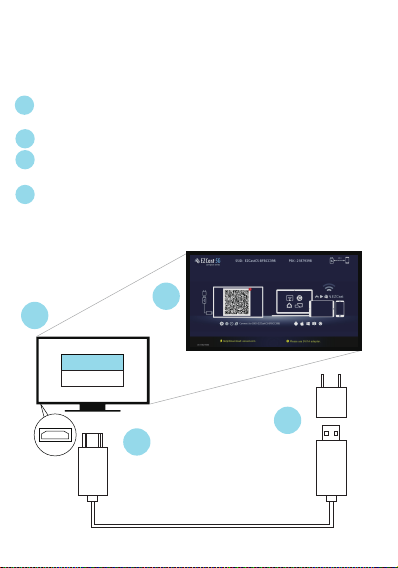
Hardware Installation
EZCast to power: Turn on your TV and power up EZCast
1
dongle by connecting the USB cable to an adapter (5V1A).
2
EZCast to TV: Plug EZCast dongle into a HDMI port on TV.
Select source: Set your TV’s source/input selection to HDMI
3
port connected to the EZCast dongle.
Connect successfully: Your TV screen shall display the
4
instructions once EZCast is connected successfully. Please
follow the instructions to complete setup.
3
4
HDMI 1
HDMI 2
5V/1A
1
2
HDMI
USB
Page 3
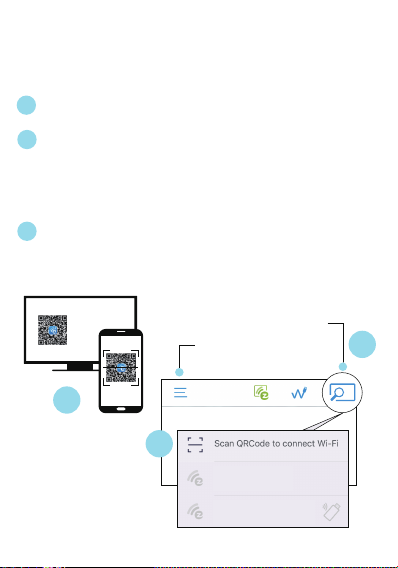
Setup for smart device (Android/ iOS)
Download EZCast app: Scan QRCode on TV screen or
1
search “EZCast” on Google Play/App Store.
2
Connect WiFi:
(1) Launch EZCast App and click Searching Device icon.
(2) Click “Scan QRCode to connect WiFi” to scan QRcode on
TV screen.
(3) Setting shall pop out (or click Side-bar Menu to find).
Click Internet and connect to your WiFi.
3
Connect to EZCast: Searching Device shall pop out when
WiFi is connected. Find and click EZCastCS_xxxxxxxx in the
list below).
Searching Device
Side-bar Menu
1
2
Your Smart Device
EZCastCS_XXXXXXXX
3
Page 4
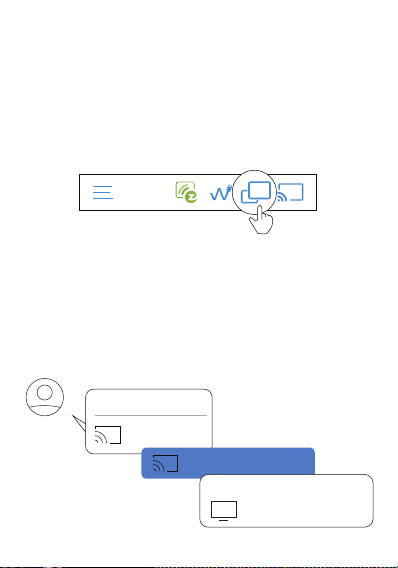
Screen Mirroring for Android
EZCast/ Mirror
Click the Mirror icon on the top bar.
Note: For EZCast/ Mirror, it only captures the screen without
sound due to limitations in Android. To mirror the sound to your TV,
please use EZMirror instead.
Google Home
You may download Google Home App from Google Play. Launch
the Google Home App, login with Google account. Then you may
mirror to EZCast using Google Home.
Note: Make sure that EZCast and your Android device are both
connected to same WiFi.
Steps: Account > Mirror Device > Cast Screen/Audio > Cast to >
EZCasCSt_xxxxxxxx
Additional
Account
Mirror Device
CAST SCREEN/AUDIO
Cast to
EZCastCS_xxxxxxxx
Page 5
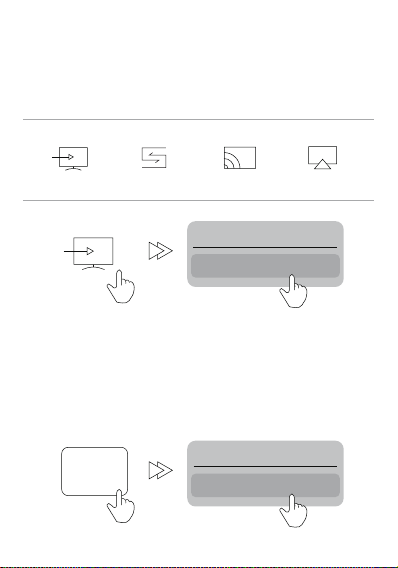
Miracast
Mirror to EZCast using Miracast if your Android devices support
Smart View on Samsung, Multi-screen on Huawei, or etc.
Samsung
Smart View
Huawei
Multi-screen
OPPO
Multi-screen
Interaction
Vivo
Smart Screening
Cast to
EZCastCS_xxxxxxxx
Screen Mirroring for iOS
Airplay
Screen mirroring may be done by Airplay on iOS smart devices.
Swipe to show Airplay, click Screen Mirroring, and choose
EZCastCS_xxxxxxxx.
Screen
Mirroring
Screen Mirroring
EZCastCS_xxxxxxxx
Page 6
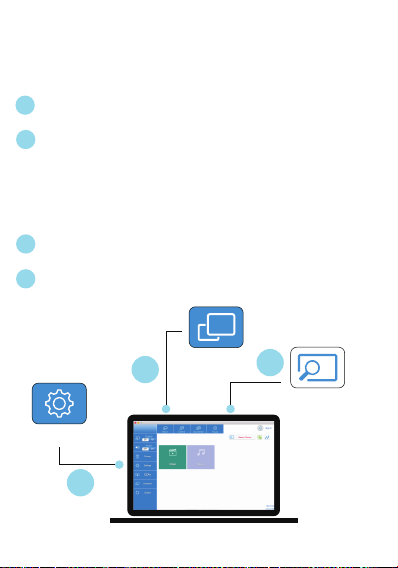
Setup for laptop (Windows/ MacOS)
Download and install EZCast application: Download at
1
https://www.ezcast.com/app
2
Connect to WiFi:
(1) Click WiFi list from your laptop and connect to your
EZCastCS_xxxxxxxx by entering PSK password on TV screen.
(2) Launch EZCast application, with your EZCast device
connected automatically which shows at upper right, Setting
shall pop out (or find from side bar). Click Internet and
connect to your WiFi.
3
Connect to EZCast: Click Searching Device to find and
select your EZCastCS_xxxxxxxx.
4
Screen Mirroring: Click Mirroring in EZCast application.
Setting
Mirroring
4
3
Searching Device
EZCastCS_xxxxxxxx
2
Page 7

EZCast Settings
Internet:
Connect EZCast to WiFi.
Device Name:
Change device name of EZCast.
WIFI Password:
Change password of EZCast hotspot.
Display:
Set display mode to game and video.
Resolution:
Change output resolution.
Language:
Change language preference.
EZAir Mode (only for iOS):
Switch mirroring mode of EZCast between “mirror only” and
“mirror + streaming” for iOS devices.
Auto play:
Automatically start video streaming from Internet once your
EZCast dongle is connected to WiFi.
Upgrade:
Connect EZCast to home router in advance, and the latest
version of EZCast firmware shall be downloaded. Please do NOT
turn off the Wifi and the power of EZCast during firmware
upgrading.
Reset to default:
Reset EZCast to default settings.
Page 8

Features of EZCast
EZChannel:
Create an EZCast account and bind with EZCast to have best
experiences.
(1) Discover and personalize your video channels.
(2) Search videos across different sites.
(3) Auto-play: Automatically start video streaming from Internet
once your EZCast dongle is connected to WiFi.
Video/ Photo/ Music: Stream and playback local media files
from Android/ iOS/ Windows/ MacOs to EZCast dongle wirelessly.
Live Camera: Capture videos from local camera to EZCast
dongle.
DLNA: Stream multimedia files via DLNA protocol.
Cloud Storage: Access data from Cloud server (Dropbox,
Google drive, or etc.).
Voice Control:
Pair EZCastCS with any Google Home device/ Amazon Echo
Dot, and stream entertainment just by asking orally.
(1) Google Home/ Assistant:
e.g. Say,“Hey Google, ask EZCast to play holiday video.” to
control.
User Manual please refers to website as below.
https://support.google.com/assistant/answer/7394306?co=GENIE.Platform%3DAndroid&hl=en
(2) Amazon Echo Dot:
e.g. Say, “Alexa, play holiday video.” to control. More info see:
https://www.amazon.com/gp/help/customer/display.html?nodeId=201994280)
Page 9

©2019 Actions Microelectronics Co., Ltd. All right reserved.
EZCast are trademarks of Actions Microelectronic Co., Ltd.,
registered in US, Europe, and other countries. Other product and
company names mentioned herein may be trademarks other
respective companies.
Page 10
20C
 Loading...