

Page 1
Page 1 of 8
User Guide
Set up your new ACN nbn™ Broadband service
©2018 ACN Inc. All rights reserved ACN Pacic Pty Ltd ABN 85 108 535 708 www.acnpacic.com
MKTG-89 - HFC - TP-Link WR841N - 13.11.2018
Welcome to your new ACN nbn™ Broadband Service
This guide details the steps to follow when setting up and installing your new ACN nbn™ equipment.
If you ordered an ACN nbn™ + Phone Bundle service you should have also received an ACN VoIP package, which includes
the equipment required to set up the phone component of your nbn™ + Phone service. This includes a separate user guide
for the VoIP service. It is important that you complete the set-up of your ACN nbn™ Broadband service prior to attempting
the set-up of the Phone component of your Service. For further details, refer to the VoIP Phone Service User Guide.
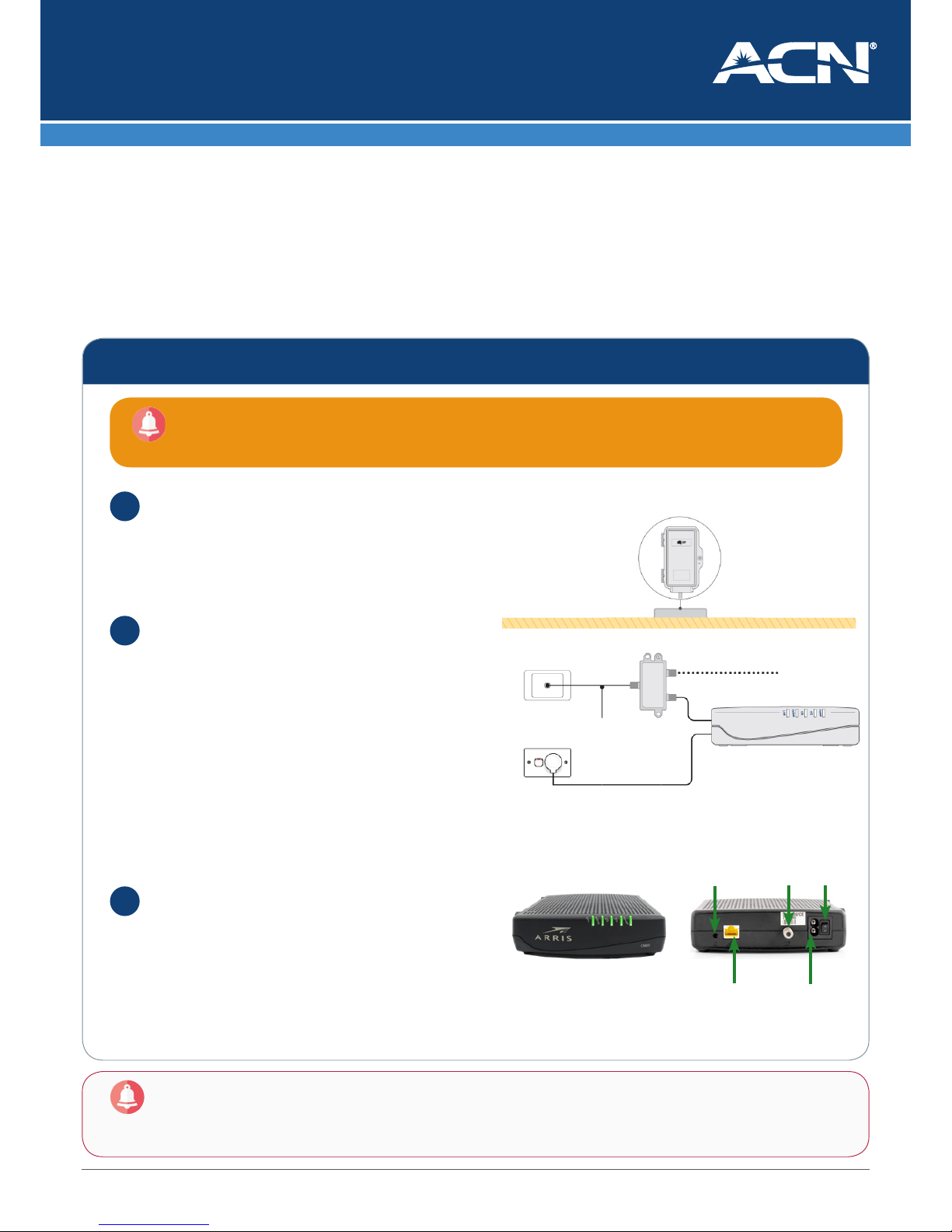
Ensure a NBN Co supplied Network Termination
Device (NTD) has been installed
This device, installed by a NBN Co technician, provides
connectivity to the nbn™ HFC network. It will be a freestanding device as per the diagram to the side.
Check that your NTD is powered on and has an
active nbn™ network connection
Conrm that all 5 GREEN LED lights are on. If the
Power LED is not lit, check that the NTD’s power lead is
connected to a power socket that is turned on, and the
Power switch on the back of the NTD is switched to ON.
If the Power LED light is on, but the other LED lights are
o, press the reset button on the back of the NTD, and
wait 10 minutes for the NTD to reset. If the LED lights
are still not on after resetting the NTD and waiting
the 10 minutes, please refer to the Troubleshooting
Section of this Guide..
Check that you have received an email from ACN
advising that your nbn™ service is active.
This is sent to the email address provided at sign-up,
approximately 1-2 business days after the NBN Co
Technician has completed the installation work. This
email conrms that your new ACN nbn™ Broadband
Service is ready for set up.
Important Note: If you attempt to set up your service immediately after a NBN Co Technician completes their
installation work in your home or oce (i.e. before you have received the nbn™ service is active email,) your
service may not work.
Before you start setting up your ACN nbn™ Broadband there are three important points we need
you to check. Without these, your new service may not work.
1
2
3
Set-up Check List
Power
port
Ethernet
port
Coax
port
Reset
button
Power
switch
NBN Utility Box
Power
Outlet
Wall Outlet
Inside Your Premises
Coaxial
Cable
Splitter
NBN Connection Box
Connection to Pay
TV or existing Cable
Internet Services
Outside Your Premises
Page 2
Page 2 of 8
User Guide
Set up your new ACN nbn™ Broadband service
©2018 ACN Inc. All rights reserved ACN Pacic Pty Ltd ABN 85 108 535 708 www.acnpacic.com
MKTG-89 - HFC - TP-Link WR841N - 13.11.2018
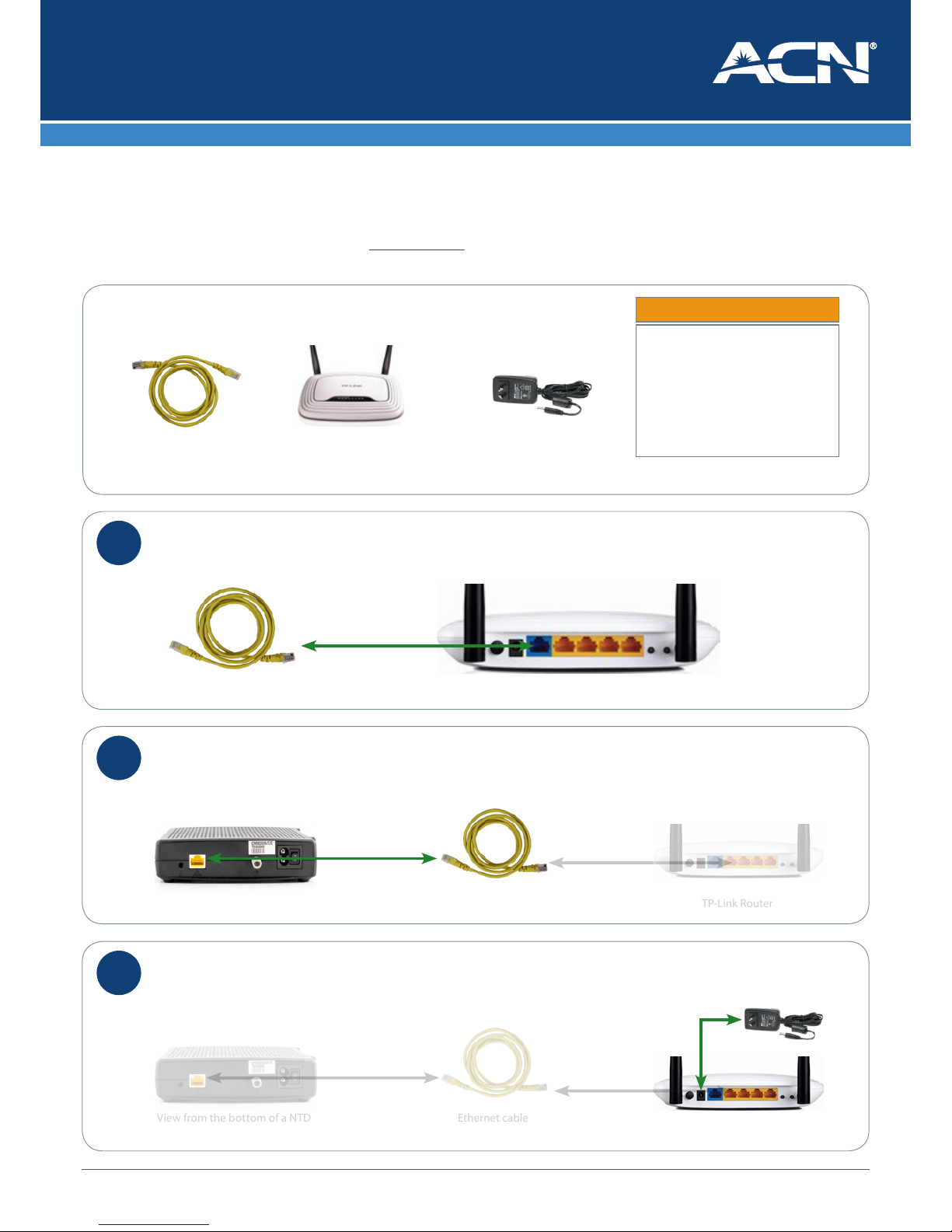
1. Connect one end of the provided Ethernet cable, to the BLUE port marked “WAN” on the back of the TP-LINK Router
TP-Link Router
Step
1
WAN
Setting up your ACN nbn™ Broadband Service (Installing the Router)
Now that you have reviewed the check-list on page 1 you can proceed with installing your nbn™ Broadband service.
It’s important to follow the steps below in the order indicated to ensure your new ACN NBN Service functions correctly.
Specically, DO NOT plug the Router into a power socket until you are instructed to do so in Steps 3, 4 and 5.
• Access to a power point near your NBN
NTD to power the TP-LINK Wireless
router
• If you wish to connect a device such as
a PC, Laptop, Smart TV, gaming console
or other device directly to the router
you will need an additional Ethernet
cable (not supplied by ACN).
Your ACN nbn™ pack contains the following items:
Power adaptorEthernet cable TP-LINK Wireless Router
Ethernet cable
1. Connect the other end of the Ethernet cable to the Ethernet port on the back of the NTD.
TP-Link Router
Step
2
Ethernet cable
WAN
View from the bottom of a NTD
1. Connect the provided Power adaptor to the back of the TP-LINK Router in the port labeled “Power”
TP-Link Router
Step
3
Ethernet cable
View from the bottom of a NTD
Power adaptor
Items You Need:
WAN
POWER
Your Router has been pre-congured to simply Plug’n’Play.
Page 3
Page 3 of 8
User Guide
Set up your new ACN nbn™ Broadband service
©2018 ACN Inc. All rights reserved ACN Pacic Pty Ltd ABN 85 108 535 708 www.acnpacic.com
MKTG-89 - HFC - TP-Link WR841N - 13.11.2018
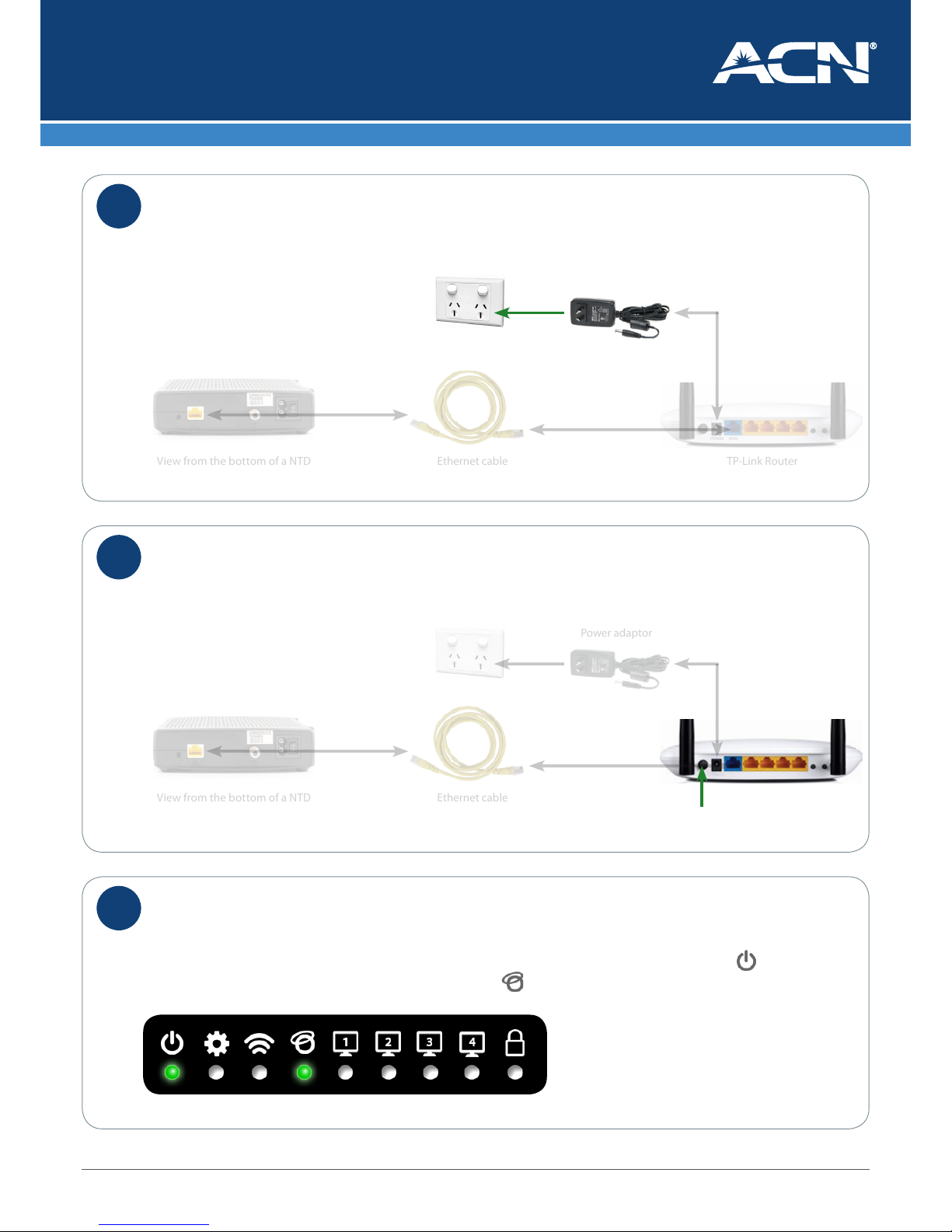
1. Plug the other end of the Power adaptor into a power outlet/wall socket and ensure the power outlet/wall socket is
switched on
TP-Link Router
Step
4
WAN
Ethernet cable
View from the bottom of a NTD
Power adaptor
POWER
1. Ensure the ON/OFF button on the back of the Router is set to ON
TP-Link Router
Step
5
WAN
Ethernet cable
View from the bottom of a NTD
Power adaptor
POWER
1. Allow up to 5 minutes for the TP-LINK Router to complete its conguration and set up process with the nbn™ network.
During this time the LED lights on the front of the Router will intermittently ash on and o.
If everything has been connected correctly, the Router should show a GREEN light for the Power connection and
a GREEN light to show that you are connected to the NBN
Step
6
Page 4
Page 4 of 8
User Guide
Set up your new ACN nbn™ Broadband service
©2018 ACN Inc. All rights reserved ACN Pacic Pty Ltd ABN 85 108 535 708 www.acnpacic.com
MKTG-89 - HFC - TP-Link WR841N - 13.11.2018
Connecting a device to your Router
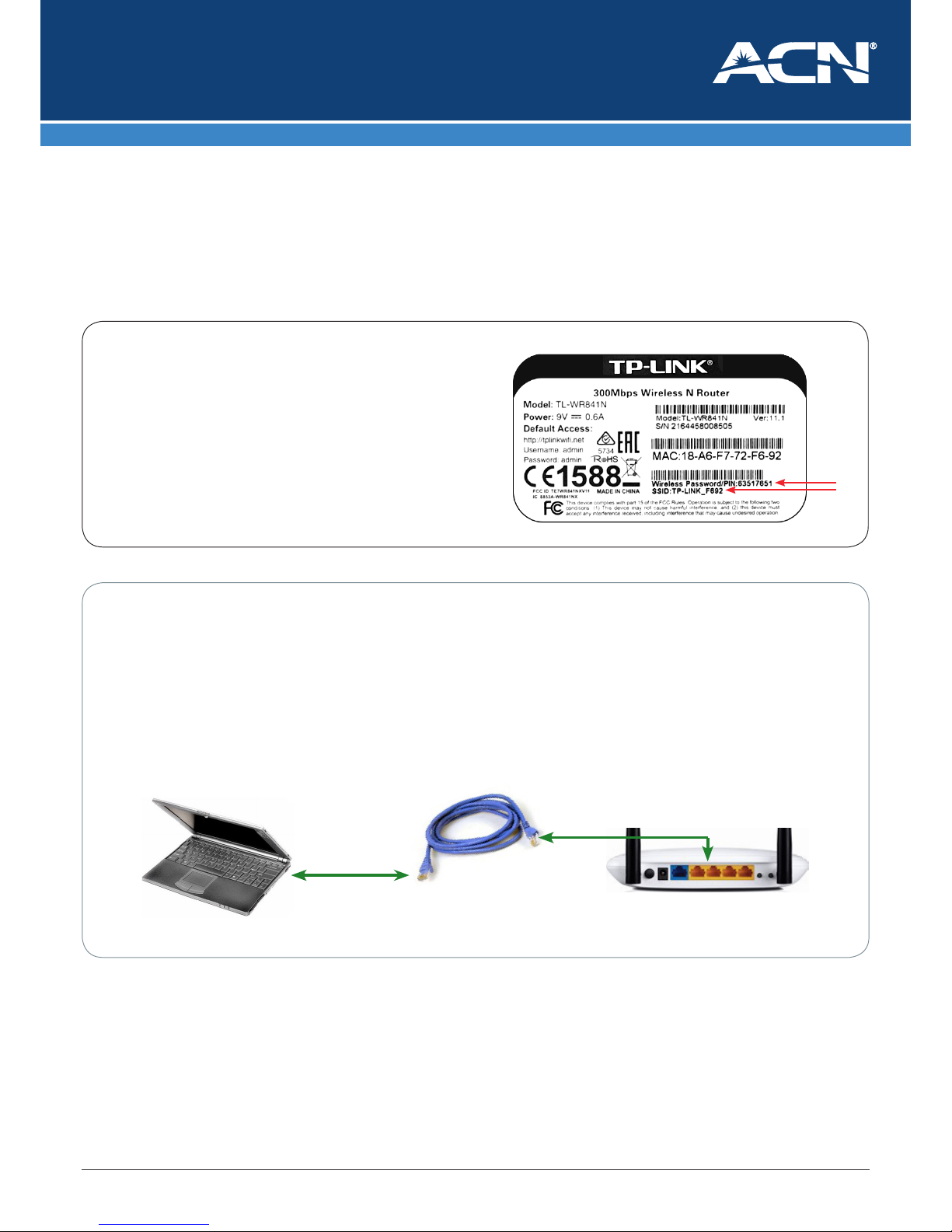
There are two options for connecting a device to your new Router:
1. Wirelessly via Wi-Fi
2. Directly via an Ethernet cable
To connect wirelessly to your nbn™ Broadband service:
1. On your wireless device (e.g. smartphone, tablet, laptop)
search for the Wireless Network Name (SSID). You can
nd the SSID on the label on the bottom of your modem
2. Input the Wireless password/PIN. You can nd this on the
label on the bottom of your modem
1
2
To connect via Ethernet cable to your nbn™ Broadband service
Connect one end of an Ethernet cable (not provided by ACN) to one of the ORANGE ports marked LAN on the back of
the TP-LINK Router.
Connect the other end of the Ethernet cable to the Ethernet/LAN port on your device
Once you have completed your connection (via Wi-Fi or Direct cable) please conrm that the service is working correctly
by opening up your web browser application (e.g. Internet Explorer, Google Chrome, Firefox or Safari) and go to your
favourite website.
TP-Link RouterEthernet cable
(not provided by ACN)
WAN
Device e.g. laptop/PC
Page 5
Page 5 of 8
User Guide
Set up your new ACN nbn™ Broadband service
©2018 ACN Inc. All rights reserved ACN Pacic Pty Ltd ABN 85 108 535 708 www.acnpacic.com
MKTG-89 - HFC - TP-Link WR841N - 13.11.2018
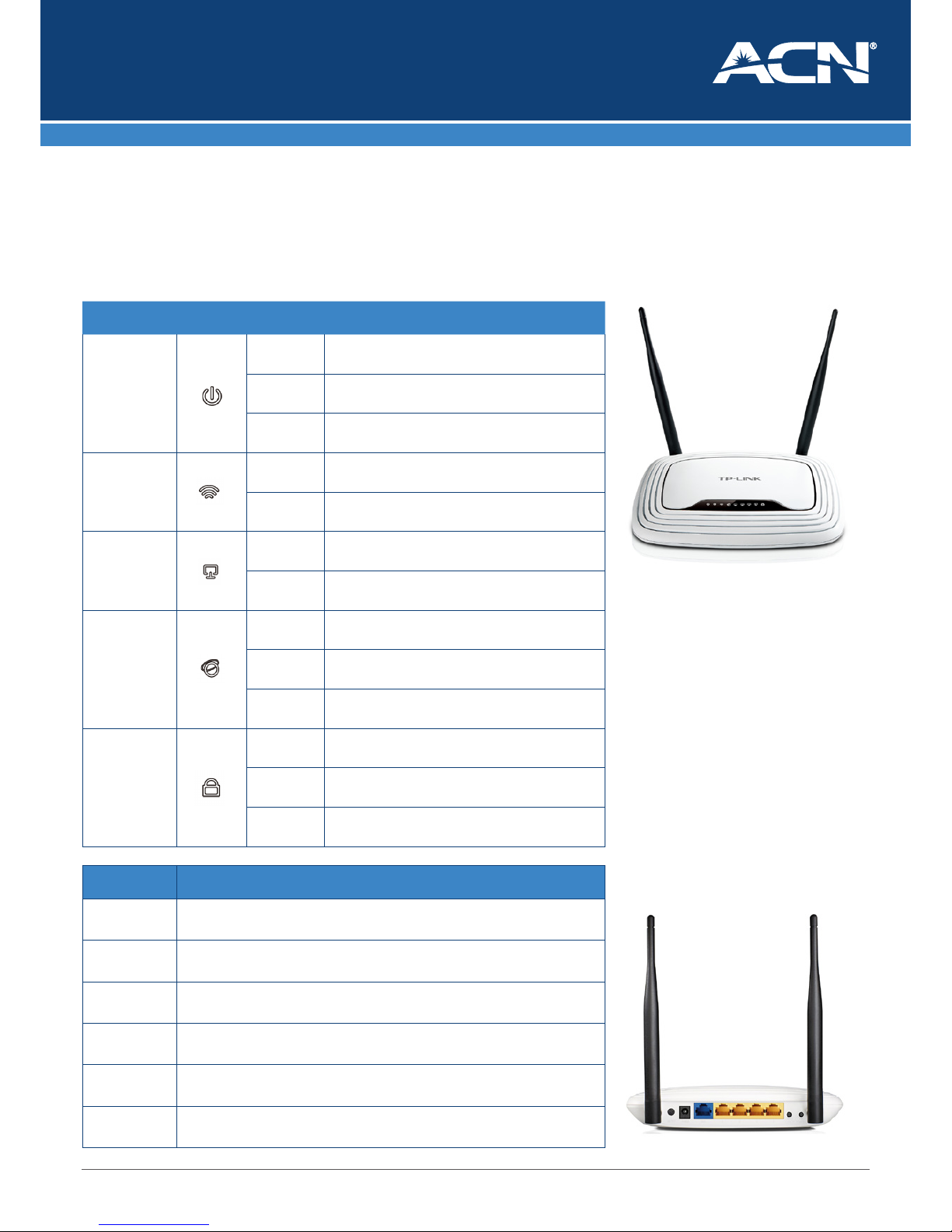
Getting to know your Router
The TP-LINK Wireless Router from ACN has been set up to Plug’n’Play, so all you need to do is follow the instructions in this guide.
We recommend Microsoft® Windows 7, and MAC OS as the minimum Operating System requirements. Ideally, your computer
should be less than ve years old and of a reasonable specication to get the most out of the Internet. It is very important to ensure
that your computer is up-to date with anti-virus and rewall/internet protection software.
LED Indicator Icon Colour Denition
Power
O Power is o
Green The Router has nished bo oting
Flash The Router is booting or u pgrading
WLAN
O The Wireless function is disabled
Green The Wireless function is enabled
LAN 1- 4
O There is no device connec ted to the corresponding port .
Green There is a devi ce connected to the corresponding p ort.
WAN
O There is no device connec ted to the WAN port.
Orange
A device is conne cted to the WAN port, but there is no
Internet activity.
Green
A device is conne cted to the WAN port, and the Internet is
active
WPS
Slow Flash
A wireless device is connecting to the n etwork by WPS
function. This process will last f or 2 minutes
Green
A wireless d evice has been successf ully added to the netw ork
by WPS func tion
Quick Flash
A wireless device faile d to be added to the network by WPS
function
Interface Purpose
ON/OFF The switch for the p ower
Power The power plug is where you will connec t the power adaptor
WAN Through this port, you connec t the modem to the applica ble UNI-D port as advised by ACN
LAN (1,2,3,4) Through these ports, you can connect the modem to your PC or other Eth ernet network devices
WPS / RESE T
The button for the WPS f unction.
Please do n ot press reset unl ess instructe d by ACN Te chnical Suppor t
Wi-Fi O N/OFF The switch f or the Wi-Fi function. Press the button to enable/disab le the Wi-Fi
Page 6
Page 6 of 8
User Guide
Set up your new ACN nbn™ Broadband service
©2018 ACN Inc. All rights reserved ACN Pacic Pty Ltd ABN 85 108 535 708 www.acnpacic.com
MKTG-89 - HFC - TP-Link WR841N - 13.11.2018
6.
5.
4.
3.
2.
1.
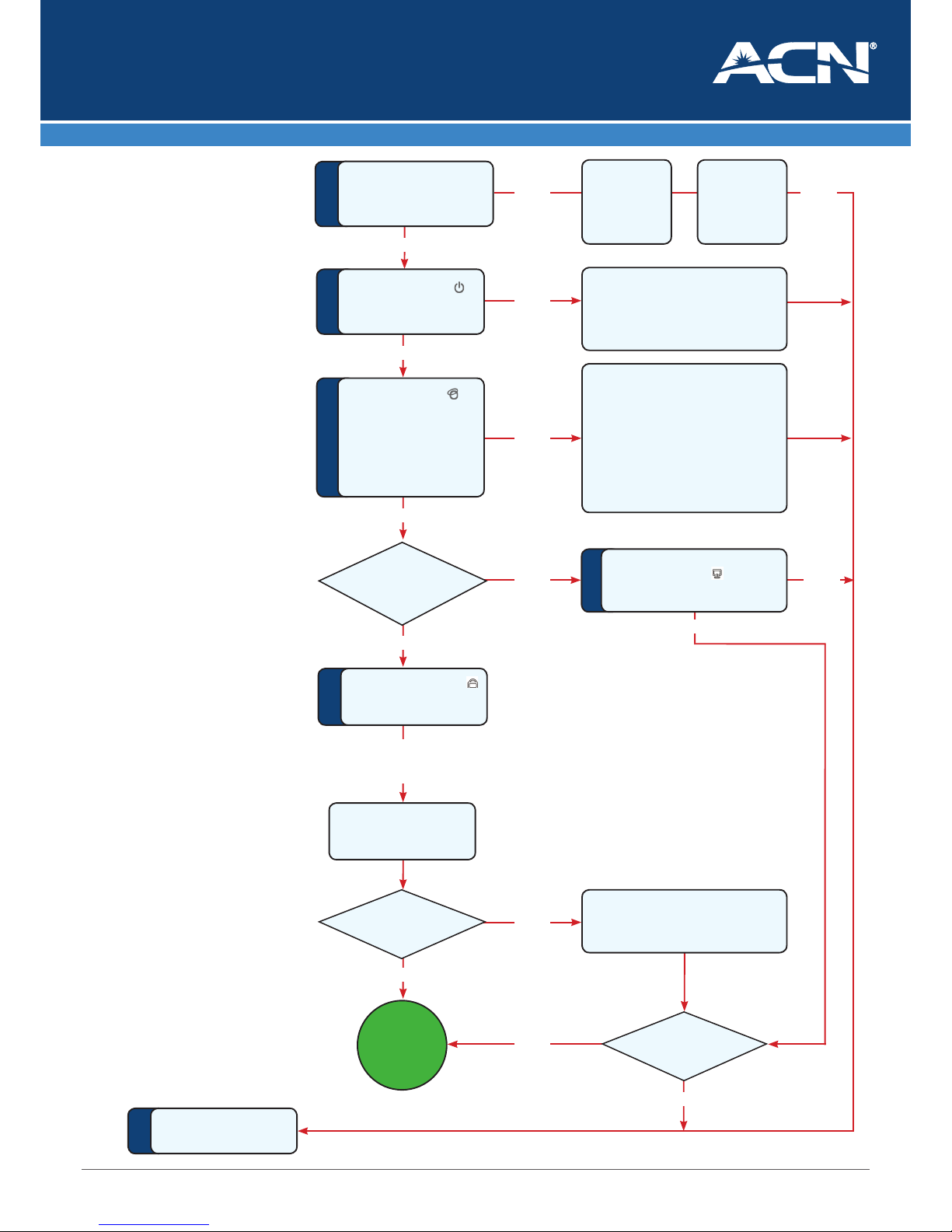
Troubleshooting
NO
NO
GR EAT!
Enjoy
your ACN
Broadband
NO
Check that the Power is switched on at the
power outlet/wall socket and the Power
button on the back of the Router is on.
If both are on and the service is still not
working move to Step 6
NO NO
YES
Are all 5 LED lights on the
NBN NTD all GREEN?
YES
Is the Power LED light
on the front of the TP-LINK
Router GREEN?
YES
Is the WAN LED light on
the TP-LINK Router GREEN
and the UNI-D light (for
the corresponding UNI-D
port you plugged your
Ethernet cable into) on the
NBN Co NTD GREEN?
YES
Are you trying to
connect via Wi Fi?
There is a problem with your connection
between the Router and the NBN NTD.
If possible, try an alternative Ethernet
cable bet ween the t wo devices . If this still
does not work, try resetting the Router
by disconnec ting the power cable for 5
minutes. Reconnect and wait a few minutes
to see if the Router congures. If the LED
lights still fail to turn on, please move to
Step 6.
Is the Wireless LED light
on the TP-LINK Router
GREEN?
Try re-entering the SSID
and Password for the
network on your device
YES
but Wi-Fi still
not working
NO
Try resetting the Router and/or your
device (as per Stage 3 above)
Is the LAN LED light on the TPLINK Router GREEN?
YES
Please contact ACN
Customer Service
NO
YES
Is it working?
Is it working?
Is the NTD power
cable connected
to a socket and
turned on?
YES
NO
Reset the NTD
by pressing the
Reset but ton on
the back of the
NTD and waiting
for 10 minutes.
Page 7
Page 7 of 8
User Guide
Set up your new ACN nbn™ Broadband service
©2018 ACN Inc. All rights reserved ACN Pacic Pty Ltd ABN 85 108 535 708 www.acnpacic.com
MKTG-89 - HFC - TP-Link WR841N - 13.11.2018
Troubleshooting
If you have followed the setup instructions in this User Guide and attempted all the troubleshooting steps but still cannot get your
ACN nbn™ service working, please contact ACN Technical Support on 1300 881 778. Before contacting Technical Support, please
have your account number and order number handy and be prepared to outline all the steps attempted to activate this service.
Our website provides more information on our Technical Support operating hours and contact methods.
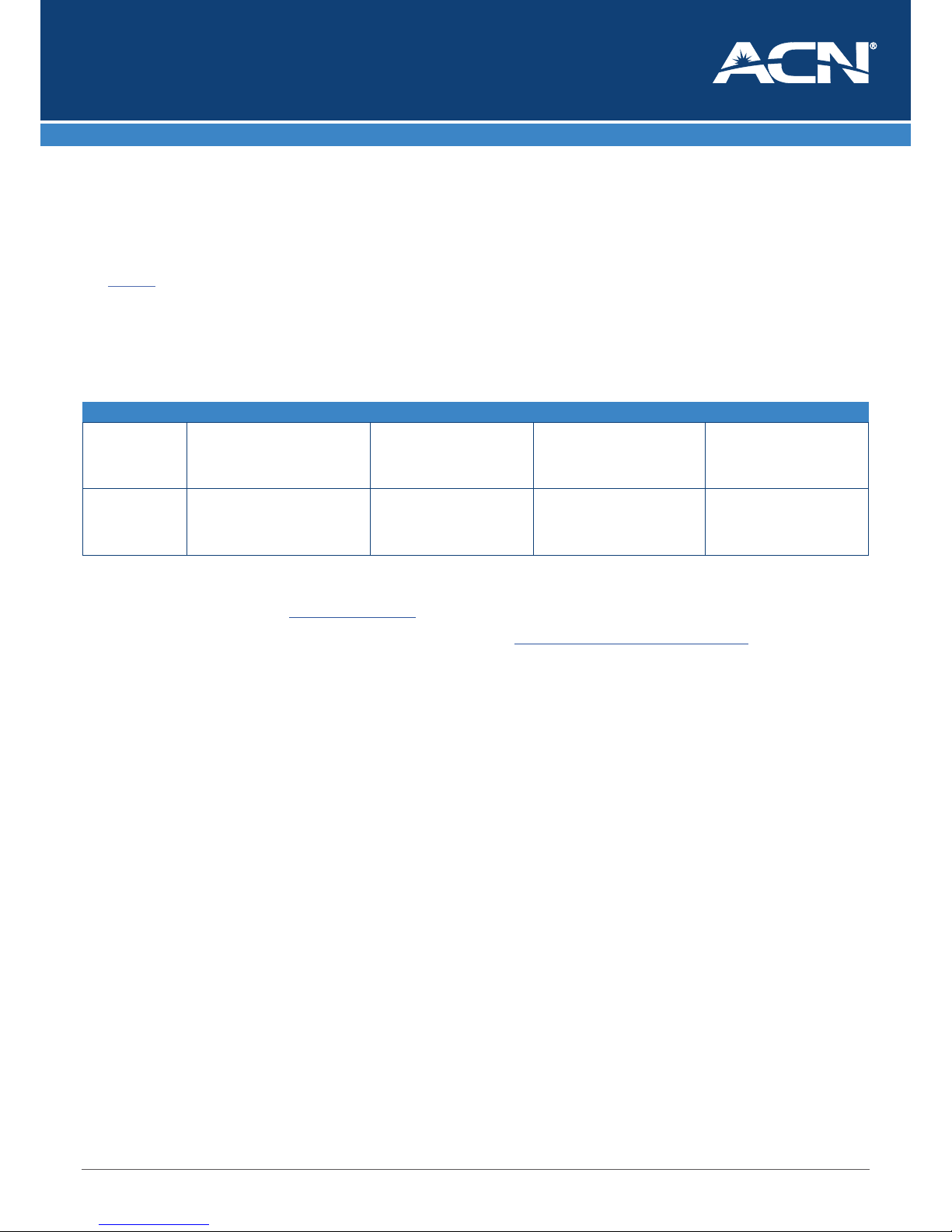
Logins and Passwords
The table below outlines the required username and password format for your Internet connection and Online Tools.
For further information about pricing, other services available from ACN, the ACN Opportunity or becoming an ACN Independent
Business Owner (IBO), please visit www.acnpacic.com
For further information regarding features and technical support visit : www.acnpacic.com/knowledge-base
Dead-On-Arrival (DOA)
and Early Life Failure (ELF)
We will arrange to replace your TP-LINK Wireless Router (“Product”) if
it fails within 14 days from the date of purchase. This period is kown
as the Dead on Arrival/Early Life Failure (“DOA/ELF”) period. Please
refer to the Warranty Claims section to learn how to make a claim in
these circumstances. If the Product fails outside the DOA/ELF period,
please also refer to the Warranty section of this guide.
Warranty
Subject to the conditions of this limited warranty (“Warranty”),
ACN warrants your TP-LINK Wireless Router (“Product”) to be free
from defects in design, materials and workmanship at the time of
its original purchase by you. The Warranty is valid for a period of 24
months (“Warranty Period”) from the original date of purchase of the
Product.
If during the Warranty Period, this Product fails to operate under
normal use and service, due to defects in design, materials or
workmanship, ACN will either repair or replace, at our option, the
Product in accordance with the conditions stipulated herein.
ACN reserves the right to charge a handling fee if a returned Product
is found to not be under Warranty according to the conditions below.
Conditions
This Warranty does not cover mechanical damage caused by misuse,
abuse, impact or accident or damage caused to the Product or
damage caused by liquids, lightning, power surges (ACN recommends
you obtain surge protection for your electricity supply), theft, or heat
damage sustained from the stacking of electrical equipment on or in
close proximity to the Product.
This Warranty does not cover you changing your mind about
purchasing the Product. The Warranty is not transferable and
does not cover any ACN services nor does the Warranty Period
recommence upon receipt of any replacement unit sent to you by
ACN. If you hack the rmware or software installed with the Product
or if you tamper with security seals or remove any service covers on
the equipment ACN will consider this Warranty voided. The Warranty
does not cover any computer viruses obtained from your use of the
Product or any ACN services. This Warranty does not cover Product
failures which have been caused by use of accessories or other
peripheral devices which are not ACN branded original accessories
intended for use with this Product.
Equipment models may change over the course of this Warranty.
It may be necessary for the replacement unit to be a refurbished
unit, a dierent model, and/or from a dierent manufacturer. Goods
presented for repair may be replaced by refurbished goods of the
same type rather than being repaired. Refurbished parts may be used
Service Username Password What is it used for Example
MyAccount Your MyAccount username is your
9 digit ACN Custome r ID. This will
be sent to you in yo ur ACN Order
Conrmation email
This is an automatically generated
password and will be sent to
you as part of your ACN Orde r
Conrmation email
Your MyAccount usernam e and
password enables you to lo gin to
MyAccount - (ACN Self He lp Portal)
to manage your s ervice.
Username: 1000000001
Password: 8 character passwo rd
WiFi Your Wi-Fi user name is the SSID which
is on the label at the bottom of your
modem
Your Wi-Fi pass word is the
Wireless password which is on
the label at the bottom o f your
modem
To connect wireless devices to your
Broadband connection
Wi-Fi Username:
TP-LINK_XXXXXX
Wi-Fi Pass word: 1234###
Page 8

Page 8 of 8
User Guide
Set up your new ACN nbn™ Broadband service
©2018 ACN Inc. All rights reserved ACN Pacic Pty Ltd ABN 85 108 535 708 www.acnpacic.com
MKTG-89 - HFC - TP-Link WR841N - 13.11.2018
to repair the goods. ACN conrms that any replacement Product sent
to you will be of merchantable quality and functionally similar to the
original Product supplied.
Warranty Claims
Should your Product fail within the DOA/ELF Period or the Warranty
Period you will need to contact ACN’s Customer Service Team on
1300 881 778 to describe the defect. ACN will then issue you with
a prepaid return courier satchel for you to return the device for
testing purposes. ACN will not be liable for any expenses you incur in
relation to any DOA/ELF or Warranty claim.
The return satchel is pre-labelled with our return address which is:
BMS Technology Pty Ltd
107 Wright Street
ADELAIDE, SA 5000
Please note that some of your personal settings, content and other
information and stored data may be lost when the Product is repaired
or replaced. Due to applicable law, other regulation or technical
restrictions, ACN will not make a back-up copy of your information.
ACN does not take responsibility for any lost information of any kind
and will not reimburse you for such loss. You should always make
back-up copies of all the information stored on the Product before
handing it in for repair or replacement.
You will need to comply with any other return procedures stipulated
by ACN as published or explained at the time of the claim. If a defect
exists and a valid claim under the Warranty is received by ACN after
the rst 15 days following the expiry of the Warranty Period, ACN is
entitled to charge for any reasonable shipping and handling costs
made in connection with the repair or replacement of the Product.
ACN respects your rights as a consumer. Our goods come with
guarantees that cannot be excluded under the Australian Consumer
Law. You are entitled to a replacement or refund for a major failure
and for compensation for any other reasonably foreseeable loss or
damage. You are also entitled to have the goods repaired or replaced
if the goods fail to be of acceptable quality and the failure does not
amount to a major failure. Nothing contained in this Warranty shall
be read or applied so as to exclude, restrict or modify the application
of applicable provisions of Australian Consumer Law, including
Consumer entitlements described in the Competition and Consumer
Act (as amended), or any relevant State or Territory statute which by
law cannot be excluded, restricted or modied.
To the extent that any such statute permits ACN to limit our liabilities
to compensate or indemnify you or any other person for breach of an
implied guarantee, condition or warranty, our respective liabilities
for such breach shall be limited to, at our option: (a) the replacement
of the Product or the supply of an equivalent Product or payment of
the cost of replacing the Product or acquiring an equivalent Product;
or (b) the repair of the Product or payment of the cost of having the
Product repaired.
Standard Form of Agreement
Important Customer Information: Your Rights and Obligations.
For the complete terms and conditions which apply to the supply
of the Product and ACN services, and which set out your rights and
obligations, please refer to ACN’s Standard Form of Agreement
(SFOA), available on our website: www.acnpacic.com
Further Information
For the latest rate plans, products and services visit:
www.acnpacic.com
For further information about pricing, other services available from
ACN, the ACN Opportunity or becoming an ACN Independent
Business Owner (IBO), please visit www.acnpacic.com
 Loading...