

Page 1

Acer Monitor
Contents
M222HQML
M242HML
User Guide
Important safety instructions -----------------------------------3
Disposal instructions ------------------------------------------------------------------ 4
Your monitor overview -------------------------------------------5
Front and side panels ----------------------------------------------------------------- 5
Rear panel view ------------------------------------------------------------------------ 6
Remote control ---------------------------------------------------7
General keys --------------------------------------------------------------------------- 7
Teletext and Multimedia --------------------------------------------------------------- 8
Basic connections ------------------------------------------------9
Connecting the power cord ----------------------------------------------------------- 9
Setting up the remote control--------------------------------------------------------- 9
Enjoying analog and digital TV ----------------------------------9
Connecting an antenna/cable -------------------------------------------------------- 9
Getting started using your monitor --------------------------------------------------10
Connecting external audio/video devices ------------------- 11
Connecting a DVD, VCR, STB or audio/video equipment ------------------------11
Connecting a camera, camcorder or game console ------------------------------12
Connecting a PC or notebook computer -------------------------------------------13
Connecting a USB storage device --------------------------------------------------13
Selecting the input source -----------------------------------------------------------14
Playing multimedia files from a USB storage device ------- 15
Connecting a USB storage device --------------------------------------------------15
Navigating in the multimedia screen ------------------------------------------------15
Channel controls ----------------------------------------------- 18
Channel list ----------------------------------------------------------------------------18
Favourite channel list -----------------------------------------------------------------19
Programme information --------------------------------------------------------------20
Electronic programme guide ---------------------------------------------------------20
Time shifting (digital channels only) -------------------------------------------------22
Record programs to a USB storage device (digital channels only) ---------------22
OSD navigation ------------------------------------------------- 23
Navigating the OSD with the remote control ---------------------------------------23
Adjusting the OSD settings ----------------------------------------------------------24
OSD menus ----------------------------------------------------- 26
Picture settings ------------------------------------------------------------------------26
Sound settings ------------------------------------------------------------------------28
TV settings-----------------------------------------------------------------------------29
Country --------------------------------------------------------------------------------29
Settings --------------------------------------------------------------------------------30
Parental --------------------------------------------------------------------------------31
Troubleshooting ------------------------------------------------ 33
PC Input Signal Reference Chart ----------------------------- 34
Product specifications ----------------------------------------- 35
Wall mount preparation / removing the base ---------------- 37
1
Page 2
© 2011 All Rights Reserved.
Acer Monitor User Guide
Original Issue: 06/2011
Model Number:
Serial Number:
Purchase Date:
Place of Purchase:
HDMI, the HDMI logo and High-Definition Multimedia Interface are trademarks or registered trademarks of
HDMI Licensing LLC.
DVB is a registered trademark of the DVB Project.
2
Page 3
Important safety instructions
Read these instructions carefully. Please put them somewhere safe for future reference.
1. Only use attachments/accessories specified by the manufacturer.
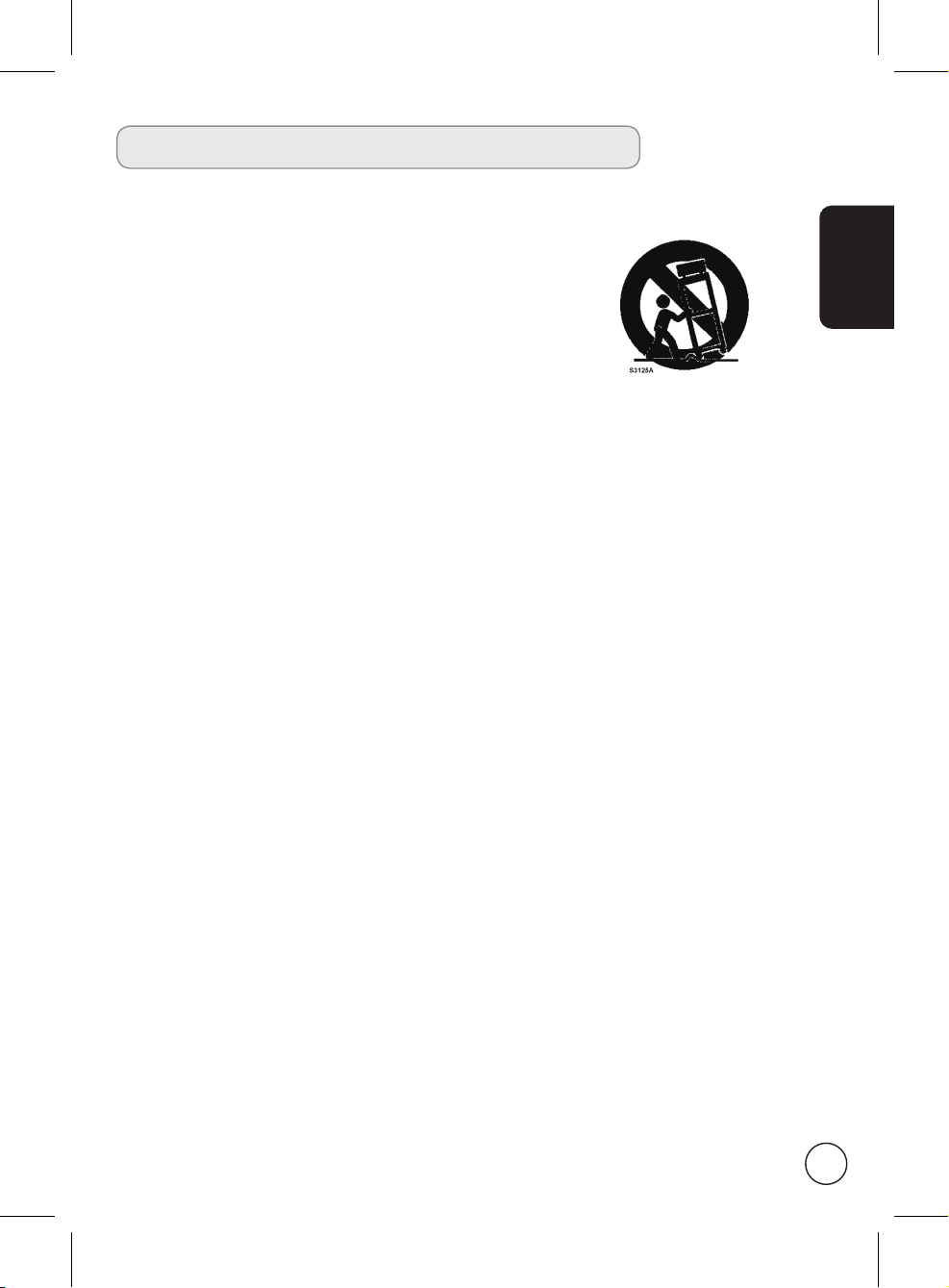
2. Use only with the cart, stand, tripod, bracket, or table specified by
the manufacturer, or sold with the apparatus. When a cart is used,
use caution when moving the cart/ apparatus combination to avoid
injury from tip-over.
3. Unplug this apparatus during lightning storms or when unused for
long periods of time.
4. Do not install this equipment in a confined space such a book case
or similar unit.
5. No naked flame sources, such as lighted candles, should be placed on the apparatus.
6. If the remote control will not to be used for a long time, remove the batteries. Use the remote
control carefully. Do not drop the remote control on the floor. Keep it away from moisture,
direct sunlight, and high temperatures.
7. Used or discharged batteries must be properly disposed of or recycled in compliance with all
applicable laws. For detailed information, contact your local solid waste disposal authority.
8 Follow all warnings and instructions marked on the product.
9 Unplug this product from the wall outlet before cleaning. Do not use liquid cleaners or aerosol
cleaners. Use a damp cloth for cleaning.
10 Do not use this product near water.
11 Do not place this product on an unstable cart, stand or table. The product may fall, sustaining
serious damage.
12 Slots and openings are provided for ventilation; to ensure reliable operation of the product
and to protect it from overheating, these openings must not be blocked or covered. The
openings should never be blocked by placing the product on a bed, sofa, rug or other similar
surface. This product should never be placed near or over a radiator or heat register or in a
built-in installation unless proper ventilation is provided.
13 This product should be operated from the type of power indicated on the marking label. If
you are not sure of the type of power available, consult your dealer or local power company.
14 Do not allow anything to rest on the power cord. Do not locate this product where the cord
will be stepped on.
15 If an extension cord is used with this product, make sure that the total ampere rating of the
equipment plugged into the extension cord does not exceed the extension cord ampere
rating. Also, make sure that the total rating of all products plugged into the wall outlet does
not exceed the fuse rating.
16 Never push objects of any kind into this product through cabinet slots as they may touch
dangerous voltage points or short-out parts, which could result in a fire or electric shock.
Never spill liquid of any kind on the product.
17 Do not attempt to service this product yourself, as opening or removing covers may expose
you to dangerous voltage points or other risks. Refer all servicing to qualified service
personnel.
18 Unplug this product from the wall outlet and refer servicing to qualified service personnel
under the following conditions:
a. When the power cord or plug is damaged or frayed.
b. If liquid has been spilled into the product.
English
3
Page 4
English
c. If the product has been exposed to rain or water.
d. If the product does not operate normally when the operating instructions are followed.
Adjust only those controls that are covered by the operating instructions.Improper
adjustment of other controls could result in damage; extensive work by a qualified
technician might then be required to restore the product to normal condition.
e. If the product has been dropped or the case has been damaged.
f. If the product exhibits a distinct change in performance, indicating a need for service.
19 Use only the proper type of power supply cord set (provided in your accessories box) for this
unit. Always disconnect the power cord from the wall outlet before servicing or disassembling
this equipment.
20 Do not overload an electrical AC outlet, power strip, or convenience receptical. The overall
system load must not exceed 80% of the branch circuit rating. If power strips are used, the
load should not exceed 80% of the power strip input rating.
21 Some products are equipped with a three-wire electrical grounding-type plug that has a third
pin for grounding. This plug only fits into a grounded electrical outlet. This is a safety feature.
Make sure the AC outlet is properly grounded. Do not defeat the safety purpose of the
grounding-type plug by trying to insert it into a non-grounded outlet. If you cannot insert the
plug into the outlet, contact your electrician to replace the obsolete outlet.
22 Do not use this monitor in the workplace in accordance with BildscharbV, and maintain
ample distance from it when watching. Watching a big-screen monitor too close can cause
eyestrain.
23 This monitor is designed for home entertainment purposes only. Make sure there is sufficient
distance between you and the monitor when you are viewing content to avoid harming your
eyes.
The grounding pin is an important safety feature. It is possible to receive an electric shock from a
system that is not properly grounded.
The grounding pin is also providing good immunity ability against unexpected noise that interferes
performance of this product and is produced by other nearby electrical devices.
Disposal instructions
Do not throw this electronic device into the rubbish bin / container when discarding. To minimize pollution
and ensure utmost protection of the global environment, please recycle.
For more information regarding WEEE, please refer to
http://global.acer.com/about/environmental.htm
Соответствует сертификатам, обязательным в РФ
Compliant with Russian regulatory certification)
(
4
Page 5
Your monitor overview
Front and side panels
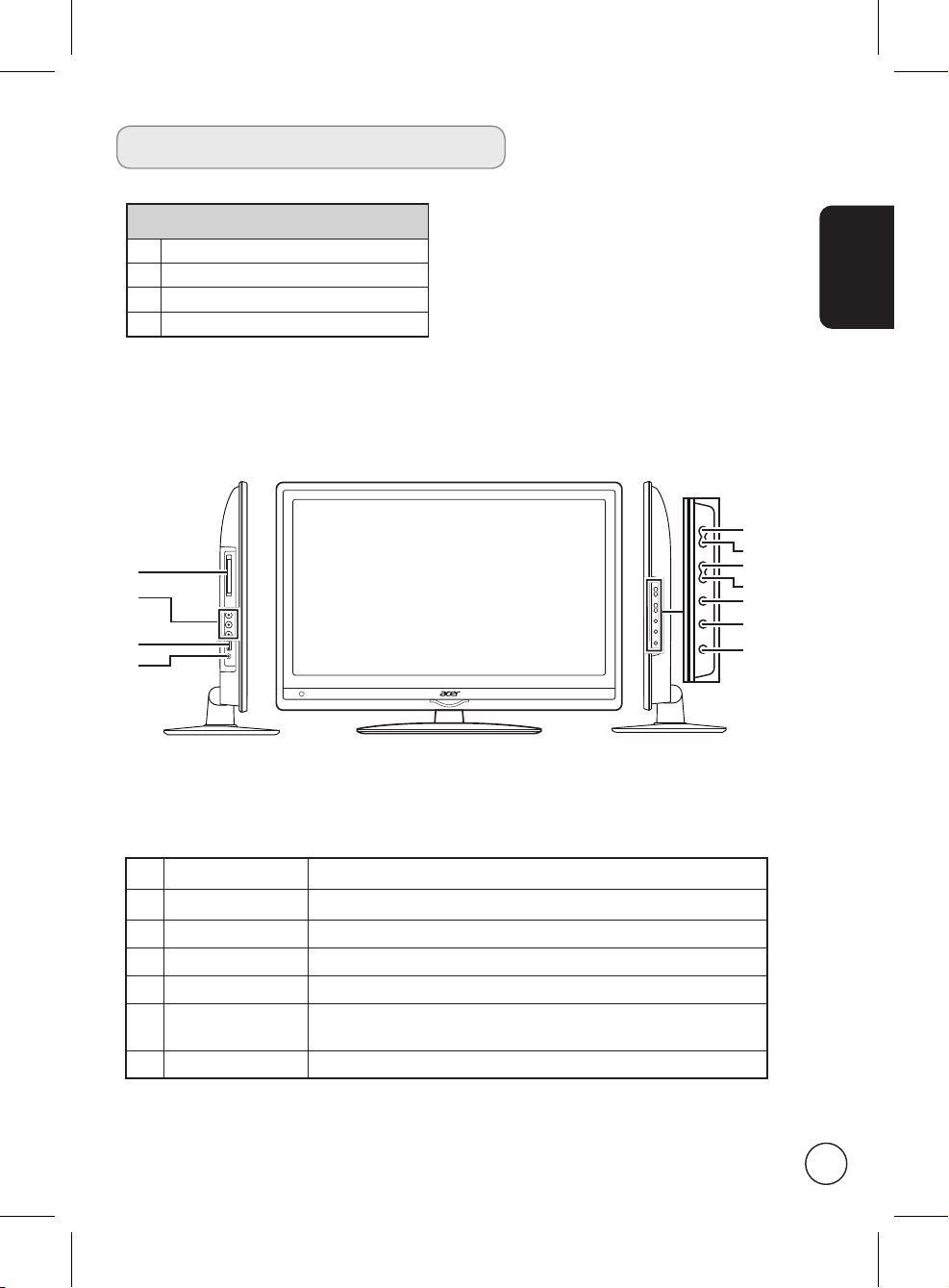
1 Common interface
2 AV in-COMPOSITE + Audio L/R
3 USB port
4 Earphone
1
2
3
4
English
5
6
7
8
9
10
11
5 Volume up When the OSD is on, functions the same as the Right arrow.
6 Volume down When the OSD is on, functions the same as the Left arrow.
7 Channel up When the OSD is on, functions the same as the Up arrow.
8 Channel down When the OSD is on, functions the same as the Down arrow.
9 Menu key Turns the OSD menu ON and OFF.
10 Source (Input) key
11 Power button
Press to change input source. When the OSD is on, press this
button to confirm selection.
5
Page 6
English
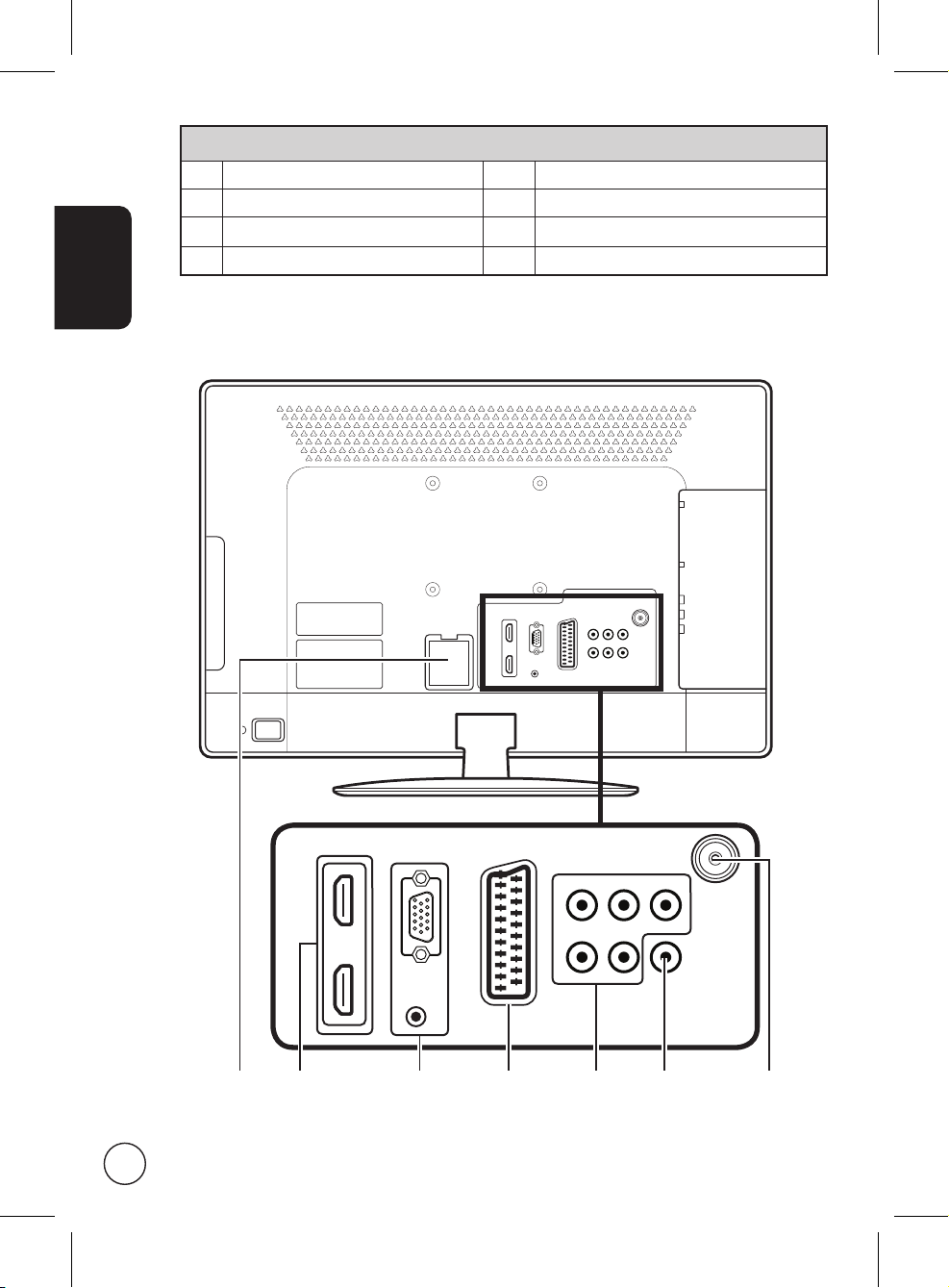
Rear panel view
1 AC-in 5 AV in-COMPONENT + Audio L/R
2 HDMI port 6 SPDIF out
3 VGA-in + PC Audio-in 7 Tuner (hybrid)
4 SCART
321 6 754
6
Page 7
Remote control
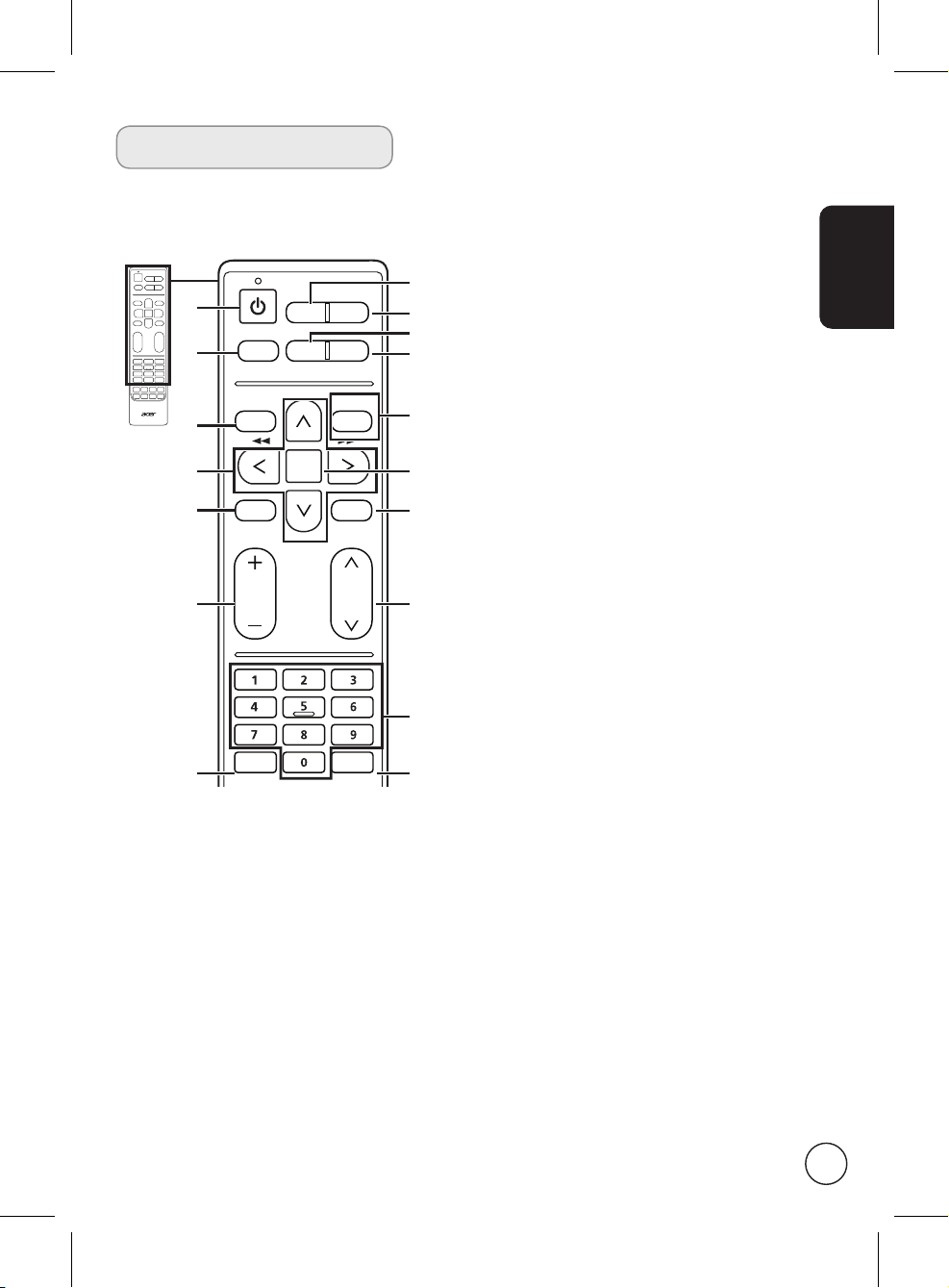
General keys
1
4
7
9
11
13
16
1 POWER
Press to turn your monitor on/off.
2 DISPLAY
Press to display or change input/channel
information (dependent on input/source
type).
3 GUIDE
Press to launch Electronic Programme
Guide (EPG) mode
(Digital TV mode only). See page 34.
4 SOURCE
(TV/YPbPr/AV/SCART/PC/HDMI/USB)
Press to select correct input mode.
MENU
MUTE
TELETEXT
DISPLAY GUIDE
WIDESOURCE
MPX
CANCEL
BACK
OK
SUBTITLE
FAV
5 WIDE
Press to toggle scaling mode between
Auto, Normal, Zoom1, Zoom2 and Wide
2
3
5
6
8
10
12
14
15
17
modes.
6 MPX
Press to display and select the audio
signal.
7 MENU
Press to open or close the Menu.
8 Back/CANCEL
Press to back to previous Menu.
9 Directional keys
On certain models, the left and right
directional keys also function as
rewind and fast-forward keys when
viewing multimedia files.
10 OK/ENTER/CH LIST
ENTER: Press to confirm channel
number selection.
CH LIST: Press to launch the channel
list. See page 33.
11 MUTE
Press to toggle audio on and off.
12 FAV
Press to display the favorite channel list.
13 VOL (+/-)
Press to increase or decrease the
volume.
14 CH (up/down)
Press to sequentially select the TV
channel.
15 Number keys.
16 TELETEXT/MIX
Press to switch from TV/AV to Teletext
mode.
Press again to overlay teletext page on
the TV image.
17 SUBTITLE
Press to view subtitles on the screen.
English
7
Page 8
English
OK
DISPLAY GUIDE
WIDESOURCE
MENU
MUTE
TELETEXT
INDEX SIZE HOLD REVEAL
SUBTITLE
BACK
CANCEL
FAV
MPX
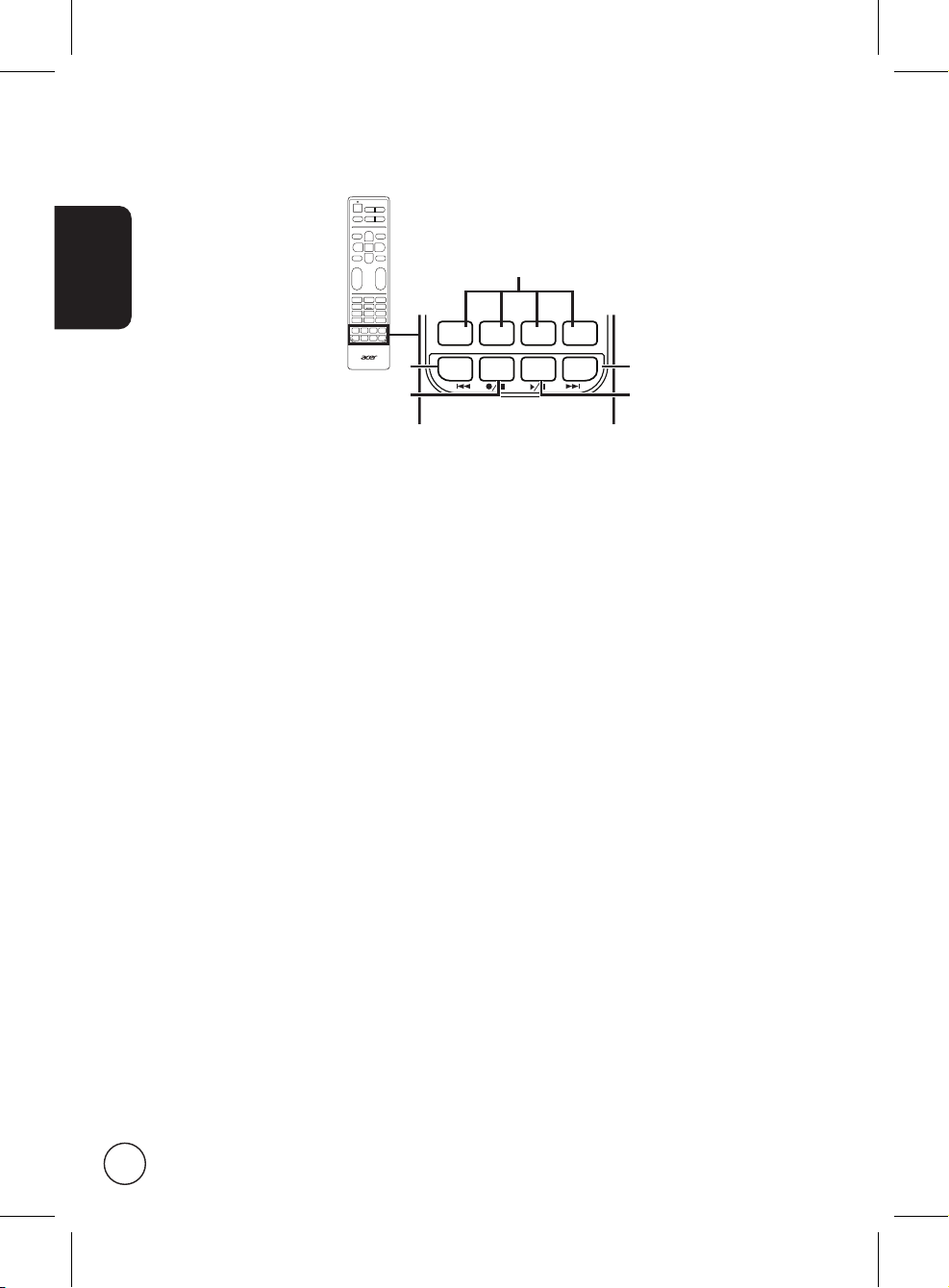
Teletext and Multimedia
1
2
3
Teletext
1 Colour buttons (R/G/Y/B)
Operates corresponding button on the
teletext page.
2 INDEX
Press to go to the index page.
3 SIZE
Press once to zoom teletext page to 2X.
Press again to resume.
4 HOLD
Press to pause the current teletext page.
5 REVEAL
Press to reveal hidden teletext
information.
5
4
Multimedia
1 Colour buttons (R/G/Y/B)
No function when using the mutimedia
interface.
2 Previous Track
Press to go to the beginning of a track,
or the previous track.
3 Stop
Press to stop playback.
On certain televisions the remote control
can start recording programmes. This
feature is not available on your television.
4 Play/Pause
Press to start playing the selected track,
or pause a track if it is already playing.
5 Next track
Press to skip to the next track if multiple
tracks have been selected.
* You may use the left and right directional
buttons to avance or rewind in a track.
Press the button again to increase how
fast the track advances (x2/x4/x8/x16).
Press the Play/Pause button to resume
playback.
The left and right directional keys also
function as rewind and fast-forward
keys when viewing multimedia files.
8
Page 9
Basic connections
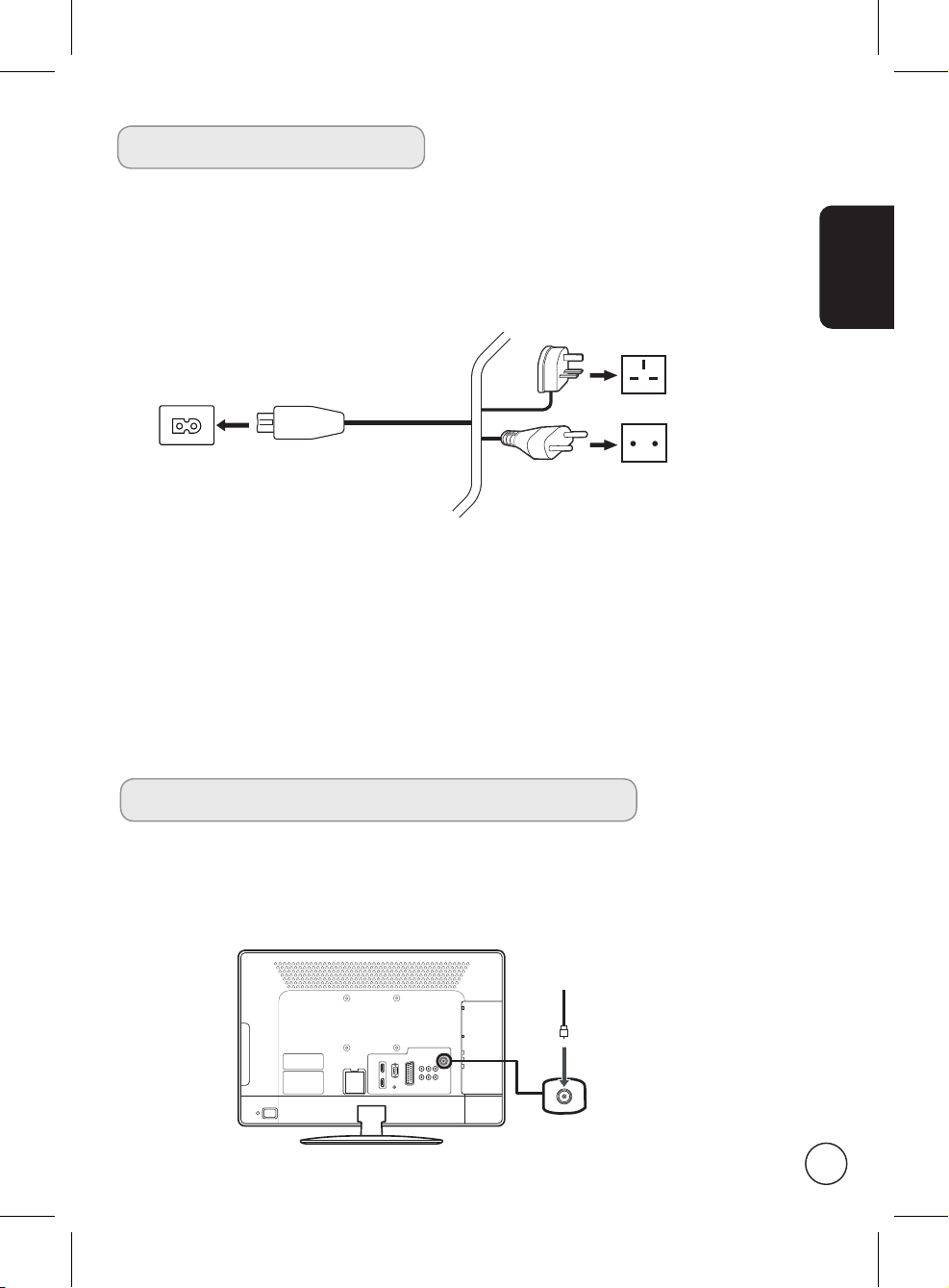
Connecting the power cord
1 Connect the AC cord into the AC input on the back of the set.
2 Connect the plug to the wall outlet as shown.
Setting up the remote control
1 Open the cover on the bottom of the remote unit.
2 Insert two AA batteries (supplied) to match the polarity indicated inside the battery
compartment.
English
Enjoying analog and digital TV
Connecting an antenna/cable
Connect the antenna cable to the appropriate antenna terminal on the back of the monitor set as
shown below.
Tuner
9
Page 10
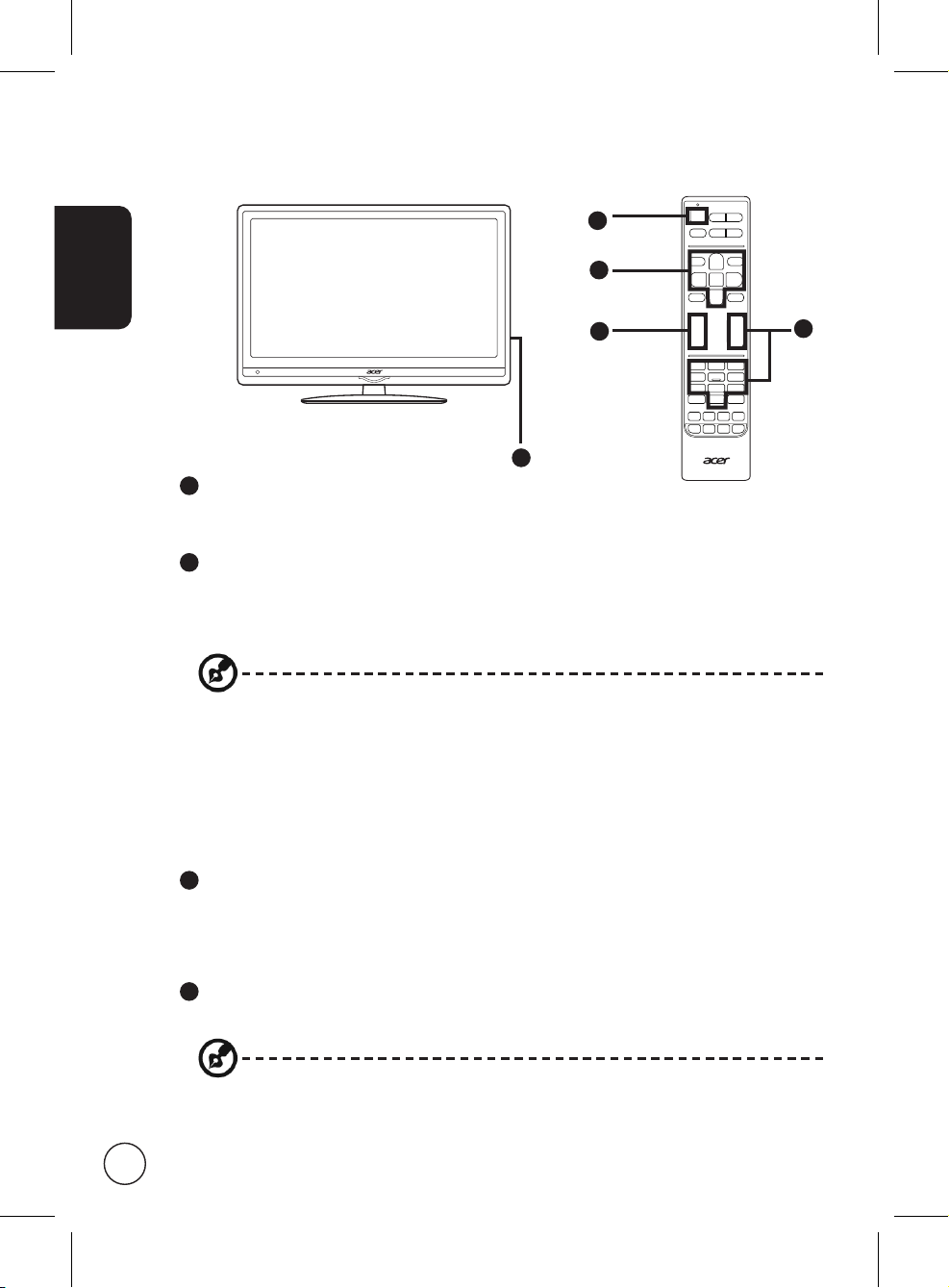
Getting started using your monitor
1
English
2
4
1
1
Power
a. Turn on the power switch.
b. Press the power button or channel up/down button on the remote control.
2
Installation Guide
The first time you switch on the monitor, you will be asked to select the language and scan
Press the OK key to begin the setup process.
Step 1. Select the setup language you prefer.
Step 2. Please select the correct country for signal reception.
Step 3. Select Home mode.
Step 4. Ensure that your co-axial cables are connected correctly before proceeding.
Step 5. Scan for digital channels and analog channels.
Step 6. Setup is now complete. You are ready to use your monitor.
3
Changing channels
a. Press 0 - 9 on the remote control to select a channel. The channel changes after 2
b. Pressing the channel ( CH ) up / down button on the remote control will also change the
4
Adjusting the volume
Adjust the volume level using the ( VOL ) up/down button on the remote control.
for channels.
You can also adjust these settings using the front control panel. Please see "Front panel
view" on page 8 for details.
seconds. Press OK to select the channel immediately.
channel.
3
10
Setup may vary due to local broadcast differences.
Page 11
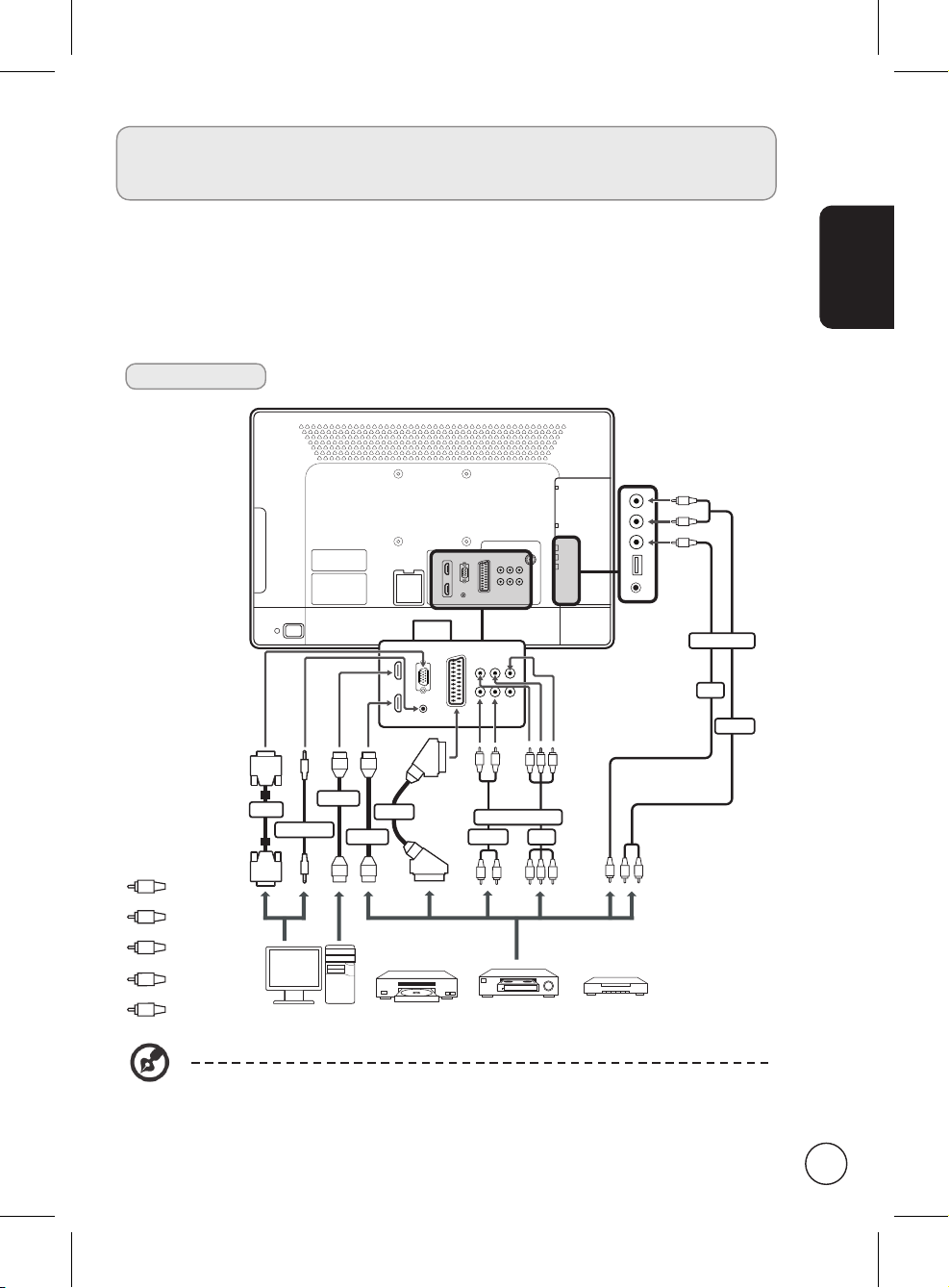
Connecting external audio/video
devices
Connecting a DVD, VCR, STB or audio/video
equipment
Connect your DVD player, VCR or audio/video equipment using the SCART port located at the
rear of your monitor as shown below.
Source-in
R
W
Y
COMPOSITE
AV
AUDIO
W
R
D-Sub
VGA
PC-Audio in
HDMI
HDMI
SCART
COMPONENT
AUDIO
RBG
AV
English
Y
Yellow
R
Red
W
White
B
Blue
G
Green
D-Sub
DVDPC VCR STB
W
R
or
* Acer recommends the following priority for connection types:
HDMI -> COMPONENT -> SCART -> Composite.
Y
RBG
or
R
W
11
Page 12
TV-out
English
SCART
SPDIF
Recorder
AV
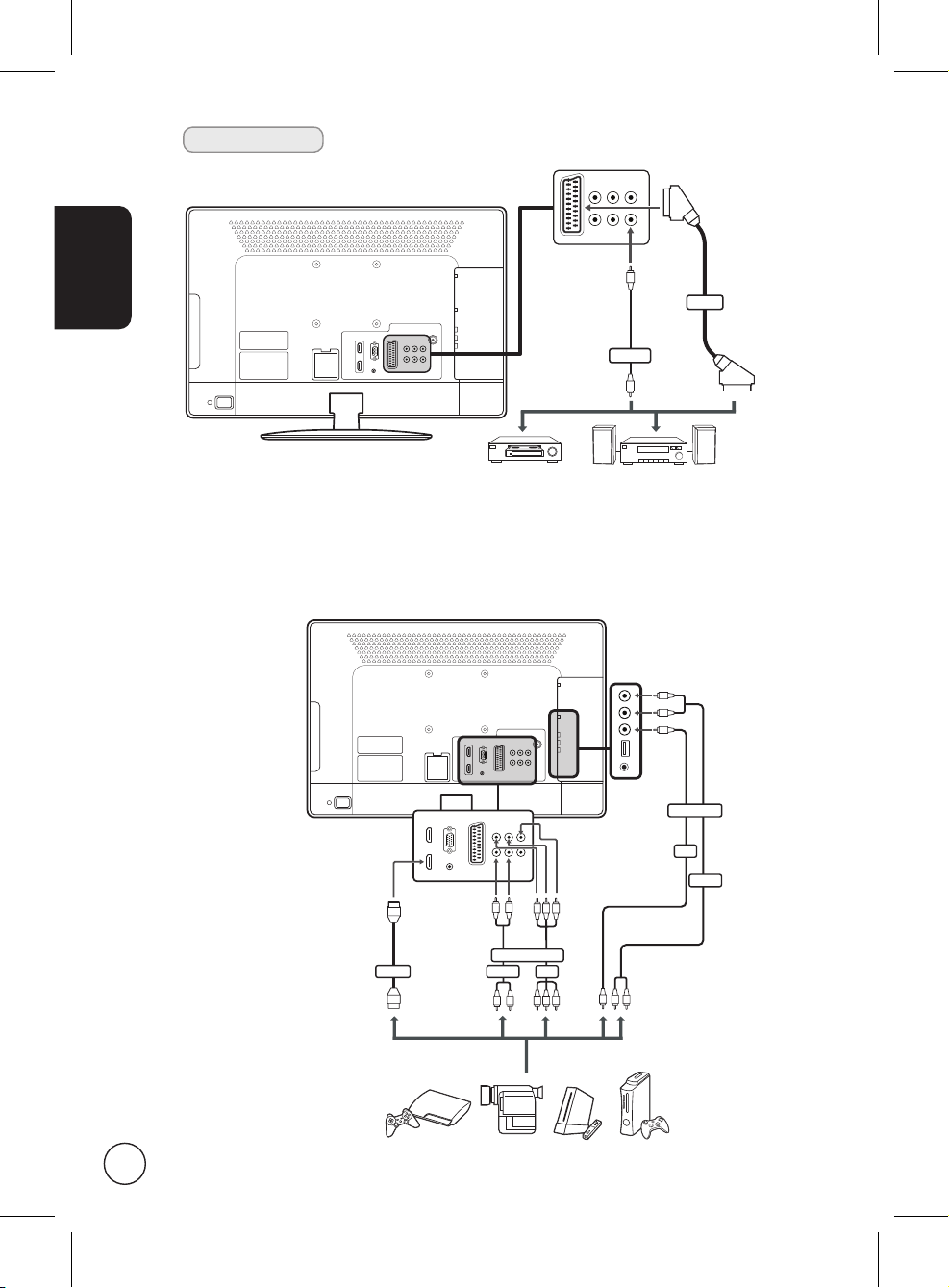
Connecting a camera, camcorder or game console
Connect your camera or camcorder to the video/audio ports on the left of the monitor as shown
below.
R
W
Y
COMPOSITE
12
HDMI
W
R
COMPONENT
AUDIO
W
R
AV
AUDIO
RBG
AV
Y
RBG
R
W
Page 13

Connecting a PC or notebook computer
To display PC output on your monitor, connect your PC or notebook computer to the monitor as
shown below.
D-Sub
D-Sub
For VGA connections, Acer recommends setting your PC’s external monitor resolution
to 1920 x 1080 pixels @ 60 Hz.
English
Connecting a USB storage device
To display multimedia content on your monitor, connect the USB device to the monitor as shown
below.
Handy drive
13
Page 14

English
Selecting the input source
Once you have connected your antenna or external equipment to the monitor, you need to select
the correct input source.
Press the SOURCE button on the remote control to select the correct input source
(TV/YPbPr/AV/SCART/PC/HDMI/USB).
SOURCE
14
Page 15

Playing multimedia files from a USB
storage device
Connecting a USB storage device
Connect the USB storage device to the USB port on your computer.
Press the Source button on the remote control and select USB.
SOURCE
Navigating in the multimedia screen
There are three main areas of the multimedia screen:
English
a
b
c
a. Status bar
The top of the screen shows the type of media being viewed: Photo, Music or Movie, with some
information about the selected file. Press the MENU button and select Media Type to change
the type of media being shown: Select Photo, Music or Video and press the OK button.
15
Page 16

b. Navigation menu
The middle of the screen shows the contents of the USB device. Use the directional keys and
press OK to open a file or folder.
Note: Only files that match the selected media type are displayed.
English
Press the BACK button to return to the folder that contains the folder being viewed.
c. File option bar
The bottom of the screen shows addition options for the file being viewed, such as volume level
or special functions for the coloured buttons on the remote control.
Note: When playing a movie or viewing photos, the top and bottom bars will disappear
after a short delay.
Photo files
Select a photo and press OK to open it. Photo files will be shown in a slideshow, each photo will
be displayed for a short duration. Press Play/Pause to pause the display on a specific photo.
Press Previous (‘Index’) or Next (‘Reveal’) to return to the previous photo, or to view the next
photo.
Press BACK or return to the folder navigation list
16
Music files
Select a music file and press OK to open it. Press Play/Pause to pause a track.
Press Previous (‘Index’) or Next (‘Reveal’) to skip to the previous track or advance to the next
track in the folder.
Press and hold the left and right directional buttons to advance or rewind in a track. Press BACK
to return to the folder navigation list and preview screen.
Page 17

Movie files
Select a movie file and press OK to open it. Press Play/Pause to pause a movie.
Press Previous (‘Index’) or Next (‘Reveal’) to skip to the previous movie or advance to the next
movie in the folder.
You may use the left and right directional buttons to advance or rewind in a movie. Press the
button again to increase how fast the track advances or rewinds (x2/x4/x8/x16).
Press BACK to return to the folder navigation list and preview screen.
Leaving multimedia storage display
Simply stop playback and press Source to select a different source type.
Warning: Do not remove the USB storage device while a media file is playing. Stop
playback and switch to a different source before removing the device from the USB
port.
English
17
Page 18

English
OK
DISPLAY GUIDE
WIDESOURCE
MENU
MUTE
BACK
CANCEL
FAV
MPX
Channel controls
Channel list
Channel list allows you to quickly find the TV channel you are searching for.
OK
To open the channel list feature:
1
OK
2
3
Press the OK key on the remote control. This will bring
up the channel list menu.
The current channel will be highlighted.
Use the directional keys to navigate the list and select
the channel you wish to watch.
Use the red key to switch between the digital and
analogue channel lists.
Use the green key to exit the list.
TELETEXT
SUBTITLE
18
Page 19

Favourite channel list
The favourite channel list allows you to store your favourite TV channels and flick between them
at the touch of a button.
To set a favourite channel, follow the steps described on this page.
Storing favourite channels
English
1
2
3
FAV
Back
Press the FAV key on the remote control. This will bring up
the favourite channel list.
The Favourite list will be shown. Press OK to select, delete or
add a favourite channel.
Press the BACK key on the remote control to exit.
Viewing your favourite channels
FAV
On the remote control, if you press the FAV key, the monitor
will display a list of favourite TV channels. Use the up or down
directional keys to select a channel, and then press OK.
19
Page 20

Programme information
Press the DISPLAY key to see information about the current programme (if available).
a
b
c
English
d
e
a. Programme title
b. Programme schedule
c. Subtitle
If ‘Subtitle’ is displayed press the SUBTITLE key to see a list of available subtitles.
d. Audio language
e. Programme summary
Electronic programme guide
The electronic programme guide (EPG) is an onscreen service available on digital and cable TV
that provides information about scheduled broadcast programmes on all digital channels by time,
title and channel.
GUIDE
20
Page 21

Guide screen
There are four main areas of the EPG screen:
a
c
b
d
The top of the screen shows the type of signal being viewed and the current time; with the
channel number, channel title and selected program name on the right.
The section on the left shows all names for digital channels.
The section on the right shows information about programs for the selected channel: the start
and finish times, any age rating and a summary.
Use the up or down directional keys to switch to the previous or next channel.
Navigating the EPG (for Digital TV mode)
English
GUIDE
OK
GUIDE
1
2
Press the GUIDE key on the remote control.
Use the directional keys to navigate around the EPG menu and press OK
to select your highlighted option.
21
Page 22

English
Time shifting (digital channels only)
Your monitor allows you to temporarily store (‘time shift’) a program to a USB storage device
(digital channels only); this allows you to pause the program, and later resume playback from that
point.
Step 1. Connect a USB storage device to the USB port on your monitor.
Step 2. While viewing a digital TV channel, press PAUSE to start the time shift function. If
the USB storage device has not been configured for use with your monitor, select
Auto in the window that is displayed.
Step 3. Use left and right direction keys to rewind and fast-forward the time-shifted
program.
Step 4. Press BACK to disable time shifting.
Note: The USB storage device must have at least one gigabyte (GB) of free space to
store time shifting information. It is recommended you use an empty USB device.
If a Sleep timer had been set before activating the time shift function, the timer will be
suspended.
Warning: Do not remove the USB storage device while time shifting is active. Disable
time shifting before removing the device from the USB port.
Note: The time shift function cannot store more than four gigabytes of time shift
information. Once four gigabytes of data has been stored, the time shift function will
delete the stored data and restart storing content. This occurs even if more storage is
available.
Record programs to a USB storage device (digital
22
channels only)
Your monitor allows you to record digital TV programs to a USB storage device.
Step 1. Connect a USB storage device to the USB port on your monitor.
Step 2. While viewing a digital TV channel, press STOP/REC to start recording the program.
A confirmation message will be displayed for a short duration.
Step 3. A progress indicator in the lower-left corner of the screen shows the duration of the
recording.
Step 4. Press STOP/REC again to stop recording the program.
Step 5. Use the multimedia player to view your recorded programs (see “Playing multimedia
files from a USB storage device“). Recorded files are stored in the “PVR“ folder.
Warning: Some USB storage devices may not support to the time shifting or recording
functions. Please use a different storage device.
Page 23

OSD navigation
Many of the advanced settings and adjustments are available through using the OSD (onscreen
display) menus, as shown in the example screenshot below.
Basic operations required to navigate these menus (Picture, Audio, Channel management,
Settings and Advanced) are described in this section.
Navigating the OSD with the remote control
MENU
OK
You can also interact with these menus using the right panel controls. Please see "Front
panel view" on page 5 for details.
English
There are five main OSD menus. These are: Picture, Audio, Channel management, Settings
and Advanced. Use the following method to navigate these menus.
1
2
3
MENU
Press the MENU button on the remote control or the MENU button
on the control panel.
Select your desired menu by using the up and down directional
keys to switch between the five menus.
Press OK or the right directional key to enter a menu.
Press BACK or the left directional key to return to the menus.
Use the directional keys to interact with the menu. The up / down
directions will scroll through the menu options, while left/right will
adjust the different settings (for example, in the Picture menu,
settings such as brightness, contrast, etc.). Press MENU to exit.
23
Page 24

Adjusting the OSD settings
The OSD can be used for adjusting the settings of your monitor.
Press the MENU key to open the OSD. You can use the OSD to adjust the picture quality, audio
settings, channel settings and general settings. For advanced settings, please refer to following
page:
English
Adjusting picture quality
1 Press the MENU key to bring up the OSD.
2 Using the directional keys, select Picture from the OSD.
Then navigate to the picture element you wish to adjust.
3 Use the left or right keys to adjust the sliding scales or select
one of the preset scenario modes. Press MENU to save and
exit.
4 The Picture menu can be used to adjust the current
Scenario Mode, Brightness, Contrast, Colour, Tint,
Sharpness and other image-related qualities.
Adjusting sound settings
1 Press the MENU key to bring up the OSD.
2 Using the directional keys, select Sound from the onscreen
display. Then navigate to the feature you wish to adjust.
3 Use the left or right keys to adjust the sliding scales or select
one of the preset scenario modes. Press MENU to save and
exit.
4 The Sound menu can also be used to adjust the the
current Sound Mode, Equaliter, Steady Sound, Sound
Effects and other important sound-related settings.
Adjusting TV settings
1 Press the MENU key to bring up the OSD.
2 Using the directional keys, select TV from the OSD.
3 Use the directional keys to navigate the menus.
4 The TV menu can be used to adjust Tuner mode, Country,
Channels, Channel Edit and other important channelrelated settings.
24
Page 25

Adjusting settings
1 Press the MENU key to bring up the OSD.
2 Using the directional keys, select Settings from the OSD.
Then navigate to the feature you wish to adjust.
3 The Settings menu can be used to adjust the screen Menu
Language, Time, Subtitle, Teletext and other important
settings.
Adjusting Parental settings
1 Press the MENU key to bring up the OSD.
2 Using the directional keys, select Parental from the OSD.
Then navigate to the feature you wish to adjust.
3 The Parental menu can be used to adjust the Channel
block, Parental guidance, Input block, Change
password and other important settings.
The options available on the OSD may vary depending on the signal source and model.
Some digital options may not be available with an analog signal and vice versa.
English
25
Page 26

English
OSD menus
Picture settings
Open the Picture menu as described in the OSD navigation section. This menu provides the
following settings:
Scenario mode
Scenario mode provides preset viewing modes designed to give you the best picture quality when
watching a particular kind of programme. These provide preset values for brightness, contrast,
hue colour and sharpness. There are pre-defined audio and video settings for optimal enjoyment
of the following scenarios: Standard, Movie, Game, Sport, Concert, User.
Mode Information
Standard
Movie
Sport
Concert
Game
User User mode allows you to save your favourite video settings.
Standard mode allows you to watch your favourite channels with sharp, brilliant
imagery via adaptive brightness and contrast adjustments.
For comfortably enjoying movies at home, Movie mode displays dim scenes in
clear detail; compensates for colour; and smoothly presents motion images. This
is accomplished through optimal Gamma correction plus saturation, brightness
and contrast adjustments.
Sport mode is suited for outdoor sports programmes, with accurate background
depth and clear gradation between the bright, outdoor playing field and darker
auditoriums. Sports mode also brilliantly enhances colours and presents swiftly
moving pictures without residual images. All of this is achieved via specific
Gamma corrections and saturation adjustments.
Concert mode places you in a virtual concert hall, opera house or other dim
environment by means of adaptive brightness and contrast adjustments.
Game mode carefully details the exquisite graphics of modern video games,
providing lifelike entertainment while protecting your eyesight by adjusting
brightness and contrast.
26
Page 27

Brightness
Change the brightness of the image.
Contrast
Change the contrast of the image.
Colour
Change the colour depth of the image.
Tint
Change the tint of the image.
Sharpness
Change the sharpness of the image.
Colour temperature
This setting adjusts the colour temperature of the image. You can set it to Standard, Cold, User
or Warm depending on your preference. With the User setting, you may change the colour values
individually.
Advanced
Noise reduction
Reduce any noise on the video signal
Flesh tone
Enhanced flesh tones in the video
English
Backlight
Change the brightness of the backlight
ACM
Activates Automatic Contrast Management to adjust the backlight brightness depending on the
video
27
Page 28

English
Sound settings
Open the Audio menu as described in the OSD navigation section. This menu provides the
following settings:
Sound mode
Scenario mode provides preset audio modes designed to give you the best sound quality when
listening to a particular kind of programme. These provide preset values for treble and bass. There
are pre-defined audio and video settings for optimal enjoyment of the following scenarios: Music,
Speech, User. For example, Music mode accentuates symphonic harmonies and the tenor audio
range.
Equalizer 120 Hz / 500 Hz / 1.5 KHz / 5 KHz / 10 KHz
Adjust the volume for certain frequency bands
Balance
Change the balance between the left and right speakers.
Sound effect
Turn Sound Effects on to add virtual surround sound. If Sound Effects are on, Treble and Bass
settings are not available.
Digital Audio Out
This allows you to set the type of Digital audio signal that is used.
Steady sound
This function prevents sudden changes in the audio output level. If this function is On, volume
levels will be consistent when switching between input sources and changing channels.
28
Audio type
Access audio options for the hard of hearing or visually impaired.
Audio description
Adjust the volume for the spoken menu description for the visually impaired.
Page 29

TV settings
Open the TV menu as described in the OSD navigation section. This menu provides the following
settings:
Tuner mode
Adjust the signal settings to receive Antenna or Cable signals.
Country
Select the country you live in to scan for the correct signals.
Channels
Channel scan
Channel scan allows you to scan for channels. If you completed the setup wizard the first time
you turned on your TV, all available channels are listed.
Wait until the scan has finished; this will take several minutes.
Update scan
Update scan allows you to scan for new or deleted channels.
Wait until the scan has finished; this will take several minutes.
Single RF scan
You can manually add a digital channel by searching in specific UHF channels.
Analogue manual scan
You can manually add an analog channel by adjusting the settings here.
Channel edit
You can edit the detected channels, to change how they are displayed in the channel list. Use the
up or down directional keys to select a channel, direction, OK and number keys to change the
channel number or name.
English
Intelligent zapping
If Intelligent Zapping is on, then channels viewed for less than the period defined here will not be
added to the zapping memory.
29
Page 30

English
Settings
Open the Settings menu as described in the OSD navigation section. This menu provides the
following settings:
Menu language
Set the language displayed for the OSD menus.
Wide mode
Press to toggle scaling mode between Normal, Wide and different zoom modes (1, 2). Auto is
also available when viewing digital TV and HDMI signals.
Time
Use these settings to adjust the time and set the sleep delay.
Time zone
Set your time zone.
Time
Set the time and date.
Sleep
You can set a time delay, after which the monitor will turn off. The delay can be 15, 30, 45, 60, 90
or 120 minutes.
Subtitle
Use these settings to adjust subtitles.
Analogue subtitles
Set if subtitles are displayed when available.
30
1st / 2nd subtitle
Set the 1st and 2nd priority for subtitle languages, if more than one subtitle is available.
Subtitle type
You can choose between normal subtitles and subtitles for the hearing impaired, when these are
available.
Teletext language
Use these settings to adjust digital teletext settings.
Digital Teletext language
Set the language used for digital teletext pages.
Decode page language
Set the type of text used for teletext pages.
Common interface
Displays information about any card installed in the common interface slot.
Reset default
Return all settings to default values, removing any changes.
Page 31

Automatic power off
If Automatic Power Off is active, if the monitor on for four hours without any channel changes or
other activity, it will turn off. A warning message is displayed before the monitor turns off.
On screen help
Show onscreen help messages.
Parental
Open the Parental menu as described in the OSD navigation section. Enter your Password (see
below), then select one of the three options.
Parental control allows you to enter a password and effectively stop anyone without the password
from using the monitor. Three options are available: Channel Block, Age Rating and Change
Password.
MENU
OK
This menu provides the following settings:
English
Channel block
Press OK to see the list of channels. Use the up and down directional keys to select the channel
to block and then press OK. A padlock symbol is displayed next to blocked channels. Press the
OK again to unblock a channel.
When viewing channels, if a blocked channel is selected the monitor will ask for your password.
Enter your password to view the channel.
Parental Guidance
Most digital TV allows you to block content according to rating systems. The rating system used
is dependent on region, and is only available on digital channels. Analog channels will not be
blocked with this option.
Age rating (for digital TV)
The settings cover from 4 to 18 years of age. When you lock a category, the categories for that
age and younger will be blocked.
31
Page 32

English
Input block
Press OK to see the list of input sources (SCART, HDMI, etc.). Use the up and down directional
keys to select the input source to block and then press OK. A padlock symbol is displayed next
to blocked input sources. Press the OK again to unblock an input source.
Set password
You can change the default password to a 4-digit code of your choice. If you are using the
parental controls, then we recommend you change the password periodically.
Clear all
Return all parental settings to default values, removing any changes.
32
The default password for this monitor is “0000.” If you forget your password, please
enter 6163 to reset.
Page 33

Troubleshooting
Before you call the Acer service center, please check the following items:
Here is a list of possible situations that may arise during the use of your monitor. Easy answers
and solutions are provided for each.
There is no picture or sound
• Makesurethepowercordisproperlyinsertedinthepoweroutlet.
• Makesuretheinputmodeiscorrectlysetbyyourselectedinput.
• Makesuretheantennaattherearofthemonitorisproperlyconnected.
• Makesurethemainpowerswitchisturnedon.
• Makesurethevolumeisnotsettominimumorthesoundisnotsettomute.
• Makesuretheheadphonesarenotconnected.
• Receptionotherthanthoseofbroadcastingstationscanbeconsidered.
Picture is not clear
• Makesuretheantennacableisproperlyconnected.
• ConsiderwhetheryourTVsignalisbeingproperlyreceived.
• PoorpicturequalitycanoccurduetoaVHScamera,camcorder,orotherperipheralbeing
connected at the same time. Switch off one of the other peripherals.
• The'ghost'ordoubleimagemaybecausedbyobstructiontotheantennaduetohigh-rise
buildings or hills. Using a highly directional antenna may improve the picture quality.
• Thehorizontaldottedlinesshownonthepicturesmaybecausedbyelectricalinterference,
e.g., hair dryer, nearby neon lights, etc. Turn off or remove these.
English
Picture is too dark, too light or tinted
• Checkthecolouradjustment.
• Checkthebrightnesssetting.
• Checkthesharpnessfunction.
• Theuorescentlampmayhavereachedtheendofitsservicelife.
Remote control does not work
• Checkthebatteriesoftheremotecontrol.
• Makesuretheremotesensorwindowisnotunderstronguorescentlighting.
• Trytocleantheremotecontrolsensorlensonthemonitorwithasoftcloth.
• Usethebuttons(hotkeys)onthemonitorbeforetheremotecontrolworks.
If the above suggestions do not solve your technical issue, please refer to the warranty card for
service information.
33
Page 34

English
PC Input Signal Reference Chart
Item H.Freq. (KHz) Mode Resolution V.Freq. (Hz)
1 31.469 IBM VGA 12H 640x480 59.94
2 35.156 VESA 800x600 56.25
3 37.879 VESA 800x600 60.317
4 48.363 VESA 1024x768 60.004
5 44.772 HD 1280x720 59.855
6 44.776 CVT 2.3MA 1280x768 60
7 47.712 VESA 1360x768 60
8 63.981 VESA 1280x1024 60
9 66.587 FHD 1920x1080 60
34
PC input does not support Sync on Green, Composite Sync or interlaced signals.
Page 35

Product specifications
Model M222HQML M242HML
Panel spec
Resolution (pixels) 1920 x 1080
Brightness (typ.) 250 nit
Contrast Ratio (typ.) 1000:1
Dynamic Contrast Ratio (max.) 12,000,000:1
Viewing angle (typ.) 170x160(CR>=10)
Response (typ.) 5 ms (Gray to Gray)
Power supply
Input 200VAC~240VAC, 50/60 Hz
Max. power
consumption
Power saving < 0.3 W
Mechanical
Dimensions (W x H x D mm) 530.6 x 377.8 x 178.2 590 x 419 x 178.2
Weight (kg) 4.16 4.8
Weight (lbs.) 9.17 10.6
Gross weight (Kg) 5.6 6.1
Gross weight (lbs) 12.35 13.45
Wall-mounting holes VESA, 100mm x 100mm
Analog TV system
Colour system PAL, SECAM
Sound system B/G/D/K/I/L
Stereo system NICAM/A2
Subtitle Teletext 1.5 (1000 pages)
Digital TV system
Digital TV standard DVB-T HD (H.264)/DVB-C
Sound system ISO11172-3 layer1 & layer2
Stereo system MPEG ( Layer I & II ), HE-AAC
Frequency 7/8 MHz
50W 60W
32KHz, 44.1KHz, 48KHz
Dolby AC-3/AC-3 +
English
35
Page 36

English
Model M222HQML / M242HML
Terminal
Analog/Digital Tuner In Hybrid
SCART CVBS (In/Out), RGB (In), Audio R/L
Component in YPbPr, Audio (R/L)
AV-in CVBS, Audio (R/L)
HDMI 1 Yes (HDMI 1.3)
HDMI 2 Yes (HDMI 1.3)
PC D-sub in Yes
PC audio in Yes
SPDIF out Yes (Coxial)
Headphone out Ye s
USB Port Yes
Resolution
HDMI 480i/p, 576i/p, 720p, 1080i, 1080p
Audio system
Speakers 3W + 3W
Mutimedia support via USB
File system FAT/FAT32
Photo JPG, BMP, PNG
Audio MP3, WMA
Video MPEG-2, H.264
36
Page 37

Wall mount preparation /
removing the base
Caution: Disassemble the base carefully otherwise the plastic parts and/or monitor
body may be damaged.
1) Remove the base.
2) Remove the screws from inside the stand.
English
3) Assemble the wall mount following the instructions included with the wall mount.
37
 Loading...