

Page 1

TM
Maintenance Manual
Extensa
51x Series
Notebook Computers
9811755-0001
April 1996
Page 2

Copyright (©) 1996 Texas In struments Incorporated
All Rights Reserved — Printed in U.S.A.
Extensa 51x Series Notebook Computers
Maintenance Manual
TI Part No. 9811755-0001
Original Issue: April 1996
Changes may be made periodically to the information in this publication.
Such changes will be incorporated in new editions of this manual.
No part of this publication may be reproduced, stored in a retrieval system,
or transmitted, in any form or by any means, electronic, mechanical, photocopy, recording, or otherwise, without the prior written permission of Texas
Instruments Incorporated.
The equipment, as well as the programs that TI has created to use with
them, are tools that can help people better manage the information used in
their business; but too ls — i nc luding TI products — cann o t replace sound
judgment nor make the manager’s business decisions.
Consequently, TI cannot warrant that its products are suitable for any specific customer application. The manager must rely on judgment of what is
best for his or her business.
Address all correspondence regarding orders to:
Texas Instruments Incorporated
P.O. Box 6102, M/S 3255
Temple, Texas 76503
Extensa is a trademark of Texas Instruments.
The icons in the Windows Notebook and Startup Groups are copyrighted by
Texas Instruments.
Intel and Pentium are registered trademarks of Intel Corporation.
PS/2 is a registered trademark, and IBM, AT and VGA are trademarks of
International Business Machines Corp or ation.
Microsoft and Windows are registered trademarks of Microsoft Corporation.
IRDA is a trademark of Infra Red Data Association.
SimulSCAN and Cirrus are trademarks of Cirrus Logic, Inc.
Page 3

Preface
1 General Description
1.1 . . . . Introduction . . . . . . . . . . . . . . . . . . . . . . . . . . . . . . . 1-1
1.2 . . . . Product Models . . . . . . . . . . . . . . . . . . . . . . . . . . . . 1-1
1.3 . . . . International Product Ve rsions. . . . . . . . . . . . . . . . . 1-2
1.4 . . . . Product Overview . . . . . . . . . . . . . . . . . . . . . . . . . . . 1-2
1.4.1 . . . External Ports . . . . . . . . . . . . . . . . . . . . . . . . . . . 1-5
1.4.2 . . . Touchpad Pointing Device . . . . . . . . . . . . . . . . . . 1-6
1.4.3 . . . Keyboard . . . . . . . . . . . . . . . . . . . . . . . . . . . . . . . 1-6
1.4.4 . . . Standard Power Features . . . . . . . . . . . . . . . . . . . 1-9
1.4.5 . . . Preloaded Software. . . . . . . . . . . . . . . . . . . . . . . . 1-9
1.4.6 . . . Notebook Expansion Capabilities . . . . . . . . . . . . . 1-10
Contents
1.5 . . . . Standard Test Features . . . . . . . . . . . . . . . . . . . . . . 1-10
1.6 . . . . Notebook Assemblies and Subassemblies . . . . . . . . . 1-10
1.6.1 . . . Cover-Display Assembly . . . . . . . . . . . . . . . . . . . 1-11
1.6.2 . . . System Base Assembly . . . . . . . . . . . . . . . . . . . . 1-12
1.7 . . . . Extensa 51x Series Notebook Specifications . . . . . . . 1-12
1.8 . . . . Agency Approvals . . . . . . . . . . . . . . . . . . . . . . . . . . . 1-14
2 Installation
2.1 . . . . Introduction . . . . . . . . . . . . . . . . . . . . . . . . . . . . . . . 2-1
2.2 . . . . Unpacking Instructions . . . . . . . . . . . . . . . . . . . . . . 2-1
2.3 . . . . Installing Notebook Options . . . . . . . . . . . . . . . . . . 2-1
2.3.1 . . . Installing Dual Inline Memory Module(s) . . . . . . 2-1
2.3.2 . . . Installing PCMCIA Options . . . . . . . . . . . . . . . . . 2-3
2.3.3 . . . Installing the Optional Numeric Keypad . . . . . . 2-4
2.4 . . . . Installing the Battery Pack(s) . . . . . . . . . . . . . . . . . . 2-4
2.5 . . . . Installing External Devices. . . . . . . . . . . . . . . . . . . . 2-5
2.5.1 . . . Installing an External Keyboard/Mouse . . . . . . . 2-6
Contents
iii
Page 4

2.5.2 . . . Installing External Parallel Printer . . . . . . . . . . . . 2-7
2.5.3 . . . Installing External Serial Port Device . . . . . . . . . 2-8
2.5.4 . . . Installing External VGA Monitor. . . . . . . . . . . . . . 2-9
2.5.5 . . . Installing External Microphone . . . . . . . . . . . . . . 2-10
2.5.6 . . . Installing External Audio Input Devices . . . . . . . . 2-10
2.5.7 . . . Installing External Audio Output Devices. . . . . . . 2-10
2.6 . . . . Installing the AC Power Adapter . . . . . . . . . . . . . . . 2-10
2.7 . . . . Initial System Checkout . . . . . . . . . . . . . . . . . . . . . . 2-11
2.8 . . . . Configuring the System . . . . . . . . . . . . . . . . . . . . . . . 2-11
2.9 . . . . Making Backups of System Software . . . . . . . . . . . . . 2-11
2.10 . . . Loading Application Software . . . . . . . . . . . . . . . . . . 2-11
3 Operating Instructions
3.1 . . . . Introduction . . . . . . . . . . . . . . . . . . . . . . . . . . . . . . . 3-1
3.2 . . . . Notebook Controls and Indicators . . . . . . . . . . . . . . . 3-1
3.2.1 . . . Button Switches. . . . . . . . . . . . . . . . . . . . . . . . . . 3-2
3.2.2 . . . Cover Release Latch . . . . . . . . . . . . . . . . . . . . . . . 3-2
3.2.3 . . . Touchpad Controls. . . . . . . . . . . . . . . . . . . . . . . . 3-3
3.2.4 . . . Keyboard Mode LEDs. . . . . . . . . . . . . . . . . . . . . . 3-3
3.3 . . . . Operating Procedures . . . . . . . . . . . . . . . . . . . . . . . 3-3
3.3.1 . . . Floppy Drive Operating Procedures . . . . . . . . . . . 3-3
3.3.2 . . . Installing/Removing PCMCIA Options . . . . . . . . . 3-4
3.3.3 . . . Computer Hot Keys . . . . . . . . . . . . . . . . . . . . . . . 3-4
3.3.4 . . . Responding to Low Battery Conditions . . . . . . . . . 3-5
3.3.5 . . . Minimizing Power Usage. . . . . . . . . . . . . . . . . . . . 3-5
3.3.6 . . . Recharging the Battery Packs. . . . . . . . . . . . . . . . 3-5
3.3.7 . . . Restoring Missing System Files . . . . . . . . . . . . . . 3-6
3.3.8 . . . Rebuilding the System Software. . . . . . . . . . . . . . 3-6
iv
Contents
4 Theory of Operation
4.1 . . . . Introduction . . . . . . . . . . . . . . . . . . . . . . . . . . . . . . . 4-1
4.2 . . . . Notebook Functional Description. . . . . . . . . . . . . . . . 4-1
4.2.1 . . . Processor/Memory Subsystems . . . . . . . . . . . . . 4-1
4.2.2 . . . I/O Subsystem . . . . . . . . . . . . . . . . . . . . . . . . . . 4-3
Page 5

4.2.3 . . . Video Subsystem . . . . . . . . . . . . . . . . . . . . . . . . . 4-4
4.2.4 . . . Hard Disk Subsystem . . . . . . . . . . . . . . . . . . . . . 4-5
4.2.5 . . . Floppy Diskette Drive Subsystem. . . . . . . . . . . . . 4-5
4.2.6 . . . PCMCIA Subsystem . . . . . . . . . . . . . . . . . . . . . . . 4-6
4.2.7 . . . Power Subsystem. . . . . . . . . . . . . . . . . . . . . . . . . 4-6
5 Troubleshooting Procedures
5.1 . . . . General . . . . . . . . . . . . . . . . . . . . . . . . . . . . . . . . . . . 5-1
5.2 . . . . Overview of Fault Isolation Process . . . . . . . . . . . . . . 5-1
5.3 . . . . Troubleshooting Procedures . . . . . . . . . . . . . . . . . . . 5-3
5.3.1 . . . Troubleshooting a Power Supply Problem. . . . . . . 5-3
5.3.2 . . . Troubleshooting a Display Problem . . . . . . . . . . . 5-5
5.3.3 . . . Fault Isolation Using Self Test . . . . . . . . . . . . . . . 5-5
5.3.4 . . . PCMCIA Modem Problems . . . . . . . . . . . . . . . . . . 5-5
5.3.5 . . . Fault Isolation Using Diagnostics . . . . . . . . . . . . 5-6
6 Field Service
6.1 . . . . Introduction. . . . . . . . . . . . . . . . . . . . . . . . . . . . . . . 6-1
6.2 . . . . Preventive Maintenance . . . . . . . . . . . . . . . . . . . . . . 6-1
6.2.1 . . . Cleaning the Computer . . . . . . . . . . . . . . . . . . . . 6-1
6.2.2 . . . Protecting the Disk Drives . . . . . . . . . . . . . . . . . . 6-2
6.2.3 . . . Handling the Computer Battery Pack . . . . . . . . . . 6-2
6.2.4 . . . Restoring System Software. . . . . . . . . . . . . . . . . . 6-2
6.3 . . . . Required Tools and Equipment . . . . . . . . . . . . . . . 6-3
6.4 . . . . Notebook Field-Replaceable Parts and Assemblies. . . 6-3
6.4.1 . . . Display Assembly. . . . . . . . . . . . . . . . . . . . . . . . . 6-3
6.4.2 . . . System Base Assembly. . . . . . . . . . . . . . . . . . . . . 6-5
6.5 . . . . Notebook Subassembly Removal and
. . . . . . . Replacement Procedures . . . . . . . . . . . . . . . . . . . . . 6-7
6.5.1 . . . Removing/Replacing the Notebook Battery Pack . 6-7
6.5.2 . . . Removing/Replacing the Keyboard Assembly. . . . 6-8
6.5.3 . . . Removing/Replacing the Heat Sink . . . . . . . . . . . 6-9
6.5.4 . . . Opening/Replacing the Upper Case Assembly . . . 6-10
6.5.5 . . . Removing/Replacing the Floppy Disk Assembly . 6-11
6.5.6 . . . Removing/Replacing the Hard Drive . . . . . . . . . . 6-11
6.5.7 . . . Removing/Replacing DIMM Modules . . . . . . . . . . 6-13
Contents
v
Page 6

6.5.8 . . . Removing and Replacing the Display Assembly . . 6-13
6.5.9 . . . Removing and Replacing the Inverter Board
. . . . . . . or Contrast Board . . . . . . . . . . . . . . . . . . . . . . . . 6-13
6.5.10 . . Removing/Replacing the Touchpad Assembly . . . 6-14
6.5.11 . . Removing/Replacing the Smart Battery Board
. . . . . . . Control Board . . . . . . . . . . . . . . . . . . . . . . . . . . . 6-15
6.5.12 . . Removing/Replacing the Charger/Power Supply
. . . . . . . Board Assembly . . . . . . . . . . . . . . . . . . . . . . . . . 6-15
6.5.13 . . Removing/Replacing the Main Board . . . . . . . . . . 6-15
6.5.14 . . Removing/Replacing the Pentium Chip . . . . . . . . 6-16
A
Self Test Error Messages
A.1 . . . . Introduction. . . . . . . . . . . . . . . . . . . . . . . . . . . . . . . A-1
B
PC-Doctor Diagnostics
B.1 . . . . Introduction . . . . . . . . . . . . . . . . . . . . . . . . . . . . . . . B-1
B.2 . . . . Starting PC-Doctor . . . . . . . . . . . . . . . . . . . . . . . . . . B-1
B.3 . . . . Mouse Navigation . . . . . . . . . . . . . . . . . . . . . . . . . . . B-2
B.4 . . . . PC-Doctor Menus . . . . . . . . . . . . . . . . . . . . . . . . . . . B-2
B.4.1 . . . Online Help (?) . . . . . . . . . . . . . . . . . . . . . . . . . . . B-2
B.4.2 . . . Diagnostics . . . . . . . . . . . . . . . . . . . . . . . . . . . . . B-2
B.4.3 . . . Interactive Tests Menu. . . . . . . . . . . . . . . . . . . . . B-3
B.4.4 . . . Hardware Info Menu . . . . . . . . . . . . . . . . . . . . . . B-4
B.4.5 . . . Utility Menu. . . . . . . . . . . . . . . . . . . . . . . . . . . . . B-4
B.5 . . . . Quitting PC-Doctor . . . . . . . . . . . . . . . . . . . . . . . . . . B-5
B.6 . . . . Remote Operation . . . . . . . . . . . . . . . . . . . . . . . . . . . B-5
vi
Contents
Page 7

Preface
Introduction
This manual provides installation, operation and servicing data for the
Extensa 51x Series Notebook Computers.
Intended Audience
This manual is primarily intended for use by qualified service technicians
but contains information useful to non-te chnical users.
Contents
This manual contains six sections and multiple reference appendices
including:
Section 1: General Description —
•
notebook family; provides a list of physical and electrical specifications.
Section 2: Installation —
•
cable up the notebook computer in a desktop environment.
Section 3: Operating Instructions —
•
operating controls and indicators and modes of operation.
Section 4: Theory of Operation —
•
operation for Extensa Series notebooks.
Section 5: Troubleshooting —
•
the Extensa 51x Series notebooks.
Section 6: Field Service —
•
procedures for the notebook computer.
Appendix A: Self Test Error Messages
•
Appendix B: PC-Doctor Reference Data
•
Describes ho w to unpack, install options and
Provides corrective maintenance
Introduces the main features of the
Describes the no tebook
Describes detailed theory of
Provides troubleshooting procedures for
Preface
vii
Page 8

Other Manuals About the System
The following docu ments provide addi ti o nal information related to the
Extensa 51x Series:
Extensa Series Notebook Computer User’s Reference Manual
•
contains reference information regarding the Extensa Series Notebook
Computer software including the TI custom utilities.
Windows® 95 Help
•
PC-Doctor Help and Technical Reference
•
(online)
(online)
Ordering Parts and Supplies
To order a copy of any TI publication or to order option kits, spare parts or
supplies for your system, contact your TI Reseller or:
Telephone Toll-fr ee:
1-800-TI TEXAS
viii
Preface
Page 9
1
General Description
1.1
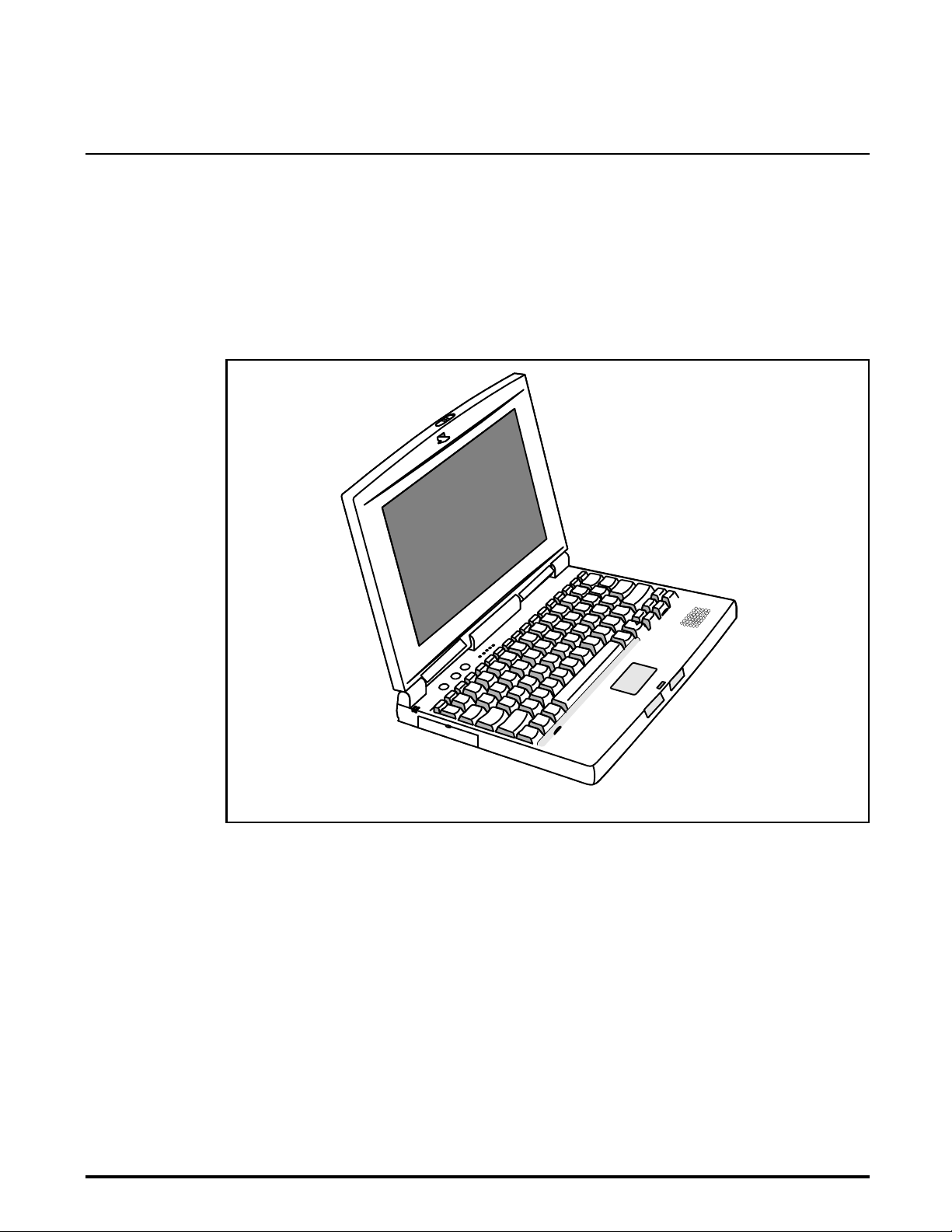
This manual contains field and factory level servicing information for the
Texas Instruments Ex tensa 51x Series of Notebook Computers (Figure
1-1). This section provide s a general over vi ew and specifi ca tions for the
Extensa 51x Series No tebook Computers.
Introduction
Figure1-1 Extensa 51x Series Notebook Computer
1.2
The two initial offerings in the 51x Series are differentiated by the software
installed on the system at the factory. The Model 510 contains W indows
and the Model 515 includes Windows 95 and a variety of applications as
summarized in Table 1-1. Each model may contain either the 540 million
byte hard disk drive (-00xx part number suffix) or 810 million byte hard
drive (-01xx part numb er suffix).
Product Models
®
General Description
95
1-1
Page 10

Table 1-1 Extensa 51x Series Notebook Computers
Model 510 Model 515
•
U.S. Version
Windows 95 or Windows
for Workgroups
•
Non U.S. Versions
Windows 95
1.3
The Extensa 51x Series Notebooks are available in one of 15 domestic and
international configurations as listed in Table 1-2.
Table 1-2 Notebook Domestic/International Configurations
International Product Versions
Windows 95 Plus Mi c rosoft
Works, Quicken SE, Lotus
Organizer, and Microsoft
Entertainment Pack
Configuration P/N Suffix Configuration P/N Suffix
Domestic -0001 Swedish -0010
UK -0002 Swiss/French -0011
German -0003 Danish -0012
French -0004 Norwegian -0013
Spanish -0005 Finish -0014
Swiss/German -0006 Belgium -0015
Italian -0007 Austrian -0016
Portuguese -0008 Asia Pacific -0017
Western European -0009 Latin American -0018
Chinese -0019
1.4
All members of the Extensa 51x Series are high performance notebooks
powered by the 100 MHz Pentium processor and Windows 95 Operating
System software. As a standard feature, all members of the Extensa 51x
family also contain the following features:
8 MB of EDO RAM memory (user-expandable to 40 MB)
•
Product Overview
1-2
General Description
128 bytes of battery-backed up CMOS RAM
•
1 MB of video RAM
•
Page 11

540 or 810 Million Byte Hard Drive (user replaceable)
•
Support for two PCMCIA Type I or II options or one Type III PCMCIA
•
option card
Ergonomic keyboard with palm rest (2.7 mm travel); built-in touchpad
•
pointing device
Most standard external device interfaces including serial, parallel,
•
®
PS/2
3.5-inch, 1.44 MB Floppy Drive
•
10.4 inch Dual Scan Color LCD
•
AC Adapter with autosensi ng (1 00 VAC to 240 VAC, 50 to 60 Hz); 34
•
Watts of DC output power
10.8 Volt, 2400 mAH capacity, Nickel-Metal Hydride (NiMH); Standard
•
Duracell DR35 battery pack
, and external VGA.
Built-in monaural speaker with ESS1688 sou nd so l u ti o n
•
Three audio j a cks: Line-In, Line- O ut, and Microp ho ne-In.
•
General Description
1-3
Page 12
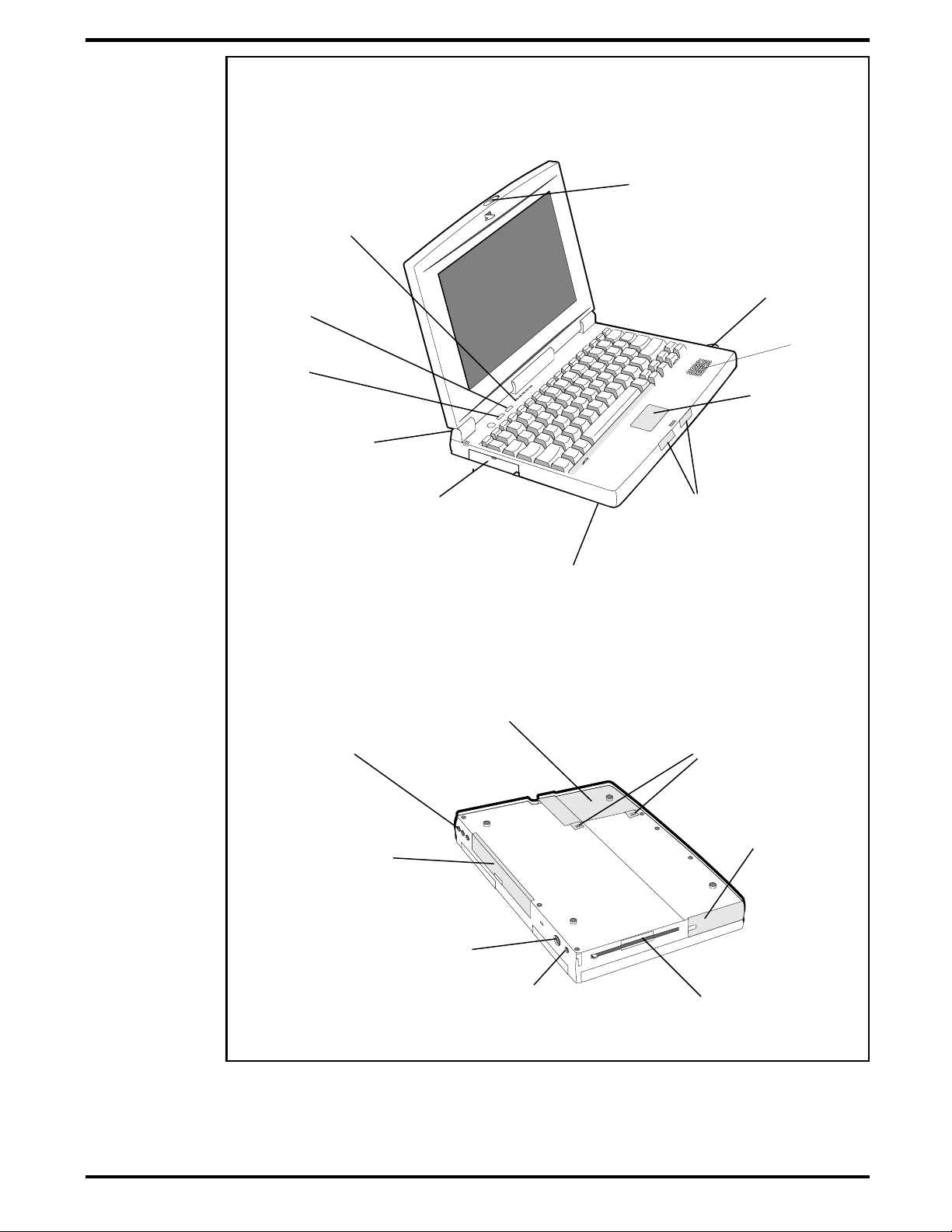
Touchpad
Pointing Device
Touchpad
Select Buttons
Power On/Off
Button
Cover Release
Button
Five Status
LEDs
Primary Battery Pack
(Accessible from Right Side)
Hard Drive
(Accessible from Underneath)
Setup
Button
Standby/Suspend
Button
Type I /11 or III
PCMCIA Slot
Primary Battery
Cover
Hard Drive
Cover
Floppy Drive
Assembly
Audio Line/Mic
Jacks
HDD Release
Latches
Power In
Connector
PS/2
Connector
VGA, Serial
and Parallel
Connector
Door
Speaker
Figure 1-2 Extensa 51x Series Features
1-4
General Description
Page 13

1.4.1
As shown in Figure 1-3, the notebook computer contains the following
external ports:
9-Pin Serial Port for attaching any RS-232 type serial device to the
•
Notebook
25-Pin Parallel Port for attaching bidirectional parallel devices
•
Audio Line-In, Line-Out, and Microphone-In
•
15-Pin External VGA Monitor Port for attaching an external monitor
•
6-Pin PS/2 Port to attach an external Keyboard or Mouse
•
AC Adapter Connector for attaching the AC Adapter to the notebook
•
External Ports
AC Adapter
Connector
External PS/2
Port (Mouse/Keyboard
Port)
Figure 1-3 Notebook External Ports
External VGA
Port
Serial
Port
Parallel
Port
Audio Line
Output
External
Microphone
Input
Audio Line
Input
General Description
1-5
Page 14
1.4.2
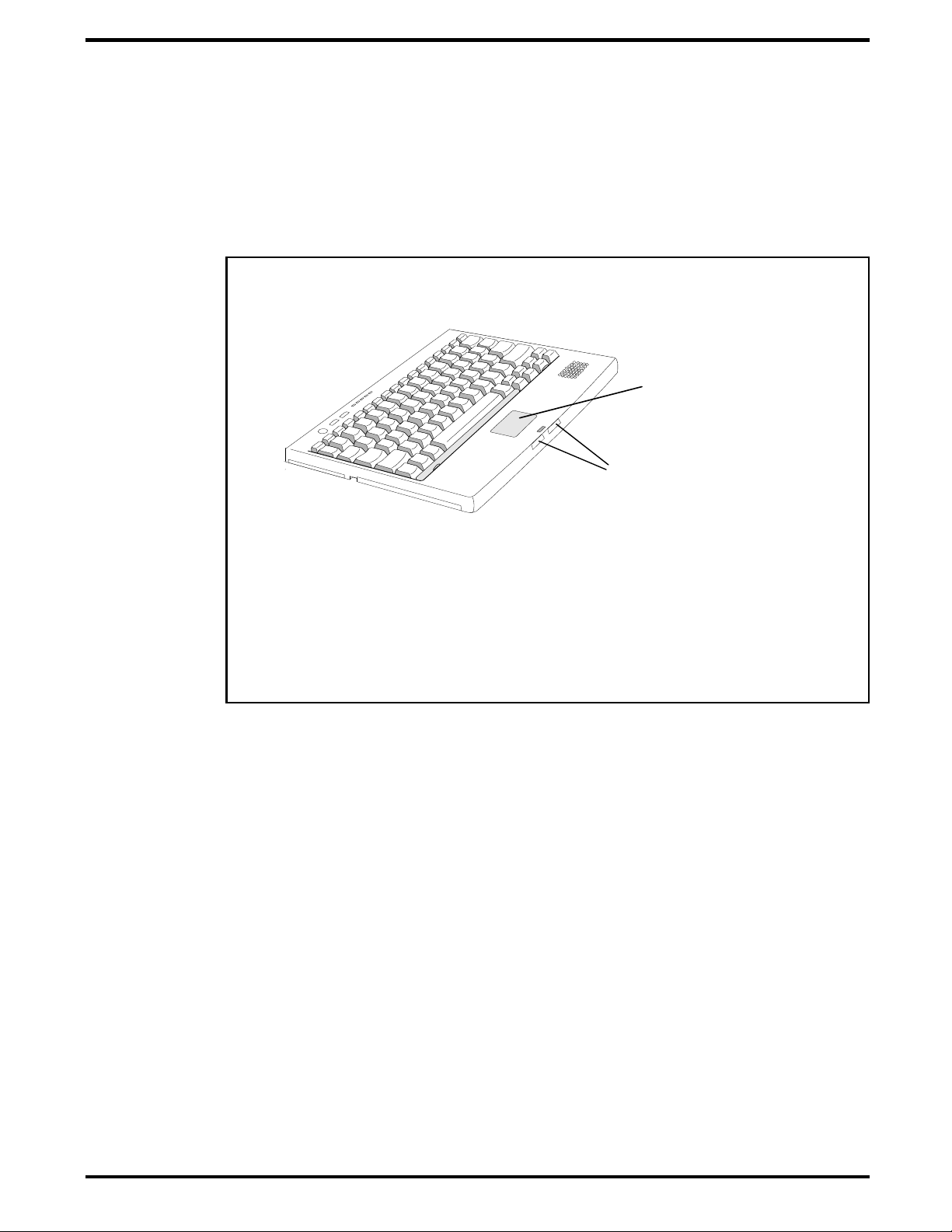
All members of the Extensa family feature a built-in touchpad pointing
device located near the center of the ke yboard palmrest. With light pressure,
the cursor can quickly be positioned to the de si red point; a quick double tap
on the touchpad and you have selected an object. Two select buttons
(switches) are loca ted along the front edge o f the notebook
.
Touchpad Pointing Device
Touchpad
Point ing Devic e
Select Buttons
Figure1-4 Extensa Touchpad
1.4.3
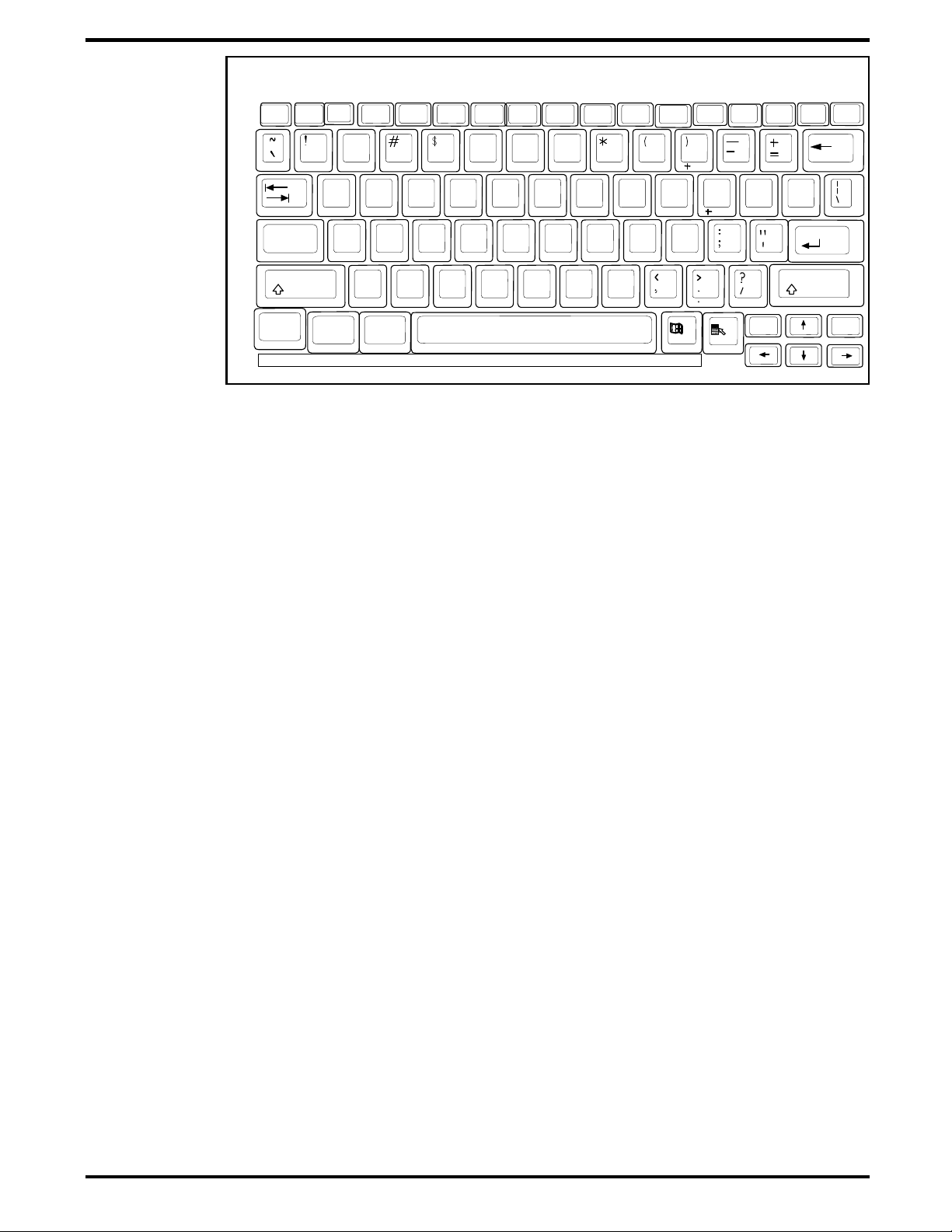
The Extensa Series Keyboard is an IBM enhanced-type keyboard with the
standard character and function keys plus 12 programmable function keys
(F1 through F12) .
Using the Sp ecial Functio n (Fn) key which assigns multiple functions to
keys, the keyboard can e m u late the IBM 101/102 keybo ards.
The keyboard f eatures a special keyboard interface chip that can detect
multiple levels of key input (good simulation of N-key rollover for up to 10
keys).
Some of the major features of the keyboard include:
Integrated numeric keyp a d
•
Keyboard
1-6
General Description
Page 15

"Inverted T" Cursor Control Key layout
•
The notebook keyboard is available in the following v er sions:
U.S. English Keyboard, TI Part No. 9811398-0001- This version (also
•
known as the domestic version) is generally used in the United States
and Canada.
International versio ns include:
•
•
United Kingdom Keyboard, TI Part No. 9811398 -0002
•
German Keyboard, TI Part No. 9811398 -0003
•
French Keyboard, TI Part No. 9811398 -0004
•
Spanish Keyboard, TI Part No. 9811398 -0005
•
Swiss Keyboard, TI Part No. 9811398 -0006
•
Italian Keyboard, TI Part No. 9811398 -0007
n
•
Portuguese Keyboard, TI Part No. 9811398 -0009
•
Swedish Keyboard , TI Part No. 9811398 -0010
•
Denmark Keyboard, TI Part No. 9811398 -0012
•
Norwegian Keyboard; TI Part No. 9811398 -0013
•
Belgium Keyboard, TI Pa rt No. 9811398 -0014
•
Finish Keyboard, TI Part No. 9811398 -0015
Note
: The Extensa Series Notebook Computer User’s Reference Manual contains descriptions of keyboard special function keys. A six-pin Mini-DIN connector can attach to either an external PS/2 keyboard (or 101 Keyboard via
an adapter), PS/2 Mouse, or the optional PS/2 Numeric Keypad.
General Description
1-7
Page 16
Esc
Cap s
Lock
Shift
Fn
F2
F1
@
1
Q
A
Ctrl
F3 F5F4
2
345
E
W
S
DFG
X
Z
Alt
Figure1-5 Extensa Keyboard
%
R
T
C
V
NumLock PrtSc
^
67
Y
B
F9F8F7F6
SysRq
&
7
U
4
HJ
1
N
F11
F10
Pause
ScrLock
8
9
8
9
I
O
56
K
23
M
0
0
F12
Break
0
P
L
PgDn
{
[
Hom
PgDn
e
Shift
}
]
Insert
Enter
Delete
E
nd
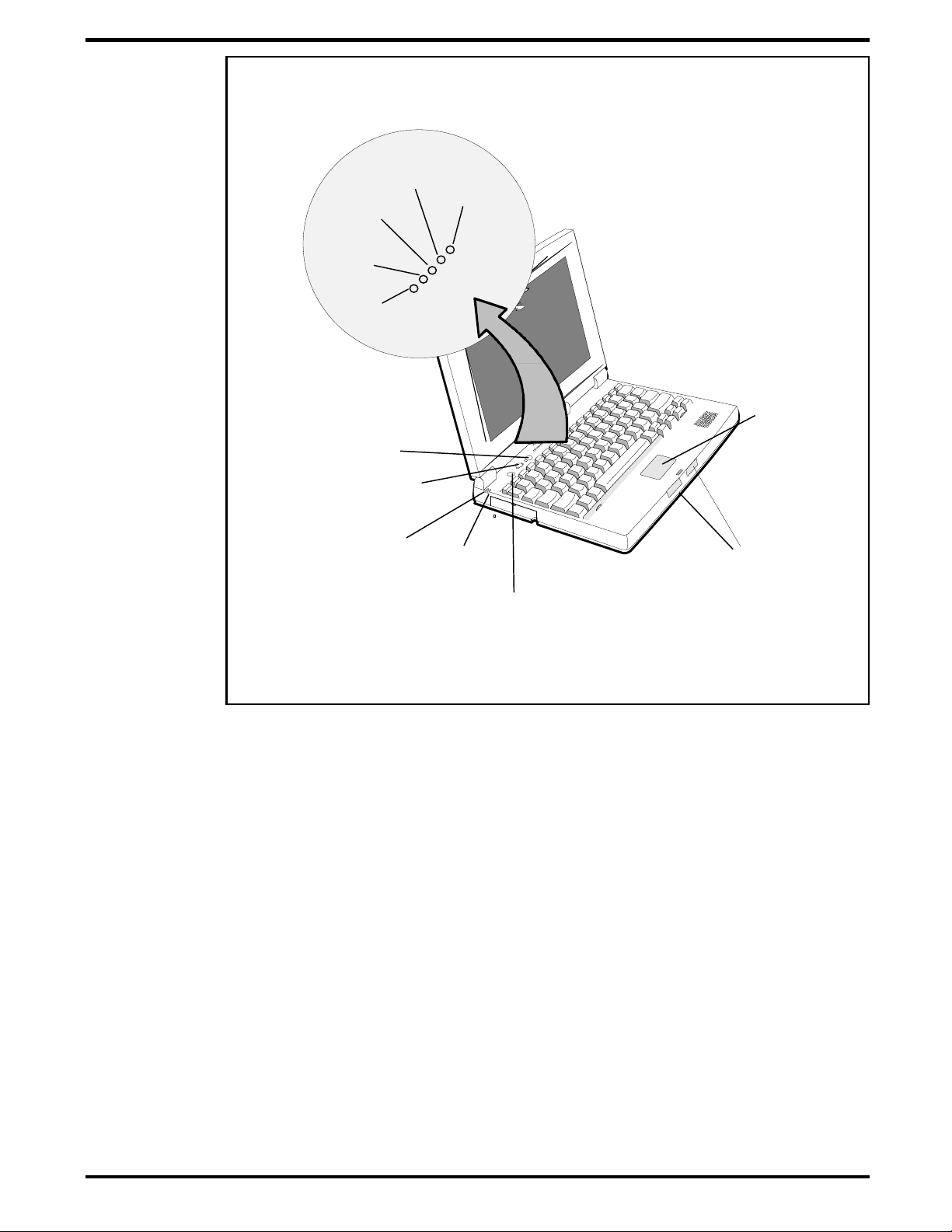
1.4.3.1 Controls and Indicators
As shown in Figure 1-6, Extensa Series Notebook Computers contain a set
of three buttons (switches) and five LED displays just above the keyboard
including:
Power, Setup, and Standby/Suspend Buttons (Switches)
•
Sleep Mode
•
Mode.
Hard Drive
•
accessing the hard drive (read or write).
Num Lock
•
toggle on the numeric keypad lock function. When the LED is On, the
embedded numeric keyboard keys generate AT keypad characters and
functions when pressed in conjun ction with the
indicator is Off, pressing the Fn key with the appropriate keys provides
cursor movement, paging and other functions in the normal mode.
Caps Lock
•
the uppercase mode. To switch to the lowercase mode, press the
Lock
key.
Indicator. This LED li gh ts when the noteboo k is in Sleep
Activity Indicator. This LED lights when the notebook is
indicator. This LED lights when you press the NumLk key to
Shift
key. When the
indicator. This LED indicates that the keyboard is locked in
Caps
1-8
General Description
Scroll Lock
•
indicator. This LED ligh ts to i ndicate that the keyboa rd i s
locked in the scroll mode.
•
Standby
Indicator. Lights when Notebook is in Standby mode.
Page 17
Touchpad
Pointing Device
Touchpad
Select Buttons
Power On/Off
Button
Power
LED
Standby/Suspend
Button
Setup Button
Charging
LED
Status
LEDs
Scroll
Lock
Caps
Lock
Num
Lock
Hard Dri ve
Activity
Sleep
Mode
Figure1-6 Extensa Series Controls and Indicators
1.4.4
Standard Power Features
Notebook power for the Extensa 51x Series Notebook Computers is provided
by an AC Adapter and a rechargeable 10.8 V, 2400 mAh Duracell DR35
nickel metal hydride (NiMH) battery pack that installs in a bay near the
front of the notebook (right side).
All members of the Extensa 51x family feature a powerful Power
Management subsystem (hardware and software) that provides longer
portable operation and protection of files during low battery conditions.
1.4.5
Preloaded Software
All members of the Extensa 51x Notebook family are preloaded with the
Windows 95 Op erating System. In addition, the Ex tensa Model 515 is
shipped from the factory with the following software application packages
installed on the hard drive:
General Description
1-9
Page 18

Microsoft Works
•
Quicken SE
•
Lotus Organizer
•
Microsoft Entertainment Pack No. 4
•
1.4.6
Expansion capabilities bu il t i nt o th e Ex tensa notebook serie s inc lude:
User installable expansion RAM memory (to a maximum of 40 MB);
•
notebook accepts either fastpage mode or EDO RAM modules.
A Cable-Connect PS/2 Numeric Keypad option, TI Part No.
•
2581381-0001, can be attached to the ext ern al PS/2 Port.
A parallel de vi ce can be attached to the noteb o ok’s external 25 -pin
•
parallel port (EPP/ECP compatible).
Serial RS-232 Port for attaching any serial device
•
External VGA Port for driving an external color monitor
•
Third Party External PS/2 keyboard (or external mouse)
•
Three audio jacks (line-in/out and microphone in)
•
Notebook Expansion Capabilities
1-10
1.5
The Extensa Series Notebook Computers use modular design and built-in
test features to reduce the mean time to repair. A power on self test
automatically verifies the operational state of the primary circuits and a
powerful suite of diagnostic tests are available to further test selected parts
of the system.
1.6
The Extensa Series Notebooks are modular in design and can be
disassembled for maintenance purposes using a standard set of flat-bladed,
Phillips-head and hexagonal screwdrivers. The major assemblies that
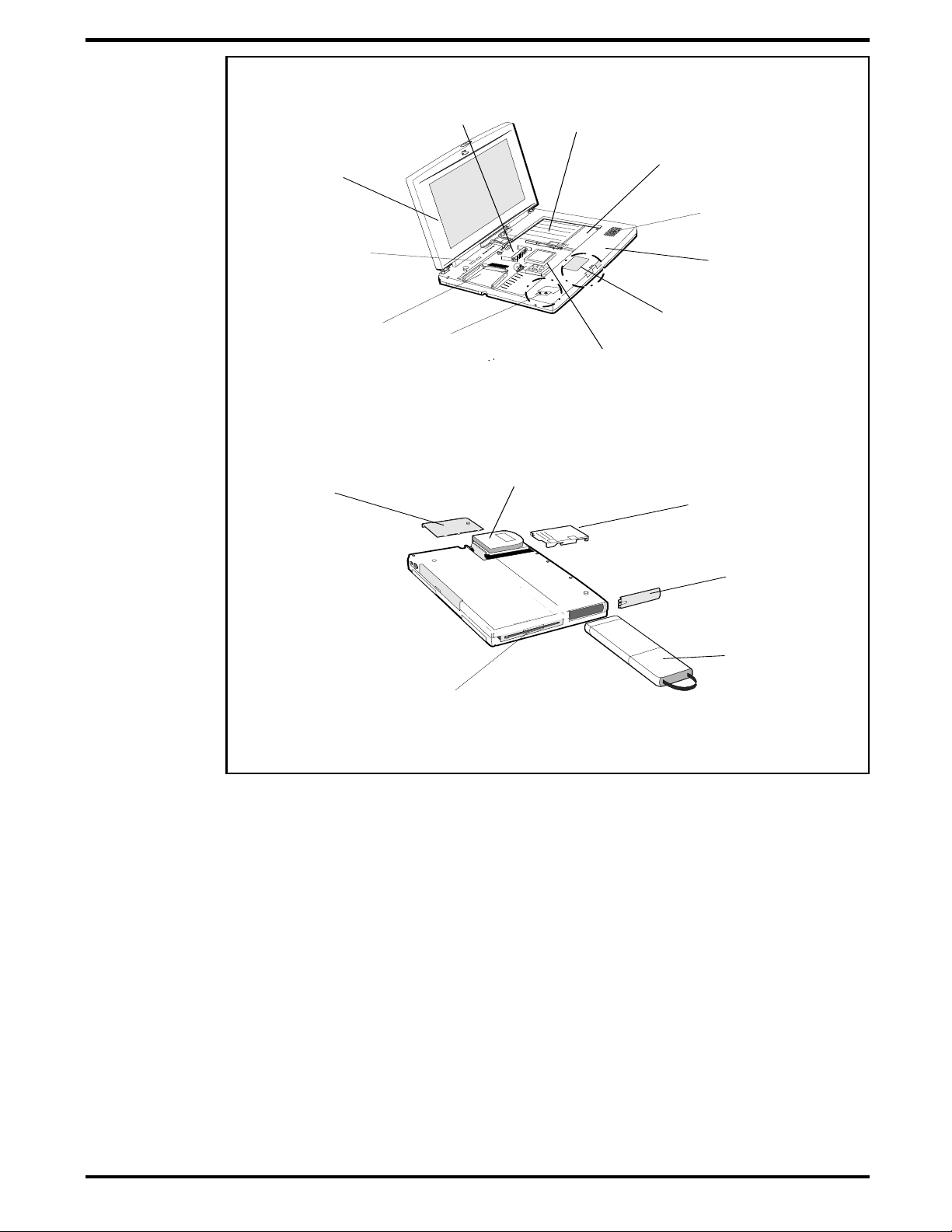
comprise a typical notebook in the Extensa family are shown in Figure 1-7
and briefly described in the following paragraphs.
General Description
Standard Test Features
Notebook Assemblies and
Subassemblies
Page 19
Display
Assembly
Memory
Expansion
Sockets
Floppy Drive
Assembly
Charger/Power
Supply Board
Speaker
Assembly
LED/Switch
Board
Assembly
Main
Board
Assembly
Hard Drive
Cover
Battery
Board
Floppy Drive
Assembly
Top Case
Assembly
TouchPad
Assembly
Pentium
CPU
Hard Drive Assembly
Hard Drive
Outer Cover
Battery End
Cover
Battery
Pack
Bottom View
Figure 1-7 Notebook Assemblies
1.6.1
Cover-Display Assembly
The Cover-Display Assembly contains the LCD screen and associated high
voltage power supply and video circuitr y. The Cover-Display Assembly
contains several field-re placeable com ponents inclu ding:
LCD Assembly
•
Cable Assemblies
•
Inverter Board
•
Contrast Board
•
General Description
1-11
Page 20

The Display A ssembly attaches to the System Base Assembly through four
top mounted screws.
1.6.2
As shown in Figure 1-7, the majo ri ty o f th e notebook’s field-repl aceable
units (FRUs) are located in the system base assembly. These FRUs include:
Main Board Assembly
•
Hard Disk Drive Assembly
•
Up to two Dual Inline Memory Modules
•
Floppy Drive Assembly
•
Power Supply Board Assembly
•
Battery Board Assembly
•
Battery Pack Assembl y
•
Top Case Assembly
•
Touchpad Assembly
•
System Base Assembly
Keyboard Assembly (removed in Figure 1-7 for clarity)
•
Battery Board Assembly
•
1.7
Extensa 51x Series Notebook
Specifications
Specifications for the Extensa 51x Series Notebooks are provided in Table
1-3.
1-12
General Description
Page 21
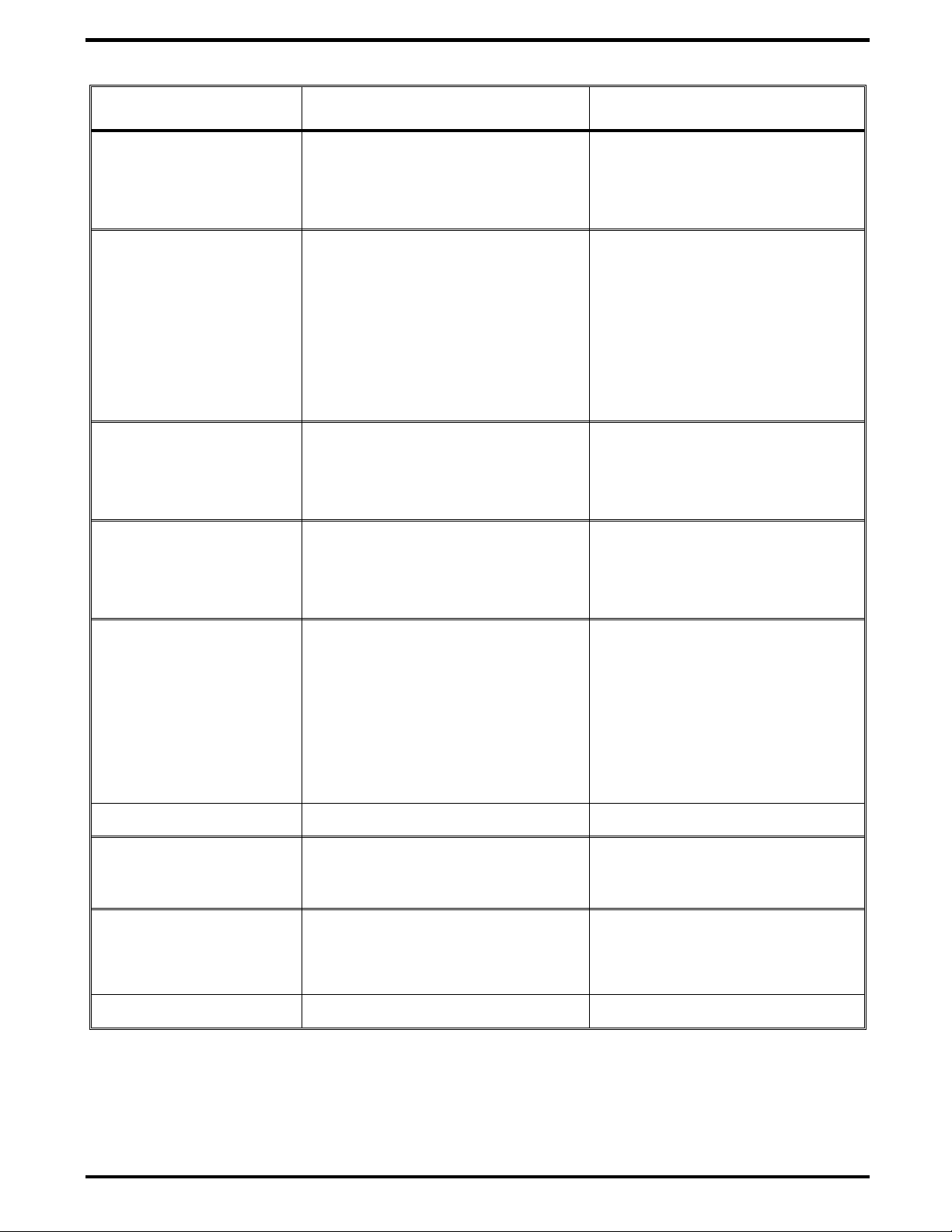
Table 1-3 Extensa 51x Notebook Features
Specifications Model 510 Model 515
Memory:
Standard
:8 MB 8 MB
Maximum
Display
LCD Type:
Simultaneous LCD/Ext.
VGA
Video RAM Size:
Video Bus
Keyboard/Point Device
Ergonomic Keyboard
Built-In Touchpad
Storage
Floppy Drive
Hard Drive
Interfaces
: 3.5", 1.44 MB 3.5", 1.44 MB
: 540 or 810 Million Byte 540 or 810 Million Byte
40 MB 40 MB
10.4" Dual Scan Color 10.4" Dual Scan Color
Yes Yes
1 MB 1 MB
VLBUS with Graphics Accelerator VLBUS with Graphics
Accelerator
Yes Yes
Yes Yes
Serial (RS-232) Port
Parallel Port
(EPP/ECP),
Yes
External VGA Port
External PS/2 Port
PCMCIA Support
Software
Physical Characteristics
Dimensions
: 11.7" (L) x 1.7" (H) x 8.2" (W) 11.7" (L) x 1.7" (H) x 8.2" (W)
Weight
* Weight specifications do not include AC Adapter
Yes Yes
Yes Yes
Yes Yes
Yes Y es
Type I/II/III Type I/II/III
U.S. Version
Non-U.S. Versions
only (International Load)
297 mm (L) x 45.5 mm (H) x 215
mm (W)
: Dual Load
: Windows 95
Windows 95, plus
application software
(Refer to Table 1-1)
297 mm (L) x 45.5 mm (H) x
215 mm (W)
Approx. 5.9 lbs. (2.6 8 kg) * Approx. 5.9 lbs. (2.68 kg) *
General Description
1-13
Page 22

1.8
All Extensa 51x Series products meet the following standards:
Underwriter’s Lab (UL) Standard 1950 (safety)
•
Underwriter’s Lab (UL), CN Listed (C22.2 No. 950) (safety)
•
EN60950, TUV Rheinl and (safety)
•
FCC CFR 47, Part 15, Subpart J, FCC Level B (EMI/RFI )
•
Canadian Department of Communications (DOC) ICES Class B
•
(EMI/RFI)
CISPR-22/EN55022 Class B (EMI/RFI)
•
CE Mark
•
Agency Approvals
1-14
General Description
Page 23

2
Installation
n
2.1
This section contains u npacking and preparation for use instructions for
the Extensa 51x Series Notebook Computers.
2.2
The packaging diagram for the notebook computer is shown in Figure 2-1.
Unpack the computer using the following instructions:
1. Carefully cut the tape that seals the top flap of the shipping carton.
2. Remove the computer and the accessories from the main shipping
3. Remove all protective coverings from the computer.
4
. Remove the ho lding tape and open up the accessory bo x; remove the
Note:
Introduction
Unpacking Instructions
carton.
contents.
Save the shipping containers and packaging for later reuse.
n
c
2.3
If you have no options to install at this time, skip to Paragraph 2.3.
Otherwise, continue with Paragraph 2.3.1.
2.3.1
Note:
paragraph.
Caution: The Dual Inline Memory Module contains components that are
sensitive to static electricity. When handling the module and the inte rnal parts of the computer, protect against static electricity by using
wrist or ankle groundin g straps and grounded working mats. When moving or storing items, use the anti-static bags supplie d with the items.
1. Ensure that the notebook is powered off and that the AC Adapter and
2. Remove the DIMM module(s) from its shipping container.
Installing Notebook Options
Installing Dual Inline Memory Module(s)
If not installing RAM Expansion option at this time, skip to the next
internal battery pack is removed from the notebook.
Installation
2-1
Page 24
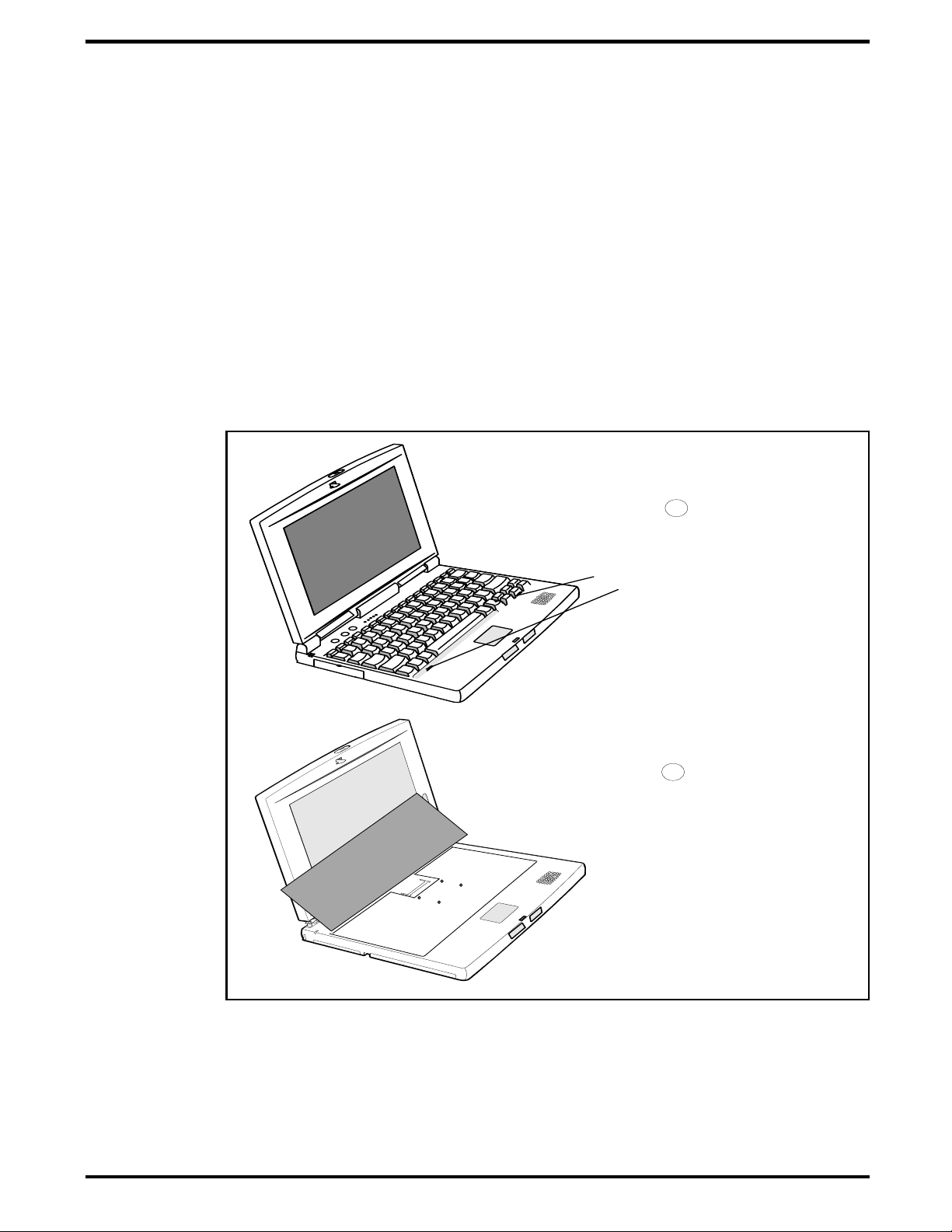
3. Release the Keyboard by pulling the keyboard release tabs forward
(tabs are located un derneath the Ctrl and right arrow ke ys).
4. Disengage the Keyboard using a straight blade screwdriver and gently
lifting up along the front edge of the keyboard.
5. Using the back edge of the keyboard as a hinge, lift the front edge of
the keyboard up and lay it against the display.
6.
Insert the edge of the DIMM Board into the lower connector (refer to
Figure 2-1). Use a rocking motion to fully insert the module. Push
downward on each side of the DIMM module until it snaps in place.
7. Repeat the procedure in Step 6 (upper connector) to install the second
DIMM module.
8. Replace the keyboard assembly and any other components removed in
Step 1.
This completes the expansion memory module installation procedure.
1
Slide Keyboard Release
Tabs toward front of
notebook.
Using a small
flat blade screwdriver,
gently pry keyboard up
along the front edge.
2
Tilt the keyboard back
against the display
Insert the SIMM modules
into the two Main Board
memory connectors
2-2
Figure 2-1 Installing Additional Memory
Installation
Page 25
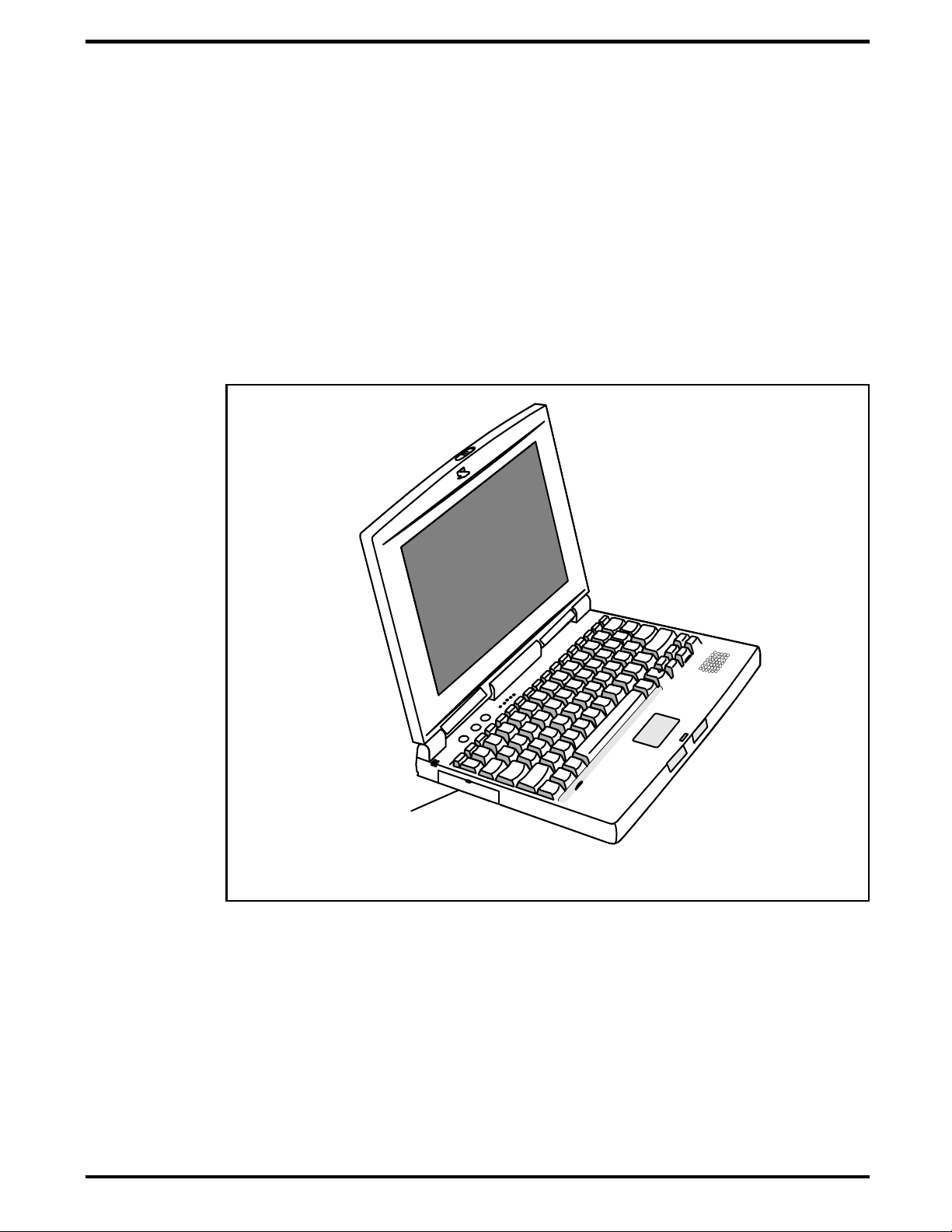
2.3.2
The Notebook has provisions for two Type I/Type II or one Type III PCMCIA
option card. Use the following procedure to install a PCMCIA option:
1. Review the installatio n instructions supplied with the PCMC IA option
card(s).
2. Open the PCMC IA compartment co ver on the left side of the note bo ok.
3. To insert a PCMCIA card, ali gn the card with the socket and slide the
card into the s ocket until it locks into p la ce.
4. To eject a PCMCIA card, first ensure that the notebook is not accessing
the memory card or device. Under Windows 95, go to the Control
Panel, PC Card, and direct the card to stop before removing card.
Installing PCMCIA Options
PCMCIA
Connector
Door
Figure 2-2 Installing PCMCIA Options
Installation
2-3
Page 26
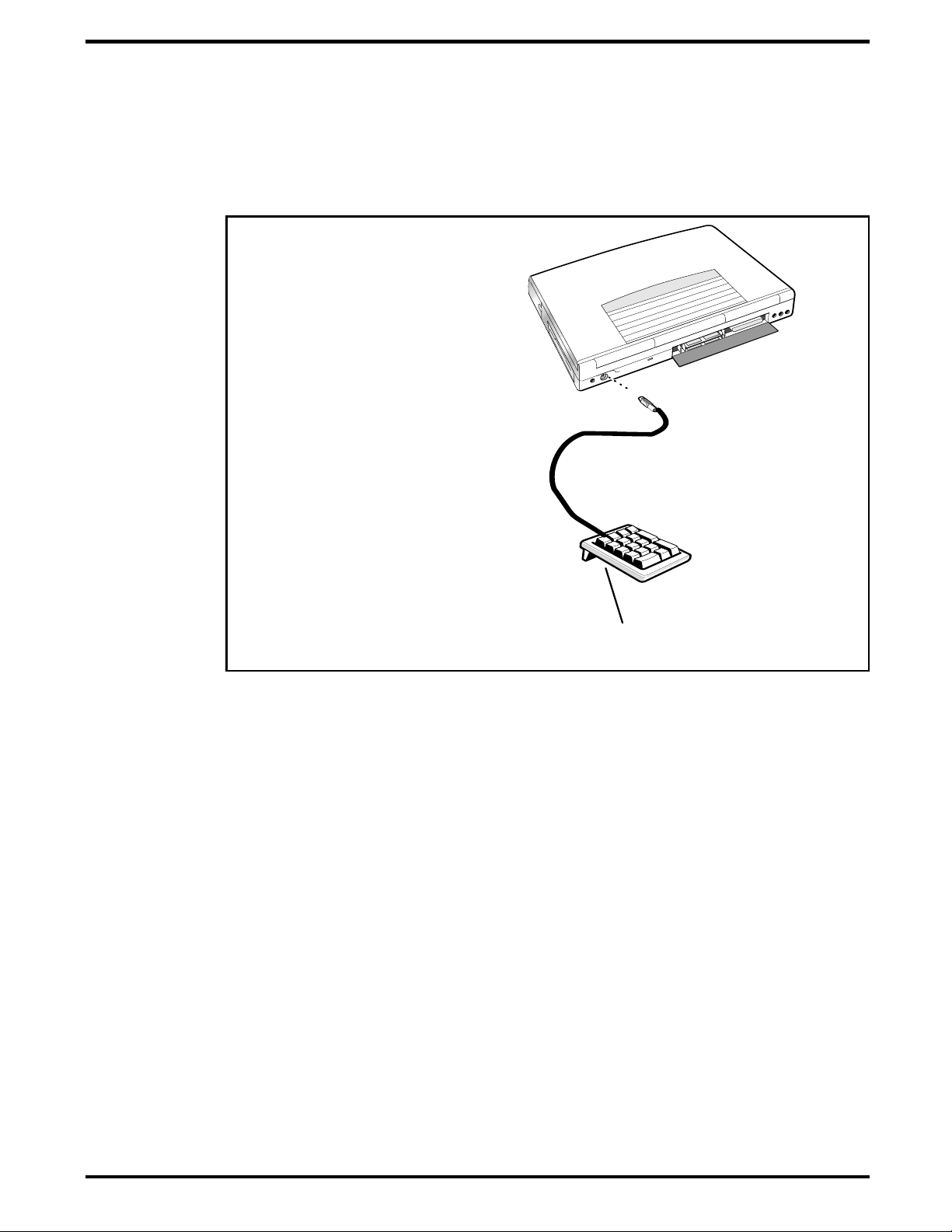
2.3.3
An optional numeric keyboard can be attached to the notebook via the
notebook PS/2 connector as shown in Figure 2-3.
Installing the Optional Numeric Keypad
External PS/2
Port (Mouse/Keyboard
Port)
External Numeric Keypad
Option
Figure 2-3 Installing the Numeric Keypad option
2.4
The standard configuration of the Extensa Notebo o k is equipped with a
single battery pack that is inserted from the front right side of the computer.
To remove or replace the batt ery pac k, fo l low the steps below.
1. Power off the notebook, being sure to save your data first.
2. Locate the battery do o r ( r ig ht side of notebook n ear t he fron t) . Press
3. Insert a new or recharged b attery pack into the batt ery co mpartment
Installing the Battery Pack(s)
the battery door inward and slide the door toward the front of the
notebook; remove the battery door.
bay. Make sure that the contacts are facing up and to the rear of the
compartment. Check the la bel (facing up when inserted) indicating
the positive and negative p oles of the battery.
2-4
Installation
Page 27

c
Caution: There is danger of explosion if the battery is incorrectly replaced. Replace the battery only with the same or an equivalent type
recommended by the manufacturer. Discard used batteries according to
the manufacturer’s instructions .
2.5
Most external devices connect to the Notebook via the connectors on the
rear of the notebook (refer to Figure 2-4 for port assignments).
Installing External Devices
Audio Line
Output
External
Microphone
Input
AC Adapter
Connector
External PS/2
Port (Mouse/Keyboard
Port)
Figure 2-4 Extensa Port Assignments
External VGA
Port
Serial
Port
Parallel
Port
Audio Line
Input
Installation
2-5
Page 28

2.5.1
As shown in Figure 2-5, the notebook has provisions for two external PS/2
compatible devices (keyboard, mouse, etc.) that may be attached to the
notebook. The pinouts for the 6-pin Mini-DIN connectors are also provided
in Figure 2-6.
Installing an External Keyboard/Mouse
2-6
Figure 2-5 PS/2 Port Assignments/Pinouts
To install an external keyboard or external PS/2 mouse on the notebook,
use the following procedure:
1. Ensure that the notebook is powered off.
2. Locate the external PS/2 port at the rear of the notebook (refer to
Figure 2-5).
3. Attach the PS/2 cable from your mouse and/or keyboard cable to the
PS/2 port.
4. Power on any other peripheral devices you may have connected to the
notebook, and then power up the notebook.
Installation
Page 29

2.5.2
The Notebook is equipped with a bidirectional, ECC/EPP compatible, 25-pin
parallel printer port. The connector pinouts and connector location are
shown in Figure 2-6.
If you will be using a parallel interface, connect the 25-pin male connector
of your printer cable to the 25-pin female parallel port on your notebook.
Refer to the manual which accompanied your printer for instructions on
configuring your ope r ating environment
Installing External Parallel Printer
Figure 2-6 Parallel Port Location/Pinouts
Installation
2-7
Page 30

c
2.5.3
Installing External Serial Port Device
The notebook contains an RS-232 serial port with a male DB-9 connector as
shown in Figure 2-7. The serial ports are used to interconnect such devices
as:
External Modem
•
Serial Printer
•
Any device that uses an RS-232 interface
•
To connect a printer to the notebook, ensure that both the notebook and the
printer are turned off.
Caution: Never connect a parallel de vice to a serial port or a s er ial device to a parallel port or vide o port; this may cause damage to the
Notebook and/or peripheral device. If you are uncertain of what type
connector the external device has, refer to the technical manual for the
external device.
2-8
Installation
SERIAL PORT PINOUTS
PIN
1
2
3
4
5
6
7
8
9
SIGNAL
DCD (CARRIER DETE CT )
RXD (RECEIVE DATA)
TXD TRANS MI T DA TA )
DTR (DATA TERMINA L RE AD Y)
GND (GROUND)
DSR (DATA SET READY)
RTS (REQUEST TO SEND)
CTS (CLEAR T O SE ND)
RI (RING INDICATOR)
1
2
7
6
Figure 2-7 Serial Port Location/Pinouts
4
3
8
5
9
Page 31

2.5.4
Installing External VGA Monitor
The notebook is capable of driving both its internal LCD disp lay and an
external VGA monitor (LCD only, simultaneous, or VGA only). The external
monitor connector pinouts and connector locations are shown in Figure 2-8.
To install an external monitor with the notebook, use the following steps:
1. Ensure that both the notebook and the external monitor are turned
off.
2. Locate the 15-pin female VGA port on the rear of the notebook.
3. Attach the appropriate end of the monitor cable to the VGA port on
your notebook. If the monitor cable connectors have retaining screws,
tighten them down.
4. If necessary, connect the monitor power cable to the monitor, and
plug the monitor power cable into an electrical outlet.
5. Power on the monitor, as well as any other peripheral devices
connected to the notebook; then power up the notebook.
4
EXTERNAL VGA CONNECTOR PINOUTS
PIN
1
2
3
4
5
6
7
8
9
10
11, 12
13
14
15
SIGNAL NAME
RED VIDEO
GREEN VIDEO
BLUE VIDEO
NOT USED
GROUND
RED RETURN
GREEN RETURN
BLUE RETURN
NOT USED
GROUND
NOT USED
HORIZONTAL SYNC
VERTICAL SYNC
NOT USED
DIRECTION
OUTPUT
OUTPUT
OUTPUT
INPUT
INPUT
INPUT
OUTPUT
OUTPUT
5
3
9
10
8
Figure 2-8 External Monitor Port Pinouts
1
2
6
7
1112131415
Installation
2-9
Page 32

2.5.5
An external microphone can be attached to the notebook using the leftmost
audio connector (when viewed from the rear of the notebook). When the
external microphone is installed and the unit powered up, the internal
microphone is disabled.
2.5.6
The middle audio jack on the rear of the notebook allows you to connect an
external sound source (e.g. tape player, radio, etc. ) to the notebook.
2.5.7
The rightmost audio jack (when viewed from the rear of the notebook)
provides an audio line output cable of driving external headphones,
speakers or an external amplifier.
2.6
Use the following procedures to connect the AC Adapter to the system:
Installing External Microphone
Installing External Audio Input Devices
Installing External Audio Output Devices
Installing the AC Power Adapter
c
Caution: Use only the AC Adapter supplied with the computer; other
adapters can damage the unit.
1. Remove the AC adapte r from the packaging. Connect the round coaxial
connector supplied with the notebook to the power receptacle on the
rear of the notebook as s ho w n i n F igu re 2- 9.
2. Connect the female side of the AC Power cord to the AC Adapter and
connect the male end to a grounded AC outlet
2-10
Installation
AC Power
(120VAC to 230 VAC,
50 to 60 Hz)
.
Figure 2-9 AC Adapter Installation
AC Adapter
Page 33

2.7
After you’ve installed all internal options and external cabling, you’re ready
for system checkout and software configuration.
To check out the system, se t the power switch on the notebook to the On (I)
position which initiates the notebook self test. During self test execution,
the computer checks the operation of all key hardware including memory
and CPU (and displays copyright and version number data during test
execution).
Upon succes sf ul conclusio n o f self test, the computer a u tomatically loads its
operating sy stem and Wi ndows environ m ent. If self test fails to com plete
and an error message is displayed, try powering down the computer for a
couple of minutes and turning power back on to repeat self test. If the error
message persists, refer to Section 6 for troubleshooting information.
2.8
The first time you power up the notebook, it automatically runs the Setup
Program which prompts you for country name and printer type. You will exit
Windows and the notebook begins unzipping files and preparing the
software for use.
Initial System Checkout
Configuring the System
2.9
The Notebook is preloaded with Windows 95 or Windows for Workgroups
operating sy stem software. Prior to extended use of the notebook, create a
backup set of diskettes containing the system software for use in the event
you have to rebuild the software system ( you can restore your system using
the Restore Utilit y and a set of backup di skettes).
2.10
For assistance in loading Application Software, refer to Chapter 5 in the
Extensa Series Notebook Computer User’s Reference Manual.
Making Backups of System Software
Loading Application Software
Installation
2-11
Page 34

3
Operating Instructions
n
3.1
The first two su bsections descr ibe the Extensa 5 1x Series Noteb o ok
operating controls and indicators. The remainder of this section contains a
summary of computer operations related to notebook maintenance
including how to restore system software.
Note:
Notebook Computer Users Guide.
3.2
The Extensa Ser ies Noteboo ks are equipped with the follo wing control s a nd
indicators:
Group of five LEDs just above the keyboard (Sleep Mode, Hard Drive
•
Activity, Num Lock, Caps Lock and Scroll Lock)
Power, Setup, and Standby/Suspend buttons adjacent to the status
•
LEDs
Introduction
For additional operating instructions, refer to the Extensa Series
Notebook Controls and Indicators
Power LED and Charge LED indicators on the left rear corner of the
•
notebook
Touchpad and two select buttons at base of keyboard
•
Combination key sequences on keyboard to control brightness, contrast
•
and volume (refer to Paragraph 3.3.3).
These controls and indicators are shown in Figure 3-1 and described in
greater detail in the following paragraphs.
Operating Instructions
3-1
Page 35

Touchpad
Pointing Device
Touchpad
Select Buttons
Power On/Off
Button
Power
LED
Standby/Suspend
Button
Setup Button
Charging
LED
Status
LEDs
Scroll
Lock
Caps
Lock
Num
Lock
Hard Driv e
Activity
Sleep
Mode
3-2
3.2.1
The notebook contains two button switches above t he keyboard in cluding:
•
•
3.2.2
The Notebook contains one Cover Release latch. To open the notebook, slide
the Release Mechanism to the right and lift up on the front edge of the
Operating Instructions
notebook cover.
Figure 3-1 Extensa Series Controls and Indicators
Button Switches
Power On/Off
controls power to the unit. Pressing the Power button causes power to
be applied to the notebook and power up self test to be run. The
LED (left rear corner of notebook) glows green and the computer then
loads Windows 95. When t he Po w er button is pressed again , th e
Notebook powers down and all data in RAM memory is lost.
Standby/Suspend
that invokes the save to disk feature an d places the un it in Standby
Mode (if previously On) or On if previously in Standby Mode.
Switch - Alternate action, button type switch that
Button Switch - an alternate action touch switch
PWR
Cover Release Latch
Page 36

3.2.3
The Extensa 51x Series Notebo o k Computers are eq u ipped with a bui lt-in
mouse device called "the Touchpad" physically located at the bottom of the
keyboard (refer to Figu re 3- 1).
The cursor is positioned by touching and dragging your finger in the
direction you want the cursor to go. The select functions are performed
either by tapping the touchpad or by pressing the two buttons (switches) at
the bottom of the keyboard.
You can chan ge the operation of the pad by changing val ues in the mouse
section of the Windows 95 Control Panel. Once your cursor is in the proper
place and you want to select, use the left button to click or double-click just
as you would a mouse.
3.2.4
The Notebook con tai ns three "keyboard mode" ind ic a to rs ju st above the
keyboard on the left side (notebook cover open). These LEDs include:
CAP (Caps Lock)
•
locked in the Uppercase mode. To switch to the Lowercase mode, press
Caps Lock
the
Touchpad Controls
Keyboard Mode LEDs
Indicator - Thi s LED indicates that the keyboard is
key on the keyboard.
NM (NM Lock)
•
(numbly) keys to toggle on the numeric keypad lock function. When the
LED is On, the embedded numeric keyboard keys generate AT-keypad
characters a nd functions when pressed in conjunction with the Fn key.
When the NM indicator is Off, pressing the Fn key with the appropriate
keys provides cursor movement, paging and other functions in the
normal mode. When the NM indicator is On, the embedded numeric
keypad becomes a temporary numeric keypad that does not require you
to press any o ther key.
SCROLL (Scroll Lock)
•
keyboard is locked in the scroll mode.
3.3
Some of the operating features useful for notebook maintenance are
provided in the following paragraphs. For additional operating instructions,
refer to the Extensa Series Notebook Computer User’s Manual.
3.3.1
To avoid damaging the floppy d r iv e drive, and to protect data, take the
following precautions:
Operating Procedures
Floppy Drive Operating Procedures
Indicator - This LED lights when you pr ess the
Indicator - This LED lights to indicate that the
Fn-F7
Never turn off or reset the notebook while the floppy activity indicator is
•
lit.
Keep the AC adapter at least 6 inches away from your drive.
•
Operating Instructions
3-3
Page 37

Insert the floppy into the floppy drive slot with the label side up and the
•
metal-shutter end first. Gently push the floppy into the floppy drive slot
until the floppy clicks into place.
To remove a floppy, press the eject button until the floppy pops out.
•
Never force open the access shutter on a floppy.
•
Always remove a floppy from the floppy drive before turning off the
•
computer.
Never transport the computer with a floppy in the floppy drive. Doing so
•
can damage the drive head.
If a floppy appears to be damaged, try to make a copy of it, and
•
immediately discard it.
Keep all floppi es, when not in u se , in a disk stora ge box to protect them
•
from damage or loss.
3.3.2
PCMCIA cards are inserted and ejected in much the same way as diskettes:
Type I, Type I or Type III PCMCIA options may be installed in the
•
compartment on the left side of the notebook.
To insert a PCMCIA card, align the card with the socket and slide the
•
card into the socket unti l it locks into place.
To eject a PCMCIA card, go to the Windows 95 Control Panel, select
•
Card
remove the PCMCIA option.
3.3.3
The Extensa Ser ies recognizes the following hot key sequences:
Ctrl-Alt-Del (warm boot)
•
Ctrl-Alt-Esc
•
F8
at "Starting Windows 95" message. Select
then press
Installing/Removing PCMCIA Options
, and select the card to st op; then pres s the release b u tton and
Computer Hot Keys
(Enter setup screen); to use, power up notebook and press
Command Prompt Only
Ctrl-Alt-Esc
.
PC
;
3-4
Operating Instructions
Fn-F2
•
brightness and contrast adjustments);
routine.
Fn-F5
•
volume control);
(in combination with Fn and
(in combination with Fn and
Fn-Esc
to get out of adjustment routine;
left/right arrow
Fn-Esc
left/right arrow
to get out of adjustment
keys)(Screen
keys)(Audio
Fn-F1
for help.
Page 38

3.3.4
The computer generally will notify you when you are reaching a low battery
condition by the following actions:
Four short beeps per minute (unless battery warning is disabled)
•
The battery low w a rni ng is automatically disabled when the AC A dapter
•
is installed on the notebook, regardless of the charge condition of the
battery pack.
If the AC adapter is not plugged in within three minutes of a detected
•
battery low cond ition, the notebook enters Suspen d mo de (if low battery
suspend is specified in se tup). When the n o tebook enter s Suspend
mode, it issues one beep, saves contents of RAM to disk and powers
down the unit.
The Notebook returns to the normal operating mode when the power
•
switch is activated. The unit then recovers RAM information from the
hard drive and restores the unit to its previous "On" condition.
Responding to Low Battery Conditions
3.3.5
The following actions can minimize power usage and protect your work
during the critical minutes before you shut the system down or replace on
the battery packs with a fu ll y charged pack:
Press
•
Save
•
Press
•
Standby/Sus p end mode when ever you are not actively usi ng the
computer. This will save all your work and remember the application
and file you were previously using when you return to the On condition.
Power down the system if you do not ne ed the comput er
•
3.3.6
The battery pack may also be charged in the notebook as fo ll o ws :
Minimizing Power Usage
Ctrl-Standby
RAM Disk
Standby/ Suspend
to shut off the alarm (if its enabled)
(if using RAM Disk feature)
button to put the computer in
Recharging the Battery Packs
1. Install the battery pack in your computer (if not already installed).
2. Connect the AC Adapter as described in Section 2.
3. To fully charge the battery pack, leave it charging in the Notebook
until the Charge LED extingu is he s (a pproximately 90 minutes) .
Operating Instructions
3-5
Page 39

3.3.7
When you power up the Notebook, it automatically checks for certain key
files that must be present for normal system operation. If any of these files
are accidentally erased as indicated by error message, insert the Windows
95 Startup diskette and reboot the system. This will allow you to boot up
and troubleshoot your system.
3.3.8
In the event of a hard drive replacement or system board replacement which
resulted in loss of system software, you may need to rebuild the entire
system soft ware structure.
The following items are required to rebuild the system software:
Set of backup diskettes of the system soft w a re or Windows 95 Startup
•
diskette
Operation al Notebook
•
Insert the Windows 95 Startup diskette in the Notebook floppy drive and
power up the system.
Restoring Missing System Fil es
Rebuilding the System Software
n
Note:
book Computer User’s Manual.
For additional operating procedures, refer to the Extensa Series Note-
3-6
Operating Instructions
Page 40

4
Theory of Operation
4.1
This section describes the noteboo k theory of operation.
4.2
Functionally, the notebook computer consists of the following major
subsystems:
Processor and Memory Subsystem
•
I/O Subsystem
•
Video Subsystem
•
Hard Disk Subsyste m
•
Floppy Disk Subs ystem
•
PCMCIA Subsystem
•
Power Subsystem
•
Introduction
Notebook Functional Description
A functional block diagram of the Extensa Notebook is shown in Figure 4-1.
4.2.1
The Processor function, housed on the Main Board, is implemented with a
100 MHz Intel Pentium Processor. The processor operates in conjunction
with RAM and ROM Memory on the Memory Board and other control logic
on the Main Board to process software instructions (BIOS, Windows 95, and
Applications).
The memory subsystem, implemented on the Main Board and optional Dual
Inline Memory Modules, provides 8 MB (expandable to 40 MB) of fast DRAM
memory, 128 bytes of CMOS RAM (battery backed up) and 256 KB of Flash
ROM for system and video BIOS storage. Tables 4-1 through 4-3 contain the
Notebook I/O address map, DMA channel assignments and IRQ interrupt
level assign ments respectively.
Processor/Memory Subsystems
Theory of Operation
4-1
Page 41

PCMCIA Option Slot(s)
PCM C IA A da p ter
Intel
100 MHz
Pentium
Processor
MAIN BOARD
Clock Generator
Interna l
Touchpad
State Machine
& Glue Logic
System
Controller
Memory
Board
RAM
Expansio n
Modules
XD BUS
Keyboard/PS2
Mouse Logic
SD BUS
XD BUS
SYSTEM &
VGA BIOS
512KB
Video RAM
Video
Controller
C&T 65540
EXTERNAL
VGA MONITOR
Drivers/
Receivers
Super I/O
Controller
Power Su pply
Section
Inverter
Board
RS-232
Serial Port
Internal Flop py Dr ive
Internal Hard Drive
Parallel Port
Input From
AC Adapter
Located internal
to the LCD
Assembly
4-2
Theory of Operation
Internal Keyboard
Internal LCD Display
640 X 480
VGA LCD
Figure 4-1 Notebook Functional Block Diagram
Page 42

4.2.2
The I/O subsystem, imple m en ted with an NS87334 VJG Su pe r I/O
Controller Chip, provides for such functions as internal Hard Drive control,
floppy drive control, and serial and parallel ports. The Super I/O Controller
includes the following features:
100 percent compatible with ISA, EISA, and Micro-channel architectures
•
Built-in Floppy Disk Controller
•
Software compatible wi th the DP8473, the 765 A and N82077
•
I/O Subsystem
•
16-byte FIFO (default disabled)
•
Burst and Non-burst modes
•
Perpendicular Recording drive support
•
New high-performance internal digital data separator (no external
filter components required)
•
Low-power CMOS with enhanced power-down mode
•
Automatic media-sense support
Two UARTs
•
•
Software compatible with the PC16550A and PC16450
•
MIDI compatible
•
Infrared support on UART2 (IRDA-compliant)
Bidirectional Parallel Port
•
•
Enhanced Parallel Port (EPP) compatible
•
Extended Capabilities Port (ECP) compatible, including level 2
support
•
Bidirectional under eithe r software or hardware control
•
Compatible with ISA, EISA, and Micro Channel architectures
•
Ability to multiplex FDC signals on parallel port pins for external
FDD
•
Includes protection circuit against damage caused when printer is
powered up, or operated at higher voltages
Integral IDE controller
•
•
Provides a complete IDE inter face with DM A cont rol (except for
optional buffers)
Theory of Operation
4-3
Page 43

Integral address decoder - provides selection of all primary and
•
secondary ISA addresses including COM1-4 and LPT1-3.
Enhanced P ower Management Funct ion
•
•
Special configuration registers for power down
•
Enhanced programmable power-down and wake-up modes
•
Auto power-down and wake-up modes
•
3 special pins for power management
•
Typical current consumption during power-down is less than 10A
4.2.3
The video subsystem, implemented on the Mai n B o ard and on the LCD
Display Unit, displays text, graphics and drives an external VGA port. The
video subsystem is i m pl emented with a Chips an d Technology high
performance flat panel/RT VGA controller and supporting lo g ic and video
RAM (1 MB).
The major features of the VGA controller include:
Highly integrated design (flat panel / CRT VGA controller, RAMDAC,
•
clock synthe sizer)
Multiple Bus Architecture Integrated Interface
•
Advanced frame buffer architecture uses available display memory,
•
maximizing integration and minimizing chip count
Video Subsystem
•
Local Bus (32-bit CPU Direct and VL)
•
PCI Bus
•
EISA/ISA (PC/AT) 16-bit Bus
4-4
Theory of Operation
Integrated programmable linear address feature accelerates GUI
•
performance
High performance resulting from zero wait state writes (write buffer) and
•
minimum wait state reads (internal asynchronous FIFO design)
Supports panel reso lu tions up to 800 x 60 0
•
SMARTMAP intelligent co lo r to gray sca le conversion enhances text
•
legibility
Text enhancement feature improves white text contrast on flat panel
•
displays
Fully Com p a tible with I BM VGA
•
Page 44

4.2.3.1 External VGA Drive Capability
On the Extensa notebook, the external VGA port is provided by the port
adaptor fixture in the form of a 15-pin, female, D-type connector which can
be used to drive an exte rnal CRT (up to 1024 x 768 x 256 colors.
c
c
4.2.4
The Hard Disk Subsystem, controlled by the IDE interface compatible
NS87334 VJG Super I/O Con troll er o n th e M a i n B oard , pro vide s d isk
storage for all system software and user files. The Extensa 51x Series
Notebooks are equipped with either a 540 or 810 million byte drive.
During the manufacturing process, Texas Instruments formats the hard
disk and then loads all supplied softwa r e including Windows 95.
Caution: Formatting the disk drive erases any data that may be stored
on the disk. Therefore, do not attempt a format of the hard disk unless
the computer self test and diagnostics confirm that the disk has not
been formatted.
A Hard Drive activity LED is located along the top of the no tebook. This LED
lights during hard drive read/write accesses.
Caution: The notebook should not be moved when the HDD icon is lit to
prevent accidental damage to the hard drive.
Hard Disk Subsystem
4.2.5
The Floppy Diskette Drive Subsystem consists of a Floppy Controller and
the Floppy Diskette Drive. The Floppy Diskette Drive can read/write
standard 3.5-inch diskettes.
Floppy Diskette Drive Subsystem
Theory of Operation
4-5
Page 45

4.2.6
The notebook is equipped with an on-bo ard PCMCIA host adapter PCMCIA
Controller) and sockets to support Type I, Type II or Type III options. The
PCMCIA Controller has the following features:
Single-chip PCMCIA host adapters
•
Direct connection to ISA (PC AT) Bus
•
Direct connectio n t o PCMCIA 2.0 Bus
•
PCMCIA 2.0- and JEIDA 4.1-compliant
•
82365SL-compatible register set, ExCA-compatible
•
Automatic Low-power Dynamic Mode for lowest power consumption
•
Programmable Suspend Mode
•
Five programmable memory windows per socket
•
Two I/O windows per socket
•
PCMCIA Subsystem
Programmable card access cycle timing
•
8- or 16-bit CPU interface
•
8- or 16-bit PCMCIA interface support
•
ATA disk interface support
•
Automatic flash memory timing support
•
Easy host interface using ISA I/O addresses 03E0h, 03E1h
•
Mixed-voltage (3.3V or 5V) operation
•
Dual-socket-interface, 208-pin QFP
•
4.2.7
The Power Subsystem consists of the following major parts:
Power Management (hardware and software components)
•
Power Subsystem
4-6
Theory of Operation
AC Adapter
•
Primary Battery Board
•
Primary Battery Pack
•
Page 46

4.2.7.1 Power Management
The notebook is equipped with a power management function that
minimizes battery usage fo r pro lon ged battery operation an d au tomatically
recharges the batteries when the notebook is used with an AC adapter.
The power management modes and warnings include the following:
LCD standby mode
•
Hard disk standby mode
•
System standby/suspend mode
•
Battery-low warning
•
Standby/suspen d u pon battery low
•
4.2.7.2 AC Adapter
The notebook uses an AC adapter with built in over voltage and short circuit
protection.
The adapter can withstand a continuous short-circuit to DC output without
damage to the notebook logic components. The adapter operates in Shutdown mode shorting Vo trail and resets to the normal Power mode after the
fault condition is removed.
4.2.7.3 Primary Battery Pack
The Extensa Series Notebooks u se th e D u rac ell DR35 as the primary battery
pack. Specifications for the Primary Battery Pack are provided in Table 4-4.
Theory of Operation
4-7
Page 47

Table 4-4 Primary Battery Pack Specifications
Function Specifications
Battery type NiMH (Nickel Meta l-Hydrid e)
Cell structure 9 cells per pack (in series)
Nominal voltage 10.8 V
Cell energy capacity
Typical
Minimum
Nominal rated capacity 27 Watt-hours
Operating Temperature
Discharge
Charge
Charge and discharge
cycles
Weight 470 grams
Battery discharge time 3 hours (with APM)
2400 mAH
2500 mAH
2330 mAH
_
-20 to 50°C (at 95%RH)
0 to 45°C (at 95%RH)
500 (minimum)
Battery charge time
4-8
Theory of Operation
Page 48

5
Troubleshooting Procedures
5.1
This section provides t he following information:
Overview of the fault isolation process
•
Guidelines for isolating computer malfunctions to replaceable
•
subassemblies
Instructions for executing diagnostics and interpreting error messages
•
5.2
The fault isolation process (summarized in Figure 5-1) consists of the
following:
Quick Check of the following:
•
General
Overview of Fault Isolation Process
•
Notebook power system (including battery packs and AC Adapter
connections) - refer to Paragraph 5.4.
•
Switch settings (ensure
switch to ensure that Notebook is not in Standby mode; press
to ensure the notebook is not in Auto-Suspend mode.
•
All external cabling (if any)
•
Check LCD Contrast adjustment (refer to Section 3)
Record and attempt to resolve any displayed error messages/LED
•
indications (refer to Paragraph 5.3 and Table 5 -1)
Record and attempt to resolve any series of beeps emitted from the
•
notebook indicating test failure (refer to Table 5-2)
Power
switch is On, and press
Standby
Shift
Troubleshooting
5-1
Page 49

START
WHEN P OWER SWITCH
SET TO ON,, NO
INDICATION OF POWER;
SCREEN DARK, STATUS
LED's EXTINGUISHED
SET POWER SWITCH
TO ON. SELFTEST
AUTOMATICALLY RUNS
COMPUT ER
TROUBLE
INDICATION
?
YES
DEAD
COMPUTER
SYMPTOMS
?
NO
RUN
SELF TEST
ERROR
MESSAGE
?
NO
NO
YES
YES
SEE
PARAGRAPHS
5.3. 1 & 5. 3 . 2
SEE PARAGRAPH
5.3.3
MODEM
PROBLEM
?
NO
RUN
DIAGNOSTI CS
DIAGNOSTI CS
ERRO R MSG
?
NO
YES
YES
Figure 5-1 Troubleshooting Flowchart
SEE PARAGRAPH
5.3.4
See Appendix B
(PC Doctor)
5-2
Troubleshooting
Page 50

Try rebooting the system (Ctrl-Alt-Del); restore system from diskettes, if
•
necessary.
If the computer is capable of running the Setup program; check the
•
serial and parallel port configurations, and other features that may
affect system operation.
Run Diagnostics to further isolate problem area (refer to Paragraph
•
5.3.5).
For indicated hardware failures, cycle power and repeat self test to
•
verify that a hard failure has occurred.
Remove and replace suspect hardware (as described in Section 6 of this
•
manual) and retest the system using the diagnostic tests as described in
Paragraph 5.3.5.
The detailed block diagram, shown in Figure 5-2, is useful in performing
fault analysis of various internal subsystems. For example, an LCD
hardware problem can be traced to either the LCD, Inverter Board, VR
Board, or Battery Board. Other subsystem problems can be isolated in a
similar fashion using the detailed block diagram as a troubleshooting tool.
5.3
The built-in self test program and the disk resident diagnostics program
(PC-Doctor) are useful tools in computer troubleshooting. However, if the
computer has a power, keyboard or display problem, you should first solve
this problem before running diagnostics. If the computer powers up and
displays messages on the LCD or emits a series of beeps, skip to Paragraph
5.4.3 for further instructions.
5.3.1
If the comput er does not po wer up when th e Power Switch is set to the ON
position, you most likely have a malfunction in the power subsystem (loss of
power at the AC Outlet, faulty AC Adapter, discharged Battery Packs, or
faulty Power Supply Board). With a power problem, all LEDs are
extinguished, the LCD screen is blank, the syste m do es not respond w he n
the standby switch is pressed several times consecutively and no drive
activity can be heard. The computer is unable to load software and displays
no visible signs of activity.
To fault isolate a power problem, check the following:
Troubleshooting Procedures
Troubleshooting a Power Supply Problem
AC Adapter and Battery - Plug in the AC adapter and double check all
•
connections on the Adapter and computer. Ensure that the Notebook
Power
Standby or sl eep mode.
switch is set to the On position and that the system is n o t in
Troubleshooting
5-3
Page 51

Measure the voltage at the AC Outlet or plug in a known good appliance
•
(EG. a lamp) to verify that voltage is present. If the voltage is OK, try
replacing the AC Adapter
Check to see that the battery pack is installed correctly (try using a
•
recharged battery pack if battery is di scharged).
If the AC outlet voltage, AC Adapter, and ba tt ery packs test normal, but
•
the computer will not power up, replace the Power Supply Board and/or
Battery Board as described in Section 6.
PCMCIA Option Slot(s)
PC MC IA A da p ter
Intel
100 MHz
Pentium
Processor
MAIN BOARD
Clock Generator
Interna l
Touchpad
State Machine
& Glue Logic
System
Controller
Memory
Board
RAM
Expansion
Modules
XD BUS
Keyboard/PS2
Mouse Logic
SD BUS
XD BUS
SYSTEM &
VGA BIOS
512KB
Video RAM
Video
Controller
C&T 65540
EXTERNAL
VGA MONITOR
Drivers/
Receivers
Super I/O
Controller
Power Su ppl y
Section
Inverter
Board
RS-232
Serial Port
Internal Fl oppy D rive
Internal Hard Drive
Parallel Port
Input From
AC Adapter
Located internal
to the LCD
Assembly
5-4
Troubleshooting
Internal Keyboard
Figure5-2 Troubleshooting Block Diagram
Internal LCD Display
640 X 480
VGA LCD
Page 52

5.3.2
If the LCD remains blank when you turn on the computer, and the status
indicators l ig ht, check the f o llowing contro ls on the displa y (refer to Fig u re
3-1):
LCD Standby mode - If the LCD backlight remains off, even with the
•
Brightness and Contrast Controls set to their highest positions (refer to
Section 3), the LCD may be in
Power
Notebook Set for External Monitor - use CMOS Setup to reset notebook.
•
LCD - Replace th e cover-display a ssembly as desc r ibed in Section 6 of
•
this manual.
Low battery - Use a fully charged battery.
•
5.3.3
When the computer is first powered up, it automatically performs a self test
of its central hardware and memory functions. During self test (which lasts
for a few seconds), the display shows copyright and version number
information.
Troubleshooting a Display Problem
Standby Mode
button to resume the system.
. Press the
Fault Isolation Using Self Test
Standby
or
n
Note:
quences, su ch as
this, you must press all three keys simultaneously.
Some procedures in this paragraph require you to use keystroke se-
Ctrl-Alt-Del
. To execute a keystroke seq u ence such as
5.3.3.1 Self Test Error Messages
Upon successful completion of the self test, the computer automatically
loads its operating system and other bu ilt-in utilit ies. If the self test fails to
complete successfully, the display shows one of the error messages
described in Appendix A.
5.3.4
If an optional PCMCIA modem does not work properly, check the following
items:
Proper installation of any PCMCIA options (check Modem settings under
•
Control Panel).
Dialing pro blem or wro ng number - Try dialing a number tha t you have
•
previously dialed successfully.
PCMCIA Modem Problems
Troubleshooting
5-5
Page 53

Faulty phone line - Connect a telephone to the line and listen for a dial
•
tone.
Software program - Check to ensure that you have installed the
•
software correctly.
5.3.5
PC-Doctor, supplied with the Extensa Series No tebooks, is a powerful
diagnostics tool that can help you scan an internal RAM system for viruses,
determine the hard ware config u ration of a local or remote system,
benchmark its performance, analyze the performance of all subsystems,
and perform a suite of interactive and non-interactive tests on attached
devices. The test results a re stored in a log w hich can be printed out (by
pressing F2) or saved in a disk file (by pressing F3).
Features of the diagnostic program are accessed through a series of
pull-down me nus and basic keyboard keys (cursor keys to move highlighted
pointer, Enter key to select a highlighted feature, Esc key to cancel a
function and move back one level).
PC-Doctor is typically user friendly but if you don’t understand a feature,
context-se nsitive "help" i nformation is available at any tim e by pressing th e
F1
function key; pressing the F1 function key twice accesses the online
Technical Reference Manual for PC-Doctor.
A powerful set of utilities within PC-Doctor (that can be run locally or
remotely) simplify the task of determining system configuration data,
allocating and using system memory, IRQ and DMA use, what device drivers
are installed, what COM and LPT ports are assigned and what ports are
available, identifying partitioning data for fixed disk drive(s), determining
the VGA setup information, reading the software interrupts/interrupt
vectors, etc.
Fault Isolation Using Diagnostics
5-6
Troubleshooting
Functionally, PC-Doctor includes the following:
Group of nine non-Interactive diagnostic tests that perform a
•
non-destructive test of the major hardware functions in the notebook
(Processor, Memory, System board, video section, serial and parallel
ports (when loopback adapters are installed), hard disk and floppy disk.
Group of seven Interactive tests (require operator input) for testing the
•
keyboard, video sections, sound subsystem, mouse, joystick, diskette
drive, printer subsystem and SCSI/CD-ROM Drive subsystems.
Utility that provides detailed system information such as configuration
•
data, allocation and use of system memory, IRQ and DMA use, what
device drivers are installed, what COM and LPT ports are assigned and
what ports are available, partitioning data for fixed disk drive(s), VGA
setup information, software interrupts and interrupt vectors.
Page 54

Group of special purpose utilities to run other tests from PC-Doctor,
•
perform a virus scan of the internal RAM system, edit configuration
files, surface scan hard drives, measure system performance, open a
DOS prompt, provides terminal access to devices connected to serial
ports, supports memory debug operations, enables remote operations,
permits deep discharge of notebook batteries and provides an extensive
test reporting function.
The PC-Doctor diagnostic program contains a group of nine non-Interactive
diagnostics, a vailable from the
Diagnostics
heading in the main menu, that
permits testing various hardware sections without operator input. You can
select one, several, or all tests from the Diagnostics menu. These tests are
non-destructive; the serial and parallel port tests require disconnecting
external devices from your notebook and installing loopback plugs. The
Non-Interactive test categor i es include:
•
CPU and Coprocessor-Processo r Tests
•
Base RAM memory test
•
System Board test
•
Video Test
•
COM1 and LPT1 serial port tests
•
Parallel Port Test
•
Fixed Disk test
•
Diskette Drive tests
•
Other devices (Sound card, PCMCIA options, etc.)
5.3.5.1 Interactive Tests
The PC-Doctor diagnostic test includes a suite of seven Interactive tests that
require operator input during the cou rse of the tes t. The
category includes:
Keyboard
•
Video
•
Speaker
•
- tests the keyboard keys, LEDs and repeat function
- tests the LCD and external VGA character sets, and colors
- tests the volume response at different frequencies
Interactive Tests
Mouse
•
Joystick
•
and tests the joystick buttons
Diskette Drive
•
Maximum System Load
•
maximum extent possible for performing system "burn-in" and test
- tests the mouse driver, buttons and functionality
- calibrates the external joystick connected to the system
- checks diskette drive functionality
- thoroughly exercises the system to the
Troubleshooting
5-7
Page 55

Printer Test
•
SCSI Test
•
of a Docking System with SCSI)
CD-ROM Test
•
attachment of a Docking System with CD-ROM capability)
- tests the operation of a connected printer
- sends test codes to attached SCSI devices (requires use
- checks out any attached CD-ROM Drive (requires
5.3.5.2 Supporting Online Documentation
The PC-Doctor Diagnostic contains the following online information sources:
Online Technical Manual
•
twice or by clicking on the Question Mark in the upper left hand corner
of any PC-Doctor Menu
On-line Help system
•
every PC-Doc to r screen- access ed by pressing the
F1
twice gets yo u into the online manual)
PC-Doctor is structured as a text-mode, windowed user interface with
pull-down menus. Program operation requires the use of the following keys:
Cursor Keys
•
Enter Key
•
Esc Key
•
F1 Key
•
in a row call s up the online Technical Reference Manual for PC-Doctor)
Scrolling windows, which show the results of various operations, use the
following keys:
- Activates the context-sensitive help feature (pressing F1 twice
- Move the highlighted pointer
- Selects the highlighted option
- Cancels current function and goes back one step
- selected at any time by pressing the F1 key
that provides context sensitive information from
F1
key once (pressing
5-8
Troubleshooting
Page Up/Page Down
•
F2
•
•
You can also use the mouse, or Point, to interact with PC-Doctor. The
leftmost
codes typically enclosed in brackets). The rightm ost
to the
- Prints the log t o PRN
F3
- Saves the log to a file
Select
Esc
key is used to choose obje cts (menu entries and action
key which takes you back to your previous step.
- Moves the screen one page at a time
Select
key is equivalent
Page 56

5.3.5.3 Creating a Bootable Floppy Diskette
Prior to using PC-Do ctor, create a bootable flo ppy diskette using th e
following procedure:
1. Power up the unit; when unit displays message, "Starting Windows 95",
press F8. Choose
2. Using DOS, format a floppy diskette.
3. From the A: prompt, copy the basic MS-DOS files to the diskette using
the following command:
Format A: /F:1440 /S
where the value 1440 is the capacity of the diskette (1.44 MB in this
example).
4. Get into the PC-D o ct o r di rectory
Command Prompt Only
from menu.
CD C:\PCDR
(type
5. Copy the PC-Doctor files to the bootable diskette using the following
command:
XCOPY C:. A:
After completion of this procedure, you should have a bootable diskette
containing PC-Doctor.
and press
Enter
).
5.3.5.4 Running PC-Doctor
PC-Doctor is a DOS-resident program that can be run from either hard disk
or from the bootable diskette you previously created.
1. From the C:\ prompt, change directory (type
Enter
2. From the C:\ prompt, type
3. The Diagnostics Program loads into system memory, and the LCD
displays the Diagnostics Header.
.
PCDR
and press
CD C:\PCDR
Enter
.
) and press
n
Note:
when starting up PC-Doctor to enable automatic virus scanning, enable
loopback testing of serial/parallel ports, work from the remote menu if performing remote operations, etc. To get a listing of the available commandline switches, startup PC-Doctor with the following command:
press
There are a num ber of comman d -line switches that can be ent ered
PCDR /?
Enter
.
Troubleshooting
and
5-9
Page 57

n
n
Note:
must then use one of the standard virus detection and removal programs to
remove the virus.
If PC-Doctor detects a virus, it will stop with an error message. Yo u
5.3.5.5 Quitting PC-Doctor
To exit PC-Do ctor, select the
to DOS
Note:
ence manual for PC-Doctor .
option.
For additional information, press
Quit
pull down menu and then select the
F1
twice to access the online Refer-
Quit
5-10
Troubleshooting
Page 58

6
Field Service
6.1
This section co ntains preven tive and correc t i ve maintenance procedures f or
the Extensa 51x Series Notebook Computers. The first part of the section
describes the computer cleaning procedures and preferred handling
procedures for sensitive components (e.g. disk drives, batteries).
The second part of the section identifies all field-replaceable parts; the
remainder of the section contains removal and replacement procedures for
the field-replaceabl e parts.
6.2
Preventive maintenance is limited to cleani ng the plastic case, the i nt eri or of
the notebook in cluding the keybo a r d, touchpad and the LCD screen.
Introduction
Preventive Maintenance
c
c
6.2.1
When it is necessary to clean the plastic case and keyboard, use a soft,
lint-free cloth, slightly dampened with a mild detergent solution or use the
contents of any commercially available computer cleaning kit.
Caution: Never use alcohol, petroleu m-bas ed solvents, or harsh detergents to clean your computer. Also never spray any liquids directly on
the computer case, keyboard, or screen. If the liquid-crystal di splay
(LCD) screen has become smeared or dusty, clean the screen by fi rst applying a mild glass cleaner to a soft, clean, lint-free cloth, and gently
wipe the glass. Never apply liquids directly on the screen surface.
Caution: Do not use paper tow els to clean the display scr ee n. P aper can
scratch the display screen matte.
Cleaning the Computer
Field Service
6-1
Page 59

6.2.2
To protect the disk drives and data, back up the syste m di sk periodically on
floppy diskettes. Periodically use a head-cleaning diskette in the floppy
diskette drive to prolong the life of the drive and to help maintain data
integrity.
6.2.3
The battery pack furnished with the computer requires reasonable care and
handling to ensure efficient operation and maximum life. Periodically
inspect the battery terminals and the batteries for evidence of corrosion and
oxide build-up; clean if necessary.
To ensure that th e battery pack endures a normal life cycle, always observe
the following precautions when handling th e battery pack:
Do not dro p the battery pack or subject it to excessive shock and
•
vibration.
Do not expose the battery pack to direct sunlight, moisture, or chemical
•
compounds.
Protecting the Disk Drives
Handling the Computer Battery Pack
Do not disassemble the battery pack.
•
Do not use the battery pack to power other devices.
•
Do not short th e battery leads or connect the battery wi th reversed
•
polarity.
Never attempt to charge the battery pack in any way other than as
•
described in this manual.
Always charge the battery pack as soon as possible after a low battery
•
indication.
6.2.4
The hard drive on the notebook computer is factory loaded with Windows 95
or Windows for Workgroups and ready for operation. Supplied with the
system is a ut ility for crea ti ng backup diskettes of the system software. In
the event of a disk crash or other problem, you can use the Windows 95
Startup diskette or other backup diskettes to boot the unit and perform
troubleshooting.
Restoring System Softwar e
6-2
Field Service
Page 60

c
6.3
All notebook computer corrective maintenance procedures can be performed
using the following tools:
Tweezers
•
Small flat-blade screwdriver
•
Small Phillips screwdriver
•
Hexagonal Screwdriver
•
Plastic Stick
•
Conductive mat/wrist or ankle grounding strap system for electrostatic
•
voltage pro tection.
Caution: All boards, options and peripherals con tain componen ts that
are sensitive to static e lectricity. When handling any of these items, protect against static electrici ty by using wrist or ankle grounding straps
and grounded conductive mats. When moving or storing items, use the
anti-static bags supplied with the items.
Required Tools and Equipment
6.4
Notebook Field-Replaceable Parts
and Assemblies
All members of the Extensa 51x Series Notebook Computers contain two
major assemblies including the Cover-Display Assembly (upper half of
notebook computer) and the System Base Assembly (lower half of the
notebook). Each of these two assemblies contain FRUs as described in the
following subparagraphs.
6.4.1
As shown in Figure 6-1, the Display Assembly contains the LCD screen,
Power Inverter Board and Contrast Board.
The Field-Replaceable Units (FRUs) and their respective TI Part No.’s and
assembly/disassembly reference paragraph numbers are provided in Table
6-1.
Display Assembly
Field Service
6-3
Page 61

LCD Assembly
Bezel (Removed
for Clarity)
Power Inverter
Board
LCD Cover
Contrast Board
Figure 6-1 Cover-Display Assembly FRUs
Table 6-1 Cover-Display Assembly, Field-Replaceable Units (FRUs)
FRU Description
TI Part No. Reference
Paragraph
Inverter Board, DSSTN 10.4" 9811361-0001 6.5.9
Display Assembly, 10.4" DSSTN 50 X, 51X 9811363-000 1 6.5.9
Bezel Assembly, DSSTN 10.4", W/O label 9811373-0001 6.5.9
LCD Panel, DSSTN, 10.4" , 50 X/51X 9811362-00 01 6.5.9
Latch, LCD 50X/51X 9805745-0002 Ref
Spring, LCD Latch 9805745-0001 Ref
Cover, left side screws 9811379-0001 Ref
Cover, right side screws 9811379-0002 Ref
Cable Assembly, LCD to Main Board (29P) 9811385-0001 6.5.8
Nameplate, 515 9811375-0004 Ref
No.
6-4
Field Service
Nameplate, 510 9811375-0003 Ref
Connector Board, STN LCD 9811387-0001 6.5.8
Contrast Board 9811384-00 01 6.5.9
Page 62

FRU Description
TI Part No. Reference
Paragraph
Cable Assembly, Inverter (12P) 9811386-0001 6.5.8
LCD Cover, DSSTN, 10.4 inch 9811372 6.5.8
6.4.2
System Base Assembly
As shown in Figure 6-2, the System Base Assembly houses a variety of
field-replaceable subassemblies and components. The FRUs and paragraph
references for removal/replacement procedures are listed in Table 6-2.
Table 6-3 contains a listing of Customer (non-technic al user) repla ceable
units (CRUs) and associated TI Part Numbers.
Table 6-2 Base Assembly, Field-Replaceable Units (FRUs)
FRU Description
TI Part No. Reference
Paragraph
No.
No.
Main Board without CPU (transfer CPU to
replacement board)
IC, CPU, P54LM-100 SPGA (2.9V) 9811733-0001 6.5.14
Button Board Assembly 9811367-0001 6.5.6
Touchpad Board Assembly 9803991-0001 6.5. 4
Smart Battery Control Board Assembly 9 811734-0001 6.5.4
LED/Switch PWB Assembly 9811358-0001 6.5.4
Charger/Power Supply Board Assembly 9811360-0001 6.5.4
Floppy Drive Assembly 9811394-0001 6.5.5
Hard Disk Drive, 810 Million Byte 9811396-0001 6.5.6
Keyboard Assembly, U.S., EXT50x/51x 9811398-0001 6.5.2
Keyboard Assembly, UK, EXT50x/51x 9811398-0002 6.5.2
Keyboard Assembly, GER, EXT50x/51x 9811398-0003 6.5.2
Keyboard Assembly, FRA, EXT50x/51x 9811398-0004 6.5.2
Keyboard Assembly, SPN, EXT50x/51x 9811398-0005 6.5.2
9811726-0001 6.5.13
Keyboard Assembly, SWS, EXT50x/51x 9811398-0006 6.5.2
Keyboard Assembly, ITA, EXT50x/51x 9811398-0007 6.5.2
Keyboard Assembly, PORT, EXT50x/51x 9811398-0009 6.5.2
Field Service
6-5
Page 63

FRU Description
TI Part No. Reference
Paragraph
No.
Keyboard Assembly, SWD, EXT50x/51x 9811398-0010 6.5.2
Keyboard Assembly, DEN, EXT50x/51x 9811398-0012 6.5.2
Keyboard Assembly, NOR, EXT50x/51x 9811398-0013 6.5.2
Keyboard Assembly, BELG, EXT50x/51x 9811398-0014 6.5.2
Keyboard Assembly, FIN, EXT50x/51x 9811398-0015 6.5.2
FDD Cable 9811366-0001 6. 5.5
HDD Cable 9811365-0001 6.5.6
Upper Case Assembly 9811370-0001 6.5.4
Lower Case Assembly (for non-U.S. units; lower case
cannot be replaced in U.S. due to regulatory agency
requirements)
Clip, Speaker 9811390-000 1 Ref
Cover, Cable 9805745-0006 Ref
9811371-0001 6.5.4
Cover, HDD Assembly 9811374-0001 6.5.6
Hinge Cover 9805745-000 7 Ref
Heat Sink Assembly 9811397-0001 6.5.3
Mouse Button (left) 9811399-0001 6.5.11
Mouse Button (right) 9811725-0001 6.5.11
Touchpad Cable Assembly 9811730-0001 6.5.11
Cover, Power Supply 9811392-000 1 6.5.4
6-6
Field Service
Page 64

Table 6-3 Notebook CRUs (Customer-Replaceable Units)
CRU Description
AC Adapter Assembly 9803931-0001 Sec. 2
Internal Battery Pack, Ni-MH 9803928-0001 6.5.1
4 MB RAM SIMM 9803932-0001 6.5.7
8 MB RAM SIMM 9803950-0001 6.5.7
16B RAM SIMM 9803933-000 1 6.5.7
Door, PCMCIA 9811381-0001 Ref
Rear Door 9811393-000 1 Ref
Rubber Foot 9811382-0001 Ref
6.5
Notebook Subassembly Removal and
TI Part No. Reference
Paragraph
No.
Replacement Procedures
c
c
The following paragraphs contain field service-level removal/replacement
procedures for the Note bo o k.
Caution: Prior to removing any of the internal FRUs in the notebook,
remove the AC Adapter, battery, hard drive and all extern al options
installed on the notebook.
Caution: Many internal cables are Flexible Printed-Cir cuit (FPC) cable
types that require special handling. Ensure that locki ng-type connectors are unlocked (using a small flat-blade scre wdriver) before removing cables. Do not force cables out of the connectors.
6.5.1
Removing/Replacing the Notebook Battery
Pack
The procedure for removing and replacing the battery pack is as follows:
1. Turn off the computer.
2. Locate the battery do o r ( r ig ht side of notebook n ear t he fron t) . Lightly
press inward on the battery door and slide the door toward the front
of the notebook; remo ve the battery door.
Field Service
6-7
Page 65

3. Grasp the ribbon loop on the battery and pull the battery out of the
compartment.
4. When replacing the battery, insert the en d o pposite the rib b o n loop
with the battery no tches pointing upward. S lide the battery into the
compartment and replace the battery door.
n
6.5.2
The procedure for removing and replacing the keyboard assembly is as
follows:
1. Turn off the computer and disconnect the AC power adapter (if it is
attached).
2. Remove the Battery Pac k as described in Paragraph 6.5.1.
Note:
the Ctrl and Down Arrow Keys.
The top edge of the ke yboard is held in place by plastic tabs beneath
3. Pull the keyboard release tabs toward the front of the notebook (tabs
snap into an 1/8 inch recess in the plastics).
4. Using a small straight-blade screwdriver, lift the front edge of the
keyboard upward.
5. Lift the front edge of the keyboard slightly and gently pull the keyboard
toward the front of the n o te bo o k exposing two cable s t hat co nnect the
keyboard to the main board.
Removing/Replacing the Keyboard Assembly
c
Caution: Failure to release the ZIF connectors before removing cables
will result in damage to the Keyboard Assembly.
6. Release the two ZIF (zero insertion force ) connectors using a plastic
stick or other nonmetallic object and remove the cables from the Main
Board connectors.
7. Remove the keyboard assembly from the notebook.
8. Replacement is essentially the reverse of Steps 1 through 7.
6-8
Field Service
Page 66

1
Slide Keyboard Release
Tabs toward front of
notebook.
Using a small
flat blade screwdriver,
gently pry keyboard up
along the front edge.
Remove ZIF
Cables from
Main Board
2
Figure 6-2 Removing/Replacing the Keyboard
6.5.3
To remove and replace the heat sink, perform the following procedure:
1. Disconnect the AC adapter from the Notebook.
2. Remove the battery as descri be d i n P aragraph 6.5.1.
3. Loosen and tilt back the the keyboard assembly as described in
4. Remove the four Phillips-head screws that secure the heat sink to the
5. Lift upward on the heat sink and remove it from the base.
6. Replacement i s the reverse o f Steps 1 through 5 above.
Paragraph 6.5.2.
main board.
Removing/Replacing the Heat Sink
Field Service
6-9
Page 67

Remove set of
four screws
holding heat sink
Heat Sink
Assembly
Release keyboard
assembly and
tilt up against
Display.
Figure 6-3 Removing/Replacing the Heat Sink Assembly
6.5.4
To remove/replace the Top Case Assembly, perform the following procedure:
1. Remove the AC Adapter, battery pack, any installed PCMCIA op ti o ns ,
the Keyboard Assembly and Heat Sink Assembly as described in
Paragraphs 6.5.1 through 6.5.3
2. Turn the notebook over and remove the six Phillips-head screws from
the bottom of th e notebook. Then tu rn noteb ook rightside up.
3. Remove the four screws that secure the Top Case Assembly to the
base.
Opening/Replacing th e Up pe r Cas e Ass em b ly
6-10
Field Service
Page 68

4. Using a plastic stick, unlock the ZIF connector located near the
Touchpad and remove the cable from the connector. Also, remove the
2-connector speaker cable fr o m the Main Board Co nnector.
5. Remove the cable cover below the display by lifting upward on the
front edge of the cover.
6. Disconnect t hr ee ca bles (two to the LCD and one to th e LCD/Switch
Board).
7. Rotate the notebook so that the rear of the unit is facing you; open the
rear door assembly.
8. Several re cesses are located just ab ove the rear connectors. Use a
small flat-blade screwdr iver to disenga ge the snaps as so ciated with
the right and l ef t recesses.
9. Lift and push the Display Assembly forward to disengage it from the
Base Assembly.
10. Replacement of the Top Case Assembly is the reverse of Steps 1
through 9 above.
6.5.5
Removing/Replacing the Floppy Disk
Assembly
To remove/replace the Floppy Disk Assembly, perform the following
procedure:
1. Remove the Keyboard Assembly and Heat Sink Assembly as described
in Paragraphs 6.5.2 and 6.5.3.
2. Remove the Top Case Assembly as described in Paragraph 6.5.4.
3. Unlock the Z I F connector (u sing a plastic stick) and remove the Floppy
to Main interface cable from the connector on the Main Board.
4. Remove the po wer supply shield.
5. Remove the screws securing the Floppy Disk Assembly to the Main
Board and remove the Floppy Assembly from the notebook.
6. Remove the front and rear brackets from the Floppy Disk Drive.
7. Reassembly is the reverse of Steps 1 through 6 above.
6.5.6
The procedure for removing and replacing the Hard Drive assembly is as
follows:
1. Power down the notebook, remove the battery packs, and disconnect
the AC Adapter, if installed.
2. Disconnect a ny peripheral device interface cables from the ex ternal
interface connector s and remove a ny installed PCMCIA options .
Removing/Replacing the Hard Drive
Field Service
6-11
Page 69

Hard Drive
Cover
HDD Release
Latches
3. Turn the computer over so that the Hard Drive panel is on your right
side.
4. Press down on the two cover release tabs and slide to the left; lift up
on the drive door and remove from the notebook.
5. Remove the two screws near the drive connector cable.
6. Insert a small blade straight slot screwdriver into the recess in the
plastics near the front edge of the metal cover and gently move the
drive back; lift upward when the metal lip clears the plast ic s.
7. Lay the drive o ver facing the rear of the n o tebook.
8. Gently pull on the plastic band to remove the cable connector from the
disk drive.
9. Remove the disk drive from the bay. To remove the metal shield from
the drive, r em ove the four recessed screws.
10. Replacement is essentially the reverse of Steps 1 through 9.
TIP:
Insert the frontmost edge of the drive in first so that the
protruding metal lip clears the cutout in the plastics before guiding
the remainder of the drive in to the bay; then inst all and tighten the
two rear-most screws and replace the plastic cover.
6-12
Figure 6-4 HDD Removal/Replacement
Field Service
Page 70

6.5.7
To remove and replace DIMM memory modules, use the following procedure:
1. Loosen the keyboard assembly (but do not disconnect keyboard
cables) as described in Steps 1 through 4 o f P a ragraph 6.5.2.
2. Using the back edge of the keyboard as a hinge, lift the front edge of
the keyboard up and lay it against the LCD assembly.
3. Push the two metal springs away from the board edge and remove the
DIMM board.
4. When installin g a DIMM board , insert the edge of the board into the
rear of its connector using a slight rocking motion at an angle to the
surface of the board.
5. Once the DIMM is fully inserted in the connector, push downward on
both sides of the board to s nap it in place.
6. Reinstall the Keyboard and replace components removed in Step 1.
6.5.8
To remove the display assembly, perform the following procedure:
Removing/Replacing DIMM Modules
Removing and Replacing the Display Assembly
1. Remove the keyboard and heat sink as described in Paragraphs 6.5.2
and 6.5.3 respectively.
2. Remove the cable cover below the display by lifting upward on the front
edge of the cover.
3. Unplug the video cables that mate with the Main Board.
4. Using a plastic stick, slide the right and left hinge covers away from
the base assem bly.
5. Lay the display completely back and remove the four screws that
secure the display hinges to the base case a ssembly
6. Observe cable routing and ensure that the display cables are free
from the top case assembly; remove the display assembly.
7. Reinstallation of the Display Assembly is the reverse of Steps 1
through 6 above.
6.5.9
Removing and Replacing the Inverter Board
.
or Contrast Board
To remove and replace either the Inverter B oard or the Co ntrast Board,
perform the following procedure:
Field Service
6-13
Page 71

c
Caution: If the notebook is powe red up with the LCD bezel removed,
you can be exposed to high voltages which could result in shock and
equipment damage. Ensure that the batteries and AC adapte r are r emoved from the notebook when working on the LCD/Display assembly.
1. Use a narrow piece of plastic o r po i nt ed tweezers to apply light
pressure to one edge of the lower screw covers. The lower screw
covers will bow outward and can be removed.
2. Remove the rubber upper screw covers using a pair of tweezers.
3. Remove the six screws that secure the bezel to the display assembly (a
small Phillips-head screwdriver is recommended for removing the two
screws at the top of the bezel).
4. Pull on the inside edges of the bezel; remove bezel and lay aside for
later reinstallation.
5. Peel back the EMI shield al o ng th e ri ght side of the display to e x po se
the Inverter Board and the Contras t Board.
6. Disconnect the con ne ct o rs at the top and bottom o f th e Inverter Board
and/or Contrast Board.
7. Use the small Phillips-head screwdriver t o remove the two screws
holding the Inverter Board or Contrast Board; remove the Board
Assembly.
8. Reinstallation of the Inverter or Contrast Board is the reverse of Steps
1 through 7 above.
6.5.10
To remove and replace the Touchpad Assembly, perform the following
procedure:
1. Remove the Upper Case Assembly as described in Paragraph 6.5.4.
2. Turn the Upper Case Assembly over and remove the four screws that
secure a metal shield to the plastics.
3. Lift the plastic frame that rests on top of the touchpad.
4. Unplug the flex cable from the connector on the touchpad. Note that
the board connector is a LIF (Low insertion force) type; the cable is
held in place by friction.
Removing/Replacing the Touchpad Assembly
6-14
Field Service
5. Slide the board assembly to the right and remove from the unit.
6. Replacement of the Touchpad Board Assembly is essentially the
reverse of Steps 1 throu gh 5 above.
Page 72

6.5.11
Removing/Replacing the Smart Battery Board
Control Board
To remove and replace the Smart B attery Control Board, perform the
following procedure:
1. Remove the Upper Case Assembly as described in Paragraph 6.5.4.
2. Disconnect the battery cable located next to HDD Connector.
3. Remove the two screws that secur e the board to the plastics and
remove the board.
4. Replacement i s essentially t he reverse of steps 1 through 3 above.
Note:
pack as a guide to ensure that the connector slots properly align with the
battery slots.
6.5.12
When reinstalling the Smart Ba ttery Control Board, use th e battery
Removing/Replacing the Charger/Power
Supply Board Assembly
To remove and replace the Charger/Power Supply Board Assembly, perform
the following procedure:
1. Remove the Top Case Assembly as described in Paragraph 6.5.4.
2. Remove the Floppy Drive Assembly as described in Paragraph 6.5.5.
3. Using a plastic stick, lift up on th e e nd o f th e board that is adjacent to
the processor. The board assembly snaps out. Remove board fro m
unit.
4. Replacement is essentially the reverse of Steps 1 through 3 above.
6.5.13
To remove and replace the Main Board Assembly, perform the following
procedure:
1. Remove the AC A da pter, Battery Pack and any insta ll ed PCMCIA
options from the notebook.
2. Remove the keyboard assembly as described in Paragraph 6.5.2.
Removing/Replacing the Main Board
3. Remove the Heat Sink as described in Paragraph 6.5.3.
4. Remove the Charger/Power Supply Board as described in Paragraph
6.5.12.
5. Disconnect all int erboard cable connect ors.
Field Service
6-15
Page 73

6. Using a small flat blade screwdriver and apply light pressure in a
rocking motion to remove the hard drive cable connector.
7. Remove four Phillips-head screws (one on each of the four side s of the
heat sink opening) securing the board to the base assembly. Do not
remove the smaller screws which are part of the PCMCIA connector
hardware.
8. Remove the Phillips head screw at the left rear of the Main Board.
9. Lift up along the front edge of the Main Board Assembly until it clears
the hard drive cavity; then pull the b o ard fo rward an d o u t of the
plastics.
10. Refer to Paragraph 6.5.14 and transfer th e CPU to the replacement
Main Board.
11. Inspect the two configuratio n D I P switches on the replacem ent board;
ensure that the settings are as described in Figure 6-5.
12. Reassembly is essentially the reverse of Steps 1 through 9 above.
SW2
4
3
2
1
All
OFF
Switch 4
ON, all
SW1
3
4
2
1
others OFF
ON
Figure 6-5 Switch Settings for Main Board
6.5.14
The illustration in Figure 6-6 shows the procedure for removing/replacing
the processor from/to the processor socket on the Main Board.
1. Remove the Main Board assembly as described in Paragraph 6.5.13.
2. Insert a small flat-blade screwdriver into the rightmost opening as
shown in Figure 6-6.
Removing/Replacing the Pentium Chip
ON
6-16
Field Service
Page 74

3. Gently pry to the left (with pin 1 alignment at the bo ttom right as
shown in Figure 6-6).
4. Gently remove the chip from the socket.
5. To install a chip into a vacant CPU socket, insert a flat blade
screwdriver into the opening at the right side of the processor socket
(refer to Figure 6-6) and pry to the left to unlock soc ket.
6. Insert the processor chip into the socket.
7. Insert a flat blade screwdriver into the slot on the left side of the
processor socket and pry to the right to close and lock the CPU chip
into the socket.
Figure 6-6 Removing the Processor Chip
Field Service
6-17
Page 75

A
Self Test Error Messages
A.1
This appendix contains reference data useful in diagnosing and correcting
self test errors.
Introduction
Table A-1 Self Test Error Messages
Error Message Corrective Action
CMOS Battery Bad Replace Main Board
CMOS Checksum Error Cycle power to Notebook ; if
problem persists, remove and re-
place Main Board.
Disk Boot Failure Insert a system disk in drive A
Diskette Drive Contro lle r Erro r or No
Controller Present
Diskette Drive Error Insert Diskette and retry; if
Diskette Drive Type Mismatch Press
Cycle power to Note bo ok ; if
problem persi s ts
problem persists, try anot he r
diskette
Ctrl-Alt-Esc
the system.
to reconfigure
Equipment Configuration Error Press
Hard Disk 0 Error Cycle power to Notebo ok ; if
Hard Disk 0 Extended Type Erro r Cycle power to Note bo ok ; if
Insert system diskette and press key
to reboot
I/O Parity Error Cycle power to Notebook; if
Keyboard Error or No Keyboa rd
Connected
Ctrl-Alt-Esc
the system.
problem persists, replace Hard
Drive
problem persists, replace Hard
Drive
Insert a system disk in drive A
problem persists, replace Main
Board
Cycle power to Note bo ok ; if
problem persists, check keyboard
connections; if problem persists,
replace Keyboard; if problem
persists, replace Main Board.
to reconfigure
Error Messages
A-1
Page 76

Error Message Corrective Action
Keyboard Interface Error Cycle Power to Notebook. If
problem persists, replace keyboar d;
if problem persists, replace Main
Board.
Memory Size Mismatch Enter and then exit the System
Configuration Setup in the Setup
utility.
Missing operating system Correct the HDD type and reboot.
Refer to the specification label
pasted on the back side of the
notebook or attached to hard disk
drive.
Non-system disk or disk error. Replace
and strike any key when ready
Pointing Device Error Cycle Power to Notebook; if
Pointing Device Interface Error Cycle Power to Notebook; if
Protected Mode Test Fail Cycle power to Notebook
RAM BIOS Bad Cycle power to Notebo ok
RAM Parity Error. Cycle power to Notebook if problem
Real Time Clock Error Press
Video RAM BIOS Bad Cycle power to Notebook
Insert a system disk in drive A and
press any key
problem persists, replace T ouchpad.
problem persists, open up the
notebook and check the touchpad
cabling
persists, replace Main Board
and/or DIMMs modules.
Ctrl-Alt-Esc
the system.
to reconfigure
A-2
Error Messages
Table A-2 POST Checkpoint List
Checkpoint
Description
No.
D4h Normal POST start
FCh CMOS and BIOS ROM checksum test skip or
complete
01h 80286 register test in-progress
02h CMOS write/read test in-progress or failure
03h BIOS ROM checksum in-progress or failure
Page 77

Checkpoint
Description
No.
D4h Normal POST start
04h Programmable Interval Timer test in-progress or
failure
06h DMA page register write/read test in-progress or
fail
08h RAM refresh verification in-progress or failure
09h 1st 64K RAM test in-progress
0Ah 1st 64K RAM chip or data line failure - multi-bit
0Bh 1st 64K RAM odd/even logic failure
0Ch 1st 64K RAM address line failure
0Dh 1st 64K RAM parity test in-progress or failure
10h 1st 64K RAM chip or data line failure bit 0
20h Slave DMA register test in-progress or failure
21h Master DMA register test in-progr ess or failure
22h Master interrupt mask register test in-progress
or fail
23h Slave interrupt mask register test in-progr ess or
fail
25h Interrupt vector loading in-progress
27h Keyboard controller test in-progress or failure
28h CMOS power-fail and checksum checks in-
progress
29h CMOS config info validation in-progress
2Bh Screen memory test in-progress or failure
2Ch Screen initialization in-progress or failure
2Dh Screen retrace tests in-progress or failure
2Eh Search for video ROM in-progress
30h Screen believed operable
34h Timer tick interrupt test in-progress or failure
35h Shutdown test in-progress or failure
36h Gate A20 failure
37h Unexpected interrupt in protected mode
38h RAM test in-progress or failure above address
0FFFFh
Error Messages
A-3
Page 78

Checkpoint
Description
No.
D4h Normal POST start
3Ah Interval timer channel 2 test in-progress or
failure
3Bh Time-Of-Day clock test in-progress or failure
3Ch Serial port test test in-pr ogr ess or failure
3Dh Parallel port test test in-progress or failure
3Eh Math Coprocessor test in-progress or failure
50h Initial M1429
52h Dynamic Memory Configuration & check
external Cache size
53h Shadow BIOS
54h Perform PCI device initialization
55h Check CMOS checksum
56h Check CMOS config against actual
57h Enable/disable enternal cache
5Fh Initial PnP device nodes
90h Enable/disable external cache
70h For PCI
71h For PCI
72h For PCI
73h For PCI
74h For PCI
75h For PCI
76h Begin PCI devices initialization
77h Configures PCI VGA devices
78h Except VGA
79h Begin PCI service routines
A-4
Error Messages
7Ah PCI Option ROM initialization
E0h Shadow PCI non-VGA option ROM
E1h Shadow PCI VGA option ROM to C000 segment
E3h Start to find PCI option ROM
E4h Begin to shadow PCI option ROM
Page 79

Checkpoint
Description
No.
D4h Normal POST start
1Fh Begin to configures PCI VGA devices
D1h Allocate Space for option ROM
Error Messages
A-5
Page 80

B
PC-Doctor Diagnostics
B.1
The Extensa Series Notebooks are shipped with PC-Doctor, a powerful
diagnostics tool that can help you determine the hardware configuration of
a local or remote system, benchmark its performance, analyze the
performance of all subsystems, and perform a suite of interactive and
non-interac tive tests on a ttached devices (such as pri nters, joystick devices,
VGA monitors, SCSI devices, CD-ROM drives). The test results are stored in
a log which c a n be printed o ut (by pressing F2) or saved in a disk file (by
pressing
Features of the diagnostic program are accessed through a series of
pull-down me nus and basic keyboard keys (cursor keys to move highlighted
pointer,
function and move back one level.)
PC-Doctor is typically user friendly but if you don’t understand a feature,
context-se nsitive "help" i nformation is available at any tim e by pressing th e
F1
function key; pressing the F1 function key twice accesses the online
Technical Reference Manual for PC-Doctor.
A powerful set of utilities within PC-Doctor (that can be run locally or
remotely) simplify the task of determining system configuration data,
allocating and using system memory, IRQ and DMA use, what device drivers
are installed, what COM and LPT ports are assigned and what ports are
available, identifying partitioning data for fixed disk drive(s), determining
the VGA setup information, reading the software interrupts/interrupt
vectors, etc.
Introduction
F3
).
Enter
key to select a highlighted feature,
Esc
key to cancel a
B.2
PC-Doctor comes pre-installed on your Extensa Series Notebook Computer.
To run the utility, reboot your computer.
The system continues the boot process and automatically displays the
PC-Doctor Diagnostics main menu.
Starting PC-Doctor
PC-Doctor Diagnostics
B-1
Page 81

B.3
You can use a mouse to navigate through PC-Doctor (alternately use the
arrow keys from the keyboard). Use the left mouse button to choose objects
(menu entries and action c o des in square brackets). Use th e ri ght mouse
button as you would the
Click on the ? in the upper left corner of the screen for context-sensitive
help Menus.
B.4
There are severa l selections a vailable from the menu bar o f the PC-Doct o r
Diagnostics main menu. These include:
Diagnostics
•
Interactive Tests
•
Hardware Info
•
Utility
•
Mouse Navigation
Esc
key to take you back to your previous step.
PC-Doctor Menus
Quit
•
B.4.1
To obtain context sensitive help from any menu, press F1. Pressing
twice (or clicking on the question mark in the upper left-hand corner of the
menu) provides you with complete online documentation.
B.4.2
The Diagnostics menu allows you to run non-destructive tests with little or
no operator interaction. Options available from the PC-Doctor Diagnostics
Menu include:
System Test
•
in Memory, Hard Disk, Floppy Disk, and the Miscellaneous Test
categories.
Memory Test
•
base, extended, expanded, and upper memory block (UMB) memory.
Online Help (?)
F1
Diagnostics
- tests all ma jo r aspects of the system ex cept those fo u nd
- tests all types of main memory in the system including
•
•
B-2
PC-Doctor Diagnostics
Hard Disk Test
IDE or provide a BIOS command interface.
Floppy Disk Test
- tests all har d disk drives i n the system tha t are either
- tests all floppy disk drives in the system.
Page 82

n
All Tests
•
special testing options. By pressing F2, the following options are
available:
– Halt On Errors
Note:
provided with this software).
External serial and parallel port testing requires loopback plugs (not
– External Loopback
You can select the type of loopback adapter you want to use.
–Pass Count
est limit is 9999 times.
– Test Logging
how test results are printed or stored to a file during testing. By default, PC-Doctor produces a test result file at the end of testing if an
error was detected.
–Switch LCD
nal LCD, external monitor, or SimulSCAN mode. If your system
does not support SimulSCAN, both the external monitor and the
built-in LCD screen go blank.
- allows you to select which tests to run. You can also specify
- interrupts testing if an error is detected.
- tests external loopback of COM and LPT ports.
- selects how m a ny times tests a r e r epeated. The high-
- opens the Log Options menu that lets you define
- lets you change your video output to either the inter-
– Cache Control
abled during memory testing. This assists in tracking down cache
timing issues.
B.4.3
Interactive tests are diagnostics that need user interaction to complete.
Interactive tests include:
Keyboard
•
Video
•
Speaker
•
Mouse
•
Joystick
•
test, the joystick(s) should first be cal ibrated. To calibrate th e joystick,
move the stick to the extremes in each direction. PC-Doctor registers
the coordinate data an d adjusts the screen disp lay accordingly.
Diskette Drive
•
Interactive Tests Menu
- tests the keyboard keys, LEDs, and repeat rate
- tests the character sets, colors, monitor, and VGA
- tests the volume response at different frequencies
- tests the mouse driver, buttons, and functionality
- calibrates the joystick and tests the buttons. During the
- allows you to leave the level 1 and level 2 cache en-
- checks disket te drive functionality
Maximum System Load
•
simulates th e operating c o nditions that are produc ed by operati ng
systems such a s OS/2 and Windo ws NT. Some s ystems are not
compatible with the Maximum system Load test.
- "burn-in" tests a system. This function
PC-Doctor Diagnostics
B-3
Page 83

Printer Test
•
printer control commands. Printer test information is stored in printer
test files with an ex tension of .PDP.
SCSI Test
•
if you have an ASPI or CAM device driver loaded. You can select which
SCSI host adapter to work with if you have more than one SCSI adapter
present.
CD-ROM Test
•
Extensions (MSCDEX) and the standard CD-ROM device drivers.
B.4.4
This menu contains functions that determine and report on the setup of the
computer. None of these f u nctions perform diagnost ic tests; howe ver any
errors are included in the reports. The following functions are available
from the Hardware Info menu:
System Configuration
•
Memory Contents
•
- tests for the correct a cceptance and execution of common
- PC-Doctor contains SCSI device testing features that work
- tests CD-ROM drives using the Microsoft CD-ROM
Hardware Info Menu
- lists main sy stem configur a tion data
- shows allocation and use of system me mory
IRQ and DMA use
•
devices
Device Drivers
•
installable d evice drivers
COM and LPT ports
•
and parallel ports. Only ports that are identified by BIOS are listed
Physical Disk Drives
•
installed fixed disk drive including the contents of partition tables
Logical Disk Drives
•
available and has a disk in it. If Stacker or DoubleSpace disk
compression software has been installed, details about each "stacked"
or "doubled" drive is shown
VGA Information
•
Software Interrupts
•
of memory they point to
SCSI Devices
•
if a CAM or ASPI compliant SCSI device driver is present
- identifies interrupts for all standard IRQ and DMA
- shows all essential data on DOS resident and
- displays information about the installed serial
- shows the basic characteristics for each
- displays information about each drive that is
- identifies the type of installed VGA chip
- displays sof tware interrupt vector s a nd the area
- lists information about SCSI devices and interface cards
B.4.5
PC-Doctor has a dedicated menu for utility functions. These functions
include:
•
B-4
PC-Doctor Diagnostics
Utility Menu
Run External Tests
- runs other programs from PC-Doctor
Page 84

Edit CMOS RAM
•
File Editor
•
Surface Scan Hard Disk
•
Benchmark System
•
DOS Shell
•
Terminal
•
modem)
Memory Debugger
•
decimal, or ASCII form
Remote Operation
•
Tech Support Form
•
current system
Battery Rundown
•
laptop computer.
- allows ed iting of conf iguration f iles
- opens a DOS prompt from within PC-Doctor
- gives access to devices co nnected to a se r ia l port (such as a
- gives access to CMOS RAM data
- checks for defects on the hard disk
- measures system performance
- displays memory contents in either hexadecimal,
- enables remote control if available
- allows you to collect information about the
- quickly deep-discharge s the NiMh batt er y of a
B.5
You can quit PC-Doctor in the following ways:
Exit (Alt-F4
•
Reboot
•
to flush write-caches
Park HD
•
B.6
This selection only appears in the Utility menu i f your PC-Doctor supports
remote control. This entry opens the Remote Operation menu if you are not
yet online, or closes the remote connection if the system is already remotely
controlled.
When PC-Doctor is operated remotely, it is possible to perform a remote
reboot. Remote rebooting is a complicated procedure that reloads the
operating system and makes changes to CMOS RAM and configuration files.
For further information on remote operations, refer to online documentation
or help.
Quitting PC-Doctor
) -
- performs a cold boot. PC-Doctor flushes all files and attempts
- prepares a computer fo r transport
Remote Operation
PC-Doctor Diagnostics
B-5
Page 85

Printed in U.S.A.
 Loading...