

Page 1

CineEye 2S Pro
User Manual
v1.0
Page 2

Product Features
· High reliability dual band (2.4G and 5G) transmission
· Transmission range of up to 1200 feet
· Very low latency (<0.06 seconds)
· SDI in and HDMI in
· High quality audio transmission
· Supports transmission to up to 4 receivers
· Camera Control supported
· Professional monitoring App for iOS and Android
· 1.3 inch OLED display
· DC and battery power supply supported
· Firmware upgradable
Page 3
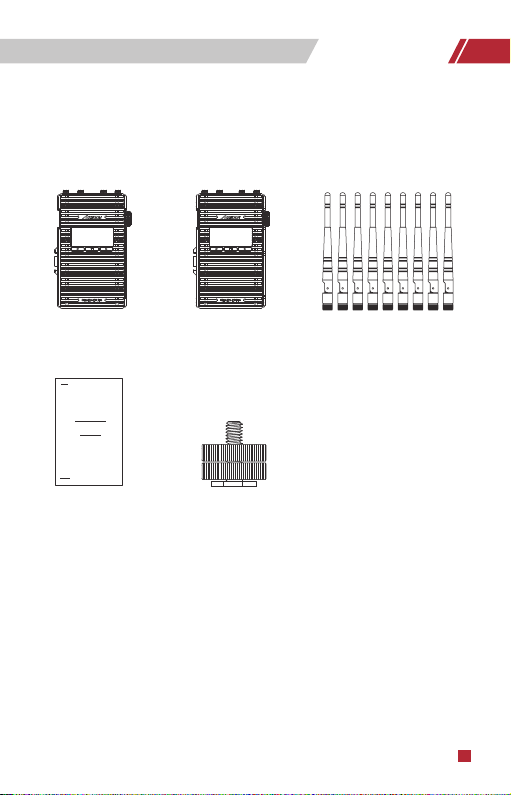
In the Box
Transmitter x1 Receiver x1
User manual x1
Hot/Cold shoe mount adapter x2
Antenna x9
1
Page 4
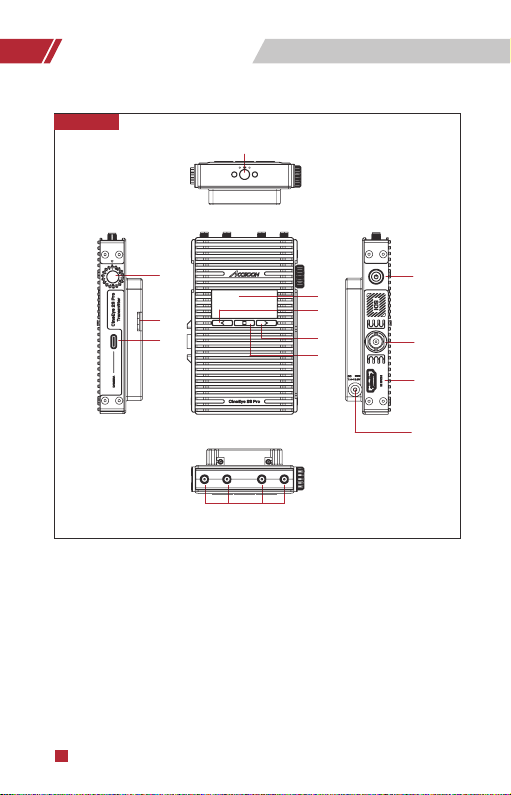
CineEye 2S Pro
Transmitter
①
① 1/4 Screw
② Group Knob
③ Battery Lock
④ Camera Control Interface
2
②
③
④
⑤ 1.3 Inch OLED
⑥ Left Key
⑦ Right Key
⑤
⑥
⑦
⑧
⑬
⑧ Menu/OK Key
⑨ Power Button
⑩ SDI In
⑬ Antenna Connector (RP-SMA Male)
⑨
⑩
⑪
⑫
⑪ HDMI In
⑫ DC Port
Page 5
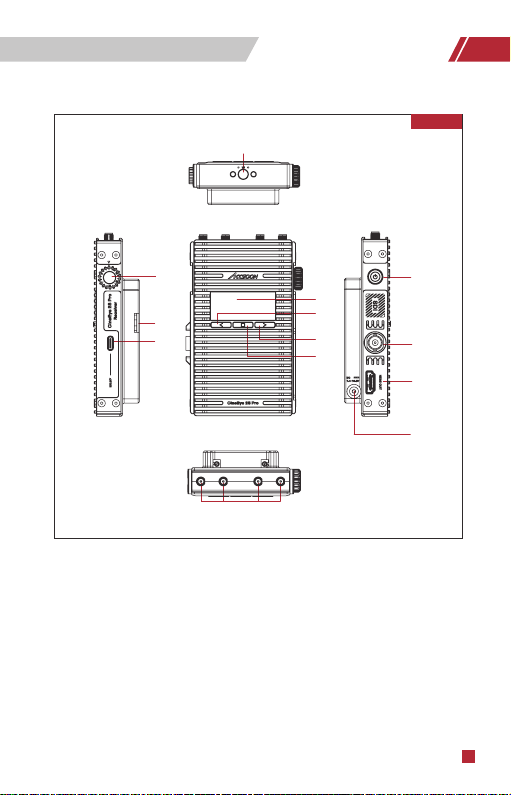
CineEye 2S Pro
①
Receiver
②
③
④
① 1/4 Screw
② Group Knob
③ Battery Lock
④ Camera Control Interface
⑤ 1.3 Inch OLED
⑥ Left Key
⑦ Right Key
⑤
⑥
⑦
⑧
⑬
⑧ Menu/OK Key
⑨ Power Button
⑩ SDI Out
⑬ Antenna Connector (RP-SMA Male)
⑨
⑩
⑪
⑫
⑪ HDMI Out
⑫ DC Port
3
Page 6
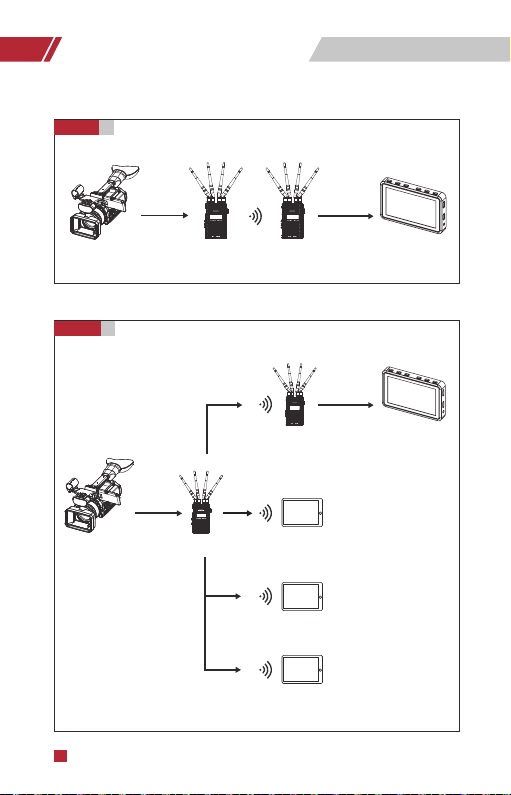
Typical Application
Diagram
1
Diagram
4
Camera
Camera
2
SDI/HDMI In
CineEye 2S Pro CineEye 2S Pro
Transmitter Receiver Monitor
CineEye 2S Pro
Receiver
SDI/HDMI In
CineEye 2S Pro
Transmitter Mobile Devices
Mobile Devices
Mobile Devices
SDI/HDMI Out
SDI/HDMI Out
Monitor
Page 7
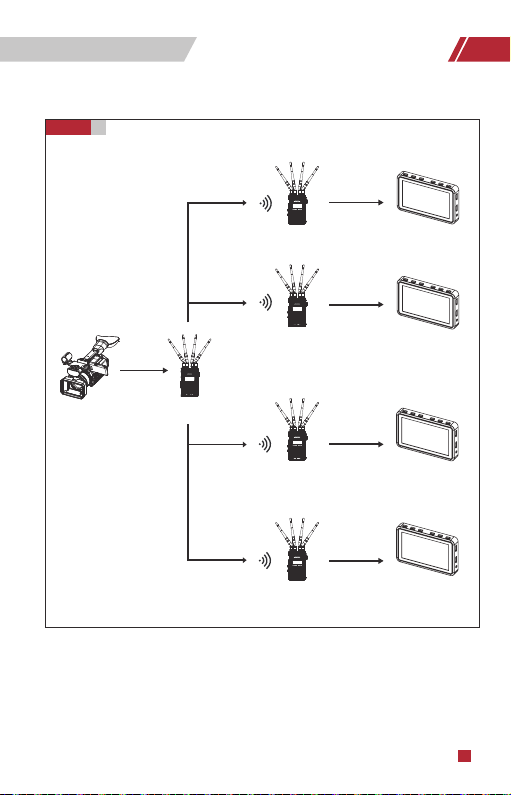
Diagram
Camera
3
SDI/HDMI In
Typical Application
SDI/HDMI Out
CineEye 2S Pro
Receiver
SDI/HDMI Out
CineEye 2S Pro
Receiver
CineEye 2S Pro
Transmitter
SDI/HDMI Out
CineEye 2S Pro
Receiver
SDI/HDMI Out
CineEye 2S Pro
Receiver
Monitor
Monitor
Monitor
Monitor
5
Page 8
Operation Instructions
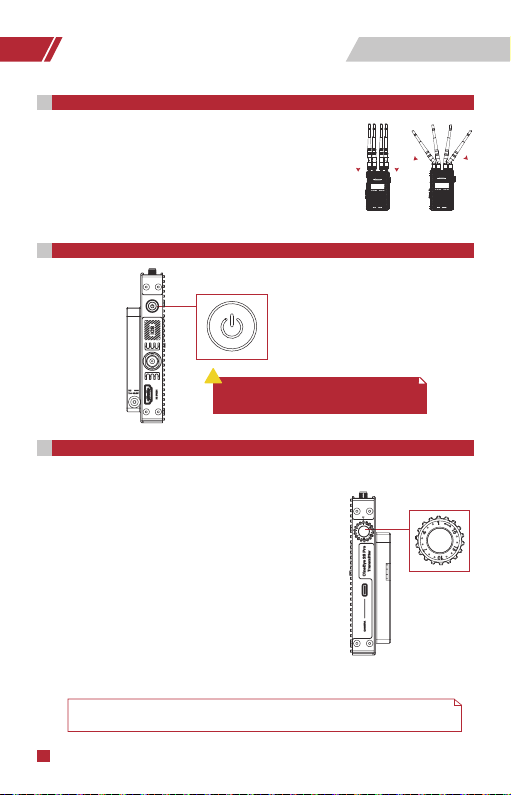
Install Instructions
01
1. Install the antennas as demonstrated.
2. Use the hot/cold shoe mount adapter to install the CineEye 2S Pro
onto the camera or camera cage.
3. Use a NP-F970/F750/F550 battery or DC source to power
the CineEye 2S Pro.
4. Connect camera output via HDMI to transmitter HDMI input port.
5. Connect receiver to the monitor (monitor not included in this product).
02
Turn On/Off
i
Turn on - Hold the power button for 1 seconds
Turn off - Hold the power button for 3 seconds
03
Group Settings
1. CineEye 2S Pro use s a group knob to pair the transmitte r
and receiver, both th e transmitter and th e receiver have
a grou p knob on the sid e. The transmitter an d receiver
will pai r automatically if thei r group k nobs ar e in the
same position (group num ber is the s ame), otherwise
they will not pair a nd canno t commun icate.
2. If user s want to connect more than one receiver to t he
same transmitter, set all of the receiver’s group numbers
to the sam e as the trans mitter. Up to four receivers can
be paire d to the sam e transm itter.
3. If multiple Cine Eye 2S Pro units are being use d in the same
area,each transmitter and receiver pairings needs to have
a different group number.
Note: If the group se tting has changed , pleas e bring th e transm itter and receive r in close ra nge, or
the pairing may fai l. If group set ting has changed after pow er on, the change will take effect af ter reboot.
CineEye 2S Pro
①
CineEye 2S Pro
②
6
Page 9
04
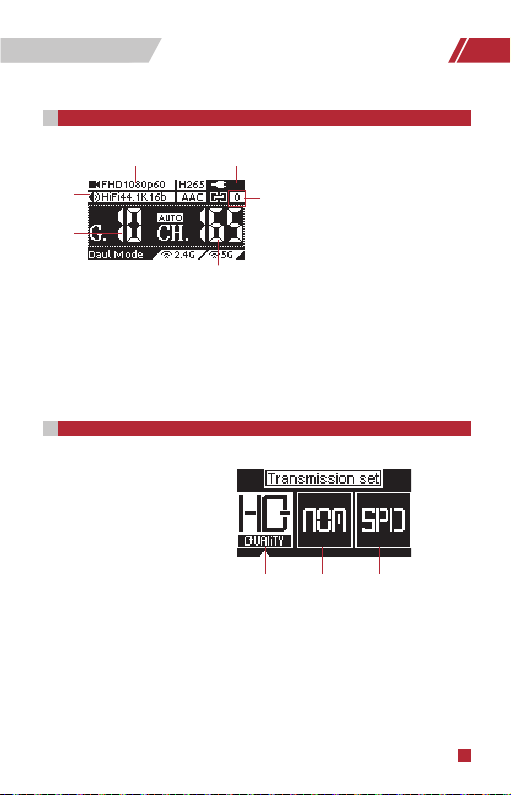
OLED Display
Operation Instructions
①
②
③
Connection Status:
Transmitter: The connection sta tus indicate s how many devices are conn ected, if no
devic es are connecte d the unit will display “0”.
Recei ver: The con nection st atus will dis play “1” if the receive r is connect ed to
a trans mitter, or will dis play “0”.
05
Data Rate Setting
① High Quality Mode
② Normal Mode (Default setting)
③ Speed Mode
Setting steps:
Click the “Menu” button to enter “Data Rate Setting” → choosing a data rate mode
→ click “Menu” button to take effect.
④
⑥
① Input video info
② Input audio info
⑤
③ Current group setting
④ Battery level/DC input
⑤ Connection status
⑥ Current 5G WiFi channel
②①
③
7
Page 10
Operation Instructions
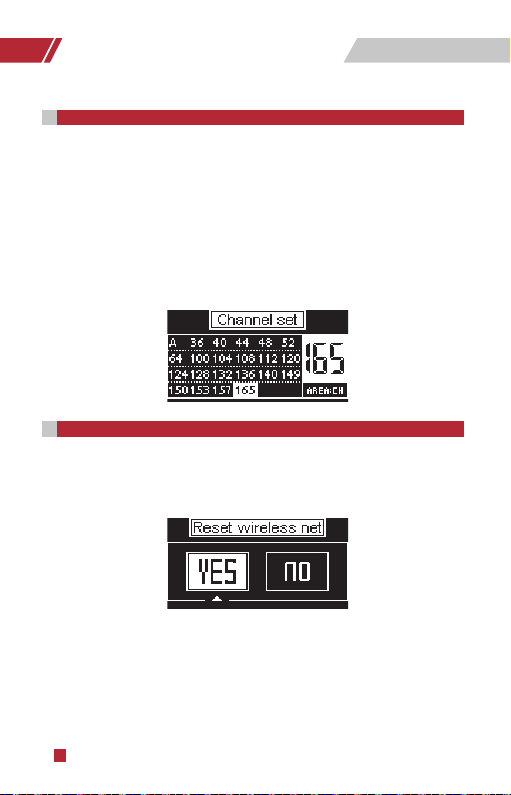
Channel Setting
06
1. Only the transm itter has the “Cha nnel Sett ing” menu.
2. The defau lt setting is “Auto” whi ch means th e transmit ter will sel ect a chann el with
the least inte rfere nce autom atically af ter power on .
3. If users wa nt to select a cha nnel man ually, plea se follow bel ow steps: Clic k “Menu”
butto n to enter “Channel Se tting” menu ->choosin g a channel → click “Me nu” button
to confirm → Cho osing “Yes” → Click “Menu” button to rebo ot the transmitter and the
set ting will take effect .
07
Network Reset
Only the transmitter has the “Network Reset” menu. Users can reset the WiFi SSID and
password to factory settings by “Network Reset” menu.
Setting steps:
Click “Menu” button to enter “Network Reset” menu → choosing “Yes” → click “Menu”
button to confirm → Choosing “Yes” → Click “Menu” button to reboot, the SSID and
password of the 5G WiFi will be reset to factory settings.
8
Page 11
08
App Monitoring
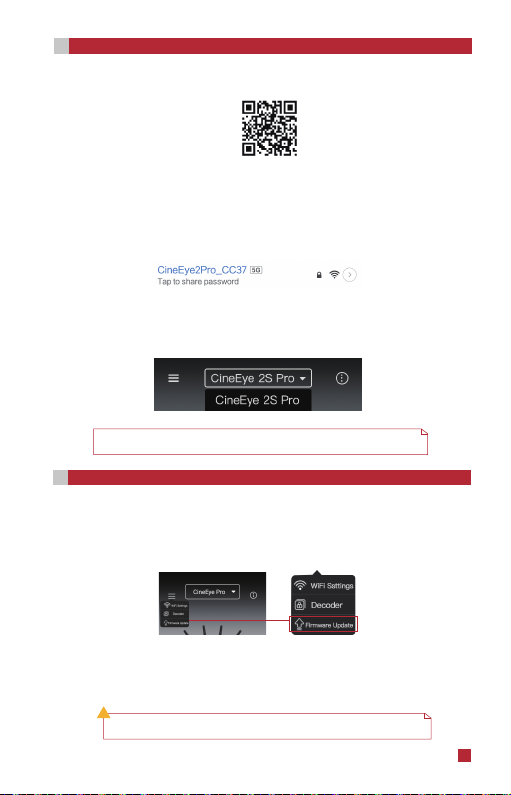
1. App download
Pleas e downloa d the App (Ac csoon G o) from the Go ogle Play or i OS App Sto re.
2. Conn ect the A pp to the Cin eEye 2S Pro tr ansmit ter
La unch the “Accsoo n Go” app and then selec t “CineEye 2S Pro”, open the WLAN
(Wirle ss/WiFi) set tings pag e of the mobile dev ices, the n choose th e CineEye 2S Pr o
WiFi and c onnec t to it. The name of th e CineEye 2S Pro Wi Fi is “CineEye2Pr o_XX XX”
an d the def ault pas sword is“12345678”.
3. Monitoring
Re turn to Accs oon Go and ens ure CineEy e 2S Pro is selecte d, click “Mon itor” to enter
the monito ring page and you will be ab le to monitor the live fee d of the camera.
Note:CineEye 2S Pr o has two WiFi signa ls, one is 2.4G and anot her is 5G, the 2.4G
WiFi name is “Ci neEye2-Pro-Gro upX”, please d on’t conne ct to this WiFi.
09
Firmware Update
1. Firmwar e downloa d
Make sure your mobile ph one has internet access, then launch “Accso on Go” and select
“CineEye 2S Pro”, Click “Firm ware Update”, then the App wil l check if the re is an update.
Click “Dow nload” b utton to dow nload th e firmwar e if there is a n update av ailable.
2. Upda te
After the firmwa re is downlo aded, con nect the Cin eEye 2S Pro rec eiver to the
transmitter and t hen conn ect the mo bile devi ces to the tr ansmit ter. Go back to th e
App and cli ck “Next” to up date.
!
1. The battery level of the CineEye 2S Pro should be above 50% before updating.
2. Don’t turn off the CineEye 2S Pro before the updates are complete.
9
Page 12

Specification
Transmitter Receiver
Video Input
Video Output
SDI Input
HDMI Input
Audio
Antenna Connector
Latency
OLED
Transmission Power
Transmission Range
Camera Control
Power Consumption
Operating Temperature
Dimensions
Weight
SDI/HDMI
1080p 23.98/24/25/29.97/30/50/59.94/60fps
1080p 23.98/24/25/29.97/30/50/59.94/60fps
720p 50/59.94/60fps
480p 59.94/60fps
44.1KHz/48KHz 16bit/24bit PCM
4 RP-SMA Male
<0.06 seconds(Camera latency not included)
1.3 inch OLED
17~20dBm
1200 feet(no obstacles, no interference)
Yes None
4.5 Watt (Typical) 5.5 Watt(Typical)
-10~40℃
125mm×77mm×31mm(
Transmitter 260 gram/Receiver 260 gram(
Antenna not included
Antenna not included
SDI/HDMI
)
)
10
Page 13

Warranty
01
一.质保期限
Warranty Period
1. If ther e is a qualit y probl em that occ urs with in 15 days afte r receivi ng the product,
we will provid e complime ntary mai ntenanc e or replace ment.
2. The warr anty per iod for trans mitter an d receive r units is one year. Within the warrant y
perio d, if under th e usage of ins tructio n manual for a ny produc t problem Ac csoon will
offer repair servi ce for free.
3. The acces sories an d cables warr anty peri od is 3 months.
02
一.质保期限
Warranty Exclusions
1. Unauthori zed mainten ance, misu se, impact da mage, liqui d infiltratio n, or modifi cation.
2. Incor rect us e of the prod uct or alte ring the l abel and w arrant y sticker.
3. The war ranty p eriod ha s been exce eded.
4. Dama ge due to fire , flood, lig htning, etc .
03
一.质保期限
Warranty Process
Customer shall contact the local dealer to solve their problem. If there is no local dealer
available, please contact Accsoon directly via email ([email protected]) or our website
(www.accsoon.com). You will get detailed information, and Accsoon reserves the right to
review the damaged products.
11
Page 14

Q&A
01
一.质保期限
Receiver cannot connect to transmitter
接收机与发射机无法连接
1.Please m ake sure th e transm itter an d receive r have the s ame grou p settin g.
2.Pleas e check t hat all ante nnas ar e tightene d well.
02
一.质保期限
No video displayed
不能显示图像
接收机与发射机无法连接
1.Please en sure the SD I/HDMI cabl e is plugge d into the “SDI/HD MI In" port of th e
transmitter.
2.Pleas e check if the output fo rmat of the ca mera is compatib le with the
CineEye 2S Pro input for mats and ch eck if the cam era has vid eo output en abled
via the SD I/HDMI por t.
03
一.质保期限
Video is choppy
视频卡顿
1.Please c heck if th e antenna s are tight .
2.Pleas e make sur e there is n o cable ar ound the a ntenna.
3.Plea se switch to a nother c hannel m anuall y.
一.质保期限
04
Mobile devices can’t see the CineEye 2S Pro WiFi
视频卡顿
1.Please c heck if you r mobile d evices su pport 5 G WiFi.
一.质保期限
05
Mobile devices can’t connect to CineEye 2S Pro
视频卡顿
1.CineEye 2S Pr o has two Wi Fi networ ks availab le, one is 2.4 G and anot her is 5G,
the 2.4G Wi Fi name is “CineE ye2-Pro- GroupX”, pleas e don’t connect to this WiFi.
12
Page 15
Contact Us
Website Facebook Youtube
Certificate of Quality
This product is confirmed to meet quality
standards and permitted for sale
after strict inspection.
QC Inspector:
More det ails about the prod uct please visit w ww.accsoon.c om
This docu ment is subject to ch ange without noti ce.
R
Accsoo n is a trademark of Ac csoon Technology Co ., Ltd.
C
Copyrig ht 2020 Accsoon. All ri ghts reserved
Page 16

Website:www.accsoon.com E-mail:[email protected] Chengdu Accsoon Technology Co., Ltd
 Loading...