

Page 1

4Kam DV4
High Quality Digital Video Recorder System
Operation Manual
V1.0
RoHS
Page 2

i i i
i
l ic fiel ifi i l
i
.
i ial
i i
l
Pl i i
i l i i i
i
iti l i ili i is
l
l
l i i
i i li
l i l i
i i i l i
Warning
To prevent f re or shock hazard, do not expose the un t to ra n or
mo sture.
Attention
The e ectromagnet ds at the spec c frequenc es may inf uence
the p cture of the recorder.
Be sure to read the following before using the recorder and the
mini camera
Trail recording
Before you record one-t me events, you may want to make a tr
record ng to make sure that the recorder and the camera are work ng
correct y.
Notes on image data compatibility
ayback of mov ng images recorded w th your recorder on the other
equ pment and p ayback of mov ng images recorded or ed ted w th
other equ pment on your recorded are not guaranteed.
Do not shake or strike the recorder.
In add on to ma funct ons an inab ty to record mov ng images, th
may render the SD car unusab e of image data breakdown, damage or
oss may occur.
LCD screen and mini camera
Be careful when p ac ng the camera near a w ndow or outdoors.
Expos ng the LCD screen or the lens of camera to d rect sun ght for
ong per od may cause ma funct ons.
Back up recommendation
To avo d the potent al r sk of data loss a ways copy data to d sk.
Page 3

Table of Contents
Connection and Usage
……………………….................……..…..…4
Function of keys and Interfaces
……………………....……...……….5
Main Interfaces…………………………………………....…..………...6
Description of Functional Icons on Record Interface……….……...7
Operations of Record Interface………………………………..…......7
Operations of Video Interface……………………………….….......…8
Operations of Video Playing Interface…………………………..……8
Operations of Music Interface……………………………………...….9
Function Setting………………………………………………..….....… 9
REC Setting………………………………………..…….……...…......10
REC Object……………………………………………..……..…….....10
REC Quality……………………………………………….………....… 11
Video Segment Sizes………………………………..……...............12
Overwrite……………………………………………….………..…......12
Date and Time Show………………………………………….….....…13
Auto lock Key…………………………………………….……..….......13
Storage………………………………………………………….….......13
Operations of Date and Time……..…………………………….....…14
Video Output……………………………………………………….......14
Power Save…………………………………………………...............15
Shake Alarm…………………………………………….….…….....….15
Beep Alarm………………………………………………………......…16
Format……………………………………………………………......…16
Language………………………………………………….……….......16
Defaults………………………………………………….…….….....….17
System Info……………………………………………….……….....…17
USB Connection………………………………………….……….......18
LANC Connection……………………………………………….….....18
Specifications…………………………………………………….…....18
Copyright and Statement 、Limited Responsibility………………..19
3
Page 4

Connection and Usage
AV IN Connection
The product may, via this device, record video on camera, TV and
DVD player, please connect A/V cable to A/V input interface of this
product.
AV OUT Connection
This product may use video output cable (RCA)via AV OUT
interface to display the recorded video on TV, LCD screen turns black
at this moment.
USB Connection
This product uses Mini USB2. 0 with the maximum speed up to
480Mbps, the connection with PC enables the device to copy or
delete the video files inside conveniently, and it may charge the
battery via this USB connection.
Mini USB may be used as 5V-12V power input interface and supply
power to the recorder via 5V-12V 1000Am vehicle charger.
Earphone Connection
This product is equipped with 2.5 earphone jack, the speaker will be
automatically shielded after the earphone connected.
LANC Connection
This product uses Mini HDMI interface to connect the monitor,
through which the user may power on/off the device and use the
functions of starting/stopping record.
TF Card
This product uses TF card to store the video files with the maximum
capacity of 512MB-16GB, please insert TF card as per the
instructions to avoid damage to the card slot.
4
Page 5
1
2
3
4
5
6
7
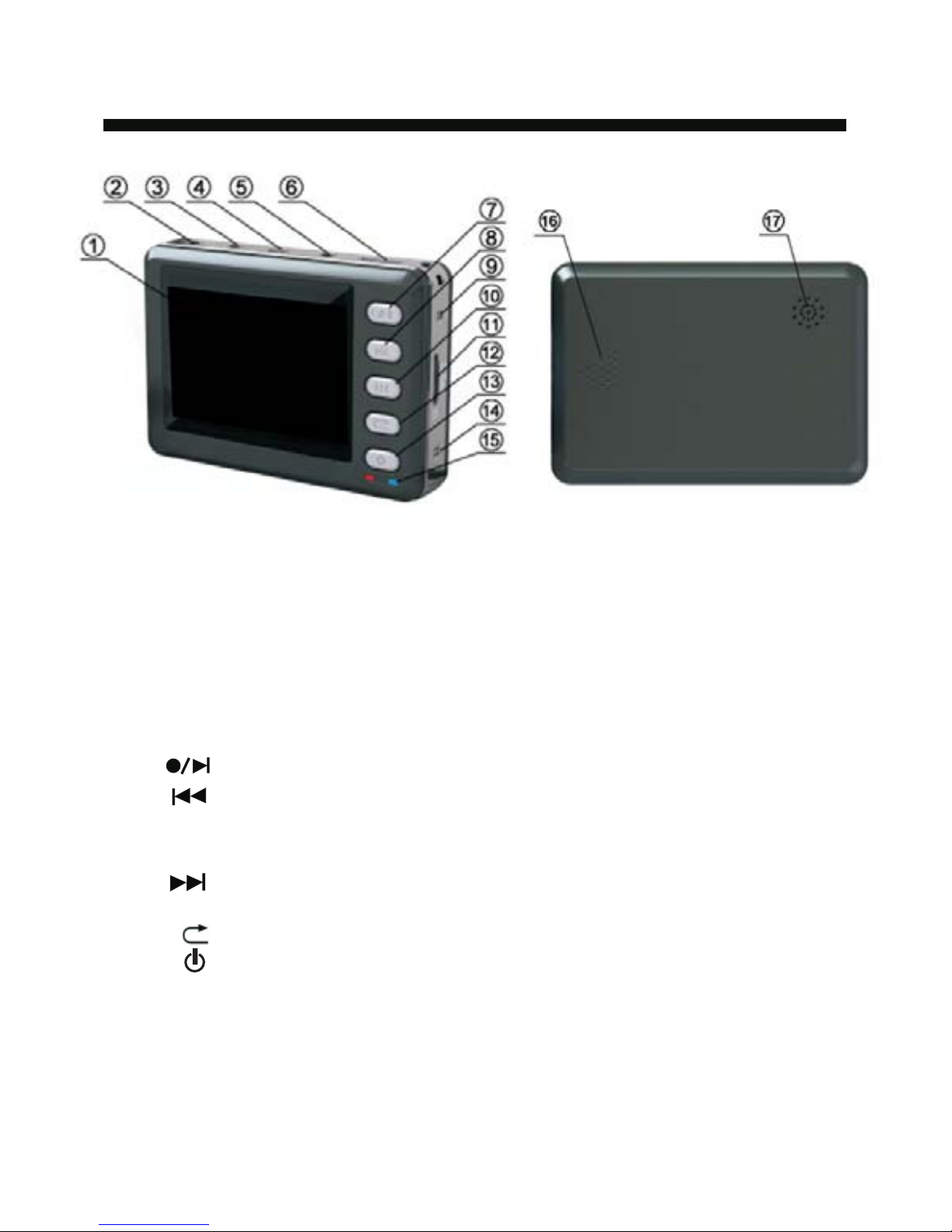
Function of Keys and Interfaces
1. 2.5″TFT LCD Screen
2. AV in Jack to connect with the Mini camera/TV
3. AV Out jack to connect with TV
4. USB jack to connct with PC/ 5V-12V DC
5. Earphone jack
6. LANC Mini HDMI jack
7. [ ] play / Stop key (unlock key)
8. [ ]FWD / Select key(delete and copy)(adjust volume)
(fast forward)
9. MIC
10.[
] REV / Select key(adjust volume)(fast reverse)
1 . TF Card support up to 512MB-16GB
1 . [ ] Return key
1 . [ ] Power Key
1 . Beep Alarm
1 . LED Indicators
1 . Direction of opening the rear cover
1 . Speaker
5
Page 6
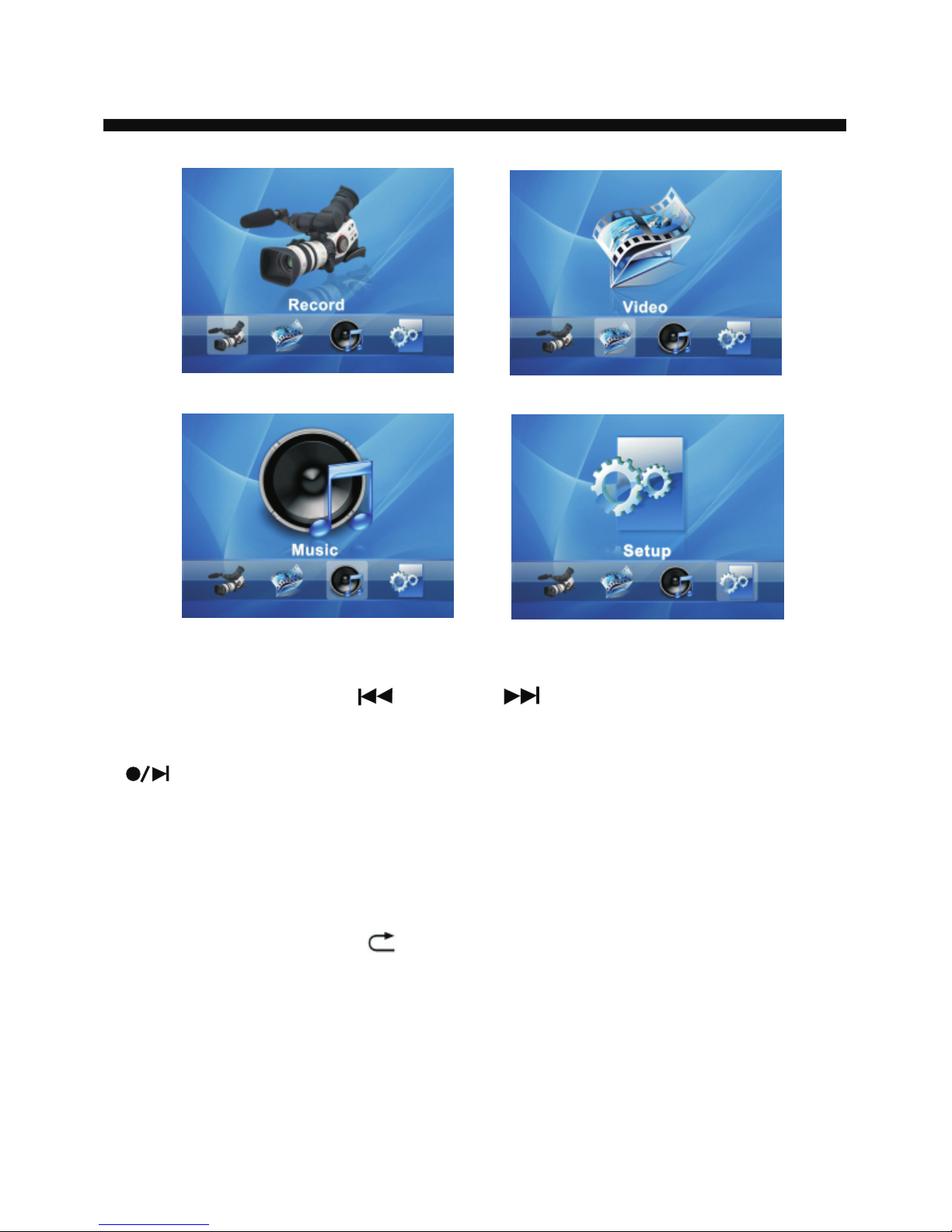
Main Interface
In main interface, use [ ] key and [ ] key to select the function,
the cursor will skip and stop with the selection, when the cursor stays
on one function icon, it shall display the name of the function, press
[ ] key to enter this function interface.
Record: select this option to enter the waiting interface for record
Video : select this option to enter the video file playing interface
Music : select this option to enter the music file playing interface
Setup : select this option to enter the setting interface of functions
In any interface, press [
] key to exit from the current menu.
6
Page 7
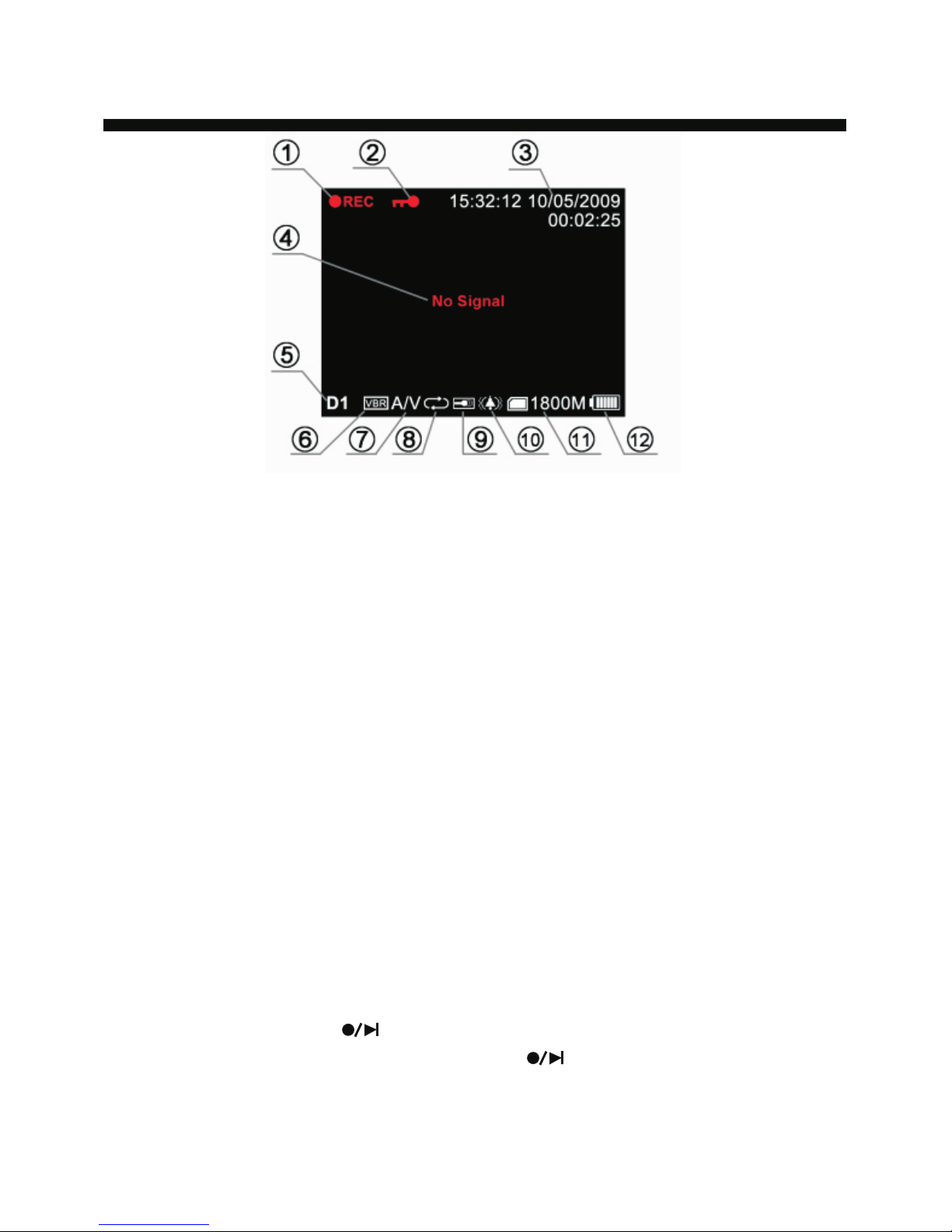
Description of Function Icons on Recor d Interface
1. In recording state
2. “Lock” icon
3. Date and time of current record
4. “No Signal” alert
5. Record mode: D1/VGA/SIF
D1 - PAL: 720x576 (25fps), NTSC:720x480(30fps)
VGA-640x480 (30fps)
SIF-320x240 (30fps)
6. Record quality: VBR / HQ / SP / LP / EP / SLP
7. Record contents: Video / Video+ Audio
8. Overwrite/Not overwrite
9. Inside MIC / Outside MIC
10. Shake Alarm / Beep Alarm
11. SD card icon and the usable memory
12. Usable electric capacity at present
The product enters the standby state after power on, press key to exit
and return to the main menu.
Oper ations of Record Interface
By this function, the user may record the video on TV/DVD player, in
standby state, press [ ] key to start to record and the screen
displays the icon[●REC], further press [ ] key to stop recording,
when in standby state, the device will automatically detect whether
AV IN has video signal input, if no signal, the device will give shake
alarm or beep alarm and the screen displays “No Signal”.
7
Page 8
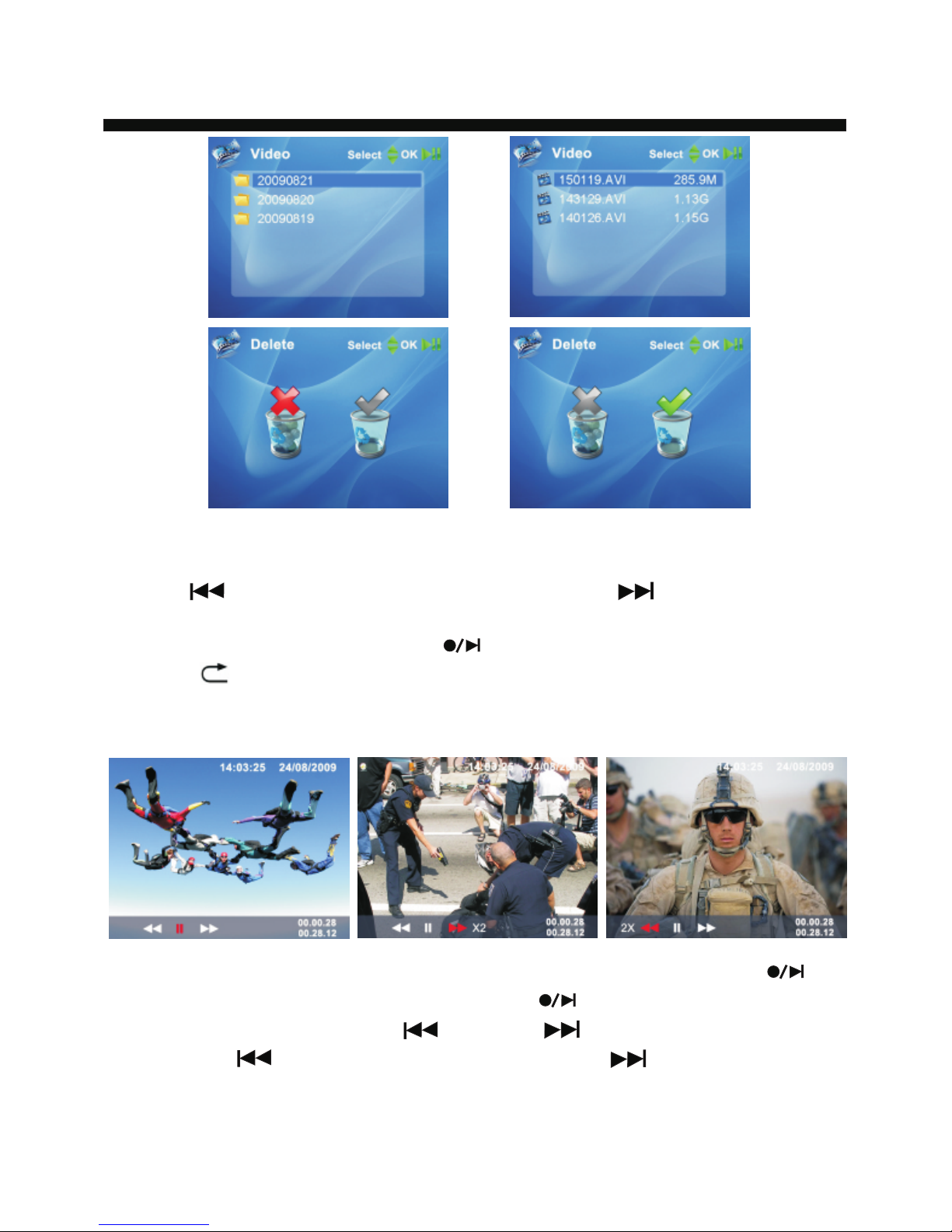
Operations of V ideo Interface
Enter Video File interface, the folder is named with the current date,
and the video file is named with the record time, in this interface, long
press [
] key to pop up “Delete/Copy”, press [ ] key to select
and confirm to delete folder/video file or copy the folder/video file to
the memory or SD card, press [
] key to confirm the operation.
Press [ ] key to exit from the current interface.
Operations of Video Playing Interface:
In Video interface, select the video file to be played and press [ ]
key to enter the playing interface, press [ ] key to play or pause to
play the video, short press [ ] key and [ ] key to adjust the volume,
long press [ ] key to fast reverse, long press [ ] key to fast
forward, with the speed of X2, X4, X8, X20.
8
Page 9
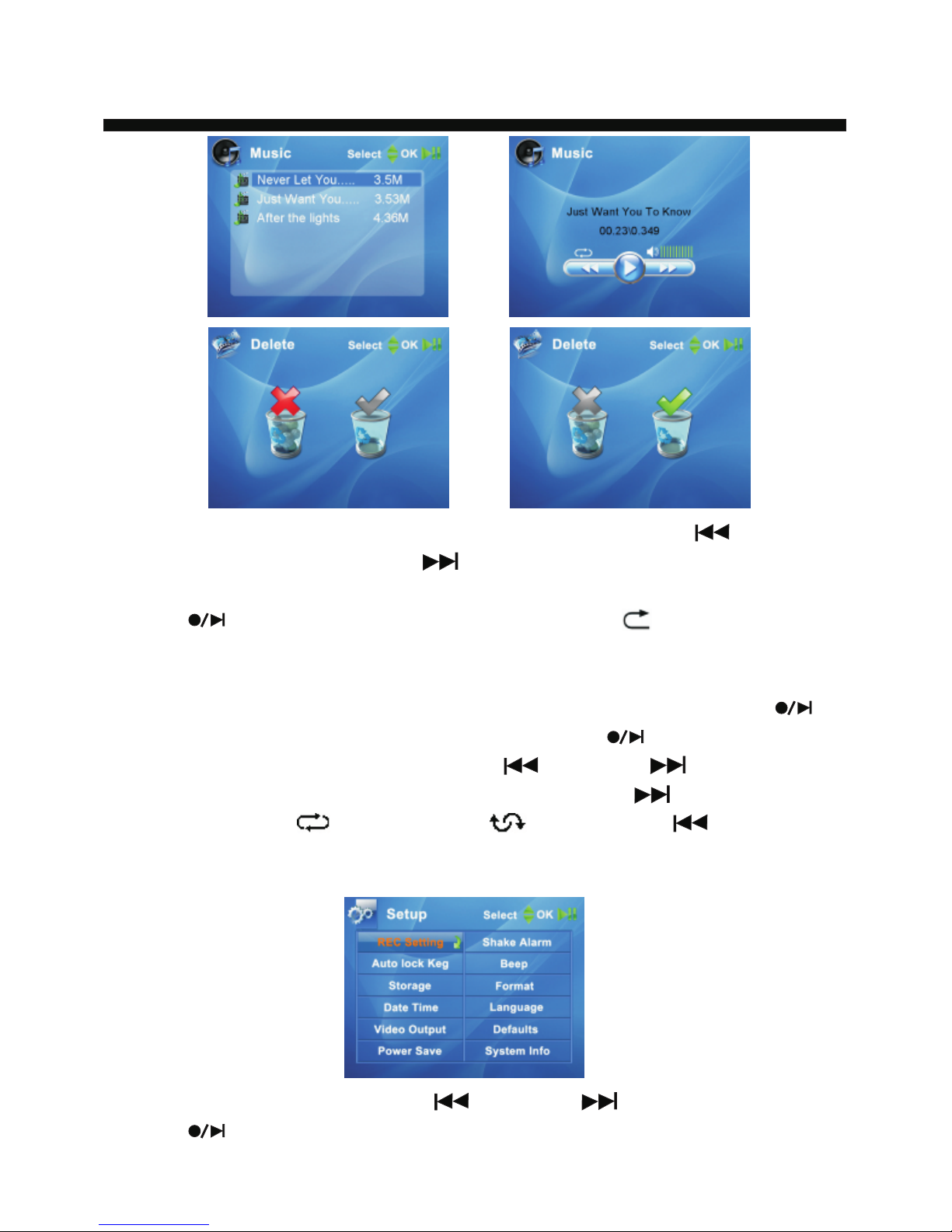
Operations of Music Interface
Enter Music File interface, in this interface, long press [ ] key to
pop up “Delete/Copy”, press [ ] key to select and confirm to delete
folder/audio file or copy the folder/audio file to the memory or SD card,
press [ ] key to confirm the operation. Press [ ] key to exit from
the current interface.
In Music Interface, select the audio file to be played and press [ ]
key to enter the audio playing interface, press [ ] key to play or
pause to play the audio, short press [ ] key and [ ] key to adjust
the volume, in the process of playing, long press [
] key to switch
between Shuffle[ ] and Random[ ], long press [ ] key to skip
to the next song.
Function Setting
In the functional menu, press [ ] key and [ ] key to select and
press [ ] key to enter the submenu.
9
Page 10
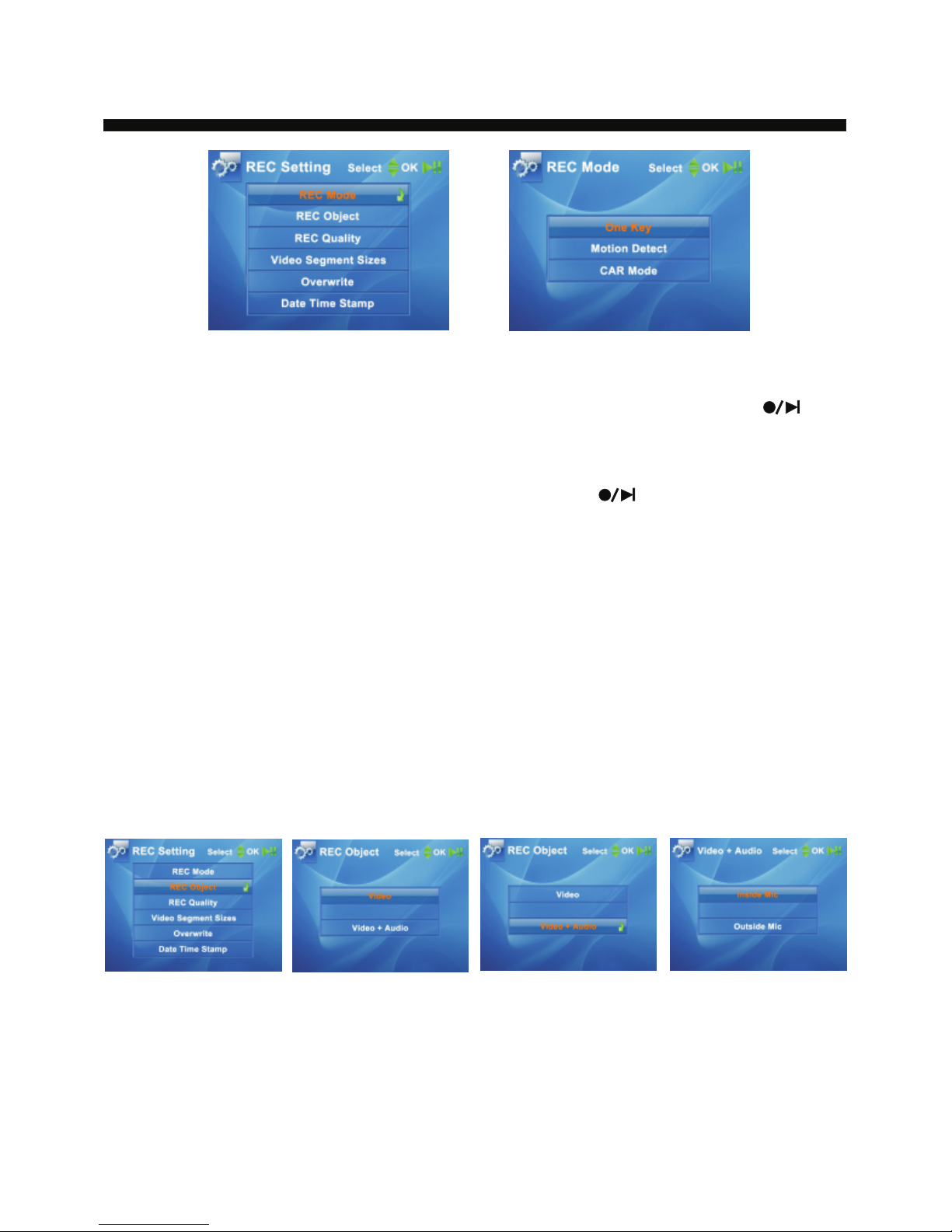
REC Setting
REC Mode:
(1)One Key: select this mode and in standby state, press [ ]
key to start to record.
(2)Motion Detect: select this mode and in standby state, enter
the working interface of Motion Detect, press [ ] key to start to
record, when there is object moving in front of the camera, the device
will record the video 20 seconds in advance.
(3)Car Mode: in the menu, select Car Mode option and then power
off the machine, use the car cigar lighter to connect to USB port of this
machine, in OFF state, when the car starts, the machine will
automatically record the video, when the car flames out, the machine
will store the video in two minutes and then power off automatically,
when the car starts again, the machine repeats the work. Note: the
cable of cigar lighter is different from the general, do NO Tuse other
lighter to avoid any damage to the device.
REC Object:
Video: record the video only without audio.
Video + Audio: record the video and audio, the user may select to
use inside Mic or outside Mic, it's advised to use outside Mic when
record DVD/TV video.
10
Page 11
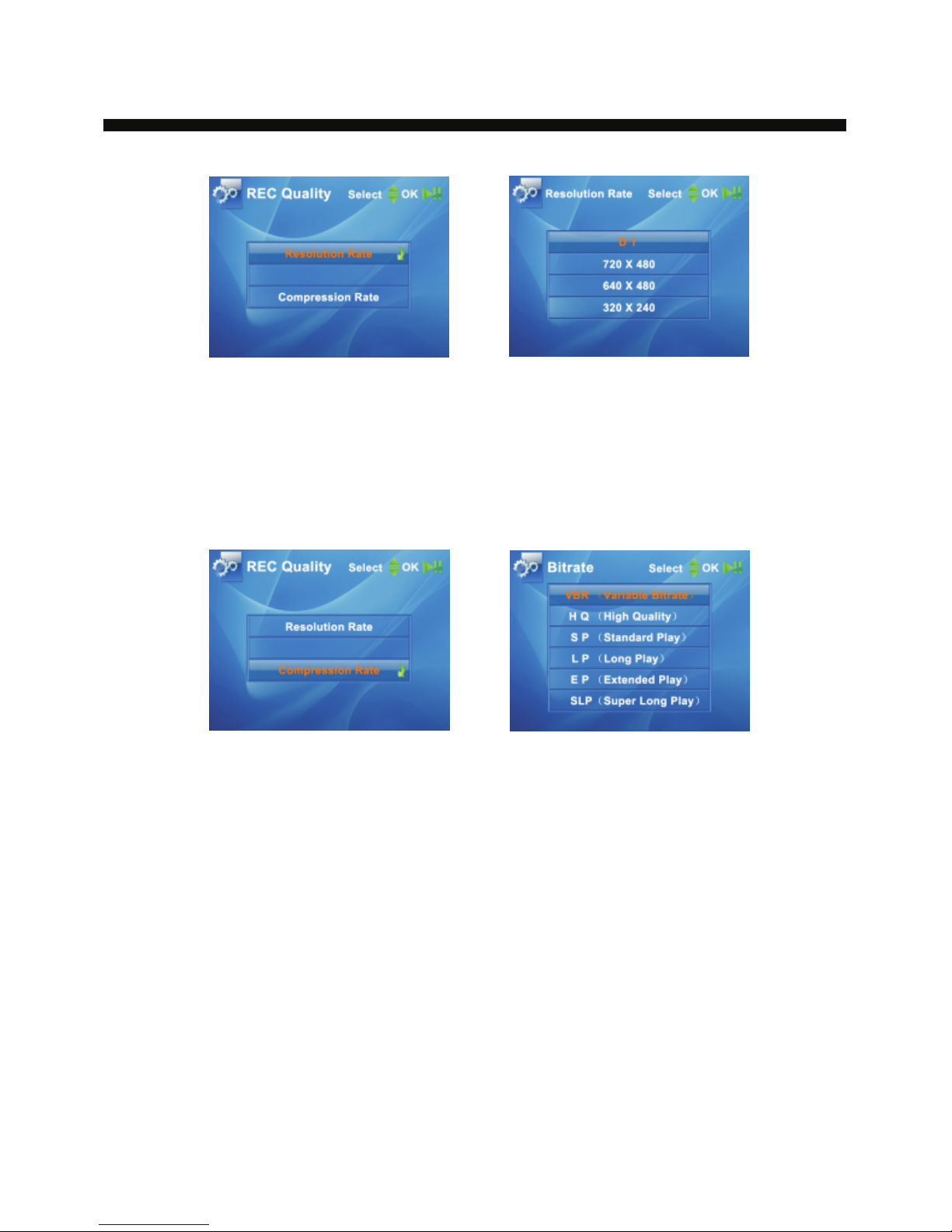
REC Quality
[Resolution Rate]
D1 ---- PAL: 720x576 (25fps), NTSC: 720x480(30fps)
VGA---640x480 (30fps)
SIF----320x240 (30fps)
[Compression Rate]
VBR----Variable Bit rate
HQ------High Quality
SP-------Standard Play
LP-------Long Play
EP-------Extended Play
SLP-----Super Long Play
The user may set up Resolution Rate and Compression Rate
according to the time length and quality, VBR mode will automatically
adjust the bit rate as the scenes and the pixels, this is a mode in
consideration of the size of file in the premise of quality, it's the
common mode used by the people.
11
Page 12
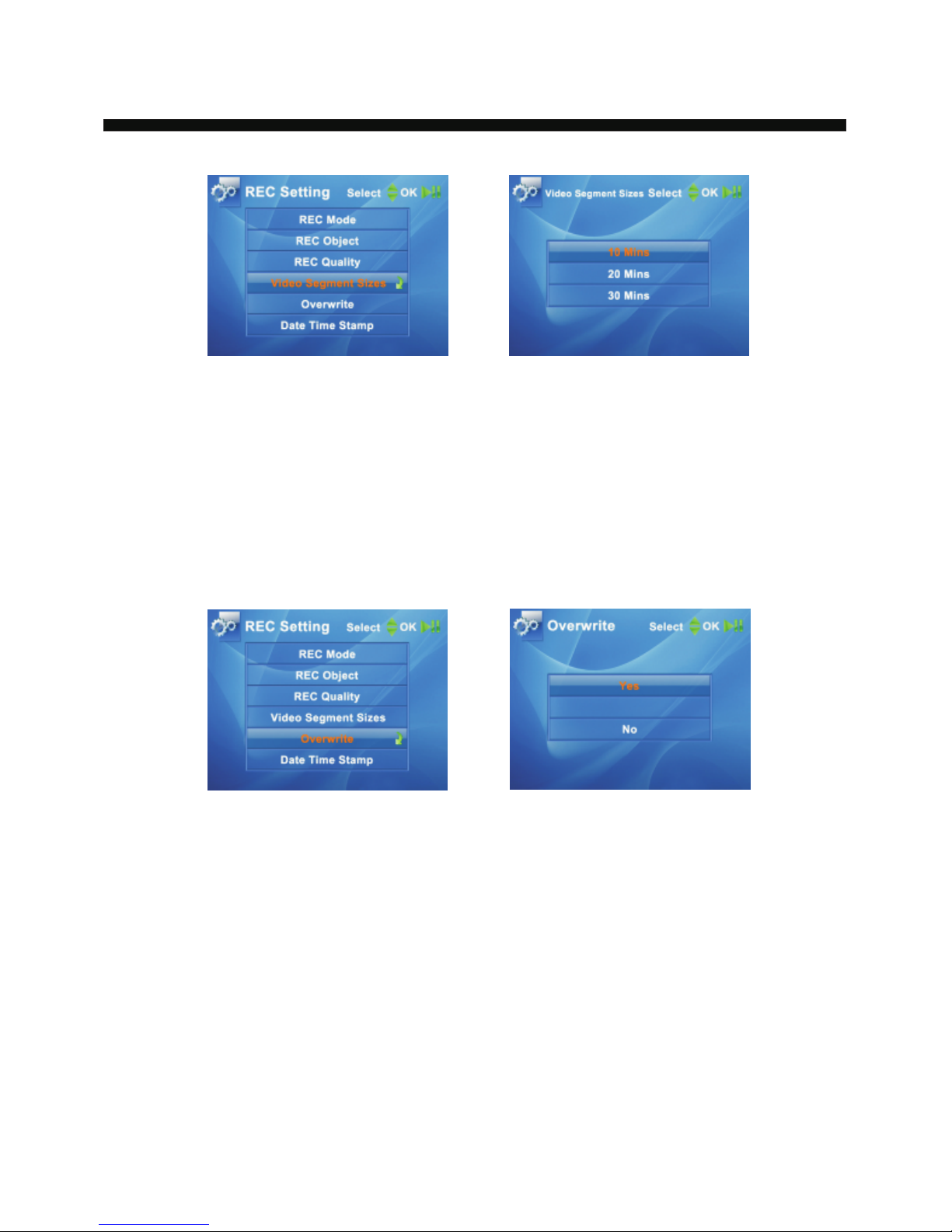
Video Segment Sizes
The user may separate segments according to the capacity of
memory card or the time length. Note: do not select 30 minutes when
use 2GB TF card as 2GB card couldn't be enough to store a 30-minute
video file in VBR mode.
Overwrite:
The user may select to activate the function of overwrite as need,
when the function is selected, when the memory card is full, the new
record file will automatically cover the before-recorded video file.
When the function is not selected, when the memory card is full, the
machine will automatically stop recording and give “Memory Full” alert.
12
Page 13
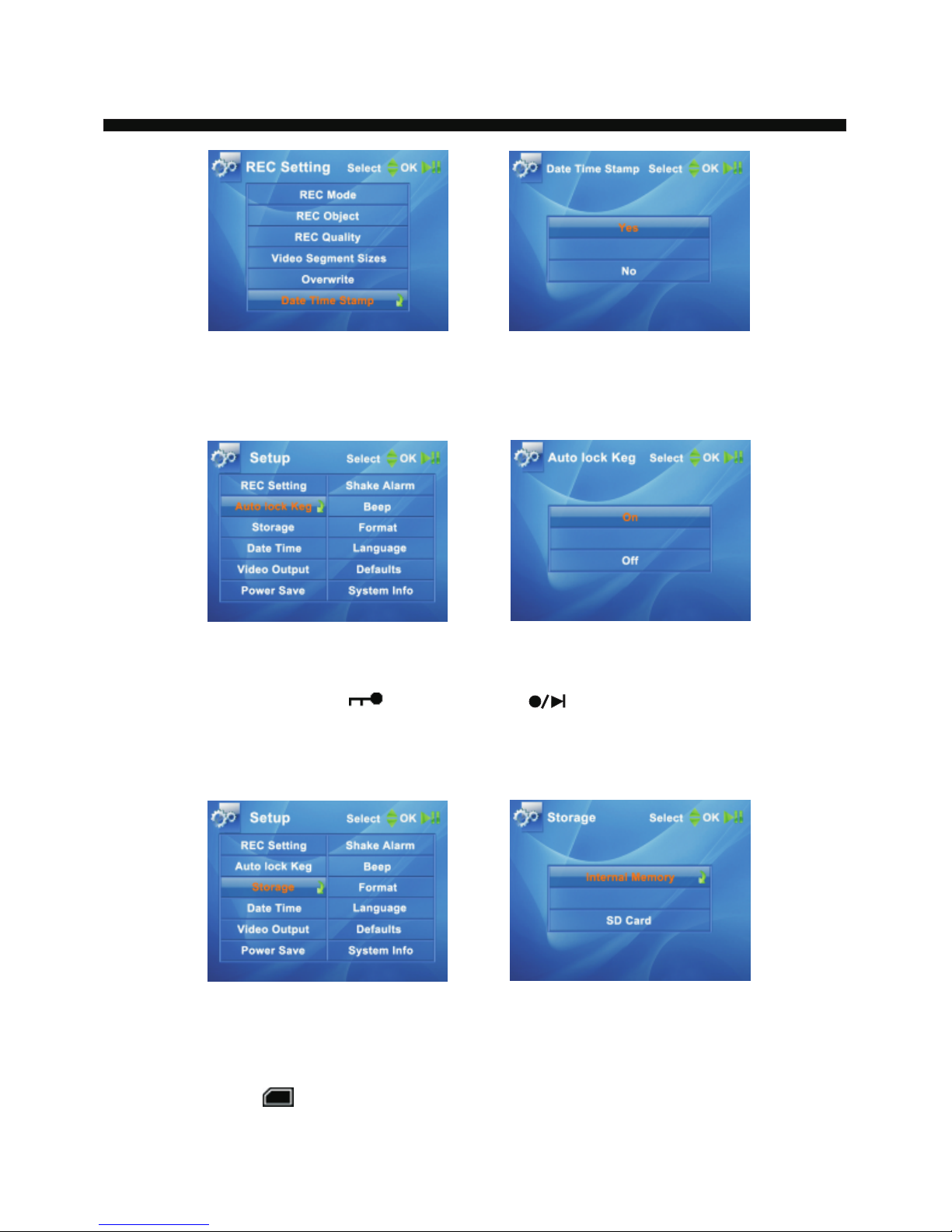
Date and Time show
The user may select to display the time and date when recording.
Auto lock Key:
In the menu, open the function of Auto Lock Key, the machine will
automatically lock in ten seconds after recording, and the screen
displays the key icon [
], long press [ ] key for three seconds to
unlock, the function of lock is also available to the keys of line control.
Storage:
The user may select to store the file in the machine or TF card as
need. TF card is hot plug, when TF card is inserted into the device, TF
card is defaulted as the storage media. And the screen displays the
storage icon [ ].
13
Page 14
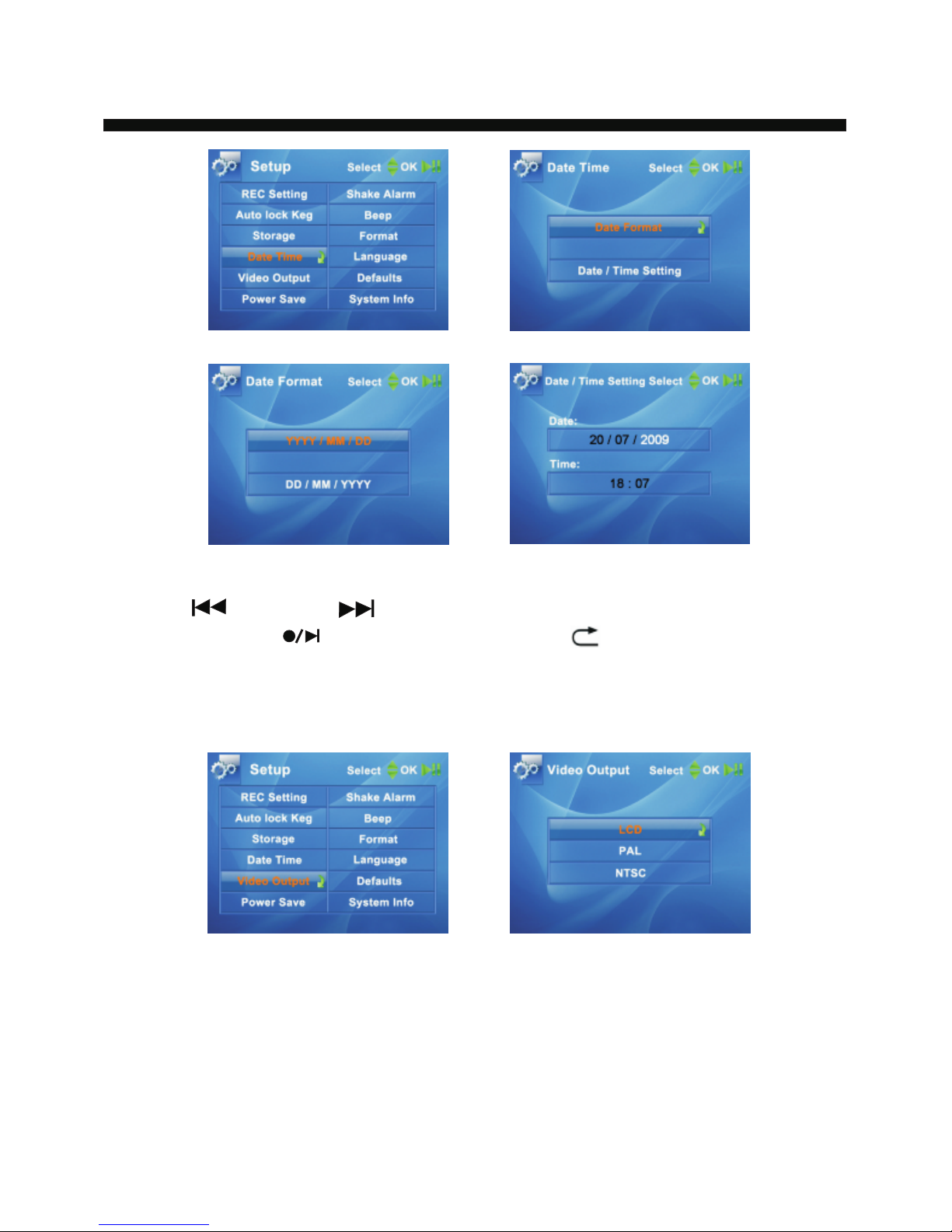
Operations of Date and Time
The user may select and adjust the display format of date and time.
Press [ ] key and [ ] key to adjust the numbers of time and date,
and then press [
] key to confirm, press [ ] key to exit from the
Video Output
The user may display the video file on TV/DVD player via 2.5 AV cable
to AV OUT port of this device, connect the other end “RCA” to TV/DVD
player, at this moment the LCD screen turns black.
14
Page 15
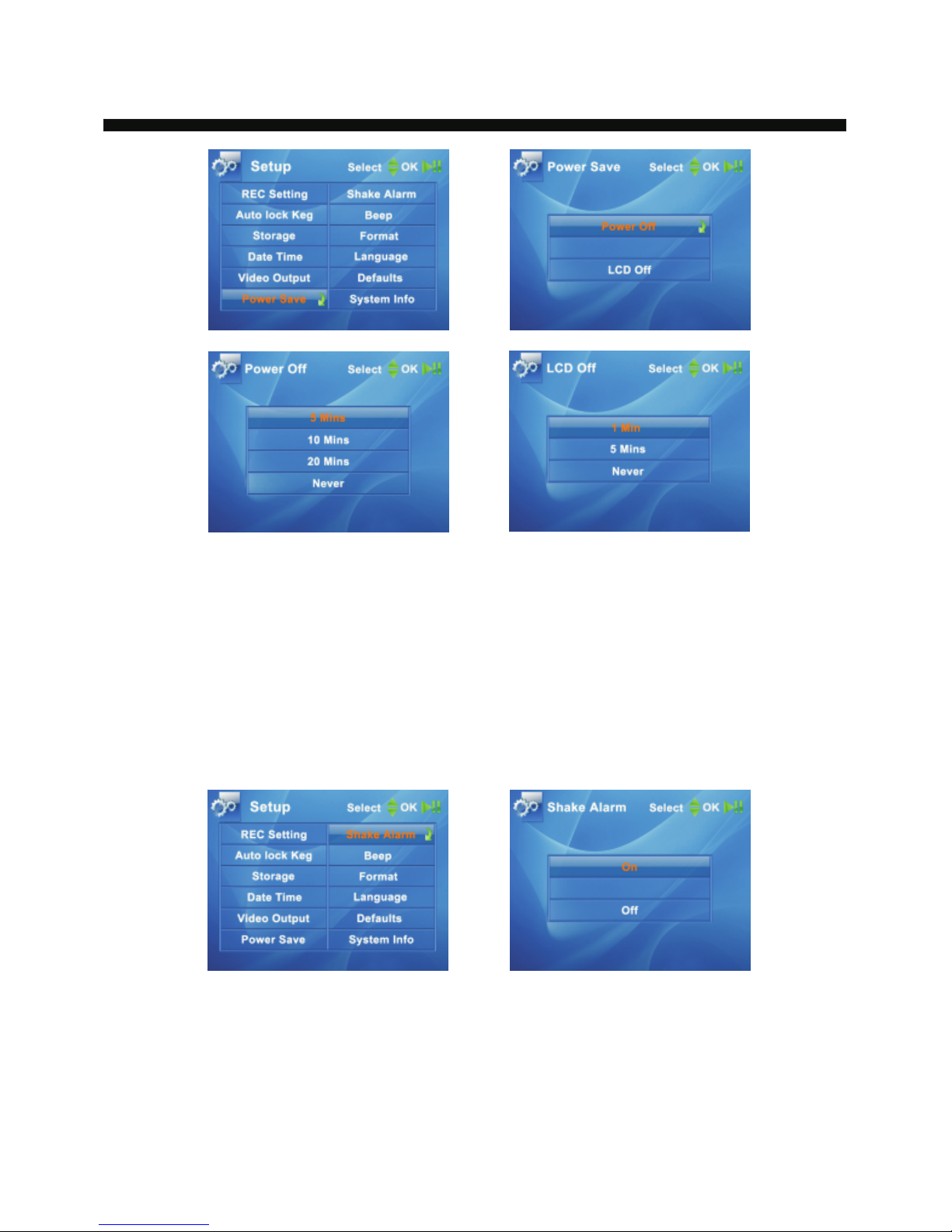
Power Save
Power OFF: After setting up the time, the machine will automatically
power off after the set time is over, it will store the video before power
off.
LCD OFF: After setting up the time, the machine will automatically
close the screen to save power, press any one key to display the LCD
screen once again.
Shake Alarm
After open the item, when the machine detects no signal input or when
the power is not enough, or the memory is full, the machine will give
shake alarm or beep alarm to alert the user. The user may select the
alarm mode as need and the screen will display the icon.
15
Page 16
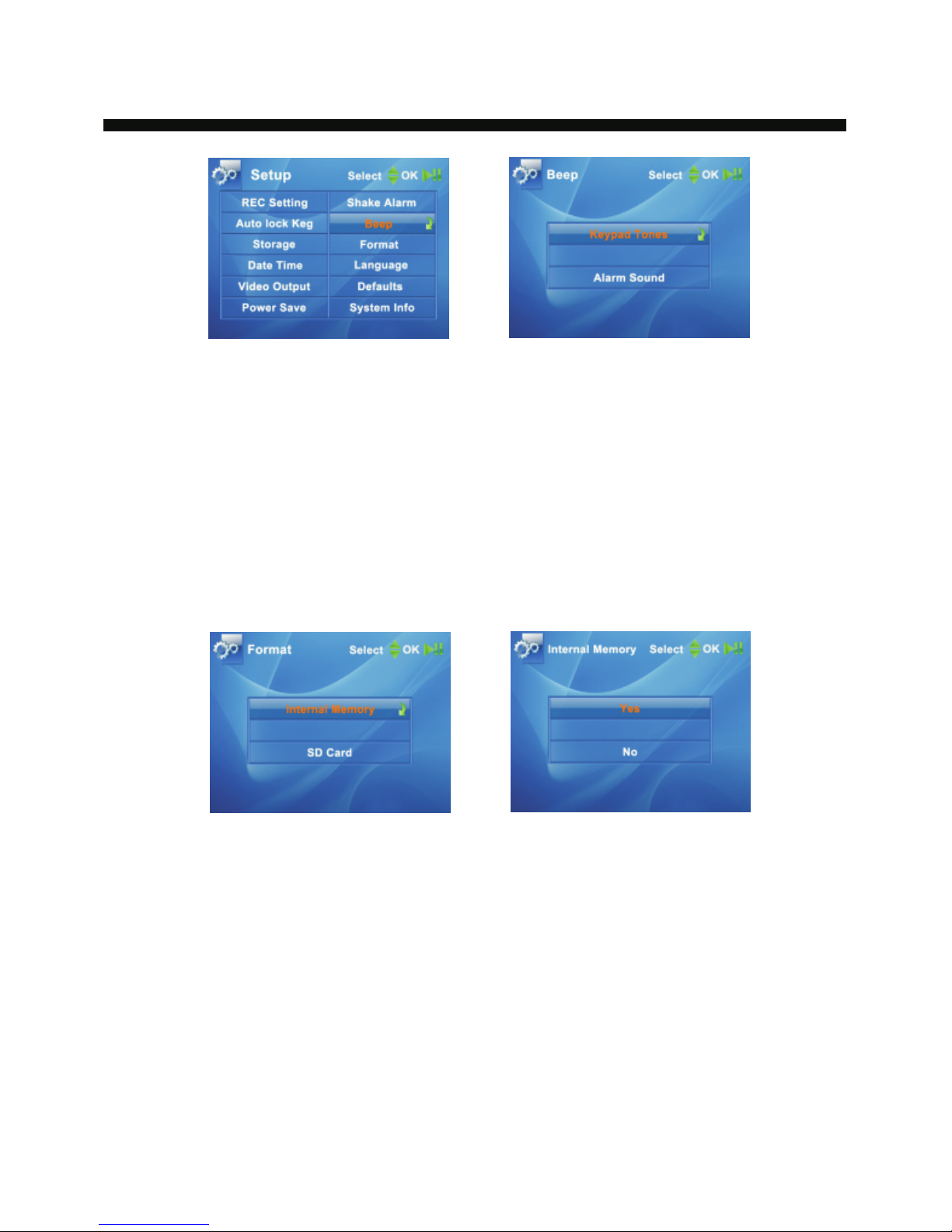
Beep Alarm
Keypad Tones: after activate this item, the machine will give beep
alarm once press any key.
Alarm Sound: after activate this item, when the machine detects no
signal input, or when the power is not enough, or the memory is full,
the machine will give shake alarm or beep alarm to alert the user. The
machine gives shake alarm or no sound when close this item.
For mat
Select the disc to be formatted. Note: no file in the formatted disc can
be recovered; the screen displays the capacity of the disc after being
formatted.
Language
This product supports English only at present.
16
Page 17
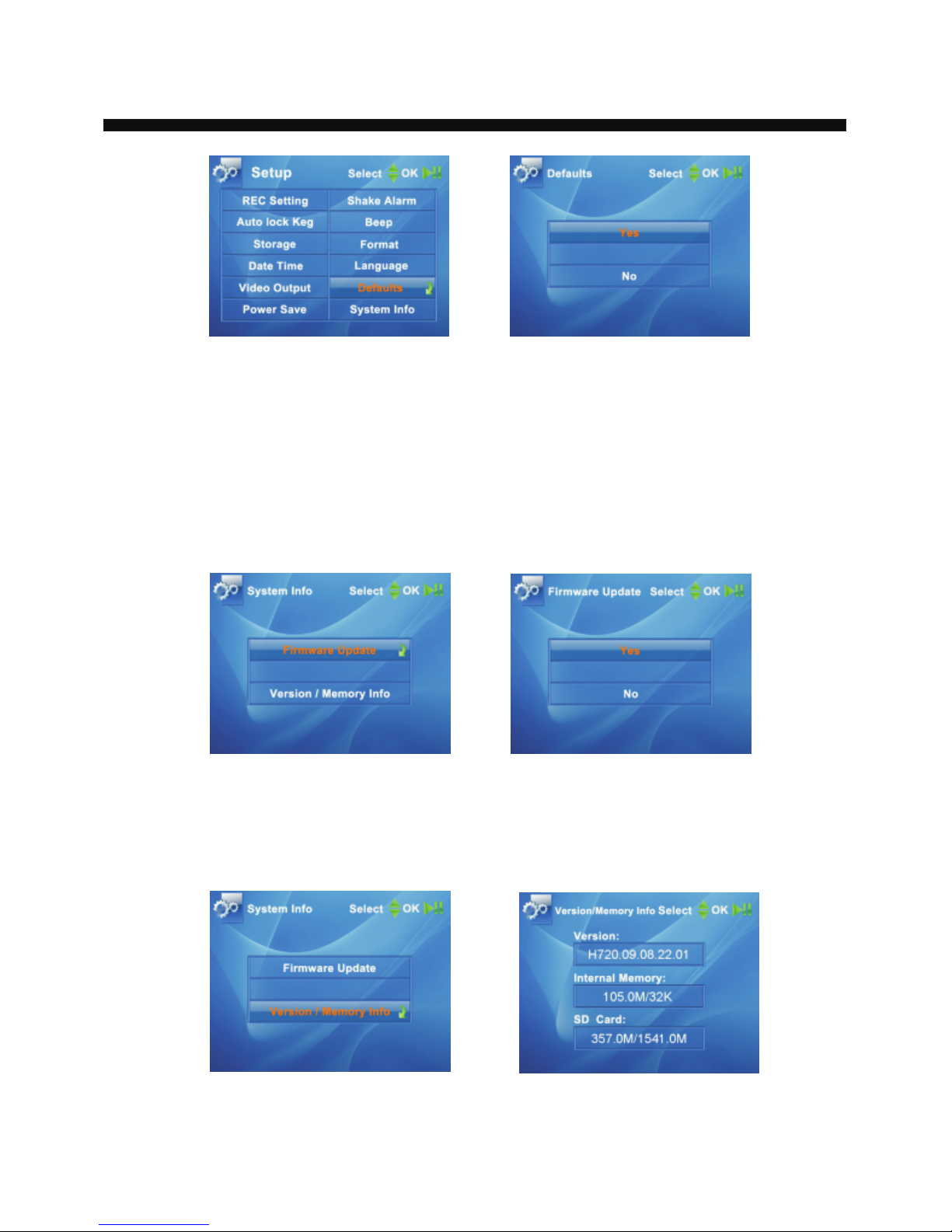
emory info of TF car
Defaults
When select this function item, all settings shall be reset to the exfactory values.
The parameters that may be recovered include language, date
format, LCD OFF time, storage media, record quality, time, overwrite
mode, video input, camera audio input, inside audio input and sound
volume.
System Info:
Store the update procedure in TF card root directory, and select [YES]
in [Firmware Update], then the machine will update the software, it
will automatically power off after updating.
on and m d in The user may view the software versi
[Version Memory Info] menu.
17
Page 18
USB Connection
Use USB cable to connect the machine to PC, and then the system
will enter USB connecting interface.
LANC Connection
In any interface, when LANC is connected to the machine, and when
the system detects the device, it will automatically enter standby
state.
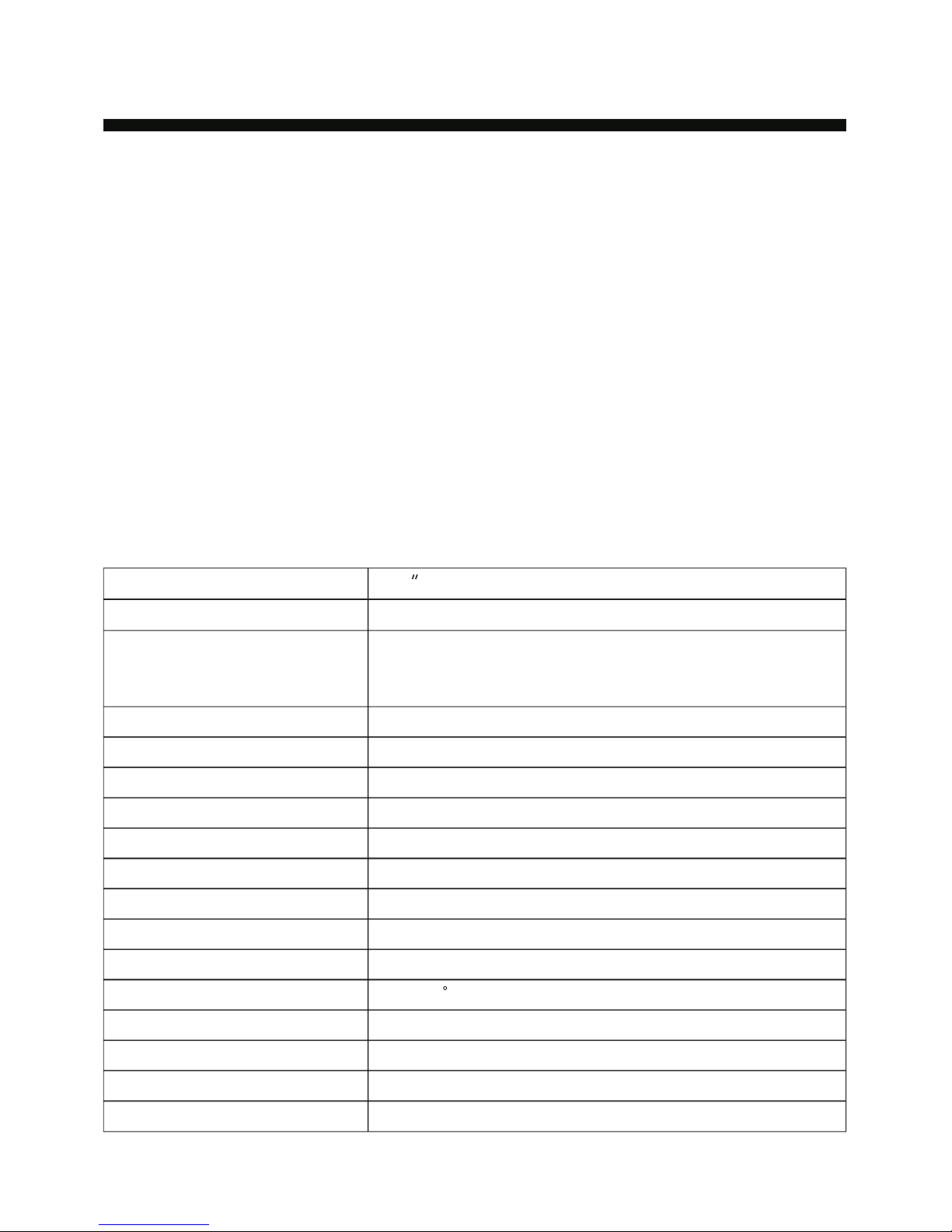
Specifications:
LCD
2.5 TFT LCD 920 x 240 Pixels
Video
MPEG-4 (AVI)
Resolution
D1----PAL:720x576 (25fps) NTSC:720x480 (30fps)
VGA-640x480 (30fps)
SIF---320x240 (30fps)
Frame Rate
PAL (25fps), NTSC (30fps)
Standard
PAL/NTSC
Bit Rate
1M-10Mbps,six levels adjustable
Disk Format
FAT16,FAT32
AV IN
2.5 JACK Output:5V-300mA
MIC
Built-in Mic / Outside Mic
USB Connection
USB 2.0 Device (Charge the unit)
Earphone
Stereo Earphone
Storage Device
512MB-16GB expandable
Working Temperature
0-50C
Batteries
Lithium Polymer Battery (1400mAh)
AC Adaptor
Lnput:100V-240V 50/60Hz Output:5V-600mA
Size
79 mm x 55 mm x 20mm (L X W X H)
System Requirements
Windows 98/ME/2000/XP/VISTA
18
Page 19

i
ll i l i ;
i ll i i l i
all .
i ilm wi i i
l ; ll li l ll
id.
l l i l
l isi i l i
j
Pl i l i i i l
i
l j i i
:
i l i i
i i i l.
Copyright and Statement:
The manufacturer reserves the patent, trademark, copyr ght and
other inte ectual property r ghts re at ng to the product copy or
reproduct on of any part or a of contents n th s manua s not
owed
The software, mus c or f th copyr ght is under protect on by
aws the user sha be ab e to a when use our product to copy the
contents aforesa
Limited Responsibility:
The manufacturer, importer and dea er sha l not be l ab e to any
oss or damage ar ng from the acc dents inc ud ng the man-made
or force ma eure.
ease take the real product as f na , the descr pt on in th s manua
may be d fferent from the real product. The manual and product
sha l be sub ect to change w thout any further not ce.
Statement
The manufacturer reserves the f nal exp anat ons for the d fference
of the real product from the descr pt on in th s manua
19
Page 20

 Loading...