

Page 1

Table of Contents
Operating Instructions
Operating Instructions ____________________________
Safety Precautions ______________________________
Care and Maintenance ___________________________
CHAPTER 1
Introduction ________________
Before installing your monitor _____________________
About Your monitor
RGB
and
Factory-Preset Modes
Specification
CHAPTER 2
Product Package _______________________________
Installing the monitor
Follow these Steps to Install the Monitor _____________
Switch to
Control Function _______________________________
Description
CHAPTER 3
Adjusting the Monitor _____
OSD
Main Menu
APPENDIX
Troubleshooting __
DVI Mode _____________________________
_______________________
DVI cable _____________________________ 10
___________________________________ 12
___________________
_____________________________
___________________________
____________
__________________________
_______________________
________________________________
______________________________
_ 4
_ 4
11
1
2
3
_ 4
_ 4
_ 5
6
8
8
9
13
14
16
Page 2
Operating Instructions
Thank you for purchasing this high-resolution multi-scan color monitor.
Please read this guide thoroughly before installation.
FCC RADIO FREQUENCY INTERFERENCE STATEMENT
WARNING: (FOR FCC CERTIFIED MODELS)
This monitor has been tested and found compliant with the limits for a
Class B digital device, pursuant to part 15 of the FCC Rules. These
limits are designed to provide proper protection against harmful
interference to a residential installation. This monitor generates, uses,
and can radiate radio frequency energy. Harmful interference to radio
communication may result if it is not properly installed and used.
However, there is no guarantee that interference will not occur in a
particular installation. If this monitor does cause serious interference to
radio or television reception, resetting the monitor may resolve the
problem. Moreover, users are encouraged to correct interference by
doing one or more of the following:
Reposition or relocate the receiving antenna.
Move the m
Connect the monitor into an outlet on a circuit different from that to
which the receiver is connected.
Consult your local dealer or a qualified technician.
onitor and the receiver further away from each other.
FCC Warning:
To assure a continued FCC compl
power supply cord and the provided shielded video interface cable with
bonded ferrite cores. Also, any unauthorized changes or modifications
to this monitor will void the user s authority to operate this device.
Note:
must be used to meet the emission level limits.
EMI Certification
The Class B digital apparatus meets all requirements of the Canadian
Interference-Causing Equipment Regulation. Cet appareil num
de class B respecte toutes les exigences du Reglement sur Ic materiel
brouilleur du Canada.
If
necessary, shielded interface cables and the A.C. power cord
iance, a user must use a grounded
erique
1
Page 3

Safety Precautions
This monitor is manufactured and tested on the principle that the
user s safety comes first. However, improper use or installation may
n
ot only damage the monitor but endanger the user as well. As a
safety precaution, go over the following WARNINGS carefully before
installation, and keep this guide handy.
Warnings:
This monitor should be operated only at the correct power
sources indicate
you are unsure of the power supply in your residence, consult
your local dealer or Electricity Supplier.
Do not try to repair the monitor yourself, as it contains no
user-serviceable parts. The monitor shou
qualified technician.
Do not remove the monitor cabinet. There are high-voltage parts
inside that may cause an electric shock even when the power
cord is disconnected.
Stop using the monitor if the cabinet is damaged. Have it checked
by a service technician.
Put your monitor only in a clean, dry environment. Unplug the
monitor immediately if it gets wet, and consult your service
technician.
Always unplug the monitor before cleaning it. Clean the cabinet
with a clean, dry cloth. Appl
the cloth, not directly onto the glass screen.
Keep the monitor away from magnetic objects, motors, TV sets,
and transformers.
Do not place heavy objects on the cable or power cord.
For PLUG CABLE EQUIPMENT, the socket outl
installed near the equipment and should be easily accessible.
d on the label at the rear end of the monitor. If
ld only be repaired by a
y non-ammonia-based cleaner onto
et should be
2
Page 4

Care and Maintenance
Care
Avoid exposing your monitor directly to sunlight or other heat
sources. Place your monitor away from the sun to reduce glare.
Put your monitor in a well-ventilated area. Do not place anything
heavy on top of your monitor.
Make certain that your monitor is installed in a clean and
moisture-free area.
Keep your monitor away from magnets, motors, transformers,
speakers, and TV sets.
Safety Tips
If smoke, an
monitor, switch off the power immediately and call our service
center.
Never remove the rear cover of your monitor cabinet. The display
unit inside contains high-voltage parts and may cause an electric
shock.
Nev
center or a qualified technician to fix it.
Note: This user s manual contains graphics and information that is for
reference purposes only and is subject to change without notice.
er try to repair the monitor yourself. Always call your service
abnormal noise or an odor comes out of your
3
Page 5

CHAPTER 1
I
NTRODUCTION
BEFORE INSTALLING YOUR MONITOR
Read this manual cover to cover.
PAY ATTENTION to all WARNING and CAUTIONS
DO NOT use computer components not recommend by the
manufacture.
Do not attempt to service the monitor your self. If a problem
occurs, c
ABOUT YOUR MONITOR
This monitor is a microprocessor-controlled, color monitor that
uses a TFT LCD panel. The monitor conforms to EPA Energy Star
and VESA DPMS (Display Power Management Signaling) power
management standards. Our monitors also provide one option to
accept the video input (like NTSC or PAL signal), you can switch
these input signal through OSD and the video OSD setting please
refer to the Chapter 3.
RGB
AND DVI
ontact the manufacture's authorized service center.
MODE
This monitor is equipp
computer's video mode and allows user to adjust the setting
I can support the traditional analogue signal or the new DVI
signal.
ed with a microprocessor that identifies your
4
s.
-D
Page 6
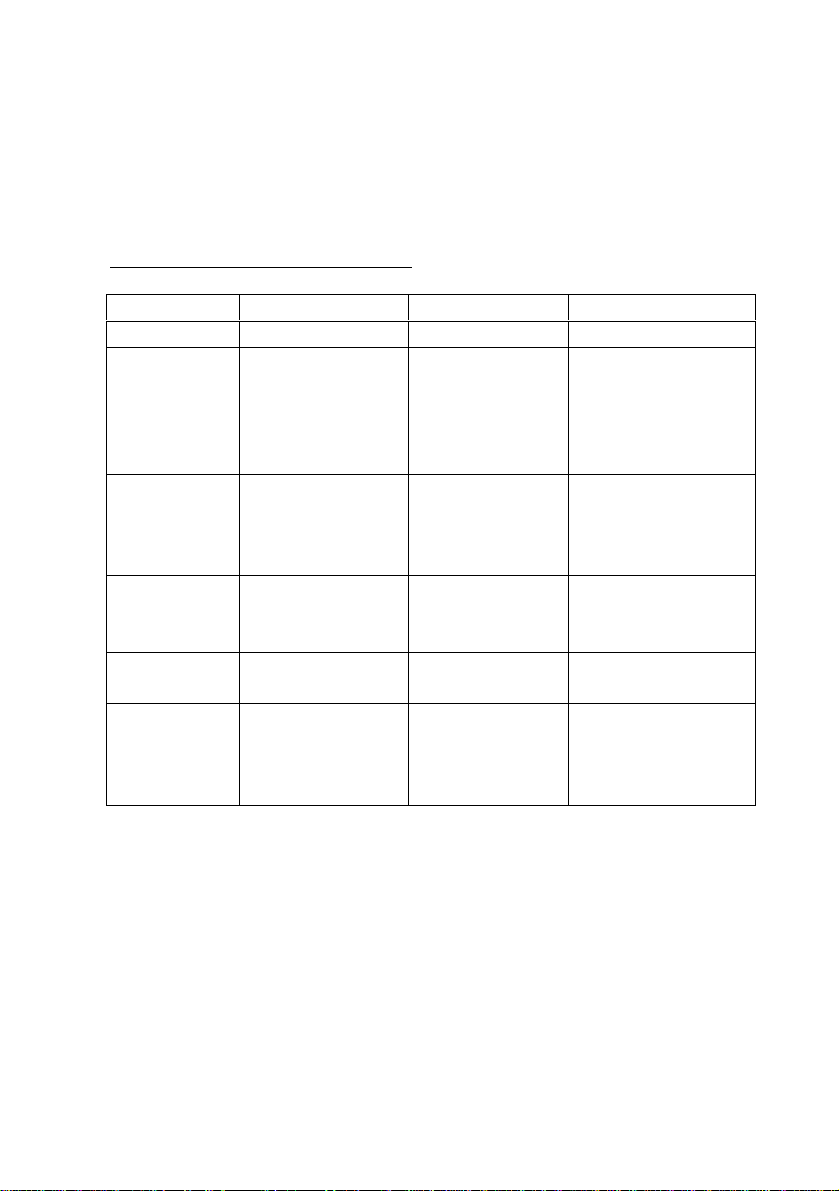
FACTORY-PRESET MODES
Table 1 shows standard video mode setting that have be
pre-adjusted at the factory for accurate video display. These
setting are stored in the monitor's memory
Table 1. Factory-Preset Modes
Mode
NEC
VGA
SVGA
XGA
SXGA
Macintosh 640x480
Resolution
640x400
640x350
720x400
640x480
640x480
640x480
800x600
800x600
800x600
800x600
1024x768
1024x768
1024x768
1280x1024
1280x1024
832x624
1024x768
1
024x768
H-
Freq.(KHz)
24.83
31.47
3
1.47
31.47
37.86
37.5
35.16
37.88
48.08
46.87
48.36
56.47
60
63.98
80
35
49.7
48.78
60.241
V-
Freq(Hz)
56.4
70
70
60
72
75
56.3
60.3
72.2
75
60
70
75
60
75
66.7
74.55
60
74.927
en
5
Page 7

S
PECIFICATIONS
19 LCD Monitor
Overall Dimension (HxWxD): 426 x 444 x 215 mm
Shipping Weight
Gross/Net Weight:
Effective Display area (H/V): 376.32 x 301.56 mm
Display colors:
Scan Frequencies:
Horizontal
Vertical
Number of Pixels:
Pixel pitch:
Picture Tube:
Power:
Video Connector:
Audio connector (optional)
Speaker (optional)
RGB Signals:
DVI Signal
Display Data Channel:
Input
Consumption
Video
Sync
Compatibility
13Kg/14Kg
16.7M col
31.47K to 80KHz
60Hz to 75Hz
1280x1024 pixels
0.294x0.294 mm
19" TFT LCD panel
110-240VAC
Frequency: 48-62Hz
45Watts maximum
3 Watts
15pin Mini D-sub (Standard)
1 x stereo input
2Watts x 2
Analog RGB 0.7Vp-p/75
Se
parate
TMDS
VESA DDC 1/2B
ors
(auto-sensing)
(Power saving off mode)
(on)
6
Page 8

Operations:
Compatibility:
Environmental Limits:
Operating Humidity
User Controls
On Screen Display
Adjustment
Control Type:
Operating Temp
Storage Temp
Storage Humidity
H-
. -4
On/Off Power Button
Sel and adjust button
Auto-adjustment
Contrast, Brightness
position, V-position
Color temperature
Multi-language
Auto Adjustment
Volume, Mute
Digital
IBM and compatible, Apple
Macintosh, NEC
32 to 104
10 to 85% without condensation
10 to 95% without condensation
to 140
F ( 0
F ( -20 to 60
to 40C )
C )
Agency Approval
EMI
Emissions
Energy Saving
Safet
y UL, TUV, TCO 99
FCC-B and CE
MPR-II
EPA energy star, VESA DPMS
7
Page 9

CHAPTER 2
PRODUCT PACKAGE
Open the shipping carton and check the contents. If any
items are missing or damaged, contact your dealer
immediately.
The package should include the following items
Analog Color TFT LCD Monitor
Accessory
1. DVI-A to PC RGB cable x 1
2. DVI-D to PC DVI cable x 1
3. AC to DC adapter x 1
4. Audio cable
5. Power Cord x 1
6.
User s manual x 1
INSTALLING THE MONITOR
The monitor is equipped with an auto sensing power supply
for voltage ranges from 110~240VAC, 60/50Hz. Conf
line voltage designation on the rear panel of the monitor.
Box:
irm the
8
Page 10

FOLLOW THESE STEPS T
MONITOR
1. Before you connect the cables, make sure that the
2. Plug one end of the 15pin signal cable to the monitor and
3.
4. Connect the power cord on the AC outlet, please see the
monitor and the system unit power switches are OFF
the other end to the video signal connector at the rear of
the system. Tighten the two screws on the cable
connector on both ends, otherwise the screen will be
abnormal and LED light is yellow color, not the normal
green color.
Connect the
adapter
below drawing.
power to the monitor through the AC/DC
O INSTALL THE
PC RGB
DVI-A
DVI-A to PC RGB DVI-D to PC DVI
9
DVI-A
PC DVI
Page 11

Switch to
Please follow the steps to remove cover and switch from
PC VGA cable to DVI-D to PC DVI cable.
1
3
DVI
cable
2
4
DVI-A to
5
6 7
10
Page 12

CONTROL FUNCTIONS
The Monitor control functions are located on the lower center of
the front view side. They are shown in the figure below and
described in the following paragraphs.
The control key description
1.
2. /
3. Sel
4. MENU
5. Auto
: Power Switch
:
Decrement/Increment or Volume control
: Cursor Down
: Activate the on screen display function
: Auto adjustment
11
Page 13

Descriptions
1.
:
Power switch
Use the power switch to turn ON or OFF power. We
recommend turning your system power on fi
monitor
2.
The two keys have two functions, controlled by the MENU
key. When activating OSD screen, the two keys are defined
to decrement or increment the values of each selected items
When de-activating OSD screen, these two keys are used to
change the speaker volume value.
3. Sel : Select key
This key is used to select the wanted adjustment items.
4. Menu
Press the Menu key to activate the on screen display screen.
It is a toggle
display screen. After 30 sec idle time, the OSD screen will
automatically turn off.
.
&
: decrement & increment/ Volume Control keys
rst, then the LCD
key. Press twice to turn off the on screen
.
5. Auto adjustment
Pressing this key to get the better visual performance.
12
Page 14

CHAPTER 3
ADJUSTING THE MONITOR
The LCD monit
compatible video adapters on the market. Due to the possible
deviations between these video adapters, you may make
some adjustment to fit the monitor for adapter used.
ADJUSTMENT PROCEDURE
1. First, you must activate the
the MENU key, the screen will show in the center of screen
as below: It will tell you the current resolution
firmware version number
or is designed to work with a range of
OSD screen through pressing
and our
.
OSD MAIN SCREEN
2. Use the
Sel to
3.
Use the
desired item.
4.
Use the + & - to change the value.
5.
Use the menu key to exit OSD screen
&
key to move to the desired item, then press
select the highlight the desired change item.
&
key to select the item, and then press Sel to the
13
Page 15

AUTO-ADJUSTMENT
WE STRONGLY RECOMMEND THAT YOU USE THIS
I
TEM TO GET THE OPTIM
Brightness and Contrast Adjustment
: Adjust the Brightness value
: Adjust the Contrast value
: Return the main menu screen
Volume adjustment
: adjust the speaker volume
IZED VISUAL QUALITY.
: Mute the speaker
:
Return to the main menu screen
Color temperature adjustment
: Enable the sRGB or disable the sRGB
: Let user change the RGB color value
: Set the color temperature to 6500K
: Set the color temperature to 9300K
14
Page 16

: Return to the main menu sc
Adjust the screen size and screen quality
: Auto-
: Change the screen viewing size
: Adjust phase tracking to reduce the display flicker
: Move the whole screen right or left
: Move the whol
: Return to the main screen
: OSD setting
adjust to the optimized display quality
e screen up or down
: Load the factory default setting
reen
: Set OSD off timer
: Move horizontally the OSD location
: Move vertically the OSD location
: Return to the main menu
15
Page 17

APPENDIX
Troubl
eshooting Procedures
This LCD Monitor was pre-adjusted in the factory with standard
VGA timing. Due to output timing differences among various
VGA cards, you may initially experience an unstable or unclear
display when a new display mode or new VGA card i
This LCD Monitor Supports Multiple VGA Modes. Refer to the timing
table for a listing of factory-preset modes supported by this LCD Monitor.
PROBLEM: There is no LCD Display
If there is no display on the LCD, please perfor
1. Make sure that the power indicator on the LCD Monitor is
lit, all connections are secure, and the system is running
on the correct timing. Refer to the Addendum for
information on timing.
2. Turn off the LCD Monitor and then turn it ba
Press the upper Function Control button (refer to Chapter
2) once and then press either the upper or lower
Adjustment Control button several times. If there is still
no display, press the other Adjustment Control button
several times.
3. If ste
4.
If the PC doesn t function with the CRT monitor neither,
5. If the power LED is not lit, check to see if the AC power
p 2 doesn t work, connect your PC system to
another external CRT. If your PC System functions
properly with a CRT Monitor but it does not function with
the LCD Monitor, and the LCD Monitor s power LED is
blinking, the output timing of the PCs VGA card ma
out of the LCD s synchronous range. Please change to
an alternate mode listed in Addendum or replace the
VGA card and re
check BIOS to see if there is a dual scan setting und
the display mode item. Set the BIOS display mode to
Dual Scan
display, then there may be a problem with your system.
Contact technical support.
conne
ctor is securely connected. Verify that the AC
adapter LED is lit. If the AC adapter LED is not lit,
please contact your dealer for assistance
peat steps 1 and 2.
or
CRT
and try again. If there is still no
m the following steps:
s selected
ck on again.
y be
er
.
16
 Loading...