

Page 1

User’s Manual
Car DMB & Navigation System
2MTECH Inc.
674-1 Naksan-ri
Waegwan-eup Chilgok-gun
Gyungbuk, 718-801, Korea
TEL. 82-54-977-2500
FAX. 82-54-977-2510
www.zamm.co.kr
* Thank you for buying ZAMM product.
* Please read user’s manual carefully before using ZAMM product.
Page 2

Thank you for buying ZAMM product.
When used correctly, ZAMM product which is
Car Multimedia System enhances your
driving experience. You and your passengers
can enjoy T-DMB, Navigation, Movie, Music,
Photos and etc in the car.
Please use this product after reading this
manual carefully.
www.zamm.co.kr
We give you all the supports and information
through the above web site. You can download
the newest patch files and manuals from the
web site. Please register the customer
information card in our web site for best service.
1. Before Usage
2. Usage
1. T-DMB
2. PIP (Picture-In-Picture)
3. File List
4. Video Player
5. Audio Player
6. AV Input
7. Calendar
8. Photo Album
9. Settings
3. Others
1. Specifications
2. Customer Support
Greetings Contents
3
13
13
16
17
18
19
20
21
22
24
31
31
33
Page 3

1. For better performance tuning of our product,
the specifications can be changed without notice.
2. For better performance tuning of our product,
this user’s manual can be changed without notice.
3. There might be some mistakes of technical
issues and edition in this user’s manual.
4. Please read user’s manual carefully before usage.
5. This product is designed to be used in a car
with proper installation.
6. The rights of hardware, software, and data of
this product belong to 2MTECH Inc. The rights is
protected by copyright law and international treaties.
Unauthorized duplication or distribution of this rights,
or any portion of it, may result in severe civil or
criminal penalties, and will be prosecuted to the
maximum extent possible under the law.
7. This product is designed to use DC12V power.
1. For safety, please stop or park the car to operate
this product.
2. The voice and map information in this product cannot be
guaranteed accurate as road layout may change. Always
follow the posted road signs and traffic laws.
3. Do not mount this product in a position which may
obstruct the driver’s view or prevent the safe operation
of the vehicle.
4. Do not watch this product continuous ly. It may cause
an accident.
5. Please adjust the sound volume & LCD brightness
properly.
6. Do not use this product in the car when you turn off the
engine. It may cause your car battery flat.
7. Please use the provided accessories wit h this product.
We only guarantee the performance of this product with
provided accessories.
8. For the initial pwer up it may take up to 15 minutes
to secure satellite information on outdoor place.
9. GPS signal cannot be received properly in following
conditions; the inside of car with special metal coating, the
inside of a building, the place under a bridge, the place in a
tunnel, and etc.
10. T-DMB can be work properly in the good signal areas.
If you are in the bad signa l areas, the screen quality may
looks no good.
Before Usage Before Usage
Warnings & Notifications
Warnings & Notifications
Page 4

Before Usage
1. Do not disconnect the power cable during operation and
do not disassemble this product. It may cause break-down
or fire or explosion.
2. Do not disconnect the cigarette power cord during
operation. It may cause break-down or fire or explosion.
3. Do not put the product near water. It may cause breakdown or fire or explosion.
4. If there is any failure of product, please don’t use it and
call to A/S center immediately.
5. Do not drop the product and do not give an attack to
the product. It may cause break-down or fire or explosion.
6. Do not put the product under sunshine and moisture in
long term. It may cause break-down or fire or explosion.
You need a computer to use this product properly.
Please check the minimum sp ecification of computer.
• Microsoft Windows 2000/XP
• At least Pentium III 800MHz
• At least 128MB Main Memory
• At least 2GB Hard Disk Space
•USB* Port
* It’s necessary when using the card reader provided.
Before Usage Before Usage
Warnings for system
Minimum specfications of computer
Page 5

Before Usage Before Usage
Parts & Features
CF Card
SD Card
LCD ON/OFF
Remote Receiver
Mute
OK
Volume Down
Volume Up
Channel Down
Channel Up
USB Host / USB Device
AV IN / Headphone
DMB Antenna
DC IN
Air Vent Hole
GPS Antenna
Before Usage Before Usage
Parts & Features Parts & Features
Stereo Speaker
Main Power
Stand
Glass Mount
Page 6

Before Usage Before Usage
Installation
Main system
Remote Controller
User’s Manual
AV Cable
Cigarette Power Cord
Glass Mount
Protection Cover
T-DMB Antenna Multi Card Reader
1GB CF Card
Clean the surface of the location you
wish to place the mount bracket. Do not
mount where the drivier’s view will be
obstructed .
Slide the main system onto the mount
clip and adjust the angle properly. Please
check the mount and main system in
proper position.
Insert DC plug of Cigarette lighter lead
into the fused +12V socket of main
system and connect the other end to the
+12V cigarette lighter socket.
After starting the engine, push the power
button on the back side to start the main
system.
Put the T-DMB antenna on the top of the
car for best performance. It will stick to
the top of the car because of magnets,
however please be careful of falling of
antenna during fast driving.
Before Usage Before Usage
Accessories Installation
Page 7

1. T-DMB/DAB
You can listen and watch T-DMB and DAB
services.
LCD ON/OFF
Mute
CH +.OK
VOL +,Navi
DMB
MP3
AV IN
LCD Brightness
Main Menu
List
Before Usage Before Usage
Remote Controller Usage
2. Navigation
You can use Navigation system with GPS.
3. Video Player
You can watch movie files.
4. Audio Player
You can listen music files.
5. AV Input
You can connect DVD player, DiVX players,
and rear camera.
6. Utility
You can use calendar and photo album.
7. Setting
You can adjust configurations for the system.
Page 8
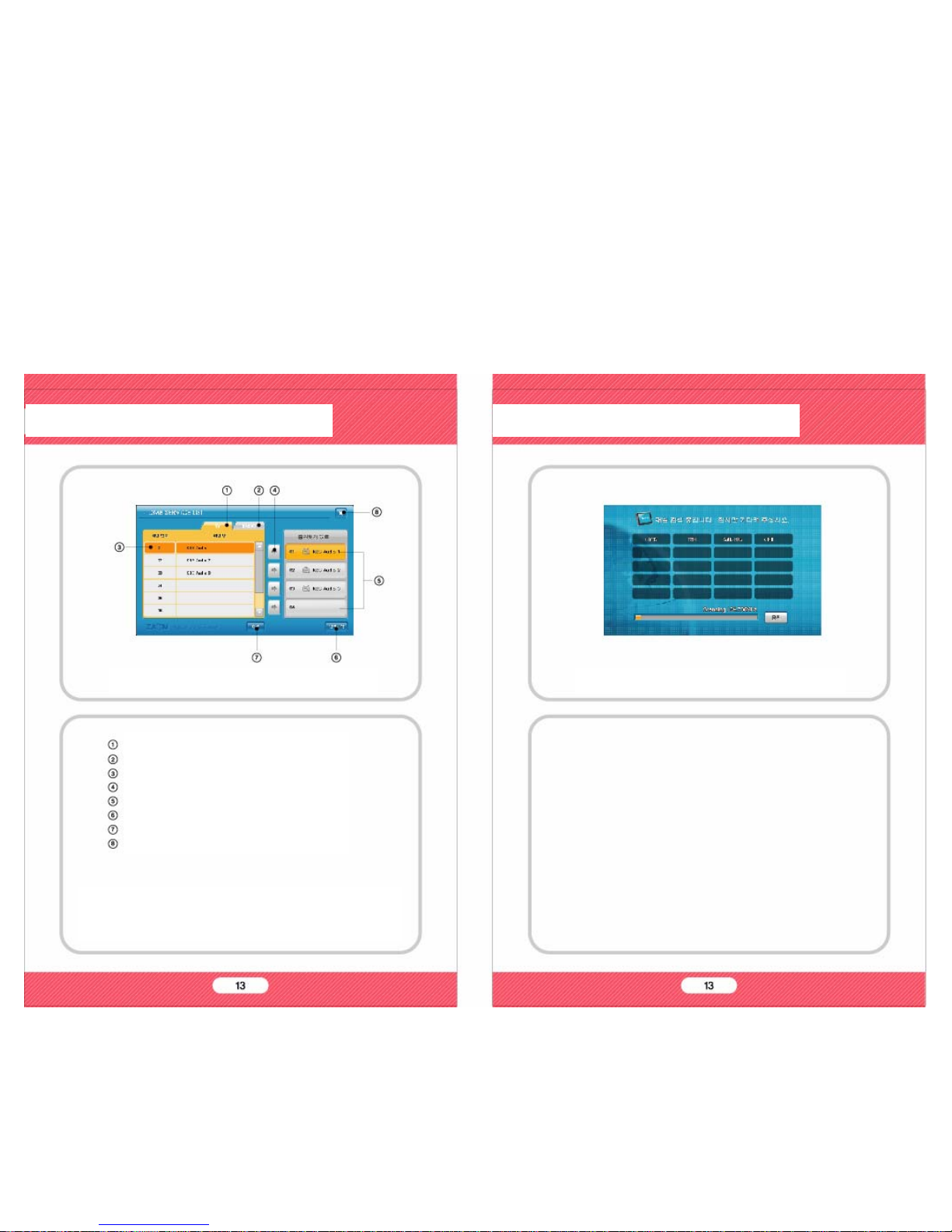
TV Service List
Radio Service List
Channel List
Channel Register
Registered List
Channel Scan
Play
Return to channel
* When you play the DMB for the first time, or when there is no
channel list, Channel List Screen starts.
* This product may not work well when the DMB signal is weak.
It will take some time for DMB initialaizing.
DMB Service List Scanning Screen
2-1. T-DMB 2-1. T-DMB
DMB Service List Screen
Page 9
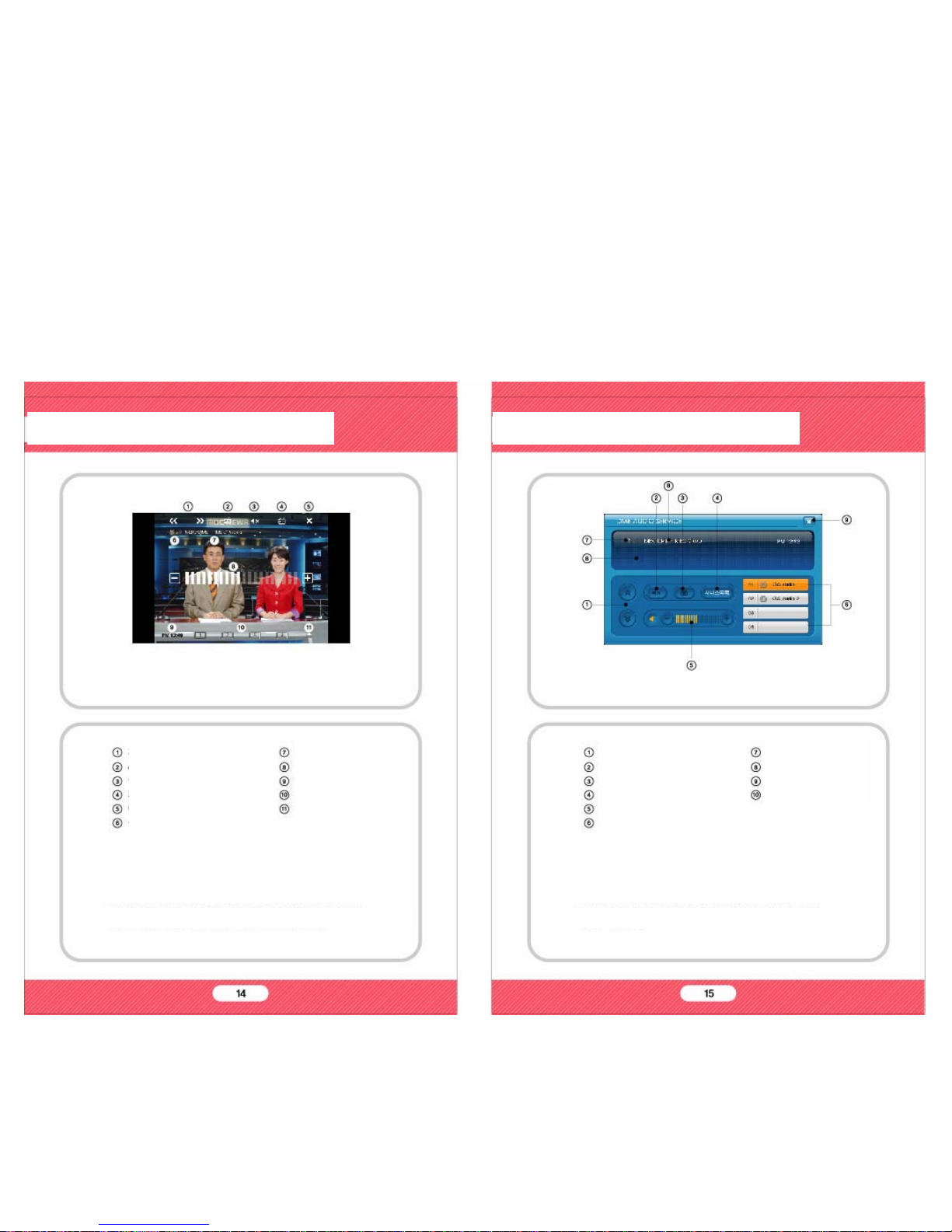
Channel shift
Radio/TV mode shift
Mute
Screen Ratio
Close
Signal Status
* If the DMB signal is weak, the screen and sound may not work well.
Channel shift
Mute
DMB TV
Channel List
Volume
Channel Hot Key
* If the DMB signal is weak, the sound may not work well.
2-1. T-DMB 2-1. T-DMB
DMB TV Screen
Channel Info.
Volume
Clock
Channel Hot Key
Channel List
DMB Radio Screen
Signal Status
Channel Info.
DLS
Close
Page 10
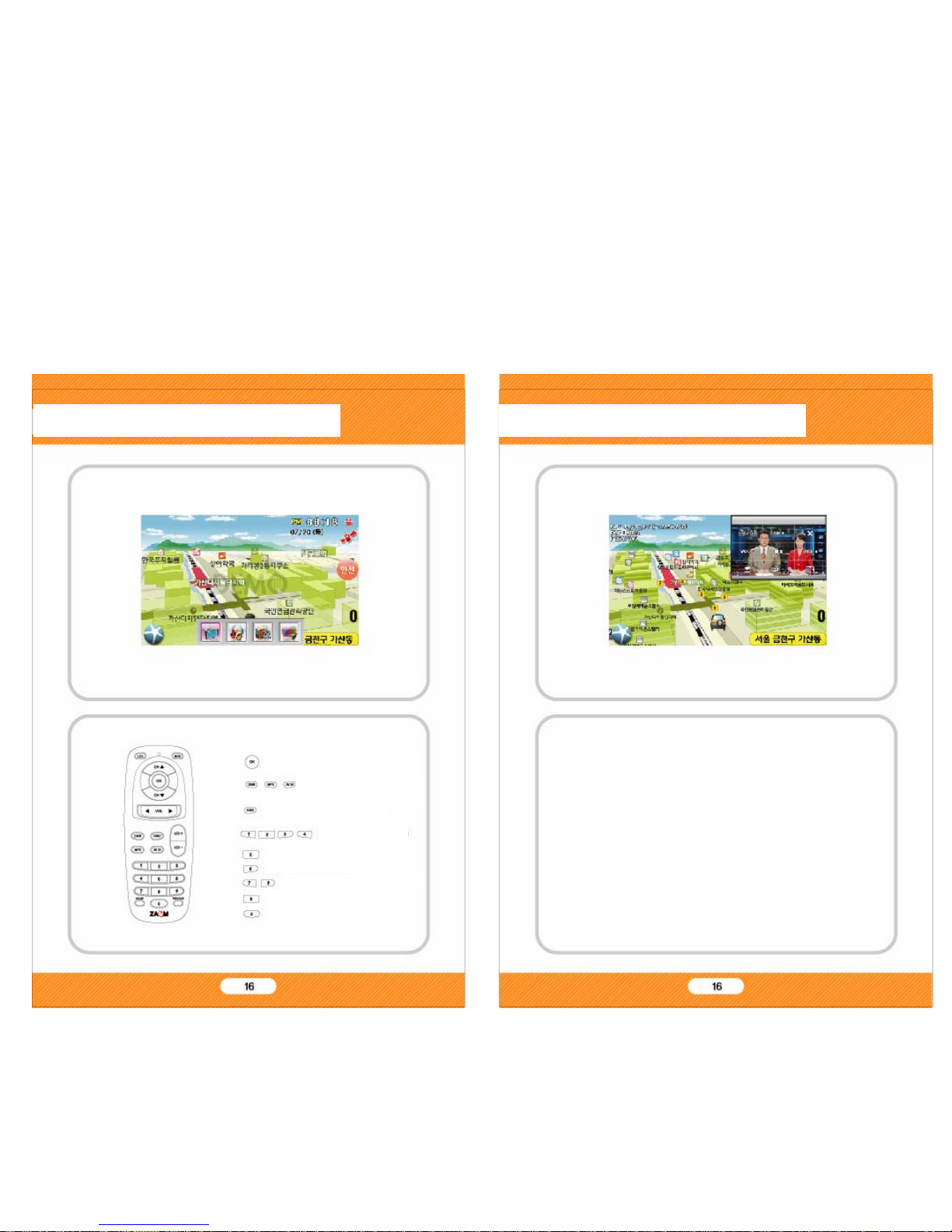
PIP Main Menu : Show/Hide
DMB TV Playing with Navigation
When navigation operates, push the CH+ button
or DMB key on remote controller to start DMB.
If you push NAVI key on remote controller when
DMB operates, you can watch DMB with
Navigation.
To start navigation;
- Touch the Navi Icon on main menu.
- Press the Navi key o n the remote controller.
For further information about operating navigation,
please find the additional navigation manual or
refer to the web site www.zamm.co.kr.
PIP Window Position Shift
PIP Window hide/show
2-2. PIP 2-2. PIP
PIP on / Size Change
Normal>Full>Icon>Small
PIP off : Show/Hide
Channel Hot Key
PIP Window volume control
PIP Window Mute
FM Trans. On/Off
Page 11
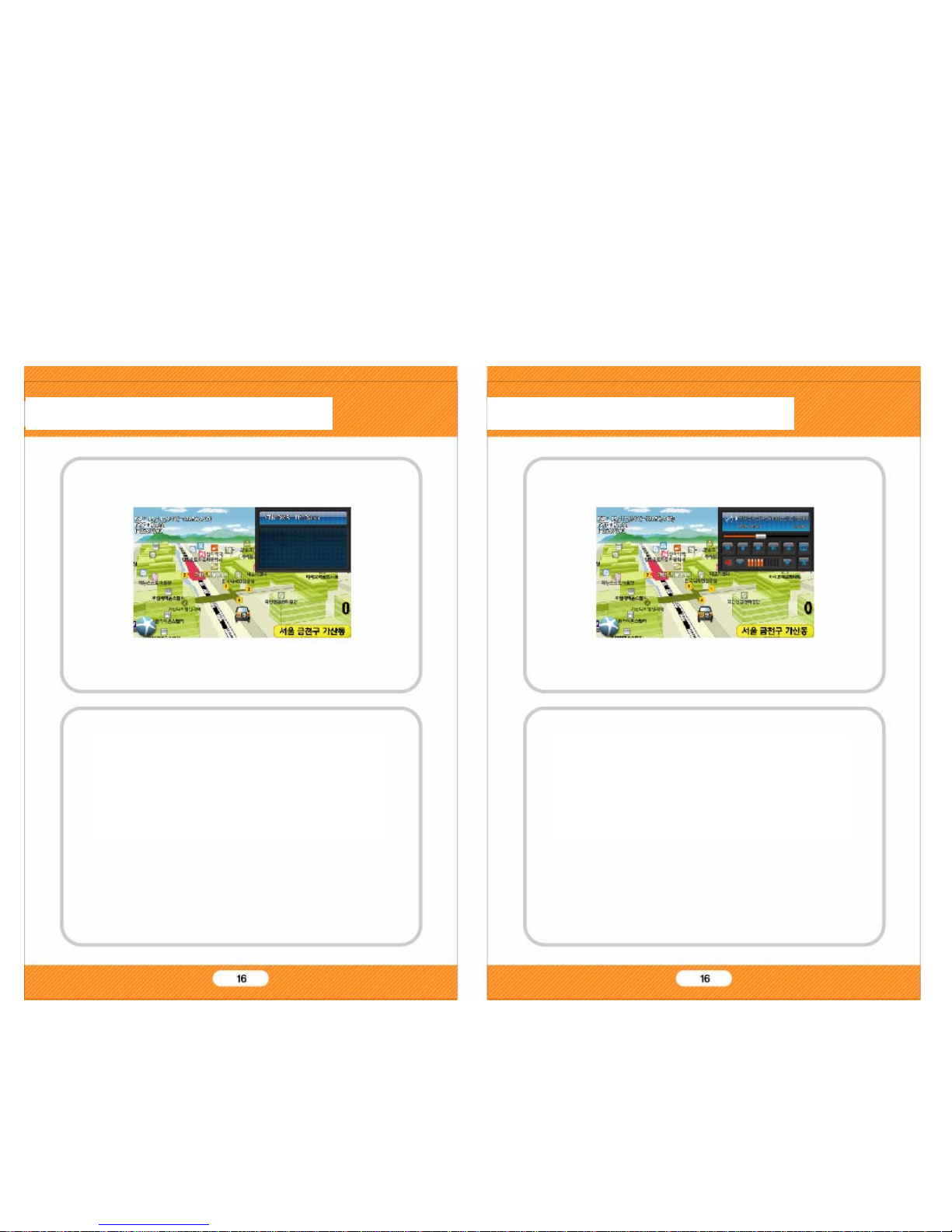
DAB Radio Playing with Nav i gatio n
When navigation operates, push the CH+ button
or DMB key on remote controller to start DMB.
If you push NAVI key on remote controller when
DMB operates, you can watch DMB with Navigation.
MP3 Playing with Navigation
When navigation operates, push the CH- button or
MP3 key on remote controller to start MP3 player.
If you push NAVI key on remote controller when
MP3 plays, you can listen MP3 with Navigation.
2-2. PIP 2-2. PIP
Page 12
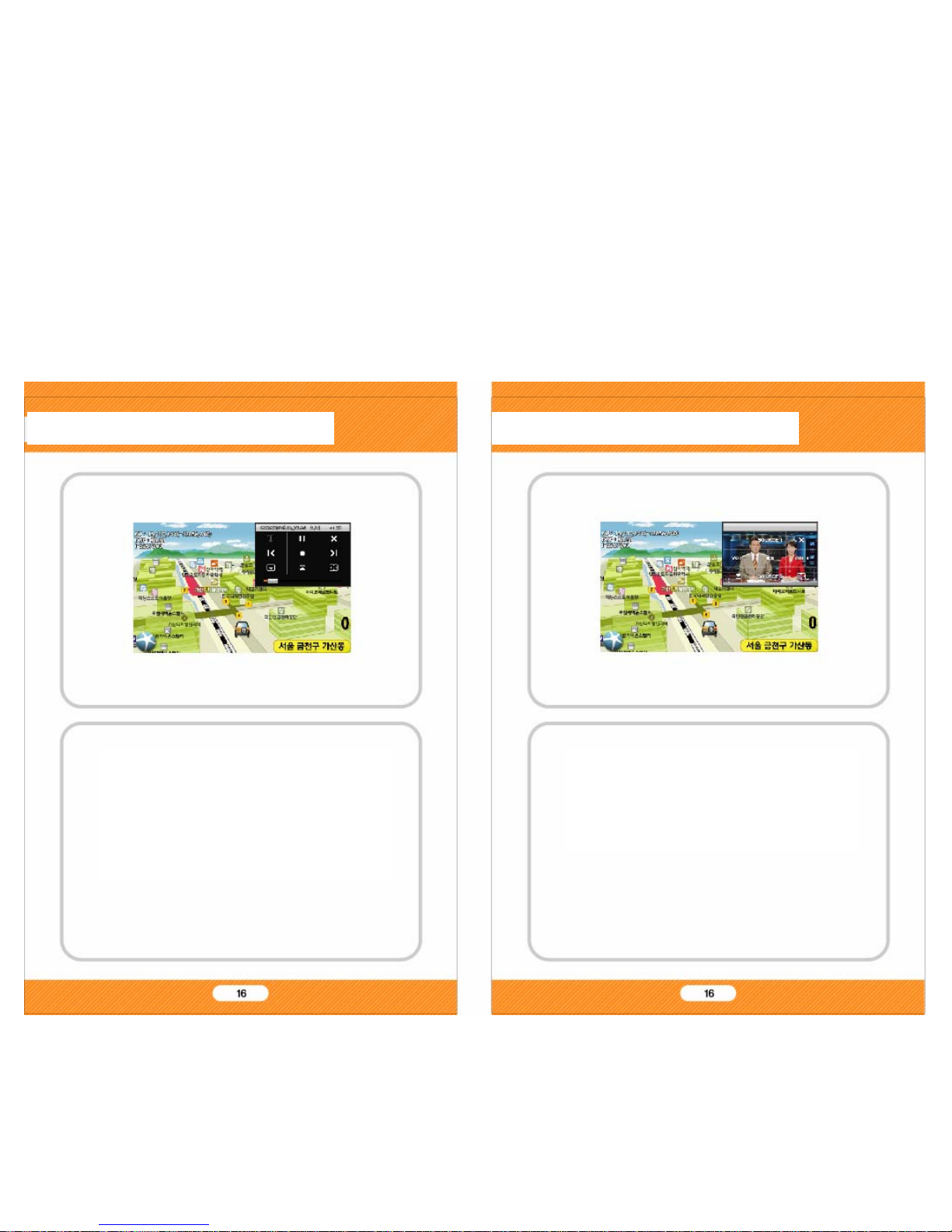
Movie Playing with Navigation
When navigation operates, push the OK button
and choose the
Movie Icon on the screen to start Movie player.
If you push NAVI key on remote controller when
Movie player operates, you can watch Movie w it h
Navigation.
Video In Playing with Navigation
When navigation operates, push the AV IN key on
remote controller to start AV IN player.
If you push NAVI key on remote controller when
AV IN plays, you can watch AV IN with Navigation.
2-2. PIP 2-2. PIP
Page 13
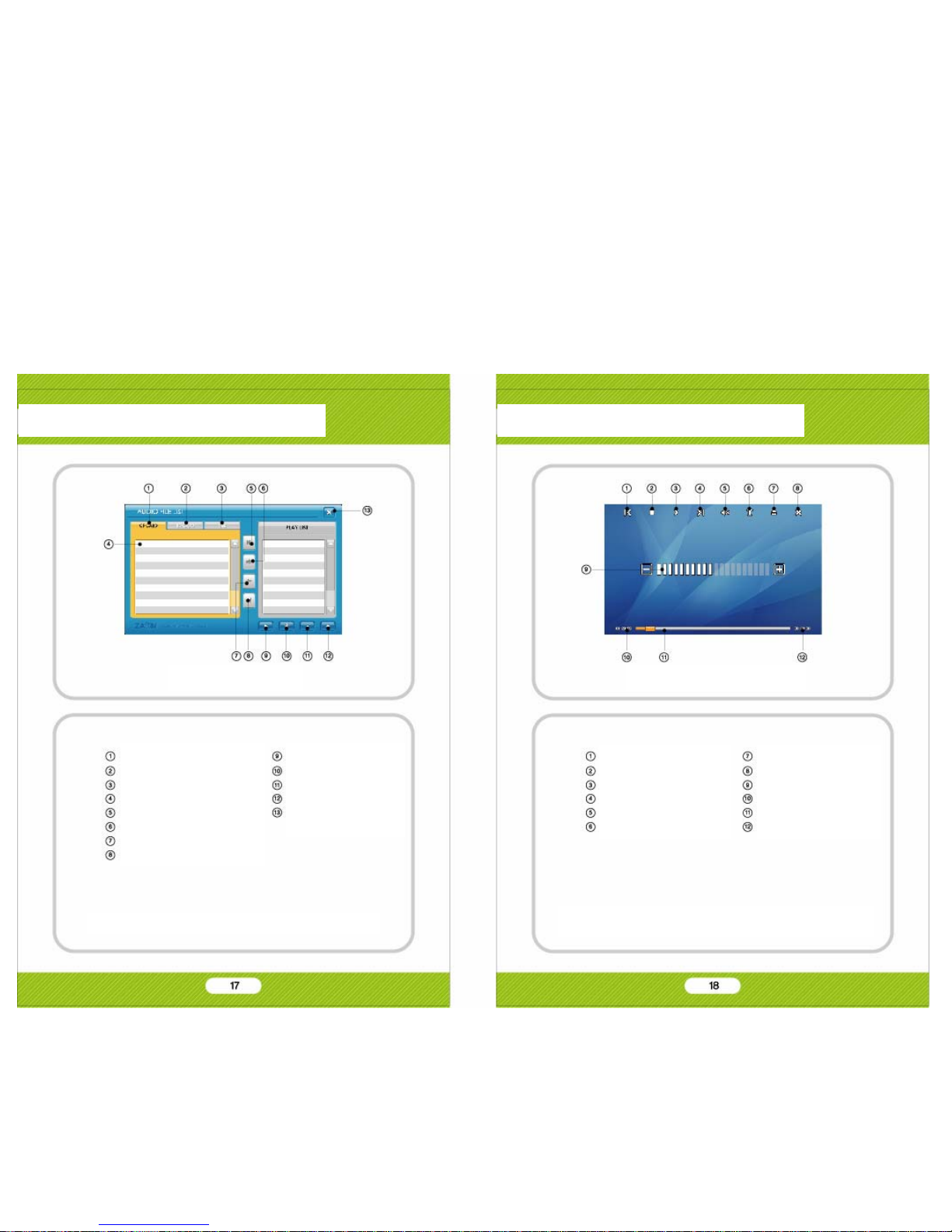
File List Screen
CF Card
SD Card
USB
Directory & Files
Add all
Add selected file
Delete Selected file
Delete all
Previous File
Stop
Play/Pause
Next File
Mute
Text Service
* You can edit the playing list for MP3 and Video player.
* Support AVI, WMV format files (Other video formats may not
be supported.)
2-3. File List 2-4. Video Player
Play
Delete Selected file
List Up
List Down
Close
Video Player Screen
Edit File List
Close
Volume
Current Playing Time
Playing Status
Total Playing Time
Page 14
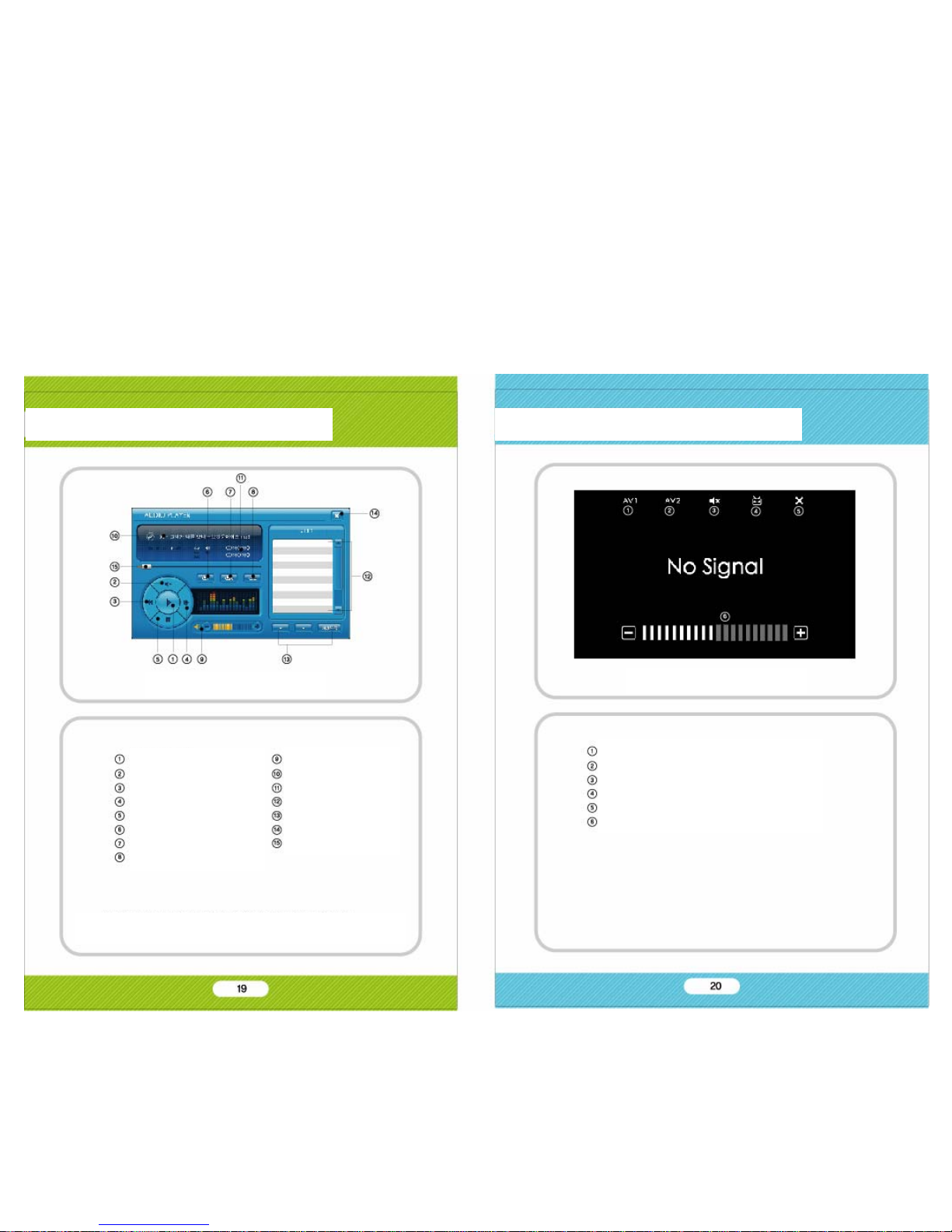
Play/Pause
Mute
Previous File
Next File
Stop
Repeat current file
Repeat list in random
Repeat list in order
* Support MP3, WMA, WAV format files (Other audio formats may
not be supported.)
AV INPUT 1
AV INPUT 2
MUTE
Screen Ratio
Close
Volume
2-5. Audio Player 2-6. AV INPUT
Audio Player Screen
Volume
File Information
Playing time
Current File List
Edit File List
Close
Playing Status
AV INPUT Screen
Page 15
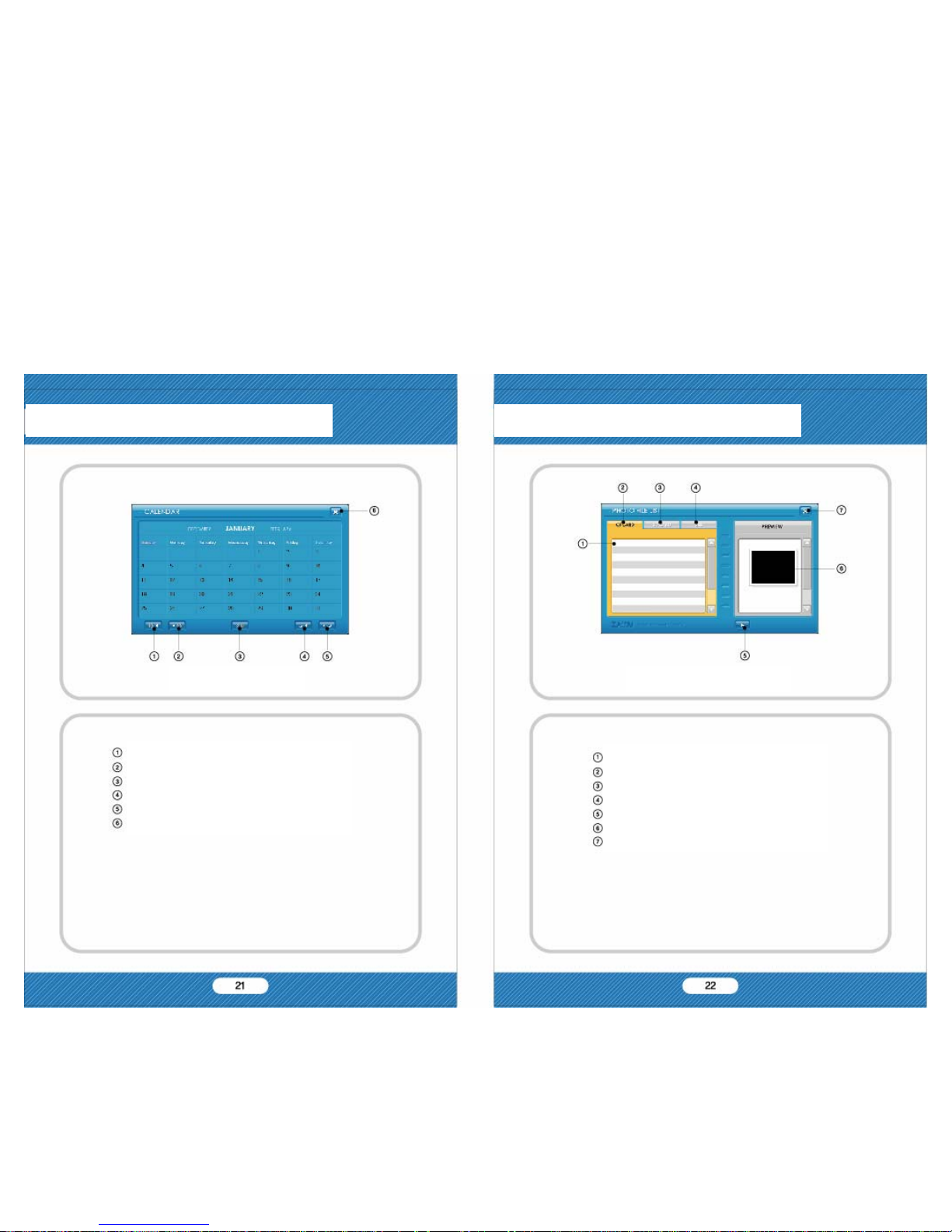
Previous Year
Next Year
Today
Previous Month
Next Month
Close
Folders & Files
CF Card Folder
SD Card Foler
USB Folder
Show the Photos
Preview
Close
Calendar Screen
2-7. Calendar 2-8. Photo Album
Photo Album Screen
Page 16
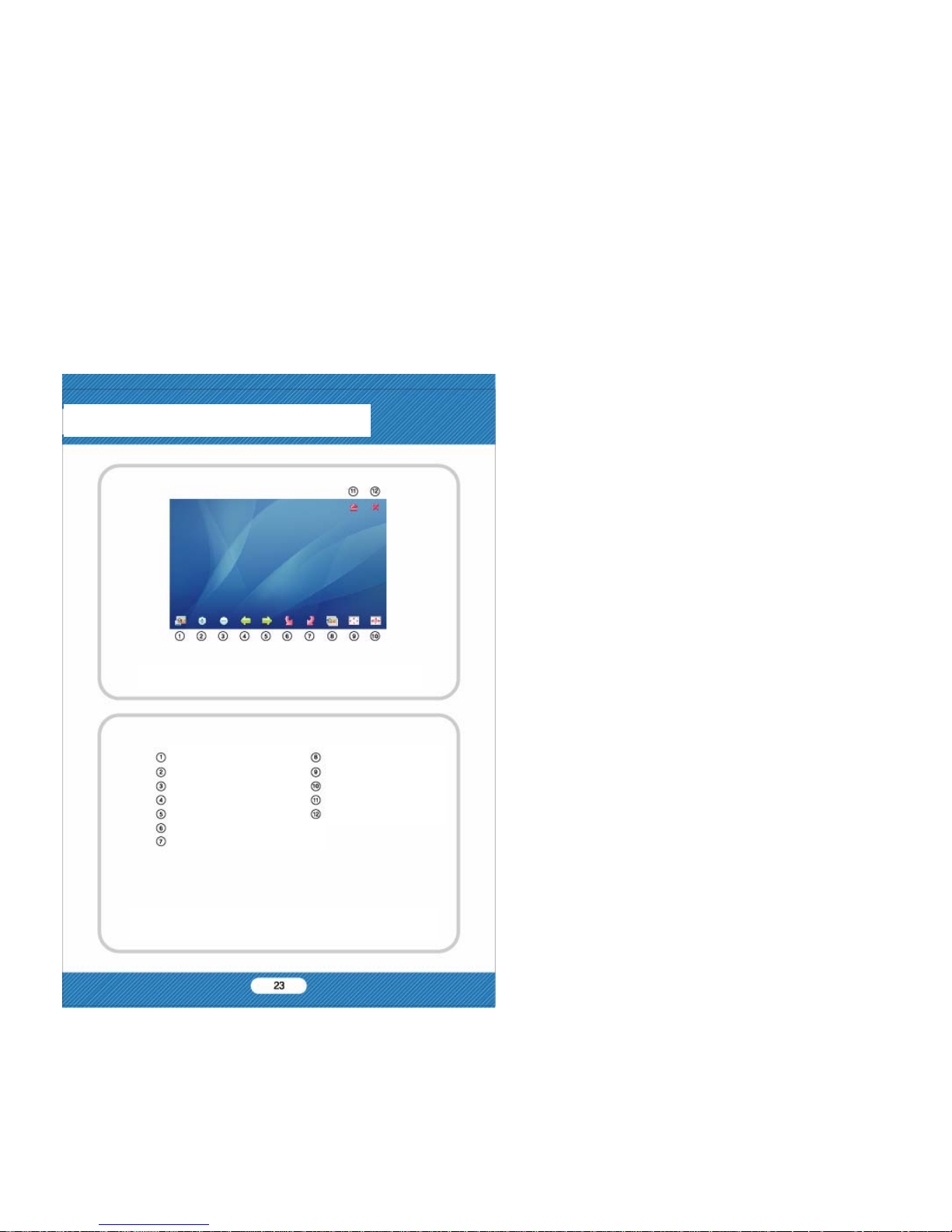
Fit to Screen
Enlarge
Reduce
Previous File
Next File
Photo Album Playing Screen
* You can register the wall paper and booting image with
your favorite images.
2-8. Photo Album
Slide Show
As Wall Paper
As Booting Image
List
Close
Rotate to counterclockwise
Rotate to clockwise
Page 17
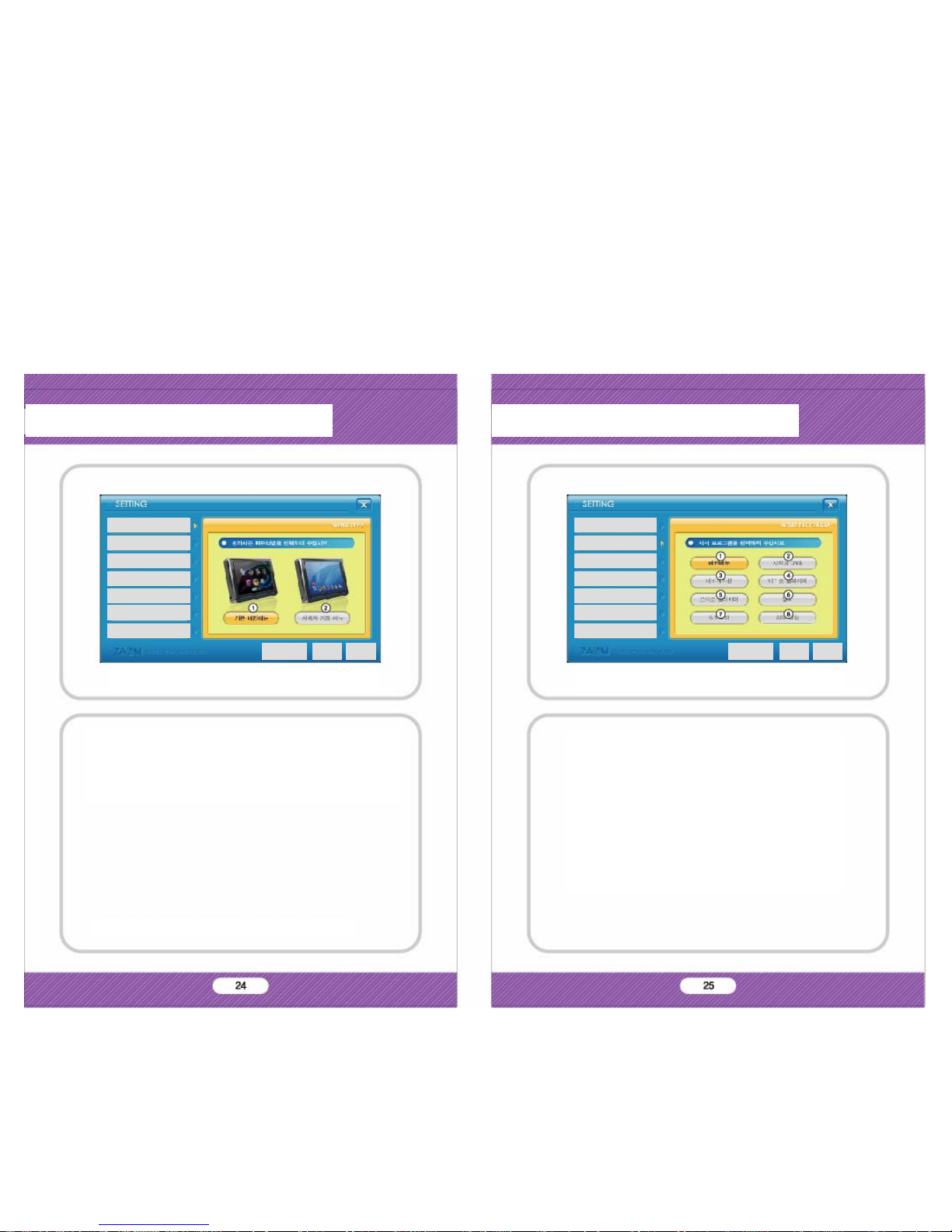
You can change the main menu type.
① Default Menu Type
② User Menu Type
* You can change the background image.
You can select the start program.
① Main Menu
② T-DMB
③ Navigation
④ Video Player
⑤ Audio Player
⑥ Calendar
⑦ Photo Album
⑧ AV Input
Main Menu Setting Screen
Main Menu
Start Program Setting
Sound Setting
Screen Setting
Storage Capacity
Frimware Update
Version Information
Default OK Cancel
2-9. Setting
Start Program Setting Screen
Main Menu
Start Program Setting
Sound Setting
Screen Setting
Storage Capacity
Frimware Update
Version Information
Default OK Cancel
2-9. Setting
Page 18
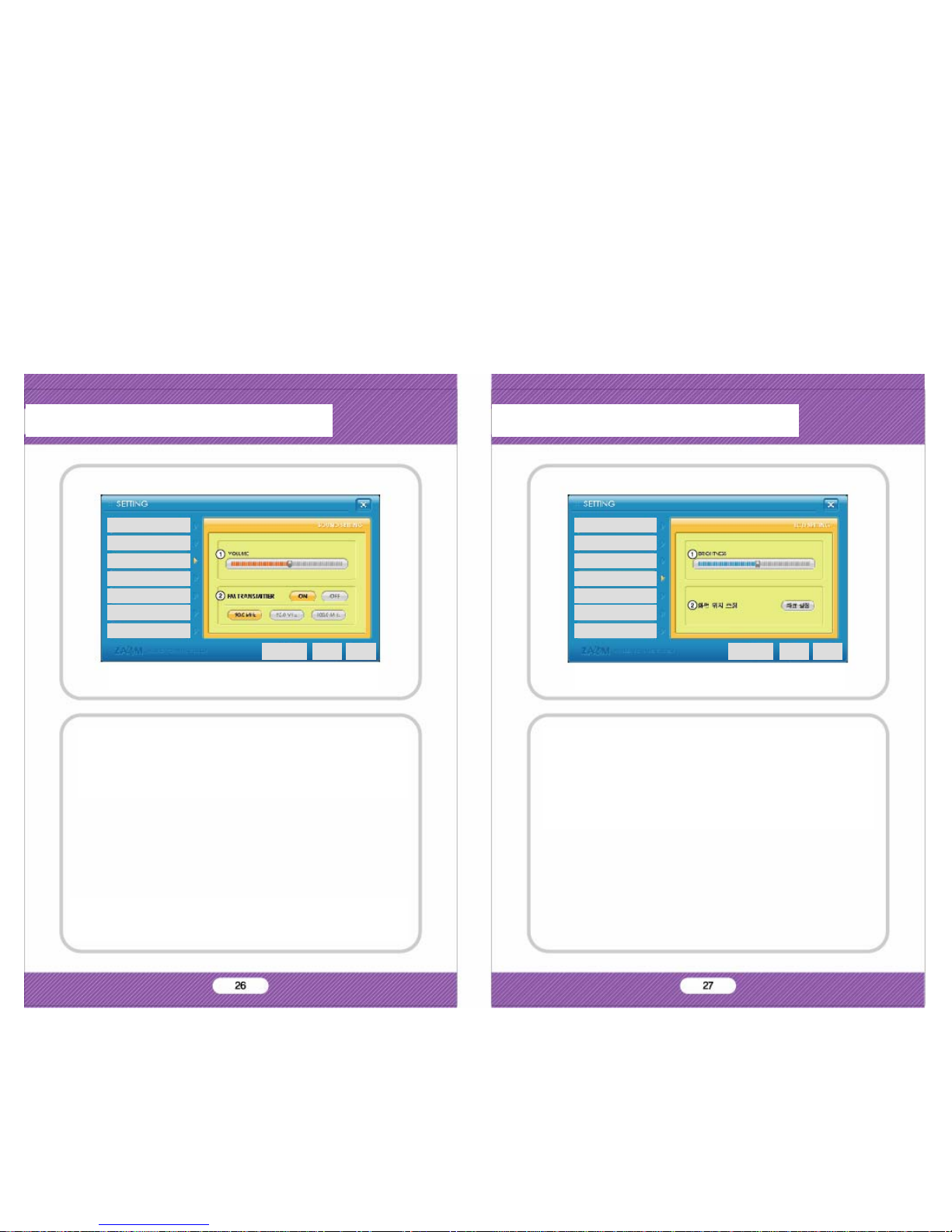
* You can listen the sound with your car audio speaker when you
select FM transmitter.
* It is useful when you watch the movie and listen the music.
You can change the main sound volume and FM transmitter.
• Volume Control
• FM Transmitter Control
Sound Setting Screen
Main Menu
Start Program Setting
Sound Setting
Screen Setting
Storage Capacity
Frimware Update
Version Information
Default OK Cancel
2-9. Setting
You can change the brightness of screen and calibration of
touch screen.
• Screen Br ig h t n ess Co ntro l
• Touc h Screen Cali bration
Screen Setting Screen
Main Menu
Start Program Setting
Sound Setting
Screen Setting
Storage Capacity
Frimware Update
Version Information
Default OK Cancel
2-9. Setting
Page 19
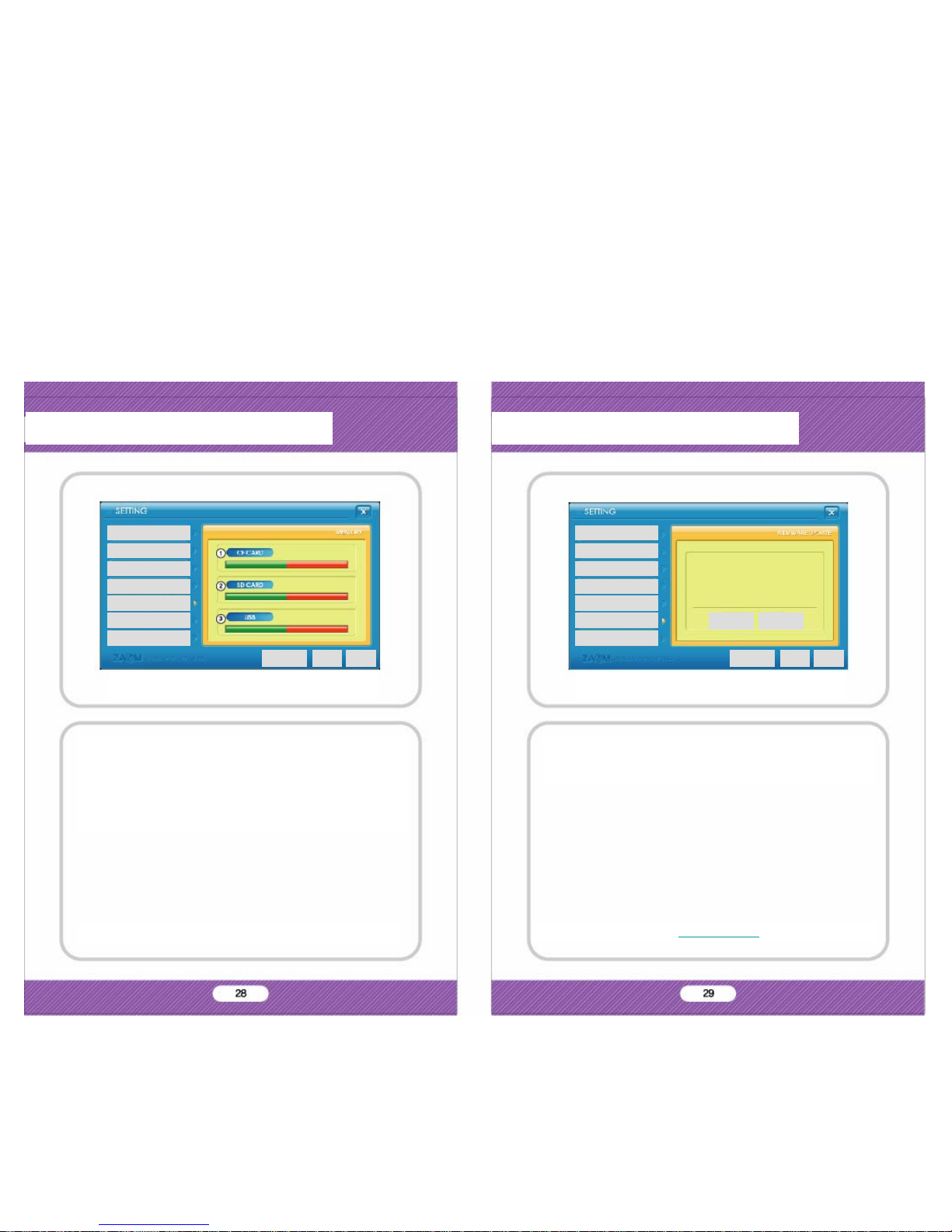
* There might be no information when CF/SD/USB slot is empty.
You can check the storage Capacity.
• CF CA RD Storage Status
• SD CARD Stroage Status
• USB Memory Stick Storage Status
* Please check the web site, www.zamm.co.kr for further information.
You can update the firmware.
There will be the manual and update file in our web site
in the near future.
Storage Capacity Screen
Main Menu
Start Program Setting
Sound Setting
Screen Setting
Storage Capacity
Frimware Update
Version Information
Default OK Cancel
Firmware Update Screen
Main Menu
Start Program Setting
Sound Setting
Screen Setting
Storage Capacity
Frimware Update
Version Information
Default OK Cancel
Yes No
2-9. Setting 2-9. Setting
Page 20
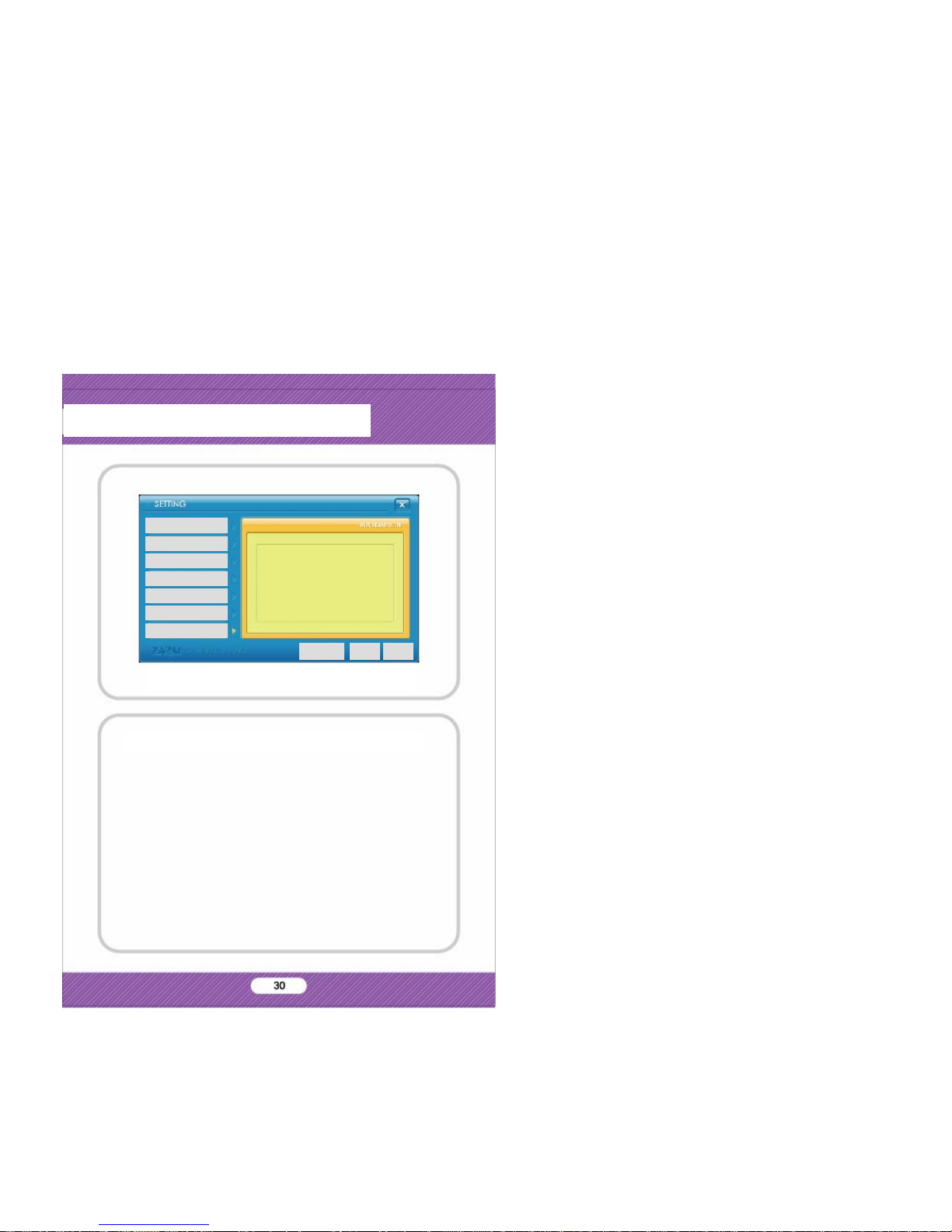
You can check the version of the product.
Product Information Screen
2-9. Setting
Main Menu
Start Program Setting
Sound Setting
Screen Setting
Storage Capacity
Frimware Update
Version Information
Default OK Cancel
Page 21
ETC
Product Specification
General Information
Model : ZAMM
Weight & Size : 187mm X 129mm X 25mm
Chipset : 200MHz ARM9 Dual Core
Memory : 64MB Nand Flash + 128MB SDRAM
OS : WIN CE 5.0 Core
LCD : DIGITAL 7” (800X480)
Power : DC 12V 1.5A
Storage : ①SD slot, ②CF slot
USB : ③1.1 Device X 1, ④1.1 Host X 1
VIDEO
Supported File : MPEG, WMV
Text : SMI format
Frame : 30 Frame Per Second
AUDIO
Speaker : 8 Ohm 1W X 2
Supported File : MP3, WMA
Additional Function : FM Transmitter
VIDEO INPUT
Video Format : NTSC/PAL
Video Type : CVBS
Audio : AV 1(Stereo), AV 2(Mono)
3-1. ETC 3-1. ETC
Product Specification
T-DMB
Frequency : 174~240MHz
Video : H.264 AVC Baseline
Audio : BSAC and MPEG Layer2 (MUSICAM)
GPS
Frequency : L1 (1575.42MHz)
Receiving Type : C/A Code 12-Channel
FM Transmitter
Sending Frequency : 88.5MHz~107.5MHz
Channel : 190 channels
Antenna Power : 500 μ V/m
Antenna Type : Wire Antenna
Modulation Type : FM
Transmission Type : One Way Transmission
① Some SD card may not be supported.
② Don’t use other CF card except provided one.
The product may not work correctly.
③ For emergency recovery purpose only.
④ For USB memory stick.
(Some USB memory stick may not be supported.)
Page 22
Warranty
PRODUCT : T-DMB/DAB Navigation System
MODEL : ZAMM-TM1
Serial No. :
Purchased Date :
Purchased Place :
Elements of Warranty
2MTECH warrants to the original retail owner for the duration
of this warranty; its ZAMM-TM1(hereinafter referred to as the
Product) to be free from defects in materials and
craftsmanship with only the limitations or exclusion set out
below.
Warranty Durations
This warranty to the original retail owner only, shall terminate
and be of no further effect ONE (1) Year after the date of
original retail sale. This warranty will be deemed invalid if the
Product is; (A) Damaged or not maintained as reasonable and
necessary; (B) Modified, altered or used as part of any
conversion kits, subassembl ies, or any configurations not sold
by 2MTECH, (C) Improperly installed, (D) Repaired by
someone other than an authorised 2MTECH Repair Agent, (E)
Used in conjunction with any equipment or parts or as part of
a system not manufactured by 2MTECH, (F) Installed,
programmed or serviced by anyone othyer than an authorised
2MTECH Repair Agent, (G) broken by fire, earthquake, flood
and natural disaster, or (H) Where the Serial Number label of
the product has been removed or damaged beyond recognition,
3-2. Customer Support 3-2. Customer Support
FCC Informatioin
This device complies with Pa rt 15 of the FCC results.
Operation is subject to the following two
conditions;
(1) This device may not cause harmful interface, and
(2) This device must accept any interference received,
including interference that may cause undesired operation.
WARNING
Changes or modifications not expressly approved by the
manufacturer could void the user’s authority to operate
the equipment.
Note: This equipment has been tested and found to comply with the limits
for CLASS B digital device, pursuant to Part 15 of FCC Rules. These limits
are designed to provide reasonable protection against harmful interference
when the equipment is operated in a commercial en vironment. This
equipment generates, uses and can radiate radio frequency energy and, if
not installed and used in accordance with instructions, may cause harmful
interference to radio communications. However, there is no guarantee that
interference will no occur in a particular installation. If this equipment does
not cause harmful interference to radio or television reception, which can
be determined by turning the equipment of f and on, the user is
encouraged to try correct the in terference by one or more of the following
measures;
1.1. Reorient or reallocate the receiving antenna
1.2. Increase the separation between the equipment and receiver.
1.3. Connect the equipment into an outlet on a circuit different from that
to which receiver is connected.
1.4. Consult the dealer or experienced radio/TV technician for help.
Page 23
MEMO MEMO
 Loading...