

Page 1

kyoceradocumentsolutions.com
Software Upgrade Tool
User Guide
Ver.1.0
2024.9
Page 2

2
Software Upgrade Tool User Guide
2
Contents
1. Preface ...................................................................................................................... 3
About This Document .................................................................................................................. 3
Legal and Safety Information...................................................................................................... 3
About Trade Names ..................................................................................................................... 3
About the Software Upgrade Tool .............................................................................................. 3
System Requirements .................................................................................................................. 4
2. Product Firmware and HyPAS Application Update ............................................... 5
Prerequisites ................................................................................................................................. 5
Updating the Product Firmware or the HyPAS Application ...................................................... 5
3. Troubleshooting..................................................................................................... 15
Page 3

3
Software Upgrade Tool User Guide
3
1. Preface
About This Document
This document contains an update procedure that uses the “Software Upgrade Tool”
application software to update your product firmware or Hybrid Platform for
Advanced Solutions (HyPAS) applications.
Legal and Safety Information
Unauthorized copy of all or part of this guide is prohibited.
The information in this guide is subject to change without notice.
This document explains operations using operations performed in Windows 11
as an example.
We are not responsible for any failures or damages that may occur resulting
from conditions or usage procedures not contained in this document.
About Trade Names
Microsoft, Windows and Windows Server are registered trademarks or
trademarks of Microsoft Corporation in the U.S.A. and/or other countries.
Mac and macOS are trademarks of Apple Inc., registered in the U.S. and other
countries.
Linux is the registered trademark or trademark of Linus Torvalds in the U.S. and
other countries.
All other brands and product names are registered trademarks or trademarks of their
respective companies. The designations ™ and ® will not be used in this guide.
About the Software Upgrade Tool
A firmware is a built-in software that controls a product. A HyPAS application is a
software that improves the product functionality. By updating the firmware or the
HyPAS application, improvements can be made to the product’s security and
operations can be stabilized. We recommend using this application to update the
product’s firmware or the HyPAS application so that you can continue to use the
product safely.
Page 4

4
Software Upgrade Tool User Guide
4
Windows
Windows 11
Windows 10
Windows Server 2022
Windows Server 2019
Windows Server 2016
Mac
macOS 14 Sonoma
macOS 13 Ventura
macOS 12 Monterey
Linux
Ubuntu 22.04 LTS
CentOS Stream 9
OpenSUSE Leap 15.5
System Requirements
Operating System:
Memory Capacity: At least 2 GB
Execution Environment: Requires “Visual C++ Redistributable Package” (only for
Windows)
Network: Wired network connection recommended
Page 5

5
Software Upgrade Tool User Guide
5
Caution
A network connection is required during the update.
If the product firmware is updated, it cannot be restored to a previous version. If any of
the HyPAS applications are updated, these can be restored to a previous version.
Do not use or turn off the product, or disconnect the network cable during the update.
If you are updating the product firmware, make sure that the HTTP/HTTPS port number
is not blocked by a firewall or a virus scanner.
Note
Confirm the user name and password for the Administrator, not for the
Machine Administrator. Refer to the Operation Guide for details on the user
name and password for the Administrator.
2. Product Firmware and HyPAS
Application Update
Prerequisites
Before using this tool, make sure to:
Access the support site for your region and download the firmware file or the
HyPAS application package to your computer.
Confirm SNMP settings before updating. If you are updating the product
firmware, confirm that HTTP and HTTPS are also enabled.
Confirm the setting details from Command Center RX. For details, refer to the
Command Center RX User Guide.
Confirm the user name and password for the Administrator that is registered on
the product that is going to have its firmware or HyPAS application updated.
Updating the Product Firmware or the HyPAS
Application
Start up Software Upgrade Tool.
Click [Accept] on the “LICENSE AGREEMENT” screen.
Page 6

6
Software Upgrade Tool User Guide
6
Note
You can select either of the following:
Product Firmware File
Firmware for your printer
HyPAS Application Package
Software for your HyPAS applications
Click [Browse], and select the firmware file or the HyPAS
application package that you downloaded to your computer.
Click .
Page 7

7
Software Upgrade Tool User Guide
7
Set the protocol (SNMPv1/v2c, SNMPv3) information for the
product that is going to have its firmware or HyPAS application
updated.
If SNMPv1/v2c is set to On in Command Center RX
1. Select “Use SNMP v1/v2”.
2. In “Read community,” input the SNMPv1/v2c community name.
Page 8

8
Software Upgrade Tool User Guide
8
If SNMPv3 is set to On in Command Center RX
1. Select “Use SNMP v3”.
2. In “User name,” input the SNMPv3 user name.
3. If “Authentication” is set to On in Command Center RX, select
“Authentication” and input your password, then select the authentication
algorithm from the “Hash” dropdown menu.
4. If “Privacy” is set to On in Command Center RX, select “Privacy” and input
your password, then select the encryption algorithm from the “Encryption”
dropdown menu.
Page 9

9
Software Upgrade Tool User Guide
9
Note
Click [Cancel] if you want to cancel the change to the settings.
Note
Normally, there is no need to change the port number.
If the following HTTP/HTTPS port numbers are already in use, specify a new
port number:
For Windows or Mac
Port 443
For Linux
Port 10443
If you are updating the product firmware, confirm the
HTTP/HTTPS port number. If you are updating the HyPAS
application, proceed to step 7.
Click [Apply].
Page 10

10
Software Upgrade Tool User Guide
10
Select the product to have its firmware or HyPAS application
updated.
If specifying the product with an IP address or host name
1. Select “Specify IP address”.
2. Input the product’s IP address or host name.
3. Click [Next] and proceed to step 9.
If specifying the product by searching for it over the network
1. Select “Local network discovery”.
2. Click [Next].
Page 11

11
Software Upgrade Tool User Guide
11
Note
Click [Retry] to retry the search.
3. Do one of the following:
If searching from all products on the network, select “Search current
domain”.
If searching from a filtered list of all products on the network, select
“Specify IP address range” and input the IP addresses.
4. Click [Next].
5. Select the product to have its firmware or HyPAS application updated.
6. Click [Next].
Page 12

12
Software Upgrade Tool User Guide
12
Caution
Do not use or turn off the product, or disconnect the network cable during the
update.
Click [OK].
If the product firmware will be updated
If any of the HyPAS applications will be updated
Page 13
13
Software Upgrade Tool User Guide
13
Note
If you are updating the product firmware using a previous or similar
version, “WARNING: The device already has a newer version installed.” will
be displayed. The update is unnecessary as the product is already running
a newer version of the firmware. Click [Cancel] to end the operation.
If you are updating the HyPAS application using a previous version, the
HyPAS application will be downgraded.
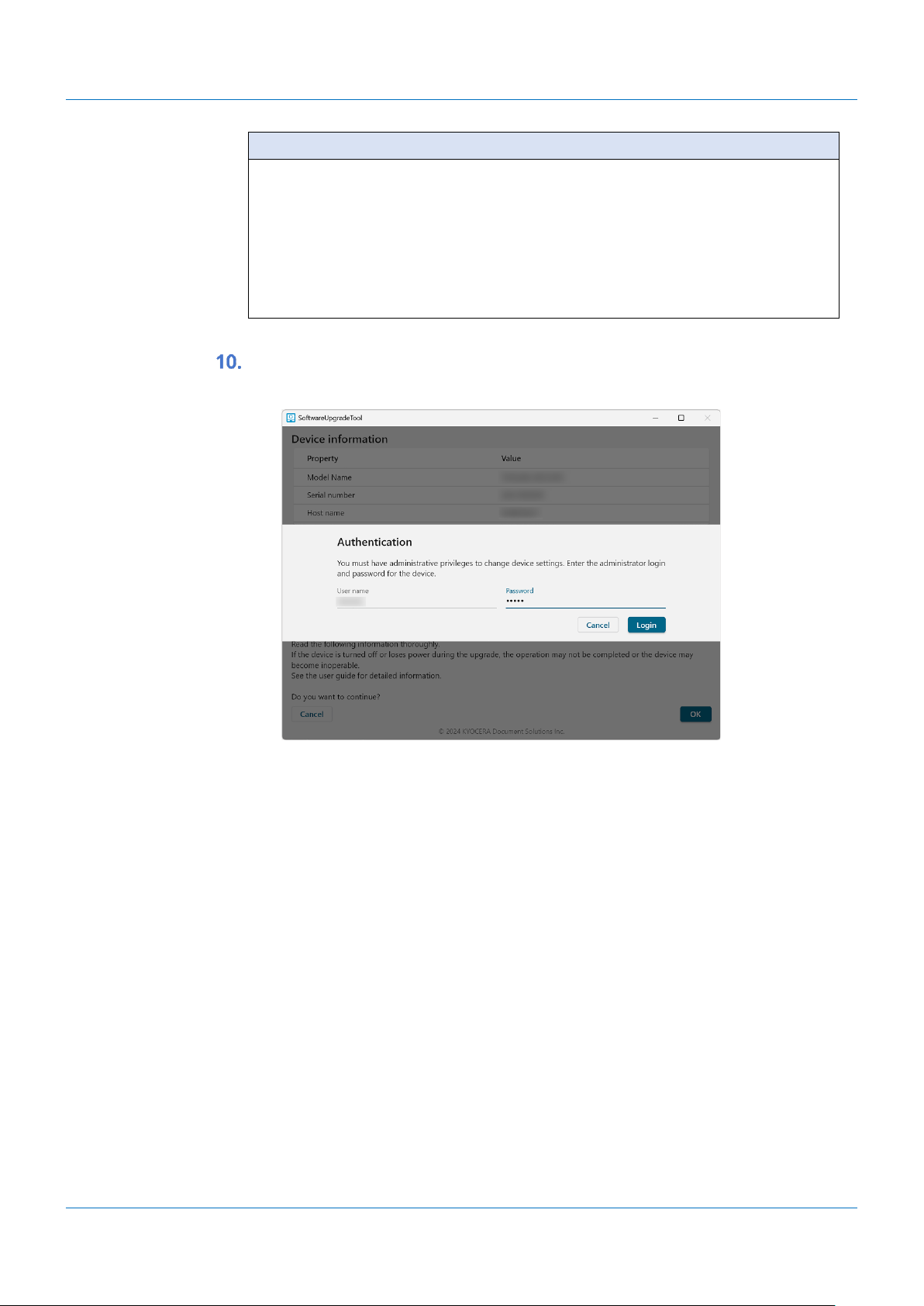
Input the user name and password for the Administrator
registered to the product.
Page 14

14
Software Upgrade Tool User Guide
14
Note
If “Authentication failed. Verify user name and password and try again.” is
displayed after clicking [Login], there is an error in the user name or password
that was entered in step 10. Confirm the correct user name and password.
Click [Login].
It will start the update.
When the update is finished, the result will be displayed.
Click [Exit].
Page 15

15
Software Upgrade Tool User Guide
15
Message
Corrective Actions
Warning
You do not have permission to
access this host. Please check
your settings and try again.
Check that the host name or IP address you entered is
correct.
Check that the SNMP settings in the [Settings] screen match
the protocol settings (SNMPv1/v2c, SNMPv3) on the
product. You can check the product protocol settings in
Command Center RX. For more information, refer to the
Command Center RX User Guide.
Check that the specified firmware file or HyPAS application
package is compatible with your product.
Check the product’s system menu or Command Center RX
to confirm if this tool can be used. However, in some
products, the permission settings may not be supported.
For more information, refer to the Operation Guide or
Command Center RX User Guide.
Warning
Devices not found. Search for
devices on your local network
Error
Upgrade failed.
Reason: Cannot verify installed
version.
Check that the firmware version or the HyPAS application
version of the product is updated.
(Refer to the Operation Guide on how to check the
firmware version or the HyPAS application version of the
product.)
If it has been updated, ignore this error and click [Exit].
If it has not been updated, check the following items and
update the product firmware or the HyPAS application
again.
The network is not disconnected
The product is turned on
If you want to update the product firmware, this
application should not be blocked by a firewall
If the problem persists, contact your service representative.
Error
Upgrade failed.
Reason: Master file version error
Error
Upgrade failed.
Reason: Cannot write firmware
file to device.
Error
Upgrade failed.
Reason: This HTTP/HTTPS port
number (#) has been used. Please
The HTTP/HTTPS port number specified on the setting screen
is already in use. Specify a port number that is not in use.
For Windows
3. Troubleshooting
Page 16

16
Software Upgrade Tool User Guide
16
Message
Corrective Actions
specify another HTTP/HTTPS port
number in Settings and try again.
You can find unused port numbers by using the "netstat"
command in the command prompt.
For Mac
You can find unused port numbers by using the "netstat"
command or "lsof" command in the terminal.
For Linux
You can find unused port numbers by using the "ss"
command or "lsof" command in the terminal.
 Loading...