

Page 1

< > !
R-30+A/R-30+A Mate/R-30+B CONTROLLER
EtherNet/IP
OPERATOR'S MANUAL
B-82854EN/02
Page 2

• Original Instructions
Before using the Robot, be sure to read the "FANUC Robot Safety Manual (B-80687EN)" and
understand the content.
• No part of this manual may be reproduced in any form.
• All specifications and designs are subject to change without notice.
The products in this manual are controlled based on Japan’s “Foreign Exchange and
Foreign Trade Law”. The export from Japan may be subject to an export license by the
government of Japan.
Further, re-export to another country may be subject to the license of the government of
the country from where the product is re-exported. Furthermore, the product may also be
controlled by re-export regulations of the United States government.
Should you wish to export or re-export these products, please contact FANUC for advice.
In this manual we have tried as much as possible to describe all the various matters.
However, we cannot describe all the matters which must not be done, or which cannot be
done, because there are so many possibilities.
Therefore, matters which are not especially described as possible in this manual should be
regarded as ”impossible”.
Page 3

B-82854EN/02 SAFETY PRECAUTIONS
SAFETY PRECAUTIONS
Thank you for purchasing FANUC Robot.
This chapter describes the precautions which must be observed to ensure the safe use of the robot.
Before attempting to use the robot, be sure to read this chapter thoroughly.
Before using the functions related to robot operation, read the relevant operator's manual to become
familiar with those functions.
If any description in this chapter differs from that in the other part of this manual, the description given in
this chapter shall take precedence.
For the safety of the operator and the system, follow all safety precautions when operating a robot and its
peripheral devices installed in a work cell.
In addition, refer to the “FANUC Robot SAFETY HANDBOOK (B-80687EN)”.
1 WORKING PERSON
The personnel can be classified as follows.
Operator:
Turns robot controller power ON/OFF
•
Starts robot program from operator’s panel
•
Programmer or teaching operator:
Operates the robot
•
Teaches robot inside the safety fence
•
Maintenance engineer:
Operates the robot
•
Teaches robot inside the safety fence
•
Maintenance (adjustment, replacement)
•
- An operator cannot work inside the safety fence.
- A programmer, teaching operator, and maintenance engineer can work inside the safety fence. The
working activities inside the safety fence include lifting, setting, teaching, adjusting, maintenance,
etc.
- To work inside the fence, the person must be trained on proper robot operation.
During the operation, programming, and maintenance of your robotic system, the programmer, teaching
operator, and maintenance engineer should take additional care of their safety by using the following
safety precautions.
- Use adequate clothing or uniforms during system operation
- Wear safety shoes
- Use helmet
s-1
Page 4

SAFETY PRECAUTIONS B-82854EN/02
2 DEFINITION OF WARNING, CAUTION AND
NOTE
To ensure the safety of user and prevent damage to the machine, this manual indicates each precaution on
safety with "Warning" or "Caution" according to its severity. Supplementary information is indicated by
"Note". Read the contents of each "Warning", "Caution" and "Note" before attempting to use the
oscillator.
WARNING
Applied when there is a danger of the user being injured or when there is a
danger of both the user being injured and the equipment being damaged if the
approved procedure is not observed.
CAUTION
Applied when there is a danger of the equipment being damaged, if the
approved procedure is not observed.
NOTE
Notes are used to indicate supplementary information other than Warnings and
Cautions.
• Read this manual carefully, and store it in a sales place.
3 WORKING PERSON SAFETY
Working person safety is the primary safety consideration. Because it is very dangerous to enter the
operating space of the robot during automatic operation, adequate safety precautions must be observed.
The following lists the general safety precautions. Careful consideration must be made to ensure
working person safety.
(1) Have the robot system working persons attend the training courses held by FANUC.
FANUC provides various training courses. Contact our sales office for details.
(2) Even when the robot is stationary, it is possible that the robot is still in a ready to move state, and is
waiting for a signal. In this state, the robot is regarded as still in motion. To ensure working
person safety, provide the system with an alarm to indicate visually or aurally that the robot is in
motion.
(3) Install a safety fence with a gate so that no working person can enter the work area without passing
through the gate. Install an interlocking device, a safety plug, and so forth in the safety gate so that
the robot is stopped as the safety gate is opened.
The controller is designed to receive this interlocking signal of the door switch. When the gate
is opened and this signal received, the controller stops the robot (Please refer to "STOP
TYPE OF ROBOT" in SAFETY PRECAUTIONS for detail of stop type). For connection, see
Fig.3 (a) and Fig.3 (b).
s-2
Page 5

B-82854EN/02 SAFETY PRECAUTIONS
(4) Provide the peripheral devices with appropriate grounding (Class A, Class B, Class C, and Class D).
(5) Try to install the peripheral devices outside the work area.
(6) Draw an outline on the floor, clearly indicating the range of the robot motion, including the tools
such as a hand.
(7) Install a mat switch or photoelectric switch on the floor with an interlock to a visual or aural alarm
that stops the robot when a working person enters the work area.
(8) If necessary, install a safety lock so that no one except the working person in charge can turn on the
power of the robot.
The circuit breaker installed in the controller is designed to disable anyone from turning it on
when it is locked with a padlock.
(9) When adjusting each peripheral device independently, be sure to turn off the power of the robot
(10) Operators should be ungloved while manipulating the operator’s panel or teach pendant. Operation
with gloved fingers could cause an operation error.
(11) Programs, system variables, and other information can be saved on memory card or USB memories.
Be sure to save the data periodically in case the data is lost in an accident.
(12) The robot should be transported and installed by accurately following the procedures recommended
by FANUC. Wrong transportation or installation may cause the robot to fall, resulting in severe
injury to workers.
(13) In the first operation of the robot after installation, the operation should be restricted to low speeds.
Then, the speed should be gradually increased to check the operation of the robot.
(14) Before the robot is started, it should be checked that no one is in the area of the safety fence. At the
same time, a check must be made to ensure that there is no risk of hazardous situations. If detected,
such a situation should be eliminated before the operation.
(15) When the robot is used, the following precautions should be taken. Otherwise, the robot and
peripheral equipment can be adversely affected, or workers can be severely injured.
- Avoid using the robot in a flammable environment.
- Avoid using the robot in an explosive environment.
- Avoid using the robot in an environment full of radiation.
- Avoid using the robot under water or at high humidity.
- Avoid using the robot to carry a person or animal.
- Avoid using the robot as a stepladder. (Never climb up on or hang from the robot.)
(16) When connecting the peripheral devices related to stop(safety fence etc.) and each signal (external
emergency , fence etc.) of robot. be sure to confirm the stop movement and do not take the wrong
connection.
(17) When preparing trestle, please consider security for installation and maintenance work in high place
according to Fig.3 (c). Please consider footstep and safety bolt mounting position.
s-3
Page 6

SAFETY PRECAUTIONS B-82854EN/02
RP1
Pulsecoder
RI/RO,XHBK,XROT
RM1
Motor power/brake
EARTH
Dual chain
Single chain
Safety fence
Interlocking device and safety plug that are activated if the
gate is opened.
Fig. 3 (a) Safety fence and safety gate
Emergency stop board
Panel board
or Panel board
EAS1
EAS11
EAS2
EAS21
Panel board
FENCE1
FENCE2
(Note)
(Note)
In case of R-30iB
In case of R-30iA
Terminals EAS1,EAS11,EAS2,EAS21 are provided on the
Terminals EAS1,EAS11,EAS2,EAS21 or FENCE1,FENCE2
emergency stop board.
are provided on the operation box or on the terminal block
of the printed circuit board.
In case R-30iA
In case of R-30iA Mate
Terminals EAS1,EAS11,EAS2,EAS21 are provided on the
Terminals EAS1,EAS11,EAS2,EAS21 are provided
emergency stop board or connector panel
on the emergency stop board or connector panel.
(in case of Open air type)
In case R-30iA Mate
Terminals EAS1,EAS11,EAS2,EAS21 or FENCE1,FENCE2
Termianls FENCE1,FENCE2 are provided
on the emergency stop board.
are provided on the emergency stop board or in the connector
panel of CRM65 (Open air type).
Refer to controller maintenance manual for details.
Refer to the ELECTRICAL CONNCETIONS Chapter
of CONNECTION of controller maintenance manual for details.
Fig. 3 (b) Limit switch circuit diagram of the safety fence
s-4
Page 7

B-82854EN/02 SAFETY PRECAUTIONS
Hook for safety belt
Fence
Steps
Trestle
Footstep
for maintenance
Fig.3 (c) Footstep for maintenance
3.1 OPERATOR SAFETY
The operator is a person who operates the robot system. In this sense, a worker who operates the teach
pendant is also an operator. However, this section does not apply to teach pendant operators.
(1) If you do not have to operate the robot, turn off the power of the robot controller or press the
EMERGENCY STOP button, and then proceed with necessary work.
(2) Operate the robot system at a location outside of the safety fence
(3) Install a safety fence with a safety gate to prevent any worker other than the operator from entering
the work area unexpectedly and to prevent the worker from entering a dangerous area.
(4) Install an EMERGENCY STOP button within the operator’s reach.
The robot controller is designed to be connected to an external EMERGENCY STOP button.
With this connection, the controller stops the robot operation (Please refer to "STOP TYPE
OF ROBOT" in SAFETY PRECAUTIONS for detail of stop type), when the external
EMERGENCY STOP button is pressed. See the diagram below for connection.
Dual chain
External stop button
Single chain
External stop button
Emergency stop board
Panel board
or Panel board
EES1
EES11
EES2
EES21
Panel board
EMGIN1
EMGIN2
Fig.3.1 Connection diagram for external emergency stop button
(Note)
Connect EES1 and EES11, EES2 and EES21 or EMGIN1
and EMGIN2
(Note)
In case R-30iB
Connect EES1and EES11,EES2 and EES21or EMGIN1and EMGIN2.
EES1,EES11,EES2,EES21 are on the emergency stop board
In case of R-30iA
EES1,EES11,EES2,EES21 or EMGIN1,EMGIN2 are on the panel board.
In case R-30iA
EES1,EES11,EES2,EES21 or EMGIN1, EMGIN2 are on the
In case of R-30iA Mate
panel board.
EES1,EES11,EES2,EES21 are on the emergency stop board
or connector panel (in case of Open air type).
EMGIN1,EMGIN2 are on the emergency stop board.
In case R-30iA Mate
Terminals EAS1,EAS11,EAS2,EAS21 or FENCE1,FENCE2
Refer to the maintenance manual of the controller for details.
are provided on the emergency stop board or in the connector
panel of CRM65 (Open air type).
Refer to the ELECTRICAL CONNCETIONS Chapter
of CONNECTION of controller maintenance manual for details.
s-5
Page 8

SAFETY PRECAUTIONS B-82854EN/02
3.2 SAFETY OF THE PROGRAMMER
While teaching the robot, the operator must enter the work area of the robot. The operator must ensure
the safety of the teach pendant operator especially.
(1) Unless it is specifically necessary to enter the robot work area, carry out all tasks outside the area.
(2) Before teaching the robot, check that the robot and its peripheral devices are all in the normal
operating condition.
(3) If it is inevitable to enter the robot work area to teach the robot, check the locations, settings, and
other conditions of the safety devices (such as the EMERGENCY STOP button, the DEADMAN
switch on the teach pendant) before entering the area.
(4) The programmer must be extremely careful not to let anyone else enter the robot work area.
(5) Programming should be done outside the area of the safety fence as far as possible. If programming
needs to be done in the area of the safety fence, the programmer should take the following
precautions:
- Before entering the area of the safety fence, ensure that there is no risk of dangerous situations
in the area.
- Be prepared to press the emergency stop button whenever necessary.
- Robot motions should be made at low speeds.
- Before starting programming, check the entire system status to ensure that no remote instruction
to the peripheral equipment or motion would be dangerous to the user.
Our operator panel is provided with an emergency stop button and a key switch (mode switch) for selecting the
automatic operation mode (AUTO) and the teach modes (T1 and T2). Before entering the inside of the safety
fence for the purpose of teaching, set the switch to a teach mode, remove the key from the mode switch to prevent
other people from changing the operation mode carelessly, then open the safety gate. If the safety gate is opened
with the automatic operation mode set, the robot stops (Please refer to "STOP TYPE OF ROBOT" in SAFETY
PRECAUTIONS for detail of stop type). After the switch is set to a teach mode, the safety gate is disabled. The
programmer should understand that the safety gate is disabled and is responsible for keeping other people from
entering the inside of the safety fence. (In case of R-30iA Mate Controller standard specification, there is no mode
switch. The automatic operation mode and the teach mode is selected by teach pendant enable switch.)
Our teach pendant is provided with a DEADMAN switch as well as an emergency stop button. These button and
switch function as follows:
(1) Emergency stop button: Causes an emergency stop (Please refer to "STOP TYPE OF ROBOT" in SAFETY
PRECAUTIONS for detail of stop type) when pressed.
(2) DEADMAN switch: Functions differently depending on the teach pendant enable/disable switch setting
status.
(a) Disable: The DEADMAN switch is disabled.
(b) Enable: Servo power is turned off when the operator releases the DEADMAN switch or when the
operator presses the switch strongly.
Note) The DEADMAN switch is provided to stop the robot when the operator releases the teach pendant or
presses the pendant strongly in case of emergency. The R-30iB/R-30iA/ R-30iA Mate employs a
3-position DEADMAN switch, which allows the robot to operate when the 3-position DEADMAN switch is
pressed to its intermediate point. When the operator releases the DEADMAN switch or presses the
switch strongly, the robot stops immediately.
The operator’s intention of starting teaching is determined by the controller through the dual operation of setting the
teach pendant enable/disable switch to the enable position and pressing the DEADMAN switch. The operator
should make sure that the robot could operate in such conditions and be responsible in carrying out tasks safely.
Based on the risk assessment by FANUC, number of operation of DEADMAN SW should not exceed about 10000
times per year.
s-6
Page 9

B-82854EN/02 SAFETY PRECAUTIONS
The teach pendant, operator panel, and peripheral device interface send each robot start signal. However the
validity of each signal changes as follows depending on the mode switch and the DEADMAN switch of the operator
panel, the teach pendant enable switch and the remote condition on the software.
In case of R-30iB/R-30iA controller or CE or RIA specification of R-30iA Mate controller
Mode
AUTO
mode
T1, T2
mode
T1,T2 mode: DEADMAN switch is effective.
Teach pendant enable switch Software remote condition Teach pendant Peripheral device
Teach pendant
enable switch
On
Off
On
Off
In case of standard specification of R-30iA Mate controller
On Ignored Allowed to start Not allowed
Software
remote
condition
Local Not allowed Not allowed Not allowed
Remote Not allowed Not allowed Not allowed
Local Not allowed Allowed to start Not allowed
Remote Not allowed Not allowed Allowed to start
Local Allowed to start Not allowed Not allowed
Remote Allowed to start Not allowed Not allowed
Local Not allowed Not allowed Not allowed
Remote Not allowed Not allowed Not allowed
Teach pendant Operator panel Peripheral device
Local Not allowed Not allowed Off
Remote Not allowed Allowed to start
(6) (Only when R-30iB/R-30iA Controller or CE or RIA specification of R-30iA Mate controller is
selected.) To start the system using the operator’s panel, make certain that nobody is the robot work
area and that there are no abnormal conditions in the robot work area.
(7) When a program is completed, be sure to carry out a test operation according to the procedure
below.
(a) Run the program for at least one operation cycle in the single step mode at low speed.
(b) Run the program for at least one operation cycle in the continuous operation mode at low
speed.
(c) Run the program for one operation cycle in the continuous operation mode at the intermediate
speed and check that no abnormalities occur due to a delay in timing.
(d) Run the program for one operation cycle in the continuous operation mode at the normal
operating speed and check that the system operates automatically without trouble.
(e) After checking the completeness of the program through the test operation above, execute it in
the automatic operation mode.
(8) While operating the system in the automatic operation mode, the teach pendant operator should
leave the robot work area.
3.3 SAFETY OF THE MAINTENANCE ENGINEER
For the safety of maintenance engineer personnel, pay utmost attention to the following.
(1) During operation, never enter the robot work area.
(2) A hazardous situation may arise when the robot or the system, are kept with their power-on during
maintenance operations. Therefore, for any maintenance operation, the robot and the system should
be put into the power-off state. If necessary, a lock should be in place in order to prevent any other
person from turning on the robot and/or the system. In case maintenance needs to be executed in the
power-on state, the emergency stop button must be pressed.
(3) If it becomes necessary to enter the robot operation range while the power is on, press the
emergency stop button on the operator panel, or the teach pendant before entering the range. The
s-7
Page 10

SAFETY PRECAUTIONS B-82854EN/02
maintenance personnel must indicate that maintenance work is in progress and be careful not to
allow other people to operate the robot carelessly.
(4) When entering the area enclosed by the safety fence, the maintenance worker must check the entire
system in order to make sure no dangerous situations exist. In case the worker needs to enter the
safety area whilst a dangerous situation exists, extreme care must be taken, and entire system status
must be carefully monitored.
(5) Before the maintenance of the pneumatic system is started, the supply pressure should be shut off
and the pressure in the piping should be reduced to zero.
(6) Before the start of teaching, check that the robot and its peripheral devices are all in the normal
operating condition.
(7) Do not operate the robot in the automatic mode while anybody is in the robot work area.
(8) When you maintain the robot alongside a wall or instrument, or when multiple workers are working
nearby, make certain that their escape path is not obstructed.
(9) When a tool is mounted on the robot, or when any moving device other than the robot is installed,
such as belt conveyor, pay careful attention to its motion.
(10) If necessary, have a worker who is familiar with the robot system stand beside the operator panel
and observe the work being performed. If any danger arises, the worker should be ready to press
the EMERGENCY STOP button at any time.
(11) When replacing a part, please contact FANUC service center. If a wrong procedure is followed, an
accident may occur, causing damage to the robot and injury to the worker.
(12) When replacing or reinstalling components, take care to prevent foreign material from entering the
system.
(13) When handling each unit or printed circuit board in the controller during inspection, turn off the
circuit breaker to protect against electric shock.
If there are two cabinets, turn off the both circuit breaker.
(14) A part should be replaced with a part recommended by FANUC. If other parts are used, malfunction
or damage would occur. Especially, a fuse that is not recommended by FANUC should not be used.
Such a fuse may cause a fire.
(15) When restarting the robot system after completing maintenance work, make sure in advance that
there is no person in the work area and that the robot and the peripheral devices are not abnormal.
(16) When a motor or brake is removed, the robot arm should be supported with a crane or other
equipment beforehand so that the arm would not fall during the removal.
(17) Whenever grease is spilled on the floor, it should be removed as quickly as possible to prevent
dangerous falls.
(18) The following parts are heated. If a maintenance worker needs to touch such a part in the heated
state, the worker should wear heat-resistant gloves or use other protective tools.
- Servo motor
- Inside the controller
- Reducer
- Gearbox
- Wrist unit
(19) Maintenance should be done under suitable light. Care must be taken that the light would not cause
any danger.
(20) When a motor, reducer, or other heavy load is handled, a crane or other equipment should be used to
protect maintenance workers from excessive load. Otherwise, the maintenance workers would be
severely injured.
(21) The robot should not be stepped on or climbed up during maintenance. If it is attempted, the robot
would be adversely affected. In addition, a misstep can cause injury to the worker.
When perform
(22)
ing maintenance work in high place, secure a footstep and wear safety belt.
(23) After the maintenance is completed, spilled oil or water and metal chips should be removed from the
floor around the robot and within the safety fence.
(24) When a part is replaced, all bolts and other related components should put back into their original
places. A careful check must be given to ensure that no components are missing or left not mounted.
(25) In case robot motion is required during maintenance, the following precautions should be taken :
s-8
Page 11

B-82854EN/02 SAFETY PRECAUTIONS
- Foresee an escape route. And during the maintenance motion itself, monitor continuously the
whole system so that your escape route will not become blocked by the robot, or by peripheral
equipment.
- Always pay attention to potentially dangerous situations, and be prepared to press the emergency
stop button whenever necessary.
(26) The robot should be periodically inspected. (Refer to the robot mechanical manual and controller
maintenance manual.) A failure to do the periodical inspection can adversely affect the performance
or service life of the robot and may cause an accident
(27) After a part is replaced, a test operation should be given for the robot according to a predetermined
method. (See TESTING section of “Controller operator’s manual”.) During the test operation, the
maintenance staff should work outside the safety fence.
4 SAFETY OF THE TOOLS AND
PERIPHERAL DEVICES
4.1 PRECAUTIONS IN PROGRAMMING
(1) Use a limit switch or other sensor to detect a dangerous condition and, if necessary, design the
program to stop the robot when the sensor signal is received.
(2) Design the program to stop the robot when an abnormal condition occurs in any other robots or
peripheral devices, even though the robot itself is normal.
(3) For a system in which the robot and its peripheral devices are in synchronous motion, particular care
must be taken in programming so that they do not interfere with each other.
(4) Provide a suitable interface between the robot and its peripheral devices so that the robot can detect
the states of all devices in the system and can be stopped according to the states.
4.2 PRECAUTIONS FOR MECHANISM
(1) Keep the component cells of the robot system clean, and operate the robot in an environment free of
grease, water, and dust.
(2) Don’t use unconfirmed liquid for cutting fluid and cleaning fluid.
(3) Employ a limit switch or mechanical stopper to limit the robot motion so that the robot or cable does
not strike against its peripheral devices or tools.
(4) Observe the following precautions about the mechanical unit cables. When theses attentions are not
kept, unexpected troubles might occur.
• Use mechanical unit cable that have required user interface.
• Don’t add user cable or hose to inside of mechanical unit.
• Please do not obstruct the movement of the mechanical unit cable when cables are added to
outside of mechanical unit.
• In the case of the model that a cable is exposed, Please do not perform remodeling (Adding a
protective cover and fix an outside cable more) obstructing the behavior of the outcrop of the
cable.
• Please do not interfere with the other parts of mechanical unit when install equipments in the
robot.
(5) The frequent power-off stop for the robot during operation causes the trouble of the robot. Please
avoid the system construction that power-off stop would be operated routinely. (Refer to bad case
example.) Please execute power-off stop after reducing the speed of the robot and stopping it by
hold stop or cycle stop when it is not urgent. (Please refer to "STOP TYPE OF ROBOT" in
SAFETY PRECAUTIONS for detail of stop type.)
(Bad case example)
s-9
Page 12

SAFETY PRECAUTIONS B-82854EN/02
• Whenever poor product is generated, a line stops by emergency stop.
• When alteration was necessary, safety switch is operated by opening safety fence and
power-off stop is executed for the robot during operation.
• An operator pushes the emergency stop button frequently, and a line stops.
• An area sensor or a mat switch connected to safety signal operate routinely and power-off stop
is executed for the robot.
(6) Robot stops urgently when collision detection alarm (SRVO-050) etc. occurs. The frequent urgent
stop by alarm causes the trouble of the robot, too. So remove the causes of the alarm.
5 SAFETY OF THE ROBOT MECHANISM
5.1 PRECAUTIONS IN OPERATION
(1) When operating the robot in the jog mode, set it at an appropriate speed so that the operator can
manage the robot in any eventuality.
(2) Before pressing the jog key, be sure you know in advance what motion the robot will perform in the
jog mode.
5.2 PRECAUTIONS IN PROGRAMMING
(1) When the work areas of robots overlap, make certain that the motions of the robots do not interfere
with each other.
(2) Be sure to specify the predetermined work origin in a motion program for the robot and program the
motion so that it starts from the origin and terminates at the origin.
Make it possible for the operator to easily distinguish at a glance that the robot motion has
terminated.
5.3 PRECAUTIONS FOR MECHANISMS
(1) Keep the work areas of the robot clean, and operate the robot in an environment free of grease, water,
and dust.
5.4 PROCEDURE TO MOVE ARM WITHOUT DRIVE POWER
IN EMERGENCY OR ABNORMAL SITUATIONS
For emergency or abnormal situations (e.g. persons trapped in or by the robot), brake release unit can be
used to move the robot axes without drive power.
Please refer to controller maintenance manual and mechanical unit operator’s manual for using method of
brake release unit and method of supporting robot.
s-10
Page 13
B-82854EN/02 SAFETY PRECAUTIONS
6 SAFETY OF THE END EFFECTOR
6.1 PRECAUTIONS IN PROGRAMMING
(1) To control the pneumatic, hydraulic and electric actuators, carefully consider the necessary time
delay after issuing each control command up to actual motion and ensure safe control.
(2) Provide the end effector with a limit switch, and control the robot system by monitoring the state of
the end effector.
7 STOP TYPE OF ROBOT
The following three robot stop types exist:
Power-Off Stop (Category 0 following IEC 60204-1)
Servo power is turned off and the robot stops immediately. Servo power is turned off when the robot is
moving, and the motion path of the deceleration is uncontrolled.
The following processing is performed at Power-Off stop.
- An alarm is generated and servo power is turned off.
- The robot operation is stopped immediately. Execution of the program is paused.
Controlled stop (Category 1 following IEC 60204-1)
The robot is decelerated until it stops, and servo power is turned off.
The following processing is performed at Controlled stop.
- The alarm "SRVO-199 Controlled stop" occurs along with a decelerated stop. Execution of the
program is paused.
- An alarm is generated and servo power is turned off.
Hold (Category 2 following IEC 60204-1)
The robot is decelerated until it stops, and servo power remains on.
The following processing is performed at Hold.
- The robot operation is decelerated until it stops. Execution of the program is paused.
WARNING
The stopping distance and stopping time of Controlled stop are longer than the
stopping distance and stopping time of Power-Off stop. A risk assessment for
the whole robot system, which takes into consideration the increased stopping
distance and stopping time, is necessary when Controlled stop is used.
When the emergency stop button is pressed or the FENCE is open, the stop type of robot is Power-Off
stop or Controlled stop. The configuration of stop type for each situation is called stop pattern. The stop
pattern is different according to the controller type or option configuration.
s-11
Page 14

SAFETY PRECAUTIONS B-82854EN/02
There are the following 3 Stop patterns.
Stop
pattern
AUTO P-Stop P-Stop C-Stop C-Stop P-Stop
A T1 P-Stop P-Stop - C-Stop P-Stop
T2 P-Stop P-Stop - C-Stop P-Stop
AUTO P-Stop P-Stop P-Stop P-Stop P-Stop
B T1 P-Stop P-Stop - P-Stop P-Stop
T2 P-Stop P-Stop - P-Stop P-Stop
AUTO C-Stop C-Stop C-Stop C-Stop C-Stop
C T1 P-Stop P-Stop - C-Stop P-Stop
T2 P-Stop P-Stop - C-Stop P-Stop
Mode
Emergency
stop
button
External
Emergency
stop
FENCE open SVOFF input
Servo
disconnect
P-Stop: Power-Off stop
C-Stop: Controlled stop
-: Disable
The following table indicates the Stop pattern according to the controller type or option configuration.
Option
Standard A (*)
Controlled stop by E-Stop (A05B-2600-J570) C (*)
R-30iB
(*) R-30iB does not have servo disconnect.
R-30iA R-30iA Mate
Option
Standard B (*) A A A A (**) A A
Stop type set (Stop pattern C)
(A05B-2500-J570)
Standard
(Single)
N/A N/A C C N/A C C
Standard
(Dual)
RIA
type
CE
type
Standard
RIA
type
CE
type
(*) R-30iA standard (single) does not have servo disconnect.
(**) R-30iA Mate Standard does not have servo disconnect, and the stop type of SVOFF input is
Power-Off stop.
The stop pattern of the controller is displayed in "Stop pattern" line in software version screen. Please
refer to "Software version" in operator's manual of controller for the detail of software version screen.
"Controlled stop by E-Stop" option
When "Controlled stop by E-Stop" (A05B-2600-J570) option (In case of R-30iA/R-30iA Mate, it is Stop
type set (Stop pattern C) (A05B-2500-J570)) is specified, the stop type of the following alarms becomes
Controlled stop but only in AUTO mode. In T1 or T2 mode, the stop type is Power-Off stop which is
the normal operation of the system.
Alarm Condition
SRVO-001 Operator panel E-stop Operator panel emergency stop is pressed.
SRVO-002 Teach pendant E-stop Teach pendant emergency stop is pressed.
SRVO-007 External emergency stops External emergency stop input (EES1-EES11, EES2-EES21) is
open. (R-30iA/R-30iB controller)
SRVO-194 Servo disconnect Servo disconnect input (SD4-SD41, SD5-SD51) is open.
(R-30iA controller)
SRVO-218 Ext.E-stop/Servo Disconnect External emergency stop input (EES1-EES11, EES2-EES21) is
open. (R-30iA Mate/R-30iB controller)
SRVO-408 DCS SSO Ext Emergency Stop In DCS Safe I/O connect function, SSO[3] is OFF.
SRVO-409 DCS SSO Servo Disconnect In DCS Safe I/O connect function, SSO[4] is OFF.
s-12
Page 15

B-82854EN/02 SAFETY PRECAUTIONS
Controlled stop is different from Power-Off stop as follows:
- In Controlled stop, the robot is stopped on the program path. This function is effective for a system
where the robot can interfere with other devices if it deviates from the program path.
- In Controlled stop, physical impact is less than Power-Off stop. This function is effective for
systems where the physical impact to the mechanical unit or EOAT (End Of Arm Tool) should be
minimized.
- The stopping distance and stopping time of Controlled stop is longer than the stopping distance and
stopping time of Power-Off stop, depending on the robot model and axis. Please refer to the
operator's manual of a particular robot model for the data of stopping distance and stopping time.
In case of R-30iA or R-30iA Mate, this function is available only in CE or RIA type hardware.
When this option is loaded, this function cannot be disabled.
The stop type of DCS Position and Speed Check functions is not affected by the loading of this option.
WARNING
The stopping distance and stopping time of Controlled stop are longer than the
stopping distance and stopping time of Power-Off stop. A risk assessment for
the whole robot system, which takes into consideration the increased stopping
distance and stopping time, is necessary when this option is loaded.
s-13
Page 16

Page 17

B-82854EN/02 TABLE OF CONTENTS
TABLE OF CONTENTS
SAFETY PRECAUTIONS............................................................................s-1
1 INTRODUCTION .....................................................................................1
2 SYSTEM OVERVIEW..............................................................................3
2.1 OVERVIEW ...................................................................................................3
2.2 SPECIFICATION OVERVIEW.......................................................................3
2.3 ETHERNET CONNECTION AND IP ADDRESS ASSIGNMENT...................4
2.4 ADAPTER MODE CONFIGURATION OUTLINE...........................................5
2.5 SCANNER MODE CONFIGURATION OUTLINE..........................................5
3 ADAPTER CONFIGURATION................................................................7
3.1 OVERVIEW ...................................................................................................7
3.2 SETTING UP YOUR ROBOT........................................................................7
3.2.1 Configuring the Robot I/O Size................................................................................7
3.2.2 Configuring the Remote Scanner .............................................................................9
3.2.3 Common Errors......................................................................................................13
4 SCANNER CONFIGURATION..............................................................14
4.1 OVERVIEW .................................................................................................14
4.2 SETTING UP YOUR ROBOT......................................................................14
4.2.1 Overview................................................................................................................14
4.2.2 Configure the Adapter Device................................................................................15
4.2.3 Configure the Robot Scan List ...............................................................................15
4.2.4 Advanced EtherNet/IP Scanner Configuration ......................................................19
4.2.4.1 Quick connect feature........................................................................................ 21
4.2.5 Analog I/O..............................................................................................................24
4.2.5.1 Overview ........................................................................................................... 24
4.2.5.2 Examples ........................................................................................................... 25
4.2.6 Common Errors......................................................................................................25
5 ETHERNET/IP TO DEVICENET ROUTING..........................................26
5.1 OVERVIEW .................................................................................................26
5.2 GUIDELINES...............................................................................................26
5.3 SETTING UP ETHERNET/IP TO DEVICENET ROUTING..........................26
5.4 USING ETHERNET/IP TO DEVICENET ROUTING....................................27
6 I/O CONFIGURATION...........................................................................32
6.1 OVERVIEW .................................................................................................32
6.1.1 I/O Size of Each Connection and I/O Configuration..............................................32
c-1
Page 18

TABLE OF CONTENTS B-82854EN/02
6.2 MAPPING I/O ON THE ROBOT..................................................................32
6.3 BACKING UP AND RESTORING ETHERNET/IP AND I/O CONFIGURATION
.....................................................................................................................33
7 EXPLICIT MESSAGING........................................................................35
7.1 OVERVIEW .................................................................................................35
7.2 ROBOT EXPLICIT MESSAGING CLIENT...................................................36
7.2.1 Overview................................................................................................................36
7.2.2 Creating a Configuration File for the Batch File Method ......................................38
7.3 REMOTE EXPLICIT MESSAGING CLIENT CONFIGURATION.................39
7.4 VENDOR SPECIFIC REGISTER OBJECTS...............................................39
7.4.1 Numeric Register Objects (0x6B and 0x6C)..........................................................40
7.4.1.1 Instance attributes.............................................................................................. 41
7.4.1.2 Common services...............................................................................................41
7.4.1.3 Errors................................................................................................................. 42
7.4.1.4 Read single register............................................................................................42
7.4.1.5 Read all registers................................................................................................43
7.4.1.6 Read a block of registers....................................................................................44
7.4.1.7 Write single register...........................................................................................45
7.4.1.8 Write all registers...............................................................................................46
7.4.1.9 Write a block of registers...................................................................................47
7.4.2 String Register Object (0x6D)................................................................................48
7.4.2.1 Instance attributes.............................................................................................. 48
7.4.2.2 Common services...............................................................................................49
7.4.2.3 Errors................................................................................................................. 50
7.4.2.4 Read single register............................................................................................50
7.4.2.5 Read all register.................................................................................................50
7.4.2.6 Read a block of register.....................................................................................51
7.4.2.7 Write single register...........................................................................................52
7.4.2.8 Write all registers...............................................................................................52
7.4.2.9 Write a block of registers...................................................................................53
7.4.3 Position Register Object (0x7B, 0x7C, 0x7D, 0x7E).............................................54
7.4.3.1 Instance attributes.............................................................................................. 54
7.4.3.2 Common services...............................................................................................56
7.4.3.3 Errors................................................................................................................. 57
7.4.3.4 Read single register............................................................................................57
7.4.3.5 Read all registers................................................................................................58
7.4.3.6 Read a block of registers....................................................................................59
7.4.3.7 Read current position (CURPOS or CURJPOS)............................................... 60
7.4.3.8 Write single register...........................................................................................61
7.4.3.9 Write all registers...............................................................................................62
7.4.3.10 Write a block of registers................................................................................... 62
c-2
Page 19

B-82854EN/02 TABLE OF CONTENTS
7.5 VENDOR SPECIFIC ACTIVE ALARM OBJECT (0xA0)..............................63
7.5.1 Instance Attributes..................................................................................................63
7.5.2 Common Services...................................................................................................64
7.5.2.1 Get_Attribute_All Response.............................................................................. 64
7.5.3 Errors......................................................................................................................65
7.5.4 Examples................................................................................................................65
7.5.4.1 Read most recent active alarm cause code......................................................... 65
7.5.4.2 Read all alarm information from the second most recent active alarm..............65
7.6 VENDOC SPECIFIC ALARM HISTORY OBJECT (0xA1)...........................66
7.6.1 Instance Attributes..................................................................................................66
7.6.2 Common Services...................................................................................................66
7.6.3 Errors......................................................................................................................66
7.6.4 Examples................................................................................................................66
7.6.4.1 Read most recent alarm cause code................................................................... 66
7.6.4.2 Real all alarm information from the second most recent alarm.........................66
7.7 VENDOR SPECIFIC MOTION ALARM OBJECT (0xA2).............................67
7.7.1 Instance Attributes..................................................................................................67
7.7.2 Common Services...................................................................................................67
7.7.3 Errors......................................................................................................................67
7.7.4 Examples................................................................................................................67
7.7.4.1 Read most recent motion alarm cause code.......................................................67
7.7.4.2 Read all alarm information from the second most recent motion alarm............ 67
7.8 VENDOR SPECIFIC SYSTEM ALARM OBJECT (0xA3)............................68
7.8.1 Instance Attributes..................................................................................................68
7.8.2 Common Services...................................................................................................68
7.8.3 Errors......................................................................................................................68
7.8.4 Examples................................................................................................................68
7.8.4.1 Read most recent system alarm cause code....................................................... 68
7.8.4.2 Read all alarm information from the second most recent system alarm............69
7.9 VENDOR SPECIFIC APPLICATION ALARM OBJECT (0xA4) ...................69
7.9.1 Instance Attributes..................................................................................................69
7.9.2 Common Services...................................................................................................69
7.9.3 Errors......................................................................................................................69
7.9.4 Examples................................................................................................................69
7.9.4.1 Read most recent application alarm cause code.................................................69
7.9.4.2 Read all alarm information from the second most recent application alarm......70
7.10 VENDOR SPECIFIC RECOVERY ALARM OBJECT (0xA5).......................70
7.10.1 Instance Attributes..................................................................................................70
7.10.2 Common Services...................................................................................................70
c-3
Page 20

TABLE OF CONTENTS B-82854EN/02
7.10.3 Errors......................................................................................................................70
7.10.4 Examples................................................................................................................71
7.10.4.1 Read most recent recovery alarm cause code ....................................................71
7.10.4.2 Read all alarm information from the second most recent recovery alarm......... 71
7.11 VENDOR SPECIFIC COMMUNICATIONS ALARM OBJECT (0xA6)..........71
7.11.1 Instance Attributes..................................................................................................71
7.11.2 Common Services...................................................................................................71
7.11.3 Errors......................................................................................................................72
7.11.4 Examples................................................................................................................72
7.11.4.1 Read most recent communication alarm cause code..........................................72
7.11.4.2 Read all alarm information from the second most recent communications alarm
...........................................................................................................................72
7.12 ACCESSING I/O USING EXPLICIT MESSAGING......................................72
7.12.1 Accessing I/O Specific to an Implicit EtherNet/IP Connection .............................72
7.12.2 Accessing General I/O............................................................................................75
7.13 USING EXPLICIT MESSAGING IN RSLogix 5000......................................76
8 NETWORK DESIGN AND PERFORMANCE........................................80
8.1 NETWORK DESIGN CONSIDERATIONS...................................................80
8.2 I/O RESPONSE TIME .................................................................................81
9 DIAGNOSTICS AND TROUBLESHOOTING........................................84
9.1 VERIFYING NETWORK CONNECTIONS...................................................84
9.1.1 Ethernet Status LEDs .............................................................................................84
9.1.2 PING Utility ...........................................................................................................84
9.2 ERROR CODES..........................................................................................86
APPENDIX
A THIRD-PARTY CONFIGURATION TOOLS..........................................91
A.1 TOOLS OVERVIEW....................................................................................91
B KAREL PROGRAMS FOR ETHERNET/IP Scanner Quick Connect..94
B.1 OVERVIEW .................................................................................................94
B.2 KAREL PROGRAM DESCRIPTIONS AND PARAMETERS........................94
B.3 USING KAREL PROGRAMS IN TEACH PENDANT PROGRAMS .............95
B.4 EXAMPLES USING ETHERNET/IP MACROS............................................96
B.4.1 Overview................................................................................................................96
B.4.2 Individual Examples...............................................................................................96
B.4.3 Advanced Examples...............................................................................................97
c-4
Page 21

B-82854EN/02 1.INTRODUCTION
1 INTRODUCTION
The EtherNet/IP interface supports an I/O exchange with other EtherNet/IP enabled devices over an
Ethernet network. The EtherNet/IP specification is managed by the Open DeviceNet Vendors Association
(www.odva.org).
From the EtherNet/IP Specification (Release 1.0) Overview :
EtherNet/IP (Ethernet/Industrial Protocol) is a communication system suitable for use in industrial
environments. EtherNet/IP allows industrial devices to exchange time-critical application information.
These devices include simple I/O devices such as sensors/actuators, as well as complex control devices
such as robots, programmable logic controllers, welders, and process controllers.
EtherNet/IP uses CIP (Control and Information Protocol), the common network, transport and application
layers also shared by ControlNet and DeviceNet. EtherNet/IP then makes use of standard Ethernet and
TCP/IP technology to transport CIP communications packets. The result is a common, open application
layer on top of open and highly popular Ethernet and TCP/IP protocols.
EtherNet/IP provides a producer/consumer model for the exchange of time-critical control data. The
producer/consumer model allows the exchange of application information between a sending device (e.g.,
the producer) and many receiving devices (e.g., the consumers) without the need to send the data multiple
times to multiple destinations. For EtherNet/IP, this is accomplished by making use of the CIP network
and transport layers along with IP Multicast technology. Many EtherNet/IP devices can receive the same
produced piece of application information from a single producing device.
EtherNet/IP makes use of standard IEEE 802.3 technology; there are no non-standard additions that
attempt to improve determinism. Rather, EtherNet/IP recommends the use of commercial switch
technology, with 100 Mbps bandwidth and full-duplex operation, to provide for more deterministic
performance.
The terms adapter and scanner are used throughout this manual. Although EtherNet/IP is a
producer/consumer network, these terms are still appropriate to describe a device which creates the I/O
connection (the scanner), and a device which responds to connection requests (the adapter). The scanner
can also be called the connection originator. The adapter can also be called the connection target.
The following steps are necessary to configure EtherNet/IP with the robot as the adapter:
1. Design and install the network. It is critical to follow good network design and installation
practices for a reliable network. Refer to Section 8.1 .
2. Set the IP addresses. All devices on the network require a valid IP address. Refer to Section 2.3 for
additional information for the robot.
3. Configure the adapter devices. Adapter devices might require configuration such as setting I/O
sizes. Refer to Section 3.2.1 to configure the robot as an adapter.
4. Configure the scanner devices. Scanners must be configured with a list of devices (adapters) to
connect to along with parameters for each connection. Refer to Section 3.2.2 to configure an Allen
Bradley ControlLogix PLC to connect to the robot.
5. Map EtherNet/IP I/O to digital, group, or UOP I/O points within the robot. Refer to Section 6.2
for more information. Scanner connections can also be mapped to analog. Refer to Section 4.2.5 .
6. Backup the configuration. Refer to Section 6.3 for details on doing this for the robot.
NOTE
If you need to perform diagnostics or troubleshooting, refer to Chapter 9 .
- 1 -
Page 22

1.INTRODUCTION B-82854EN/02
NOTE
For EtherNet/IP Safety function that exchanges safety signals on EtherNet/IP,
please read “R-30iA/R-30iA Mate controller Dual Check Safety Function (ISO
13849-1:2006 compliant) operator’s manual (B-83104EN)” or “R-30iB controller
Dual Check Safety Function operator’s manual (B-83184EN) in addition to this
manual.
- 2 -
Page 23

B-82854EN/02 2.SYSTEM OVERVIEW
2 SYSTEM OVERVIEW
2.1 OVERVIEW
The robot supports 32 connections. Each connection can be configured as either a Scanner connection, or
as an Adapter connection. Adapter connections are normally to a cell controller or PLC to exchange cell
interface I/O data. The EtherNet/IP Adapter option must be loaded to support this functionality.
Each Scanner connection can be configured to exchange I/O with a remote device capable of acting as an
adapter on an EtherNet/IP network. The EtherNet/IP Scanner option must be loaded to support this
functionality (the EtherNet/IP Scanner option includes the adapter functionality as well).
The EtherNet/IP interface corresponds to Rack 89 in the robot for I/O mapping. The slot number reflects
the connection number from the EtherNet/IP interface user interface screen. Any amount of I/O can be
mapped within EtherNet/IP, up to the maximum supported on the robot. Analog I/O is supported on
scanner connections.
Good network design is critical to having reliable communications. Excessive traffic and collisions must
be avoided or managed. Refer to Section 8.1 for details.
2.2 SPECIFICATION OVERVIEW
Table 2.2(a) and table 2.2(b) provides an overview of specifications for EtherNet/IP.
Table 2.2(a) R-30iA/R-30iA Mate specification overview
Item Specification
Number Adapter
Connections
Number Scanner
Connections
Minimum RPI
Maximum Number of
Input bytes per
connection (combination
of Digital and Analog)
Maximum Number of
Output bytes per
connection (combination
of Digital and Analog)
Supported Signal Types
0–32
32 minus the number of adapter connections
8 msec
64 Words (1Word = 16 bits) or 128 Bytes (1Bytes = 8bits)
64 Words (1Word = 16 bits) or 128 Bytes (1Bytes = 8bits)
Digital, Group, UOP, Analog (for scanner connections only)
Table 2.2(b) R-30iB specification overview
Item Specification
Number Adapter
Connections
Number Scanner
Connections
Minimum RPI
0–32
32 minus the number of adapter connections
8 msec
- 3 -
Page 24

2.SYSTEM OVERVIEW B-82854EN/02
Item Specification
Maximum Number of
Input bytes per
connection (combination
of Digital and Analog)
Maximum Number of
Output bytes per
connection (combination
of Digital and Analog)
Supported Signal Types
248 Words (1Word = 16 bits) or 496 Bytes (1Bytes = 8bits)
248 Words (1Word = 16 bits) or 496 Bytes (1Bytes = 8bits)
Digital, Group, UOP, Analog (for scanner connections only)
NOTE
The maximum number of Input/Output bytes per connection in table 2.2(a) and
table 2.2(b) is the range of value that can be set as the data size of EtherNet/IP
connection. On the other hand, the maximum number fo I/O that can be used in
a robot controller differs according to the application software and other option
software configuration.
NOTE
In order for the scanner to work, the EtherNet/IP Scanner option must be loaded.
NOTE
For EtherNet/IP Safety function that exchanges safety signals on EtherNet/IP,
please read “R-30iA/R-30iA Mate controller Dual Check Safety Function (ISO
13849-1:2006 compliant) operator’s manual (B-83104EN)” or “R-30iB controller
Dual Check Safety Function operator’s manual (B-83184EN) in addition to this
manual.
2.3 ETHERNET CONNECTION AND IP ADDRESS
ASSIGNMENT
The robot must have a valid IP (Internet protocol) address and subnet mask to operate as an EtherNet/IP
node.
The Ethernet interface supports 10Mbps and 100Mbps baud rates, along with half and full duplex
communication. By default both interfaces will auto-negotiate and should be connected to a switch which
supports 100Mbps full duplex connections. The LEDs located near the RJ45 connectors on the main CPU
board are useful in confirming link establishment.
The IP address(es) can be configured in the following ways :
Manually configured on the robot teach pendant
DHCP (Dynamic Host Configuration Protocol)
NOTE
DHCP is an optional software component. It is important to utilize static or infinite
lease IP addresses when using EtherNet/IP.
Either one or both Ethernet ports can be configured for use with EtherNet/IP. Note that in order to use
both ports at the same time they must be properly configured on separate subnets. Also note that port 2
(CD38B) is optimized for Ethernet I/O protocols such as EtherNet/IP. The preferred setup is to connect
- 4 -
Page 25

B-82854EN/02 2.SYSTEM OVERVIEW
port 1 (CD38A) to your building network to access the robot through HTTP, FTP, and so forth , and to
connect port 2 (CD38B) to an isolated network for use by EtherNet/IP.
NOTE
Be sure that all EtherNet/IP node IP addresses are configured properly before
you perform the functions in this manual. The PING utility can be used to verify
basic communications. Refer to Chapter 9 for more information.
2.4 ADAPTER MODE CONFIGURATION OUTLINE
Perform the following steps to configure the adapter connection on the robot:
Configure the I/O size on the robot. Refer to Section 3.2.1 .
Map the physical EtherNet/IP I/O to logical I/O points (digital, group, or UOP) on the robot. Refer
to Section 6.2 .
Configure the remote scanner (for example, ControlLogix PLC). Refer to Section 3.2.2 .
Table 2.4 provides a summary of the adapter configuration. This information is used in the scanner device
(for example, PLC) configured to communicate with the robot EtherNet/IP Adapter interface.
Table 2.4 Adapter configuration summary
ITEM DESCRIPTION
Vendor ID 356
Product Code 2
Device Type 12
Communication Format Data – INT
Input Assembly Instance 101–132
Input Size User Configurable, Set in 16-bit W ords
Output Assembly Instance 151–182
Output Size User Configurable, Set in 16-bit Words
Configuration Instance 100
Configuration Size 0
The default I/O size for the adapter connection is four words for both inputs and outputs. This
corresponds to 64 I/O points based on a 16-bit word. This size must be configured on the robot teach
pendant, as well as on the remote scanner (for example, PLC).
Refer to Chapter 3 for details.
2.5 SCANNER MODE CONFIGURATION OUTLINE
The robot must be configured to initiate EtherNet/IP connections. Up to 32 scanner connections are
supported. Perform the following steps to configure the scanner connection on the robot :
Configure the robot scan list on the teach pendant. Refer to Section 4.2.3 .
Map the physical EtherNet/IP I/O to logical I/O points (for example, digital, group, analog, or UOP)
on the robot. Refer to Section 6.2 .
For each connection the following data must be provided on the robot teach pendant. (Refer to the manual
that applies to the adapter device being configured for more information.)
- 5 -
Page 26

2.SYSTEM OVERVIEW B-82854EN/02
Name/IP address
Vendor ID
DeviceType
Product Code
Input Size (16-bit words or 8-bit byes)
Output Size (16-bit words or 8-bit byes)
RPI (ms)
Input assembly instance
Output assembly instance
Configuration instance
NOTE
The robot currently cannot be configured for devices with a non-zero
configuration size from the teach pendant. Refer to Appendix A for information
on third party configuration tools.
- 6 -
Page 27

B-82854EN/02 3.ADAPTER CONFIGURATION
3 ADAPTER CONFIGURATION
3.1 OVERVIEW
The robot supports up to 32 adapter connections. These connections are normally to a cell controller or
PLC to exchange cell interface I/O data. The EtherNet/IP Adapter Option must be loaded to support this
functionality.
The following steps are required to configure the adapter connection on the robot :
Configure I/O size on the robot. Refer to Section 3.2.1 .
Map the physical EtherNet/IP I/O to logical I/O points (digital, group, or UOP) on the robot. Refer
to Section 6.2 .
Configure the remote scanner (for example, ControlLogix PLC). Refer to Section 3.2.2 .
3.2 SETTING UP YOUR ROBOT
3.2.1 Configuring the Robot I/O Size
The Input size and Output size are set in 16-bit word sizes. This means if 32 bits of input and 32 bits of
output are needed then the Input size and Output Size would be set to 2 words each. The default size of
the adapter connection is 4 words (64 bits) of input and 4 words (64 bits) of output. Changes in I/O size
require you to turn off and turn on the robot to take effect.
Refer to Procedure 3-1 to configure I/O size on the robot.
Table 3.2.1(a) describes the items displayed on the EtherNet/IP Status screen.
Table 3.2.1(b) describes the items on the EtherNet/IP Configuration screen.
Table 3.2.1(a) EtherNet/IP status screen descriptions
ITEM DESCRIPTION
Description
Default: ConnectionX where
X is the slot number of the
Adapter.
TYP
Default: ADP
Enable
Default: TRUE (for Adapter 1,
FALSE for Adapters 2–32)
Status The Status field can have the following values :
This item is the description of the adapter or scanner. This can be set as desired to
coordinate with your equipment.
This item indicates whether the connection is configured as an Adapter, or as a
Scanner.
This item indicates whether the adapter or scanner is enabled (TRUE) or disabled
(FALSE).
OFFLINE– the connection is disabled.
ONLINE – the connection is enabled but is not active (for example,
waiting for a connection).
RUNNING - the connection is enabled and active (I/O is being
exchanged).
<RUNNING> - the connection is enabled and active (I/O is being
exchanged), and auto-reconnect is enabled. See Table 4.2.4 for more
information on the auto-reconnect setting.
PENDING – changes have taken place in configuration. You must
turn off the robot, then turn it on again.
- 7 -
Page 28

3.ADAPTER CONFIGURATION B-82854EN/02
ITEM DESCRIPTION
Slot
This item is the value used when mapping EtherNet/IP I/O to digital, group, or UOP
I/O signals.
Table 3.2.1(b) EtherNet/IP configuration screen descriptions
ITEM DESCRIPTION
Description
Input size (words)
Default:
Output size (words)
Default:
Alarm Severity
Default: WARN
Scanner IP
API 0 => T
API T => 0
This item is the comment that shows up on the Status screen. It is set on the Status
screen as well.
This item is the number of 16 bit words configured for input.
This item is the number of 16 bit words configured for output.
This item indicates the severity of alarm that will be posted by the adapter
connection. The valid choices are STOP, WARN, and PAUSE.
The IP address of the connected scanner.
Actual Packet Interval at which the scanner/originator is producing.
Actual Packet Interval at which the adapter/target is producing.
Procedure 3-1 Configuring I/O Size on the Robot
Steps
1. Press MENUS.
2. Select I/O.
3. Press F1, [TYPE], and select EtherNet/IP. You will see a screen similar to the following.
I/O EtherNet/IP JOINT 10 %
EtherNet/IP List(Rack 89) 1/8
Description TYP Enable Status Slot
Connection1 ADP TRUE ONLINE 1
Connection2 ADP FALSE OFFLINE 2
Connection3 ADP FALSE OFFLINE 3
Connection4 ADP FALSE OFFLINE 4
Connection5 ADP FALSE OFFLINE 5
Connection6 ADP FALSE OFFLINE 6
Connection7 ADP FALSE OFFLINE 7
Connection8 ADP FALSE OFFLINE 8
Refer to Table 3.2.1(a) for descriptions of these screen items.
4. Move the cursor to select a connection. If the connection is configured as a scanner, move the cursor
to the TYP column and press F5. This configures the connection as an adapter.
5. Move the cursor to select the desired adapter. If you plan to make changes to the adapter
configuration, you must first disable the connections. Otherwise, the configuration screen is
read-only.
NOTE
If the adapter connection is Enabled, the first line of the adapter configuration
screen will display “Adapter config (Read-only)” and the items on the screen
cannot be modified. To make changes to the adapter configuration screen, you
must disable the adapter connection on the EtherNet/IP Status screen.
6. To change adapter status:
- 8 -
Page 29

B-82854EN/02 3.ADAPTER CONFIGURATION
a. Move the cursor to highlight the field in the Enable column for the adapter.
b. To disable the adapter and change the status to OFFLINE, press F5, FALSE.
To enable the adapter and change the status to ONLINE, press F4, TRUE.
7. Move the cursor to the Description column. Press F4, CONFIG. You will see a screen similar to the
following.
Adapter configuration :
Description : Connection1
Input size (words) : 4
Output size(words) : 4
Alarm Severity : WARN
Scanner IP : ****************
API O=>T : 0
API T=>O : 0
Refer to Table 3.2.1(b) for descriptions of these screen items.
8. To change the I/O size:
a. Move the cursor to select "Input size (words)."
b. Type the value you want and press Enter.
c. Move the cursor to select "Output size (words)."
d. Type the value you want and press Enter.
e. Move the cursor to select the alarm severity.
f. Pres F4, [CHOICE], and select the desired severity.
g. To return to the previous screen, press F3, [PREV].
9. After modifying the adapter configuration, you must enable the connection on the EtherNet/IP status
screen. If any changes were made, the status will show as “PENDING”. This indicates that you must
cycle power in order for the changes to take effect.
NOTE
To map EtherNet/IP I/O to digital, group, or UP I/O, refer to Section 6.2 .
3.2.2 Configuring the Remote Scanner
The EtherNet/IP Interface status screen should show that the adapter connection is ONLINE. This means
it is available and waiting for a request from a scanner (for example, PLC) to exchange I/O. If the adapter
status is not ONLINE, refer to Procedure 3-1 , Step 6 .
Table 3.2.2(a) provides a summary of the adapter configuration. This information is used to configure the
remote scanner (for example, PLC).
Table 3.2.2(a) Adapter configuration summary
ITEM DESCRIPTION
Vendor ID 356
Product Code 2
Device Type 12
Communication Format Data – INT
Input Assembly Instance 101–132
Input Size User Configurable, Set in 16-bit Words
Output Assembly Instance 151–182
Output Size User Configurable, Set in 16-bit Words
Configuration Instance 100
Configuration Size 0
- 9 -
Page 30

3.ADAPTER CONFIGURATION B-82854EN/02
Table 3.2.2(b) Connection points
Slot Number Input Assembly Instance Output Assembly Instance
1 101 151
2 102 152
3 103 153
4 104 154
5 105 155
6 106 156
7 107 157
8 108 158
9 109 159
10 110 160
11 111 161
12 112 162
13 113 163
14 114 164
15 115 165
16 116 166
17 117 167
18 118 168
19 119 169
20 120 170
21 121 171
22 122 172
23 123 173
24 124 174
25 125 175
26 126 176
27 127 177
28 128 178
29 129 179
30 130 180
31 131 181
32 132 182
Use Procedure 3-2 to configure the Allen Bradley ControlLogix PLC. for other scanners, refer to their
configuration software in conjunction with Table 3.2.2(a) .
- 10 -
Page 31

B-82854EN/02 3.ADAPTER CONFIGURATION
Procedure 3-2 Configuring the Scanner Using RS-Logix5000 Software
Steps
NOTE
The following screens show how to configure the scanner using RS-Logix5000
software, which is used with the Allen Bradley ControlLogix PLC. This example
assumes that an EtherNet/IP Bridge module has been added to the configuration
in the ControlLogix PLC.
1. To add the robot adapter connection to the configuration, right-click the EtherNet/IP Bridge module
in the PLC, and select“ New Module”.
2. Select “Generic Ethernet Module,” and click OK. You will see a screen similar to the following.
3. In the next screen, RSLogix will ask for information regarding the communication to the robot. Type
a name for the robot adapter connection.
In the example below we call the module “Example_Robot”. This name will create a tag in RSLogix,
which can be used to access the memory location in the PLCs memory where the data for the
Example_Robot will be stored. A description can also be added if desired (optional).
4. Select the “Comm_Format,” which tells RSLogix the format of the data.
In this example we select Data-INT, which will represent the data in the robot as a field of 16-bit
words.
5. Set connection parameters as follows:
Each of the 32 Connections have different Connection parameters, which are based on the slot
number. Refer to Table 3.2.2(b) to determine the correct parameters. The size of the input
connection and the output connection must correspond to the size that we have configured for the
robot. In this example we configured the robot for 4 (16 bit) words of input data and output data.
The configuration instance should be set to 100 and size of the configuration instance is set to 0.
In the following example, we will be setting up connection parameters corresponding to the adapter
in slot 1.
6. Type the IP address that we have configured for the module.
This could be the Host Name if the DNS (Domain Name Service) is configured and available for the
PLC to resolve names to IP addresses (if names are used be sure the DNS server is very reliable and
always available to the PLC during operation). You will see a screen similar to the following.
- 11 -
Page 32

3.ADAPTER CONFIGURATION B-82854EN/02
7. The RPI (requested packet interval) is set on the next screen. This sets the rate for I/O updates. In the
following example the RPI is set to 32ms. This means the PLC will send its outputs to the robot
every 32ms, and the robot will send its inputs to the PLC every 32ms. You will see a screen similar
to the following.
8. Press Finish to complete this step.
9. To download the new configuration to the ControlLogix PLC, select Download from the
Communications menu. You will see a screen similar to the following.
- 12 -
Page 33

B-82854EN/02 3.ADAPTER CONFIGURATION
10. If there are any errors, a warning triangle will be present on the Example_Robot in the I/O
configuration listing. Double click the module to view any error that is reported.
3.2.3 Common Errors
The robot will post an alarm indicating that the adapter connection is idle if it is enabled but no scanner
has connected to it. This is an informational alarm (warning level) by default. This message is reposted
whenever the robot RESET button is pressed and the adapter connection is idle. If desired, the error
severity level of EtherNet/IP adapter alarms can be increased. See Step 8 of Procedure 3-1 for more
details.
If the adapter connection is lost the values of any mapped inputs will be zeroed out (by default). The last
state behavior can be changed by setting the following system variable : $EIP_CFG.$KEEP_IO_ADP.
The values are :
FALSE : The last state values of the adapter inputs will be zero (default)
TRUE : The last state values of the adapter inputs will be their last value
NOTE
If some of the EtherNet/IP adapter I/O signals are configured as UOP
HOLD/IMSTP signals and communication is interrupted, then the default behavior
will cause the robot to stop. This is due to the UOP inputs going to zero (last state
behavior) and causing UOP HOLD and IMSTP alarms to be posted. It is typical for
the adapter connection to be configured so that alarms are of “WARNING” severity
and the “Last State” is set to FALSE (default behavior), which allows UOP in/out
signals to stop the robot operation.
- 13 -
Page 34

4.SCANNER CONFIGURATION B-82854EN/02
4 SCANNER CONFIGURATION
4.1 OVERVIEW
The robot supports up to 32 scanner connections. Each connection can be configured to exchange I/O
with a remote device capable of acting as an adapter on an EtherNet/IP network. The EtherNet/IP Scanner
option must be loaded to support this functionality. The EtherNet/IP Scanner option includes the adapter
functionality as well. An example of an EtherNet/IP adapter device that the robot would connect to might
be an I/O block.
The robot must be configured to initiate EtherNet/IP connections. Up to 32 scanner connections are
supported. Perform the following steps to configure the scanner connection on the robot :
Configure the adapter device if required. Refer to Section 4.2.2 .
Configure the robot scan list on the teach pendant. Refer to Section 4.2.3 or configure the robot scan
list from RSNetWorx for EtherNet/IP (Refer to Appendix A ).
Map the physical EtherNet/IP I/O to logical I/O points (digital, group, analog, or UOP) on the robot.
Refer to Section 6.2 .
NOTE
All scanlist configurations must either be done entirely from the teach pendant, or
be done entirely from a third-party configuration tool such as RSNetWorx for
EtherNet/IP.
4.2 SETTING UP YOUR ROBOT
4.2.1 Overview
For each connection, the following data must be provided on the robot teach pendant (see documentation
for the adapter device being configured for more information) :
Name/IP address
Vendor ID
Device Type
Product Code
Input Size (16-bit words or 8-bit byes)
Output Size (16-bit words or 8-bit byes)
RPI (ms)
Input assembly instance
Output assembly instance
Configuration instance
NOTE
The robot currently cannot be configured for devices with a non-zero configuration
size from the teach pendant. Refer to Appendix A for information on third party
configuration tools.
- 14 -
Page 35

B-82854EN/02 4.SCANNER CONFIGURATION
4.2.2 Configure the Adapter Device
See the documentation for the adapter device being configured. Configuring the adapter is typically a
matter of connecting the device to the network and setting the IP address. The device should successfully
respond to a PING request before proceeding. Refer to Chapter 9 for details on using PING.
NOTE
The number of scanner connections equals 32 minus the number of adapter
connections.
4.2.3 Configure the Robot Scan List
Use Procedure 4-1 to configure the robot scan list from the teach pendant.
Table 4.2.3(a) describes the items displayed on the EtherNet/IP Status screen. Table 4.2.3(b) describes the
items displayed on the EtherNet/IP scanner configuration screen. Table 4.2.3(c) lists RPI minimum
values.
NOTE
When the scanner connection type is other than Exclusive-Owner, set O=>T
formant and T=>O format by selecting the connection type in Advanced
EtherNet/IP Scanner Configuration screen. Refer to 4.2.4 for more detail.
Table 4.2.3(a) EtherNet/IP status screen item descriptions
ITEM DESCRIPTION
Description
Default: ConnectionX
where X is the slot number
of the Adapter.
TYP
Default: ADP
Enable
Default: TRUE (for Adapter
1, FALSE for Adapters
2–32)
Status The Status field can have the following values :
This item is the description of the adapter or scanner. This can be set as desired to
coordinate with your equipment.
This item indicates whether the connection is configured as an Adapter, or as a
Scanner.
This item indicates whether the adapter or scanner is enabled (TRUE) or disabled
(FALSE).
OFFLINE– the connection is disabled.
ONLINE – the connection is enabled but is not active (for example,
waiting for a connection).
RUNNING - the connection is enabled and active (I/O is being
exchanged).
<RUNNING> - the connection is enabled and active (I/O is being
exchanged), and auto-reconnect is enabled. See Table 4.2.4 for more
information on the auto-reconnect setting.
PENDING – changes have taken place in configuration. You must turn
off the robot, then turn it on again.
Slot
This item is the value used when mapping EtherNet/IP I/O to digital, group, or UOP
I/O signals.
- 15 -
Page 36

4.SCANNER CONFIGURATION B-82854EN/02
Table 4.2.3(b) Scanner configuration screen item descriptions
ITEM DESCRIPTION
Description
Name/IP address
Vendor ID
Device Type
Product code
Input size
Range: 0 – 64
(R-30iA/R-30iA Mate),
0-248 (R-30iB)
Default: 0
This item is the comment that shows up on the Status screen.
This item is the hostname or IP address of the device to which you are connecting. If a
hostname is used, it must be in the local host table or available through DNS.
This item is the vendor ID of the device to which you are connecting. Refer to the
adapter (target) device's documentation of EDS files for assigned value.
The vendor ID, Device Type, and Product Code can be entered if electronic keying is
needed (this information must match the device in order to make a successful
connection). If the fields are left at 0 then the keying is ignored.
This item is the Device Type of the device to which you are connecting. Refer to the
adapter (target) device's documentation or EDS file for assigned value.
The vendor ID, Device Type, and Product Code can be entered if electronic keying is
needed (this information must match the device in order to make a successful
connection). If the fields are left at 0 then the keying is ignored.
This item is the product code of the device to which you are connecting. Refer to the
adapter (target) device's documentation or EDS file for assigned value.
The vendor ID, Device Type, and Product Code can be entered if electronic keying is
needed (this information must match the device in order to make a successful
connection). If the fields are left at 0 then the keying is ignored.
This item is the number of words or bytes configured for input. The default data type is
16-bit words, but can be configured as 8-bit bytes. To change the data type, modify
the I/O Data Type field in the EtherNet/IP Advanced Scanner Configuration Screen
(See Table 4.2.4).
The Input size and Output size need to match the adapter device to which the robot
will connect.
Output size
Range: 0 – 64
(R-30iA/R-30iA Mate),
0-248 (R-30iB)
Default: 0
RPI (ms)
Min: 8 ms
Max:5000
Default: 32
Assembly instance
(input)
Assembly instance
(output)
Configuration instance
This item is the number of words or bytes configured for output.The default data type
is 16-bit words, but can be configured as 8-bit bytes. To change the data type, modify
the I/O Data Type field in the EtherNet/IP Advanced Scanner Configuration Screen
(See Table 4.2.4).
The Input size and Output size need to match the adapter device to which the robot
will connect.
This item is the requested packet interval. This defines how often I/O updates are
done. The minimum value allowed is 8 ms, however this value should be set based on
application requirements. Be aware that fast I/O updates cause excessive network
traffic. Refer to Table 4.2.3(c) for a guide to minimum RPI values within the robot. As a
rule of thumb, the robot controller can support a maximum of 1250 packet per second.
Both Originator-to-Target and Target-to-Originator packets must be factored into this
calculation.
The Input, Output, and Configuration instance values need to be set based on the
adapter device to which the robot will connect.
The Input, Output, and Configuration instance values need to be set based on the
adapter device to which the robot will connect.
The Input, Output, and Configuration instance values need to be set based on the
adapter device to which the robot will connect.
- 16 -
Page 37

B-82854EN/02 4.SCANNER CONFIGURATION
Table 4.2.3(c) Requested packet interval (RPI) minimum values
Number of Connections Minimum RPI for any connection (ms)
1 8
2 8
3 8
4 8
5 8
6 12
7 12
8 16
9 16
10 16
11 20
12 20
13 24
14 24
15 24
16 28
17 28
18 32
19 32
20 32
21 36
22 36
23 36
24 40
25 40
26 44
27 44
28 44
29 48
30 48
31 48
32 52
Procedure 4-1 Configuring the Robot Scan List
Steps
1. Press MENUS.
- 17 -
Page 38

4.SCANNER CONFIGURATION B-82854EN/02
2. Select I/O.
3. Press F1, [TYPE], and select EtherNet/IP. You will see a screen similar to the following.
I/O EtherNet/IP JOINT 10 %
EtherNet/IP List(Rack 89) 1/8
Description TYP Enable Status Slot
Connection1 ADP TRUE ONLINE 1
Connection2 ADP FALSE OFFLINE 2
Connection3 ADP FALSE OFFLINE 3
Connection4 SCN FALSE OFFLINE 4
Connection5 SCN FALSE OFFLINE 5
Connection6 SCN FALSE OFFLINE 6
Connection7 SCN FALSE OFFLINE 7
Connection8 SCN FALSE OFFLINE 8
4. Move the cursor to the connection you want to set. If the connection is configured as an adaptor,
move the cursor to the TYP column, and press F4. This configures the connection as a scanner.
NOTE
If the scanner connection is enabled, the first line of the scanner configuration
screen will display “Scanner config (Read-only)” and the items on the screen
cannot be modified. To make changes to the read-only scanner configuration
screen, you must disable the scanner connection on the EtherNet/IP status
screen.
5. To change scanner status:
a. Move the cursor to highlight the field in the Enable column for the scanner you want to
modify.
b. To disable the scanner and change the status to OFFLINE, press F5, [FALSE].
To enable the scanner and change the status to RUNNING, press F4, [TRUE].
NOTE
The status will not change until the connection has been established and I/O is
being exchanged.
6. Press F4, CONFIG. You will see a screen similar to the following.
I/O EtherNet/IP JOINT 10 %
Scanner configuration : 1/10
Description : Connection1
Name/IP address : 192.168.0.12
Vendor Id : 0
Device Type : 0
Product code : 0
Input size (words): 1
Output size (words): 1
RPI (ms) : 32
Assembly instance(input) : 1
Assembly instance(output) : 2
Configuration instance : 4
7. Move the cursor to select each item and set the appropriate value.
NOTE
If you make changes to I/O size, you must turn off then turn on the controller in
order for the changes to take effect. Other changes in the configuration do not
require you to turn off then turn on the controller to take effect.
- 18 -
Page 39
B-82854EN/02 4.SCANNER CONFIGURATION
8. Press the PREV key to return to the EtherNet/IP Status screen. You can enable the connection. If the
status is PENDING then you must turn off then turn on the controller in order for the changes to take
effect.
NOTE
Any enabled scanner connections which are not RUNNING or PENDING will be
retried each time the robot is RESET.
NOTE
To map EtherNet/IP to digital, group, analog, or UOP I/O, refer to Section 6.2 .
4.2.4 Advanced EtherNet/IP Scanner Configuration
An advanced EtherNet/IP configuration screen is provided to allow you to access advanced scanner
configuration options. Table 4.2.4 describes the items displayed on the Advanced Scanner Configuration
Screen. The advance screen can be accessed and configured by using Procedure 4-2 .
NOTE
Part of items, such as Quick connect, can be used only in system software V8.10
or above.
Table 4.2.4 EtherNet/IP advanced scanner configuration screen item descriptions
ITEM DESCRIPTION
I/O Data Type
Default: 16-bit words
Timeout Multiplier
Default: DEFAULT
Reconnect
Default: FALSE
Major Revision
Default: 0
Minor Revision
Default: 0
This item allows changing the data type to 16-bit words or 8-bit bytes.
This item allows changing the timeout multiplier. When set to DEFAULT, the controller
will intelligently choose an appropriate multiplier based on the RPI value.
If this item is set to TRUE, the scanner will attempt to re-establish the connection when
the connection is enabled and in an OFFLINE state.
NOTE
The reconnect parameter was designed for tool changing
applications. Enabling reconnect has the following side
effect. While enabled, all EtherNet/IP alarms relating to
connection establishment and connection time-outs for
the corresponding connection will be masked (will not be
posted). See Appendix B in the manual for more details.
As such, it is recommended that non-tool changing
applications do not enable this parameter in a production
environment.
This item indicates the major revision number of the device being scanned. Is
sometimes required by third-party configuration devices.
The minor revision number of the device being scanned. Is sometimes required by
third-party configuration devices.
Alarm Severity This item indicates the severity of alarm that will be posted by the scanner connection.
The valid choices are STOP, WARN, and PAUSE.
- 19 -
Page 40

4.SCANNER CONFIGURATION B-82854EN/02
ITEM DESCRIPTION
Quick Connect
Default: FALSE
Originator To Target
RPI(ms)
Default: 32
Transport Type
Default: UNICAST
Target To Originator
RPI(ms)
Default: 32
Connection Type
Default: (blank)
If this item is set to TRUE, the scanner will attempt to establish the connection in quick
connect mode if connection is started using KAREL macro. See Appendix B for details.
NOTE
The quick connect parameter was designed for tool
changing applications. Enabling connection using KAREL
macro forces scanner to wait for gratuitous ARP from
adapter device before initiating the connection. As such,
it is recommended that non-tool changing applications do
not enable this parameter in a production environment.
This item indicates the Requested Packet Interval for the scanner to produce at in
milliseconds. This field allows for the scanner to have different RPIs for producing and
consuming data.
This item allows the scanner to request that the adapter send data using a
point-to-point/unicast connection, or to multicast data. If multicasting is not required, we
strongly recommend setting this value to UNICAST. However, a small number of
adapter devices only support the MULTICAST setting.
This item indicates the Requested Packet Interval for the scanner to consume at in
milliseconds. This field allows for the scanner to have different RPIs for producing and
consuming data.
This item allows the user to set up a scanner connection of type Exclusive-Owner,
Input-Only, or Listen-Only. When a connection type is selected, the O=>T Format and
T=>O Format fields will automatically be modified to correspond with the selected
Connection Type. This field will be blank after each power-cycle, as this field is only an
aid in selecting the proper O=>T and T=>O formats. Exclusive-Owner is the must
common connection type.
O=>T Format
Default: Run/Idle Header
T=>O Format
Default: Modeless
Configuration String
Status Size(bytes)
The format of the producer's data packet. By default this is set to Run/Idle Header,
consistent with an Exclusive-Owner Connection Type.
The format of the consumer's data packet. By default this is set to Modeless,
consistent with an Exclusive-Owner Connection Type.
Some EtherNet/IP adapters accept or require a non-zero length configuration string.
This configuration data can only be configured on the robot using a third party
configuration tool such as RSNetWorx for EtherNet/IP (Refer to Appendix A in the
manual). This status item displays how much configuration data is currently configured
for the connection. If no third party configuration tool is used, this item will always be 0.
Procedure 4-2 Configuring Advanced Scanner Options
1. Press MENUS.
2. Select I/O.
3. Press F1, [TYPE], and select EtherNet/IP.
4. Move the cursor to a Scanner connection.
5. Press F4, [CONFIG].
6. Press F2, [ADV]. You will see a screen similar to the following:
- 20 -
Page 41

B-82854EN/02 4.SCANNER CONFIGURATION
I/O EtherNet/IP JOINT 100 %
Advanced configuration : 1/12
General
I/O Data Type : 16-BIT WORDS
Timeout Multiplier :DEFAULT
Reconnect : FALSE
Major Revision : 0
Minor Revision : 0
Alarm Severity : STOP
Quick Connect : FALSE
Originator To Target
RPI : 32
Target To Originator
Transport Type : UNICAST
RPI : 32
Connection Type
Type : Exclusive-Owner
O=>T Format : Run/Idle Header
T=>O Format : Modeless
Configuration String Status
Size(bytes) : 0
7. Move the cursor to select each item and set the appropriate value.
8. Press the PREV key to return to the EtherNet/IP Scanner configuration screen.
9. Press the PREV key to return to the EtherNet/IP Status screen. You can enable the connection. If the
status is PENDING then you must turn off then turn on the controller in order for the changes to take
effect.
4.2.4.1 Quick connect feature
CAUTION
Please note that this feature is available only to software version V810 or above.
To make using EtherNet/IP feasible for changes in robot end-of-arm tooling, especially when frequent
changes are involved, a methodology for EtherNet/IP “Quick Connect” must be established. This means
that the robot scanner should establish an EtherNet/IP implicit connection and begin exchanging I/O with
a new end-of-arm adapter device “within 150 ms after receiving gratuitous ARP from the adapter device”.
As per spec EIP Vol 2 V1.11 adapter device shall power-up within 300 ms. Altogether power-up and first
IO data exchange shall not exceed 500ms.
NOTE
Please note that Quick Connect feature is disabled by factory default setting.
Enable Quick Connect Feature in FANUC's Scanner
Quick Connect feature can be turned on by setting 'Quick Connect' parameter to TRUE. Quick Connect
feature is only effective when it is started using KAREL macros(EN_ONLN). See Appendix B for more
details.
NOTE
Please note that FANUC's adapter does not support quick connect feature.
Enable Quick Connect Feature in Adapter (not FANUC robot’s)
Follow : Menu >> I/O >> EthernetI/P >> NEXT >>F2 (EXP_MSG) >> Input Mode >> F4 (Q-Conn).
You will see a screen similar to Figure 4.2.4.1(a) .
- 21 -
Page 42

4.SCANNER CONFIGURATION B-82854EN/02
Fig. 4.2.4.1(a) Enabling quick connect using explicit messaging
Fill-in IP address of target device and cursor down to Service. You will see a screen similar to Figure
4.2.4.1(b) . Now you can choose the service you want to perform. To check current status of quick
connect feature on target device leave default i.e. 'Get Att' or press F2 to select. Now cursor up or down to
see 'EXEC' on F3 and press F3 to execute selected service.
Fig. 4.2.4.1(b) Fill-in IP address and select service
Fig. 4.2.4.1(c) Select quick connect service
- 22 -
Page 43
B-82854EN/02 4.SCANNER CONFIGURATION
To turn on quick connect feature press F3 (QC_ON) or press F4 (QC_OFF) to turn off quick connect
feature on target device. Now cursor up or down (Figure 4.2.4.1(c) ) to see 'EXEC' on F3 and press F3 to
execute selected service.
Quick Connection Time
The scanner connection is estimated as follows after device powers up and sends gratuitous ARP
indicating that it is ready to communicate. This time may vary due to network load along with switch and
adapter device behavior. Figure 4.2.4.1(d) shows general quick connect setup.
Connection Time = 60 + 10 x (no of devices — 3) miliseconds
Table 4.2.4.1 Connection time
No of Devices Connection Time
3 60 + 10 x (3–3) = 60 ms
7 60 + 10 x (7–3) = 100 ms
Fig. 4.2.4.1(d) Quick connection setup
- 23 -
Page 44

4.SCANNER CONFIGURATION B-82854EN/02
4.2.5 Analog I/O
4.2.5.1 Overview
I/O for EtherNet/IP Scanner connections can be mapped to analog. Analog and digital I/O can be
intermixed—for example a device may produce sixteen points of Digital Inputs and two words of Analog
Inputs on the same connection to the robot controller.
Table 4.2.5.1 describes the items displayed on the Scanner Analog Configuration Screen. The analog
screen can be accessed and configured by using Procedure 4-3 .
Table 4.2.5.1 Scanner analog configuration screen setup items
ITEM DESCRIPTION
RANGE
Default: 1 – maximum allocated I/O
TYPE
Default: Digital
START PT/CHNL
Default: 1
The Range of I/O points to be mapped to an analog
channel, or a digital start point.
The type of I/O being mapped: Analog or Digital.
The analog channel or the digital start point.
Procedure 4-3 Configuring Scanner Analog I/O
1. Press MENUS.
2. Select I/O.
3. Press F1, [TYPE], and select EtherNet/IP.
4. Move the cursor to a Scanner connection.
5. Press F4, [CONFIG].
6. Type the correct input and output sizes.
7. Press F4, [ANALOG]. You will see a screen similar to the following.
I/O EtherNet/IP JOINT 100 %
Map Inputs: 1/1
# RANGE TYPE START PT/CHNL
1 [ 1- 128] Digital 1
8. Move the cursor to the RANGE column and select the range of the first collection of Inputs. If you
do not want to intermix Analog and Digital Inputs, do not modify this column.
9. Select the type of Inputs, Analog or Digital, in the TYPE column.
10. Select the channel for Analog Input, or the point for Digital Input in the START PT/CHNL column.
11. Repeat as necessary as additional rows are automatically created.
12. Press F2 [IN/OUT]. You will see a screen similar to the following.
I/O EtherNet/IP JOINT 100 %
Map Outputs: 1/1
# RANGE TYPE START PT/CHNL
1 [ 1- 128] Digital 1
13. Repeat Step 8 through Step 11 as necessary for Outputs.
14. Press the PREV key to return to the EtherNet/IP Scanner configuration screen.
15. Press the PREV key to return to the EtherNet/IP Status screen. You can enable the connection. If the
status is PENDING then you must turn off then turn on the controller in order for the changes to take
effect.
- 24 -
Page 45

B-82854EN/02 4.SCANNER CONFIGURATION
NOTE
The 16-bits of each analog I/O channel can be byte-swapped (toggled from
big-endian to little-endian) on a per connection basis by toggling the system
variable $EIP_SC[].$ANALOGFMT. When the system variable is set to 0, the data
will be produced and consumed in big-endian format. When set to 1, little-endian
format will be used.
4.2.5.2 Examples
Suppose a device produces sixteen consecutive points of digital input followed by two words of analog
input. A properly configured EtherNet/IP Analog In screen would look like the following:
I/O EtherNet/IP JOINT 100 %
Map Inputs: 1/2
# RANGE TYPE START PT/CHNL
1 [ 1- 16] Digital 1
2 [ 17- 48] Analog 1
Suppose a device produces sixteen consecutive points of digital input followed by two words of analog
input followed by eight more consecutive points of digital input. A properly configured EtherNet/IP
Analog In screen would look like the following. Note that the 49th connection input point will be mapped
as the 17th digital input point.
I/O EtherNet/IP JOINT 100 %
Map Inputs: 1/3
# RANGE TYPE START PT/CHNL
1 [ 1- 16] Digital 1
2 [ 17- 48] Analog 1
3 [ 49- 56] Digital 17
4.2.6 Common Errors
If the connection is lost, the values of any mapped inputs will be zeroed out. The last state behavior can
be changed by setting the following system variable : $EIP_CFG.$KEEP_IO_SCN. The values are :
FALSE : The last state values of the adapter inputs will be zero (default)
TRUE : The last state values of the adapter inputs will be their last value
This setting applies to all the scanner connections.
Any enabled scanner connections which are not RUNNING or PENDING will be retried each time the
robot is RESET.
- 25 -
Page 46

5.ETHERNET/IP TO DEVICENET ROUTING B-82854EN/02
5 ETHERNET/IP TO DEVICENET ROUTING
5.1 OVERVIEW
EtherNet/IP and DeviceNet are both based on the Common and Industrial Protocol (CIP) which was
initially defined by Rockwell with specifications managed by ODVA (www.odva.org). The robot can
have connections to both Ethernet and DeviceNet networks and this feature provides the capability to
route messages between two networks for configuration and diagnostics purposes.
This feature allows you to configure and manage the local robot DeviceNet network from personal
computers (PCs) connected to their plant's Ethernet network. This eliminates someone having to connect
a laptop PC to the physical robot in the DeviceNet network for certain third party device configuration
and diagnostics functions. The PC software used is typically a tool such as RS-Networx for DeviceNet,
which supports the following features:
CIP routing
Functions such as remotely configuring a device attached to the local DeviceNet network
Network “who” of the local robot in the DeviceNet network from the PC connected to Ethernet.
Explicit Messaging Connections to the devices in DeviceNet via “Class Instance Editor”
For more detailed technical information on EtherNet/IP to DeviceNet routing, refer to Chapter 10,
Bridging and Routing, in The CIP Common specification (EtherNet/IP specification volume 1).
NOTE
The following option hardware is required:
•
DeviceNet Interface board with SST DN3 or DN4 daugther board.
The following option software is required:
•
EtherNet/IP Router (R-30iA/R-30iA Mate) (R539)
•
EtherNet/IP DN Router (R-30iB) (R804)
•
DeviceNet Interface (Master, Slave) (J753)
5.2 GUIDELINES
Review the following guidelines before you use routing:
Any errors returned from devices in DeviceNet are posted in the third party application software.
(e.g. RSNetworx for DeviceNet)
The G3_ONLY feature is supported on SST DN3 or DN4 cards only
Routing is limited to explicit messages directed to the connection manager object using the
unconnected send service. Routing of I/O is not supported.
Do not change the status of the devices while Routing is performed. This disrupts the connection
between the master (robot in the DeviceNet network) and slave (device in DeviceNet network).
5.3 SETTING UP ETHERNET/IP TO DEVICENET ROUTING
EtherNet/IP to DeviceNet Routing is installed with the EthernetIP (DN) Router option. The default
method for using Routing is to have it configured to start when the controller is turned on. Even though
the EtherNet/IP to DeviceNet Routing interface screen is available, some features can only be configured
by setting system variables.
- 26 -
Page 47

B-82854EN/02 5.ETHERNET/IP TO DEVICENET ROUTING
NOTE
$EIP_RTR.$G3_ONLY is added to protect I/O performance. Group 2 devices need
to set up Predefined Master/Slave connections to exchange Explicit Messaging
packets and I/O packets. The priorities of Group 2 messages are predefined by
ODVA. For example, Explicit Message request and response have higher priority
than the Master’s I/O poll request. Thus, there is a chance that an Explicit
Message request and response will win over a Master’s I/O poll request. This
could affect I/O performance. When $EIP_RTR.$G3_ONLY is enabled, routing to
Group 2 devices are not allowed.
$EIP_RTR.$DIN_NUM is added to enable/disable routing dynamically based on a digital input. For
example, this feature can be useful for I/O sensitive processes such as dispensing around a windshield.
When the corresponding DIN is ON, the routing is disabled. Refer to Table 5.3 for information on the
system variables used in routing.
Table 5.3 EtherNet/IP to devicenet routing system variables
System Variable Default Value Description
$EIP_RTR.$ENABLE TRUE Enable EIP Router*
$EIP_RTR.$BOARD_1 FALSE When this is enabled, DeviceNet Board 1 routes
packets from EtherNet to DeviceNet.
$EIP_RTR.$BOARD_2 TRUE When this is enabled, DeviceNet Board 2 routes
packets from EtherNet to DeviceNet.
$EIP_RTR.$BOARD_3 FALSE When this is enabled, DeviceNet Board 3 routes
packets from EtherNet to DeviceNet.
$EIP_RTR.$BOARD_4 FALSE When this is enabled, DeviceNet Board 4 routes
packets from EtherNet to DeviceNet.
$EIP_RTR.$G3_ONLY FALSE When this is enabled, CIP packets are only routed to
Group 3 only (UCMM capable) devices.
$EIP_RTR.$DIN_NUM 0 When DIN input port is specified and input port is ON,
no packets are routed to DeviceNet network.*
* $ENABLE and $DIN_NUM can be set via user interface screen.
5.4 USING ETHERNET/IP TO DEVICENET ROUTING
After system variables are configured, enabling and disabling Router and Setting DIN[] can be done using
the EtherNet/IP Configuration screen. Refer to Procedure 5-1 to set up EtherNet/IP to DeviceNet Routing.
Refer to Procedure 5-2 for information on Routing using RSNetworx for DeviceNet.
Procedure 5-1 Setting Up EtherNet/IP to DeviceNet Routing
Conditions
The controller is turned on.
Steps
1. Press MENUS.
2. Select I/O.
3. Press F1, [TYPE].
4. Select EtherNet/IP. You will see a screen similar to the following.
- 27 -
Page 48
5.ETHERNET/IP TO DEVICENET ROUTING B-82854EN/02
I/O EtherNet/IP JOINT 10 %
EtherNet/IP List(Rack 89) 1/8
Description TYP Enable Status Slot
1 Conn1 ADP TRUE ONLINE 1
2 Conn2 ADP FALSE OFFLINE 2
3 Conn3 ADP FALSE OFFLINE 3
4 Conn4 ADP FALSE OFFLINE 4
5 Conn5 ADP FALSE OFFLINE 5
6 Conn6 ADP FALSE OFFLINE 6
7 Conn7 ADP FALSE OFFLINE 7
8 Conn8 ADP FALSE OFFLINE 8
5. Press NEXT and then press F3 [RTR]. You will see a screen similar to the following.
I/O EtherNet/IP JOINT 10 %
Router configuration : 1/2
Enable : TRUE
Disable when DIN[ 0] is ON
6. Make sure Enable is set TRUE. If it is not, move the cursor to Enable, and press F4, TRUE.
7. If you want to disable routing when a particular DIN is ON, move the cursor to DIN[ ], and type the
port number. Note that DIN[] port 0 does not exist in the robot I/O. Thus, DIN[0] would not disable
Routing unless the port number is changed.
NOTE
This feature is optional and can be useful for I/O sensitive processes such as
dispensing around a windshield.
Procedure 5-2 Routing using RSNetworx for DeviceNet
Conditions
$EIP_RTR.$BOARD_2 is set TRUE.
Board 2 in DeviceNet is ONLINE.
You are using a personal computer (PC), and have installed RSNetworx for DeviceNet.
Steps
1. Launch RSNetworx for DeviceNet. For example on your PC, select Start, Programs, Rockwell
software, RSNetworx, and then RSNetworx for DeviceNet. You will see a screen similar to the
following.
- 28 -
Page 49

B-82854EN/02 5.ETHERNET/IP TO DEVICENET ROUTING
Fig. 5.4(a) RSNetworx for DeviceNet first screen
2. Select Properties under Network tab. You will see a screen similar to the following.
Fig. 5.4(b) DeviceNet network screen
3. Click Set Online Path. You will see a screen similar to the following.
- 29 -
Page 50

5.ETHERNET/IP TO DEVICENET ROUTING B-82854EN/02
Fig. 5.4(c) Set online path.. screen
4. Find the robot under Ethernet channel. In this example, the robot named pderob029 is under
AB-ETH1, EtherNet.
5. Select Board 2, DeviceNet under the robot (pderob029), and click OK. You should see new path in
Online Path text box. This is shown as COMMPC1¥AB_ETH-1¥pderob029¥Board 2 in this
example.
6. Click Apply, and then click OK. After the path is set, you are ready to browse the devices in
DeviceNet.
7. Select Online under the Network tab.
8. Click OK to begin browsing the network. After this is done, you will see the screen similar to the
following.
Fig. 5.4(d) Local DeviceNet
- 30 -
Page 51

B-82854EN/02 5.ETHERNET/IP TO DEVICENET ROUTING
9. At this point you can use the Class Instance Editor to get or set device parameters. For more
information on how to use RSNetworx for DeviceNet, refer to the RSNetworx for DeviceNet
Manual .
- 31 -
Page 52

6.I/O CONFIGURATION B-82854EN/02
6 I/O CONFIGURATION
6.1 OVERVIEW
This chapter describes how to make EtherNet/IP I/O available within the robot by mapping it to digital,
group, and UOP I/O points. Scanner connection I/O can also map to analog. Refer to Section 4.2.5 .
This chapter also describes procedures for backing up and restoring the EtherNet/IP and I/O
configurations.
6.1.1 I/O Size of Each Connection and I/O Configuration
Each connection (adapter or scanner) has input/output size setting, which determines the amount of I/O
of each connection that can be assigned to I/O of the robot.
In some application software, the I/O is automatically configured when you turn on the controller.
The system variable $IO_AUTO_CFG (for digital I/O) and $IO_AUTO_UOP (for UOPI/O) controls this
behavior.
If I/O is automatically configured, I/O configuration of each connection is made according to
the input/output size of each connection.
If a connection was once configured and it is no longer used, please set its input/output size to 0
in addition to setting its ENABLE to FALSE, and removing its I/O assignment.
If input/output size is not 0, I/O assignment is made again by next power on.
6.2 MAPPING I/O ON THE ROBOT
The EtherNet/IP I/O can be mapped to digital, group, or UOP I/O points within the robot scanner
connection. I/O can also map to analog (for scanner connections only). This is similar to mapping other
I/O points on the robot where the rack, slot, and starting point number are used to map physical I/O to
logical I/O within the I/O map.
All EtherNet/IP I/O uses rack 89. The slot number for each connection is shown in the EtherNet/IP Status
screen. Use Procedure 6-1 to map I/O on the robot.
Procedure 6-1 Mapping I/O on the Robot
Steps
1. Press MENUS.
2. Select I/O.
3. Press F1, [TYPE], and select Digital, Group, UOP, or analog (analog is supported on scanner
connections).
4. Press F2, CONFIG.
5. Set the Range to the appropriate value. For analog, set the channel to the appropriate value.
6. Set the Rack to 89 and set the appropriate slot number and starting point as required.
NOTE
Refer to the Input/Output (I/O) Setup chapter in the application-specific Setup and
Operations Manual for additional information on I/O configuration.
NOTE
See Procedure 4-3 for additional information on configuring Analog I/O on the
controller.
- 32 -
Page 53

B-82854EN/02 6.I/O CONFIGURATION
In some application software the I/O is automatically configured when you turn on the controller. The
system variable $IO_AUTO_CFG (for digital I/O) and $IO_AUTO_UOP (for UOP I/O) controls this
behavior. If the system has already automatically configured the I/O, and sizes are changed, the I/O
assignments can be cleared to force the system to remap all the I/O. This is done by clearing assignments
(CLR_ASG). Use Procedure 6-2 to clear I/O assignments.
Procedure 6-2 Clearing I/O Assignments
Steps
1. Press MENUS.
2. Select I/O.
3. Press F1, [TYPE].
4. Select Link Device.
5. Press F5, CLR_ASG.
6. To remap all I/O, turn the controller off and back on.
NOTE
This clears all I/O assignments. The I/O will be remapped when you turn off then
turn on the controller based on the settings of $IO_AUTO_CFG (for digital I/O) and
$IO_AUTO_UOP (for UOP I/O).
6.3 BACKING UP AND RESTORING ETHERNET/IP AND I/O
CONFIGURATION
There are two files which contain information on the configuration of EtherNet/IP and I/O mappings :
DIOCFGSV.IO contains general I/O configuration and all I/O mappings (for example, mappings
between EtherNet/IP and digital, group, and UOP I/O).
SYSEIP.SV contains EtherNet/IP specific configuration including all adapter and scanner settings.
Use Procedure 6-3 to back up files manually.
Use Procedure 6-4 to do a full application backup, which includes DIOCFGSV.IO and SYSEIP.SV.
Procedure 6-3 Backing Up Files Manually
Steps
1. Select the default file device where files will be saved:
a. Press MENUS.
b. Select File.
c. Press F5, [UTIL], and choose SET DEVICE.
d. Select the device to which you want to save the files.
2. Save DIOCFGSV.IO:
a. Press MENUS.
b. Select I/O.
c. Press F1, [TYPE], and choose DIGITAL.
d. Press FCTN.
e. Select Save to save DIOCFGSV.IO to the default device.
3. Save SYSEIP.SV:
a. Press MENUS.
b. Select I/O.
c. Press F1, [TYPE], and choose EtherNet/IP.
d. Press FCTN.
e. Select Save to save SYSEIP.SV to the default device.
- 33 -
Page 54

6.I/O CONFIGURATION B-82854EN/02
Procedure 6-4 Performing a Full Application Backup
Steps
1. Select the default file device (where files will be saved):
a. Press MENUS.
b. Select File.
c. Press F5, [UTIL], and choose SET DEVICE.
d. Select the device to which you want to save the files.
2. Press F4, [BACKUP], and choose “All of above”.
- 34 -
Page 55

B-82854EN/02 7.EXPLICIT MESSAGING
7 EXPLICIT MESSAGING
7.1 OVERVIEW
The robot controller is an explicit message server and supports connected and unconnected explicit
messaging. Up to six explicit message connections are supported. The EtherNet/IP Adapter option must
be loaded to support this functionality. The following objects are supported by the controller:
Identity Object (0x01)
Message Router Object (0x02)
Assembly Object (0x04)
Connection Manager Object (0x06)
Vendor Specific Register Object--Integers (0x6B)
Vendor Specific Register Object--Reals (0x6C)
Vendor Specific Register Object--Strings (0x6D)
Vendor Specific Register Object--Position Registers: Cartesian (0x7B)
Vendor Specific Register Object--Position Registers: Joint (0x7C)
Vendor Specific Active Alarm Object (0xA0)
Vendor Specific Alarm History Object (0xA1)
Vendor Specific Motion Alarm Object (0xA2)
Vendor Specific System Alarm Object (0xA3)
Vendor Specific Application Alarm Object (0xA4)
Vendor Specific Recovery Alarm Object (0xA5)
Vendor Specific Communications Alarm Object (0xA6)
Connection Configuration Object (0xF3)
Port Object (0xF4)
TCPIP Object (0xF5)
Ethernet Link Object (0xF6)
This chapter does not go into the details of the standard CIP objects defined by ODVA. This chapter will
instead document FANUC’s Vendor Specific Alarm and Register objects, and the Assembly Object
instances numbers for accessing I/O on the robot controller.
In general, no configuration is required on the robot controller to use explicit messaging. I/O must be
configured on the robot if it is to be accessed through the Assembly Object.
NOTE
Writing to a register is only supported by V7.20P11 or later.
NOTE
Vendor Specific Register Object--Reals (0x6C) is only supported by V7.40 or later.
Only Vendor Specific Register Object--Integers (0x6B) can be used before
V7.40P.
NOTE
Vendor Specific Register Object--Strings (0x6D) is only supported by V7.70P27 or
later.
NOTE
Vendor Specific Register Object--Position Registers can be used in V8.10P or
later.
- 35 -
Page 56

7.EXPLICIT MESSAGING B-82854EN/02
7.2 ROBOT EXPLICIT MESSAGING CLIENT
7.2.1 Overview
NOTE
Robot Explicit Message Client is only supported by V7.40P or later.
The Robot Explicit Messaging Client allows you to send simple EtherNet/IP explicit messages to other
EtherNet/IP enabled devices on the network. You can access this option from the main EtherNet/IP screen
and execute queries from the teach pendant.
The explicit messaging feature implements the Get Attribute Single, and Set Attribute Single services.
Explicit messaging clients require up to five values for configuration. These values are usually described
in hexadecimal notation, with the exception of the IP address. These values are shown in Table 7.2.1 .
Table 7.2.1 Explicit messaging configuration values
ITEM DESCRIPTION
IP Address The address of the remote device to be queried.
Class The class of Object to which the explicit message is being sent.
Instance The instance number defines which instance of the class will receive the message.
Attribute Defines which attribute of the instance is being accessed.
Service The action to be performed. The robot explicit messaging client only supports the Get
Attribute Single, and Set Attribute Single services.
An explicit message configuration file can also be created that performs a batch of commands. (Refer to
Procedure 7-3 ). Normally this is used with the Set Attributes Single service to configure a remote device.
Procedure 7-1 describes how to use the Get Attribute Single service. Procedure 7-2 describes how to use
the Set Attribute Single service.
Procedure 7-1 Get Attribute Single Service
1. Press MENUS.
2. Select I/O.
3. Press F1, [TYPE].
4. Select EtherNet I/P.
5. Press NEXT and then press F2 [EXP-MSG]. (If you scrolled to an active connection, that
connection's IP address will be used as the default IP address). You will see a screen similar to the
following.
I/O EtherNet/IP JOINT 10 %
Explicit Message Query 1/8
Input Mode: Manual
IP Addr:
Class: 1
Instance: 1
Attribute: 1
Service: Get Att
Value Size: Byte(1)
Value: 0
6. Select Input Mode, and choose Manual (the default).
7. Set the IP Addr field to the address of the remote device.
- 36 -
Page 57

B-82854EN/02 7.EXPLICIT MESSAGING
8. Set the Class, Instance, and Attribute fields. This information should either describe standard CIP
objects, or be provided by the vendor of the remote device.
9. Select Service field and choose Get Att (the default).
10. Press F3 [EXEC] (you will have to cursor to a field other then Services and Value Size to see the F3
[EXEC] function). The robot will attempt to send the Explicit Message query to the device. A valid
response or any errors will be displayed at the bottom of the screen.
Procedure 7-2 Set Attribute Single Service
1. Press MENUS.
2. Select I/O.
3. Press F1, [TYPE].
4. Select EtherNet I/P.
5. Press NEXT and then press F2 [EXP-MSG]. (If you scrolled to an active connection, that
connection's IP address will be used as the default IP address). You will see a screen similar to the
following.
I/O EtherNet/IP JOINT 10 %
Explicit Message Query 1/8
Input Mode: Manual
IP Addr:
Class: 1
Instance: 1
Attribute: 1
Service: Get Att
Value Size: Byte(1)
Value: 0
6. Select Input Mode, and choose Manual (the default).
7. Set the IP Addr field to the address of the remote device.
8. Set the Class, Instance, and Attribute fields. This information should either describe standard CIP
objects, or be provided by the vendor of the remote device.
9. Select Service field and choose Set Att.
10. Set the Value Size, and Value fields. The supported Value Size fields are Byte, Word, and Long.
11. Press F3, [EXEC] (you will have to cursor to a field other then Services and Value Size to see the F3
[EXEC] function). The robot will attempt to send the Explicit Message query to the device. The
result of the query or any errors will be displayed at the bottom of the screen.
Procedure 7-3 Explicit Messaging Batch File Method
1. Press MENUS.
2. Select I/O.
3. Press F1, [TYPE].
4. Select EtherNet I/P.
5. Press NEXT and then press F2 [EXP-MSG]. You will see a screen similar to the following.
I/O EtherNet/IP JOINT 10 %
Explicit Message Query 1/8
Input Mode: Manual
IP Addr:
Class: 1
Instance: 1
Attribute: 1
Service: Get Att
Value Size: Byte(1)
Value: 0
6. Move the cursor to Input Mode, and choose File. You will see a screen similar to the following.
- 37 -
Page 58

7.EXPLICIT MESSAGING B-82854EN/02
I/O EtherNet/IP JOINT 10 %
Explicit Message Query 1/2
Device: MC:¥
Input Mode: File
Config File Name: None
7. Move the cursor to the Config File Name field. Press F2, [DEVICE] to select the device where the
explicit message config file is located.
8. Press F4, [CHOICE] to select the config file. (Only files with a .EM extension can be selected.)
9. Press F3, [EXEC] to execute the config file. The robot will attempt to send the Explicit Message
query to the device. The result of the query or any errors will be displayed at the bottom of the
screen.
7.2.2 Creating a Configuration File for the Batch File Method
The configuration file format is documented in this section. All files must be name with the .EM file
extension (for example, MYCONFIG.EM). Lines beginning with ‘*’ are comments. Comments and blank
lines are ignored. See Example 7.1 .
The following seven (7) lines MUST exist for each query followed by a space and corresponding value:
QUERY:
IPADDR:
CLASS:
INSTANCE:
ATTRIBUTE:
SIZE:
VALUE:
There can be multiple queries within a file. The Set Attribute Single service is assumed in all cases. Each
Query begins with a query number, which is unique and generally sequential.
The Size field refers to the Data Size of the parameter (Value), the following three are supported.
1 (BYTE or 1 byte)
2(WORD or 2 bytes)
4 (LONG or 4 bytes)
Example 7.2.2 Batch file example
* File Name: EMCFG.EM
* Author: Joe User
* Date: 03/15/2004
* File must be saved with an .EM extension
* Lines beginning with ‘*’ are comments.
* Comments and blank lines are ignored.
* Following 7 lines MUST exist for each query.
* There can be multiple queries within a file.
* The “SET ATT” service is assumed in all cases.
* Each Query begins with a query number, which is
* unique and generally sequential.
* Size field refers to the Data Size of the
* parameter, the following three are supported
* 1 (BYTE or 1 byte), 2(WORD or 2 bytes), 4 (LONG or 4 bytes)
QUERY: 1
IPADDR: 172.22.200.147
CLASS: 15
INSTANCE: 2
ATTRIBUTE: 1
SIZE: 1
VALUE: 4
QUERY: 2
IPADDR: 172.22.200.147
CLASS: 15
INSTANCE: 3
ATTRIBUTE: 1
SIZE: 2
VALUE: 300
- 38 -
Page 59
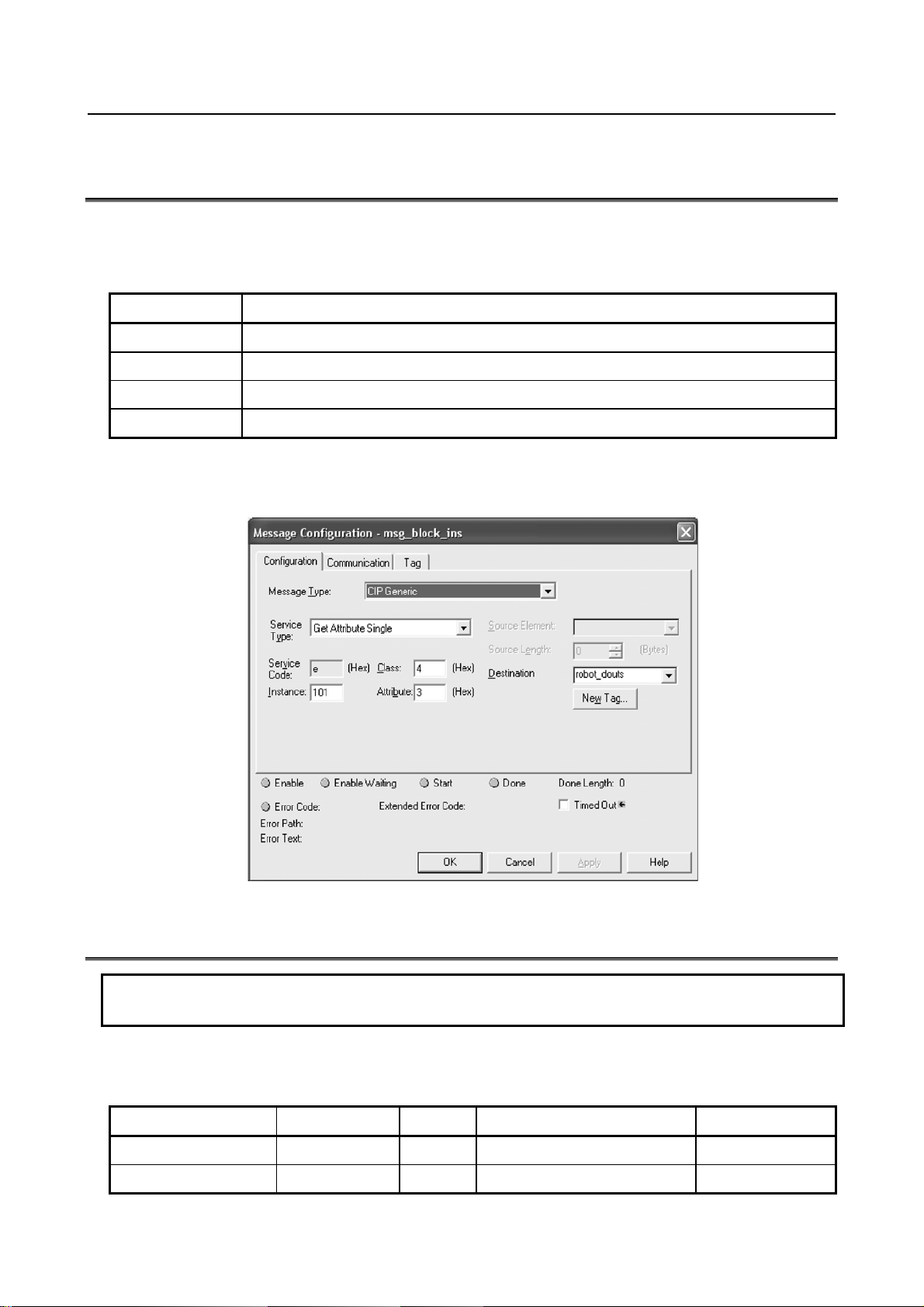
B-82854EN/02 7.EXPLICIT MESSAGING
7.3 REMOTE EXPLICIT MESSAGING CLIENT
CONFIGURATION
Explicit messaging clients require up to four values for configuration. These values are usually described
in hexadecimal notation. These values are shown in Table 7.3 .
Table 7.3 Configuration values
ITEM DESCRIPTION
Class The class of Object to which the explicit message is being sent.
Instance The instance number defines which instance of the class will receive the message.
Attribute Defines which attribute of the instance is being accessed.
Service The action to be performed.
These values are documented in this manual for all FANUC’s Vendor Specific Objects.
Here is an example of configuring an Explicit Message in RSLogix5000. Note the Service Code, Class,
Instance and Attribute fields.
Fig. 7.3 Message configuration
7.4 VENDOR SPECIFIC REGISTER OBJECTS
NOTE
Writing to a register is only supported by V7.20P11 or later.
Table 7.4 shows the brief description of FANUC register object model.
Table 7.4 FANUC register object model
Register Type Service Class Instance Attribute
NUMREG (Int) Get_Attr_Single 0x6B 1 (8 bits) reg #
NUMREG (Int) Get_Attr_All 0x6B 1 (8 bits) N/A
- 39 -
Page 60

7.EXPLICIT MESSAGING B-82854EN/02
Register Type Service Class Instance Attribute
NUMREG (Int) Get_Attr_Block 0x6B blk_size, 1 (16 bits) start reg #
NUMREG (Int) Set_Attr_Single 0x6B 1 (8 bits) reg #
NUMREG (Int) Set_Attr_All 0x6B 1 (8 bits) N/A
NUMREG (Int) Set_Attr_Block 0x6B blk_size, 1 (16 bits) start reg #
NUMREG (Real) Get_Attr_Single 0x6C 1 (8 bits) reg #
NUMREG (Real) Get_Attr_All 0x6C 1 (8 bits) N/A
NUMREG (Real) Get_Attr_Block 0x6C blk_size, 1 (16 bits) start reg #
NUMREG (Real) Set_Attr_Single 0x6C 1 (8 bits) reg #
NUMREG (Real) Set_Attr_All 0x6C 1 (8 bits) N/A
NUMREG (Real) Set_Attr_Block 0x6C blk_size, 1 (16 bits) start reg #
STRREG Get_Attr_Single 0x6D 1 (8 bits) reg #
STRREG Get_Attr_All 0x6D 1 (8 bits) N/A
STRREG Get_Attr_Block 0x6D blk_size, 1 (16 bits) start reg #
STRREG Set_Attr_Single 0x6D 1 (8 bits) reg #
STRREG Set_Attr_All 0x6D 1 (8 bits) N/A
STRREG Set_Attr_Block 0x6D blk_size, 1 (16 bits) start reg #
POSREG (CRT) Get_Attr_Single 0x7B group # (8 bits) reg #
POSREG (CRT) Get_Attr_All 0x7B group # (8 bits) N/A
POSREG (CRT) Get_Attr_Block 0x7B blk_size, group # (16 bits) start reg #
POSREG (CRT) Set_Attr_Single 0x7B group # (8 bits) reg #
POSREG (CRT) Set_Attr_All 0x7B group # (8 bits) N/A
POSREG (CRT) Set_Attr_Block 0x7B blk_size, group # (16 bits) start reg #
POSREG (JNT) Get_Attr_Single 0x7C group # (8 bits) reg #
POSREG (JNT) Get_Attr_All 0x7C group # (8 bits) N/A
POSREG (JNT) Get_Attr_Block 0x7C blk_size, group # (16 bits) start reg #
POSREG (JNT) Set_Attr_Single 0x7C group # (8 bits) reg #
POSREG (JNT) Set_Attr_All 0x7C group # (8 bits) N/A
POSREG (JNT) Set_Attr_Block 0x7C blk_size, group # (16 bits) start reg #
CURPOS (CRT) Get_Attr_Single 0x7D group # (8 bits) 1
CURJPOS (JNT) Get_Attr_Single 0x7E group # (8 bits) 1
7.4.1 Numeric Register Objects (0x6B and 0x6C)
NOTE
Vendor Specific Register Object--Reals (0x6C) is only supported by V7.40 or later.
Only Vendor Specific Register Object--Integers (0x6B) can be used before
V7.40P.
- 40 -
Page 61

B-82854EN/02 7.EXPLICIT MESSAGING
Numeric registers can be read and written through FANUC’s Registers Object. These registers on the
robot controller can be one of two types: Integer type, or Real type. Normally, the type is transparent to
the user. For example, if R[1] is set to a value of 49 (R[1] = 49), the numeric register will automatically
be configured as an Integer type. However, if R[2] is set to a value of 1.61803 (R[2] = 1.61803), the
numeric register will be automatically configured as a Real type.
Because of the format of the data transfer through explicit messaging, this automatic configuration cannot
be done. Therefore, two Register Objects have been created: Register Object--Integers (0x6B), and
Register Object--Reals (0x6C). To read or write a numeric register as an Integer value, the Register
Object--Integers (0x6B) should be accessed. To read or write a numeric register as a Real value, the
Register Object--Real (0x6C) should be accessed.
Note that when writing to the Register Object--Integers, the numeric register will be changed to the
Integer type. Likewise, when writing to the Register Object--Reals, the numeric register will be changed
to the Real type.
However, when reading a numeric register using the Register Object--Integers, if the numeric register is
configured as a Real type, an “Undefined Attribute” (0x14) error will be returned. Likewise, when
reading a numeric register using the Register Object--Real, if the numeric register is configured as an
Integer type, an “Undefined Attribute” (0x14) error will be returned.
NOTE
FANUC's Register objects also allow reading and writing of the registers in blocks.
The Get_Attribute_All service allows reading of up to the first 124 registers starting
from first register. The Set_Attribute_All service allows writing of up to the first 115
registers starting from first register. The Get_Attribute_Block allows up to 124
registers for Reading and Set_Attribute_Block allows writing up to 115 registers at
a time starting from any register number.
7.4.1.1 Instance attributes
FANUC’s Register Objects support a single instance: instance 1. Each attribute in the instance
corresponds to a register. For example, attribute 1 corresponds to R[1] and attribute 5 corresponds to R[5].
Refer to Table 7.4.1.1 .
Table 7.4.1.1 Instance attributes
Attribute ID Name Data Type Description of Attribute
1 R[1] 32-bit integer Register 1
2 R[2] 32-bit integer Register 2
...
n-1 R[n-1] 32-bit integer Register n-1
n* R[n] 32-bit integer Register n
*Where n is the total number of registers on the controller.
7.4.1.2 Common services
FANUC's Register Objects provide the Common Services at the Instance level shown in Table 7.4.1.2(a).
No Class level services are provided.
- 41 -
Page 62

7.EXPLICIT MESSAGING B-82854EN/02
Table 7.4.1.2(a) Common services
Service Code Service Name Description of Service
0E hex Get_Attribute_Single Returns the content of the specified attribute.
01 hex Get_Attribute_All Returns a listing of the object’s attributes (See the
Get_Attribute_All definition below).
32 hex Get_Attribute_Block Returns specified block o registers values
10 hex Set_Attribute_Single Sets the specified attribute to the specified value.
02 hex Set_Attribute_All Sets all attributes starting from Attribute 1 to 115 or MAX
registers on controller whichever is smaller.
33 hex Set_Attribute_Block Sets values to the specified block of registers up to 115 or MAX
registesr on conttroler whichever is smaller.
At the Instance level, the attributes are returned in the order shown in Table 7.4.1.2(b) using little-endian
byte-swapping.
Table 7.4.1.2(b) Get_Attribute_All response
32–bit integer Byte 0 Byte 1 Byte 2 Byte 3
1 Register 1 (R[1])
2 Register 2 (R[2])
...
n-1 Register n-1 (R[n-1])
n* Register n (R[n])
*Where n is the total number of registers on the controller or 124, whichever is smaller.
7.4.1.3 Errors
FANUC’s Vendor Specific Register Objects will return the errors shown in Table 7.4.1.3 .
Table 7.4.1.3 FANUC’s vendor specific register object errors
Error Status Error Description
Undefined Attribute (0x14) Returned when the Register requested does not exist.
Unsupported Service (0x08) Returned when the requested service is unsupported.
Undefined Class Instance (0x05) Returned when the requested instance number is unsupported.
7.4.1.4 Read single register
The examples below assume the numeric register(s) have type integer, and use object 0x6B. The same
examples can be used for numeric registers of type Real by using Class 0x6C, instead of Class 0x6B. To
read R[5] from the controller, assuming R[5]’s type is an integer, the explicit message client would be
configured with the values shown in Table 7.4.1.4 .
- 42 -
Page 63

B-82854EN/02 7.EXPLICIT MESSAGING
Table 7.4.1.4 Read register R[5]
Class 0x6B
Instance 0x01
Attribute 0x05
Service 0x0E
Figure 7.4.1.4 shows message block configuration in RSLogix5000 where my_reg is a 32–bits integer
variable. The explicit message server on the robot controller would return R[5] to the client as a 32-bit
integer.
Fig. 7.4.1.4 Read register R[5]
7.4.1.5 Read all registers
To read up to the first 124 Registers from the controller, and assuming all these registers are configured as
type integer, the explicit message client would be configured with the values shown in Table 7.4.1.5 .
Table 7.4.1.5 Read all registers
Class 0x6B
Instance 0x01
Attribute 0x0
Service 0x01
Figure 7.4.1.5 is snapshot of RSLogix5000 message block configuration to read all registers where
my_regall is an array of 124 integers. The explicit message server on the robot controller would return up
to the first 124 Registers as an array of integers as described in Section 7.4.1.2 .
- 43 -
Page 64
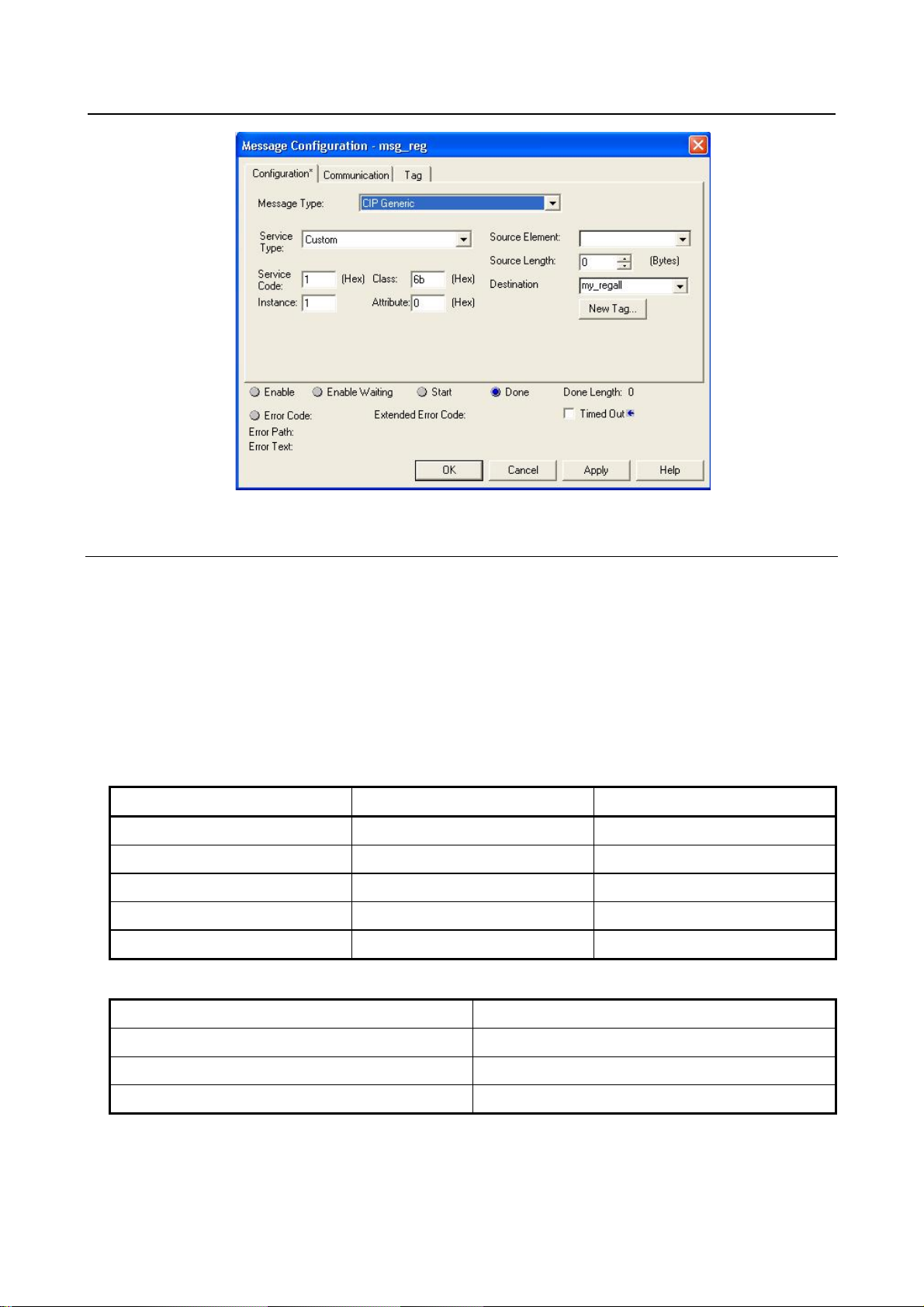
7.EXPLICIT MESSAGING B-82854EN/02
Fig. 7.4.1.5 Read all registers
7.4.1.6 Read a block of registers
Register objects also provide the functionality to read or write a block of registers. Common services used
for read a block is Get_Attribute_Block (0x32). In order to use this functionality Instance and attributes
are used as follows.
Instance is 2 byte. It is divided into two pieces. First (lower) 8 bits carry instance number which could be
maximum 255 (for now it is just place holder because FANUC's register supports only single class
instance). Second (higher) 8 bits carry the number of registers to be read so maximum 255 but FANUC's
register object allows 124 for reading at time. Please refer to Table 7.4.1.6(a) for instance number
calculation. For example, to read 10 registers starting from register number 6 in integer format see Table
7.4.1.6(b) and Figure 7.4.1.6 for configuration details. Messaging server would return values of registers
6 to 15.
Table 7.4.1.6(a) Instance numbers for block access
Block Size Decimal (HEX) Instance (HEX) Instance (Decimal)
1 (0x01) 0x0101 257
2 (0x2) 0x0201 513
3 (0x3) 0x0301 769
4 (0x4) 0x0401 1025
5 (0x5) 0x0501 1281
Table 7.4.1.6(b) Read 10 registers from R[6]-R[15]
Class 0x6B
Instance 0x0A01
Attribute 0x06
Service 0x01
- 44 -
Page 65

B-82854EN/02 7.EXPLICIT MESSAGING
Fig. 7.4.1.6 Read 10 registers from R[6]-R[15]
7.4.1.7 Write single register
To write the integer value 49 to R[5], the explicit message client would be configured with the values
shown in Table 7.4.1.7 .
Table 7.4.1.7 Write value to R[5]
Class 0x6B
Instance 0x01
Attribute 0x05
Service 0x10
Value 49
Figure 7.4.1.7 is an snapshot of RSLogix5000 message block configuration. my_reg is 32–bits integer
which has value 49. The explicit message server on the robot controller would write the value 49 to R[5]
as a 32-bit integer.
- 45 -
Page 66

7.EXPLICIT MESSAGING B-82854EN/02
Fig. 7.4.1.7 Write value to R[5]
7.4.1.8 Write all registers
Similarly, all register can be written at once. Only 115 or total number of registers on controller
(whichever is less) can be written, configuration parameters shown in Table 7.4.1.8 . Explicit message
client (e.g. PLC) would carry an array of 115 integers or real (460 bytes total) along with this
configuration.
Table 7.4.1.8 Write all registers
Class 0x6B
Instance 0x01
Attribute 0x0
Service 0x02
Figure 7.4.1.8 is taken from RSLogix5000 to write all registers to controllers. Source element is
my_regall[115] which is an array of 115 DINT. Source length is data size to be written. Service code is
0x02, class 0x6B for Integer, Instance is 1 and attribute has to be zero.
- 46 -
Page 67

B-82854EN/02 7.EXPLICIT MESSAGING
Fig. 7.4.1.8 Write all registers
7.4.1.9 Write a block of registers
Similarly, a block of registers can be written to robot using this functionality. Service used for function is
Set_Attribute_Block (0x33). Maximum 115 or maximum available registers in controller whichever is
less can be written at a time. For example, to write 5 registers (integer) starting from 11 (0xB) following
configuration is needed, see Table 7.4.1.9 .
Table 7.4.1.9 Write 5 registers from R[11]-R[15]
Class 0x6C
Instance 0x501
Attributes 0xB
Service 0x02
Please refer to Figure 7.4.1.9 for message block configuration to write registers in RSLogix5000.
- 47 -
Page 68
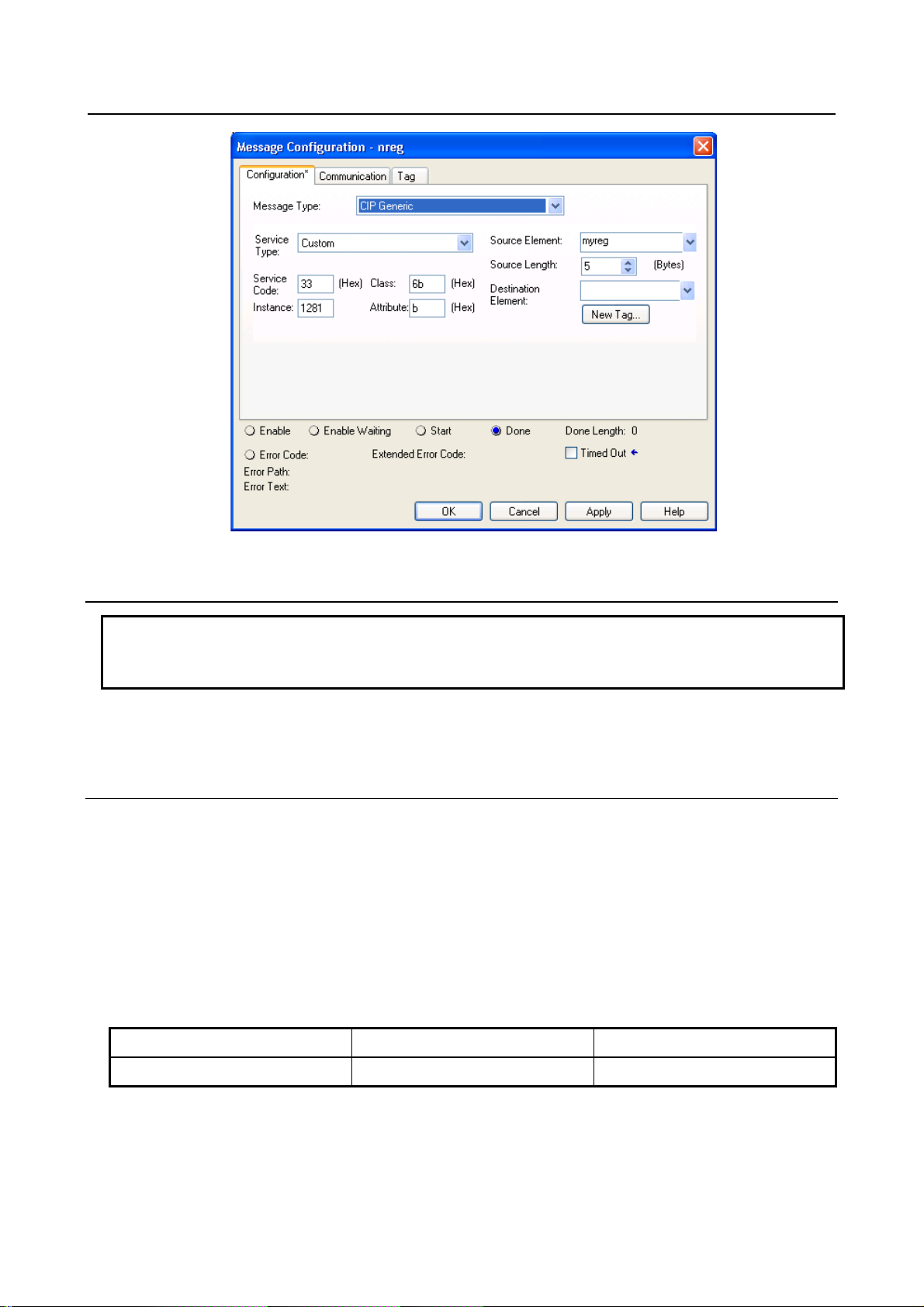
7.EXPLICIT MESSAGING B-82854EN/02
Fig. 7.4.1.9 Write registers from R[11]-R[15]
7.4.2 String Register Object (0x6D)
NOTE
Vendor Specific Register Object--Strings (0x6D) is only supported by V7.70P27 or
later.
String register object will provide similar functionality as numeric register objects. It provides the ability
to read string data as well as write string data via Ethernet/IP explicit messaging.
7.4.2.1 Instance attributes
FANUC's string register object provides single class instance i.e. 1. Instance attributes supported are
maximum string registers supported on controller. String register is of STRING or STRING2 or
STRINGN type. The declaration of a variable of type STRING, STRING2, or STRINGN is equivalent to
declaring a structured data type for the variable which allocates a UINT variable (first 4 bytes) containing
the current size of the string in characters and an array of declared character size elements. String register
object is composed of first 4 bytes string length, 82 bytes long string and 2 bytes padding which totals to
88 bytes in single string register, refer to Table 7.4.2.1(a) and Figure 7.4.2.1 . So on reading single
register, it returns 88 bytes of data which contains maximum 82 byte long string. This is done to be
compatible with RockWell PLC string structure (RSLogix5000) as shown in Figure 7.4.2.1 .
Table 7.4.2.1(a) String format
0–3 Byte 4-85 Bytes 86-87 bytes
String Length String Register n (SR[n]) Padding
- 48 -
Page 69

B-82854EN/02 7.EXPLICIT MESSAGING
Fig. 7.4.2.1 String structure RSLogix5000
Please note that size of string shown in Figure 7.4.2.1 also includes 2 byte padding.
Table 7.4.2.1(b) Instance attributes
Attribute ID Name Data Type Description of
1 SR[1] Structure containing unsigned integer and char
array of 82 bytes and last 2 bytes is padding Array
2 SR[2] Structure containing unsigned integer and char
array of 82 bytes and last 2 bytes is padding Array
...
n-1 SR[n-1] Structure containing unsigned integer and char
array of 82 bytes and last 2 bytes is padding Array
n* SR[n] Structure containing unsigned integer and char
array of 82 bytes and last 2 bytes is padding Array
String Register 1
String Register 2
String Register n-1
String Register n
*Where n is the total number of registers on the controller.
7.4.2.2 Common services
Attribute
FANUC's Register Objects provide the Common Services at the Instance level shown in Table 7.4.2.2 .
No Class level services are provided.
Table 7.4.2.2 Common services
Service Code Service Name Description
0E hex Get_Attribute_Single Returns the content of the specified attribute i.e. 88 byte
char array.
01 hex Get_Attribute_All Returns an array of 88 bytes char arrays. Maximum
register returned are 5 or string registers supported on
controller whichever is smaller.
32 hex Get_Attribute_Block Returns block of string registers starting from any
register up to next 5 registers or maximum string
registers supported on controller whichever is smaller.
10 hex Set_Attribute_Single Sets the specified attribute to the specified value.
- 49 -
Page 70

7.EXPLICIT MESSAGING B-82854EN/02
Service Code Service Name Description
02 hex Set_Attribute_All Sets all attributes starting from Attribute 1 to 5 or
maximum string registers supported on controller
whichever is smaller.
33 hex Set_Attribute_Block Sets values to block of string registers starting from any
register up to next 5 registers or maximum string
registers supported on controller whichever is smaller.
7.4.2.3 Errors
Refer to Section 7.4.1.3
7.4.2.4 Read single register
Figure 7.4.2.4 shows message block configuration to read single string registers. Example screen shots
are taken from RSLogix5000. To read string register 8, a string type variable“my_string_in” needs to be
created to read the string. Please note that Instance value in Figure 7.4.2.4 is decimal number and all
others are hexadecimal numbers.Table 7.4.2.4 lists the all configuration parameters to read SR[8].
Fig. 7.4.2.4 Read string register SR[8]
Table 7.4.2.4 Read register SR[8]
Class 0x6D
Instance 0x01
Attribute 0x08
Service 0x0E
7.4.2.5 Read all register
Reading all registers is also supported for string registers. Reading all register allows to read first 5 string
registers. This limitation is posed due to maintain compatibility with RSLogix5000. Figure 7.4.2.5 shows
the message block configuration to read all string registers where 'mystr' is an array of 5 STRING
variables.
- 50 -
Page 71

B-82854EN/02 7.EXPLICIT MESSAGING
Fig. 7.4.2.5 Read all register
7.4.2.6 Read a block of register
String registers also can be read in blocks. The block size limitation is 5 registers at a time. The advantage
over read all register is that it allows to read from any register index to next 5 registers. Please refer to
Figure 7.4.2.6 for configuration details to read 5 registers starting from register number 5.
NOTE
Please note that the data returned/consumed as a result of block read/write
operation is always multiple of 88 which is 88 times block size. In case of
read/write all data size is 440 bytes, if total string registers available on controller
are 5 or more.
Fig. 7.4.2.6 Read a block of register
- 51 -
Page 72

7.EXPLICIT MESSAGING B-82854EN/02
7.4.2.7 Write single register
For writing string to any specified string register, a variable of STRING (RSLogix5000) type or a
structure as described in Section 7.4.2.1 needs to be created which carries string data. Please refer to
Figure 7.4.2.7 .
Fig. 7.4.2.7 Write string to SR[5]
Table 7.4.2.7 Write string to SR[5]
Class 0x6D
Instance 0x01
Attribute 0x05
Service 0x10
7.4.2.8 Write all registers
This service allows to write strings to first 5 string registers. Each string data could be 82 bytes long.
Figure 7.4.2.8 shows the message block configuration where 'mystr' is an array of 5 STRING data type.
Please refer to Figure 7.4.2.1 for STRING data type definition.
- 52 -
Page 73

B-82854EN/02 7.EXPLICIT MESSAGING
Fig. 7.4.2.8 Write all registers
7.4.2.9 Write a block of registers
This service is similar to write all except it allows to write string data starting from any registers to next 5
registers. Please refer to Figure 7.4.2.9 for message configuration details.
Fig. 7.4.2.9 Write a block of registers
- 53 -
Page 74

7.EXPLICIT MESSAGING B-82854EN/02
7.4.3 Position Register Object (0x7B, 0x7C, 0x7D, 0x7E)
CAUTION
Please note that Position Register object is only applicable to software version
v810 or above.
Position register object provides similar functionality as numeric register objects. It provides the ability to
read position data as well as writing the position data. This also has flexibility to read/write data in two
representations Cartesian and Joint.
7.4.3.1 Instance attributes
FANUC's position register object provides single class instance i.e. 1. Instance attributes supported are
maximum position registers supported in controller. Position register is an structure shown in Figure
7.4.3.1(a) and Figure 7.4.3.1(b) for joint and cartesian representations respectively. Joint representation
can be accommodated in an structure consisting an unsigned 32–bits integer and 9 real which supports up
to 9 axes . If robot axes are less than 9 then remaining axes returned are zeros. The explicit messaging
server returns 40 bytes data for joint position representation on reading and consumes 40 bytes position
data on writing. On the other hand, cartesian position representation is 44 byte. The explicit messaging
server returns 44 bytes of data on reading and consumes 44 bytes of data on writing.
Table 7.4.3.1(a) Structure definition for joint position representation
Structure Name: PRJNT9 (User defined)
Member Names Data Size Data Type Description
UT 1 Byte Decimal User Tool Number
UF 1 Byte Decimal User Frame Number
Dummy 2 Bytes Decimal Reserved
JNT_ANGLE[9] 36 Bytes Float Robot Axes: An array of 9 Real
Table 7.4.3.1(b) Instance number calculation
Block Size Decimal
(HEX)
1 (0x01) 0x0101 257 0x0102 258
2 (0x02) 0x0201 513 0x0202 514
3 (0x03) 0x0301 769 0x0302 770
4 (0x04) 0x0401 1025 0x0402 1026
5 (0x05) 0x0501 1281 0x0502 1282
Instance (HEX)
Group #1
Instance (Decimal)
Group #1
Instance (HEX)
Group #2
Instance (Decimal)
Table 7.4.3.1(c) Structure definition for cartesian position representation
Structure Name: PRCRT (user defined)
Member Names Data Size Data Type Description
Group #2
UT 1 Byte Decimal User Tool Number
UF 1 Byte Decimal User Frame Number
Dummy 2 Bytes Decimal Reserved
X 4 Bytes Float X mm
- 54 -
Page 75
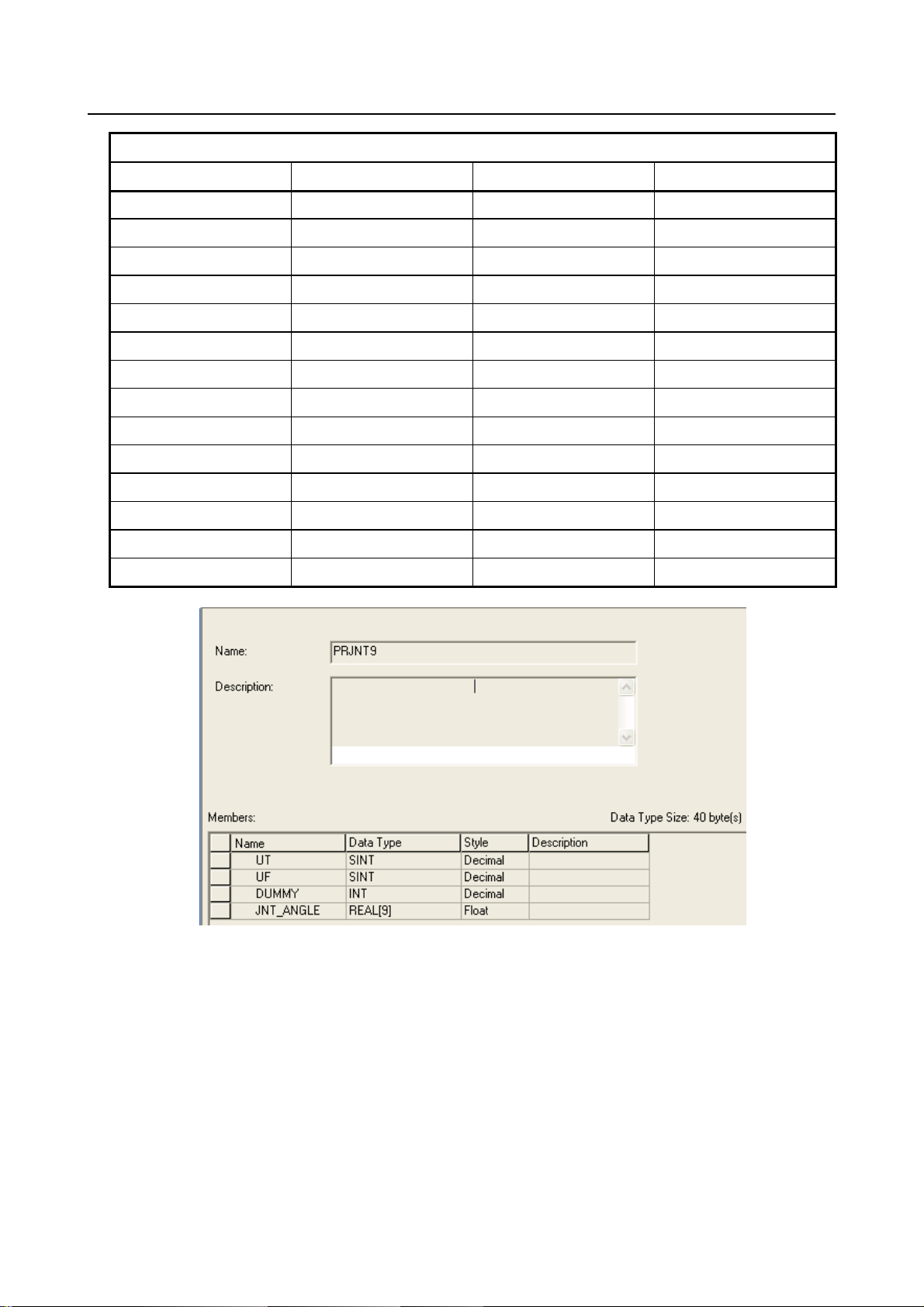
B-82854EN/02 7.EXPLICIT MESSAGING
Structure Name: PRCRT (user defined)
Member Names Data Size Data Type Description
Y 4 Bytes Float Y mm
Z 4 Bytes Float Z mm
W 4 Bytes Float W Degree
P 4 Bytes Float P Degree
R 4 Bytes Float R Degree
Turn4 1 Byte Decimal Turn4
Turn5 1 Byte Decimal Turn5
Turn6 1 Byte Decimal Turn6
Reserved1–4 4–Bits Bool Reserved
Front 1 Bit Bool Front
Up 1 Bit Bool Up
Left 1 Bit Bool Left
Flip 1 Bit Bool flip
EXT[3] 12 Bytes Float Extended Axes
Fig. 7.4.3.1(a) Position register joint mode
- 55 -
Page 76
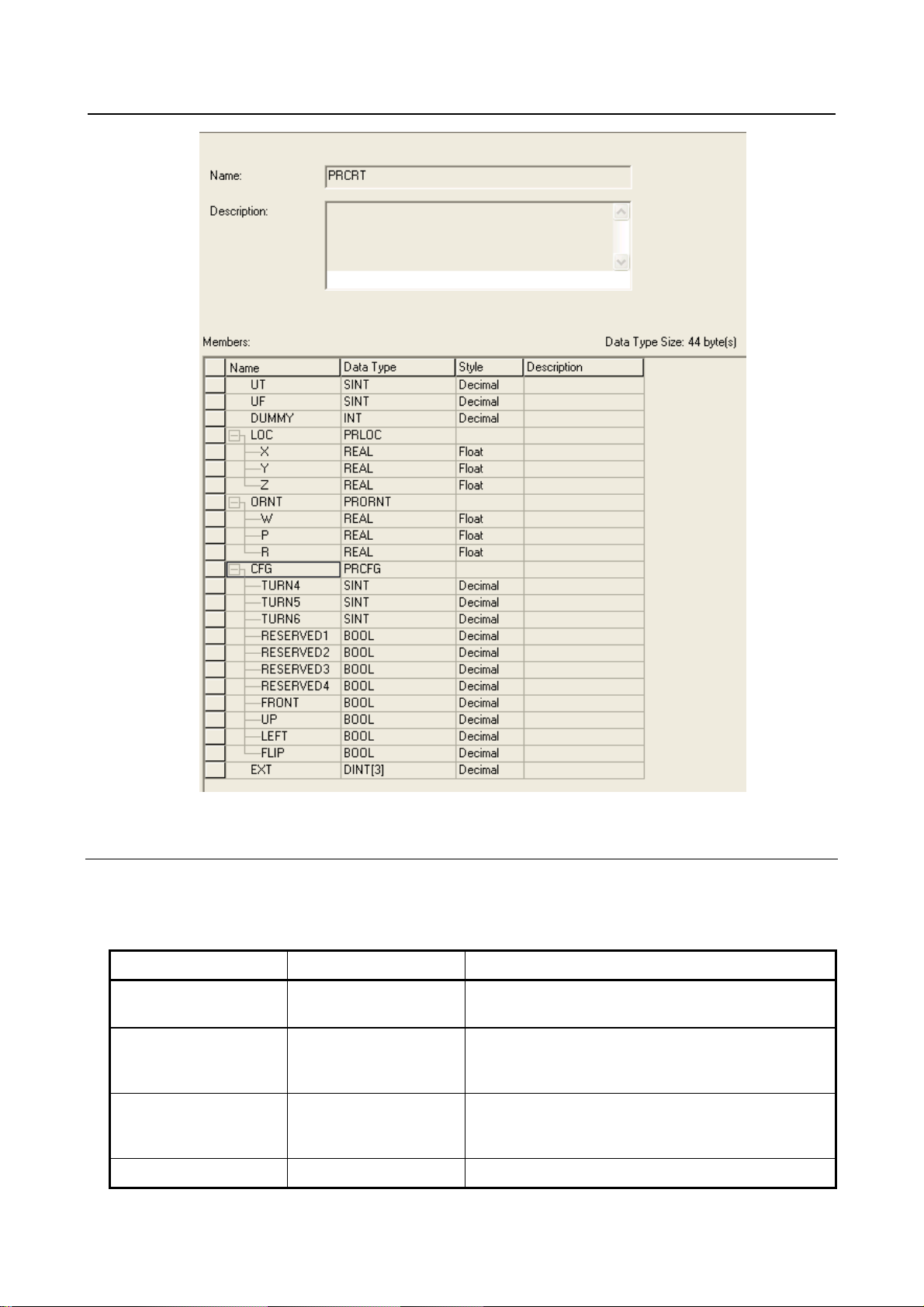
7.EXPLICIT MESSAGING B-82854EN/02
Fig. 7.4.3.1(b) Position register cartesian mode
7.4.3.2 Common services
FANUC's Register Objects provide the Common Services at the Instance level shown in Table 7.4.3.2 .
No Class level services are provided.
Table 7.4.3.2 Common services
Service Code Service Name Description
0E hex Get_Attribute_Single Returns the content of the specified attribute i.e. 40 or 44
bytes for Joint or Cartesian representation respectively.
01 hex Get_Attribute_All Returns an array of position registers. Maximum register
returned are 10 or position registers supported on
controller whichever is smaller.
32 hex Get_Attribute_Block Returns block of position registers starting from any
register up to next 10 registers or maximum position
registers supported on controller whichever is smaller.
10 hex Set_Attribute_Single Sets the specified attribute to the specified value.
- 56 -
Page 77

B-82854EN/02 7.EXPLICIT MESSAGING
Service Code Service Name Description
02 hex Set_Attribute_All Sets all attributes starting from Attribute 1 to 10 or
maximum position registers supported on controller
whichever is smaller.
33 hex Set_Attribute_Block Sets values to block of position registers starting from
any register up to next 10 registers or maximum position
registers supported on controller whichever is smaller.
NOTE
Please note that reading or writing of position registers in any representation i.e.
joint or cartesian, would NOT affect controller's current position register
representation.
7.4.3.3 Errors
Refer to Section 7.4.1.3.
7.4.3.4 Read single register
Reading position register is similar to numeric or string registers except instance number represents the
group number of the robot having multiple groups so instance number is always nonzero positive integer.
This object allows to read registers from multiple groups of the robot. Table 7.4.3.4(a) and Figure
7.4.3.4(a) show the configuration details to read position register 3 in joint representation.
Table 7.4.3.4(a) Read position register 3 in joint mode
Class 0x7C
Instance 0x01
Attribute 0x03
Service 0x0E
Fig. 7.4.3.4(a) Read single register in joint mode
- 57 -
Page 78

7.EXPLICIT MESSAGING B-82854EN/02
Similarly Table 7.4.3.4(b) and Figure 7.4.3.4(b) show the configuration for read position register 8 in
cartesian mode. Please remember that Joint representation is a 40 bytes and Cartesian representation is 44
byte data.
Table 7.4.3.4(b) Read position register 8 in cartesian mode
Class 0x7B
Instance 0x01
Attribute 0x08
Service 0x0E
Fig. 7.4.3.4(b) Read single register in cartesian mode
7.4.3.5 Read all registers
Reading all registers is also supported for position registers. Reading procedure is similar to Numeric or
String Registers except class and data type. Reading all position registers is limited to maximum of 10 or
number of registers on controller whichever is SMALLER starting from register 1. Please refer to Table
7.4.3.5 and Figure 7.4.3.5 for configuration details. prrd is an array of structures PRCRT a user define
data type shown in Figure 7.4.3.1(b) for cartesian representation.
Table 7.4.3.5 Read all registers
Class 0x7B
Instance 0x01
Attribute 0x00
Service 0x01
- 58 -
Page 79

B-82854EN/02 7.EXPLICIT MESSAGING
Fig. 7.4.3.5 Read all registers
7.4.3.6 Read a block of registers
Position registers also can read or written in blocks. The block size limitation is 10 registers at a time.
This functionality provides the flexibility to set start register index of the block of registers i.e. read 23 to
32 or 50 to 59, etc.
NOTE
Please note that the data returned/consumed as a result of block read/write
operation is always multiple of 40 (joint) or 44 (cartesian) which is 40 or 44 times
block size for joint and cartesian respectively. In case of read/write all data size is
400 (joint) or 440 (cartesian) bytes, if total position registers available on controller
are 10 or more.
For example, message block configuration is shown in Figure 7.4.3.6 for reading 8 position registers of
group 1 starting from register number 10 in cartesian mode. Instance 2049 is decimal equivalent of
0x0801 and 'prrd' is an array of structure defined in Figure 7.4.3.1(b) to hold position data in cartesian
mode.
- 59 -
Page 80

7.EXPLICIT MESSAGING B-82854EN/02
Fig. 7.4.3.6 Read a block of registers
7.4.3.7 Read current position (CURPOS or CURJPOS)
This functionality also allows to read current position of robot in two modes: joint and cartesian.
Configuration is same as reading a single position register with index 1 except class 0x7D is used for
cartesian and 0x7E is used for joint. Please refer to Figure 7.4.3.7(a) for cartesian mode and Figure
7.4.3.7(b) for joint mode in RSLogix5000 message block configuration.Table 7.4.3.7(a) and Table
7.4.3.7(b) show the configuration parameters for cartesian and joint mode respectively.
Table 7.4.3.7(a) Read current position in cartesian mode
Class 0x7D
Instance 0x01
Attribute 0x01
Service 0x0E
Fig. 7.4.3.7(a) Read CURPOS
- 60 -
Page 81

B-82854EN/02 7.EXPLICIT MESSAGING
Table 7.4.3.7(b) Read current position in joint mode
Class 0x7E
Instance 0x01
Attribute 0x01
Service 0x0E
Fig. 7.4.3.7(b) Read CURJPOS
7.4.3.8 Write single register
This service provides the flexibility to write position data to position registers in two modes cartesian and
joint. Figure 7.4.3.8 shows the configuration parameters. Here prwr is a user defined data structure as
shown in Figure 7.4.3.1(a) to hold the position data for joint representation.
Fig. 7.4.3.8 Write single register in joint mode
- 61 -
Page 82

7.EXPLICIT MESSAGING B-82854EN/02
7.4.3.9 Write all registers
This service allows to write position data to first 10 position registers. Position data for each register is 44
or 40 bytes long for cartesian and joint representation respectively. Figure 7.4.3.9 shows the message
block configuration where 'prwr' is an array of 10 data structures to hold cartesian position data. Please
refer to Figure 7.4.3.1(b) for cartesian position data structure.
Fig. 7.4.3.9 Write all registers
7.4.3.10 Write a block of registers
Figure 7.4.3.10(a) is message block configuration for writing 8 position registers of group 1 starting from
register index 32 (0x20) in cartesian mode where “prwr” is an array of structure defined in Figure
7.4.3.1(b) to carry position data.
Fig. 7.4.3.10(a) Write a block of registers
- 62 -
Page 83

B-82854EN/02 7.EXPLICIT MESSAGING
Similarly a block of registers can be written to group #2 of robot. Figure 7.4.3.10(b) shows the message
block configuration for writing 5 position registers of group #2 starting from register index 5 in joint
mode. Instance 1282 is decimal equivalent of 0x0502, see Table 7.4.3.1(b) . Variable “prwr” is an array
of structure defined in Figure 7.4.3.1(a) .
Fig. 7.4.3.10(b) Write a block of registers to group #2
7.5 VENDOR SPECIFIC ACTIVE ALARM OBJECT (0xA0)
Information about Active Alarms can be read through FANUC’s Active Alarm Object. Each instance of
the object corresponds to an active alarm. For example, instance 1 corresponds to the most recent Active
Alarm, and instance 5 corresponds to the 5th most recent Active Alarm.
7.5.1 Instance Attributes
Table 7.5.1 Instance attributes
Attribute ID Name Data Type Description of Attribute
1 Alarm ID 16-bit integer The Alarm ID, or Alarm Code.
2 Alarm Number 16-bit integer The Alarm Number
3 Alarm ID Cause Code 16-bit integer The Cause Code of the Alarm ID.
4 Alarm Num Cause Code 16-bit integer The Cause Code of the Alarm Number.
5 Alarm Severity 16-bit integer The Alarm Severity.
6 Time Stamp 32-bit integer The Alarm Time Stamp in 32-bit
MS-DOS format.
7 Date/Time String 24 character string The Alarm Time Stamp in a human
readable string.
8 Alarm Message 80 character string The Alarm Message in a human
readable string.
9 Cause Code Message 80 character string The Alarm Cause Code Message in a
human readable string.
- 63 -
Page 84

7.EXPLICIT MESSAGING B-82854EN/02
Attribute ID Name Data Type Description of Attribute
10 Alarm Severity String 24 character string The Alarm Severity in a human
readable string.
7.5.2 Common Services
FANUC’s Active Alarm Object provides the following Common Services at the Instance level. No Class
level services are provided. Refer to Table 7.5.2 .
Table 7.5.2 Common services
Service Code Service Name Description of Service
0E hex Get_Attribute_Single Returns the content of the specified attribute.
01 hex Get_Attribute_All Returns a listing of the object’s attributes
(See the Get_Attribute_All definition below).
7.5.2.1 Get_Attribute_All Response
At the Instance level, the attributes are returned in the order shown in Table 7.5.2.1 using little-endian
byte-swapping for 16-bit and 32-bit integers.
Table 7.5.2.1 Get_Attribute_All responses
32-bit integer Byte 0 Byte 1 Byte 2 Byte 3
1 Alarm ID Alarm Number
2 Alarm ID Cause Code Alarm Num Cause Code
3 Alarm Severity PAD (All Zeros)
4 Time Stamp
5 Date/Time String (24 bytes)
... ...
11 Alarm Message (80 bytes)
... ...
31 Cause Code Message (80 bytes)
... ...
51 Alarm Severity String (24 bytes)
... ...
- 64 -
Page 85

B-82854EN/02 7.EXPLICIT MESSAGING
7.5.3 Errors
FANUC’s Vendor Specific Active Alarm Object will return the errors shown in Table 7.5.3 .
Table 7.5.3 Errors
Error Status Error Description
Undefined Attribute (0x14) Returned when the Alarm Attribute requested does not exist.
Unsupported Service (0x08) Returned when the requested service is unsupported.
Undefined Class Instance (0x05) Returned when the requested instance number does not exists. For
example, if there is only 1 single active alarm, requesting the Active Alarm
Object instance 2 will cause this error to be returned.
7.5.4 Examples
7.5.4.1 Read most recent active alarm cause code
To read the most recent active alarm’s cause code from the controller, the explicit message client would
be configured with the values shown in Table 7.5.4.1 .
Table 7.5.4.1 Read most recent active alarm cause code
Class 0xA0
Instance 0x01
Attribute 0x03
Service 0x0E
The explicit message server on the robot controller would return the cause code to the client as a 16-bit
integer.
7.5.4.2 Read all alarm information from the second most recent
active alarm
To read all alarm information about the second most recent active alarm from the controller, the explicit
message client would be configured with the values shown in Table 7.5.4.2 .
Table 7.5.4.2 Read all alarm information from the second most recent active alarm
Class 0xA0
Instance 0x02
Attribute Not Required
Service 0x01
The explicit message server on the robot controller would return all Registers as described in Section
7.5.2.1 .
- 65 -
Page 86

7.EXPLICIT MESSAGING B-82854EN/02
7.6 VENDOC SPECIFIC ALARM HISTORY OBJECT (0xA1)
Information about the Alarm History can be read through FANUC’s Alarm History Object. Each instance
of the object corresponds to an alarm in the history. For example, instance 1 corresponds to the most
recent Alarm in the alarm history, and instance 5 corresponds to the 5th most recent Alarm.
7.6.1 Instance Attributes
The instance attributes are identical to those of FANUC’s Active Alarm Object (0xA0) and are
documented in Section 7.5.1 .
7.6.2 Common Services
The common services are identical to those of FANUC’s Active Alarm Object (0xA0) and are
documented in Section 7.5.2 .
7.6.3 Errors
The errors are identical to those of FANUC’s Active Alarm Object (0xA0) and are documented in Section
7.5.3 .
7.6.4 Examples
7.6.4.1 Read most recent alarm cause code
To read the most recent alarm’s cause code from the controller, the explicit message client would be
configured with the values shown in Table 7.6.4.1 .
Table 7.6.4.1 Read most recent alarm cause code
Class 0xA1
Instance 0x01
Attribute 0x03
Service 0x0E
The explicit message server on the robot controller would return the cause code to the client as a 16-bit
integer.
7.6.4.2 Real all alarm information from the second most recent alarm
To read all alarm information about the second most recent alarm from the controller, the explicit
message client would be configured with the values shown in Table 7.6.4.2 .
Table 7.6.4.2 Real all alarm information from the second most recent alarm
Class 0xA1
Instance 0x02
Attribute Not Required
Service 0x01
- 66 -
Page 87

B-82854EN/02 7.EXPLICIT MESSAGING
The explicit message server on the robot controller would return all Registers as described in Section
7.5.2.1 .
7.7 VENDOR SPECIFIC MOTION ALARM OBJECT (0xA2)
Information about Motion Alarms can be read through FANUC’s Motion Alarm Object. Each instance of
the object corresponds to a motion alarm. For example, instance 1 corresponds to the most recent motion
alarm, and instance 5 corresponds to the 5th most recent motion alarm.
7.7.1 Instance Attributes
The instance attributes are identical to those of FANUC’s Active Alarm Object (0xA0) and are
documented in Section 7.5.1 .
7.7.2 Common Services
The common services are identical to those of FANUC’s Active Alarm Object (0xA0) and are
documented in section Section 7.5.2 .
7.7.3 Errors
The errors are identical to those of FANUC’s Active Alarm Object (0xA0) and are documented in Section
7.5.3 .
7.7.4 Examples
7.7.4.1 Read most recent motion alarm cause code
To read the most recent motion alarm’s cause code from the controller, the explicit message client would
be configured with the values shown in Table 7.7.4.1 .
Table 7.7.4.1 Read most recent motion alarm cause code
Class 0xA2
Instance 0x01
Attribute 0x03
Service 0x0E
The explicit message server on the robot controller would return the cause code to the client as a 16-bit
integer.
7.7.4.2 Read all alarm information from the second most recent
motion alarm
To read all alarm information about the second most recent motion alarm from the controller, the explicit
message client would be configured with the values shown in Table 7.7.4.2 .
- 67 -
Page 88

7.EXPLICIT MESSAGING B-82854EN/02
Table 7.7.4.2 Read all alarm information from the second most recent motion alarm
Class 0xA2
Instance 0x02
Attribute Not Required
Service 0x01
The explicit message server on the robot controller would return all Registers as described in Section
7.5.2.1 .
7.8 VENDOR SPECIFIC SYSTEM ALARM OBJECT (0xA3)
Information about System Alarms can be read through FANUC’s System Alarm Object. Each instance of
the object corresponds to a system alarm. For example, instance 1 corresponds to the most recent system
alarm, and instance 5 corresponds to the 5th most recent system alarm.
7.8.1 Instance Attributes
The instance attributes are identical to those of FANUC’s Active Alarm Object (0xA0) and are
documented in Section 7.5.1 .
7.8.2 Common Services
The common services are identical to those of FANUC’s Active Alarm Object (0xA0) and are
documented in Section 7.5.2 .
7.8.3 Errors
The errors are identical to those of FANUC’s Active Alarm Object (0xA0) and are documented in Section
7.5.3 .
7.8.4 Examples
7.8.4.1 Read most recent system alarm cause code
To read the most recent system alarm’s cause code from the controller, the explicit message client would
be configured with the following values:
Table 7.8.4.1 Read most recent system alarm cause code
Class 0xA3
Instance 0x01
Attribute 0x03
Service 0x0E
The explicit message server on the robot controller would return the cause code to the client as a 16-bit
integer.
- 68 -
Page 89

B-82854EN/02 7.EXPLICIT MESSAGING
7.8.4.2 Read all alarm information from the second most recent
system alarm
To read all alarm information about the second most recent system alarm from the controller, the explicit
message client would be configured with the following values:
Table 7.8.4.2 Read all alarm information from the second most recent system alarm
Class 0xA3
Instance 0x02
Attribute Not Required
Service 0x01
The explicit message server on the robot controller would return all Registers as described in Section
7.5.2.1 .
7.9 VENDOR SPECIFIC APPLICATION ALARM OBJECT
(0xA4)
Information about Application Alarms can be read through FANUC’s Application Alarm Object. Each
instance of the object corresponds to an application alarm. For example, instance 1 corresponds to the
most recent application alarm, and instance 5 corresponds to the 5th most recent application alarm.
7.9.1 Instance Attributes
The instance attributes are identical to those of FANUC’s Active Alarm Object (0xA0) and are
documented in Section 7.5.1 .
7.9.2 Common Services
The common services are identical to those of FANUC’s Active Alarm Object (0xA0) and are
documented in Section 7.5.2 .
7.9.3 Errors
The errors are identical to those of FANUC’s Active Alarm Object (0xA0) and are documented in Section
7.5.3 .
7.9.4 Examples
7.9.4.1 Read most recent application alarm cause code
To read the most recent alarm’s cause code from the controller, the explicit message client would be
configured with the values shown in Table 7.9.4.1 .
- 69 -
Page 90

7.EXPLICIT MESSAGING B-82854EN/02
Table 7.9.4.1 Read most recent application alarm cause code
Class 0xA4
Instance 0x01
Attribute 0x03
Service 0x0E
The explicit message server on the robot controller would return the cause code to the client as a 16-bit
integer.
7.9.4.2 Read all alarm information from the second most recent
application alarm
To read all alarm information about the second most recent application alarm from the controller, the
explicit message client would be configured with the values shown in Table 7.9.4.2 .
Table 7.9.4.2 Read all alarm information from the second most recent application alarm
Class 0xA4
Instance 0x02
Attribute Not Required
Service 0x01
The explicit message server on the robot controller would return all Registers as described in Section
7.5.2.1 .
7.10 VENDOR SPECIFIC RECOVERY ALARM OBJECT (0xA5)
Information about Recovery Alarms can be read through FANUC’s Recovery Alarm Object. Each
instance of the object corresponds to a recovery alarm. For example, instance 1 corresponds to the most
recent recovery alarm, and instance 5 corresponds to the 5th most recent recovery alarm.
7.10.1 Instance Attributes
The instance attributes are identical to those of FANUC’s Active Alarm Object (0xA0) and are
documented in Section 7.5.1 .
7.10.2 Common Services
The common services are identical to those of FANUC’s Active Alarm Object (0xA0) and are
documented in Section 7.5.2 .
7.10.3 Errors
The errors are identical to those of FANUC’s Active Alarm Object (0xA0) and are documented in Section
7.5.3 .
- 70 -
Page 91

B-82854EN/02 7.EXPLICIT MESSAGING
7.10.4 Examples
7.10.4.1 Read most recent recovery alarm cause code
To read the most recent recovery alarm’s cause code from the controller, the explicit message client
would be configured with the values shown in Table 7.10.4.1 .
Table 7.10.4.1 Read most recent recovery alarm cause code
Class 0xA5
Instance 0x01
Attribute 0x03
Service 0x0E
The explicit message server on the robot controller would return the cause code to the client as a 16-bit
integer.
7.10.4.2 Read all alarm information from the second most recent
recovery alarm
To read all alarm information about the second most recent recovery alarm from the controller, the
explicit message client would be configured with the values shown in Table 7.10.4.2 .
Table 7.10.4.2 Read all alarm information from the second most recent recovery alarm
Class 0xA5
Instance 0x02
Attribute Not Required
Service 0x01
The explicit message server on the robot controller would return all Registers as described in Section
7.5.2.1 .
7.11 VENDOR SPECIFIC COMMUNICATIONS ALARM OBJECT
(0xA6)
Information about Communications Alarms can be read through FANUC’s Communications Alarm
Object. Each instance of the object corresponds to a communications alarm. For example, instance 1
corresponds to the most recent communications alarm and instance 5 corresponds to the 5th most recent
communications alarm.
7.11.1 Instance Attributes
The instance attributes are identical to those of FANUC’s Active Alarm Object (0xA0) and are
documented in Section 7.5.1 .
7.11.2 Common Services
The common services are identical to those of FANUC’s Active Alarm Object (0xA0) and are
documented in Section 7.5.2 .
- 71 -
Page 92

7.EXPLICIT MESSAGING B-82854EN/02
7.11.3 Errors
The errors are identical to those of FANUC’s Active Alarm Object (0xA0) and are documented in Section
7.5.3 .
7.11.4 Examples
7.11.4.1 Read most recent communication alarm cause code
To read the most recent alarm’s cause code from the controller, the explicit message client would be
configured with the values shown in Table 7.11.4.1 .
Table 7.11.4.1 Read most recent communication alarm cause code
Class 0xA6
Instance 0x01
Attribute 0x03
Service 0x0E
The explicit message server on the robot controller would return the cause code to the client as a 16-bit
integer.
7.11.4.2 Read all alarm information from the second most recent
communications alarm
To read the second most recent alarm’s cause code from the controller, the explicit message client would
be configured with the values shown in Table 7.11.4.2 .
Table 7.11.4.2 Read all alarm information from the second most recent communications alarm
Class 0xA6
Instance 0x02
Attribute Not Required
Service 0x0E
The explicit message server on the robot controller would return all Registers as described in Section
7.5.2.1 .
7.12 ACCESSING I/O USING EXPLICIT MESSAGING
7.12.1 Accessing I/O Specific to an Implicit EtherNet/IP Connection
I/O can be accessed through ODVA’s standard Assembly Object. Table 7.12.1(a) describes the Assembly
Instance numbers that can be used to read or write I/O specific to an Implicit EtherNet/IP connection
configured on a FANUC robot controller.
- 72 -
Page 93

B-82854EN/02 7.EXPLICIT MESSAGING
NOTE
I/O can not be written to the writable assembly instances using explicit messaging
while an active implicit connection to the instance is running.
Detailed instructions for mapping I/O on the robot controller can be found in Section 6.2 of this manual.
Table 7.12.1(a) Accessing I/O
Instance Number Read/Write Input/Output Slot
101 r output 1
102 r output 2
103 r output 3
104 r output 4
105 r output 5
106 r output 6
107 r output 7
108 r output 8
109 r output 9
110 r output 10
111 r output 11
112 r output 12
113 r output 13
114 r output 14
115 r output 15
116 r output 16
117 r output 17
118 r output 18
119 r output 19
120 r output 20
121 r output 21
122 r output 22
123 r output 23
124 r output 24
125 r output 25
126 r output 26
127 r output 27
128 r output 28
129 r output 29
130 r output 30
131 r output 31
- 73 -
Page 94

7.EXPLICIT MESSAGING B-82854EN/02
Instance Number Read/Write Input/Output Slot
132 r output 32
151 r/w* input 1
152 r/w* input 2
153 r/w* input 3
154 r/w* input 4
155 r/w* input 5
156 r/w* input 6
157 r/w* input 7
158 r/w* input 8
159 r/w* input 9
160 r/w* input 10
161 r/w* input 11
162 r/w* input 12
163 r/w* input 13
164 r/w* input 14
165 r/w* input 15
166 r/w* input 16
167 r/w* input 17
168 r/w* input 18
169 r/w* input 19
170 r/w* input 20
171 r/w* input 21
172 r/w* input 22
173 r/w* input 23
174 r/w* input 24
175 r/w* input 25
176 r/w* input 26
177 r/w* input 27
178 r/w* input 28
179 r/w* input 29
180 r/w* input 30
181 r/w* input 31
182 r/w* input 32
* Only instances corresponding to Adapter connections are writable using Explicit Messaging; however,
these instances will not be writable while an active implicit connection to the instance is running. If the
corresponding connection is a Scanner connection, then the instance will be read-only.
For example, suppose the controller is configured with one Adapter connection on slot 1 with a 16-bit
word of input and a 16-bit word of output, which are mapped to DI[1-16] and to DO[1-16] respectively.
- 74 -
Page 95

B-82854EN/02 7.EXPLICIT MESSAGING
Once an implicit connection is establish to the adapter, the output values in DO[1-16] can be accessed
through explicit messaging with the values shown in Table 7.12.1(b) .
Table 7.12.1(b) Output values
Class 0x04
Instance 0x65
Attribute 0x03
Service 0x0E
And the input values in DI[1-16] can be accessed through explicit messaging with the values Table
7.12.1(c) .
Table 7.12.1(c) Input values
Class 0x04
Instance 0x97
Attribute 0x03
Service 0x0E
7.12.2 Accessing General I/O
In addition to I/O mapped from EtherNet/IP connections, other types of I/O can be read with explicit
messaging using the following Assembly Object Instance numbers.
Table 7.12.2(a) Accessing general I/O
I/O Type Instance Number (hexadecimal)
Digital input 0x320
Digital output 0x321
Analog input 0x322
Analog output 0x323
Tool output 0x324
PLC input 0x325
PLC output 0x326
Robot digital input 0x327
Robot digital output 0x328
Brake output 0x329
Operator panel input 0x32a
Operator panel output 0x32b
Teach pendant digital input 0x32d
Teach pendant digital output 0x32e
Weld input 0x32f
Weld output 0x330
Group input 0x331
Group output 0x332
- 75 -
Page 96

7.EXPLICIT MESSAGING B-82854EN/02
I/O Type Instance Number (hexadecimal)
User operator panel input 0x333
User operator panel output 0x334
Laser DIN 0x335
Laser DOUT 0x336
Laser AIN 0x337
Laser AOUT 0x338
Weld stick input 0x339
Weld stick output 0x33a
Memory image boolean 0x33b
Memory image DIN 0x33c
Dummy boolean port type 0x33d
Dummy numeric port type 0x33e
Process axes (ISDT) 0x33f
Internal operator panel input 0x340
Internal operator panel output 0x341
Flag (F[ ]) 0x342
Marker (M[ ]) 0x343
For example, the values shown in Table 7.12.2(b) would access all Digital Outputs (DOs) with explicit
messaging.
Table 7.12.2(b) Accessing digital outputs
Class 0x04
Instance 0x321
Attribute 0x03
Service 0x0E
7.13 USING EXPLICIT MESSAGING IN RSLogix 5000
This section steps through an example of how to configure an I/O read and write operation on a robot
controller using RSLogix5000. In this example, an I/O read and write is done on Rack 89 Slot 1 of the
robot controller every 1000ms.
Three rungs are created in our main program. The first rung is a timer rung. This timer, mtime, will
trigger read and write messages to be sent to the robot controller every 1000ms. The next two rungs have
MSG blocks, where the individual Explicit Messages will be defined. Figure 7.13(a) shows the three
rungs.
- 76 -
Page 97

B-82854EN/02 7.EXPLICIT MESSAGING
Fig. 7.13(a) RsLogix 5000 example rungs
NOTE
We have created the element tcoil to turn the sending of the two Explicit Messages
on and off.
To add a message block, you will need to add a MSG ladder element. Figure 7.13(b) shows an example of
adding a MSG ladder element.
Fig. 7.13(b) RSLogix 5000 add MSG block
- 77 -
Page 98

7.EXPLICIT MESSAGING B-82854EN/02
Configuration of the message block requires the Class, Instance, Attribute, and Service values as
discussed in Section 7.3 of this manual. For example, to read the robot controller outputs at Rack 89 Slot
1, we would access the Assembly Class (0x04), Attribute 3 (0x03), Instance 101 (0x65), and Service
Get_Attribute_Single (0x0e). See Section 7.12 for more details.
Thus, once configured, the MSG block should look similar to Figure 7.13(c) . You will need to create a
destination for the robot controller outputs to be read into. In this example, we created an array named
robot_douts.
Fig. 7.13(c) MSG block: read robot DOUTs
Next, click on the Communications tab. From this tab you should be able to browse to the device to
which you want to connect. In Figure 7.13(d) , we browsed to and are connecting to a device named
pderob224. Note that the robot controller must already be configured in RSLogix5000’s I/O
Configuration for the Browse button to successfully find the robot.
Fig. 7.13(d) MSG block communication tab
- 78 -
Page 99

B-82854EN/02 7.EXPLICIT MESSAGING
Documentation for RSLogix5000 also provides two additional ways of expressing the Path. First, the path
can be an expression of comma-separated values that indicate the route for the MSG starting at the
Ethernet module on the PLC and ending at the target device. For example “ENET,2,192.168.1.224”
would be a path from the ENET module, port 2 on the ENET module (this value should always be 2), to
the IP address of the robot controller.
Secondly, the same path could be expressed as “1,2,2,192.168.1.224”. Where the 1 represents the slot
number of the processor in the rack, and the 2 in the second position represents the slot number of the
ENET module. The 2 in the third position would represent port two on the ENET module, and the fourth
position contains the IP address of the robot.
Figure 7.13(e) shows the MSG block used to write to the robot controller’s inputs. In this case we use
Class 0x04, Instance 151 (0x97), Attribute 0x03, and Service Set_Attribute_Single (0x10). We also
created the array robot_dins to write to the robot controller.
Fig. 7.13(e) MSG block: write robot DINs
- 79 -
Page 100

8.NETWORK DESIGN AND PERFORMANCE B-82854EN/02
8 NETWORK DESIGN AND PERFORMANCE
8.1 NETWORK DESIGN CONSIDERATIONS
Good network design is critical for reliable operation. It is important to pay special attention to wiring
guidelines and environmental conditions affecting the cable system and equipment. It is also necessary to
control network traffic to avoid wasted network bandwidth and device resources.
Keep in mind the following wiring guidelines and environmental considerations:
Use category 5 twisted pair (or better) rated for 100-BaseTX Ethernet applications and the
application environment. Consider shielded versus unshielded twisted pair cabling.
Pay careful attention to wiring guidelines such as maximum length from the switch to the device
(100 meters).
Do not exceed recommended bending radius of specific cabling being used.
Use connectors appropriate to the environment. There are various industrial Ethernet connectors in
addition to the standard open RJ45 that should be used where applicable. For example, connectors
are available with IP65 or IP67 ratings. M12 4-pin D-coded Connectors are included in the
Ethernet/IP specification.
Route the wire runs away from electrical or magnetic interference or cross at ninety degrees to
minimize induced noise on the Ethernet network.
Keep the following in mind as you manage network traffic:
Control or eliminate collisions by limiting the collision domain.
Control broadcast traffic by limiting the broadcast domain.
Control multicast traffic with multicast aware switches (support for IGMP snooping).
Use QOS (Quality of Service) techniques in very demanding applications.
Collisions are a traditional concern on an Ethernet network but can be completely avoided by using
switches—rather than hubs—and full duplex connections. It is critical to use switches and full duplex
connections for any Ethernet I/O network, because it reduces the collision domain to only one device so
that no collisions will occur. The robot interface will autonegotiate by default and use the fastest
connection possible. Normally this is 100Mbps and full duplex. The robot can be set for a specific
connection speed and duplex. However be very careful that both ends of the connection use the same
speed and duplex mode. Be careful not to set one end of a connection for autonegotiate and set the other
end to a specific speed duplex – both ends must autonegotiate, or both ends must be fixed to the same
settings.
The LEDs near the RJ45 connector on the robot will confirm a connection link. Link State can be
confirmed using the TCP/IP status Host Comm screen by following Procedure 8-1 .
Procedure 8-1 Verifying Link State
1. Press MENUS.
2. Select Setup.
3. Press [F1] TYPE and select Host Comm.
4. Select TCP/IP.
5. Toggle to the correct port (port #1 or port #2) by pressing [F3] PORT.
6. Press NEXT, then [F2] STATUS.
Broadcast traffic is traffic that all nodes on the subnet must listen for and in some cases respond to.
Excessive broadcast traffic wastes network bandwidth and wastes resources in all effected nodes. The
broadcast domain is the range of devices (typically the entire subnet) that must listen to all broadcasts. It
is recommended to limit the broadcast domain to only the control devices (for example, EtherNet/IP
nodes) by using a separate subnet for the control equipment or by using VLANs (virtual LANs) supported
- 80 -
 Loading...