

Page 1
User Guide
USING YOUR DMX PROFUSION® iO FOR
ProFusion® iO Pandora
User Guide
Page 2

Table of Contents
Introduction .................................................................................................................................................................................. 4
ProFusion iO Player ........................................................................................................................................................................ 4
Front Panel .............................................................................................................................................................................. 4
Rear Panel............................................................................................................................................................................... 5
Remote Control ....................................................................................................................................................................... 6
Online Control Panel Setup ......................................................................................................................................................... 7
Discover your player’s IP address ............................................................................................................................................ 7
How to discover your player via computer........................................................................................................................... 7
How to discover your player via player ................................................................................................................................ 8
How to login to your Online Control Panel .................................................................................................................................. 8
Using the Online Control Panel ....................................................................................................................................................... 9
Online Control Panel Overview ............................................................................................................................................... 9
How to Control Playback .......................................................................................................................................................... 10
Station Selection.................................................................................................................................................................... 10
How to change the station ................................................................................................................................................. 10
Now Playing........................................................................................................................................................................... 10
How to rene and create stations in Now Playing ..............................................................................................................11
Stations .................................................................................................................................................................................. 12
How to Manage Stations ...................................................................................................................................................... 12
How to Create a Station ....................................................................................................................................................... 13
How to Browse Genre Stations ............................................................................................................................................. 14
Track History ........................................................................................................................................................................... 15
How to rene your stations in Track History ...................................................................................................................... 15
More options in Track History ............................................................................................................................................ 15
Schedule Control ..................................................................................................................................................................... 16
How to create your Custom Schedule ............................................................................................................................... 16
How to modify your Custom Schedule .............................................................................................................................. 18
How to turn on your Custom Schedule .............................................................................................................................. 20
How to turn off your Custom Schedule .............................................................................................................................. 20
Administration ............................................................................................................................................................................ 23
How to access the Administration page............................................................................................................................. 23
How to return to the Online Control Panel home page ...................................................................................................... 23
Device Information .................................................................................................................................................................. 24
Network .................................................................................................................................................................................. 25
Ethernet Network Settings ................................................................................................................................................... 25
How to change Ethernet network settings ......................................................................................................................... 25
Wireless Network Settings .................................................................................................................................................... 27
2 Need Help? Call 800.929.5407 or visit dmx.com/pandora
Page 3

How to connect the USB Wi-Fi adaptor ............................................................................................................................. 27
Wi-Fi Setup.......................................................................................................................................................................... 27
How to congure Wireless automatically with Wi-Fi Quick Setup ..................................................................................... 27
How to congure Wireless manually ................................................................................................................................. 28
Update ................................................................................................................................................................................... 31
FTP Server ........................................................................................................................................................................... 31
How to change the protocol and/or update server IP address .......................................................................................... 31
Update Status ..................................................................................................................................................................... 32
How to perform a Conguration Update ............................................................................................................................ 32
How to perform a Test Connection .................................................................................................................................... 33
Settings .................................................................................................................................................................................. 34
How to change the date or time......................................................................................................................................... 34
How to change the audio output ........................................................................................................................................ 34
Users ...................................................................................................................................................................................... 35
User Types ........................................................................................................................................................................... 35
How to enable/disable a login............................................................................................................................................ 35
How to edit permissions for a login.................................................................................................................................... 36
Permissions Described ......................................................................................................................................................... 37
Pandora Settings ..................................................................................................................................................................... 38
Deactivate .......................................................................................................................................................................... 38
How to deactivate the player ............................................................................................................................................. 38
How to reactivate the player .............................................................................................................................................. 38
Explicit Content Filter........................................................................................................................................................... 39
How to activate/deactivate the Explicit Content Filter........................................................................................................ 39
Appendix A: Troubleshooting ....................................................................................................................................................... 40
Appendix B: Player Specications ................................................................................................................................................. 42
Appendix C: Contact DMX ............................................................................................................................................................ 43
Copyright © 2013 Mood Media Corporation/DMX, Inc. All rights reserved. DMX and ProFusion are registered trademarks
of DMX, Inc. All other trademarks are the property of their respective owners.
PANDORA, the PANDORA logo, and the Pandora trade dress are trademarks or registered trademarks of Pandora Media,
Inc. Used with permission.
3 Need Help? Call 800.929.5407 or visit dmx.com/pandora
Page 4

Introduction
This Feature Guide provides detailed instructions on how to use the various features of the ProFusion iO
Pandora and the use of the Online Control Panel to control your stations. For instructions for the setup of your
player, see the Quick Start Guide and FAQs at dmx.com/pandora/get-support.
ProFusion iO Player
Front Panel
Remote Sensor Status Lights
The ProFusion iO Pandora front panel has three status indicator lights and a sensor for infrared remote control.
The remote sensor must not be blocked if use of the remote control is desired.
INDICATOR BEHAVIOR STATUS
POWER Green Playback Mode
Red Standby Mode - No playback, can receive updates
O No power, will not receive content updates
LINK Stready Green Ethernet connection active
Blinking Green Currently downloading updates via Ethernet
Red No Ethernet connection or connected via Wi-Fi
IR Blinking Yellow Remote control activity is being received
NOTE: LINK will be red when there is no Ethernet connection or the player is connected by Wi-Fi. Once Wi-Fi is congured, you can verify Wi-Fi
connectivity by performing a Test Connection using the Online Control Panel.
4 Need Help? Call 800.929.5407 or visit dmx.com/pandora
Page 5

Rear Panel
On the ProFusion iO Pandora rear panel, you will nd the Main Power button and the Reset button. The Reset
button is pressed by inserting a paperclip or pin into the hole in the player chassis. The Reset button has
multiple functions, based on how long it is pressed.
BUTTON ACTION FUNCTION
Main Power Button
Down
Up
Press for 1 second Plays back IP address through the audio outputs
Press for 5 seconds Resets the Online Control Panel passwords to default
Reset Button
Press for 25 seconds
When Reset is pressed to obtain your player’s IP address, the music will fade down and the player’s IP address
will be spoken through the audio output in both zones. The IP address for the Ethernet connection will be
spoken rst, identied as “IP address.” If the player has been enabled for Wi-Fi, the Wi-Fi IP address will be
spoken second, identied as “Wireless IP address.” After the IP address(es) are played back, the music playback
will resume, starting with a new track.
Power on
Power o
Resets the Online Control Panel passwords and network
settings (Ethernet and DHCP) to default
5 Need Help? Call 800.929.5407 or visit dmx.com/pandora
Page 6

Remote Control
The remote control can be used to execute the most common actions such as changing the station and
adjusting volume. The remote control requires two AAA batteries. Rechargeable batteries are a good option if
you expect to use the remote control frequently.
NOTE: Weak batteries,
scratched or dirty lenses,
uorescent lights and
sunlight may interfere
with remote control
operation. Make sure the
remote control has fresh
batteries that are properly
inserted. Shade the front
panel of the player from
direct light sources.
Ensure the remote control
and player IR lenses are
clean/clear.
BUTTON FUNCTION
Standby Toggle Switches between Playback and Standby modes. Standby mode stops all play-
back and puts player into a low-power state. The player can receive conguration
updates in Standby mode.
Mute/Unmute Mutes and unmutes audio
Volume Up/Down Controls the volume from the player
Change Stations Changes the Pandora station
I Don’t Like This Track Immediate fade into new track, and blocks the track from playing again on the
current station.
I Like This Track Rene your station. More tracks like the track will play on this station.
Play Resumes playback when paused
Pause Pauses playback
Skip Track Immediate fade into a new track, if skips are available. Track will not play for 4
hours on this station
6 Need Help? Call 800.929.5407 or visit dmx.com/pandora
Page 7

Online Control Panel Setup
The Online Control Panel provides complete control of your ProFusion iO Pandora from your favorite web
browser. The web interface can be accessed anywhere from within your local computer network including
laptops, workstations and wireless network devices.
First, verify your player is powered on, connected to the network, and to your amplier with volume on. Refer
to the Quick Start Guide for detailed, setup instructions.
DISCOVER YOUR PLAYER’S IP ADDRESS
After your ProFusion iO Pandora has been installed, you will need to “discover” the player’s IP address in order
to use the Online Control Panel. There are two options for discovering your player.
OPTION A: HOW TO DISCOVER YOUR PLAYER VIA COMPUTER
This method uses a Java applet to nd the IP address of your player. You will need Java installed on your
computer.
1 Using a computer on the same network as the player, go to dmx.com/pandora/activate and click
Discover.
2 Accept the security certicate and run the application.
3 Your player and its IP address will appear as a link. Click on the link.
NOTE: If your player does not appear, follow the “Via Player” instructions (below) to discover your player’s IP address.
4 Accept the security certicate.
NOTE: You will receive notice that the site/certicate is untrusted or invalid. This is because it’s a self-signed certicate. It is safe to accept this local
certicate.
5 You will see the login page for the Online Control Panel. Bookmark this page for quick access to your
Online Control Panel.
7 Need Help? Call 800.929.5407 or visit dmx.com/pandora
Page 8

OPTION B: HOW TO DISCOVER YOUR PLAYER VIA PLAYER
This method plays back the IP address through the player’s audio outputs. You may want to perform this
method of discovery after hours.
1 Obtain and record the player’s IP address. Using a paperclip, press the Reset button on the rear panel of
the player for one second. Your ProFusion iO Pandora will playback its IP address. Write this down. To hear
it again, repeat this step.
NOTE: You may hear a second IP address identied as the Wireless IP address. For initial setup, you will need the rst IP address played, identied
simply as “IP address.” If you have already congured your player for Wi-Fi, use the Wi-Fi IP address.
2 Launch your web browser and in the address eld, enter your player’s IP address. (Do not type “www.” or
“.com”) Then, press Enter.
3 Accept the security certicate.
NOTE: You will receive notice that the site/certicate is untrusted or invalid. This is because it’s a self-signed certicate. It is safe to accept this local
certicate.
4 You will arrive at the Online Control Panel login page. Bookmark this page for quick access to your
Online Control Panel.
You can perform a discover at any time in the future in the event you lose the IP address.
HOW TO LOGIN TO YOUR ONLINE CONTROL PANEL
Login using the default user name and password below:
User: admin
Password: 23646
NOTE: You can manage logins by navigating to Administration>Users.
You are now ready to begin managing your ProFusion iO Pandora!
8 Need Help? Call 800.929.5407 or visit dmx.com/pandora
Page 9

Using the Online Control Panel
ONLINE CONTROL PANEL OVERVIEW
The Zone view is where you will manage your Pandora stations, playback and scheduling.
Now
Playing
Controls
Create and
manage your
stations and
schedules
Playback Control
Settings, Login,
Help, Standby
Status/error
messages will
appear here
STANDBY MODE
Your ProFusion iO Pandora can be put into Standby mode. Standby mode immediately stops all playback and
puts your player into a low-power state. The player can receive software updates while in Standby mode.
BUTTON FUNCTION
Place your player by clicking on the Standby button on the top-right of the screen
To exit Standby mode and resume playback, click Resume on the Standby notication
screen.
9 Need Help? Call 800.929.5407 or visit dmx.com/pandora
Page 10

HOW TO CONTROL PLAYBACK
The Zone listed shows the service currently being controlled. The buttons next to Zone control playback.
NOTE: Pandora will be your only Zone if you do not have any other music services through DMX/Mood.
BUTTON FUNCTION
Pause – Click to stop music playback
Play – Click to resume music playback
Skip Forward – Click to end current track and play the next scheduled track. Skipped track
will not play on any stations for 4 hours.
Mute (Not Muted) – Click to mute. Playback is not halted.
Mute (Muted) – Click to return volume to level displayed on volume slider
Volume Slider – Click and drag to ne-tune the volume
NOTE: You have a limited number of skips for each station per hour. If you do not have any skips remaining on that station, the track will keep playing, but
the track will not play again on that station for 4 hours.
10 Need Help? Call 800.929.5407 or visit dmx.com/pandora
Page 11

NOW PLAYING SECTION
Now Playing displays the Track Title, Artist, Album and album art for the track currently playing. “Now Playing”
changes to “Paused” if playback has been paused. You also can change stations, provide track feedback and
quickly access other features in this section.
HOW TO CHANGE THE STATION
Select a dierent station from the dropdown. The current track will fade to silence followed by the rst track of
the new station selected.
If you have created a daily schedule (dayparts), the station will change automatically throughout the day. You
can override a schedule by selecting another station in the dropdown. The schedule will resume at the next
scheduled daypart.
HOW TO REFINE AND CREATE STATIONS IN NOW PLAYING
The “Thumbs” or like/dislike buttons, help personalize your Pandora stations to your liking.
You have a limited number of skips for each station per hour. If you Thumbs Down a track and do not have
any skips remaining on that station, the track will keep playing. Your preference will be recorded and prevent
the track from playing on your station in the future.
BUTTON FUNCTION
Thumbs Up – Rene your station. More tracks like the track will play on this
station.
Thumbs Down – Immediate fade into new track, and blocks the track from
playing again on the current station
Access a menu of options for the current track playing (see below)
Bookmark This Track Bookmarks the track on your Pandora account
Bookmark This Artist Bookmarks the artist on your Pandora account
Create Station From Track Creates a new Pandora station based on the track currently playing
Create Station From Artist Creates a new Pandora station based on the artist currently playing
Sleep This Track Current track will not play in any of your stations for an extended period of time
NOTE: While you can add bookmarks from the Online Control Panel, they are managed and viewed exclusively on Pandora.com.
11 Need Help? Call 800.929.5407 or visit dmx.com/pandora
Page 12

Stations
Stations is where you can manage your Pandora stations, create new stations and browse genre stations
from the Online Control Panel. You may prefer to manage your stations through Pandora.com (be sure to log
into the Pandora account associated with your player). Any changes made using the Online Control Panel or
Pandora will synchronize automatically.
HOW TO MANAGE STATIONS
The stations associated with your Pandora account are listed under Mange Stations. When you create a
station or add a genre station, either through the Online Control Panel or Pandora.com, it will be listed under
Manage Stations.
Clicking the buttons next to each station will perform the following actions:
BUTTON FUNCTION
Renames station
Creates your own station based on the shared station so you can rene it with Thumbs
Up/Down
Deletes station
Plays station
12 Need Help? Call 800.929.5407 or visit dmx.com/pandora
Page 13

HOW TO CREATE A STATION
Search the Pandora music database by artist, track or genre to create a new station.
1 Type any full or partial track title, artist name or genre into the Search box and click the Search button .
2 Pandora will return a list of artists, tracks and genres. Click to expand a list.
To create your new Pandora station, click to the right of result row. It will be added to your
stations and will begin playing immediately on your player.
You can also create stations directly from tracks and artists in Now Playing and Track History.
13 Need Help? Call 800.929.5407 or visit dmx.com/pandora
Page 14
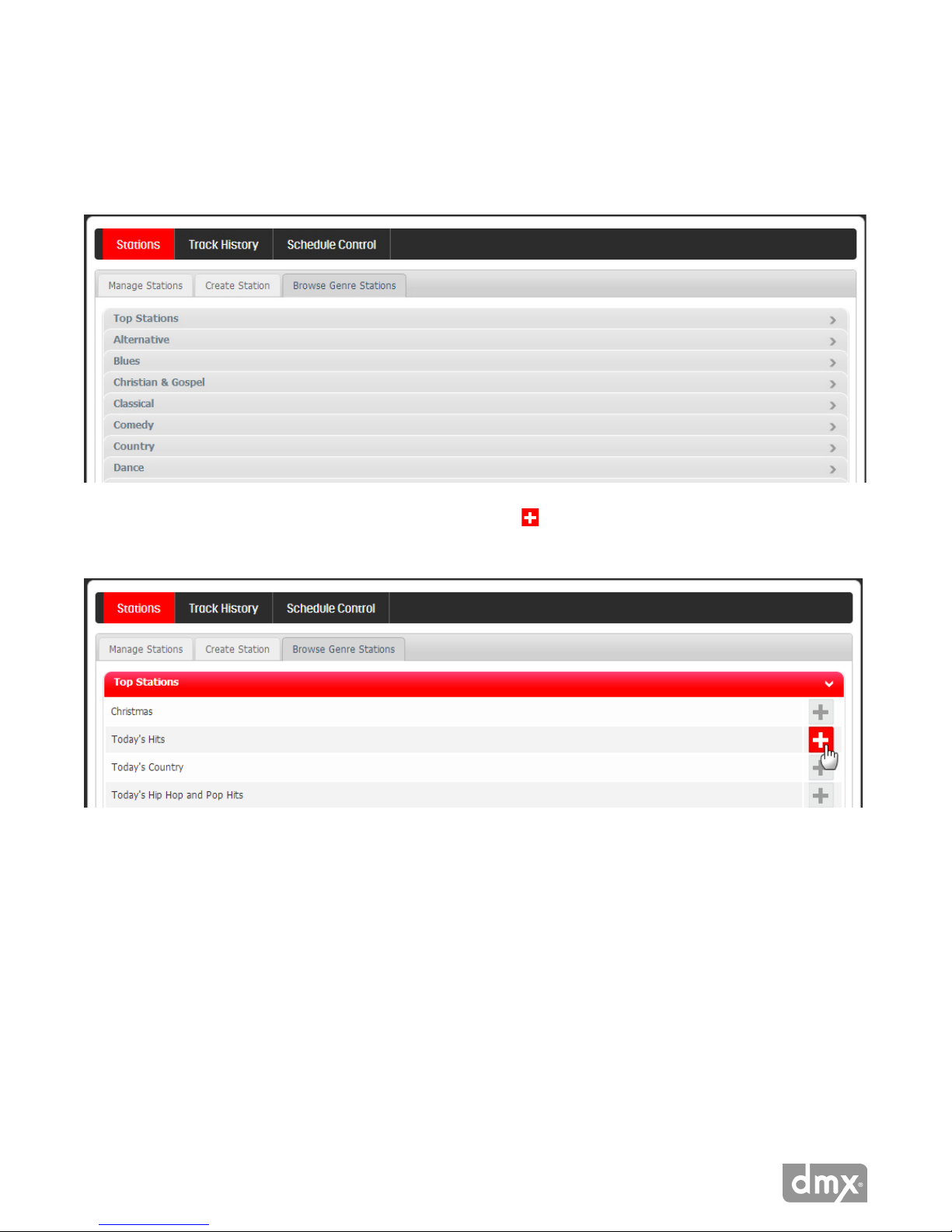
HOW TO BROWSE GENRE STATIONS
Pandora has many genre stations for you to explore. Browse Genre Stations lists all the Pandora genre stations
by category.
1 Click > to expand a category to see the genres within.
Create a new station from the Pandora genre by clicking next to the genre station name. It will be
added to your stations and will begin playing immediately on your player.
14 Need Help? Call 800.929.5407 or visit dmx.com/pandora
Page 15

Track History
Track History displays the tracks that recently played on a station from top to bottom. Title, Artist, and Album
information is displayed. Because Track History shows the last tracks played in a station, it may not reect the
tracks recently heard if there was station change.
HOW TO REFINE YOUR STATIONS IN TRACK HISTORY
If you weren’t near a computer when a particular track was playing, it’s not too late! You can
still pass on your preferences to Pandora by clicking the Thumbs Up, Thumbs Down and Sleep buttons in
Track History.
MORE OPTIONS IN TRACK HISTORY
Clicking the down arrow next to the Title and Artist of each track displays a pop-up window that will allow
you to either bookmark and/or create a new station based on the title or artist on that row. (See the “Now
Playing” section above for more information.)
15 Need Help? Call 800.929.5407 or visit dmx.com/pandora
Page 16

Schedule Control
Schedule Control gives you the ability to play specic stations at designated times of the day (dayparts) with a
Custom Schedule. This feature enables you to set the mood for your customers based on the time of day. If you
elect ‘No Schedule,’ the station selected in the dropdown will play until another station is manually selected.
HOW TO CREATE YOUR CUSTOM SCHEDULE
1 Click Edit.
2 Add your rst daypart to your Custom Schedule. Set the start time and select the station from the
dropdown, and click . Repeat this for each daypart.
3 To schedule a period of silence, enter the start time for the silence, and select ‘No Audio’ from the
dropdown. Then click to add the daypart to your schedule.
16 Need Help? Call 800.929.5407 or visit dmx.com/pandora
Page 17

NOTE: Make sure you have a daypart scheduled for when you want music to resume again.
4 When your Custom Schedule is complete, click Save.
17 Need Help? Call 800.929.5407 or visit dmx.com/pandora
Page 18

HOW TO MODIFY YOUR CUSTOM SCHEDULE
1 Click Edit.
2 To remove a daypart from your Custom Schedule, click beside the daypart you wish to remove.
18 Need Help? Call 800.929.5407 or visit dmx.com/pandora
Page 19

3 Add any new dayparts to your Custom Schedule. Set the start time and select the station from the
dropdown, and click . Repeat this for each daypart.
4 When your Custom Schedule is complete, click Save.
19 Need Help? Call 800.929.5407 or visit dmx.com/pandora
Page 20
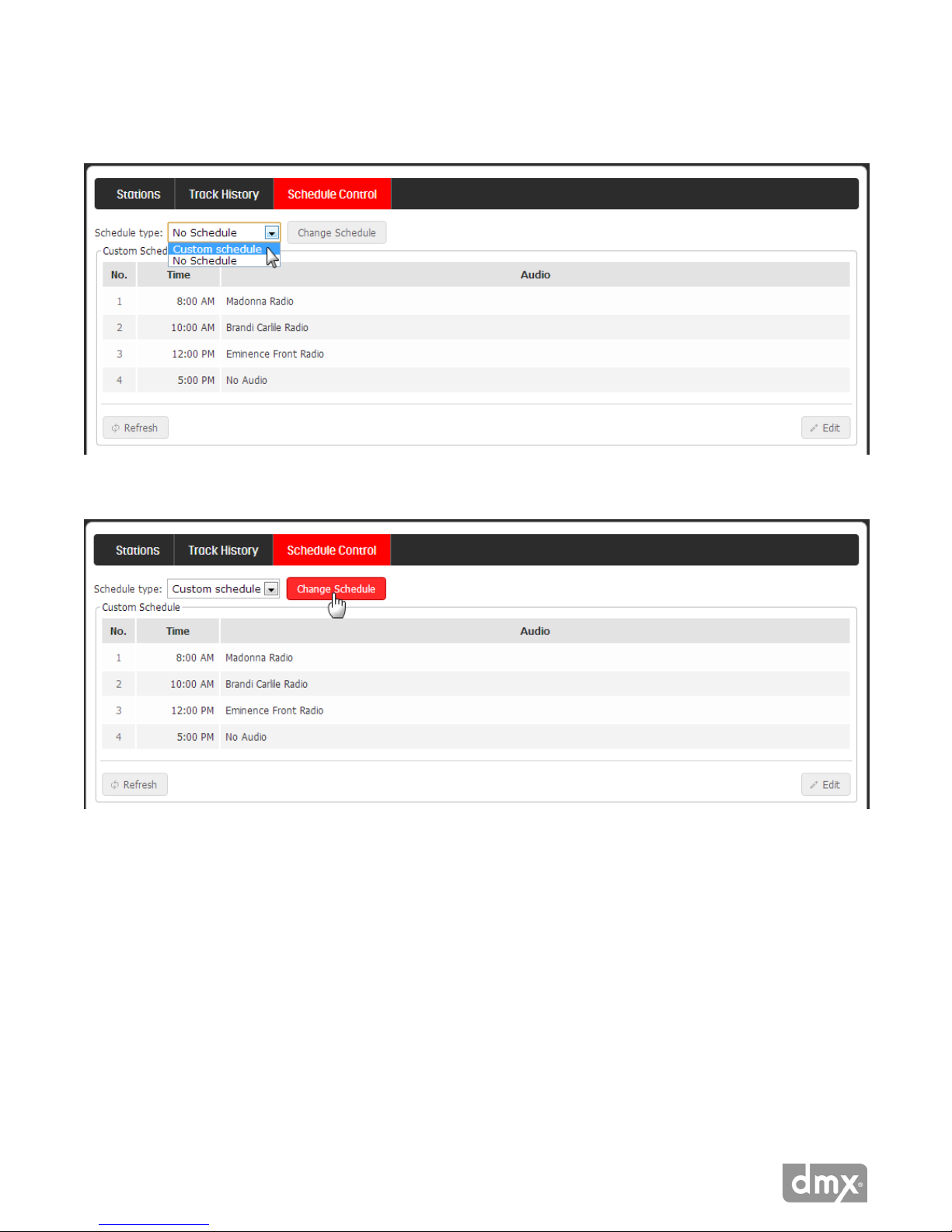
HOW TO TURN ON YOUR CUSTOM SCHEDULE
1 In the Schedule Type dropdown, select ‘Custom Schedule.’
2 Click Change Schedule. Your Custom Schedule will begin to play within a few moments.
20 Need Help? Call 800.929.5407 or visit dmx.com/pandora
Page 21
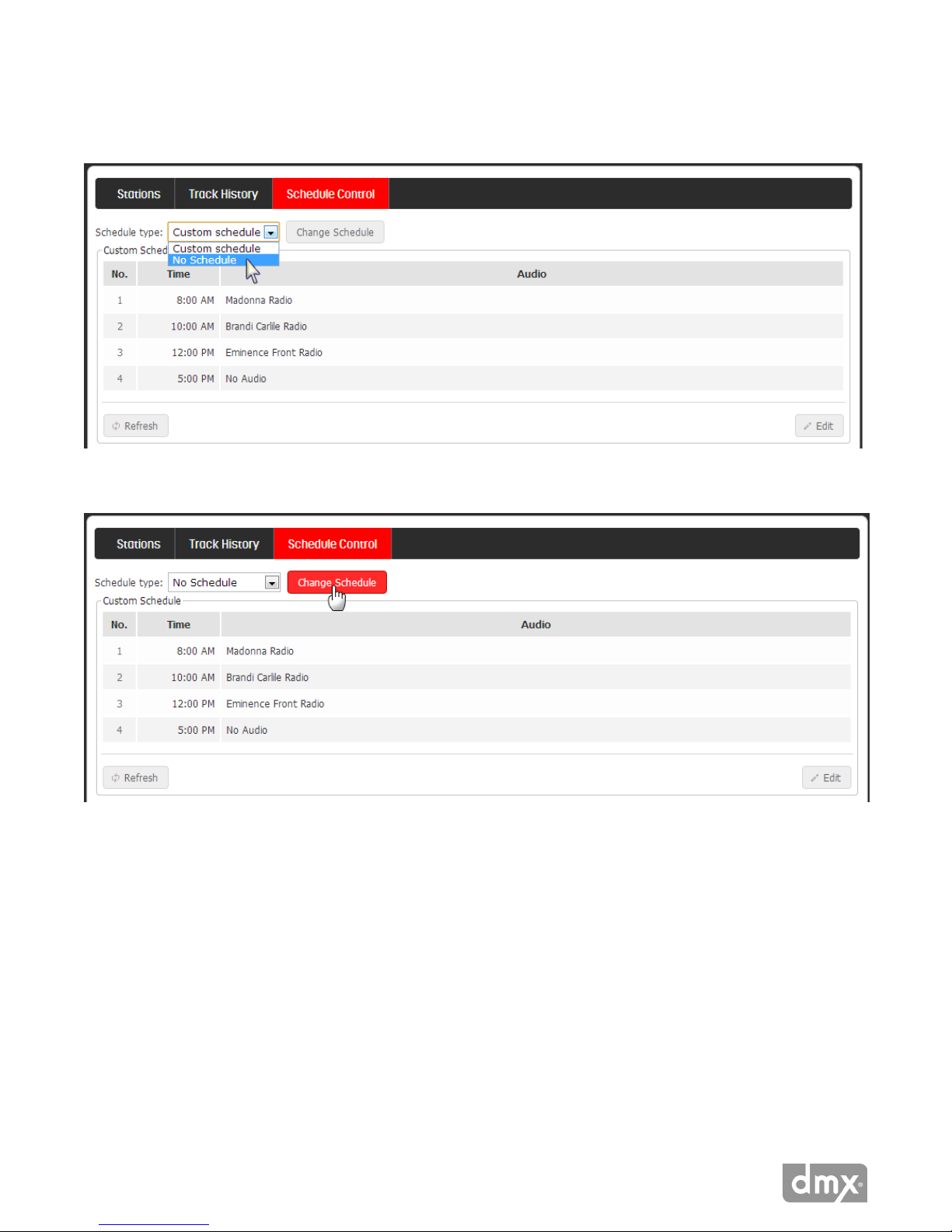
HOW TO TURN OFF YOUR CUSTOM SCHEDULE
1 In the Schedule Type dropdown, select ‘No Schedule.’
2 Click Change Schedule. Playback will stop.
21 Need Help? Call 800.929.5407 or visit dmx.com/pandora
Page 22

3 ‘Zone Stopped’ will show under Now Playing. Select a station from the Station dropdown at the top of the
page. The selected station will begin to play and continue until a new station is selected, or the Schedule
Type is changed to ‘Custom Schedule.’
Administration
The Administration section houses the player, network, user and Pandora settings for your ProFusion
iO Pandora.
HOW TO ACCESS THE ADMINISTRATION PAGE
Click Administration in the top right of the screen.
22 Need Help? Call 800.929.5407 or visit dmx.com/pandora
Page 23

HOW TO RETURN TO THE ONLINE CONTROL PANEL HOME PAGE
When in Administration, click Zone in the top right to manage your stations and playback.
Device Information
Device Information provides some key information about your specic player. Device Information contains the
following: Device ID, software version, conguration version, device description, MAC Address and, Wireless
MAC Address (if enabled).
ID: The Device ID is a unique number specic to your ProFusion iO Pandora. It ensures that custom
congurations and settings are applied only to your specic player.
Note: When calling DMX for assistance, please conrm your Device ID prior to calling.
Software Version: Software version indicates which release of ProFusion software is currently installed on
your player.
Conguration Version: Conguration version refers to a set of specic settings such as scheduling, playback
start and stop times, and other settings unique to your player. This number also ensures that an older
conguration update to your player will not overwrite the current conguration settings.
23 Need Help? Call 800.929.5407 or visit dmx.com/pandora
Page 24

Info: Usually references your company name and location. This information is optional and may not be
present.
Ethernet MAC: A Media Access Control address (MAC address) is a unique identier assigned to network
interfaces for communications on the physical network segment. You may need to provide the MAC address to
your network administrator for network access.
Wireless MAC: If Wi-Fi is enabled and active on your player, your Wireless MAC address will display. You may
need to provide the Wireless MAC address to your network administrator for network access.
Network
Network provides information regarding the network conguration for your ProFusion iO Pandora. This
includes the IP type (DHCP or Static), IP address, subnet mask, default gateway and DNS settings. DHCP is the
default setting; if you use DHCP, you will not need to input IP address, subnet mask, default gateway and DNS
settings. You can also set up your player for Wi-Fi.
NOTE: Modifying the network settings incorrectly will likely render your ProFusion iO Pandora unable to connect for updates. Proceed only at the direction
of your network administrator or DMX.
Ethernet Network Settings
How to change Ethernet network settings
1 Click Edit.
24 Need Help? Call 800.929.5407 or visit dmx.com/pandora
Page 25

2 Select the IP Type: DHCP or STATIC.
a. DHCP is the default. If this is correct for your system, please skip to step 3.
b. For Static IP: Enter the IP address, Subnet mask, Default gateway, DNS primary and DNS
secondary for the player.
NOTE: These elds require three digit entry for each octet. See image below for proper format (ex. 198.162.010.001=correct;
198.162.10.1=incorrect).
If required, Static IP
information can be obtained
from your network
administrator or ISP.
3 Click Save to commit your changes.
NOTE: DNS setting is required. For DHCP, DNS should resolve automatically, but if your stream does not begin playing, consult your Network Administrator
or ISP.
Wireless Network Settings
Before you begin Wi-Fi setup, ensure the player is in range of your wireless network and the USB Wi-Fi adaptor
is inserted into the USB port on the rear of the player. It is necessary that your player remain connected to
your network by an Ethernet cable to perform Wi-Fi setup. Once the wireless connection is established and
conrmed, the Ethernet cable can be removed.
NOTE: Your player may have dierent IP addresses for Ethernet and Wi-Fi, and therefore the IP address where you access the Online Control Panel may be
dierent. If you are switching between the two congurations, bookmark the IP address for the connectivity method you will be using.
HOW TO CONNECT THE USB WI-FI ADAPTOR
1 Place your player in Standby mode using the Online Control Panel or remote control.
2 Press the Main Power Button on the back of the player to the ‘o’ position.
25 Need Help? Call 800.929.5407 or visit dmx.com/pandora
Page 26

3 With the USB Wi-Fi adaptor oriented correctly, fully insert it into the USB port on the rear panel of the
player. The antenna can bend and rotate to accommodate most installations. For best performance, make
sure the antenna is clear of obstacles and three feet from any large metal objects. Do not disconnect the
Ethernet cable until your player has obtained a wireless IP address.
4 Press the Main Power Button to the ‘on’ position.
WI-FI SETUP
If your wireless router supports Wi-Fi Quick Setup (sometimes referred to as ‘WPS’), you may be able
to congure your player automatically. Depending on the security of your wireless router, it may
not be possible to use the Wi-Fi Quick Setup. In this case, follow the instructions to congure Wi-Fi
manually.
HOW TO CONFIGURE WIRELESS AUTOMATICALLY WITH WI-FI QUICK SETUP
1 Locate the WPS button on your router. The position of the WPS button and how to use it diers
depending on your router. Refer to the instruction manual supplied with the router for details.
2 In the Wi-Fi Quick Setup panel, click Start.
3 The player will be in the Wi-Fi Quick setup mode for 2 minutes. Press the WPS button on your
wireless router or access point within the 2 minute period.
4 When a connection has been established, you will see the following message: “Wi-Fi Quick
Setup successfully congured the wireless interface.” If the wireless router is not detected, wait a
moment and try again starting from step 2.
26 Need Help? Call 800.929.5407 or visit dmx.com/pandora
Page 27

HOW TO CONFIGURE WIRELESS MANUALLY
1 Click Edit.
a. If the Wireless panel shows ‘Disabled’, check the box next to ‘Enabled’.
b. If Wireless has been enabled previously’, proceed to the next step.
2 Select the IP type, either DHCP or STATIC. If you need help determining your IP type and information,
contact your ISP or network administrator.
a. DHCP is the default. If this is correct for your system, please skip to step 3.
b. For Static IP: Enter the IP address, Subnet mask, Default gateway, the DNS primary and DNS
secondary for the player.
NOTE: These elds require three digit entry for each octet (ex. 198.162.010.001=correct; 198.162.10.1=incorrect).
3 Click Scan to let the player search for your wireless network, or ESSID. If your wireless network does not
broadcast its ESSID you may enter the ESSID directly.
4 Once the scan is complete, select the radio button next to the network name and click Select.
5 Verify the correct security type or select an option from the drop down list.
TIP: the scan feature shows the security type required for your network and automatically enters the value when a network is selected.
27 Need Help? Call 800.929.5407 or visit dmx.com/pandora
Page 28

6 Enter the password for your wireless network and click Save.
If required, Static IP
information can be obtained
from your network
administrator or ISP.
7 Click Refresh to update the wireless network information. It may take several minutes for the player to
obtain a wireless IP address. If it does not immediately update, wait a few minutes and click Refresh again.
8 Make a note of the wireless IP address. Once you remove the Ethernet cable, this is the new address where
you will access the Online Control Panel.
28 Need Help? Call 800.929.5407 or visit dmx.com/pandora
Page 29

9 Click Standby.
Logout of the Online Control Panel.
RECYCLE THE POWER TO YOUR PLAYER
1 Press the Main Power button on the back of the player to the ‘o’ position.
2 Disconnect Ethernet cable from the rear panel of your player.
3 Wait 5 seconds, and then press the Main Power button to the ‘on’ position.
LOGIN TO THE ONLINE CONTROL PANEL AND TEST WI-FI CONNECTIVITY
If you were unable to obtain the new Wireless IP address upon conguration, use either discovery method to
obtain the Wireless IP address.
1 Access the Online Control Panel by entering the wireless IP address in your browser address bar. Bookmark
the IP address for easy access.
TIP: You can perform a discover at any time in the future in the event you lose the IP address.
2 Once logged in to the Online Control Panel, perform a Test Connection (Administration>Update>Status) to
ensure wireless connectivity.
NOTE: The Link indicator light on the player front panel is green when connected via Ethernet, but will be red when successfully connected by Wi-Fi.
29 Need Help? Call 800.929.5407 or visit dmx.com/pandora
Page 30

Update
Update displays the FTP protocol, IP server address and any connectivity errors of your ProFusion iO Pandora.
The player supports FTP and SFTP transfer protocols.
NOTE: Modifying the update settings incorrectly will likely render your player unable to connect for updates. Proceed only at the direction of your network
administrator or DMX.
FTP SERVER
HOW TO CHANGE THE PROTOCOL AND/OR UPDATE SERVER IP ADDRESS
1 Click Edit.
2 Select either ‘FTP’ or ‘SFTP’ from the Protocol dropdown.
3 Input the IP address for the FTP server.
4 Click Save to commit your changes.
30 Need Help? Call 800.929.5407 or visit dmx.com/pandora
Page 31

Update Status
Below the FTP server panel, you will see the Update Status. “Update stopped” indicates normal operation. If
any errors have occurred, an error message will be displayed.
BUTTON FUNCTION
Initiates a connection to check for conguration changes and software updates.
Used for different application of the ProFusion iO. ProFusion iO Pandora streams music, so
there are no music updates to download. Clicking will simply initiate an Update Congura-
tion.
Terminates an active update. The player will resume the download where it left off the next
time it connects for an update. Button appears only after an Update Conguration or an
Update Music & Cong is initiated.
Initiates test to verify your player can successfully connect to the FTP server.
HOW TO PERFORM A CONFIGURATION UPDATE
Conguration Update will ensure your ProFusion iO Pandora has the most recent software. Updates are sent
automatically during o hours, so you should not have to perform Conguration Updates under normal
operation. Should you need to force an update due to a missed update:
1 Click Update Conguration. The display will read “Download Started.” The update may take some time,
depending on the size. You can log out of the Control Panel once the update is initiated.
a. If the update is successful, “Update Stopped” is displayed.
b. If the update fails, “Update Failed” is displayed along with a brief reason for the failure. If this problem
persists, please contact DMX support.
HOW TO PERFORM A TEST CONNECTION
Test Connection will verify your ProFusion iO Pandora can successfully connect to the FTP server.
1 Click Test Connection. The display will read “Testing Connection.” The test may take a few minutes.
a. If successful, “Test connection successful” is displayed, along with the Install PIN.
b. If the connection fails, “Test connection failed” is displayed along with a brief reason for the failure. If this
problem persists, please contact DMX support.
31 Need Help? Call 800.929.5407 or visit dmx.com/pandora
Page 32

Settings
Settings controls the date and time on your player, as well as audio output type. Timezone is set by DMX and
cannot be changed from the Online Control Panel. The default audio output is stereo, but can be changed to
mono if desired.
HOW TO CHANGE THE DATE OR TIME
1 Click Edit.
2 Input the correct date and/or time, then click Save to commit your changes.
HOW TO CHANGE THE AUDIO OUTPUT
1 Click Edit.
2 Select the desired audio output type, ‘Stereo’ or ‘Mono,’ from the dropdown, and then click Save to commit
your changes.
3 If you are switching to mono sound, remove the red RCA cable from Zone 2/R from the back of the player.
NOTE: To avoid degraded audio and permanent damage to equipment, stereo Zone1/L and Zone 2/R should never be manually summed (connected
together) to achieve mono playback.
32 Need Help? Call 800.929.5407 or visit dmx.com/pandora
Page 33

Users
Users controls the four users/logins that can have access to modify playback and/or player controls. Users is
only accessible when logged in as the Admin. By default, only the Admin and Remote Control are enabled.
User Types
admin: This is the master login that can control all of the player functions. You cannot disable this login or any
of its permissions. It is advised that you keep this login information private and set up the operator and user
accounts for general use.
Remote Control: By adjusting the settings and permissions for this account, you can control what functions
on the remote control are enabled. For example, by taking away “Change Station” access, the channel up and
down arrows on the remote control will no longer change stations on the player.
operator: This can be used as the generic player control account.
user: This is another login that can be used as a generic player control account.
You may wish to give managers more control access, and designate another login for all employees. If so,
then set operator account to have the level of permissions that your managers should have, and use the user
account for the rest of the employees.
33 Need Help? Call 800.929.5407 or visit dmx.com/pandora
Page 34

HOW TO ENABLE/DISABLE A LOGIN
1 Click Edit Settings.
2 Check or uncheck the box next to ‘Enabled.’ If enabling the operator or user logins, create a password and
conrm it in second box.
3 Click Save to commit your changes. The Remote Control does not have a password.
NOTE: User names and passwords are case sensitive.
HOW TO EDIT PERMISSIONS FOR A LOGIN
1 Click Edit Permissions.
2 Check the controls you want accessible with the login.
3 Uncheck the controls you do not want accessible with the login.
34 Need Help? Call 800.929.5407 or visit dmx.com/pandora
Page 35

4 Click Save to commit your changes.
35 Need Help? Call 800.929.5407 or visit dmx.com/pandora
Page 36

Permissions Described
DEVICE CONTROL
Change Volume Allow the user to change the volume output of the device zone.
Messages Does not apply to ProFusion iO Pandora.
Force Network Update Allow the user to start a network update to download new conguration
and/or content.
Device Standby Allow the user to put device into Standby mode.
Change Video Settings Does not apply to ProFusion iO Pandora.
Change Network
Allow the user to modify network settings such as IP type (DHCP, Static),
Settings
static IP address, etc.
Change Date/Time Allow the user to update the date and time. Note that if network time sync
is enabled, that will override any user date/time adjustments when the
device connects to the network.
Audio Control Allow the user to switch zone playback method between mono and ste-
reo.
PANDORA CONTROL
Sleep Track Allow the user to sleep a track which removes it from rotation for an ex-
tended period of time.
Skip Track Allow the user to skip to the next track.
Pause Track Allow the user to pause playback.
Track Feedback Allow the user to give thumbs up / thumbs down feedback.
Bookmark Tracks Allow the user to bookmark a track to be viewed on the Pandora account
website.
Manage Stations Allow the user to create, rename and delete Pandora stations.
Change Station Allow the user to change the Pandora station that is currently playing.
Schedule Control Allow the user to modify the daypart schedule of Pandora stations.
Explicit Filter Allow the user to change the explicit lyrics lter.
Deactivate Pandora Allow the user to disassociate the device from the Pandora account.
36 Need Help? Call 800.929.5407 or visit dmx.com/pandora
Page 37

Pandora Settings
DEACTIVATE
Deactivating will disassociate the current Pandora account from the player. This will allow a dierent Pandora
account to then be associated with this player. This may be useful, for example, it there has been a change in
management at your business and you want to transfer accounts.
HOW TO DEACTIVATE THE PLAYER
1 Click Deactivate.
2 A deactivate conrmation message box will be displayed. Click Deactivate to conrm.
To resume playback, the player will have to be activated and reassociated with a Pandora account.
HOW TO REACTIVATE THE PLAYER
1 Click Activate.
2 A dialog box will display a link and your activation code. Click on the link and your activation code will be
entered automatically on the next screen.
3 Follow the links to activate your player. You will be asked to create a new Pandora account or login to an
existing account.
4 Once the activation and sign up process is complete, click Continue and you will return to the Online
Control Panel.
37 Need Help? Call 800.929.5407 or visit dmx.com/pandora
Page 38
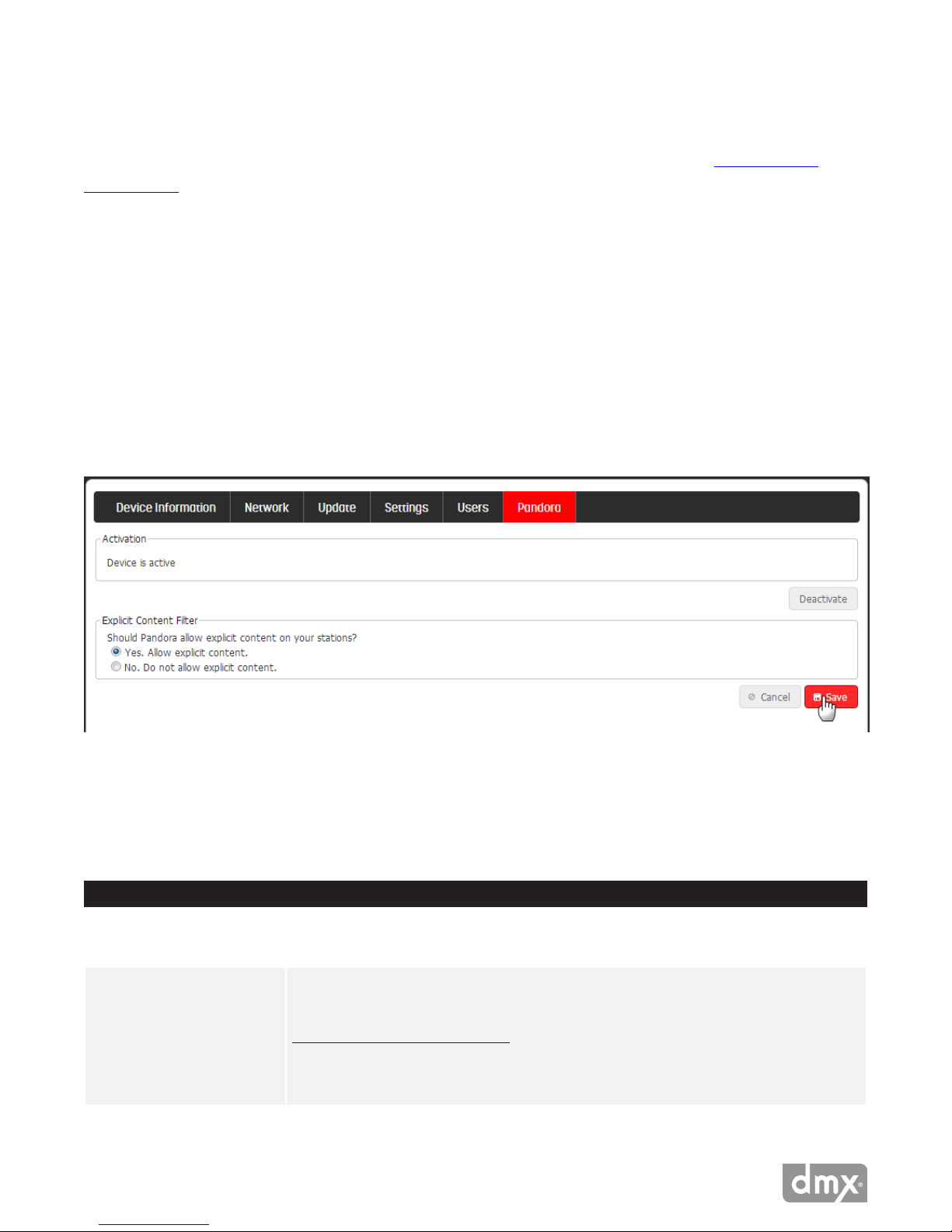
Explicit Content Filter
Your player is automatically set with the Explicit Content Filter enabled. In the event you hear a track with
strong profanity, you may report the artist name, track title and album title to Pandora at Pandora-info@
pandora.com. Giving the track a ‘Thumbs Down’ will prevent the track from playing on the station. While the
lter is designed to block explicit lyrics, the lter does not remove tracks with suggestive content;only you can
select appropriate music for your clientele.
HOW TO ACTIVATE/DEACTIVATE THE EXPLICIT CONTENT FILTER
1 Click Edit.
2 Select the radio button for either ‘Yes. Allow explicit content’ or ‘No. Do not allow explicit content’.
3 Click Save to commit your change.
Appendix A: Troubleshooting
This section provides a basic troubleshooting guide for the most common issues. If this list does not help you
resolve your issue, or if you have an issue that is not listed below, please contact DMX for assistance.
GENERAL ISSUES POSSIBLE SOLUTION
No power Verify the power cord is properly connected to your ProFusion iO Pandora.
Verify the power adaptor is connected to a known working electrical outlet.
Cannot access the Online
Control Panel
38 Need Help? Call 800.929.5407 or visit dmx.com/pandora
Conrm your network is working and that the device you’re using to access the Control Panel is
on the same network as the ProFusion iO Pandora.
Conrm the IP address for your player.
If the ProFusion iO Pandora has been congured for wireless, verify you are inputting the wireless
IP address in your browser address bar.
Page 39

Forgot Online Control Panel
password
Online Control Panel displays
Press the Reset button on the rear of the player for 5 seconds to reset the admin password to the
default value, 23646.
Contact DMX Customer Service.
Machine Expired
Buttons on the Online Control
The feature is disabled by the master admin login.
Panel are disabled
AUDIO ISSUES POSSIBLE SOLUTION
No or low volume levels Verify the audio cable is connected to the correct audio output of your ProFusion iO Pandora and
the correct input of your audio equipment.
Verify the volume level for your ProFusion iO Pandora is suciently turned up.
Verify the volume level of the amplication equipment your ProFusion iO Pandora is connected to
is turned up suciently.
PLAYBACK ISSUES POSSIBLE SOLUTION
Music does not start at the
Verify the date and time is correctly set.
correct time
Verify the Schedule Type is set to Custom Schedule.
Online Control Panel displays
Verify the date and time is correctly set.
Zone Stopped
Verify the Schedule Type is set to the correct schedule.
Select a station from the Station dropdown.
NETWORK ISSUES POSSIBLE SOLUTION
Player’s IP address is 0.0.0.0 Verify player is connected via Ethernet cable to an active internet connection.
Player’s Wireless IP address is
Verify player is connected to an active network connection
0.0.0.0
Wireless has been enabled but
no IP address is displaying
Wait several minutes and click Refresh again. It can take several minutes for the player to obtain a
wireless IP address.
Verify USB Wi-Fi adaptor is properly inserted into the USB port.
Verify there is sucient wireless signal strength where the player is located. Move closer to a Wi-Fi
access point if necessary.
Online Control Panel displays
Verify the network settings for your ProFusion iO Pandora are correct for your network.
Update Connect
Verify your network rewall is congured to allow FTP trac from your ProFusion iO Pandora to its
Error after an update is attempted
Online Control Panel displays
designated server.
Verify the network settings for your ProFusion iO Pandora are correct for your network.
FTP Test Failed after Test Network
Connect attempted
Verify your network rewall is congured to allow FTP trac from your ProFusion iO Pandora to its
designated server.
39 Need Help? Call 800.929.5407 or visit dmx.com/pandora
Page 40

Appendix B: Player Specifications
Connections
Audio: (2) RCA female jacks
Network: (1) RJ-45 Ethernet port
HDMI Video: (1)
Composite Video (CVBS): (1) RCA female jack
USB: (1) USB 2.0 port
For detailed output specications, please contact DMX.
Power Specications
Power Supply: external AC to DC power transfer device
Input Voltage (AC~): 100 - 240Vac Nominal
(90 - 265Vac Maximum)
Input Frequency: 47 - 63Hz
Input Current: 0.5A max at nominal input voltage and nominal output current
Output Voltage (DC): 12Vdc
(range 11.4Vdc - 12.6Vdc)
Output Current: 1A
Output Watts: 12W
Output Ripple: <= 120mVpp @ 1A
Dimensions
Width: 174 mm (6.85 inches)
Depth: 129 mm (5.0 inches)
Height: 38 mm (1.5 inches)
Weight: 0.45kg (1.0 lbs)
40 Need Help? Call 800.929.5407 or visit dmx.com/pandora
Page 41

Conditions
Working Temperature: 32°F to 105°F (0°C to 40°C)
Working Humidity: 5%-90% (Non-condensing)
Storage Temperature: -4°F to113°F; (-20°C to 45°C)
Storage Humidity: 0-98% (Non-condensing)
Appendix C: Contact DMX
DMX Customer Support Center
800.929.5407 or Pandora@dmx.coM
41 Need Help? Call 800.929.5407 or visit dmx.com/pandora
UPDATED 01/17/13
Copyright © 2013 Mood Media Corporation/DMX, Inc. All rights reserved.
PANDORA, the PANDORA logo, and the Pandora trade dress are trademarks
or registered trademarks of Pandora Media, Inc. Used with permission.
 Loading...